



AMC adds recliners to its theaters in hopes that you’ll ditch Netflix for a night

If you’ve given up on your local movie theater due to its lack of comfort and not the ever-increasing expense, AMC has a plan to lure you back. The second largest movie chain in the US is shelling out $600 million to rip out old seating and replace it with recliners. That’s right, pretty soon you’ll be able to settle into a La-Z-Boy-esque seat for the latest three-hour installment of The Hobbit. The outfit has already converted some locations, seeing an average attendance increase of 80 percent. Major markets tend to have the most frequented theaters, so the project aims to revamp those venues that struggle, with a second stage of the face lift going to big cities. Unfortunately, those recliners won’t lean back as far, cutting down on the number of seats lost to the larger chairs. And as you might expect, a ticket price hike is said to be on the way after the renovations have been in place for a year.
[Photo credit: Jonathan Wiggs/The Boston Globe via Getty Images]
Filed under: Home Entertainment, HD
Source: Wall Street Journal
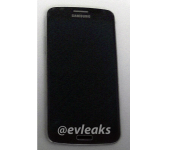
Alleged Galaxy F in black caught posing in the wild

It seems like every few days we get a new leak of Samsung’s premium offering, the Galaxy F device. We’ve recently shared a full render of the device as well as its first live photo. The rumors/leaks continue…
Known leaker @evleaks has yet another photo for us, this time we get the Galaxy F in black color posing in the wild, you can see it in the picture above. There are no additional information at this time though, the leaker just shared the picture and the following sentence:
“Samsung Galaxy F, in the wild, 2014″
If leaks are to be believe this device will feature (amongst other aspects) a QHD display, 3GB of RAM and a Snapdragon 805 chip. As it was mentioned many times before it should also feature a metal material design instead of current plastic ones. The device is expected to see the light of day around IFA, September 12 was rumored (2 days after the Berlin based event).
Source: @evleaks
The post Alleged Galaxy F in black caught posing in the wild appeared first on AndroidGuys.

Sony may announce selfie-centered smartphone on July 8

Sony could announce its latest smartphone on July 8, according to clues presented by the company’s Twitter account. It’s not certain what model we might get out of Sony, however it’s likely to feature a great front-facing camera.
See your #selfies in a whole new light pic.twitter.com/UQJQIa44sI
— Sony Xperia (@sonyxperia) July 7, 2014
It sounds as if the smartphone could offer a front-facing flash or special sensor. As to other specifications in the device, recently leaked photos suggest a 2500mAh battery is in order. Thankfully, we won’t have to wait long to find out what’s going on here.
The post Sony may announce selfie-centered smartphone on July 8 appeared first on AndroidGuys.

The best free RSS Reader apps for Android

Last week, I took a look at 3 of the top paid RSS reader applications for Android users. The three apps that I covered, were Press, Reader+, and Amber RSS. After much testing, I still couldn’t pick a winner between Press and Reader+. This week, I’m going to take a look at the top free RSS reader apps, for those who want some free alternatives, that work in similar ways.
Please note that this post is split over multiple pages.
Feedly

The first obvious choice, is Feedly. Feedly was the first replacement service to help those Google Reader users to migrate their services. Before Google Reader went away, Feedly stepped up to the plate, and offered a simple and easy way for users to export the necessary information, and input it into Feedly. This was met with mixed reception, but all in all, Feedly gained 8 Million users after its’ announcement to help out those Google Reader users.Something else that Feedly has done, was allow other applications such as Press, and my iOS favorite, Unread, to import the feeds into the respective application, and use an aggregator to read your news.


Anyways, there are two different ways to get your feeds into Feedly. You can visit their main webpage and begin the organization and addition of feeds, but you can also do everything directly from the Feedly application. Upon starting up Feedly for the first time, there are five different ways to sign up for the services; Google, Twitter, Facebook, Microsoft, and Evernote. Once you’ve signed up, via any of those accounts, you can get to adding your favorite websites to Feedly. Now, you it’s not completely necessary for you to sign into Feedly with an account, but I find it easier to sync across multiple applications and devices by linking with an account. It’s extremely easy to add various sites and feeds to Feedly, because all you need to do is, hit the magnifying glass in the top right hand corner, find the site you’re looking for, and voila, you’re done.

You can also organize your various feeds into categories, just like I showed off in the top paid RSS reader apps overview. Once you’ve got your feeds set up the way that you want them, you can start using the beautiful interface that the team at Feedly has put together. Perusing and reading your various feeds is easy and seamless, and you can ever save or share any articles or reviews that you come across to any number of social networks, or read-it-later services. There is also a web interface that the Feedly team has put together, and honestly that is what I used to do the bulk of the organizing of my numerous RSS feeds. Of course, you can grab Feedly via the Play Store widget below, for free.

Flipboard is one of those RSS feed aggregators that been around for quite some time. Launched in 2010, Flipboard has taken the new reading world by storm, and has since come pre-installed on many Android devices. You may be annoyed at the fact that an application comes preinstalled, but Flipboard may be the ONLY exception to the rule of bloatware. It’s fast, easy to use, and has one of the most beautiful interfaces of any app for either the Android or iOS platforms. There are three different ways to sign up for Flipboard, Google, Facebook, or via an email address of your choice.

Like Feedly, this isn’t necessarily a requirement, but it will help if you want to keep all of your feeds organized, and don’t want to have to re-add them every time you get a new device, or if you flash new ROM’s often. Since I’ve been toying around with the various HTC One M8 ROMs, having an account where all my feeds are synced, has been a real life saver. Just to put it into perspective, I’ve flashed 5 or 6 different ROMs in the last two days. Imagine having to try and find all those sites that you want to keep up with, over and over and over again. Frustration will ensue.

Flipboard was the first, well designed, personal magazine. it stays true to it’s core, and acts like a magazine, in regards to the interaction that you have while reading various feeds. The nice thing about Flipboard is the fact that it pre-populates various feeds for you to check out, from Sports and News, to Technology, and Design. There is also a specific set of feeds named, By Our Readers. This is a populated feed from those who contribute to Flipboard, and even within there, multiple topics can be chosen from. If you find something that you’d like to save, once you’ve found a feed that you want to follow, tap the bookmark icon in the top right hand corner of the page, and you’re done.

Another nice thing about Flipboard is that you don’t just have to follow websites. You can also search for sites or individual people on social networks like Google+ or Twitter. This adds another facet to the world of news reading, if you’re the type that likes constant updates, or breaking news. While searching for specific sites or individuals to follow, Flipboard has built in suggestions into their search functions. For example, if you search just Android, you are presented with a bunch of different Android topics, including populated topics from the Flipboard app itself. The search functionality of Flipboard, really is unparalleled for an application like this, and is really something that everyone should try out. Like everything else featured today, you can get Flipboard for free, via the Play Store widget below.
LinkedIn Pulse

LinkedIn Pulse is next up on the list today. Formally known as just Pulse, this RSS aggregator service was purchased by LinkedIn back in 2013, and it caused a lot of head scratching across the interwebs. Unlike Flipboard or Feedly, LinkedIn Pulse requires you to either sign in with your LinkedIn account or with your old Pulse information. When I downloaded Pulse again after the acquisition, I was little upset by that. Not because I don’t understand that you should have a login so that you can keep all your information together, but because I believe that there should still be an option to test drive the app without having to create an account.
Since I hadn’t actually logged into the Pulse services in some time, I just opted to sign in via my LinkedIn account and start fresh. When you log in for the first time, there are some pre-populated lists that you can choose from, or edit. Of course, you can still add new ones if you would like to do so, for a more personalized experience. The overall interface for Pulse is similar to what the app was like before the acquisition, in terms of the blocks of images with the titles in the corners.

Pulling an article up not only allows you to simply read the post, but also allows you to like it, make comments, view on the web, and share whatever you’re reading. One thing that I didn’t like too much about this app were the animations. I’m the type of guy who likes somewhat fast animations, meaning that I don’t want to be able to watch, as the page moves or scrolls away. I’d prefer for something to be done in a snap, and unfortunately, that was not the case when it comes to Pulse. Selecting an article to read, on a snappy device, should be snappy, not make me feel like I’m watching paint dry. That may be a little blunt, but it’s the truth. When I’m reading articles on my phone, I’m usually smoking a cigarette or sitting at my desk at work, so there isn’t really that much time to waste. So that extra second or two annoys me. Am I being overly analytical? Probably.

While trying to populate your feed, I do recommend that you create the personalized lists, depending upon the topics. This just creates a more uniform, and organized, experience for perusing your various feeds. Creating a list is extremely simple. Simply tap the All Channels button on the top bar, and select New from the right hand side of the drop-down bar. Then create a name for the List, and then go through and search, and select which sites you would like to follow. Something that is big for me, that I’ve harped on numerous times, is the ability to save to Instapaper. I love the ability to save something to Instapaper if I see an article or something that I would like to either read or use for reference later on.

Someday, I’ll write something up on the wonders that Instapaper is. Instapaper is obviously not the only Read-It-Later service available for Pulse. You can also connect Pocket, Readability, or Evernote for saving those articles to read later on. Pulse also has the ability to save your favorite articles directly within the application, and then you can send them wherever you choose, at a later point in time. Sure there’s an extra step involved, but who cares.
InoReader

The final RSS reader application that I’ll be taking a look at today, actually came as a suggestion from a comment on my paid RSS apps article. InoReader was a service that I had never heard of before, and actually caused a little bit of a delay in the publication of this overview. The reason being, when it comes to applications or services that I use regularly, I’m always intrigued as to what is different about each application or service.
With a web interface, as well as the ability to add feeds via the InoReader itself, this follows the path of Feedly, but that’s just about where the similarities between the two services ends. Upon starting the app up for the first time, the only third party account that you can use to sign into InoReader is Google, other than that, you must create an InoReader account specifically. Once you’re done getting signed up or logged in, you are presented with a very basic interface, one that only lights up, once all of your feeds have been added.

Now, out of the box, the application has no clear cut way to create categories, or sub categories, if you follow a lot of different feeds, but it can be done. However, adding feeds to InoReader is pretty easy, via the big plus (+) button in the top right hand corner of the page. Tapping the + button will allow you to view the InoReader catalog, and from here you can either browser the various categories, or search for something specific. It’s not often that I don’t know what I want to add to my RSS feeds, but sometime I’ll just go through the suggestions and see if there’s anything that I’d like to add.

As for the main page of InoReader, the list that is presented, shows you how many articles are unread, a section for your favorites, and then a list of your subscriptions. You can also create a folder within your subscriptions, for better organization, by tapping and holding down on one of the feeds, and that pops up a dialog box. From here, you can Unsubscribe, Rename the subscription, Assign to a new folder, or mark all the articles within this feed as read.Once you’ve decided that you want to add the feed to a folder, then tap the corresponding option, then either create a new folder, or add to an existing one.

You can share an article to your read it later service of choice, but that functionality is not built into the InoReader app itself. However, you can still save the article to read it later via the Favorites section, and all you need to do, while in the article of choice, tap the empty star in the toolbar at the bottom. From here, you can also share, mark as unread, choose tags that are based off of your folders, view in Readability mode, or thumbs up the article. Like I’ve stated before, the design of application, and the way my feeds are presented, are extremely important to me, and unfortunately, after playing around with InoReader for a few days, I never really got the experience that I wanted. It’s still installed on my phone, but it’s more so just to play around with and see what kind of updates, if any will be coming to the app.
I’m a sucker for good RSS apps, and these four that I covered today, all do things in similar, yet still different ways. Some are all in one, others have a web interface, but they all get the job done. The job of reading your favorite websites, like AndroidGuys, and getting the news and articles that you want to read. What do you use for your RSS needs? Are you one who goes for the paid versions, or do you stick to what’s free? Try some of these out and let us know what you think is the best.
The post The best free RSS Reader apps for Android appeared first on AndroidGuys.

Motorola India begins Android 4.4.4 updates for Moto E, G and X

The Android 4.4.4 KitKat update has commenced deployment for the Indian variants of the Motorola Moto E, Moto G & Moto X. Confirmed via its Twitter account, Motorola India says the update began last week. As the newest official version of Android, 4.4.4 has only been made available to a short list of devices. Here in the United States, however, it looks like things are also progressing well on the same front.
To say that Motorola has done a good job of keeping up with the different releases of Android might be an understatement.
The post Motorola India begins Android 4.4.4 updates for Moto E, G and X appeared first on AndroidGuys.
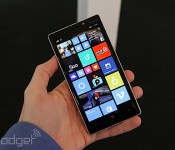
Nokia Lumia 930 hits the UK on July 17th with free wireless charging pad

Before being swallowed by Microsoft, Nokia had one last flagship up its sleeve: the Lumia 930. Smartphone aficionados might be familiar with the combination of 5-inch 1080p display, quad-core Snapdragon 800 chip and 20-megapixel camera, given the 930 already exists in the US as the Lumia Icon. This international edition comes with Windows Phone 8.1 right out the box (no developer loophole required), and we’ve just learnt it’ll be available in the UK from July 17th. We don’t have a SIM-free price to report currently, but you should be able to pick one up on contract from most major carriers and retailers from around £33 per month. Each handset will come with a wireless charging pad included in the box, and until the end of July, each purchase will also come with a special starter pack including a portable wireless charger, Bluetooth speaker and £20 app voucher.
Filed under: Cellphones, Microsoft, Nokia

‘Oculus Connect’ is the first virtual reality dev conference from Oculus VR

First, Valve held its “Steam Dev Days” event back in January, and virtual reality’s industry leaders spoke. Now, Oculus VR is organizing its own event — “Oculus Connect 2014″ — and those same luminaries are speaking once more. Oculus VR founder Palmer Luckey, president Brednan Iribe, and tech overlords John Carmack and Michael Abrash are all slated to speak, and the announce post promises attendees the first chance “to learn about upcoming Oculus technology.” Perhaps what was teased to us back at E3 2014? We’ll see!
Though the event is open to the public, you’ll have to apply for a pass, and please beware that the event is detailed as “developer-centric.” Should you either not get a pass or not be able to make it to Los Angeles, CA. on September 9/10, Oculus is livestreaming keynotes from the aforementioned speakers.
Source: Oculus VR

What you need to know about DARPA, the Pentagon’s mad science division

There’s a certain entity within the Pentagon that’s quite (in)famous for developing terrifying robots, advanced weapons and futuristic tech. It’s called the Defense Advanced Research Projects Agency or, as most people know it, DARPA: the Department of Defense’s “mad science” division. While all the machines coming out of the agency make it seem like its sole purpose is to build a killer-robot army, DARPA has many, many other projects to speak of. In fact, DARPA’s at the heart of some of the most significant technological advances of our time. Hell, there might not be an internet to read this article on if DARPA didn’t create it.
HOW DID IT BEGIN?
President Dwight Eisenhower founded DARPA way back in 1958 in order to develop cutting edge technologies for the United States. Originally known as ARPA (same meaning, but without “Defense”), its first purpose was “to prevent technological surprise like the launch of Sputnik, which signaled that the Soviets had beaten the US into space.” Since then, it’s been involved in several technological milestones; for instance, it developed an early networking system that went live in 1969 called the ARPANET. It’s one of the networks that eventually led to creation of the internet, which, suffice it to say, changed the world. Love Siri or Cortana? You can thank DARPA for those virtual assistants, too, as its Speech Understanding Research (SUR) program in the 1970s played a key role in advancing speech recognition technology widely in use today.
HOW DOES IT OPERATE?
Despite being part of the Pentagon, DARPA operates independently from the Defense Department’s military research division. Its personnel are divided into groups led by a manager, with each one tackling a particular issue the agency wants to address. These teams are free to look for ideas that would solve the problems they’re given both from within and outside the organization. DARPA then provides each group with anywhere from $10 to $40 million in funding. Some projects receive far less funding, but big projects could get up to $100 million. If you’re wondering, the agency had a $2.779 billion budget for the 2014 fiscal year and is currently requesting $2.915 billion for fiscal year 2015.
So, what is DARPA doing with the people’s money, exactly? Here are some of its most prominent, wackiest and latest projects:
ROBOTS
One of the first robotic projects DARPA has ever funded is Shakey the robot, which began development in 1966. Shakey was a multi-purpose machine on wheels that could perform menial tasks like switching lights on or off. These days, the agency’s probably most known for its advanced machines, some of which look undeniably unnerving. These include a number of Boston Dynamics creations, such as the four-legged Cheetah, which later became known as WildCat, that can sprint faster than Usain Bolt. BigDog, one of the company’s other DARPA-funded projects, is also a four-legged machine designed to traverse tricky terrains while carrying heavy supplies and equipment.
Other than those two quadrupeds, Boston Dynamics continues to refine its disaster response humanoid machine called Atlas for the agency. It’s even preparing the biped to walk without a tether before the year ends. When the company was acquired by Google last year, it promised that it would still fulfill its military contracts. But as Mountain View made it clear that it won’t be pursuing government funding, it’s likely that we won’t be seeing a new DARPA-funded Boston Dynamics robot again. Don’t worry — it’s not like the agency doesn’t have other ways to look for outstanding ideas to add to its roster.
DARPA also hosts an annual Robotics Challenge, with the intention of funding the one that wins top honors. This year’s ongoing contest is looking for a humanoid robot to serve as first responder in times of disaster. Sadly, the strongest contender just dropped out, because (surprise, surprise) Google bought SCHAFT, the Japanese company that designed it, last year. SCHAFT is now gearing up to produce the first retail Google robots, so the acquisition sounds like a good thing… unless you’re worried that Mountain View’s forming a robotic infantry of its own.
PROSTHETICS

DARPA’s bionic limbs have also been making headlines in recent years — after all, the division has already sunk $150 million into its prosthetics program. Its earliest mind-controlled bionic arms have been serving their owners for years: the first woman and fifth patient to get one had hers attached back in 2006. Even so, the agency’s not resting on its laurels and hasn’t stopped trying to come up with better products. In 2013, DARPA took a project that’s developing a low-cost three-fingered artificial arm under its wing and also started working on a brain-controlled arm that can feel. Just this May, the FDA certified the DARPA-funded “Luke” arm, which can understand several commands at once and was developed by the same man who designed the Segway.
MEDICINE

They’re not as widely known as their robotic counterparts, but DARPA’s also funding several projects that deal with medical technology. One, for instance, is working on a brain implant to help with psychological issues soldiers usually deal with, such as PTSD and extreme depression. Another one’s attempting to conjure up a liquid-to-foam substance to stop bleeding instantly. In other words, the division’s heavily investing in medicine for the military, which brings us to the next entry…
MILITARY/DRONES

Hey, DARPA’s part of the Pentagon, so it goes without saying that it plays a huge role in developing new military technologies. In 2011, the division tested a hypersonic weapon by flying it across the Pacific Ocean, while it signed a $6 million contract to develop highly accurate laser-equipped sniper scopes last year. More recently, the agency unveiled a head-mounted display that tracks friends and enemies alike and lets soldiers communicate with each other.
Of course, DARPA wouldn’t be DARPA if it’s not brewing something totally out of this world. Some of its crazier-than-usual projects include developing the technology to climb walls like Spider-Man, as well as designing stealthy hybrid bikes for covert operations. “Plan X” sounds like its wildest idea to date, though, as it ultimately aims to turn the real world into 3D that military personnel can access via Oculus Rift. In this crazy virtual world right out of the movies, soldiers will be able to shoot down hackers like on the battlefield.
Drone initiatives are par for the course, as well. Apparently, DARPA’s in the process of turning old surveillance drones into WiFi hotspots, conjuring up a design for drones that can transform into whatever the military needs and developing robotic sea pods that release drones on cue.
SPACE
You didn’t think an agency as forward-thinking as DARPA would limit itself to Earth-bound technologies, did you? One of its space programs called XS-1 is working towards building an unmanned spacecraft that would be a lot cheaper to fly than current models. Then there’s the Phoenix program, which aims not only to salvage working parts from dead satellites, but also to send robots to space to assemble satellites on the spot. Also, DARPA’s been working on the Space Surveillance Telescope since 2002 in hopes of providing a means to capture images of small objects floating around, including space debris that could collide with and destroy military satellites.
CONTROVERSIES
As you’d expect, a military agency that receives billions in funding is bound to have its share of controversies. In 2011, it was discovered that DARPA signed a $1.7 million contract with a bomb detection firm owned by the family of its then director, Regina Dugan. That even prompted the Pentagon to do an ethics probe on the agency, though it was later cleared of any wrongdoing. Still, controversy followed Dugan when she left DARPA for Google, especially since a Washington federal appeals court ruled that any Google-NSA relationship can remain a secret, just as she made the transfer. Needless to say, that development led people to wonder whether DARPA had anything to do with the NSA’s efforts to snoop on Gmail accounts.
WANT TO KNOW MORE?
Think of DARPA as a huge octopus, with tentacles too many to count — you can’t really tell what it’s doing unless you focus on it. If you truly want to know the scope of its countless projects, you can follow the agency on Facebook, Twitter, Google+ and YouTube, where it not only reports newly signed contracts, but also posts updates to older ones.
[Image credit: DARPA, AP Photo/Chitose Suzuki, Breaking Defense]

iPhone 6 Front Panel Survives Limited Bending Test
Frequent iOS device part leaker Sonny Dickson has shared a new video of what appears to be the previously seen iPhone 6 front panel being subjected to a limited bending stress test. The panel survives the testing, but is not subjected to extreme bending in the brief video.
The title of Dickson’s video mentions sapphire, but there does not appear to be any confirmation that the part is indeed made of the material. The iPhone 6 has been rumored to be adopting a sapphire crystal display cover for increased durability and scratch resistance, but none of the front panel part leaked seen so far have been confirmed to be made of sapphire.
Apple currently uses Corning’s Gorilla Glass as the iPhone display cover, and Corning has argued that Gorilla Glass offers a number of benefits over sapphire, including better resistance to breakage. Some rumors have suggested that sapphire may only used on the 5.5-inch iPhone 6, so the smaller 4.7-inch model may still include a Gorilla Glass display.
While a bending test offers some indication of durability for the component
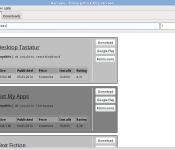
Download Raccoon v2.3 – A Google Play Store desktop client

Is your device not officially supported on the Google Play Store, or perhaps you no longer have the Google Play Store on your device after flashing a custom ROM? Or, maybe you just want to get back to an older version of an app because an update has introduced some bugs?
This might just be for you!
Courtesy of onyxbits over at XDA, you can now download a Google Play Store desktop client. Named Raccoon, you’ll have access to download all the APK files in the Play Store and cache them locally on your computer, and that includes multiple versions of the same app.
How to use:
- Install Java
- racoon.jar should now be executeable, start it like any other program
- Enter your loginname and password (prefererably from a throw away account).
- type “Onyxbits” into the textfield.
- You should now see a list of all the developers apps
- Either search for an app or download a prebuilt list
- you will get an APK file, transfer that to your phone by whatever means suit you (e.g. copy via USB cable).
- Enable “Unknown Sources” on your device to install the APK
Sound like something that’ll be useful? Here’s the download link.
Download Link
The post Download Raccoon v2.3 – A Google Play Store desktop client appeared first on AndroidGuys.

