


iOS 8 Beta 3 Tidbits: iCloud Drive Access, New Handoff Setting, and More
Apple today released the third beta of iOS 8, which brings a number of improvements, changes, and bug fixes to the beta software that was first introduced on June 2.
iOS 8 beta 3 also includes several minor interface tweaks and modifications that make the beta feel both faster and more polished. We’ve gathered up a comprehensive list of the enhancements that have been bundled into the release below, and to find out about all of the under-the-radar tweaks in iOS 8, make sure to check out our iOS 8 Hidden Features Roundup.
Find My Friends – iOS 8 beta 3 includes a new beta version of the Find My Friends and Find My iPhone apps. According to the release notes, Find My Friends allows users to move their friends list to an iCloud account if necessary.
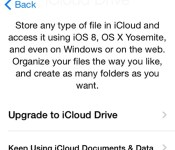
iCloud Drive – There’s a new popup window in beta 3 giving users the option to upgrade to iCloud Drive for the first time. Introduced at WWDC, iCloud Drive lets users store any type of file.
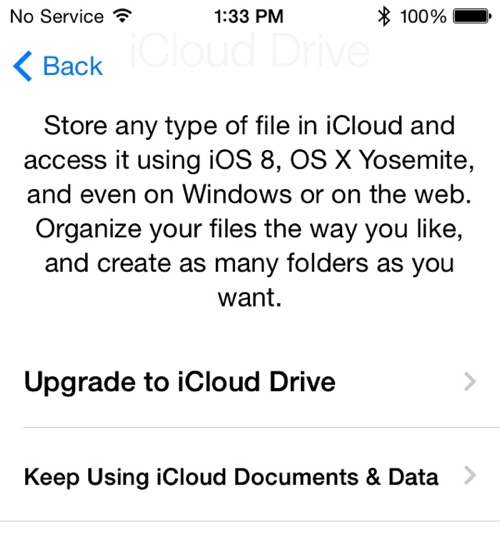
Handoff – There’s a new Handoff setting in the General menu of the Settings app that allows users to toggle Handoff on and off. Handoff allows users to seamlessly transfer tasks between iOS and OS X.
QuickType Keyboard – There’s a new option in the Keyboards section of the General menu in the Settings app that lets users toggle QuickType on and off.
Wallpapers – iOS 8 beta 3 includes new wallpaper options in solid and gradient colors.
Weather – Some minor changes have been made to the way information is displayed within the Weather app.
 New interface on the left, previous interface on the right.
App Analytics – After installing the beta, there’s a new option to opt into App Analytics. Users can choose to share crash data with app developers along with statistics about how apps are used.
Additional features in iOS 8 beta 3 will be added here as they are discovered. Apple is likely to continue pushing regular updates to iOS 8 at two or three-week intervals to bring minor performance boosts and changes ahead of the operating system’s launch. iOS 8 is expected to be released to the public in the fall. For more information on iOS 8′s features, major and minor, make sure to check out our roundups.
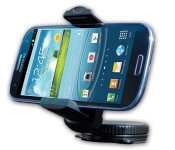
Accessory of the Day: Do Good Have Fun Car Phone Mount

Do you find yourself commuting to and from work in a car or, perhaps, driving as part of your job? Where are you putting your smartphone while you drive? Surely, not in the cup holder or on your lap, right? And, you’re definitely not texting and driving, are you?
Put your handset somewhere you can see it with the Do Good Have Fun Car Phone Mount. This guy fits just about any smartphone on the market, including some of those larger models; set your device in landscape or portrait mode.
Not only can you attach this guy to your dashboard but you can flip it upside down and stick it to the windshield. Now you’ll have at-a-glance access to your navigation app and whatever voice-to-text clients you’re using to stay safe.
The post Accessory of the Day: Do Good Have Fun Car Phone Mount appeared first on AndroidGuys.
iOS and OS X Calendar Glitch Pulls Holiday Data From Wrong Countries [iOS Blog]
A growing number of iOS and OS X owners are reporting a glitch that displays the holidays from the wrong country in the default system calendar app. As noted by one MacRumors reader in Ireland, holidays like the pro-UK Battle of the Boyne are now showing on his iPhone calendar.

This glitch also was documented by Edgardas Balsevičius, who shows in the video below that his iPad is set to Lithuania for its region, but the default holiday calendar is set to other countries, including Mexico, Hong Kong, and Canada. This mismatch between location and calendar is not observed when the region is set to the USA, UK or Russia.
This glitch was reported over the weekend and is present on iOS devices, including an iPhone 5s and an iPad Air, running iOS 7.1.x. Apple support has allegedly confirmed to Balsevičius that this is a known software issue that will be addressed in the next update.
While most reports involve iOS 7.1, a few OS X owners have reported a similar problem with OS 10.9.x that also started in the past week. These users also state that the default holiday calendar now displays events from the incorrect region, with one user on Apple Support forums noting that switching the default currency back to the local designation seems to fix the issue.
Apple Releases iOS 8 Beta 3 to Developers
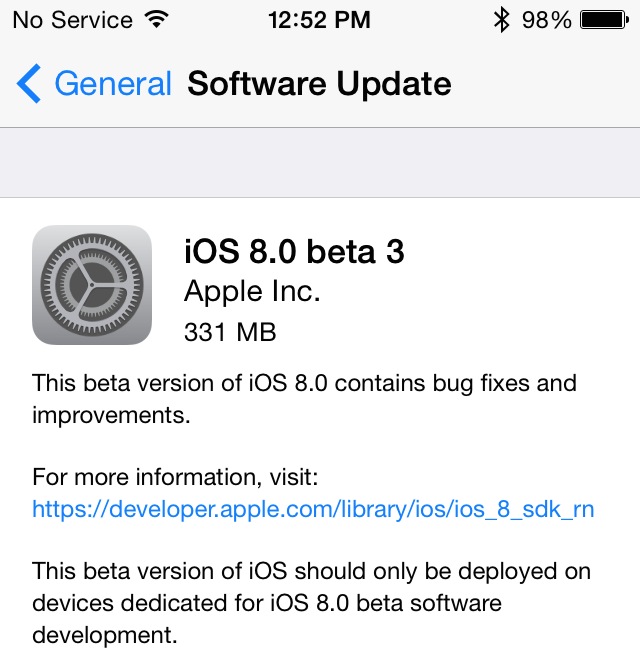
Apple today released the third beta of iOS 8 to developers, three weeks after releasing the second beta update and more than a month since unveiling the new operating system at the Worldwide Developers Conference.
The update, build number 12a4318c, is available through Apple’s over-the-air updating system on iOS devices and will also be available via the iOS Dev Center.
iOS 8 introduces a range of new features, including improved integration with OS X through Continuity, a Health app, Family Sharing features, interactive notifications, a new QuickType Keyboard and improvements to several apps like Safari, Mail, and Messages.
A June report suggested iOS 8 beta 3 would be released on Tuesday, July 8, but it appears the beta has come a day early. Today’s update comes just after Apple announced plans to wipe all CloudKit data for the iOS and Yosemite betas, including data from iCloud Drive, iCloud Photo Library, and Mail Drop.
iOS 8 is currently only available to developers, but it is expected to be released to the public this fall after several beta iterations. Based on past history, iOS 8 will likely be launched alongside new iPhones, and possibly the much-rumored iWatch.
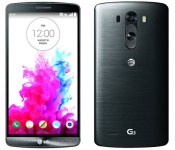
LG’s G3 and G Watch are coming to AT&T on July 11th

Sprint and T-Mobile may have been the first big US carriers to announce launch plans for LG’s G3 smartphone, but they won’t be the first to actually carry it. AT&T has revealed that both the G3 and the Android Wear-based G Watch will reach its stores on July 11th, with online orders beginning on the 8th. In both cases, pricing is par for the course. You’ll pay $199 on contract for the G3, or $29 per month in one year’s worth of Next installments; the G Watch will cost you $229 up front. The AT&T-native G3 doesn’t particularly stand out (unless you really, really like Big Blue’s logo), but it may be your best bet if you just have to get a quad HD-capable Android phone as quickly as possible.
Filed under: Cellphones, Wearables, Mobile, AT&T, LG
Source: AT&T

How to Disappear (almost) Completely: living off the grid

Your day begins at dawn. After all, you are lying in a sleeping bag under the open sky grateful that you haven’t: a) been stabbed by a grifter, b) been trampled by a herd of animals or c) contracted hypothermia and frozen to death. Then it’s off for a morning routine that involves foraging for food from the land or dumpster diving for edible scraps. If things are pretty tight, and oftentimes they are, then you might even have to rely on your fallback for food-gathering: the five-finger discount. Sound like fun? Maybe not, but that’s what life is like for some people after they’ve willfully crossed over into the digital darkness. Welcome to what it’s like living life off the grid.
I know what you must be wondering. How does a journalist get in touch with people who, for political, economic or mental-health reasons, choose to live off the grid? The short answer to that is simple: You don’t… normally. In fact, it was only through a few chance encounters that I was able to track down and speak to “Steve” and “Dorothy,” two people who live a life outside of modern technology for reasons other than religious dogma. In the interest of protecting their identities, those are not their real names, but still they’ve chosen to go on record and give us a small peek into their daily lives.
Steve: the digital nomad

Steve’s story began a little over a year ago. As he tells it, back then he was the sort of person with a “decent education and good job” that you would have welcomed into your community. Deep in his heart, however, Steve was bored, and despite trying “so many things to be alive,” nothing was satisfying him. So, one day, he decided it was time for things to change: “I packed a small bag and went somewhere I’d never been.”
Before he did, however, he emailed Ask Engadget — a weekly thread where people would appeal to our readership for help — seeking technology to take on a “long-term camping trip.” Since I was manning the tips box, I shared his request with the community, utterly unaware of what he was planning. Soon after he’d written in, Steve tore up his credit cards, canceled his apartment lease and became a digital nomad. We wouldn’t speak again for nearly a full year.
Barring any severely unpleasant weather that might force him to seek shelter in a hostel, Steve’s day begins just as described above. He wakes up outdoors and immediately begins the hunt for food. With his belly filled and provisions secured, Steve then sets off wandering across the United States. He does this mostly by foot, sometimes by road or rail, but really the aim is to get as far away from society as he possibly can. For Steve, living off the grid means one thing: surviving on his wits.
By his own admission, Steve’s a loner — an asocial lifestyle choice that, I imagine, has to eventually wear thin. Still, Steve persists along his chosen, disconnected path. “I made too many sacrifices to live this way,” he told me, “but it’s changed my view of everything, including the meaning of ‘sacrifice.’”
“I made too many sacrifices to live this way,” he told me, “but it’s changed my view of everything, including the meaning of ‘sacrifice.’”
Steve’s self-imposed exile from the modern world isn’t entirely absolute; he has one lifeline to our hyper-connected online realm: an anonymous Gmail address, which he only checks whenever he wanders back into the urban landscape. Aside from his watch, a Casio F-91W, the only technology he keeps on him is a Samsung Galaxy S II Plus and a 5,000mAh battery. Since there’s no actual SIM card inside the smartphone, Steve has to rely on freely available municipal WiFi for a connection. He admits that he uses the phone “for everything I need from technology and from the internet,” including accessing Wikipedia, keeping a journal, emailing a few close contacts and watching the occasional YouTube clips. It seems that even this far away from the grid, the desire to keep up with the adventures of Grumpy Cat and Psy’s latest music video are somewhat irresistible.
Roughly once every two weeks, when his smartphone and battery have both exhausted their charge, Steve will find a large store with open power outlets to stash both devices for a quick recharge. It’s the reason why interviewing him became a long, drawn-out process punctuated by periods of radio silence. Every message would take weeks to produce a response — responses he often dashed off in fleeting moments of WiFi access. I asked Steve if he was concerned about being tracked, but he said that privacy wasn’t a concern, nor was it the reason he took up this lifestyle. “For me, it’s not a choice,” he said. “You can’t simply choose to join it. Like I said, this is the only way that I could feel alive.”
Dorothy: the English hermit

“Dorothy” tending to her garden in the UK.
If you have a home, a family and an appreciation for hot water and cable TV, then Steve’s vagrant lifestyle probably sounds like a living nightmare. Perhaps you’d prefer to meet “Dorothy,” a former city executive who once commanded vast sums of money in London’s financial district until the stress and pressure of her life began to consume her. In her words: “Life was noisy, and I’d have probably thrown myself under a tube if I’d stayed another minute.” It was only by adopting a back-to-basics approach that she was able to achieve any measure of inner peace.
Dorothy lives in a quaint cottage in the English countryside. Her day also begins at dawn, although she sleeps indoors in her own bed. But the creature comforts end there. “Once I’ve strip-washed,” she told me, “It’s off to [a local grocer], where I grab food for the day.” Not having any power means that there’s no fridge, freezer or cooker, so Dorothy’s hot water, heat and food all have to come from a beaten-up, wood-fired AGA cooker, which has to be run throughout the year. After she’s returned from the grocer, she’s got to chop the logs required to run her cooker-cum-water heater, which are dropped off by a kindly farmer who lives nearby.
“Life was noisy, and I’d have probably thrown myself under a tube if I’d stayed another minute.”
Outside Dorothy’s cottage is a patch of land that she’s set up as her own personal farm. Though she can’t sustain her entire lifestyle from this plot, she can at least supplement her diet with freshly grown vegetables. Around the back, some apple trees, left over from the previous occupant, enable her to cook desserts, and even experiment with some homemade cider making. As there’s no microwave or freezer, all of Dorothy’s meals have to be freshly made every day. That means she’s always “[cooking] a proper meal for dinner.” It’s a time-consuming and arduous process that occupies a large chunk of her everyday routine.
Living like this doesn’t exactly pad Dorothy’s bottom line, leaving her with no choice other than to make repairs on the house all by herself rather than calling on contractors. With a limited budget, she’s also unable to go out and buy clothes when she wants, so her evenings are frequently spent sewing up holes or making new clothes altogether by hand. You may ask why anyone would choose such a meager existence, but for Dorothy, it was the only way she could reasonably carry on with her life.

An off the grid lifestyle affords “Dorothy” rare moments of downtime.
In her previous life, Dorothy was wedded to her Blackberry the way most of us are hopelessly glued to our smart devices. And she only grudgingly returned it the day she left her job for good. Now, however, there is no phone line, television or smartphone to distract from her daily life. “There’s no downtime” as a result of that, she told me, and the idea of sitting down in front of the TV with takeout, to her, is a dream she’s not likely to relive ever again. In fact, her only companion is a wind-up radio permanently set to BBC Radio 3, serving as her one link to the outside world.
Dorothy seems grateful to no longer be a member of our connected generation. And when I explained to her the extent of the surveillance carried out on the citizens of the internet — the aftershock of all those PRISM revelations — she responded the only way someone living their best life off the grid could: with a roll of her eyes.
[Image credit: Maciej Noskowski/Getty (Blurred People Walking in Modern Interior)]
Filed under: Internet

AMC adds recliners to its theaters in hopes that you’ll ditch Netflix for a night

If you’ve given up on your local movie theater due to its lack of comfort and not the ever-increasing expense, AMC has a plan to lure you back. The second largest movie chain in the US is shelling out $600 million to rip out old seating and replace it with recliners. That’s right, pretty soon you’ll be able to settle into a La-Z-Boy-esque seat for the latest three-hour installment of The Hobbit. The outfit has already converted some locations, seeing an average attendance increase of 80 percent. Major markets tend to have the most frequented theaters, so the project aims to revamp those venues that struggle, with a second stage of the face lift going to big cities. Unfortunately, those recliners won’t lean back as far, cutting down on the number of seats lost to the larger chairs. And as you might expect, a ticket price hike is said to be on the way after the renovations have been in place for a year.
[Photo credit: Jonathan Wiggs/The Boston Globe via Getty Images]
Filed under: Home Entertainment, HD
Source: Wall Street Journal
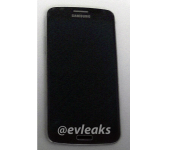
Alleged Galaxy F in black caught posing in the wild

It seems like every few days we get a new leak of Samsung’s premium offering, the Galaxy F device. We’ve recently shared a full render of the device as well as its first live photo. The rumors/leaks continue…
Known leaker @evleaks has yet another photo for us, this time we get the Galaxy F in black color posing in the wild, you can see it in the picture above. There are no additional information at this time though, the leaker just shared the picture and the following sentence:
“Samsung Galaxy F, in the wild, 2014″
If leaks are to be believe this device will feature (amongst other aspects) a QHD display, 3GB of RAM and a Snapdragon 805 chip. As it was mentioned many times before it should also feature a metal material design instead of current plastic ones. The device is expected to see the light of day around IFA, September 12 was rumored (2 days after the Berlin based event).
Source: @evleaks
The post Alleged Galaxy F in black caught posing in the wild appeared first on AndroidGuys.

Sony may announce selfie-centered smartphone on July 8

Sony could announce its latest smartphone on July 8, according to clues presented by the company’s Twitter account. It’s not certain what model we might get out of Sony, however it’s likely to feature a great front-facing camera.
See your #selfies in a whole new light pic.twitter.com/UQJQIa44sI
— Sony Xperia (@sonyxperia) July 7, 2014
It sounds as if the smartphone could offer a front-facing flash or special sensor. As to other specifications in the device, recently leaked photos suggest a 2500mAh battery is in order. Thankfully, we won’t have to wait long to find out what’s going on here.
The post Sony may announce selfie-centered smartphone on July 8 appeared first on AndroidGuys.
The best free RSS Reader apps for Android

Last week, I took a look at 3 of the top paid RSS reader applications for Android users. The three apps that I covered, were Press, Reader+, and Amber RSS. After much testing, I still couldn’t pick a winner between Press and Reader+. This week, I’m going to take a look at the top free RSS reader apps, for those who want some free alternatives, that work in similar ways.
Please note that this post is split over multiple pages.
Feedly

The first obvious choice, is Feedly. Feedly was the first replacement service to help those Google Reader users to migrate their services. Before Google Reader went away, Feedly stepped up to the plate, and offered a simple and easy way for users to export the necessary information, and input it into Feedly. This was met with mixed reception, but all in all, Feedly gained 8 Million users after its’ announcement to help out those Google Reader users.Something else that Feedly has done, was allow other applications such as Press, and my iOS favorite, Unread, to import the feeds into the respective application, and use an aggregator to read your news.


Anyways, there are two different ways to get your feeds into Feedly. You can visit their main webpage and begin the organization and addition of feeds, but you can also do everything directly from the Feedly application. Upon starting up Feedly for the first time, there are five different ways to sign up for the services; Google, Twitter, Facebook, Microsoft, and Evernote. Once you’ve signed up, via any of those accounts, you can get to adding your favorite websites to Feedly. Now, you it’s not completely necessary for you to sign into Feedly with an account, but I find it easier to sync across multiple applications and devices by linking with an account. It’s extremely easy to add various sites and feeds to Feedly, because all you need to do is, hit the magnifying glass in the top right hand corner, find the site you’re looking for, and voila, you’re done.

You can also organize your various feeds into categories, just like I showed off in the top paid RSS reader apps overview. Once you’ve got your feeds set up the way that you want them, you can start using the beautiful interface that the team at Feedly has put together. Perusing and reading your various feeds is easy and seamless, and you can ever save or share any articles or reviews that you come across to any number of social networks, or read-it-later services. There is also a web interface that the Feedly team has put together, and honestly that is what I used to do the bulk of the organizing of my numerous RSS feeds. Of course, you can grab Feedly via the Play Store widget below, for free.

Flipboard is one of those RSS feed aggregators that been around for quite some time. Launched in 2010, Flipboard has taken the new reading world by storm, and has since come pre-installed on many Android devices. You may be annoyed at the fact that an application comes preinstalled, but Flipboard may be the ONLY exception to the rule of bloatware. It’s fast, easy to use, and has one of the most beautiful interfaces of any app for either the Android or iOS platforms. There are three different ways to sign up for Flipboard, Google, Facebook, or via an email address of your choice.

Like Feedly, this isn’t necessarily a requirement, but it will help if you want to keep all of your feeds organized, and don’t want to have to re-add them every time you get a new device, or if you flash new ROM’s often. Since I’ve been toying around with the various HTC One M8 ROMs, having an account where all my feeds are synced, has been a real life saver. Just to put it into perspective, I’ve flashed 5 or 6 different ROMs in the last two days. Imagine having to try and find all those sites that you want to keep up with, over and over and over again. Frustration will ensue.

Flipboard was the first, well designed, personal magazine. it stays true to it’s core, and acts like a magazine, in regards to the interaction that you have while reading various feeds. The nice thing about Flipboard is the fact that it pre-populates various feeds for you to check out, from Sports and News, to Technology, and Design. There is also a specific set of feeds named, By Our Readers. This is a populated feed from those who contribute to Flipboard, and even within there, multiple topics can be chosen from. If you find something that you’d like to save, once you’ve found a feed that you want to follow, tap the bookmark icon in the top right hand corner of the page, and you’re done.

Another nice thing about Flipboard is that you don’t just have to follow websites. You can also search for sites or individual people on social networks like Google+ or Twitter. This adds another facet to the world of news reading, if you’re the type that likes constant updates, or breaking news. While searching for specific sites or individuals to follow, Flipboard has built in suggestions into their search functions. For example, if you search just Android, you are presented with a bunch of different Android topics, including populated topics from the Flipboard app itself. The search functionality of Flipboard, really is unparalleled for an application like this, and is really something that everyone should try out. Like everything else featured today, you can get Flipboard for free, via the Play Store widget below.
LinkedIn Pulse

LinkedIn Pulse is next up on the list today. Formally known as just Pulse, this RSS aggregator service was purchased by LinkedIn back in 2013, and it caused a lot of head scratching across the interwebs. Unlike Flipboard or Feedly, LinkedIn Pulse requires you to either sign in with your LinkedIn account or with your old Pulse information. When I downloaded Pulse again after the acquisition, I was little upset by that. Not because I don’t understand that you should have a login so that you can keep all your information together, but because I believe that there should still be an option to test drive the app without having to create an account.
Since I hadn’t actually logged into the Pulse services in some time, I just opted to sign in via my LinkedIn account and start fresh. When you log in for the first time, there are some pre-populated lists that you can choose from, or edit. Of course, you can still add new ones if you would like to do so, for a more personalized experience. The overall interface for Pulse is similar to what the app was like before the acquisition, in terms of the blocks of images with the titles in the corners.

Pulling an article up not only allows you to simply read the post, but also allows you to like it, make comments, view on the web, and share whatever you’re reading. One thing that I didn’t like too much about this app were the animations. I’m the type of guy who likes somewhat fast animations, meaning that I don’t want to be able to watch, as the page moves or scrolls away. I’d prefer for something to be done in a snap, and unfortunately, that was not the case when it comes to Pulse. Selecting an article to read, on a snappy device, should be snappy, not make me feel like I’m watching paint dry. That may be a little blunt, but it’s the truth. When I’m reading articles on my phone, I’m usually smoking a cigarette or sitting at my desk at work, so there isn’t really that much time to waste. So that extra second or two annoys me. Am I being overly analytical? Probably.

While trying to populate your feed, I do recommend that you create the personalized lists, depending upon the topics. This just creates a more uniform, and organized, experience for perusing your various feeds. Creating a list is extremely simple. Simply tap the All Channels button on the top bar, and select New from the right hand side of the drop-down bar. Then create a name for the List, and then go through and search, and select which sites you would like to follow. Something that is big for me, that I’ve harped on numerous times, is the ability to save to Instapaper. I love the ability to save something to Instapaper if I see an article or something that I would like to either read or use for reference later on.

Someday, I’ll write something up on the wonders that Instapaper is. Instapaper is obviously not the only Read-It-Later service available for Pulse. You can also connect Pocket, Readability, or Evernote for saving those articles to read later on. Pulse also has the ability to save your favorite articles directly within the application, and then you can send them wherever you choose, at a later point in time. Sure there’s an extra step involved, but who cares.
InoReader

The final RSS reader application that I’ll be taking a look at today, actually came as a suggestion from a comment on my paid RSS apps article. InoReader was a service that I had never heard of before, and actually caused a little bit of a delay in the publication of this overview. The reason being, when it comes to applications or services that I use regularly, I’m always intrigued as to what is different about each application or service.
With a web interface, as well as the ability to add feeds via the InoReader itself, this follows the path of Feedly, but that’s just about where the similarities between the two services ends. Upon starting the app up for the first time, the only third party account that you can use to sign into InoReader is Google, other than that, you must create an InoReader account specifically. Once you’re done getting signed up or logged in, you are presented with a very basic interface, one that only lights up, once all of your feeds have been added.

Now, out of the box, the application has no clear cut way to create categories, or sub categories, if you follow a lot of different feeds, but it can be done. However, adding feeds to InoReader is pretty easy, via the big plus (+) button in the top right hand corner of the page. Tapping the + button will allow you to view the InoReader catalog, and from here you can either browser the various categories, or search for something specific. It’s not often that I don’t know what I want to add to my RSS feeds, but sometime I’ll just go through the suggestions and see if there’s anything that I’d like to add.

As for the main page of InoReader, the list that is presented, shows you how many articles are unread, a section for your favorites, and then a list of your subscriptions. You can also create a folder within your subscriptions, for better organization, by tapping and holding down on one of the feeds, and that pops up a dialog box. From here, you can Unsubscribe, Rename the subscription, Assign to a new folder, or mark all the articles within this feed as read.Once you’ve decided that you want to add the feed to a folder, then tap the corresponding option, then either create a new folder, or add to an existing one.

You can share an article to your read it later service of choice, but that functionality is not built into the InoReader app itself. However, you can still save the article to read it later via the Favorites section, and all you need to do, while in the article of choice, tap the empty star in the toolbar at the bottom. From here, you can also share, mark as unread, choose tags that are based off of your folders, view in Readability mode, or thumbs up the article. Like I’ve stated before, the design of application, and the way my feeds are presented, are extremely important to me, and unfortunately, after playing around with InoReader for a few days, I never really got the experience that I wanted. It’s still installed on my phone, but it’s more so just to play around with and see what kind of updates, if any will be coming to the app.
I’m a sucker for good RSS apps, and these four that I covered today, all do things in similar, yet still different ways. Some are all in one, others have a web interface, but they all get the job done. The job of reading your favorite websites, like AndroidGuys, and getting the news and articles that you want to read. What do you use for your RSS needs? Are you one who goes for the paid versions, or do you stick to what’s free? Try some of these out and let us know what you think is the best.
The post The best free RSS Reader apps for Android appeared first on AndroidGuys.

