Sonnet Announces New 4U Enclosure to Rack Mount Two Mac Pros
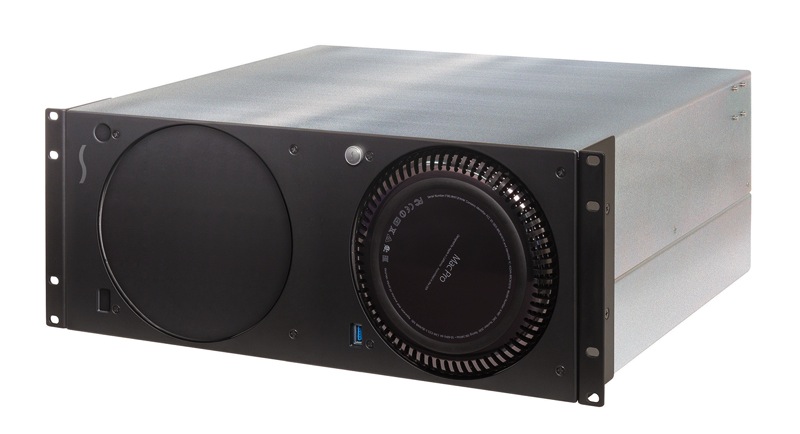
Mounting and organizing options for heavy duty Mac Pro users continue to grow since the new machine’s launch at the end of last year, with Sonnet now announcing a new rack mount enclosure capable of holding two Mac Pros. The new enclosure is an additional option to go along with the enclosure and expansion chassis the company announced last week.

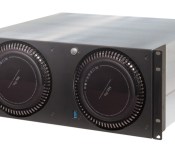
This time, the Sonnet Rack Mac Pro allows users to rack mount one or two Mac Pro machines in a 4U space. The unit includes a front panel power button with USB 3.0 port for each machine, plus a second USB 3.0 port, a Gigabit Ethernet port, and an HDMI connector on the back of the rack for each Mac Pro.
There are no rear Thunderbolt ports because, Sonnet says, there are no panel-mount Thunderbolt connectors available. There is, however, room inside the rack for Thunderbolt cables to be attached, and the company says it is “fairly easy” to directly connect Thunderbolt cables and they can be secured to the Mac Pro so they can not be accidentally unplugged.
The Rack Mac Pro also supports the mounting of Thunderbolt to Fibre Channel adapters like the Promise San Link2.
Pricing is expected to be $599 to rack mount a single Mac Pro, with an add-on to mount a second Mac Pro available for $299. Availability is likely to come in June alongside the previously announced combination enclosure and expansion chassis.
     |
Amazon Announces the Fire TV Set-Top Box for $99
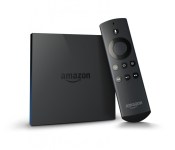
The rumors and speculation surrounding Amazon and their set-top box are finally coming true today as Amazon announces the Fire TV. I am certainly glad it didn’t turn out to be called the FireTube as a patent file suggested.
 The $99 black box offers a bang for the buck it sounds like. It measures in at 4.5 x 4.5 x 0.7 inches and weighs 9.9 ounces. On the rear you find a power port, HDMI out, Optical Audio, Ethernet and USB. Internally you get a Qualcomm Krait 300 quad-core processor at 1.7Ghz paired with a Qualcomm Adreno 320 GPU. You also have 2GB of LPDDR2 RAM and 8GB of internal storage.
On the connection side of things it offers up Dual-Band, Dual- Antenna Wi-Fi and supports 802.11a/b/g/n. It also offers up Bluetooth 4.0 connection with HID, HFP 1.6 and SPP profiles.
The homescreen is fairly reminiscent of the Kindle Fire look. The Fire TV comes loaded with a number of apps like Netflix, Hulu and Amazon Instant.
 The included remote is a farily simple looking one with minimal buttons. Something rather interesting about the remote though is there is a ‘Voice Search’ button located right at the top.
“Tiny box, huge specs, tons of content, incredible price—people are going to love Fire TV,” said Jeff Bezos, Amazon.com Founder and CEO. “Voice search that actually works means no more typing on an alphabet grid. Our exclusive new ASAP feature predicts the shows you’ll want to watch and gets them ready to stream instantly. And our open approach gives you not just Amazon Instant Video and Prime Instant Video, but also Netflix, Hulu Plus, and more. On Fire TV you can watch Alpha House and House of Cards.”
To top things off, the Fire TV also plays nicely with your Kindle tablet allowing you mirror/cast content from it to the Fire TV box. Not to mention the added option of a gaming controller. Amazon says there will be over 1,000 free titles to get your hand on to play with the Amazon Fire Game Controller (which is $39.99), but they are also going to give you 1,000 Amazon coins to encourage you to buy some too. All the games have been tweaked specifically to be played with the controller through the Fire TV. I think the biggest struggle that will offer end users is the small 8GB of storage, which I can only assume is smaller due to the OS.
 All-in-all it doesn’t sound half bad. The FireTV box is on sale now for you to purchase for $99. If you pick one up you also get a free 30 day trials to Netflix and Amazon Prime.
click here to order your Amazon Fire TV

Click here to buy the Amazon Fire Game Controller

//<![CDATA[
ord = window.ord || Math.floor(Math.random()*1E16);
document.write('’);
//]]>

Sev Zero is the First Game from Amazon Game Studios for the Fire TV
Here comes the flood of Fire TV news. With the device available to purchase now, it shouldn’t come as much surprise that we will start to see a laundry list of games and apps that have been redone, or built , specifically for use with the new set-top box. The first game to be created elusively for the Fire TV from Amazon Game Studios is Sev Zero.
 The game will require the gaming controller for the Fire TV to be able to play, not surprising. The Fire game controller is $39.99. It also has a companion app for the Kindle Fire tablets much like Battlefield 4 and other current games on the market that allows for multiscreen/multiplayer action.
Sev Zero is a mix between a tower defense game and a third-person shooter. You will build towers to help protect your ‘Core’ in the base from aliens. You can beam down anywhere on the battlefield and take unleash holy goodness on alien scum in the third-person perspective.
It looks pretty cool and certainly puts the TV and Kindle together in a good mix of gaming fun. The game alone is $6.99, but if you pick up the gaming controller, you will get it for free.
//<![CDATA[
ord = window.ord || Math.floor(Math.random()*1E16);
document.write('’);
//]]>
Using Amazon’s Fire TV gamepad (surprise: it’s pretty good!)

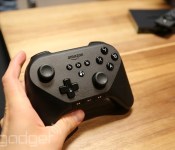
Surprising no one, Amazon’s Fire TV gamepad is exactly what we already saw pass through the Brazilian FCC recently. In those pictures, however, it looked rough. In real life, thankfully, it’s a much nicer piece of hardware. We’ve just spent 10 minutes playing Minecraft on a Fire TV at the event, and came away fairly impressed. It feels an awful lot like an Xbox 360 gamepad, most specifically the dual analog sticks. We’ve got more nuanced impressions beyond the break, so head below with us!
Let’s start with the analog sticks, as you’ll interact with them more than anything else. First up, they feel solid. Again, they feel a lot like a stock Xbox 360 gamepad (directional bumps and all). Along the bottom, the d-pad also feels solid (though we’d anticipate not using it too often with Android games).
Moving over to the standard four face buttons, they’re appropriately springy and responsive. We pushed A, and our Minecraft avatar leapt. We pushed forward; he moved forward. How it’s supposed to work! Alright! The only issue we encountered was one that could be a symptom of Minecraft more than the controller: input lag. When looking around, there was a noticeable lag between analog stick input and action on screen. We’ll have to test more before we call this out as a real issue, but it’s an initial concern for sure.
In terms of triggers and shoulder buttons, the Xbox 360 gamepad comparison continues. Despite looking like an OnLive controller, the Fire TV gamepad feels most like the Xbox 360 standard.
The biggest differences, of course, are the pieces that are brand-new on Amazon’s gamepad: Android buttons for Home, Back and Menu, as well as an Amazon Game Circle button. These buttons add unique functionality to the controller, enabling interaction with the Android fork running on Fire TV. Beyond that, several media controls rest along the bottom edge. They, uh, well, they function? They’re not really tantamount to gameplay input, so we’re kinda ignoring them for now.
Overall, the controller works well, feels good and costs … a bit too much. For the meantime, you can use a wired Xbox 360 controller (naturally, via USB) as well as Nyko Bluetooth controller and Amazon Games head Mike Frazzini tells us he expects many more will support Fire TV in the coming months.
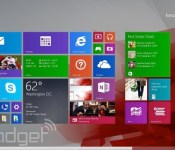
Windows 8.1 update aims to win over mouse-and-keyboard users, arrives April 8th as an automatic download

The whole point of Windows 8 was to make Microsoft’s aging OS easier to use on touchscreen devices. Mission accomplished, we’d say (more or less). But now the folks in Redmond have a new challenge afoot: Make Windows 8 equally easy to use on tablets and traditional PCs. The company’s already made some progress — last year’s Windows 8.1 update was all about keyboard shortcuts, better multitasking and the return of the Start button (sort of). Now, with its latest update, Microsoft is going after mouse-and-keyboard users. In particular, you can pin Windows Store apps to the desktop Taskbar, and close out of a Metro app by pressing an “X” in the upper-right corner. Heck, you can even shut down without having to open the Charms Bar. Shocking, we know.
It’s all very exciting, and indeed, you can see for yourselves soon enough; the update will arrive as a Windows Update download on April 8th, which means most folks will simply install it automatically. In the meantime, we’ve got a full primer after the break, along with a healthy dose of screenshots (we know you love your screenshots).
Desktop

Since this update is aimed mostly at keyboard-and-mouse users, let’s start where those folks are likely to spend a lot of their time: the desktop. For starters, depending on what kind of machine you have, the PC manufacturer might program it to boot into the desktop by default. Of course, that was already an option in Windows 8.1; the difference is that if you buy, say, a mouse-and-keyboard machine, like a clamshell laptop, the OEM can make that the default so that you never even have to bother with the settings. And yes, if you’d rather go straight into the modern Start Screen, you can do that too by unchecking a box in Taskbar settings.
Speaking of the Taskbar, the rumors were true: You can now pin Windows Store apps to the bottom of the screen, along with traditional legacy programs. In particular, the Windows Store shortcut will come pinned by default on every Windows machine, though you can, of course, remove it if you’re so inclined. As for everything else, you’ll have to pin those programs manually. In fact, the default setting is not to show Windows Store apps on the Taskbar at all, which means another visit to the Taskbar settings is in order.
Start Screen and Windows Store apps

It’s not just Windows Store apps making a cameo on the desktop — the Start Screen has meanwhile gotten more mouse-friendly. Most exciting of all, perhaps, are those new power and search buttons you can see in the upper-right corner. That’s right, you no longer have to expose the Charms Bar to power down or restart your machine (search is a bit different, because all you ever had to do to bring up search results was start typing). What’s interesting is that if you’re using a touch-first device like a tablet, the power button won’t be there; just the search icon. The reason: Users are apparently used to shutting down their mobile devices by holding down a physical power button, but with laptops they still expect a soft key. We won’t argue with that.
But wait, here comes another revelation: right-clicking. Now, if you right-click on something like a Live Tile, you’ll see a pop-up menu right there, where your cursor is. That way, you don’t have to bring your mouse to the bottom of the screen, where the menu options would normally show up. Forgive us if we sound sarcastic here — we really don’t mean to — but there just isn’t much to say about this. It’s a welcome change, but also something that probably should have been part of Windows to begin with. Additionally — and this feels like a small change — anytime you install a new app you’ll see an arrow at the bottom of the Start Screen with a message that says something like, “12 new apps installed.” See? Fairly minor change. But it makes sense.

Meanwhile, inside the Windows Store apps themselves, navigation will feel a little more similar to using Windows on the desktop. In particular, if you hover at the top of the screen, you’ll bring up the Title Bar, showing the name of the app, with an options menu on the left, and an “X” on the right to close out. And when you’re inside an app, you can also bring up the Taskbar on the bottom of the screen. Again, the desktop making a cameo where you previously wouldn’t have expected it.
Throughout, too, Microsoft has fine-tuned Windows so that all of the existing mouse gestures are more precise. For instance, in earlier builds of Win 8, it was perhaps too easy to move your cursor into the upper-left corner and accidentally pull up a list of open apps (remember that the back button in IE is located in the same corner, which makes it a tough spot to avoid). Now, following this latest update, mousework in Windows feels more… controlled. So, if you want to see that list of open apps, you can still poke around in the upper-left corner, but you’ll really have to push your mouse in there; you’re less likely to pull up the list by mistake. Ditto for bringing up the Charms Bar on the right, or menu settings on the bottom of the screen; they’re the same gestures, just with a little less sensitivity.
Performance enhancements

In addition to all the fun stuff (read: features we can capture in screenshots), Microsoft also made a bunch of under-the-hood tweaks that should improve performance, regardless of what kind of device you’re using. First off, Microsoft will be shipping its operating system to manufacturers as a compressed image, so that it takes up less space than it would have otherwise.
Additionally, the so-called Process Lifetime Manager in Windows more aggressively suspends apps to reclaim memory. The keyword there, of course, is “suspend,” as opposed to “terminate,” which means although the OS should now be more memory-efficient, apps should still open quickly the next time you use them. Think of it as a deeper sleep state for apps, similar to what laptop makers have already achieved for Ultrabooks. Finally, Microsoft improved compatibility with IE, a tweak that should be especially good news for enterprise folks using Internet Explorer on Windows 7.
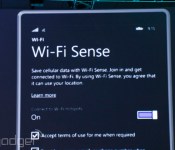
Windows Phone 8.1 will automatically sign in to trustworthy WiFi

Tired of having to slog through web portals on your Windows Phone just to sign on to a coffee shop’s WiFi? That won’t be a problem once Windows Phone 8.1 arrives. Its Wi-Fi Sense feature can automatically accept the terms of use for networks that are both free and trustworthy, getting you online much faster than usual. You also won’t have to verbally share login details for your own WiFi network. You can securely share your router’s password with contacts in Facebook, Outlook.com and Skype, giving friends an internet connection (but not full network access) without setting up a guest mode. If you’re the sort who sometimes avoids WiFi because of the hassles involved, you may want to give Microsoft’s mobile OS a closer look.
Filed under: Cellphones, Networking, Mobile, Microsoft
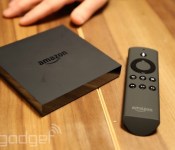
Amazon’s Fire TV promises a premium set-top experience (update: hands-on video)

The first thing you notice when you pick up the Fire TV is how incredibly dense it is. It’s tiny and encased in black matte plastic, but it feels like a solid brick of aluminum. That’s not terribly surprising when you consider all of the power Amazon has crammed inside this thing. Though we’re not sure about the speeds on its quad-core CPU and dedicated GPU, the company claims it has three times the processing power of its rivals like Roku and Apple TV. Either way, It’s clear the silicon inside is pretty beefy, and it’s likely that the chassis is a giant heatsink.
During our brief time with the device, it was every bit as quick and impressive as it was during the on-stage demo. Voice searches were quick, if not exactly flawless thanks to the rather noisy demo area. It was less than a second from when I finished speaking to when the results popped up on screen (though, it seemed odd that Amazon assumed I meant “Klint Eastwood”). Despite its insistence that it handled search better than platforms like Roku, we’d have to say things aren’t so cut and dry. Sure, you can voice search using the microphone on the remote, but searching with text requires the same cumbersome reliance on the remote’s directional pad and an onscreen keyboard. Not to mention that Roku and Chromecast are also able to deliver voice search through their respective mobile apps.
Browsing through content, launching apps — all of it was impressively quick. Obviously, how a device behaves when it’s fresh and being demoed for the press isn’t a perfect indication of how it will behave a year from now in the living room of a demanding user, but our initial impressions were definitely positive. The most exciting thing was watching it play a video. And that’s not because is spit out beautiful 1080p content (which it did) it’s because the device didn’t even take a breath before launching into our selection. When Peter Larsen showed off how quickly its ASAP technology allowed the Fire TV to start playing a video on stage we were impressed but skeptical. After spending some time with the Fire TV we feel obligated to apologize for our skepticism. Basically ASAP preloads certain videos based on where you are in the UI. When you click through to the page for a movie, it automatically starts downloading it in the background. If you hover over a selection for a period of time while browsing it’ll do the same. And if you’ve been watching Alpha House it will automatically cache a portion of the next episode.
Even if we resumed Wolverine from the middle of the movie we were able to quickly hop back to the beginning and it started playing immediately. Unfortunately there’s no quick option for starting a movie or show over. You have to resume the video first then rewind to the beginning though, at full speed, getting back to the start of a movie was relatively fast. Reps did confirm that a quick shortcut to start over would be coming to Fire TV soon, after listening to feedback from testers during the beta period.
Gaming was also pretty smooth, though it’s not exactly perfect. Frame rates were steady and titles loaded quickly enough, but there was still come noticeable lag when it came to input. We noticed some of the same lag when trying to navigate the main UI with the game controller. We’ll avoid being too harsh though, seeing as how there were roughly 10 Fire TVs all in the same room connected to Bluetooth gamepads. The big question mark is going to be apps. While Amazon has control over the content it provides directly, it can’t guarantee the same quality from other services. That’s immediately apparent when launching the Hulu app. While we wouldn’t call the experience painful, there was a very noticeable delay between making selections and the next page loading.
The big question mark here is price. Sure Amazon is delivering a premium experience and more power than the Roku, Google or Apple. But is the promise of compelling gaming and instantly loading videos enough to make consumers choose the $99 Fire TV over the $35 Chromecast? We’ll just have to wait for sales figures to know for sure.
Filed under: Home Entertainment, HD, Amazon
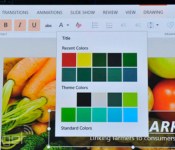
Here’s what a touch-native Office for Windows looks like in action

You didn’t think Microsoft was going to launch Office for iPad without a Windows counterpart waiting in the wings, did you? Sure enough, Microsoft has just shown off its long-expected touch-native Office for Windows in beta form. The software shares a few interface elements in common with the iPad release, but not much — this is clearly built for Windows tablets, with a more traditional layout that expands objects to make them finger-friendly. There will be plenty of gesture support, though. You can circle an item with your finger to highlight it, and you can pinch and swipe to get around much of the productivity suite. Unfortunately, the folks in Redmond aren’t saying when this touch-ready Office will ship. The demo is just a preview of what to expect, so it could be a while before you’re using the software yourself.
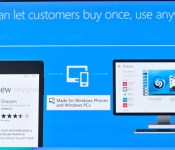
Microsoft pushes universal apps that run on everything Windows

Crafting a seriously great app experience for one device is hard enough, but these days developers have plenty of form factors to tackle. Microsoft is trying to ease their suffering a bit with the introduction of universal Windows apps, which just took that the stage the company’s Build conference in San Francisco. Long story short, you’d theoretically only really have to write an app in Visual Studio once. Most of the code (in the language of your choosing, Microsoft insists) remains the same, but that universal app will take on a different appearance depending on what device it’s running on. Well, if you want it to, anyway. Naturally, developers can fine-tune the finished product too, so the experience of using the app on Windows Phone feels as polished as it does on a PC. You’d be forgiven for thinking this is a bit on the dry side, but this is a big deal — Microsoft is trying to break down the app barrier so devs can make more consistently good apps for us faster.
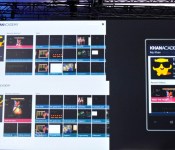
Universal Windows apps are coming to your Xbox One

Many were expecting to see universal Windows apps in the Build 2014 keynote, and they have. However, Microsoft had a surprise in store — you’ll eventually see those universal apps running on the Xbox One, too. Developers will get to write apps for Windows and Windows Phone that translate to a TV screen with relatively little effort. The company hasn’t said exactly when you’ll see these multi-platform apps pop up on your game console, but we’re hoping they appear sooner than later.
 AIVAnet