



Smartphones for hire: Which personal assistant is right for you?

“Ring-ding-ding-ding-dingeringeding.”
This isn’t a standard job interview answer, but then again, “What does the fox say?” isn’t a typical question, either.
The top three smartphone platforms now feature fully functional personal assistants, and just like real-life assistants, it’s not so easy to pick one at random. Each has its own talents, weaknesses and personality quirks to consider. So, I conducted a series of “interviews” with Siri, Google Now and Cortana to get to know them better — and yes, they all know exactly what the fox says.
Siri

Apple’s Siri is a seasoned assistant with plenty of experience to back up its resumé. Now nearly 3 years old, the once-beta program has had time to squash bugs and add features. And thanks to the iOS platform, it’s integrated with social networks like Twitter and Facebook, as well as services like Yelp, Evernote, Fandango, OpenTable and WolframAlpha.
Siri has a jovial personality. No matter what you ask, just frame your question naturally — for instance, “How should I dress this weekend?” — and nine times out of 10, it’ll not only understand you, but also respond in a similar fashion. If you have follow-up questions or requests, Siri will continue the conversation with you. And if you ask something silly, expect a sassy answer.
Siri is a seasoned assistant with plenty of experience to back up its resumé.
Personality’s a nice touch, but it’s merely a party trick if your assistant lacks functionality. Fortunately, Siri’s not hurting in that area. It can dictate and send texts, emails and social network updates. It can make calls and read messages back to you. It has no problem setting (and canceling) reminders and alarms, and will display your upcoming appointments in a list. How about opening apps and changing settings? Airplane mode, WiFi, Bluetooth, you name it — Siri’s got you covered so you don’t have to dig around countless screens to find stuff.
Siri’s also good with watercooler talk. It told me when the next Giants home game was and how they’re doing this year. When I ask about a movie, the details show up in a card-like view; and I can even buy movie tickets through Fandango. Siri also can pull up music through your library or iTunes, and it’s able to pause, resume and skip songs. However, it doesn’t do a good job of pulling up concert information, opting instead for a web search.
Much like both of its competitors, it can set geofences for reminders. This means you can tell it to remind you to pay the rent as you pass by the landlord’s office, or stop and get a Mother’s Day present when you’re close to your mom’s favorite store (hint, hint). Speaking of location, it can pull up local listings, which you can then filter by distance or Yelp rating; you can also use Siri for all of your navigation needs, as long as you don’t have a strong aversion to Apple Maps. The service also remembers your home and work to help route your morning commute, but unfortunately, it doesn’t do well at determining other places you visit frequently.
Siri’s not all business though. It has a knack for finding your friends, as long as you and your entourage have the iOS app. If Steve’s late getting to your house, you can ask Siri to see where he’s at and it’ll pull up a map with his location. While you wait for him to show up, you might as well use Siri’s OpenTable integration to set up reservations for dinner.
Hire Siri if you’re looking for: Personality, dictation, social networking, music playback, sports, movies, changing settings, reading messages, finding friends.
Google Now

Of the three candidates, Google Now is the blandest. It’s the kind of assistant that takes everything a little too seriously, and on the rare occasion when it tries to be funny, it tries too hard. But it’s also very robust, knowledgeable and takes care of business when called upon — and you can call upon Google without touching the device. It works great on the home screen and in the Now screen, but you can’t activate it when you’re in an app, or even in the app tray. That’s still better than Siri and Cortana, however, which are activated by a long-press of a particular button.
It’s the kind of assistant that takes everything a little too seriously, and on the rare occasion when it tries to be funny, it tries too hard.
Sure, it comes with a few Easter eggs (me: “Make me a sandwich.” Google: “What? Get it yourself!”), but Google prefers function over friendliness. I can respect that — Siri’s and Cortana’s jokes aren’t technically all that useful anyway — but it’s disappointing that an engine like Google can’t understand questions unless they’re framed formulaically, such as “What’s the weather like today?” instead of “What should I wear this weekend?”
It’s not the most intuitive assistant, and it’s a mixed bag for basic daily tasks. Google can look through your email and remind you of upcoming flights and give you other information related to your pending trip. Of course, you can also use it to do the usual voice assistant stuff: Set reminders and alarms, visit specific websites, draft notes and make calls, as well as send texts and emails. For reminders, Google will ask you when and where you want to be pinged. And although it can set up appointments and alarms, it can’t change or cancel them. (If you ask, it doesn’t even understand your request.)
One of Google’s less job-specific strengths is its ability to name a tune. It’ll pull up information about the song you’re listening to and link you to the Google Play Store. It’s a talent Siri simply doesn’t possess, although rumors indicate that Apple’s looking into integrating Shazam. Lastly, if you’re interested in using your assistant to post on social networks, take note: You’re limited to Google+.
Hire Google if you’re looking for: Travel and flights, dictation, music discovery, hands-free voice activation and website shortcuts.
Cortana

Cortana is the only personal assistant in the trio that has a recognizable face, and the only one that has a resumé stretching 500 years into the future. Presently, the service is brand-new and technically in beta, but it’s fully functional. It’ll continue to improve over time as more people use it and Microsoft’s team adds functionality.
Like Siri, Cortana’s got the makings of a fun personality. Jen Taylor, the voice of Cortana in the Halo series, contributes to her Windows Phone namesake by providing a lot of the program’s clever quips, and you’ll hear more of her voice over time. The service doesn’t have quite as many quirky responses as Apple’s counterpart, but wit comes with experience. Currently, Cortana’s sass is limited to telling jokes, poking fun at the competition and responding to random questions about Halo and Microsoft. She’ll also keep conversations going as long as you’re making queries that are relevant to the topic at hand.
She can take care of nearly all of the essential tasks that a virtual assistant should have, many of which I’ve already discussed in earlier sections, but Cortana’s greatest strength comes with her Notebook. After all, your personal assistant would jot down information about you in his or her notebook, right?
Cortana is the only personal assistant in the trio that has a recognizable face, and the only one that has a resumé stretching 500 years into the future.
Do people even use real notebooks anymore? Well, Cortana does. She uses her Notebook to learn more about you. Sure, Siri and Google Now have shown small pieces of this feature: Both services remember your relationships and recognize where you live and work. Siri gets smarter as it gets to know you, and Google displays cards with information about your favorite sports teams, stocks, cable provider, news stories and so on. So far, however, Cortana’s implementation adds a lot more customization. Your list of reminders resides here, as well as your favorite places, music searches and preferred quiet hours.
But the most intriguing part of the Notebook is the section on your interests. This is a customized feed of information that keeps you posted on certain news stories and fills you in on things like your commute time, places to eat, upcoming flights, local weather and your favorite sports teams.
It’s also home to Windows Phone’s Do Not Disturb mode, known as Quiet Hours. A personal assistant would likely know not to bug you about things after a certain time of night, unless it’s incredibly important — but if your mother is trying to get ahold of you at midnight, it’s probably an emergency. Thus, you can set your quiet hours in the Notebook, as well as add a list of people (the Inner Circle) you don’t mind waking you up at the worst possible time in the morning.
You can rely on Cortana when you want to change settings and open apps, and it can even open up specific websites directly as long as you have a shortcut set up as a Live Tile. That’s still not quite as nice as Google, which can open sites without that caveat, but it’s a start. However, just like Google, Cortana can recognize music and offer links to buy the song you’re listening to. She can pull up whatever tunes you want, navigate through your playlist and pause songs currently playing. She’s also skilled at hooking you up with the latest weather conditions in a card-like view (which the others do just fine) and converting temperature between Fahrenheit, Celsius and even Kelvin. Conversely, I asked Siri to convert to Kelvin and it showed me how hot it was in Kelvin, Australia.
Unfortunately, the service’s beta status also means it’s not complete. Cortana doesn’t appear to have any attachments to social networking yet, though I wouldn’t be surprised to see this change down the road. She also doesn’t have hands-free activation, so you have to hold down the search button and then speak your voice commands. Finally, she also has trouble dictating punctuation, so “period” and “question mark” were transcribed as actual words instead of grammatical marks.
Hire Cortana if you’re looking for: Personality, navigation, appointments and reminders, weather, music discovery, changing settings, Do Not Disturb.
Who gets the job?
Don’t you hate it when there isn’t a clear-cut answer? Truth is, all three services do the basics quite well — appointments, reminders, dictation, making calls, sending messages and so on. But each one has its own array of talents to set it apart and its own obstacles to overcome. Between Siri’s experience, Cortana’s Notebook and Google’s hands-free functionality, you could hire any of the three and still be happy.
If you’re not looking for a specific feature or strength, however, you may need to bring them in for a follow-up interview.
Filed under: Cellphones, Software, Mobile, Apple, Microsoft, Google
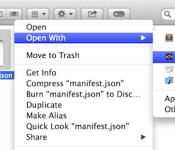
Google now lets you use Chrome apps to open files on your Mac

Although Google has quietly been working to bring Chrome apps to the desktop, you’ve not been able click a file and have it open inside a browser extension. According to Chrome tinkerer François Beaufort, that’s all about to change, after the search giant launched a new beta version of its Mac browser, which just so happens to add this kind of support for various file types. As you can see in the screenshot above, the Chrome extension Text can be assigned to edit (you guessed it) documents. Images are also supported, though it’s not clear what other file types Google may allow extensions to access. Imagine a YouTube app that’ll let you edit videos saved on your Mac while uploading them to the site: not something you can do currently, but Google could help make apps like that a reality.
Filed under: Internet, Software, Google
Source: François Beaufort
Sprint HTC One Max owners see some Sense 6 and Wi-Fi calling in newly released Update
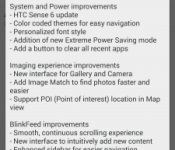
Good news for Sprint customers sporting the HTC One Max today. Seems an update is rolling out your direction that brings in some HTC Sense 6 to the phablet-ish device. Sense 6 is is what you find on the newer HTC One M8, in case you were wondering. The update swallows a ton of data at 537.07MB’s. So you might need to move a few things around before downloading it.
 Sense 6 is the biggest news in the update, but you can also expect to find the Extreme Power Savings mode, color coded themes for easy navigation, personalized font style, a new interface for the camera and gallery apps, image match to find photos faster, POI (points of interest) location in map view and various improvements to BlinkFeed. On Sprint’s support page we also found that the update includes Wi-Fi Calling.
 Sprint fails to mention Sense 6 as part of the update, but you can see the version numbers are the same. On a second Sprint Support page I found the update listed again. Same version number, but still lacks Sense 6 information and sticks to Wi-Fi calling. It also says the update is available for customer initiated requests and won’t start rolling on its own until May 13th.
 All that means is you should pop into settings and check for updates if you want to grab it now. Otherwise it will be a few weeks. Make sure you have a good Wi-Fi connection, over 50% battery life and some time to kill to get it installed.
Source: Sprint 1 / 2 | Img via @LlabTooFeR
//<![CDATA[
ord = window.ord || Math.floor(Math.random()*1E16);
document.write('’);
//]]>

Snapchat settles with FTC for misrepresenting its ephemeral nature, gathering user data

Snapchat has been a popular choice for those looking to send temporary messages that will soon disappear forever. Well, the auto-erase feature wasn’t without flaws, and now the mobile outfit has settled with the Federal Trade Commission over it. The FTC has announced that it had reached an agreement with Snapchat for misleading users about the ephemeral focus of the app, after the commission found that users could easily save messages with third-party apps and other tricks. Despite claims to the contrary, the complaint alleges that the software gobbled up location details and other user info (like contacts) which allowed researchers to build a database of over four million user names and their matching phone numbers.
Snapchat was also accused of storing sent videos on recipients’ devices in a repository outside of the app’s auto-clearing sandbox, making them accessible when connected to a computer and searching the file directory. “If a company markets privacy and security as key selling points in pitching its service to consumers, it is critical that it keep those promises,” said FTC Chairwoman Edith Ramirez. “Any company that makes misrepresentations to consumers about its privacy and security practices risks FTC action.” As part of the settlement, Snapchat also faces monitoring from an “independent privacy professional” for the next 20 years.

Hipstamatic brings its retro filter editing to video with Cinamatic

Hipstamatic was early to the filter-driven photo editing fray, and now it takes aim at Vine with the Cinamatic app. The new offering allows users to long press on the screen to record videos that range up to 15 seconds in length — just like you’ve encountered before. Once the footage has been captured, a smattering of retro-inspired presets are available for punching up the vids. Unfortunately, there’s no way to delete portions of of the video right now, so you’ll have to start fresh when you drop an accidental expletive. Unlike Vine or some other popular apps, there’s no built-in feed. Cinamatic means for you to beam clips out to other social avenues for circulation. The price of admission is $1.99 and it comes with five filters to start, with the ability to make those tempting in-app purchases to pad the toolbox.
Via: The Next Web
Source: Cinamatic

Litely looks to improve mobile photo editing by focusing on simplicity

“The best photos don’t look edited; it’s all about the story and the moment,” photographer Cole Rise quips while walking me through his new mobile image editor. You may not recognize his name, but if you’ve used Instagram, you’ve seen some of his work. Rise created the Hudson, Sierra, Sutro and Rise filters for the popular social snapshooting app. But he’s quick to tell you that the features in Instagram and other mobile editing software help mask bad photos and are generally too heavy-handed to churn out truly compelling images. So with that in mind, and with a library of presets for Lightroom, Photoshop and Aperture already in his toolbox, he set out to make a non-destructive editor with a simple UI and subtle tools. Something to make film-like tweaks good photos rather than improve mediocre ones. He created Litely for iOS.
When you first fire up Litely, you’re greeted with a photo library to which you can add shots from your Photo Stream and other iCloud folders. Of course, you can take a new shot as well, and the app leverages the iPhone’s (or iPad’s, should you so choose) built-in camera chops to do so. Ever notice how photos look better in some apps as compared to others? Well, that’s largely a software issue and having spent some time at Apple, Rise is quite familiar with the camera on the 5s. That said, Litely doesn’t employ its own tweaks behind the scenes here, but rather it lets the native hardware do the heavy lifting. This means that you can snap a load of images with the phone’s camera and save the editing for later on it or an iPad, thanks to easy access to the cloud-stored files. Or you could drop a few JPGs from a DSLR and edit them slate-style whilst on the train.

Upon selecting a file, you’re launched into the main edit screen. The overall design of the app keeps its promise of simplicity, and that’s definitely evidenced here. While you can certainly swipe up and down on the list to toggle the presets, doing so on the image itself achieves the same result. Each of the options is applied at 50 percent by default (again, subtlety) and a slider appears above the list allowing for adjustment. “That’s important because subtlety means longevity. I wanted to create an app that enhances your photos today, but keeps them looking just as beautiful and timeless in 50 years’ time,” Rise notes. What’s more, if you swipe across the image with two fingers, you can gaze at a before/after split-screen preview.
“Subtlety means longevity.”
The presets are also colored-coded to give you an idea of the hues they employ and each has a regular, high-contrast and faded setting for further editing options. A single tap on the image serves up a zoomed-in view, which can be panned around using the gyroscope of an iOS device. Not only can you take a closer look, but also you can maneuver around the edges of the photo for a better view of all the edits. During my time with Litely, I found that I preferred my iPad mini over the iPhone 5s if I had some time to sit down to edit. The increased screen real estate was more comfortable and enhanced the use of the aforementioned movement. Of course, the smartphone was the choice if I needed to take a quick shot to edit before beaming out to Twitter.
Along the bottom of the UI are menu items for corrective adjustments, a crop tool and sharing options. Once inside that secondary editor, exposure, sharpen, vibrance and vignette tweaks are all there, with another intensity slider for each. During our chat, Rise dwelled upon that last feature for a few minutes. He says that while the vignette option in most apps just adds black to the outside of the image, Litely actually adjusts the exposure for the desired effect. “It’s technically right,” he adds.

Perhaps the most compelling feature is the way the software handles files. Litely is non-destructive, allowing you to step back from an edit and start fresh. It also makes adjustments to the full-resolution images and allows the exporting of those files without losing quality — a must for photographers needing to keep photos as large as possible for later use. When you’re all done, the app offers sharing to AirDrop, iMessage, Mail, Twitter, Facebook or just saving out that full-size file. If you’re looking to share images to Instagram or another social outlet, you’ll have to save ‘em and then open the desired shot in that app. While this is an inconvenience, Rise maintains that Litely isn’t meant to be social, but rather a tool focused on editing.
For those that aren’t after the more detailed tweaks that Adobe Lightroom for mobile offers, this could be an attractive option. That more pro-minded app requires a monthly subscription though, and is really more of a complement to the full-on desktop software. At launch, the free version of Litely for iPhone and iPad will house nine presets and users will have the option of making in-app purchases of a dozen at time for $1.99 per pack.
Filed under: Cellphones, Cameras, Tablets, Software, Mobile
Source: Litely (iTunes)

The Minecraft version of Denmark is being attacked, hilariously

In Denmark, it’s someone’s job to monitor and maintain a replica of the country in megapopular exploration game Minecraft. If you take away one thing from this piece, make it that.
Now that we’ve gotten that out of the way, apparently the replica of Denmark that the Danish government sanctioned and built in Minecraft is being attacked. Though dynamite is banned from the server which hosts the virtual replica, players found a way to sneak in hilariously large quantities by using a mining cart full of dynamite. Not so much a loophole as an amazingly huge mistake. As such, varying levels of damage have been done; some American flag fans even redecorated one area, as seen above.
The Danish government department responsible for maintaining the server told The Register that it isn’t too concerned about the “minor” damage done. “We consider that as a nature of playing Minecraft,” chief press officer Chris Hammeken said. He also said that his agency “will rebuild minor areas if buildings are removed and nothing new is being created,” but in general, he sounds pretty casual about the whole affair.
Looking to get in on the action yourself? Grab your best Danish-speaking buddy and head right here for more info.
Filed under: Gaming, Internet, Software, HD
Source: Reddit, The Register

Yahoo brings its personalised Sports app for iOS and Android to the UK

There’s no shortage of sport-related apps available on iOS and Android, but when a major online player outs one for the UK, it’s certainly worth a look. Having served US audiences for a little while now, Yahoo Sports today came to the App Store and Google Play on this side of the Atlantic, launching alongside a new Android version of Yahoo’s News Digest app. Sports offers personalised news, scores, goal alerts, results, team updates and, for some, the ability to capture cheeky own goals in animated GIF form. Football, rugby, cricket, tennis, golf, F1 and all major US sports are represented, giving the BBC’s updated sport apps a bit of healthy competition.
Filed under: Cellphones, Internet, Software, Mobile
Via: Yahoo UK
Source: Yahoo Sports (Google Play), (App Store)
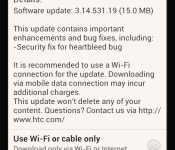
T-Mobile and Sprint HTC One S get security fix update for Heartbleed
There is almost something cruel about pushing out an update to an older device. Especially when there was talks of updates to newer Android versions that were dropped. It is still good that T-Mobile, Sprint and HTC still care enough to patch up security issues though. Today both companies started pushing out an OTA update for the aging, or super old, HTC One S. The update is a small 15MB file that takes just a couple minutes to push through. The only significance to the update is a security fix for Heartbleed. Seriously, the screenshots I took show it.


 Head into Settings >About > Software Updates > Check Now if you happen to still rock the HTC One S.
//<![CDATA[
ord = window.ord || Math.floor(Math.random()*1E16);
document.write('’);
//]]>

Google Wallet updates wih UI tweaks and removes Offers Section [Download]
It is Google app update Wednesday and we have seen a few float on through already. The Google Camera being one, which we will post shortly, but for now, here is the new Google Wallet update and the much desired APK. The update moves Google Wallet to v2.0-R163-v17. In it you will find a slight set of UI tweaks and the complete removal of the Explore Offers sections. The Offers section is line in Google Maps so it would seem Google deems that a better place for it to reside. It kind of makes sense when you think about the number of people that probably have maps installed vs the number of users with Google Wallet installed.


 I know, the images aren’t the best. You can still see the differences though with the new Google Wallet on the left device and the old Google Wallet on the right device. You can impatiently wait for he update to hit the Play Store, or just pop over to Gappsearly and grab the APK now.
//<![CDATA[
ord = window.ord || Math.floor(Math.random()*1E16);
document.write('’);
//]]>

