


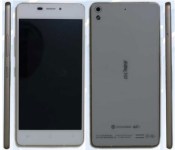
Gionee’s next smartphone promises to be the thinnest ever

If you thought Gionee’s Elife S5.5 was ridiculously thin, you’d better hold on to your hat. China has certified an upcoming Android handset from the company, codenamed the GN9005, that reportedly measures 5mm (0.2in) thick; that’s half a centimeter less than the wafer-like Elife S5.5, and possibly the thinnest smartphone to date. You will be giving up some bells and whistles in the name of a super-slim profile, mind you. This device will have a strictly middling 4.8-inch 720p AMOLED screen, a slow quad-core 1.2GHz processor and a modest 2,050mAh battery. The 1GB of RAM, 16GB of storage, 8-megapixel rear camera and 5-megapixel front shooter won’t impress, either. Still, Gionee will get to claim some serious bragging rights — at least, so long as it’s not upstaged between now and the GN9005′s launch.
Filed under: Cellphones, Mobile
Via: Engadget Chinese (translated)
Source: TENAA (translated)

ZTE continues the trend toward minimizing Android customization

For all its beauty, Android’s openness is the reason why manufacturers and carriers are able to make their own tweaks to the OS. Some companies go as far as completely forking the platform, and we know how terrible that can be — though there are exceptions like Amazon’s Fire ecosystem, which offers a solid experience overall. Thankfully, manufacturers are beginning to realize it’s much better to deliver Android as Google intended, or at least as close to it as possible (e.g. HTC’s Sense 6). Chinese outfit ZTE will join this movement very soon, announcing that the Google Now launcher will be set as the default home screen on its future smartphones, starting with the launch of the Blade Vec 4G next week. Naturally, doing so means giving buyers a cleaner look right out of the box; plus, it puts all of the search giant’s services front and center, including the Play store and, of course, Google Now. Most importantly, it’s definitely going to make Google happy.
Filed under: Cellphones, Software, Mobile, Google
Via: PocketNow, Android Police
Source: ZTE
How I Android (mid-2014)

The beauty of Android is in the ability to customize it, do whatever you like and use it as such. In other words you’re not nearly as limited as you are in other mobile platforms. Of course there are some limitations on Android as well, but even those disappear once you root the device. I haven’t rooted the devices I use for a long time now, I just don’t feel the need to although I can get numerous advantages by doing that. EIther way, we’re not here to talk about rooting or anything of the sort.
I am however going to talk about the way I use my device(s) and what my current setup looks like, who knows, maybe I give you an idea or two and you do the same in return via comments down below.
In general
I’ve used tons of launchers, widgets, icons, wallpapers and general customization-oriented apps for tweaking every certain part of my device(s). I used to have 5+ home screens full of widgets out of which every one of them served a specific purpose. As time passed by I got bored by all that and have used all sorts of launchers which don’t support widgets (or didn’t at the time), at least not regular ones, like Smart Launcher and WIndows Phone-like Launcher 7 and 8. Those lacked productivity, at least for my taste, so I got back to Nova Launcher Prime along with some others, I just can’t seem to stick with one. Considering I didn’t want to go back to using a bunch of home screens I found a way to use just one and keep the productivity in place. Which brings me to my current setup(s)…
Home screen
I currently use Action Launcher Pro on my smartphone even though I always go back to Nova Launcher Prime (my setup is rather similar though and I constantly switch between the two), I just wanted to change things up a bit. Anyhow, as I said, my setup looks rather simple, even though there’s lots of productivity hiding behind this screen. Starting from the bottom you can see I use a dock similar to basically every other Android layout, this is where some of Action Launcher’s features come in handy. You might notice that three icons (1st, 3rd and 5th) have a little transparent square in the bottom right corner, Chomp SMS, Chrome and Phone. This is symbolizing one of Action Launcher’s features called “Covers”. These are basically folders which offer more functionality, instead of sticking a bunch of icons inside and taping on the folder to open them, you swipe the icon up to open it and if you tap it the 1st icon inside a folder will launch. So you can basically place whatever you want inside a folder first and not only will that open if you tap on the folder but the folder icon will look like the 1st icon inside of it. So let us take Chrome for example, you can see Chrome folder (or “Cover” if you will) opened in the image below. First place in that folder is Chrome app icon and everything else are bookmarks. I’ve done that very same thing with my SMS contacts (hiding in the Chomp SMS folder/Cover) and my Phone contacts (Phone folder/Cover). So all I have to do in order to send a direct SMS to someone for example is swipe up Chomp SMS folder/Cover and tap who I want to send it to, same goes for a direct call. The widget containing Wi-Fi, data connection, bluetooth, flashlight, screen rotation lock, sound toggle and sound settings comes from an app called Power Toggles which lets you add lots of things here and make it suit your needs, it’s also easy to use. One more thing to note is that I also use gestures, swipe up for recent apps and double tap in order to turn off the screen.

Side-screens, Action Launcher style
Now that we’ve covered the home screen looks and functionality we can jump in the rest of it. As I already mentioned, I like to have only 1 Android home screen when using my device, that doesn’t mean I can’t have side-screens though. Those of you who haven’t used Action Launcher might be a bit confused, let me explain.
In Action Launcher, when you’re on your home screen and swipe from left to right you get a list of your apps (you can of course hide the ones you don’t want there) and widgets, what is called a “Quickdrawer”. When you do the opposite, swipe from right to left you get what the developer calls a “Quickpage”. This is basically additional space or an additional screen in which you can place your icons/widgets in. The functionality is basically the same as if you have an extra screen on the side. Now you probably wonder why don’t I just add an extra screen instead of this, well… it looks better and I like it this way. Kind of a stupid reason, I know, but hey, to each its own. You can however get some extra use out of this if you enable a feature which lets you call upon this screen from wherever you are on your phone, but I opted not to use this.
As you can see in the right image below, I use four widgets on my “Quickpage”. From top to bottom: Google Keep, Play Music, Cal (calendar) and Pocketcasts widgets. I can live without the “Quickpage” screen though, I actually do that rather often when I switch to Nova Launcher Prime.

Notification tray and icons
I use a few apps on top of my vanilla 4.4.4 KitKat notification tray (first image below). From top to bottom: Lux, Weather and a persistent Facebook Messenger widget which makes it possible to call on Messenger chats in a pop-up window (Chat Heads) overlaying whatever I’m currently on. You may also notice my Google Now cards pop-up there from time to time, so I have 2 weather notifications there at times. I used only Google Now for weather for a long time but it was inaccurate a few times on my location recently so I decided to search for an alternative. Weather is working just fine for now and I really like the design of the app. Lux is probably one of the most useful apps I’ve purchased, that one thin line in the notification tray helps a lot when it comes to tweaking your screen’s brightness and what not. I’m not going to go in too much detail here, though I might do a “What’s on my Android” or something like that in order to show you all the apps I’m currently using.
As far as icons go I used to switch between different icon packs a lot. Lately however, I’m using only two, Stark and Aloha icons. Both of these icons are flat in design and I really dig both of them. You can check out Aloha icons on the second image below this paragraph, and Stark in all the images above. Regarding wallpapers, I choose the one I like and I tend to stick with it for a long time. Like the one I’m using now for example, blurred rain drops, fits me perfectly. It’s pretty and easy on the eyes, I generally tend to pick blurred wallpapers or blur them myself.

Conclusion
In short, this is how I use my device. I could of course go step-by-step and tell you about my usual day and usage scenarios, but we’ll leave that for some other time. I just wanted to show you how my smartphone looks and functions for me on a daily basis. Other than my Nexus 4, I also use a Nexus 7 (2012) tablet. My launcher of choice over there is Nova Launcher Prime and the setup is pretty much the same as it is here, except there are no Action Launcher features over there. I did however set up the folders to act the same way as they do here and I take advantage of Nova Launcher’s gestures while still using one home screen.
There you have it, that’s basically it. From heavy customizations and root to simple but productive ones. How about you? What does your phone/tablet looks like? How do you use it?
The post How I Android (mid-2014) appeared first on AndroidGuys.

Google reportedly confronted Samsung over its approach to smartwatches

The strained relationship between Google and Samsung over Android customization has been apparent for a while, and it now looks like this discontent has spread to the wearable world. The Information claims that Google CEO Larry Page confronted Samsung last week over its decision to invest more in its Tizen-based Gear 2 and Gear Fit smartwatches than the Android Wear-packing Gear Live. While the details of Page’s discussions aren’t available, it’s clear that Google wants its biggest hardware partner to devote more attention to its Android-based platform. Reportedly, Google had even wanted Samsung to avoid dipping into wrist-worn technology until Android Wear was ready. As we know now, the Korean company didn’t exactly honor that request — instead, it released the Galaxy Gear (initially using a heavily customized Android) and quickly threw most of its energy into Tizen peripherals.
Neither firm has commented on the disagreement. However, a scrap over wearables isn’t completely shocking. Google is trying to rein manufacturers in by requiring that they use its stock interface on Android Wear equipment; that’s not going to please Samsung, which has spent a lot of time customizing Android in an attempt to stand out. The Gear Live’s very existence suggests that Samsung is being somewhat accommodating. If the leak is accurate, though, Google may not be truly happy unless that device takes center stage in Samsung’s lineup.
Filed under: Cellphones, Wearables, Mobile, Samsung, Google
Via: 9to5Google
Source: The Information

Perform a Nandroid backup online with this App

A Nandroid backup is a process which is performed in recovery mode to take a snapshot of the current state of your Android Operating System, along with data, settings, and a whole bunch of other information to create a backup file. This backup can then be used to restore to if you flash a bad ROM, or install a bad App, restoring with it not only a known-working Android Operating System, but all your data and Apps with it.
With this new tool you’re able to perform a Nandroid backup without having to turn off your device to enter recovery mode – perfect for backing up on the fly before installing a questionable App or changing a developer setting. That means no more missed calls or messages whilst you’re booting into recovery and performing the backup.
Do not get confused with the naming of the App however, since an online backup here is referenced not in the uploading or downloading of a backup connected to the internet, but instead in the ability to perform a backup with your phone live.
Features
* Creates backups in the CMW 5 and 6 style or TWRP!
* Full support of the onandroid script.
* Create custom names for your backups.
* Choose what partitions get backed up.
* Scheduled backups.
* Tasker support.
* Upload backup to FTP after creating backup.
Requirements
1. Rooted android phone
2. Latest version of Busybox
Online Nandroid is a free App in the Google Play Store based off a script originally developed over at XDA.
The post Perform a Nandroid backup online with this App appeared first on AndroidGuys.
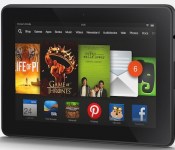
Amazon UK rep says an Android version of its video app is ‘imminent’

Amazon’s video service is well-rounded, with both video-on-demand selection and Prime all you can eat viewing, but there’s one big hole — Android. Even though Amazon has apps for its Android-based Kindle family of devices (along with iOS, game consoles, Roku and other TV boxes), the rest of the Android family tree is left out of the party. That could change soon however, as PC Advisor reports Amazon UK Marketing & Merchandising Director said that an app for the platform is “imminent.” The news came at the firm’s Christmas show (yes, in July, just go with it), however it’s unclear if it will apply to both phones and tablets. He also indicated that work on 4K content is progressing, confirming what we’d heard at CES, but there’s no word on when the high-res video will hit Amazon’s service. Despite repeated attempts to contact Amazon PR in the US and UK we have not received a response concerning the report, but if an app arrives soon it would help make Amazon a much better competitor against the likes of Netflix and Hulu.
Filed under: Home Entertainment, Software, HD, Mobile, Amazon
Via: Droid-Life
Source: PC Advisor
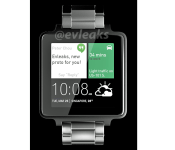
Render emerges purporting to resemble HTC’s smartwatch

Some rumors mentioning HTC’s smartwatch running Android Wear emerged recently. The watch is allegedly due this fall under the “HTC One Wear” name. Some new information came to us, courtesy of @evleaks. The leaker has an amazing track record when it comes to leaking stuff, so we should take this one seriously. The watch kind… Read more »
The post Render emerges purporting to resemble HTC’s smartwatch appeared first on SmarterWatching.
Read the rest at SmarterWatching.com!
The post Render emerges purporting to resemble HTC’s smartwatch appeared first on AndroidGuys.

Render emerges purporting to resemble HTC’s smartwatch


Some rumors mentioning HTC’s smartwatch running Android Wear emerged recently. The watch is allegedly due this fall under the “HTC One Wear” name. Some new information came to us, courtesy of @evleaks. The leaker has an amazing track record when it comes to leaking stuff, so we should take this one seriously. The watch kind… Read more »
The post Render emerges purporting to resemble HTC’s smartwatch appeared first on SmarterWatching.
Read the rest at SmarterWatching.com!
The post Render emerges purporting to resemble HTC’s smartwatch appeared first on AndroidGuys.

Watch This App: PixtoCam for Android Wear

So you’ve got an Android Wear device and now you’re looking for some Android apps to go along with it. We’ve got you covered. Our Watch This App column is designed to help educate readers in the various apps available for the platform and highlight the best of the bunch. Watch This App: PixtoCam for Android Wear PixtoCam lets… Read more »
The post Watch This App: PixtoCam for Android Wear appeared first on SmarterWatching.
Read the rest at SmarterWatching.com!
The post Watch This App: PixtoCam for Android Wear appeared first on AndroidGuys.
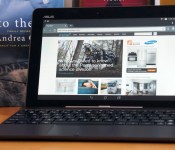
ASUS Transformer Pad TF103C review: a speedy budget tablet with a few sacrifices

When it comes to ASUS, buying a full-size Android tablet has usually meant venturing past the $300 mark; even the Transformer Book T100 set you back $349 when it first came out, and that was considered a steal. That’s no longer a problem in 2014. ASUS’ new Transformer Pad TF103C costs $299 with the company’s signature keyboard dock included, or as much as some smaller mid-range slates. While that’s potentially a hefty bargain, it begs a few questions: Just what are you giving up to get that price? And is it worth the trade-off when you could likely snag a smaller, but more powerful tablet for less? As I’ve learned, you’re making quite a few sacrifices in the name of a better deal. This is still quality hardware, but you have to know what you’re in for.
Hardware
Don’t expect a revolution on the outside. Aside from the smooth matte finish on the non-removable back and some cosmetic tweaks to the speaker grilles, the TF103C will seem awfully familiar if you’ve used a Transformer-series tablet like the T100. Not that I’m grousing much about it. That still makes for a comfortable grip, and the tablet alone is light for its size at 1.2 pounds — not as svelte as the 1.07-pound Galaxy Tab 4 10.1, but on par with LG’s similarly sized G Pad. About the only step backward is the overly smudge-prone casing on the black model. You’ll want to track down the white variant if you insist on keeping the case looking pristine.
Of course, that also means the same drawbacks have returned. The tablet’s 16:10 aspect ratio is fine for landscape viewing — arguably where you’ll spend most of your time — but not so hot for reading books in portrait mode. Moreover, the combination of dock and tablet is relatively thick (0.78 inch) and heavy (2.43 pounds) considering the energy-efficient technology you’re getting. I’m not expecting something wafer-thin, but it would be nice if the TF103C were easier to tote around than far more powerful devices like the 11-inch MacBook Air or Surface Pro 3, you know?

A closer inspection reveals a few of the more conspicuous reasons why this Transformer Pad is so cheap. You’ll once more find a microSD storage slot, a micro-USB port and the volume rocker within easy reach on the left side. However, ASUS has yanked the micro-HDMI video output seen on other tablets — you’ll have to make do with streaming technology like Miracast if you want to put movies on your TV. You will find a 2-megapixel rear camera where there was no such cam at all on the T100, but the front camera is a basic 0.3-megapixel unit that rules out any HD video chats. There’s also a single USB 2.0 port on the dock instead of the T100′s USB 3.0, although that isn’t a big deal when Android doesn’t make much use of the faster connection standard.
You won’t find a lot of future-proofing inside, either. The starter Transformer ships with ordinary 802.11n WiFi and Bluetooth 4.0 for wireless, and my test unit carries a modest 16GB of built-in storage. There’s an 8GB version, too, but you’re not likely to find it in the US. That’s just as well, since you’d run out of space very quickly with that model; even my device had just 10.3GB free before I started piling on the apps. You will find built-in GPS and GLONASS positioning, though, so you won’t need to splurge on a cellular-ready tablet just to navigate through an unfamiliar city.
Keyboard dock

As always, the keyboard dock is why you’re looking at a Transformer tablet in the first place. That’s especially true for the TF103C, which has very little keyboard-equipped competition in its price range. Thankfully, ASUS hasn’t skimped on the quality just to get that $299 sticker. This is the T100′s dock rejiggered for Android, and that’s mostly a good thing. Although the keys are too small for me to type at a breakneck pace, the keyboard as a whole is supremely helpful for drafting long emails and controlling basic settings like brightness. The touchpad, meanwhile, is a slight refinement over the T100; it has the same tiny surface and hidden buttons, but none of the jumpiness. Android admittedly doesn’t make nearly as much use of mouse input as Windows does, but the pad is convenient for quickly selecting text or other moments when you don’t want to lift your hands.
Having said that, all the quirks from recent ASUS docks remain intact. The buttons are a bit noisy, and some of them (especially the arrows and function key) are too tiny to find by feel alone. It also took some time to get used to the inherently top-heavy nature of the docked combo. Mind you, that’s partly due to what’s missing in the dock this time around — a secondary battery. While you won’t find one in the higher-end TF303CL or many other dockable tablets, the absence is disappointing given that earlier Transformers often made use of a spare cell.
Display and sound

If the dock is why the TF103C’s price is so alluring, the screen is a big reason why the tablet costs so little in the first place. A 10.1-inch, 1,280 x 800 display is no great shakes in an era when 1080p or higher is quite common, even on small hardware like the G Pad 8.3 or Nexus 7. The low pixel density (149 ppi, to be exact) isn’t terrible, but it was noticeable whenever I was reading or playing a visually intensive game. At least the overall picture quality holds up. The IPS-based LCD produces rich colors, shines brightly at 400 nits and only loses a moderate amount of that brightness when viewed from sharp angles. If all you’re looking for is a reasonably true-to-life image, you’ll be happy with what this Transformer has to offer.
Audio is another story. The two rear-firing speakers are barely loud enough for a quiet environment, even if you cup your hands around the speakers to direct the sound forward. Bass is equally weak — playing dance music will leave you without the satisfying punch you get on the G Pad 8.3 or recent iPads. While the output is clear, I just couldn’t get engrossed in movie dialogue or music without plugging in some headphones. Should you want a mobile media center, you’re better off giving up the TF103C’s screen real estate to get something with a fuller sound and a sharper picture.
Software

If you’ve tried the Padfone X or other ASUS devices circa 2014, you’ll have a good sense of what to expect from the Transformer Pad’s ZenUI interface — minus the phone part, of course. The company has given Android 4.4.2 KitKat just enough of a makeover to make it distinctive, with trendy “flat” (read: textureless) icons and bright colors. It’s otherwise a very hands-off approach, though. While you’ll see useful upgrades like quick access to settings and more polished media galleries, aspects like multitasking have largely gone untouched. I won’t deny missing out on some advanced features that require more customization, like Samsung’s multi-window support. Nonetheless, there’s a certain refreshing simplicity to ZenUI. It’s easy to find your way around, and it’s blissfully free of unnecessary effects and transitions that might slow you down.
ASUS doesn’t go overboard with preloaded apps, for that matter. Most of what you’ll see are lightweight utilities that fill in a few gaps in Android’s stock interface, like Splendid (display calibration) and Do It Later (to-do lists). Some are deeper, if not always useful. I most appreciated SuperNote, which lets you jot down a mix of typed and drawn notes; Story, on the other hand, is the classic diary app that you try once and quickly forget. I found the third-party software more practical. You’ll have Flipboard, Kindle and Zinio apps for reading, while eMusic gives you another means of downloading tunes beyond Google Play.
Performance and battery life
| ASUS Transformer Pad TF103C | ASUS Padfone X | Samsung Galaxy Tab S ** | Apple iPad Air *** | |
|---|---|---|---|---|
| Quadrant 2.0 | 18,921 | 22,032 | 18,591 | N/A |
| Vellamo 2.0 | 1,873 | 2,308 | 1,672 | N/A |
| SunSpider 1.0.2 (ms)* | 611 | 906 | 1,109 | 393 |
| 3DMark IS Unlimited | 14,171 | 19,523 | 12,431 | 15,328 |
| GFXBench 3.0 Manhattan Offscreen (fps) | 8.2 | 12 | 5.5 | 12.7 |
| CF-Bench | 22,586 | 32,937 | 31,695 | N/A |
|
*SunSpider: Lower scores are better. **Average scores for the 8.4- and 10.5-inch models. ***Not all of our Android benchmarks are cross-compatible with iOS. |
||||
Intel-based Android tablets like the TF103C are nothing new, even if they’re still rare. However, the quad-core, 1.33GHz Atom Z3745 processor found here is very much up to the job of powering Google’s mobile platform. If anything, this budget hardware regularly punches above its weight class. It’s typically speedier in benchmarks than an Exynos 5 Octa-based tablet like the Galaxy Tab S, and it’s not all that far off from Snapdragon 800 devices like ASUS’ own Padfone X.
That’s borne out by the real-world performance. I’ve already touched on the zippy interface, but the Transformer Pad doesn’t act like an econo-slab when running apps, either. Web pages pop up quickly, and even a graphics-heavy 3D game like Real Racing 3 runs smoothly regardless of what’s on the screen. To some extent, the lower-resolution display helps keep things quick; there aren’t as many pixels to push around, after all. Even so, it’s apparent that this Transformer Pad has more muscle than you’d expect, and our offscreen graphics test (GFXBench) shows that it wouldn’t be a slouch with a 1080p display.

Just don’t plan on juggling many apps at the same time. While the TF103C’s 1GB of RAM was generally adequate, there were a couple of moments when it balked; even after purging the device’s memory, I couldn’t run one benchmark until I’d rebooted. I wouldn’t say that’s a dealbreaker for Android gear this cheap, but it does make me worry about software performance in the long run, when operating system upgrades and next-generation 3D games put some extra strain on the memory. If I were running the show, I would have kept the T100′s 2GB of RAM just to guarantee a hiccup-free experience.
Keeping the 11-hour battery life would have been nice, too. The Transformer Pad’s 19-watt-hour lithium cell is officially rated for a less ambitious 9.5 hours when playing non-stop 720p video, and that’s assuming you both keep the screen relatively dim (100 nits) and avoid social networks. In Engadget-grade stress testing, which upped the brightness to the halfway mark (200 nits) and allowed for updates from Facebook and Twitter, the tablet conked out after eight hours and 26 minutes. That’s not terrible by any stretch, but it’s a far cry from the 10-plus hours of the T100, the Galaxy Tab S and most iPads.
| Tablet | Battery Life |
|---|---|
| ASUS Transformer Pad TF103C | 8:26 |
| Microsoft Surface 2 | 14:22 |
| iPad Air | 13:45 (LTE) |
| Apple iPad mini | 12:43 (WiFi) |
| Samsung Galaxy Tab S (10-inch) | 12:30 |
| Samsung Galaxy Tab S (8-inch) | 12:22 |
| Apple iPad mini with Retina display | 11:55 (LTE) |
| Apple iPad (late 2012) | 11:08 (WiFi) |
| ASUS Transformer Book T100 | 10:40 |
| Apple iPad 2 | 10:26 |
| Samsung Galaxy Note Pro 12.2 | 10:04 |
| Apple iPad (2012) | 9:52 (HSPA) / 9:37 (LTE) |
| Acer Iconia W4 | 9:50 |
| Nexus 7 (2012) | 9:49 |
| Microsoft Surface RT | 9:36 |
| Toshiba Encore | 8:45 |
| Sony Xperia Tablet Z | 8:40 |
| Sony Xperia Z2 Tablet | 7:57 |
| Nexus 10 | 7:26 |
| Dell Venue 8 Pro | 7:19 |
| Samsung Galaxy Note 8.0 | 7:18 |
| Nexus 7 (2013) | 7:15 |
| Samsung Galaxy Tab Pro 8.4 | 7:13 |
| Samsung Galaxy Tab 3 10.1 | 6:55 |
Most people don’t watch that much video, though, and the good news is that you won’t have trouble getting through a full day of less demanding uses that include web browsing, social networking and small bursts of gaming. If you need to go further, there’s also a special energy mode that will drop the internet connection when you leave the device idle. No, that’s not really practical in most circumstances, but it might save your hide if you need to check your email after a long trip.
Camera

You might have gathered that the TF103C wouldn’t be a photography champ from the specs… and you’d be right. The 2-megapixel rear camera isn’t the worst I’ve seen on a device — that dubious honor belongs to the ZTE Open — but it produces drab-looking photos and videos even in good lighting. Low detail, blown-out highlights and lots of noise are commonplace. In darker conditions, the results are downright ugly. Meanwhile, the front 0.3-megapixel camera is only properly useful for video conversations. It’s slightly ironic that the shooting interface includes a full range of filters and settings (including ISO and white balance), since you’re rarely, if ever, going to get a masterpiece. Really, the cameras are more utilitarian than anything. They’re here to make sure you can capture a whiteboard or say hello on Skype, and not much else.
The competition

It’s tempting to argue that there isn’t any real competition for the TF103C, at least not in the most literal sense. How many budget 10-inch Android tablets come with their own keyboard docks? There is one obvious parallel, however: Archos’ 101 XS 2. Mind you, it’s not much of a contest. The XS 2 does ship with a healthier 2GB of RAM, but its quad-core, 1.6GHz Rockchip processor isn’t even in the same ballpark as the Atom in the Transformer Pad. It’s also not as elegant, since you can’t just fold things shut when you’re done; you have to detach the keyboard cover every time you’re ready to pack up. Archos’ hardware does have front speakers and mini-HDMI, but you’re making way too many compromises just to get those features.
But what if you don’t need a keyboard? That’s where it gets complicated, and where ASUS has some reasons to be nervous. As mentioned earlier, Android fans have a lot of options around $300, and what you get depends on how much you crave a 10-inch display. Samsung’s Galaxy Tab 4 10.1 doesn’t fare well here. For $50 more, you’re both ditching the keyboard and taking a performance hit; you’d have to be a huge fan of multi-window support or better cameras to splurge. LG’s G Pad 10.1 delivers more value at $250, but it’s still underpowered. And it may be smarter to forego some screen area if raw power is what you’re after. LG’s G Pad 8.3 now sells for the same $299 with a much nicer 1,920 x 1,200 LCD, a fairly nimble Snapdragon 600 processor and superior cameras. As I write this, you can also shell out $40 more for Amazon’s 8.9-inch Kindle Fire HDX to get many of the G Pad’s features in a bigger body, provided that you’re okay with missing out on Google’s app ecosystem.
I’d be remiss if I didn’t touch on a couple of Windows alternatives, in case you aren’t wedded to Android. HP’s Omni 10 officially sells for $400, but it’s easy to buy for much less — you can pick one up for as little as $250 from Amazon. You’ll lose the keyboard, but you’ll get an extra-sharp screen along with heaps of additional storage and memory. ASUS loyalists, in turn, will want to consider the Transformer Book T100. It costs a reasonable $350 if you play your cards right, although you may end up buying through smaller stores (such as Newegg’s affiliates) to score that kind of discount.
Wrap-up

Spend enough time with the TF103C and it’s patently obvious why it only costs $299. ASUS has whittled the dockable tablet down to the essentials, with just about every luxury tossed aside; you won’t find a breathtaking display, good cameras, long battery life or video output. What’s left, though, continues to be tempting. This is a brawny tablet for the money, whether or not you use the netbook-like functionality all that frequently. If you do, it might even be an ideal laptop substitute. The Transformer Pad is more expensive than the cheapest Chromebooks, but it’s slightly faster and carries an abundance of native apps.
You do have to ask whether you need the keyboard at all, though, and that’s the real dilemma — many people don’t. If you’re no fan of the Transformer concept, the TF103C won’t change your mind. The savings from passing on the keyboard can be rolled into a tablet that may not be as good at productivity, but could easily be superior for books, games and movies. Give the Transformer Pad a close look if you’re at least mildly curious about the dock; just be sure to keep its competition in mind before you take the plunge.

