


HP Envy x360 15 hands-on review
Research Center:
HP Envy x360 15
Stylish, powerful, and refined, the Envy x360 15 should be a dream. It’s convertible, supports tablets and inking, and has powerful internal components. You get the option of either a standard Intel offering or an AMD-powered model which includes Radeon Vega graphics onboard to boot. On top of that, it looks simply gorgeous.
A few quirks to the product left us scratching our heads, but we’re hoping production models iron out the wrinkles.
Premium as a master chef’s kitchen
The design is unquestionably premium: The Envy x360 is made from a smoked gray, CNC-machined aluminum (HP calls it “Dark Ash Silver,” even though it isn’t silver at all), and feels great in the hand. Cheap laptops are simply cases that hold components, frames for a screen and a keyboard. HP has carefully beveled the back edges and polished them to give the machine an angular profile, and a subtle “Damascus steel” pattern is etched into one of the faces. Damascus steel, HP notes, is commonly used in fancy chef’s knives, and often have a distinct pattern. Go check out your fancy knives, and you’ll see what it means.
Jeremy Kaplan/Digital Trends
Beyond just the material, there’s the 2-in-1 design of course. The Envy x360 has geared hinges that let you flip the screen around to enter either tent mode or full on tablet mode. At 4.85 pounds, it’s a bit heavy to carry around, especially compared to the lightweight 13-inch laptops that have become so popular, notably Dell’s XPS 13. To compete, HP offers the Envy x360 13, of course, which weighs just 2.87 pounds and has a Gorilla Glass 4 coating on its screen for added durability.
The Envy x360’s hinge isn’t strong enough to support the screen.
To talk about 2-in-1s is to talk about hinge design, which is a Thing. Microsoft made a point of underscoring the work that went into the fulcrum hinge on its Surface Book lineup, while the Lenovo Yoga 920 has a very different take on what a hinge should be. HP’s geared hinge – which actually has mechanical gears inside it, that mesh and ensure smooth motion – may not be the best of the bunch.
We often carry our laptop by the corner near the keyboard, an admittedly precarious way to treat a precision piece of equipment but a very common one nonetheless. The Envy x360’s hinge isn’t strong enough to support the screen like this, drifting slowly back until parallel before ultimately bending backward, 270 degrees from the keyboard. That ain’t good. It also means that the pressure of your finger from routine use of the touch display will gradual push the screen back toward the desk behind it. Again, not good.
HP Envy x360 15 Compared To
Dell Inspiron 13 5000 2-in-1
Acer Nitro 5 Spin
Dell XPS 15 2-in-1
Dell XPS 13 2-in-1
HP Envy x2 (2017)
Asus NovaGo
HP Spectre x360 15-bl075nr
Acer Spin 7
Dell Inspiron 17 7000 2-in-1 (2016)
Acer Switch Alpha 12
HP Spectre x360 13-w023dx
Huawei Matebook
Dell Inspiron 11 (2015)
Toshiba Satellite Click 2 Pro
Acer Aspire P3
We asked HP, which suggested the hinge was preproduction and the issue might be fixed before the unit finally ships. We hope so. That’s one small misstep in an otherwise beautiful design, of course.
Great for typing purists, despite an odd choice
Speaking of that beautiful design, the keyboard is fantastic. It feels great to type on, with a satisfying key depth that made this reviewer want to type and type. And it makes very little noise at all – although mechanical keyboard fanatics will lament the silence. People, please: Enjoy the silence.
Jeremy Kaplan/Digital Trends
But before you get to enjoying the keys, you’ll probably notice the keyboard and trackpad are weirdly misaligned, something HP swears customers prefer. The off-kilter keyboard accommodates a numeric keypad, which some will call a godsend and others will regard as an artifact. Who does data entry anymore? Because of the keypad, the resting position of your fingers on the ASDF and JKL; keys aligns you with the left half of the screen. And the touchpad is centered with them, rather than the center of the display.
It threw us off at first, but it’s something business-focused people will definitely appreciate.
The 4K screen – FHD resolution, meaning 1,920 × 1,080 pixels — is sharp and crisp and really bright. It caught our eye from across the room like a movie star. We didn’t have enough time to benchmark the system, of course — we’ll leave to our full review. But in our brief experience, apps launched promptly, and the entire system felt zippy. It’s worth noting that the Envy x360 turns on in the blink of an eye as well. Open the cover, and the system is instantly on and awake. It feels very responsive overall.
Support for inking via HP’s newest pens is a very good thing – and so are those pens. The latest models have tilt support, which lets you shade you in a sketch, and a button on the end that can launch apps via Bluetooth, a la Microsoft’s Surface pens. We didn’t have a chance to test this out, unfortunately.
The Envy x360 15 starts at $870 for a model with the 8th-gen Intel Core i5, 8GB of RAM, a 256GB SSD, and onboard UMA graphics. If you opt for AMD, you can the alternative of a cheaper configuration, starting out at $760, packing a Ryzen 5 CPU and 128GB of SSD storage. As a bonus, you should get some better graphics performance with the AMD option, pushing up to Radeon RX Vega 10 for the spendier configuration.
AMD’s ready to do work with Ryzen Pro Mobile, coming to a laptop near you
Pairing Ryzen CPUs with Radeon Vega graphics is a great idea. It goes far beyond what’s possible with Intel’s onboard graphics options, and distinguishes AMD a bit from its competition. However, not many manufacturers have included these APUs in laptops or desktops so far.
That’s beginning to change, though. At a press event last Friday, AMD announced a series of new APUs made for enterprise laptops, but more importantly, some significant support from the biggest PC manufacturers. AMD says that with the inclusion of these new APUs, this is the broadest portfolio it’s ever had.
Ryzen Pro Mobile APUs
AMD announced three new mobile APUs, which have been picked up in a variety of new systems from different OEMs. They’re all quad-core CPUs using the Zen architecture and include Radeon Vega graphics onboard.
Here’s the specs you can expect from the three levels of Ryzen Pro APUs:
APU
Pro 2300U
Pro 2500U
Pro 2700U
Processor
Ryzen 3
Ryzen 5
Ryzen 7
Graphics Version
Radeon RX Vega
Radeon RX Vega
Radeon RX Vega
Compute Units
6
8
10
Cores
4
4
4
Threads
4
8
8
Base Clock Speed
2.5GHz
2.0GHz
2.2GHz
Boost Clock Speed
3.4GHz
3.6GHz
3.8GHz
Wattage
12-25W
12-25W
12-25W
If you’re familiar with the matter, you might notice these Ryzen Pro not all that difference from the previous Ryzen APUs we’ve seen. When it comes to pure specs, they’re nearly identical. But as with previous iterations of Ryzen Pro, the major differentiator is in security and reliability. These chips come with features like memory encryption and image stability, which should make IT managers happy. Those features won’t get the average person excited, but apparently it was enough to win over some important relationships with laptop manufacturers.
Lenovo, Dell, and HP were all present at the event, each showing off a portfolio of new products that put the Ryzen Pro chips to use. All these laptops are enterprise-focused, and can be configured with any of the three Ryzen Pro APUs.
Dell will be launching the 14-inch Latitude 5495, which look very familiar if you’ve seen a Latitude before. From Lenovo, we’re getting a continuation of the ThinkPad A-series, which debuted the with the AMD APUs in its classic black box. The new ThinkPads come in the 12 and 14-inch variety, the ThinkPad A285 and ThinkPad A485.
HP presented the EliteBook 600 series, as well as the more affordable ProBook 645 G4. The HP EliteBooks are definitely the most interesting option of the bunch. With some slick new security features, the most modern chassis, and trimmed-down bezels, the EliteBooks look like the kind of a laptop we could easily see an executive taking on work trips.
We don’t yet have pricing information on the Dell and Lenovo laptops, but the EliteBook will start at $1,000 and hitting shelves this month. The cheaper ProBook 645 G4 will also be available in May and will start at $760.
It should be noted that all of these commercial-class AMD-powered laptops also have Intel alternatives, which leaves the option up to individuals and IT departments to decide which they’ll choose. When asked why they wanted to work with AMD to produce these laptops, executives from each of the manufacturers cited benefits like increased graphics capabilities, security features, and access to a new segment of the market.
AMD says more consumer-level products will be coming out later this year, so expect some more laptop announcements from these partnerships soon.
Desktop Ryzen Pro APUs
In addition to the two desktop-level APUs that were previously announced, the 2400G and 2200G, AMD now has 35W CPUs made for compact PCs. Again, in terms of specs, there’s not a whole of difference between the 65W Ryzen Pro chips and the previously-announced APUs.
Here’s what you’re looking at for these new desktop Ryzen Pro APUs.
APU
Pro 2200G
Pro 2200GE
Pro 2400G
Pro 2400GE
Processor
Ryzen 3
Ryzen 3
Ryzen 5
Ryzen 5
Graphics Version
Radeon RX Vega
Radeon RX Vega
Radeon RX Vega
Radeon RX Vega
Compute Units
8
8
11
11
Cores
4
4
4
4
Threads
4
4
8
8
Base Clock Speed
3.5GHz
3.2GHz
3.6GHz
3.2GHz
Boost Clock Speed
3.7GHz
3.6GHz
3.9GHz
3.8GHz
Wattage
65W
35W
65W
35W
The OEM partners also showed off a slew of new desktop products that utilized these new pro-level APUs, in both the 35-watt and 65-watt variety. From Dell, you’ve got a fairly basic business tower, the OptiPlex 5055. Lenovo brought two ThinkCentre M7x5 towers: A full-sized unit with the 65-watt APU and a compact desktop using the 35-watt variety.
The most compelling desktop option came again from HP. The company showed off its EliteDesk G4 in three sizes: Tower, Mini, and SFF. The towers more standard fare, but the HP EliteDesk 700 Mini G4 is a bit more interesting of an offering.
It’s a tiny PC that attaches to the back of a monitor, clearing desk space of cords and clutter. Even more impressive, the compact PC includes the full 65W APU and options for a Radeon 560 discrete GPU. HP says that setup would support up to seven displays at once.
Editors’ Recommendations
- Dell’s latest Inspiron notebook packs in AMD’s Ryzen APU with Vega graphics
- AMD combats upgrade woes with ‘crates’ featuring discounted hardware bundles
- HP targets gamers on a budget with new Pavilion notebooks, desktops, and more
- AMD’s second-generation Ryzen desktop CPUs hit the market starting at $199
- HP’s mainstream Pavilion PCs refreshed with latest AMD Ryzen, Intel Core CPUs
Miss Windows XP? Watch this concept video that reimagines it for 2018
As far as Windows has come in the nearly two decades of this century, there are still many who hark back to some of the style choices prevalent in its earliest days. That is, they miss Windows XP. But what if their eternal longings could be met? One YouTuber has put together a short video mockup of what a 2018 version of Windows XP might look like, complete with modern features, placed over the older operating system’s classic style.
In the video, made by “Avdan,” we see an operating system with the clean look and “fluent design” choices of Microsoft’s more modern operating systems like Window 10, but with color palettes and layouts more akin to Windows XP. It even comes complete with the original backdrops and login screens and brings back the Microsoft “Rover” pixellated dog character to preside over search results.
Fans of “Windows XP 2018 edition” have been highlighting their favorite elements. OnMSFT particularly likes the reimagined Start menu, which includes live tiles, but in a much more simplified, XP-style. We liked how it blends the transparent user interface elements of Windows 10 with the color palette of the original XP.
The whole video has gone down so well that many commenters have raised the question of whether Microsoft could release a new theme for Windows 10 which would allow such an art style and layout type to be used with Windows 10.
This isn’t the first concept of a potential alternative modern Windows that Avdan has put together. Just a few months ago, Avdan released a video of a conceptual “Windows 11” which looks even cleaner than the retro-future XP idea does. It too borrows elements from Windows 10, but streamlines the user-interface and introduces visual elements to enhance features like weather reports that can cross between interfaces and windows.
Although we can’t promise that you’ll find one that will make your Windows 10 PC look and feel like Windows XP or the mythical Windows 11, Microsoft does have some themes available in its store — some free, some requiring payment. For more on Windows themes and how to install them on your Windows 10 machine, check out our guide to Windows customization.
Editors’ Recommendations
- Get the top-notch Dell XPS 13 laptop with Core i7 processor at a $400 discount
- The XPS 15 2-in-1 is Dell’s version of a concept car. Here’s how it was built
- Dell XPS 13 9370 review
- Dell XPS 15 9560 review
- Dell XPS 13 vs. HP Spectre 13
The S8 Lite appears to be Samsung’s response to a slowing flagship market
It looks like Samsung may be looking to bolster its smartphone lineup with a revised version of last year’s Samsung Galaxy S8.
Samsung used part of its financial report for the first quarter of 2018 to warn investors that there’s a smartphone market slump on the horizon — warnings that seem to have been proven correct by a marked decline in global sales of smartphones. With Samsung’s apparent clarity on the subject, it doesn’t seem surprising that the company is trying something new to mix up its offerings and try to reinforce its position as one of the smartphone market leaders. Here’s everything we know about the budget Samsung Galaxy S8 Lite.
Design
It seems that Samsung had a whole lot of Galaxy S8 parts left over, because leaked press renders of the proposed Galaxy S8 Lite look almost exactly the same as a standard S8.
So if you’re a fan of the Galaxy S8’s design, but not its price tag, then there will be a lot to love here. There’s a Bixby key, the gorgeous Infinity Display, and the fingerprint sensor (unfortunately) to the side of the single camera lens. It seems that the phone will also be coming in two colors — red and black.
The recycling of the S8’s design isn’t a terrible choice by any means — Samsung lifted most of the same design choices for this year’s Galaxy S9 — but it’s still a tad disappointing to see the return of the fingerprint sensor to the side of the camera lens. It’s just too easy to miss and accidentally tap the lens instead, leading to smudged photos. Still, a good case helps to keep that at bay, and you do grow used to it.
Slashleaks
The display will be a 5.8-inch Infinity Display, as mentioned, and will presumably still be an AMOLED screen in order to achieve the Galaxy series’ celebrated curve. There have been some cutbacks made to the screen’s resolution however, with the S8 Lite only being able to display up to 2220 x 1080 — but that’s still sharp enough for most people.
The heart rate sensor from the Galaxy S8 (formerly on the opposite side of the camera lens, under the flash) has also disappeared, but is the sole physical casualty of the drop to a lower price range. At this time we’re not sure about the materials used in the build, so we can’t say for sure whether the glass and metal build of the S8 or its waterproofing will make their way to the S8 Lite. If these leaks are correct, then the S8 Lite could be a strong contender in the midrange market.
Specs
While rumors about the design of the S8 Lite leave the outside of the phone relatively unchanged, the whispers about the internals point to more drastic changes from the original S8.
While rumors say that the S8 Lite will be packing the same 4GB of RAM and 64GB storage space from the standard S8, the central processing unit will be changing from the Snapdragon 835 to a Snapdragon 660. That’s not likely to be as dramatic a drop in performance as the numbers might suggest — the Nokia 7 Plus uses the Snapdragon 660, and we found the performance on that snappy enough. While you’re not going to get the same level of speed as you would with a Snapdragon 835, we anticipate that the Snapdragon 660 should perform admirably — and provide some additional battery life thanks to its power efficiency.
Speaking of the battery, those same rumors say the S8 Lite will come with a 3,000mAh battery — the same as the standard S8. With so much staying the same, these whispers do seem likely.
Camera
At this time, most leaks point at the S8 Lite coming with a 16MP camera mounted on the rear — which may well be an upgrade from the Galaxy S8’s 12MP camera. While great on launch, the S8’s camera has slowly been outclassed by later smartphone releases, and while the S8’s camera can still hold up very well, there are definitely cameras that do it better now. The S8 Lite could be Samsung’s chance to send out a slightly updated version of that camera tech. There has been no confirmation yet that the S8 Lite will include the dual-sensor tech that allows single camera setups to perform “bokeh” selective blur trickery.
We always enjoy testing Samsung’s camera tech, and we look forward to giving the S8 Lite’s camera a spin.
Release
There is no solid information on whether this phone will launch in the U.S. — Samsung hasn’t even tehcnically admitted it exists yet — but leaks point to the phone being released in China on May 21. Pricing is another finicky area — but with the Galaxy S8 having seen significant price cuts that take it down to $600, it’s not at all unfair to assume that the Galaxy S8 Lite would be priced at $500 or below.
Editors’ Recommendations
- Samsung Galaxy S8 vs. Galaxy S8 Plus: Which galactic star should you pick?
- The best screen protectors for the Galaxy S8 and S8 Plus
- Galactic battle: How the Galaxy S9 Plus camera compares to Samsung predecessors
- Microsoft is selling its own customized version of the Samsung Galaxy S9
- The best Samsung Galaxy S9 cases to keep your new phone safe, looking good
iPhone explodes, catches fire in terrifying Las Vegas security footage
Samsung might not be the only smartphone maker with exploding handsets in its portfolio — chief rival Apple may be feeling the heat as well. In a rather alarming surveillance video, an iPhone can be seen exploding and subsequently catching fire in a store in Las Vegas.
In a video taken on Friday, May 11, an employee of an as-of-yet unidentified store can be seen working at a counter when suddenly, an iPhone a couple of feet away on the counter quite literally goes up in flames. The employee, startled, moves far away from the handset as it continues to burn. No one was hurt in the incident.
The store specializes in phone repairs, but apparently, this was one mobile device that was suffering from significantly more than just a cracked screen. Indeed, it would seem that in some cases, a damaged mobile device can be a fire hazard.
While the surveillance video makes it difficult to ascertain exactly what device exploded on the employee’s desk, ABC affiliate KTNV, which first reported the news, notes that the handset was an iPhone 6S. This is not the first time that an Apple phone has exploded and caught fire. Last December, security footage showed an iPhone 6 exploding in a man’s hands, and previously, iPhone 8 batteries have also reportedly swollen and cracked, which is often seen as a precursor to more dangerous combustion.
To be fair, there aren’t any handsets that are entirely risk-free when it comes to explosion. The vast majority (if not all) of phones depend upon lithium-ion batteries, which tend to be dangerous if they’re either damaged or defective. Batteries, indeed, were the culprit behind the issues with the now infamous Samsung Galaxy Note 7 — Samsung ultimately determined that the handsets overheated due to defective batteries supplied from two different companies and eventually recalled all Note 7 phones. And seeing as the exploding iPhone was in the midst of a repair when the explosion happened, it’s possible that the battery had already been damaged.
As Mashable reports, another possible scenario was that the iPhone was left in the heat for too long, causing battery damage. And seeing as the incident took place in Las Vegas, a city not known for its cool temperatures, it could be the case that the iPhone was suffering from a sort of mobile heat stroke.
Editors’ Recommendations
- This is the moment a portable charger caught fire in a plane’s overhead bin
- Flaws, failures, and flops: These are the worst smartphones ever made
- No one injured as another Samsung washing machine explodes
- Apple facing complaints over its iPhone battery-replacement pledge
- iPhone X: Here’s everything you need to know about Apple’s best phone yet
Can’t get enough of ‘Doom’? A.I. can generate an infinite number of new levels
Tech companies like Google DeepMind have demonstrated how cutting-edge artificial intelligence can learn how to play classic video games better than most human players. But could an A.I. design classic video game stages as well as human designers? That’s a question posed by researchers from Italy, who have developed an artificial neural network that’s capable of generating a theoretically infinite number of new levels of the classic 1993 first-person-shooter Doom. If you’ve spent the past 25 years wishing Doom would never end, today is your lucky day!
To create the new levels, two deep-learning neural networks were shown 1,000 existing Doom levels. This gave them the ability to learn the features found in popular levels, and use these as the basis for generating new ones. The researchers didn’t directly have any input on the levels generated. However, their selection of the levels used to teach the network allowed them to exert a small amount of control — like the parent who tries to shape their kids’ music tastes by only playing them classic albums produced during the golden age of, say, 1988 to 1997.
“There are no explicit bias encoded in the networks that generate the levels, but we expected — and found in our analysis — the networks generate levels that share similarities with levels used for training,” Daniele Loiacono, an assistant professor at Italy’s Politecnico of Milano, told Digital Trends. “Accordingly, choosing the set of levels to use for training makes it possible to affect the quality and the characteristics of the levels generated.”
So what does this mean for future game design then? Are tomorrow’s AAA developer jobs going to snapped up by bots instead of human creators? Not necessarily.
“We think that this work, as well as several recent works in the game research literature, suggest that it would be possible very soon to develop better design tools, where A.I. could assist human designers with the game content creation,” Loiacono said. “Such ‘intelligent’ design tools could save time for human designers and, at the same time, allow them to work at a higher level of abstraction. Our other work deals with using A.I. to generate game content, including tracks for racing games, 3D assets, weapons and maps for FPS, and levels for platformers. In particular, this approach could be applied to generate maps also for real-time strategy, multiplayer online battle arena, and RPG games.”
Along with Loiacono, other researchers on the project included former Politecnico di Milano student Edoardo Giacomello and Pier Luca Lanzi, a full professor at the university. You can read their paper here. The project’s repository is also available for examination on Github.
Editors’ Recommendations
- Baidu’s new A.I. can mimic your voice after listening to it for just one minute
- A new A.I. can guess your personality type based on your eye movements
- Stimulating brains with lasers can create ‘Matrix’-like false experiences
- The best tablets you can buy
- Social media is flooded with illegal wildlife trade but A.I. can help
How to change the Google Assistant voice on your phone and Google Home
Hey Google, I like the sound of that.

Google Assistant is pretty powerful, and it’s getting even better. Recent announcements from Google I/O suggest that Assistant will soon be a lot more powerful with new “Continued Conversations,” a new addition makes it an even better experience right now.
That’s because Google has added six additional voices to Assistant, nearly tripling the total after it added a male voice in October of 2017. So how do you change to one of these new voices on your phone or Google Home? It’s actually quite simple.
How to change the Google Assistant voice on your phone
To change the Google Assistant voice to one of the six new options on your phone, you have to get into the Assistant’s settings.
Note: Your phone must be running Android 6.0 Marshmallow or above to have access to Assistant.
Long-press the home button to activate Google Assistant.
Press the blue explore button in the top right corner.
Tap the three-dot menu button.
Tap Settings.

Tap Preferences.
Tap Assistant voice
Tap the voice you want.

The new voices range from soft to deep, from male to female. According to Google, all of the new voices are completely computer-generated, but they sound amazing. I like Voice 5, what about you?
How to change the Google Assistant voice on your Google Home
The procedure to change the Assistant voice on your Google Home is pretty similar since your account shares the voice between phone and speaker. In this example, though, we’ll be using the Google Home app.
Open the Google Home app.
Open the left-side menu.
Tap More settings.
Tap Preferences.

Tap on Assistant voice.
Select the new voice.

That’s it! Now your voice should be different on both your phone and your Google Home series.
Unfortunately, it seems like this time it’s not possible to have a different voice between your phone and your Google Home — unless you register your Google Home devices on a different Google account. The new voices are also limited to U.S. users at the moment, anyone who sets their Assistant’s language to ‘English (U.S.)’
Google Hardware

- Google Wifi review
- Google Home review
- Chromecast Ultra: all you need to know
- Which Chromecast should you buy?
Google Wifi: Google
Amazon
Google Home: Google
Best Buy
Chromecast Ultra: Google
Best Buy
Smart Launcher 5 review: An amazing balance of customization and simplicity

Smart Launcher has blossomed this spring into a launcher that can fill a lot of different niches.
Smart Launcher has been around for years, known for its iconic Flower home screen and categorically-sorted app drawer. It’s long been a stable — if a little bit boring — launcher, but if you haven’t given it a look since it upgraded to Smart Launcher 5 back in March, stop what you’re doing and go download it. Whether you’re interested in a setup that’s as quick as it is beautiful or being able to get your widgets and icons exactly the way you want them, Smart Launcher 5 is worth a fresh look.
A deceptively simple home screen
The home screen on Smart Launcher 5 can be broken down into three easy elements: the icons, Smart Search, and widgets. Most launchers allow you to place app shortcuts in any open grid space on the home screen; Smart Launcher, however, places your icons automatically based on one of the four available icon layouts: the default Grid, SL3’s iconic Flower, single-hand-friendly Arch, and the experimental HoneyComb.
You can reorder the icons in your chosen pattern but cannot place them outside the pattern. It’s unusual, but most users stack their icons in rows at the bottom of the screen anyway, so this will work for them.
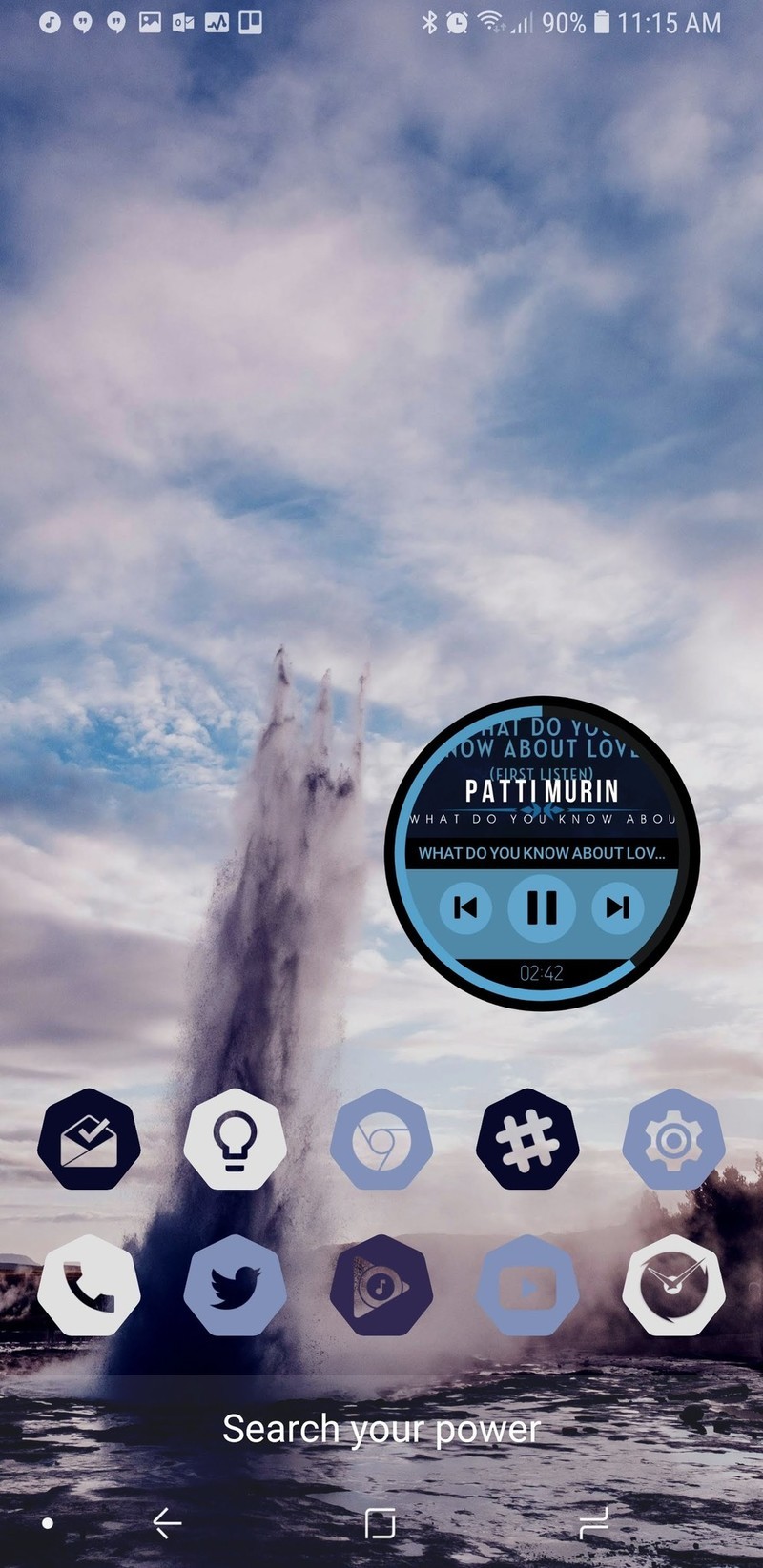
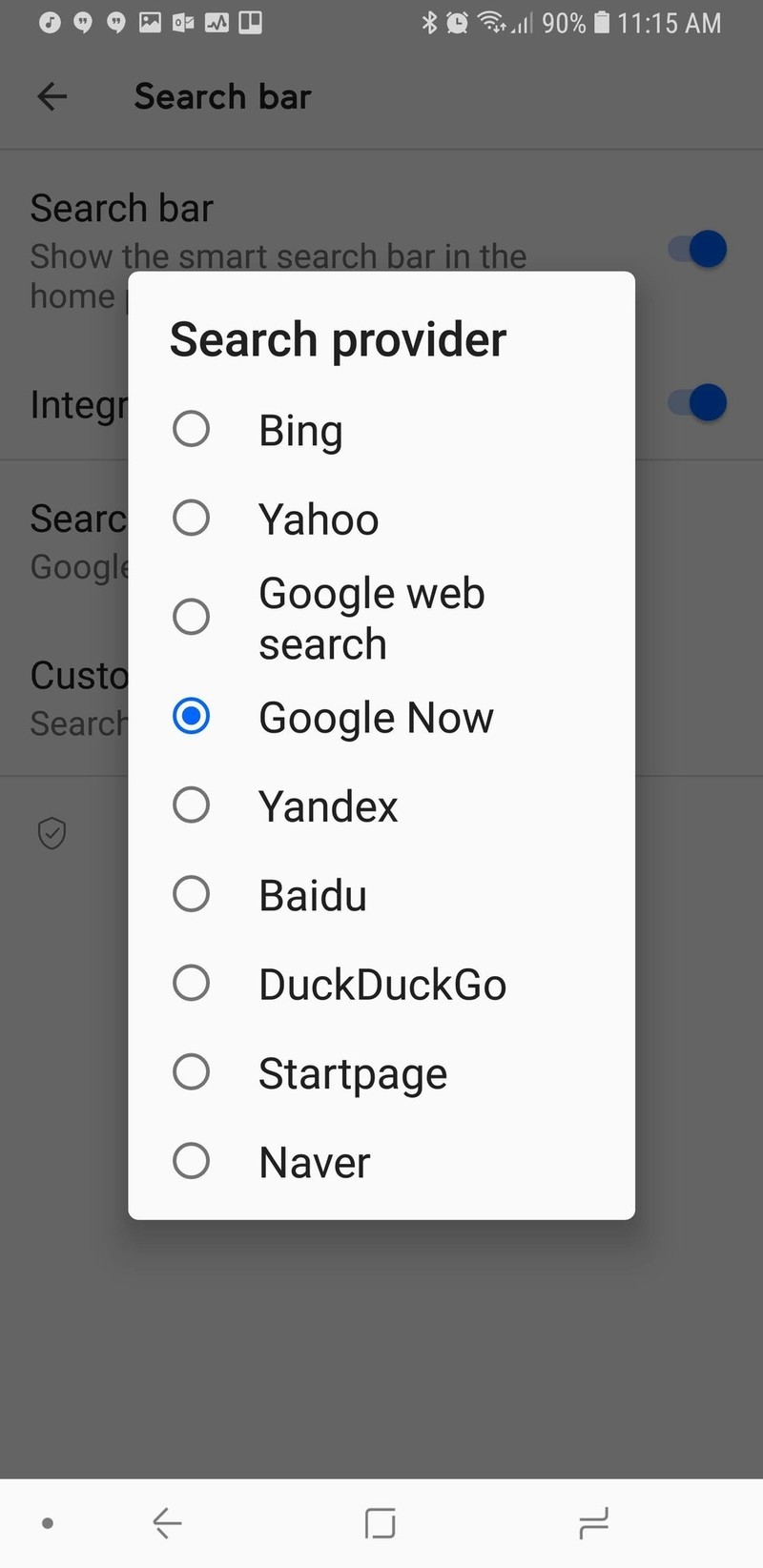

The second aspect of the home screen is the newly redesigned Smart Search. Smart Search is now the default swipe up gesture on your home screen in addition to a tastefully subtle search bar in the dock, which can be disabled. The Smart Search page has also been redone, presenting some of your most used apps, favorite contacts, and of course web searches. The smart search screen is blindingly white, and while I wish it would take on the same Ambient Theme the app drawer does, the Smart Search screen is here to help you find things quickly, not to be easy on your eyes at 2 am.
Smart Launcher 5 takes widgets to the next level — a gridless level.
You can also switch search sources for Smart Search, so you can use Bing, Yahoo, DuckDuckGo, and a slew of other search options if you don’t want to use the standard Startpage.
You can even set Google Feed as the source, but you can’t set Google Assistant as the search source yet. If you’re a Smart Launcher Pro user, you can also change the display text of the Smart Search bar, setting it to a helpful hint or to a motto or quote to help the bar fit in with your theme better.

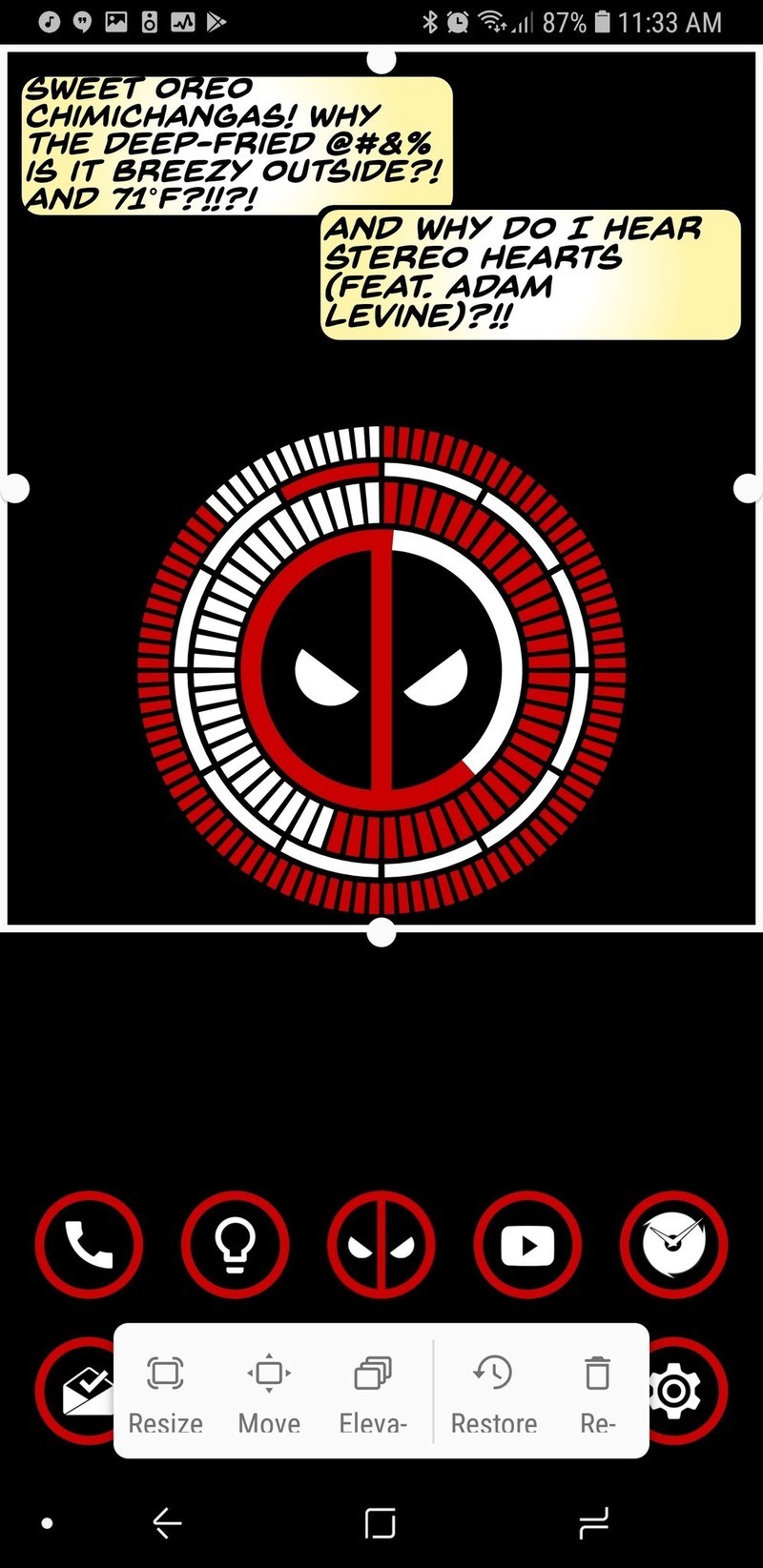
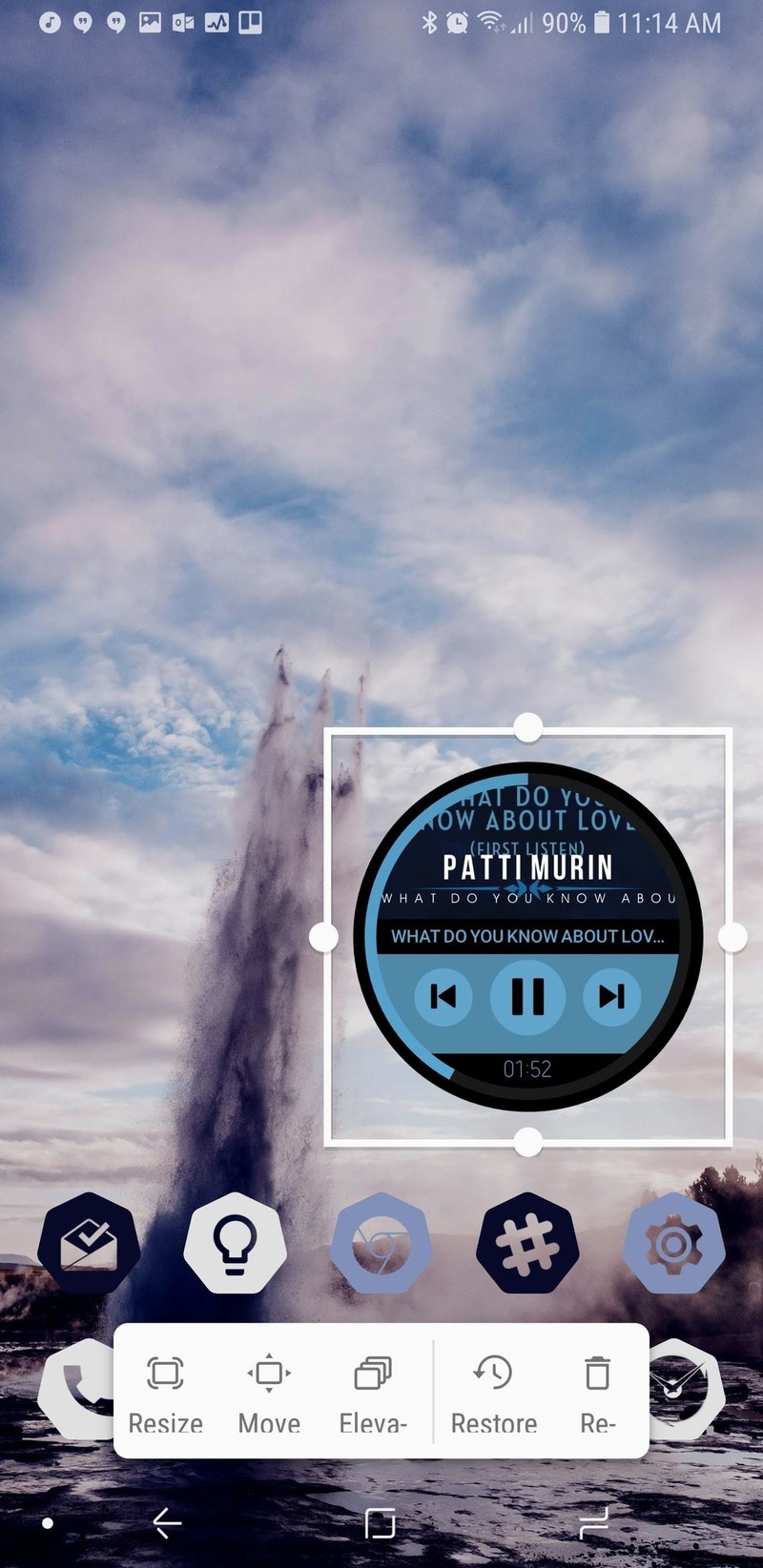
We then come to the final component of the home screen: widgets. Boy, howdy, have widgets on Smart Launcher 5 gone to infinity and beyond. Since Smart Launcher doesn’t use the traditional grid system for widgets, that means you can resize widgets to be exactly as big or small as you want and line them perfectly with your wallpaper.
The only downside for widgets might be that you can only have multiple widgets on a page if you pay for Smart Launcher Pro, which you should absolutely do anyway to unlock the full potential we’ll be talking about a little later.
A very complex app drawer
Smart Launcher has long stood out for its categorically sorted app drawer, and that drawer is still smartly sorted, if a bit more smartly dressed now. Smart Launcher pulls a color from your wallpaper to Ambient Theme your app drawer so that no matter your wallpaper, your app drawer fits it.
If you’re not a fan of the category app drawer, you can also disable categories for the traditional all apps together app drawer, but you should at least give the categories a chance.

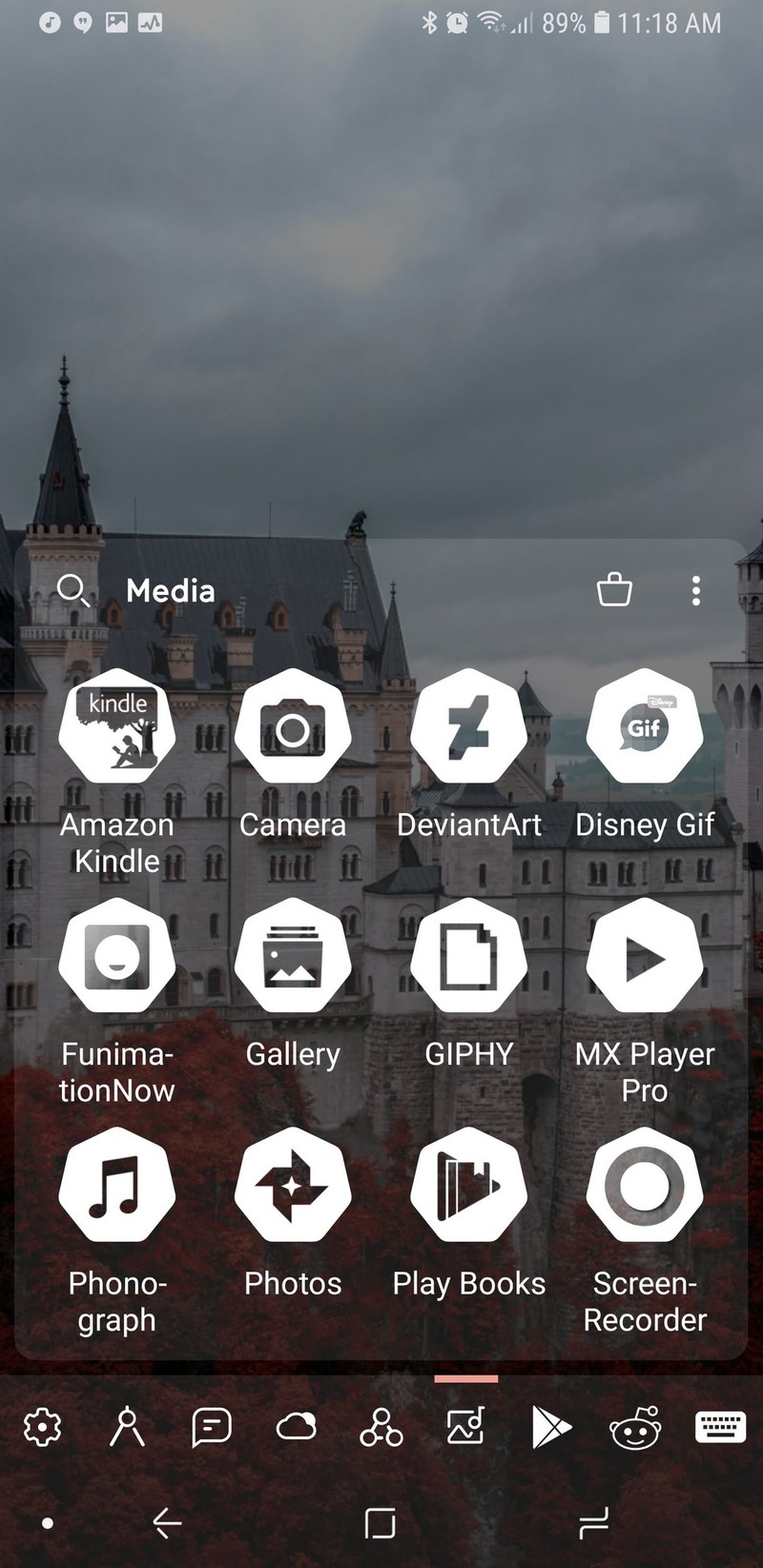
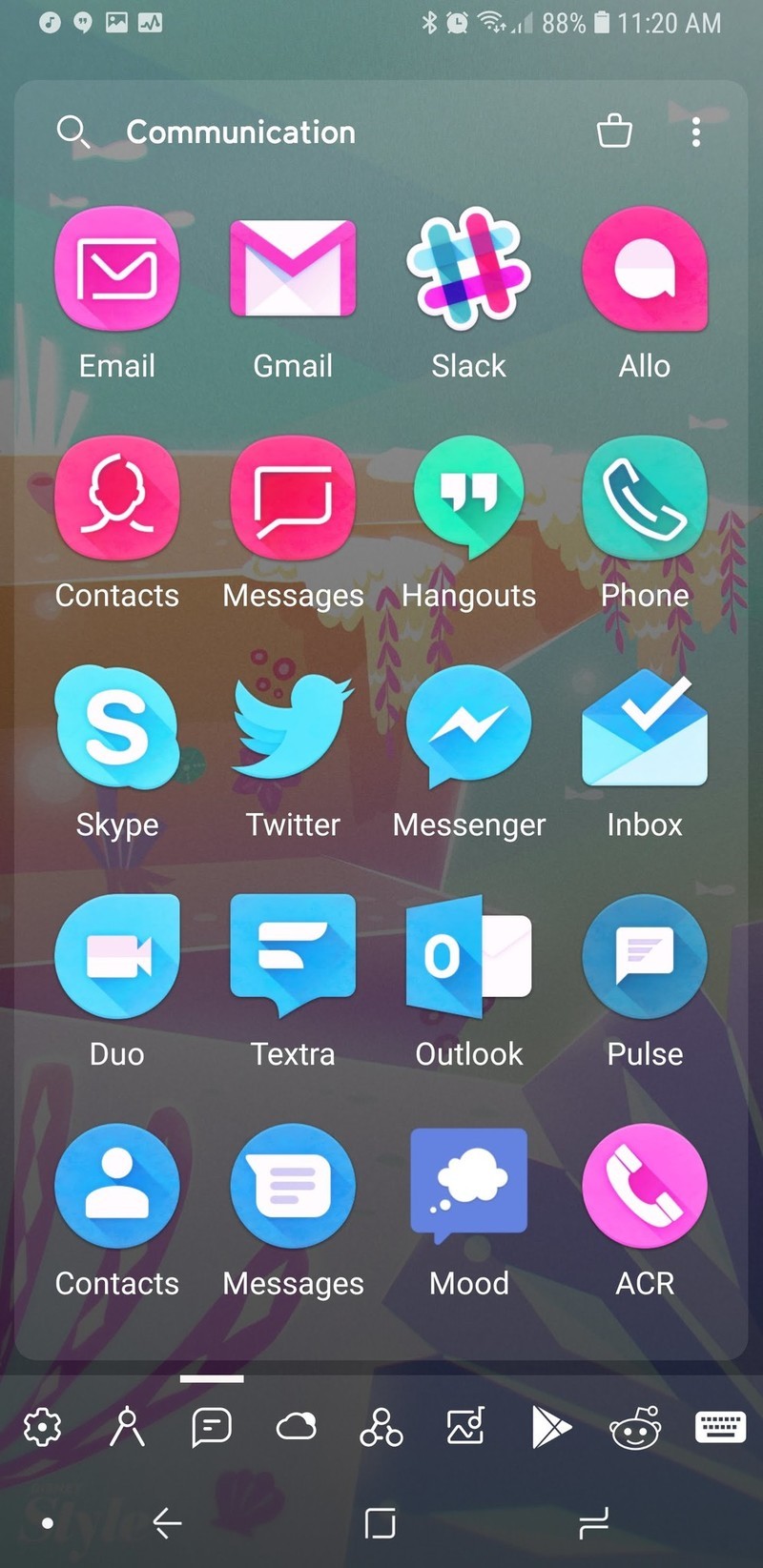
By default, Smart Launcher will have several default categories that it will sort your apps into based on what you have installed. I, for instance, have a lot of theming and customization apps installed, so my two fullest categories are Settings and Utilities, whereas my Media and Entertainment tabs were rather light. Thankfully, you can switch apps between tabs easily enough to help balance things out.
Customization is the name of the game here, and that’s why I recommend you upgrade to the Pro version for a few bucks.
If you purchase Smart Launcher Pro, you can add and remove categories, letting you do brilliant things like sequestering your work apps so that you’re not tempted to check them on the weekend. I have loved custom tabs because I can keep all the apps I’m reviewing for Best Apps roundups together for easy browsing and comparison.
Smart Launcher Pro users also have a few more sorting options within your categories. You can choose to sort by name, by most used, and then there’s also sorting ‘by user’, which is just a polite way of saying you can arrange it, however, the heck you want.
If you’re feeling especially vibrant, you can also sort apps by icon color, giving you a rainbow app drawer and the easiest Pride theme ever. If you’re using an icon pack with a warped color palette, like Unicorn or Retrorika, you can get different sorts than you would with the normal Adaptive icons.
Well, I wouldn’t call the Adaptive icons in Smart Launcher 5 “normal”.
A gateway launcher to customization
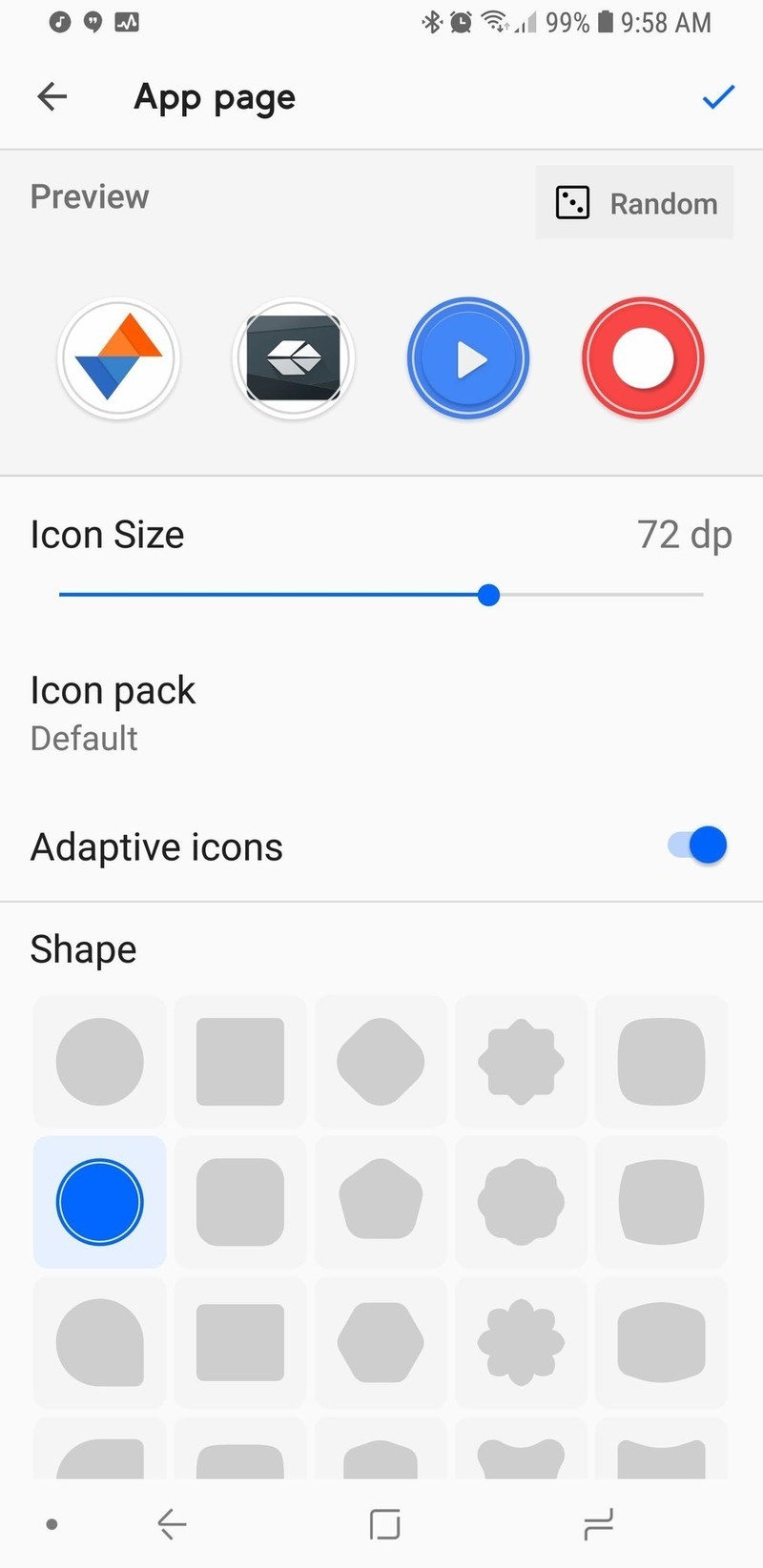
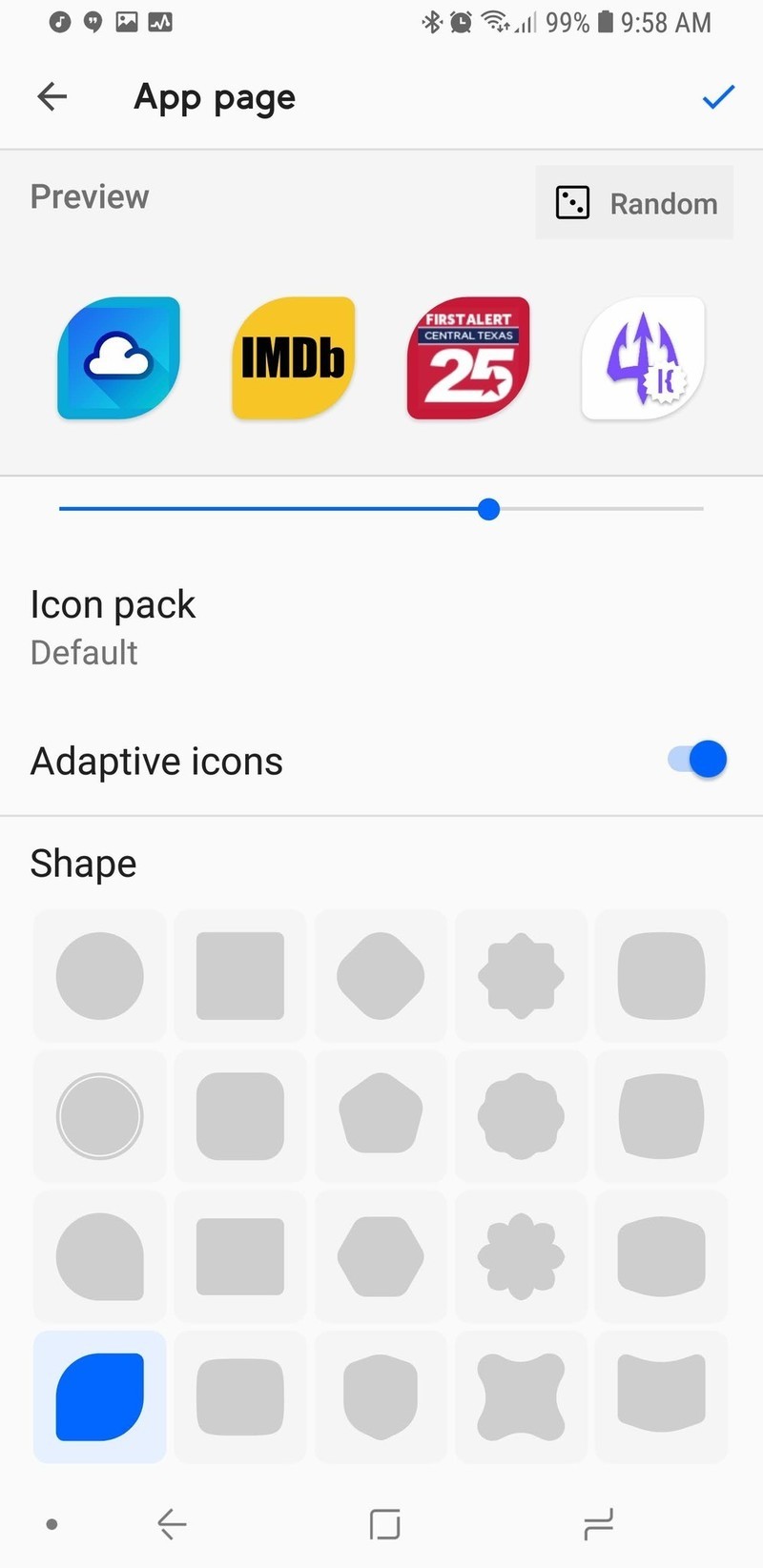
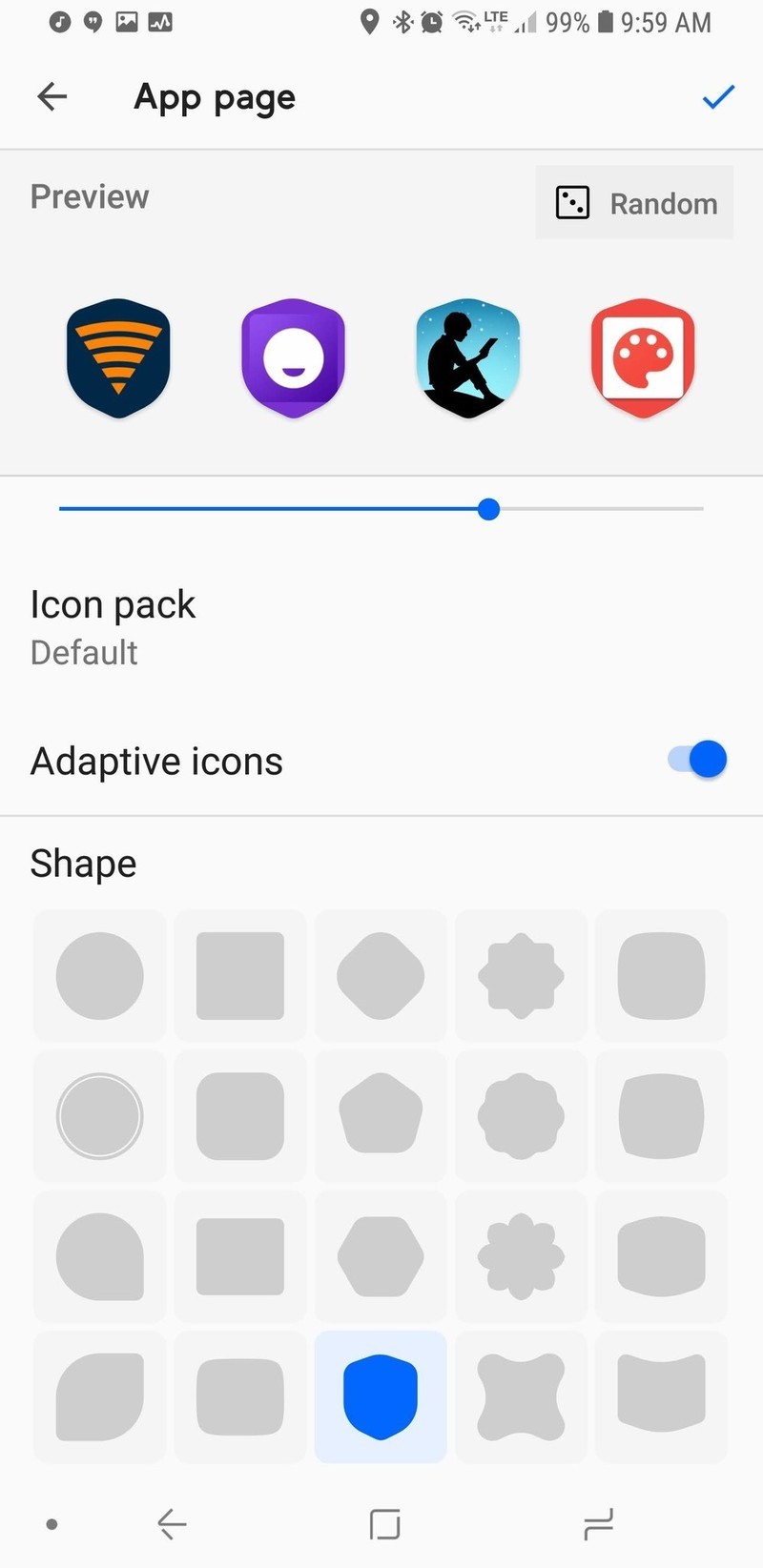
Smart Launcher 5’s icons not only take Adaptive Icons to new heights, they can also surpass them entirely with one of Smart Launcher’s side apps. Most launchers only have four to five shape choices for Adaptive Icons.
Smart Launcher 5 has the traditional five available to free users, but Pro users can choose from 20 shapes, including shields, leaves, flowers, and a plethora of polygons, and you can tap the Random button to change the preview icons to other apps on your device, letting you see how each of your icons will look with a particular shape or style.
Want to really get creative with your icons in Smart Launcher? Try Icon Pack Studio.
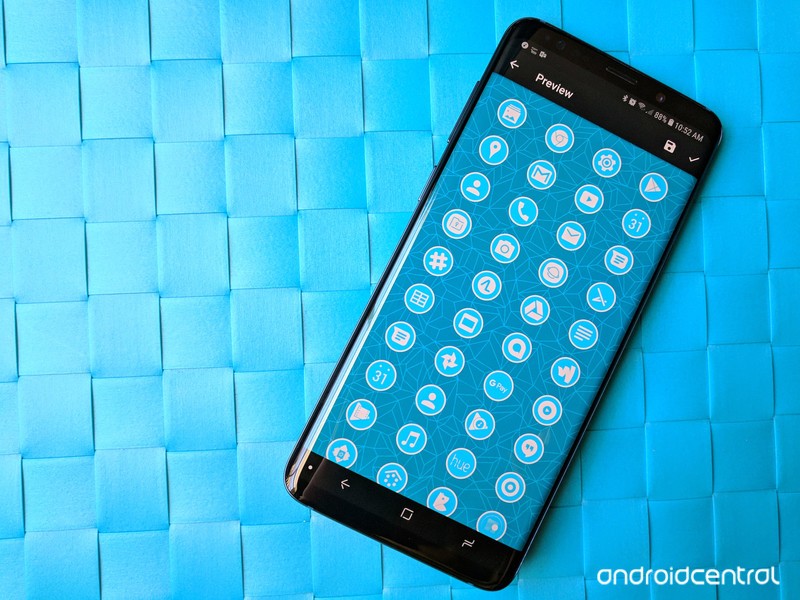
Icon Pack Studio goes five steps beyond Adaptive Icons by letting users customize and build your own personalized icon packs using an expansive icon base and a top-notch masking system to produce icon packs that fit your theme or wallpaper to a T. You can even add fun effects to give yourself a metallic icon pack, custom drop shadows, and build an icon pack that will switch colors as you switch wallpapers.
Icon Pack Studio is here to do what Adaptive icons can’t
Smart Launcher extends the same philosophy to Gestures that it does to Adaptive icons: Free users have access to the more basic gesture shortcuts, and then the more complex shortcuts are available to Pro users.
You can set double-tap to sleep the screen with a timeout to avoid interfering with Smart Lock, just like Nova Launcher and Evie Launcher. Then there’s Smart Display Off, which puts your screen to sleep when you set the phone down on a flat surface. If you tend to set your phone down and keep using it like I do, this feature can go from awesome to annoying in five seconds flat, but it’s an interesting idea.
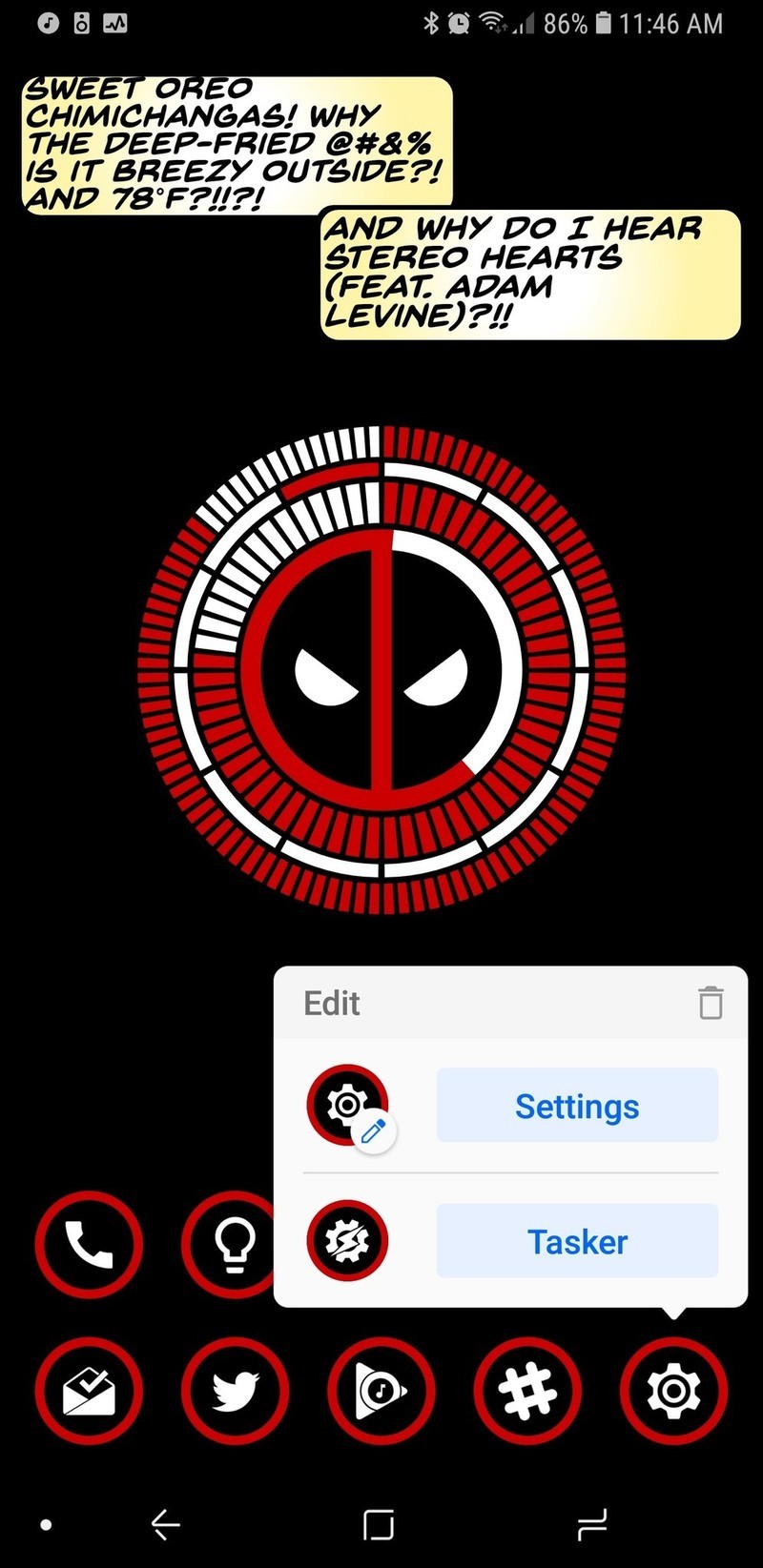


Even if you don’t go in for a lot of complicated gestures and fancy icons, Smart Launcher 5 has a tiny bit of customization that every user should take advantage of: Double tap icons. The icons on your homepage can add a double-tap action that can open another app or fire off an Android Shortcut — like a Tasker shortcut or a Direct Dial.
Pro users can even open a pop-up widget with a double-tap, and you can set any widget to open with a double-tap, not just widgets from that app. Several launchers have a similar feature which lets users swipe on an app shortcut to trigger a widget, app shortcut, or folder, but the double-tap on Smart Launcher 5 is much more intuitive. Long-pressing on a home screen app will also bring up their App Shortcuts.
A smart way to stand out in a crowded launcher market

Smart Launcher 5 has a lot here to like, from a responsive and comprehensive categorical app drawer to some of the most precise widget placement on Android to the most diverse icon options on the market. Want a search bar that links to something other than Google? Smart Search can use the engine you prefer. Want your apps sorted just the way you like? Smart Launcher Pro will let you sort everything your way. Like having a minimal home screen but want more functionality? Go nuts with Smart Launcher’s double-tap icons and gestures.
Smart Launcher has been one of our favorite launchers for years, and this year, it is reaching new heights. So, is Smart Launcher smart enough to fit your lifestyle and Android style? Tell us in the comments, and show up what awesome themes you’re rocking with it.
Download Smart Launcher 5 (free, in-app purchases)
Visible: Everything you need to know about Verizon’s new phone service
Visible is a new startup from Verizon offering phone service via an app. Here’s what you need to know.

When looking at pre and post-paid cell phone service providers in the United States, there are countless options to choose from. Along with the big names such as AT&T and T-Mobile, you’ve also got competition from small brands like Mint Mobile and Cricket Wireless.
It can be hard to stand out in this industry, but Verizon’s trying to do just that with a new startup it recently launched called Visible. Visible aims to make phone service as dead simple and affordable as possible, and even in such an early stage, looks to be darn promising.
How much does it cost and what do you get?
Visible only offers one plan and it costs $40/month. For that price, you’ll get unlimited calls, text, and data in the United States.
There aren’t any contracts, meaning you can cancel at any time.
How’s the coverage?
Visible uses Verizon’s 4G LTE network for service, and as such, you’ll be covered just about everywhere you go.

Download speeds are capped at 5 Mbps, which Visible notes is “just right for streaming” and that most videos you watch will be shown in 480p.
According to Visible’s site –
We’re built for life on the go, so instead of giving you extra speed you don’t need (and making you pay for it), you get unlimited data at a speed that’s perfect for streaming.
Can you bring your own phone?
Yes! In fact, that’s the only way you can use Visible right now.
Visible says it’ll have devices you can purchase directly from it in the future, but for the time being, it’s exclusively BYOP.
After signing up for your Visible account, a SIM will be shipped to your address and should arrive as soon as the next day.
What makes Visible unique?
Here’s where things get interesting. Rather than worrying about carrier stores, multiple plans, and everything else, Visible houses everything into its mobile app. After signing up for the plan, download the Visible app, enter your account info, and then pop your SIM in when it arrives. After that, you’re ready to rock and roll.
Everything you do with Visible is handled through the app, including billing, customer service, and paying your bill. Along with regular credit and debit cards, Visible also lets you pay with PayPal and Venmo.
When will it work with Android?
There’s currently just an iOS app for Visible, meaning it’s not yet compatible with any Android phones. Thankfully, Visible says that it’ll be “expanding compatibility soon.”
See at Visible
Carriers

- Which unlimited plan should you buy?
- Verizon’s Unlimited plans: Everything you need to know
- Everything you need to know about the T-Mobile ONE unlimited plan
- Everything you need to know about the AT&T Unlimited plan
- Everything you need to know about Sprint’s Unlimited Freedom plan
- Join the Discussion
The best announcements from Google I/O 2018!
Hey Google, write this article for me.
Google I/O is finished for another year, but the effects from last week’s keynote are still being profoundly felt, both in the developer community and here, closer to home.
While many of Google’s initiatives haven’t yet rolled out, or are still pipe dreams, there’s a lot to be genuinely excited about this time around.
Here’s what the Android Central team loved from this year’s show.
Ara Wagoner
I’ve been excited to see Assistant’s perpetual growth — especially on phones — and Google I/O gave us announcements that will bring Assistant closer to the personalized personal assistant that we’ve been dreaming of. More voices and Continued Conversation will (hopefully) let users feel like they’re building more of a relationship with Assistant instead of just barking order after order at it. Speaking of barking orders, the I loved the Assistant announcement about helping us all learn — or re-learn — a very important word: “Please.”
As a new generation of kids is raised around technology that will give them just about anything they ask for, Pretty Please is a big step forward for Google Assistant. Requiring children to say please when asking for something can help reinforce the importance of being polite, especially because Google will thank and compliment users who ask for things nicely. Also, making the parents say please not only shows the kids that their parents have to be polite to Google, too, but can nudge us to take a gentler and more conversational approach to our prompts for Google Assistant.
Also, I need that magical chime on my Google Assistant right now. Please.
Daniel Bader

Google I/O this year was all about reclaiming time. Time from your phone, time from your phone calls, and time for the people that matter. To that end, as someone who admittedly uses his phone too much, Google’s Digital Wellbeing initiatives are a good start. They’re not perfect — Andrew already summed up their flaws and limitations well — but, at least for me, they lay the foundation to understanding how I use my phone and how I can lay off the excess.
The Dashboard, which will be coming to a future version of Android P, shows how this will work: metrics to provide the basis for a more grounded knowledge base of how you use your phone on a day-to-day basis. I know that I spend a lot of time in Twitter and Instagram, but when the Dashboard tells me I spend 80% of my day in either one, I’m hoping that will be enough impetus to cut down. (To be honest, it probably won’t, but knowledge is power, as they say.)
On the other hand, I’m comforted by the fact that Google is finally acknowledging, and taking steps to assuage, the growing problem of smartphone dependency.
Marc Lagace

My favorite announcement from Google I/O was about new features coming to one of the most-used apps on my phone: Google Photos.
I love all the smart features that Google has been adding to Google Photos in the past, and the stuff they showed off this year will surely cement the app as my go-to for viewing, processing, and sharing photos I take on my smartphone. The colorization of black and white photos is super cool — although admittedly not a feature I’m likely to use on a daily basis — but the ability to recognize, scan, and convert documents into PDF is long overdue.
Joe Maring

As much fun as I’m having with Android P and its crazy gestures on my Pixel 2, I found myself most excited about the Google Assistant-related announcements at this year’s I/O.
I use the Assistant every single day between my phone and Google Home(s), so features like Continued Conversations that’ll allow me to ask follow-up questions without having to say “OK, Google” or “Hey, Google” over and over and over again is a God-send.
Something else that really caught my eye was the revamped UI for the Assistant on phones. The chat-like interface that we currently have is fine, but I love all of the new elements Google’s working on. The new “home” page that offers contextual information/cards is something I’ve been longing for since the Google Now page was killed off and I love the idea of having interactive controls for things like smart bulbs and thermostats built right into the Assistant.
Also, can we talk about Google Duplex? I had to pick my jaw up off the floor after that first demonstration and cannot wait to see where Google takes this going forward. I understand the apprehension some people have about a technology along these lines, but the fact that Google created something that beat the freaking Turing Test is BONKERS.
Jerry Hildenbrand

At Google I/O, the company finally opened up Chromebooks for “regular” Linux apps. They didn’t give many details other than saying, “Android Studio for Linux will run on the Pixelbook because it can safely run Linux applications”, but thankfully the right nerds looked in the right places and we have a good idea of the what and how.
A custom distribution of Linux will run in its own container, much like Android does. Since it won’t be locked down like Android, that container runs inside its own kernel-based virtual machine. This way it won’t have access to the actual Chrome OS system files. This is in the beta channel for the Pixelbook and should be available for all Chromebooks with 64-bit processors “soon”.
It’s perfect. I can keep my Pixelbook safe and sound while having access to the huge library of excellent desktop software I already use. That Pixelbook with 512 GB of storage looks a lot better now.
Hayato Huseman

I think my favorite announcement from this year’s Google I/O is the JBL Link Bar. It may not be as terrifyingly impressive as Google Duplex or as practical as the new walking directions coming to the camera, but I’ve been in the market for a soundbar for years. As far as TV audio goes, I’ve always just settled with the poor sound the built-in speakers wheeze out, and I’ve had my eye on the Sonos Playbar, but having Android TV and Google Assistant baked into a single unit makes the Link Bar super appealing to me.
I’m also really excited for Android to finally start embracing gestures. I’ve been using the iPhone X for a few months now, and I’ve fallen in love with gesture navigation all over again after the last decade without webOS forced me to move on. I know, I know — a lot of people think it’s just change for the sake of change, and I honestly don’t disagree with that. But for the time being anyway, it’s purely optional, and if you prefer the traditional three-button layout, it’s still alive and kicking.
Russell Holly

Google dropped a lot of cool stuff on us, but the best by far, in my opinion, is the Google Maps walking directions update. Using the Visual Positioning System originally intended for Protect Tango and making it a seamless part of Maps for more accurate walking directions. As someone who is regularly lost in big cities, this is a huge deal for me.
I’m also a big fan of the fun little fox Google added as a feature we might see when it rolls out. That fox is part of the Google Poly kit, and a great way of pulling ARCore into a proper Google app.
Tom Westrick

In terms of things I’ll actually use on a daily basis, my favorite announcement is Android P. The AI announcements are interesting, and new Linux apps on Chrome is going to be cool, but my most used device will always be my phone. And most of my time spent on the phone will be navigating around the interface, so the new UI in P is something I’m looking forward to.
The gestures are a bit broken — beta software and all — but they look promising. It is going to be a bit awkward to have the navigation functions split between gestures — multitasking and opening the app drawer — and tapping buttons — home and back. We have a few more months before P is officially official, so there’s time to tweak things.
Andrew Martonik

Android P reaching its first beta release was exciting, and being able to get an updated look at the new features and design of the latest release months in advance is always great. But what really took me by surprise was the expansion of the beta program to phones from seven different Android manufacturers beyond Google’s own Pixel phones.
Sure this is neat for owners of these non-Pixel phones, particularly those that are on the cheaper side, as they can get an early look at Android P if they want. But what’s really important is giving more companies earlier access to the next version of Android. Every single one of these companies gets to work with Android P a full six months before it will be released to the public, and that means they get a head start on their engineering. That should translate into faster updates for phones going forward, particularly now that Project Treble is in play, but also more stable software for phones that launch with Android P as well.
Sure these phones won’t all have a stock-like software experience that looks the same as the beta does today, but getting the latest features and software updates is always a move in the right direction no matter what the interface customizations may be.
Your favorite announcement
What did you love about Google I/O this year? Let us know in the comments down below!
Android P
- Android P: Everything you need to know
- Android P Beta hands-on: The best and worst features
- All the big Android announcements from Google I/O 2018
- Will my phone get Android P?
- How to manually update your Pixel to Android P
- Join the Discussion

