


BlackBerry announces an Android Oreo beta for the KEYone
An upgraded beta program is also launching.
The BlackBerry KEY2 is the best way to get your hardware keyboard fix in 2018, but if you’re still rocking a KEYone, it looks like you’ll soon be able to finally throw Oreo on it.

If you’re registered for the BlackBerry Beta Zone, you should be receiving an email soon that highlights a couple big changes.
First off, BlackBerry’s moving its beta testing program over to a new platform that’s hosted by Centercode.
Secondly, the email also announced the following:
We’re also happy to be starting an invitation-only beta program for Android Oreo on the BlackBerry KEYone. If you’re a KEYone user, make sure to visit the new community and complete your profile to secure an invite.
It’s interesting BlackBerry’s even bothering with a beta considering that the KEY2 ships with Oreo out of the box, but even so, at least there’s a way to upgrade the phone from the now stale-tasting Nougat.
Sign up for the beta and new community here
Android Oreo
- Android Oreo review!
- Everything new in Android Oreo
- How to get Android Oreo on your Pixel or Nexus
- Oreo will make you love notifications again
- Will my phone get Android Oreo?
- Join the Discussion
Google Assistant music controls are now everywhere, and it’s a geek’s dream come true

I had precision playback control once, and how I’ve longed to have it once again.
I was the person who always had her headphones snaked up her shirt. I was so attuned to the click wheel on my iPod video — and my iPod mini before that — that I could fast forward and rewind my music without even pulling it out of my pocket with almost frightening precision. I don’t miss much from my iTunes days — especially not having to replace my earbuds once a year because the right earpiece on my Sony MDR J20s went out again — but I really did miss being able to sit in total darkness and fast forward or rewind my music without having to turn on the screen and blind myself.
Thank you, Google Assistant, for finally bringing it back to me.
Google Assistant’s music controls have always been rather robust, but only on Google Home. In fact, when Google Assistant first replaced Google Now on most smartphones, music controls saw a huge downgrade as even basic commands like Pause and Next Song didn’t work on phones for a long time. Eventually, basic music commands migrated from Google Home out to other platforms, but the best of its commands were still reserved for Google Home: the precision commands like “rewind 45 seconds” or “fast forward 8 minutes.”
Oh, like you’ve never skipped the beginning of ‘Funeral for a Friend’ on ‘Goodbye Yellow Brick Road’.


Rewinding and fast forwarding is something that isn’t usually included on music apps’ persistent notifications, though for a very brief period years and years ago you could summon a progress bar in Google Play Music’s notification if you knew the secret handshake. Even the most advanced music widgets still can’t offer consistent rewind and fast forward options, and so you can hit next and previous track all the livelong day, but to just rewind a few seconds and replay that killer bridge or drum solo, you had to unlock your phone, open the music app, and seek from the Now Playing screen.

The ability to fast forward and rewinds music with just my voice was all the justification I needed for the Google Home I purchased the day it hit store shelves. I mostly used it in the shower — a duty now taken over by my battery-powered Google Assistant-powered TicHome Mini — but I longed to have that ability everywhere instead of just my bathroom. I wanted to use it in the car when my hands shouldn’t be fiddling with any music controls beyond the volume. I wanted it at work so I could control music while my phone charged on the other side of the control room.
I wanted to control my music with my voice everywhere, and I finally have it. Google Assistant’s music controls now work on Android smartphones and tablets, as well as Android TV, Chromebooks, and Android Auto. “OK Google, fast forward 95 seconds” works when I’m in the car, the office, or singing in the shower.
 “OK Google, rewind 60 seconds while I drive 60 MPH.”
This isn’t to say that things are perfect. The music commands available for Google Assistant still vary by platform/app and the number of music services that can be set is still pitifully small. YouTube Music isn’t an option in most of the countries that were recently added to the service, and for all of Google’s smarts about which device is the closest to answer respond, Google Assistant doesn’t recognize while device is playing music and respond to a media command there, subjecting me to “Nothing’s playing right now” with depressing regularity.
I’m happy we’ve come so far with voice controlling music on Android, Chrome OS, and other Google-controlled platforms, but the execution still needs fine-tuning. The difference between what Google Assistant can control with a service that’s tied into it like Spotify or Google Play Music and other music apps that Google Assistant tries to interface with strictly based on persistent notifications is wide and growing. We need more music service options with Google Assistant, too, especially abroad.

For now though, I’m going to settle in for a nap. “OK Google, fast forward 4 minutes to the softer part of this suite.”
Google Hardware

- Google Wifi review
- Google Home review
- Chromecast Ultra: all you need to know
- Which Chromecast should you buy?
Google Wifi: Google
Amazon
Google Home: Google
Best Buy
Chromecast Ultra: Google
Best Buy
Deal: HTC’s knocking up to 20% off the U11 and U11+ in the UK
A 64GB U11 can be yours for as little as £323.19.
If you’re an HTC fan but aren’t quite sold on the new U12+, now might be the time to pick up last year’s U11 or U11+.

Right now in the United Kingdom, HTC’s offering 10% off the U11 and U11+ for all customers — bringing prices down to £359.10 and £539.10, respectively.
That’s not a terrible deal, but if you sign up for the free HTC Club, you can score an additional 10% off on top of that to bring your total savings to 20%. Under that scenario, you’d only spend £323.19 for the U11 and £485.19 for the U11+.
The U11 at that price is a pretty good offer, but if you’re in the market for a bigger phone, we’d still recommend looking beyond the U11+. While it’s a good handset, the newer OnePlus 6 costs just a few pounds more at £519.
If you’re interested in either the U11 or U11+, HTC says its 10% offer for all customers will be good until supplies last.
See at HTC
HTC U11
- HTC U11 review
- HTC U11 specs
- Manufacturing the U11: Behind the scenes
- Join our U11 forums
- HTC U11 vs Galaxy S8
- HTC U11 vs LG G6
Amazon
Sprint
HTC
Spigen Rugged Armor Case for OnePlus 6 review: Solid protection on the cheap
This is one of the best ways to protect your OnePlus while staying on a budget.

The OnePlus 6 is OnePlus’s best-looking phone to-date, but those good looks do come at a cost. While the use of glass does make it more eye-catching compared to its predecessors, it also results in the phone being slippery and more prone to scratches and cracks.
OnePlus has some excellent first-party cases to choose from, but with prices ranging from $19.95 up to $24.95, they aren’t necessarily the cheapest.
Spigen’s one of the biggest names when it comes to mobile accessories, and its Rugged Armor case for the OnePlus 6 aims to be an alternative to OnePlus’s offerings for folks looking to spend a bit less cash. How’s it hold up in the real world?
Spigen Rugged Armor Case for OnePus 6

Price: $12.99
Bottom line: Keeps your OnePlus 6 safe without turning it into a meatball or destroying your wallet.
The Good
- Adds some welcomed grip
- Buttons are still easy to press
- Makes it easier to find the fingerprint sensor
- Offers ample protection
The Bad
- Alert slider is more difficult to use
- Only one color available
See at Amazon

No junk in the trunk
Spigen Rugged Armor OnePlus 6 Case What I like
Even though I understand the value and importance of cases, I hate the added bulk that rugged/durable ones typically add. Thankfully, this isn’t an issue at all with the Spigen Rugged Armor case.
Spigen’s case doesn’t add much thickness to the OnePlus 6, but even so, still manages to offer all of the protection you could ask for. It’s been military-grade certified in drop tests, uses Spigen’s exclusive AirCushion technology to help reduce the impact of falls, and has a lip that’s ever-so-slightly raised over the screen to keep you safe in the event of a front-facing drop.
The cutouts for the 3.5mm headphone jack and USB-C port don’t cause any issues, the hole for the speaker grill doesn’t muffle any audio, and more importantly, in my opinion, the power button and volume rocker are just as easy to press and reassuringly tactile as they are when using the OnePlus 6 naked.
Lastly, I’ve actually found the using the fingerprint sensor on the OnePlus 6 is easier with Spigen’s case on it. The flush glass design for the phone’s back can sometimes make it tricky to figure out where you need to place your finger, but thanks to the hole on the back for the camera and sensor, your finger is able to more easily find it.
Slider troubles
Spigen Rugged Armor OnePlus 6 Case What I don’t like
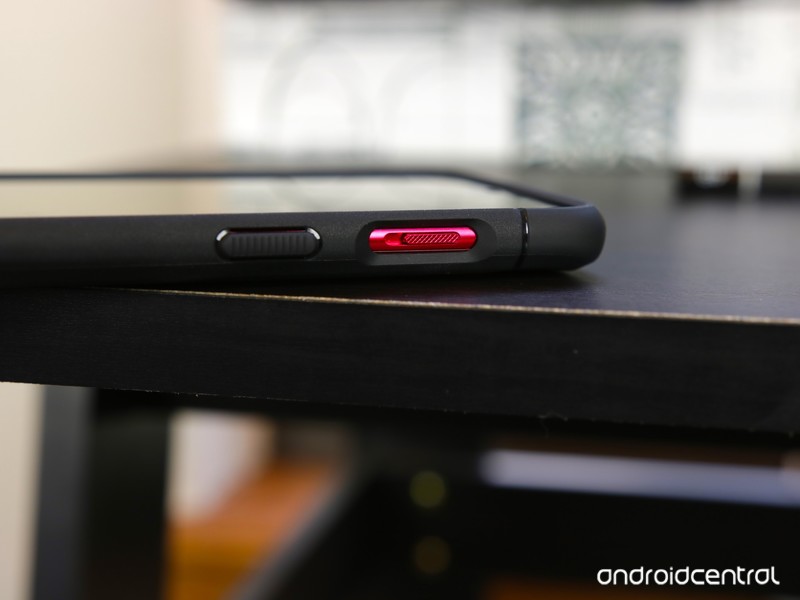
While Spigen did a great job with handling the OnePlus 6’s buttons, the same can’t be said for the alert slider.
This is one of my favorite features on the OnePlus 6, but unfortunately because of Spigen’s cutout for it, it requires a bit more effort to use with the case.
It’s certainly not impossible to move the slider up and down, but it’s not as mindless of an action as it usually is. The functionality remains the same, but the convenience factor is taken down a notch.
Also, I would have liked some additional color options. The standard black looks perfectly fine, but with OnePlus offering stunning paint jobs like Silk White and Red, it’s a shame that black is your only option here.

Spigen Rugged Armor OnePlus 6 Case
With all that said, should you pick up the Spigen Rugged Armor case for the OnePlus 6? I say go for it!
While the alert slider isn’t as easy to use with the case on, I don’t think that’s nearly reason enough to pass on it. The case looks good, offers great protection, and does so without compromising the OnePlus 6’s thinness or buttons.
4
out of 5
For just $12.99 and free shipping if you’ve got Amazon Prime, the Rugged Armor case from Spigen is a great pick. It may not be as flashy as OnePlus’s official cases, but it offers even better protection while saving you a few bucks in the process.
See at Amazon
OnePlus 6
- OnePlus 6 review
- OnePlus 6 vs. OnePlus 5T: How much changes in six months?
- OnePlus 6 vs. OnePlus 5: Should you upgrade?
- These are the official OnePlus 6 cases
- The OnePlus 6 doesn’t work on Verizon or Sprint
- Join the discussion in the forums
Top 5 Productivity Hacks for BlackBerry KEY2

More than the sum of its keys.
The BlackBerry KEY2 is a productivity powerhouse — just look at everything you can do with its keyboard.
But there’s more than meets the keyboard with this phone. BlackBerry has outfitted the KEY2 with some additional productivity “hacks” that will make using the phone even more convenient.
Convenience key


If you’ve ever used an Alcatel phone, you’ll be familiar with the Convenience Key, which has made its return on the KEY2. Located on the right side below the power button, it offers quick access to three apps, contacts, or other shortcuts, as set by you.
The beauty of the Convenience Key is its flexibility: you have myriad options because you have four individual sets of options depending on your situation.
- Normal
- Home
- Meeting
- Car
The “Normal” mode is default and available whenever the three other conditions are not met. The “Home” mode uses your home Wi-Fi to determine when you’re planted on the couch or working upstairs, and shows another set of actions. “Meeting” uses your calendar to determine when you’re occupied with work. And “Car” uses your vehicle’s Bluetooth to show yet another set of keys. Why would you want this? Let’s go through a few options:
- At home, you may want the convenience key to offer quick access to your favorite music or TV apps, or to quickly set a timer, or quickly open a particular security camera view.
- In the car, you may want the key to call a pre-set phone number, or open Android Auto, or a favorite Google Play Music playlist.
- During a meeting, you may want the KEY2 to be able to open Google Docs or Keep for quick note-taking.
You can change what the Convenience Key does by going into Settings —> Shortcuts & gestures —> Convenience key.
Shortcuts

We’ve already gone over this, but just to reiterate — because it’s so useful — the KEY2’s Speed Key is awesome in facilitating shortcuts from anywhere in the OS.
You can assign any keyboard key to perform an identical set of tasks to that of the Convenience Key (negating one, or both? Nah, choice is good!): opening an app, setting a speed dial, sending an SMS, or engaging in any one of Android’s native shortcuts.
Get started by holding the Speed Key (it has nine small dots and is located on the bottom right of the keyboard, next to the SYM button) and tapping any letter of the alphabet.
Productivity Tab

The Productivity Tab is something that debuted on the PRIV in 2015, and it’s still useful today — especially if you use BlackBerry’s own productivity apps.
By default, you access the Productivity Tab by swiping in from the right side of the screen (there’s a little silver indicator) which opens an overlay with a bunch of tabs. You can see your upcoming calendar entries, your emails, your tasks, and your contacts, with a bottom tab offering a space for widgets from other apps.
You do need to be using BlackBerry’s native apps for the Productivity Tab to be useful — including the Hub. To get started, swipe in on the silver sliver to configure it, or turn it off completely.
Launcher tweaks

The BlackBerry Launcher is surprisingly robust and customizable, especially when compared to some others that ship on popular phones. For instance, you can apply custom icon packs to the entire home screen, which is a fun way of expressing yourself, and you can also change their size and grid formation.
Even more granular, you can change the labels on a particular app, or hide it altogether, which is neat.
Finally, BlackBerry supports something called “Pop-up widgets,” which allow you to swipe up on an icon to engage its widget. Perfect for calendars, messaging apps, and news readers.
Quick Privacy Shade

Our final trick is a little one with a potentially large impact: quick access to the phone’s built-in Privacy Shade.
Swiping down anywhere on the screen using three fingers activates the Privacy Shade, which is a quick way to shield unwanted eyes from what you’re reading or watching on the phone. Even better, pair it with a privacy-focused screen protector, and you’ll be working for the DoD in no time.
What are your favorite productivity tweaks?
If you’re a KEY2 owner, or even a holdover from the KEYone days, what are your favorite productivity tweaks to keep you working hard and getting sh*t done?
See at Amazon
BlackBerry KEY2
- BlackBerry KEY2 review
- BlackBerry KEY2: Everything you need to know!
- BlackBerry KEY2 specs
- BlackBerry KEYone review: Coming home
- Join our BlackBerry KEY2 forums!
Buy the BlackBerry KEY2
BlackBerry KEY2, third opinion review: Keyboard at all costs

You better really love that hardware keyboard, because you’re giving up a lot to get it.
With our own Daniel Bader taking on the canonical KEY2 review for Android Central, and Jerry Hildenbrand following it up with his own thoughts, I’m in the privileged position of using the phone far longer before putting my conclusive thoughts down. I’ve been using the KEY2 for over three weeks now, which was essential for me to get over the stumbles of re-learning how to use a phone with a hardware keyboard on account of how little I used the KEYone and Priv — not to mention the half-decade since using any other device with keycaps.
It took about a week and a half to get into a comfortable mode of using the keyboard every single day for hours on end, rewiring my brain to naturally use it rather than reaching up for that touch screen for every interaction. After that point I could just start using the KEY2 like a normal phone, evaluating everything else it does — because we all do far more than just type on these things after all.
Weeks of relying on BlackBerry’s latest keyboard-packing flagship hasn’t been painful by any stretch, but it hasn’t been entirely fruitful either.

Hardware and software
BlackBerry KEY2 Things I like
The BlackBerry KEY2’s keyboard undeniably lands up here in the positive column. It was frustrating at first. I was an extremely slow typist for the first couple of days. But once I got through that barrier, I feel like I’m up to the level where I’m nearly matching my typing speed on a virtual keyboard. And once I got there, I started to enjoy everything else the keyboard has to offer. Being able to swipe along the keyboard to scroll through apps without getting your thumb in front of the screen is awesome. Using the shortcuts to launch apps is a big time saver. Swiping along the keyboard for word prediction and text selection is intuitive. The fingerprint sensor in the space bar is conveniently located.
BlackBerry KEY2 specs
The keyboard is really good, and you can learn how to make it incredibly useful.
Aside from a couple hiccups here and there, the BlackBerry keyboard experience actually complements Android really well when it’s this thoughtfully designed. The keyboard feels like more than a text input device — I just started to use it as a core part of interfacing with the phone, which is key for justifying its existence.
There’s also praise to be had for the non-keyboard portions of the hardware. This all-black KEY2 I’ve been using has a stealthy, businesslike appeal that I’m proud of as I set it on a table in public. The metal frame is sturdy, and the textured back complements it nicely with enough grip to be helpful. The side keys are super clicky, and that convenience key is programmable — I set it to toggle between sound, vibrate and silent mode. There’s a headphone jack! What a concept. And phone calls sound excellent. The whole external hardware experience is befitting its price, there’s nothing to complain about here.
BlackBerry’s software is good and powerful, and leads to really great battery life.
BlackBerry’s take on Android is also filled with good ideas and above-average execution. This isn’t on the same level as what you get from OnePlus, Motorola or Google itself in terms of that final bit of fit-and-finish, but it’s darn good. Many of BlackBerry’s services and apps are a bit on the useless side, but they’re all simple to turn off and they don’t nag you after that. Its launcher is good, as are the changes in the settings and all of the keyboard integrations.
The overall emphasis on battery life with the KEY2 has come together nicely, as the phone has never left me stranded. 3500mAh is a really good capacity nowadays, particularly for a small-screened device and one that’s running a power-conserving Snapdragon 660. The KEY2’s software is proactive with warning you about apps that are running wild with your battery or usage patterns that may have the phone drained before you usually charge it. But I rarely needed to heed the warnings, because the KEY2 just made it through every day with battery to spare. This isn’t a two-day phone, but its battery life is strong enough that I don’t have to worry about it.

Average isn’t good enough
BlackBerry KEY2 Things I don’t like
BlackBerry made a lot of improvements over the KEYone, but still feels like it followed its predecessor’s lead too much considering it also raised the price. The addition of 6GB of RAM and 64GB of storage, is fantastic, and makes the KEY2 futureproof for a couple years. But sticking with a Snapdragon 660 is a bit puzzling — the KEY2 performs pretty well, and rarely has stutters or hiccups, but it doesn’t have a fighting chance of matching the Snapdragon 800-series phones from even 2017. If you’ve used a modern flagship phone, you won’t be convinced that the KEY2 is on the same level; its performance reminds me more of a slick-running mid-range phone than a top-end competitor.
I expect a far better display, speaker and camera for this much money.
The theme continues throughout other parts of the hardware, where the KEY2 feels stuck in the past. I understand why the display is sized and shaped the way it is, and have no problem with it — but the quality of the display is shameful for this level of device in 2018. It’s practically unusable in direct sunlight, and is of just average quality in all other situations. The single down-firing speaker isn’t particularly loud or full sounding. There’s no water resistance to speak of. I expect far better in all of these areas from a phone of this asking price.
I’m going to make the same argument with the camera, which is a perfect example of “average” not being good enough. The KEY2 can take some really good shots, particularly in daylight and when using HDR. If you leave HDR on you get some great colors and the dynamic range is pretty good — without it, things are a bit hit or miss. Clarity and sharpness are acceptable in daylight shots, the only issue I found was inconsistent exposure — sometimes it was noticeably underexposed in bright scenes, but also way overexposed when you tap to meter on a dark subject. I took lots of photos I was proud to post on Instagram, and many more that were fine enough to keep for private use in Google Photos, but there were dozens I chose to just delete.


The camera is acceptable in daylight, but way behind the pack in low light.
In low light, this just isn’t good enough at all. An f/1.8 lens is a great starting point, but BlackBerry moved to a sensor with smaller pixels than the KEYone and didn’t add OIS, so the deck is stacked against it getting good low-light photos. The KEY2 is capable of a good shot in dark scenes, but not particularly often. In any case, its clarity and sharpness are below the competition in these photos. The secondary camera is entirely useless in low-light shots given its f/2.6 aperture and 1-micron pixels, but the story isn’t all that much better in daylight. This is a perfect example of how the company could have benefited from using the money (and space inside the phone) dedicated to the useless secondary camera for improvements to the main camera and been far better off.
As I found in my camera comparison between the KEY2 and Galaxy S9, the KEY2’s cameras just isn’t ready to play with the top-end phones. That’s alright in itself, because I realize camera isn’t always the most important thing for people, but when you add it to all of the other uninspiring aspects of the KEY2 experience you start to wonder why you’re paying so much.
Lest I be chastised for being too critical on the KEY2, let’s all remember that BlackBerry is charging $649 for this phone. Everything here is plenty good for a $450-550 phone, but just isn’t good enough to justify that extra jump to the mid-$600 range. It feels bad to dig on this phone so much for just being “average” or “good enough,” but you have to realize that the KEY2 is trying to play in a world where that’s not acceptable when we’re talking about this price level.

Keyboard at all costs
BlackBerry KEY2 Third opinion review
Evaluating the BlackBerry KEY2 comes down to one thing: how badly do you want that hardware keyboard?
How badly do you want that hardware keyboard? You give up a lot to get it.
For some people a hardware keyboard is essential. And after using the KEY2 for a few weeks I have even been convinced that there’s serious value in having those clicky keys and all of the extras that the touch-enabled caps offer. I could happily use this keyboard and form factor without issue, because I really don’t play games or watch much video on my phone. The KEY2’s hardware overall is very nice, too, and I like its powerful software and strong battery life. But I still don’t fall into the former camp of people who can’t live without a hardware keyboard.
As such, I’m not willing to give on so many of the other parts of the phone experience just to have the KEY2’s keyboard. For $650, if this phone didn’t have a keyboard I wouldn’t be able to recommend it to anyone. The screen, specs, performance, camera and hardware features simply don’t match the OnePlus 6, which I’ll remind you costs $120 less. On any given day the Galaxy S9 can be had on Amazon for $700, just $50 more. At their respective price points, both of those phone blow the KEY2 away in every way … aside from the keyboard.
When you must have a keyboard, the KEY2 is your best choice by a long shot — and the non-keyboard parts of the phone definitely get the job done. But if you’re fine typing on glass, there are better and less compromised choices out there for the same money.
BlackBerry KEY2
- BlackBerry KEY2 review
- BlackBerry KEY2: Everything you need to know!
- BlackBerry KEY2 specs
- BlackBerry KEYone review: Coming home
- Join our BlackBerry KEY2 forums!
Buy the BlackBerry KEY2
Should you buy the Google Pixelbook or Microsoft Surface Pro?
The battle of Chrome OS vs. Windows rages on.
f you’re in the market for a Chrome OS device, the Google Pixelbook is one of the best ones you can currently get. The Pixelbook is ultra-fast, has an incredible design, and comes with outstanding battery life.
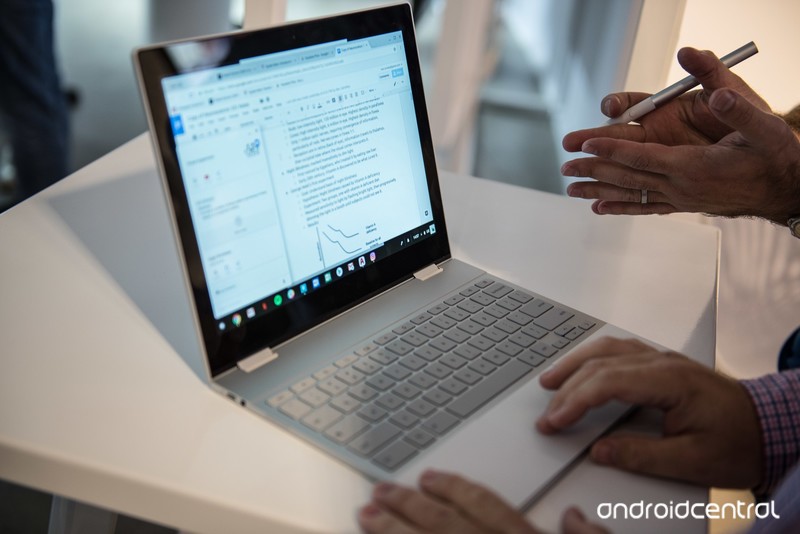
However, if you know how to shop around, you can find Microsoft’s latest version of the Surface Pro for quite a bit cheaper than Google’s offering.
The biggest difference here is that the Surface Pro runs Windows 10 instead of Chrome OS, and when faced with the choice between these two machines, one of our forum users reached out for feedback for opinions on what they should do.
B. Diddy
07-09-2018 11:10 AM“
The question of a Chromebook being able to fully replace a conventional laptop really boils down to if you need something that’s only available as an installed program, and doesn’t have an online or Android app counterpart. If you subscribe to Office 365, then you should be fine with the online version or the Android app version (although I’m not sure if the installed Office suite might have…
Reply
Mike Dee
07-10-2018 06:29 PM“
Well I’m one that asked the question, made the jump and never looked back. There are things a Chromebook can’t do but for those things I have other laptops. I mostly use the my Pixelbook now and you just can’t beat the speed that this thing opens with and cruises at. You also never wait hours while Microsoft takes over your machine to update. I might add that another great feature is that if…
Reply
Mits5139
07-10-2018 01:49 AM“
Totally agree. I made the switch from Mac & IOS to chrome and android. I actually went all in with the chromebook.
My best advice is to see which programmes you use and see if they or their alternatives are available on chrome or goggle play store.
I went all out and bought the pixelbook as I fell in love with it but I agree the specs are overkill but in my eyes totally worth it. The…
Reply
gernerttl
07-10-2018 05:56 PM“
As an Surface Pro (2017) user I recommend the Surface Pro. It is the most flexible of the two. I use mine for work, school, travelling, and even photo editing using Photoshop and Lightroom.
I can work on homework while my daughter is in gymnastics. I’ve even taken camping with me, so I could do image editing of any photos I took while camping.
My daughter will use it while we’re stuck…
Reply
Now, we’d love to hear from you — Would you recommend getting a Pixelbook or Surface Pro?
Join the conversation in the forums!
Chromebooks
- The best Chromebooks
- Chromebooks in education: Everything you need to know
- Should you buy a Chromebook?
- Chromebook Buyers Guide
- Google Pixelbook review
- Join our Chromebook forums
NBA Live ’19: Everything you need to know!
Get ready for another crazy NBA season.

Basketball fans are getting ready for another exciting NBA season. Lebron James has moved to LA, and the whole league is about to get turned upside down.
There’s no better way to feel like you’re part of that action than with an annual sports game. NBA Live ’19 is EA’s pride and joy in that arena, and if you’re wondering what it’s all about we have you covered.
What is NBA Live ’19?
NBA Live is a long-running franchise, reaching its greatest heights in the mid-2000s on the PlayStation 2 and the original Xbox. EA had dominated the sports genre in those years, but stiff competition showed the company had become quite stagnant, so much so that they lost a ton of footing. They not only suffered financially but also fell behind on innovation.
The situation reached fever pitch in 2014 when EA released a laughable game marred with bugs, unrealistic gameplay, and a shallow feature set. The snafu forced them to take the year off to rebuild the game from the ground up, and it wasn’t until 2016 that the series returned.
NBA Live ’19 is set to be the third game since the big rebuild, and the company seems to be taking the solid foundation they have and building on it to make a basketball game that just might be able to steal some of NBA 2K’s thunder.
Build your career as The One

EA’s goal for NBA Live ’19 is simple: to make you the center of it. And by you, we mean your in-game character, who you’ll make for the game’s marquee mode called The One. Your superstar will start from the bottom and rise through the ranks to go however far you want to take him.
The One will be pushed by an original rags-to-riches story, complete with both on-court and off-court progression paths. For the on-court stuff, EA is adding a wealth of new abilities and player archetypes, including ICON abilities which are based on real NBA superstars and legends. These will be the most powerful abilities in the game and will likely only be rewarded to those who grind for them.

EA creative director Ryan Santos goes into a bit more detail about it here:
“As an example, if I’m a rim protector, I’d have a new defensive ICON Ability that, along the way, I can choose whether or not it will impact the shot percentage of a bigger radius of players around me or significantly boost a defensive impact rating for my player. That customization is going to be a gamechanger and, on top of that, you’ll be able to unlock multiple ICON Abilities for each Playstyle. And just like a Trait, I’ll be able to swap that special ICON Ability before every game.”
Once you’re happy with your character, you’ll be able to continue his legacy in other game modes, including The Streets and The League.
Hit The Streets with your squad

The Streets is where you take your character to compete when you’re not actively chasing a ring. It’s an online mode where players can team up in ProAm games to earn rank and rewards.
You’ll play on a wide variety of real-world courts. There are legendary courts from all over the US featured in The Streets, and for the first time ever you’ll also see some international courts from Paris, Rio De Janeiro, and more. EA hasn’t revealed the full list just yet, but we’re in for a regular stream of new courts to be added over the course of the year.

Similar to NBA 2K’s MyPark mode, The Streets is mainly focused on 3v3 gameplay, where you and two of your buddies can go up against another squad. But if you’re running solo, Live ’19 lets you take in a squad of CPU players whom you can earn as rewards as you play. These squadmates will be actual NBA superstars and legends, so you’ll want to collect as many as you can.
When you’re feeling more ambitious, you can choose to take your player back to The League at any time to compete for an NBA championship. You’ll practice and play in games to earn your scratch and help your team, and the rewards you get can be funneled back into your character with new abilities, attributes, and cosmetic upgrades to earn.
Off the court, your time will be spent building your social media presence to help keep your superstardom status. Sponsors will play air of your games, which will, in turn, help you gain more fans and get other NBA players to notice you. We’re not sure how deep this aspect of the game will go, but it sounds like you’ll be able to earn more rewards the more famous you get.
Gameplay keeps improving

It was important for EA to keep improving on the gameplay foundation established in the previous two games, and they’re adding a few new things this year to keep the train rolling. Real player motion has finally arrived. It’s a system that takes into account things like player weight and physics to make movements seem more realistic. The goal is to have a fluid and natural-feeling player movement system to give you total control as opposed to systems where you can sometimes feel stuck in an animation.
It’s backed up by tons of new animations, as well as optimized player skeletons and player models. One of the benefits to real player motion will be your added ability to pull off moves with the left stick alone. The right analog stick is still used for pulling off advanced moves, but those who want to do basic stuff like left cuts, right cuts, and back steps will be able to do so on the same stick they use to control overall player movement.

Next up, off-ball gameplay is seeing some significant upgrades, something EA found especially necessary considering you’ll spend a lot of time as a defender when you’re playing modes where you only control one character. Whether it’s squaring up to keep them from getting open or extending your arm into a passing lane, you’ll now have more impact on the game when you don’t have the ball.
Lastly, new “Dynamic Gameplay AI” will give players authentic on-court personalities. Each player will have a set of tendencies that can be triggered depending on how a game is going. A player with a hot hand may see his teammates passing him the ball more, and if he gets really hot, he’ll even start trash talking. EA will do their best to incorporate real player behavior, too, such as Draymond Green’s tendency to hard foul an opponent that is trash talking him or playing him too aggressively.
Where to pre-order

Pre-order NBA Live 19 right now, and you’ll get access to The One edition for the standard $59.99 asking price. This comes with the base game, plus Joel Embiid as a squads player, his jersey, golden shoes, a golden basketball, his signature celebration, and a customized basketball court.
See at GameStop
When can you play it?
NBA Live ’19 lands September 7th, 2018 for PlayStation 4 and Xbox One. You’ll be able to try out a free demo of the game starting August 24th.
PlayStation 4

- PS4 vs. PS4 Slim vs. PS4 Pro: Which should you buy?
- PlayStation VR Review
- Playing PS4 games through your phone is awesome
Amazon
The U.S. Justice Department is appealing the AT&T and Time Warner deal [Update]
Updated July 13, 2018: AT&T already has something to say about the DOJ’s appeal. Per the carrier: “The Court’s decision could hardly have been more thorough, fact-based, and well-reasoned. While the losing party in litigation always has the right to appeal if it wishes, we are surprised that the DOJ has chosen to do so under these circumstances. We are ready to defend the Court’s decision at the D.C. Circuit Court of Appeals.”
Not even a month after AT&T purchased Time Warner for $85 billion, the U.S. Justice Department is now appealing the deal.

A court document was filed on Thursday, July 12, confirming the news. The appeal is being led by District Court Judge Richard Leon.
Per CNBC, Leon noted in his 200-page appeal filing that “the government failed to meet its burden to establish that the deal would significantly decrease competition.”
On June 15, AT&T officially completed its purchase of Time Warner following months of debating the acquisition in court. Time Warner owns major brands such as HBO, DC, and Turner, and commenting on the completing of the deal, AT&T CEO Randall Stephenson said —
We’re going to bring a fresh approach to how the media and entertainment industry works for consumers, content creators, distributors, and advertisers.
The court’s decision to let AT&T and Time Warner go through this agreement was seen as a controversial move by many, so it’ll be fascinating to see where the next steps of the appeal process take us.
What do you think about this development?
AT&T has officially purchased Time Warner for $85 billion

What makes a Chromebook so secure?

Chromebooks were designed with security in mind — so what does that mean?
One of the things you’ll see written whenever there’s talk about Chromebooks is how secure the platform is. If you’re into computers or software design or any type of IT you know a good bit about why, but most of the time the talk just stops after saying that Chromebooks are secure.
I think it’s good for all of us to understand a bit about how the things we use everyday work. That includes things like security and why your Chromebook might be a little better at it. It’s worth knowing the basics even if you aren’t interested in knowing about all the nuts and bolts. So let’s take a few minutes and talk about why Chromebooks are secure instead of just saying it.
-
Chrome runs on the Linux kernel. Linux distributions like Ubuntu or SUSE can be a pain in the behind to configure and use, but they also can be configured to be incredibly secure. The Linux kernel was designed by a group of people who wanted an open alternative to Unix, and the open aspect — anyone can submit a change to the folks who maintain the kernel — means some really great ways to keep a user account or network traffic away from prying eyes have been implemented. Google tries to merge this sort of local security with a user-friendly interface to find a good balance, where one doesn’t need to have a Computer Science degree to keep their account properly secured.
-
Chromebooks update automatically whenever Google decides they need an update. If you have your Chromebook turned on and online, it will check to see if there is an update available. If there is, it will download it and the next time you turn your Chromebook on it will have been applied. This is great for new features like better Android support or emojis, but it’s also the best way to maintain a secure environment: let the professionals do it.
I’m not very keen about someone else having control over the software on my computer, even if that someone else can do a better job of it than I can. But I’ve come to realize that I would have downloaded and installed any updates that improve features and security as soon as they were available anyway, and have learned to embrace the Chrome update model.

- Chrome OS isn’t “virus-proof” but it’s close. There are no viruses or malware that targets Chrome OS. That doesn’t mean the platform is immune — every operating system has a long list of vulnerabilities — but right now nobody is targeting Chromebook users when it comes to malware attacks. That could change, and if it does, Google can quickly identify the problem and push a fix to every single user that will be installed the next time they log in. We always tend to think of how Google uses our data and how they can track so much of it, but it’s also important to remember that some of the best security professionals in the world work there and they have a real commitment to keeping every product secure.
Think your Chromebook is prone to viruses? Think again.
-
Everything has its own sandbox. The Linux kernel is very good at separating individual processes from each other when they are being computed. Chrome leverages this and keeps each and every application and individual tab in the browser inside its own secure sandbox. That means they can’t access any other app or the data from any other app directly and have to use the properly secured methods to share anything. This has proven over time (iOS and Android were built on this model) to be one of the best ways to prevent malware from getting a foothold on an account or system and older operating systems like Windows and macOS are in the process of doing the same.
-
Your Chromebook can’t boot an “infected” system. Chrome uses what’s known as Verified Boot to make sure the system files haven’t been tampered with. When it’s powering on, your Chromebook checks to make sure the system files are exactly the same as what Google originally sent to you the last time you updated. If they aren’t, a backup copy that is will be used to boot the system instead. This means that if someone does write malware that targets Chrome, you stumble across it and it somehow gets out of the sandbox it was contained in, it gets thrown out with the bathwater the next time you log in.
-
Chromebooks are simple to erase and recover. This layered approach means it’s very hard for anything to go wrong on your Chromebook when it comes to local security. But if somehow it were to happen, it can be easily fixed by wiping everything off your Chromebook and starting over. Everything in this case actually means everything, because the storage itself is erased and a fresh version of Chrome is downloaded and installed. The directions vary a little based on the hardware used, but generally a simple key combination will reboot into a recovery mode where simple instructions will tell you how to erase and restore everything.
Your account data is stored in the cloud, and after doing this you simply log in and pick up where you left off. Locally stored files will be erased, so it’s always a great idea to use Google Drive and its tight integration into Chrome to keep all your important files backed up, too.
Google’s work with the security of your account and cloud storage benefits you no matter which operating system or laptop you use. But when it comes to Chromebooks, the company goes the extra mile to keep others out of your stuff.
Windows-powered and Apple computers are also getting much better at security, and it’s nice to know that the companies who make the things we use want us to be safer from online attacks. But if you want the most secure operating system you can get without configuring it yourself, a Chromebook has your back.
Chromebooks
- The best Chromebooks
- Chromebooks in education: Everything you need to know
- Should you buy a Chromebook?
- Chromebook Buyers Guide
- Google Pixelbook review
- Join our Chromebook forums

