


Review: Logitech’s Circle 2 Brings HomeKit Compatibility and a New Design
Logitech’s Circle 2, introduced in June, is the second-generation version of its Circle home security camera. This new version features a redesigned body, wired and wire-free versions, accessories that let it be positioned anywhere, and, through a recent update, HomeKit support.
Circle 2 is meant to be used as a home security device and it’s ideal for keeping an eye on your house while you’re away from home. It’s also great for keeping an eye on pets and children, and even communicating with the two-way microphone. Circle 2 connects to a home WiFi network and offers cloud functionality that lets you view video anywhere.
I’ve been using a Logitech Circle camera for two years now sans HomeKit functionality, so I was eager to check out the HomeKit version. This is only the second HomeKit-compatible camera available on the market, and with the new design, the Logi Circle app, and cloud upload ability, the Circle 2 easily beats out the D-Link Omna as the best HomeKit camera you can buy at the moment.
Though Logitech offers both wired and wire-free versions of the Circle 2, HomeKit only works with the wired version because Apple requires an always-on camera connection, and that’s not how the wire-free Circle 2 works.
Design and Features
The wired version of the Circle 2 consists of a small palm-sized camera module that attaches to a base with a pivoting neck, allowing the camera to be positioned and rotated into an ideal angle to work with any room setup. The base can be attached to a wall with a wall mount, and the camera module itself is detachable from the base because it can connect to other accessories like a plug or window mount.
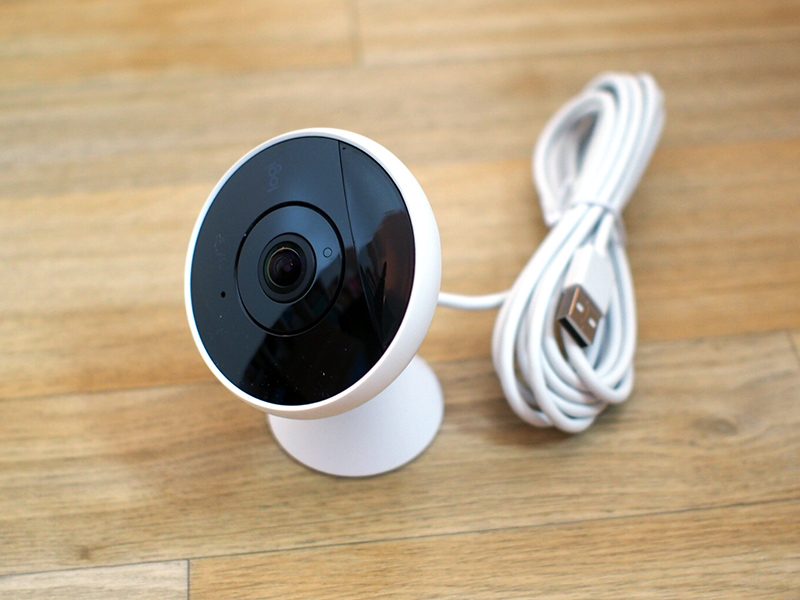
Circle 2 has a white shell around it, and the camera base is also white. It’s a simple, attractive design that melds into the decor around it. There’s no mistaking this is a camera, though. It has a wide camera lens and an LED light that comes on when it’s activated, but that can be turned off for a slightly more discreet look. At the back, there’s a 10-ft power cord that needs to be plugged into the wall.

Since it uses a wide angle lens, the camera works best attached to a wall or placed right at the edge of a shelf or other flat surface. Because of the ball joint in the mount, it can be angled in just the right way to get an ideal view of the room.

Circle 2 is IP65 weatherproof, so it can be used indoors and outdoors. Logitech says it will stand up to rain, snow, cold, and heat. Mine withstood some light water exposure, and while I kept it indoors, weatherproofing is a great addition over the first version of the Circle. You will need a strong WiFi connection to use it outside, though, which can be difficult to get outdoors.
The D-Link Omna, the other HomeKit camera on the market, is not weatherproof and it is not as easy to position and move around with no malleable joint for adjustments, giving Circle 2 the clear edge.
Circle 2 features a camera with a 180-degree field of view, which is an angle wide enough to take in most of a room and wider than the field of view of the original Circle. My office is fairly large and the Circle 2 can capture almost all of it from end to end. Since it is a wide angle camera, there is clear distortion at the edges of the image.

Circle 2 captures 1080p video that’s crisp and clear, even in situations where the lighting is not ideal. The bump in quality is most noticeable in lower light and in situations where I use the built-in zooming feature. To save bandwidth, there are also settings for 720p and 360p video.
At night, when the lights are off, the Circle 2 switches over to an infrared night vision mode that’s able to capture movement from 15 feet away. Night vision mode is clear enough to show everything going on in my office, and it comes on reliably as soon as the lights go off.

Though you can zoom in on the video feed from the Circle 2 and manually adjust the placement of the camera, there are no controls for adjusting or rotating the view remotely as the camera is static.

There’s a built-in speaker and microphone in the Circle 2 to enable a two-way talking feature through the Logi Circle app. The speaker is loud and it’s easy enough to understand someone on the other side of the camera through the phone, but it’s not super clear. Because there’s a microphone, video recordings also include sound.
Setup
Since the Circle 2 went on sale in June but HomeKit functionality wasn’t added until September, existing Circle 2 users will need to go to a little extra trouble to get HomeKit working.
New Circle 2 units should come with a little card that has a HomeKit code on it, but existing models and the test unit I received don’t have an easily accessible HomeKit code. To get to the code, the camera needs to be separated from its base and the protective white skin needs to come off so the HomeKit activation code assigned to the device can be located.
The eight digit code is engraved into the back of the camera in tiny numbers and letters, and this is the eight digit code that needs to be entered to pair the device with HomeKit.

Setting up the HomeKit functionality is a little odd because first you need to add the camera to the accompanying Logi Circle app by following the included directions, add it to your WiFi network, and then create a Circle account to access your cloud camera footage.
After the Logi Circle app is set up, the camera also needs to be added to HomeKit using the add accessory feature in the Home app. If there’s no included HomeKit insert to scan, the Circle 2 can be added to HomeKit using the aforementioned eight digit code. Setting up the Circle 2 isn’t the most straightforward process, but it still takes just a few minutes to get going.
App and HomeKit Integration
Logi Circle App
Circle 2 uses cloud storage and offers no local storage option, so all video needs to be viewed through the accompanying Logi Circle app. Circle 2 records snippets of video whenever motion is detected, with no always-on recording option available. The exception is live view – you can open the app at any time to see what’s going on in your home.

The camera is decent at continuing a recording for as long as it detects movement, but since it’s motion based, there are times where the recording cuts off too early or starts recording a bit late. This has never been a serious problem for me because it generally captures most of what I need to see in a given snippet, but some users may prefer always-on recording so nothing is ever lost.

With camera activation tied to motion, the app is organized into a series of video snippets that are time stamped. The app generally opens to a current live view, but you can scroll up to see earlier recordings. With the free plan, the Circle 2 stores 24 hours of motion-based footage.
Recordings are time based and are gray for times when minor movement is detected or blue when high activity is detected. Using the Event Filter at the right hand side of the app, recordings can be filtered by day or high activity level, but there are no more granular options for finding footage from a specific time and date.

The Logi Circle app is always in landscape orientation, so you’ll need to hold your iPhone in landscape mode when using it. The app also always displays the full zoomed out room view, but with pinch gestures, you can zoom in up to 8x. There’s no native zoom built into the camera, so this is digital zoom, and the quality isn’t great. At 1x to 3x zoom, the picture remains fairly clear, but definition is lost at 8x.

On the main app screen, there are options to take a photo or use the microphone feature in the app to speak through the Circle 2’s speaker. There’s also a “Day Brief” option which is a neat little feature that creates a quick video of all of the motion that was detected over the course of the last 24 hours (time period is customizable with premium subscription).
In the Settings section of the app, accessible through the hamburger button on the left, there are options to turn the camera off, turn on smart alerts for notifications when movement is detected, and activate a privacy mode, which prevents the Circle 2 from recording footage or sending alerts, though streaming continues.

Notifications from the Logi Circle app can be customized based on activity level and limited to when you’re away from home with Smart Location, and you’re also able to select how often you want to receive notifications when movement is detected. There is a setting to customize motion zones for notification purposes, but it’s limited to premium users.

Circle 2’s motion detection and notification features are somewhat lacking because of the limited amount of customization. The app does not offer a way to schedule alerts for specific times of the day, and there are no alerts for audio activity. I’ve continually found the alert settings to be difficult to use, confusing, and not robust enough.
The Settings section of the app also offers options for adjusting the field of view, changing the resolution, adjusting the microphone sound level, turning off the speaker, or turning off the LED that indicates when the Circle 2 video feed is being viewed through the app.
The app supports multiple cameras, so if you have more than one, you can switch between them using the menu option at the top of the app. All settings will need to be customized individually for each camera.
HomeKit
With HomeKit integration, the video feed from the Circle 2 is available right within the Home app on all of your devices, including Apple Watch. You can ask Siri to do things like “Open the camera in the office” or “Show me the camera in the office” to open it up. You can’t view recordings from the Logi Circle app in HomeKit — it’s live feed only.
When away from home, to view the Circle 2 feed in the Home app, you’ll need an Apple TV or iPad that serves as a home hub for remote access. You’ll also only be able to watch the HomeKit feed from one device at a time.

The motion detection features of the Circle 2 can be used in Automations in the Home app, but the functionality is fairly limited. You can, for example, have a light turn on or a door lock/unlock when motion is detected, but that’s about it. Your automations can be customized by time and location, but there are no options for motion sensitivity or motion zones.

So in a nutshell, I can set the Circle 2 to do something like turn on the lights when motion is detected while I am at home at night, but I haven’t found any of the motion detection options to be particularly useful in my HomeKit setup. The most useful application may be doing something like turning on the lights when movement is detected to deter thieves when you’re away from home.
In the Home app, beyond viewing the camera feed, you can use the microphone and speaker for conversations and mute the sound, and you can enable HomeKit notifications. Notification settings are somewhat buried, and can be accessed by a 3D press on the Logi Circle Motion Detector icon in the Home app.

You can set the Circle 2 to send a notification when motion is detected, and the notifications can be set to display at a specific time or by location, so you can do things like suppress notifications when you’re home or in the mornings.
HomeKit notifications are distinct from notifications that are sent from the Logi Circle app, which is somewhat confusing. If you have both sets of notifications enabled, you’ll get two notifications for every motion alert. HomeKit notifications have an edge over Logi Circle notifications, though, as they are rich notifications that include an image snapshot.

Two types of notifications each with different options that don’t combine is a hassle to deal with, so it’s best to pick just one. With the Circle app you can choose notification frequency, activity level, and set motion zones (premium) but there are no time-based filters. With HomeKit notifications, you can limit notifications to set times, but can’t customize frequency, activity level, or activity type.
Paid Service
Logitech offers a premium subscription service called Circle Safe, which is priced at $3.99 or $9.99 per month. Circle Safe gives you 14 or 31 days of stored footage, up from 24 hours with the free plan, and it includes several features that are not otherwise available.
Circle Safe Basic, which offers 14 days of storage, is priced at $3.99 per camera per month. Circle Safe Premium, which offers 31 days of storage, is priced at $9.99 per camera per month, which is expensive if you’ve got more than one Circle camera.
 Motion zones, a Circle Safe Premium feature
With the Circle Safe Premium feature, you can also set motion detection zones and use the Circle 2’s people recognition feature to customize the motion detection alerts you receive. With people recognition, you can get an alert only when a person is detected, and with motion zones, you can set the camera to only send a notification when a specific area in the camera’s field of view is triggered, like a front door vs. the entire entryway.
Premium subscribers can also customize the timespan included in the Day Brief, while free members and Basic subscribers see 24 hours, and there’s an option to filter footage to see only snippets where people were detected.
I’ve never subscribed to Circle Safe and I don’t think it’s necessary to get what you want out of the camera, but it’s a must if you want to save footage in the Logi Circle app for more than a day.
Bottom Line
If you want a camera that’s compatible with HomeKit, the Circle 2 is the camera to get. It’s one of the only HomeKit-equipped cameras on the market right now, and it’s better than the competition.
Even without taking into account HomeKit, the Circle 2 is a good home camera. When I reviewed the original version, I didn’t think it measured up to some of the other home security cameras on the market, but Logitech has made a lot of feature improvements since then. I do wish local storage was an option, there were better tools for customizing recording times, and that motion detection zones weren’t limited to paid users, but even without those features, Circle 2 has solid features to offer.

With weatherproofing and the new enclosures, Circle 2 can be placed almost anywhere that needs monitoring and the free service Logitech offers is enough to operate the camera and record data without feeling like an overwhelming number of features are restricted.
There are still significant improvements that could be made to the Circle app, like better organization for viewing older video snippets, additional alert types, and more options for automating alert times, and it doesn’t measure up to some of the more robust dedicated home security systems like Arlo, but it’s easy to use, flexible, and competitively priced.
I wouldn’t adopt Circle 2 as a whole home security system given the pricing of the premium plan, but it works well in a single room and is useful for keeping an eye on pets, babies, kids, and other people who might be in your home.
Pros:
- 1080p video recording
- Two-way microphone/speaker
- Cloud storage
- Adjustable body
- Night mode
- HomeKit
- Multiple mounts
Cons:
- No local storage
- Premium subscription is expensive at $9.99/month per camera
- Features limited without subscription
- No always-on recording option
- Gaps in recording
- Notification system is confusing
How to Buy
The Logitech Circle 2 wired camera with HomeKit support can be purchased from the Logitech website for $179.99.
Note: Logitech provided MacRumors with a Circle 2 for the purpose of this review. No other compensation was received.
Tags: HomeKit, Logitech, Circle 2
Discuss this article in our forums
EFF Says iOS 11’s Wi-Fi and Bluetooth Toggles in Control Center Are Misleading and Compromise Security
Apple recently confirmed that Wi-Fi and Bluetooth are not fully disabled when toggled off in Control Center on iOS 11, and the change has generated some fresh criticism from a prominent non-profit digital rights group.
For background, when Wi-Fi and Bluetooth are toggled off, an iPhone or iPad on iOS 11 merely disconnects from a Wi-Fi network and Bluetooth accessories. The actual Wi-Fi and Bluetooth radios in the device remain activated.
Moreover, Wi-Fi and Bluetooth automatically reenable at 5:00 a.m. local time each day, or if the device is restarted.
iOS 11 works this way so that Wi-Fi and Bluetooth continue to be available for AirDrop, AirPlay, Apple Pencil, Apple Watch, Location Services, and Continuity features like Handoff and Instant Hotspot.

As a result of the change, the Electronic Frontier Foundation believes that iOS 11 compromises users’ security. In a critical article, the EFF said the toggles are “misleading” and “bad for user security.”
When a phone is designed to behave in a way other than what the UI suggests, it results in both security and privacy problems. A user has no visual or textual clues to understand the device’s behavior, which can result in a loss of trust in operating system designers to faithfully communicate what’s going on. Since users rely on the operating system as the bedrock for most security and privacy decisions, no matter what app or connected device they may be using, this trust is fundamental.
The EFF said the “loophole in connectivity” can potentially leave users open to new attacks, and it linked to a white paper that unveils apparent zero day vulnerabilities and security flaws in modern Bluetooth stacks.
The article added that, at a bare minimum, Apple should keep the Control Center toggles off until the user flips them back on, rather than overriding the user’s choice at 5:00 a.m. local time the next morning.
Overall, the EFF’s arguments are generally the same as those shared by iOS 11 users who are unhappy with the change. The toggles still behave the same in the iOS 11.1 beta, however, so there’s no indication Apple will reverse course.
iOS 11 users can still completely disable Wi-Fi and Bluetooth for all networks and devices by toggling them off in the Settings app. A device can also be placed in Airplane Mode with Wi-Fi and Bluetooth disabled.
In a support document, Apple said users should try to keep Wi-Fi and Bluetooth turned on for the best experience on an iOS device.
Tags: Control Center, Bluetooth, EFF
Discuss this article in our forums
Seagate’s 12TB IronWolf and Barracuda hard drives bolster storage inside and out
Why it matters to you
If you need a lot of storage space, Seagate’s new offerings provide it and then some, all for under $450.
Seagate has a couple of brand-new 12TB drives on its roster and they’re designed to help improve your system’s storage capabilities in and out of your PC. They’re not the smallest of drives, but they do have a ton of space and the performance and energy efficiency of the drives are no slouch either.
Although smaller form-factor drives and standards are becoming more commonplace in a variety of systems, there is still a large audience for traditional, 3.5-inch drives, especially when they have a lot of storage space. Joining the likes of Western Digital’s Ultrastar range, Seagate’s new Barracuda and IronWolf drives certainly offer that, with as much as 12TB of space. There are also variants of each at 10TB, 8TB, 6TB, 4TB and 2TB capacities, while standard IronWolf NAS drives are available in 3TB and 1TB capacities as well.
The Barracuda Pro range is aimed at internal system builders. Utilizing the SATA interface, it offers sustained write speeds up to 250MBps and comes with a 256MB cache. Its maximum power draw during operation is 7.8 Watts. The warranty lasts for five years, regardless of the capacity you opt for.
In comparison, the NAS targeted IronWolf range has a sustained transfer rate of 210MBps, though it comes with the same internal cache and power requirements. It can however work in a NAS system with up to seven of its fellow drives, so allows for expansive attached storage if needed.
Its counterpart, the IronWolf Pro range, has slightly bolstered performance with a sustained transfer rate of 250MBps on the largest capacities. It’s also slightly more reliable, with a 20 percent increase in its mean time between failure hours. Its warranty is longer too, with five years rather than the three that the standard IronWolf drives come with.
Prices for these drives are $390 for the IronWolf 12TB model, $440 for the 12TB IronWolf Pro, and $430 for the Barracuda Pro 12TB model. These drives are now available and shipping out to customers worldwide, so if you need a new, large-scale storage drive for your single PC or your NAS enclosure(s), these new Seagate options might not be a bad bet.
They certainly keep Seagate at the forefront of consumer storage. When it launched its 10TB Barracuda drives in 2016, they were the largest yet launched at the time.
Uber iOS app can virtually ‘see’ your phone screen, and Apple approved it
Why it matters to you
Permissions inside the Uber app sound like a privacy nightmare, but have never been abused, and will soon be removed.
To better prepare its Apple Watch app, Uber used technology enabling it to view and record what was happening on an iPhone’s screen, even when the Uber app was only running in the background. The permission to do this was granted by Apple, and although Uber claims not to use the system anymore, it remains part of the app. The news comes from Sudo Security Group, which unearthed the capability — called an Entitlement — in the Uber app.
While this sounds like a security and privacy nightmare, the entitlement doesn’t work like a screen-recording app, according to an app researcher speaking to Gizmodo, and will be removed from the app soon. What it does is visualize colors and pixels on the screen, not precise details. However, the concern is this data could be decoded and interpreted to reveal sensitive personal information, user habits, or, should Uber’s app be hacked by criminals, passwords and other login information.
What makes this unusual is that Uber is the only third-party app developer using it. Other entitlements are commonly used by app developers, as they provide access to key phone features, such as the camera and Apple Pay. They operate in a similar way to permissions on Android. The entitlement used by Uber here is considered reserved for Apple’s use only, due to its privacy and security concerns. Using entitlements without Apple’s approval would normally result in the developer being banned from the App Store.
The entitlement was used by Uber to assist the Apple Watch Series One render maps correctly. Apple partnered with Uber to show how the app would operate on the Apple Watch during its March 2015 event. Apparently, developers had four months to prepare Apple Watch apps before the launch, which may explain why Apple granted Uber use of the entitlement at the time, to ensure it was stage-ready on the day.
Uber says the entitlement has not been used since then, and it has never tracked any unauthorized access or use of it. However, Uber’s reputation regarding privacy has been tarnished before, and although it says it will remove the entitlement, it’s unclear why it hasn’t done so before now, given the potential for abuse.
Best iOS app deals of the day! 6 paid iPhone apps for free for a limited time
Everyone likes Apple apps, but sometimes the best ones are a bit expensive. Now and then, developers put paid apps on sale for free for a limited time, but you have to snatch them up while you have the chance. Here are the latest and greatest iOS app deals available from the iOS App Store.
These apps normally cost money and this sale lasts for a limited time only. If you go to the App Store and it says the app costs money, that means the deal has expired and you will be charged.
SideGuide
SideGuide is you’re crowdsourcing solution for what to say in any situation. Whether you have a romantic conundrum, professional quandary, or a social dilemma, SideGuide can help you figure out what to say.
Available on:
iOS
Snap Markup
Snap Markup is a Markup photo tool. It can markup or annotate a photo with various shapes and send it anywhere. Snap Markup provides a range of shapes to help you tailor your map.
Available on:
iOS
Coyn
Coyn is all about efficiency. The app promises a unique interface to help you enjoy managing your cash. Simply swipe up to add expenses and swipe down to add income.
Available on:
iOS
Binaural Meditation
The beats in Binaural Meditation have been engineered to help you get into deep states of meditation and mindfulness as quickly and effortlessly as possible.
Available on:
iOS
myPref
Designed by behavioral experts, myPref is a convenient, efficient way to to determine preferences. Up-to-date preferences are vital to the effectiveness of any behaviorally based program, and myPref makes performing these assessments easy and accurate.
Available on:
iOS
Vantage Calendar
Vantage is a colorful calendar and to-do list, built to present your life with exceptional clarity through design. Great for organizing your daily life, school, or work projects.
Available on:
iOS
Is Google’s $129 Pixel 2 insurance actually worth it?
You can shell out $129 to give your Pixel 2 some added peace of mind, but should you?
The Google Pixel 2 and Pixel 2 XL are two of the leanest and meanest Android flagships around. However, they’re also some of the most expensive – especially if you opt for the larger XL flavor.

Google is offering a Preferred Care plan with the Pixel 2 and Pixel 2 XL, and for $129, you get accidental damage coverage, access to walk-in shops for screen repairs at participating locations, and priority access for 24/7 customer support.
One user added Preferred Care with their Pixel 2 without blinking an eye, but is now second-guessing the plan’s value considering its somewhat high deductible and potentially worthless priority customer support.
PaulQ
10-05-2017 01:38 AM“
I knee-jerk reaction added the $129 preferred care package as I feverishly threw together my order. Now, I see it has a $99 deductible and all of that expert and priority support is pretty useless to me as an advanced user. I have yet to seriously damage a phone.
I do have that little concern that there may be a flaw in the phone but Google treats first year replacements the same for all,…
Reply
Some users seem quite happy with Google’s offering.
GTvert90
10-05-2017 06:56 AM“
It’s cheaper than insurance through Verizon. I bought it.
Reply
ChuckG73
10-05-2017 10:15 AM“
Ok my wife breaks phones like they are made from Toilet Paper. So I got insurance on her Nexus 6P, and after 8.0 issues creeped on her phone I called Google and since it was still under warranty they said we are sending her a Pixel XL. That one incident makes it worth it in my opinion. So yes I always get insurance.What is 129 dollars when you are buying a 900 dollar phone
Reply
But others are of the mindset that that $129 can be better spent elsewhere.
mxmarcus
10-05-2017 03:30 AM“
Not paying a red cent for care. Spend that money on good case & screen protector
Reply
The final word is still up in the air, so we want to hear from you – do you think Google’s Preferred Care is worth $129?
Join the conversation in the forums!
Google Pixel 2 and Pixel 2 XL
- Google Pixel 2 and 2 XL hands-on: Act two is great
- Google Pixel 2 specs
- Google Pixel 2 vs. Pixel 2 XL: What’s the difference?
- Pixel 2 vs iPhone 8: Camera Showdown
- Pixel 2 FAQ: Everything you need to know!
- Join our Pixel 2 forums
Google Store
Project Fi
Verizon
Google Lens: Everything you need to know

Google’s big data advantage might help Lens succeed where others have failed.
Google Lens was one of the major announcements of the Google I/O 2017 keynote, and an important part of Google’s Pixel 2 phone plans. For Google, a company with a long history in visual search, Lens is the latest step in an ongoing journey around computer vision. This is an endeavor which can be traced back to Google Image Search years ago, and which is a close relative of the AI powering Google Photos’ object and scene recognition.
For the moment, Google is only talking about a “preview” of lens shipping on Pixel 2 phones. But as a part of Google Assistant, Google Lens has the potential to reach every Android phone or tablet on Marshmallow and up, letting these devices recognize objects, landmarks and other details visually (with a little help from your location data) and conjure up actionable information about them. For example, you might be able to identify a certain flower visually, then bring up info on it from Google’s knowledge graph. Or it could scan a restaurant in the real world, and bring up reviews and photos from Google Maps. Or it could identify a phone number o a flier, or an SSID and password on the back of a Wi-Fi router.
Whether it’s through a camera interface in Google Assistant, or after the fact through Google Photos, the strength of Lens — if it works as advertised — will be the accurate identification and the ability to provide useful info based on that. It’s absolutely natural, then, that Lens should come baked into the camera app (and Photos itself) on the new Pixel 2 and Pixel 2 XL smartphones.
Big, BIG data

Like all the best Google solutions, Lens is a product of AI and data.
Like all the best Google solutions, Google Lens is rooted in big data. It’s ideally suited to Google, with its vast reserves of visual information and growing cloud AI infrastructure. Doing this instantly on a smartphone is a step beyond running similar recognition patterns on an uploaded image via Google Image Search, but the principles are the same, and you can easily draw a straight line to Google Lens, starting with Image Search and going through the now-defunct Google Goggles.
Back in 2011, Google Goggles was impressive, futuristic and in the right setting, genuinely impressive. In addition to increased speed, Google Lens goes a step beyond this by not only identifying what it’s looking at, but understanding it and connecting it to other things that Google knows about. It’s easy to see how this might be extended over time, tying visible objects in photos to the information in your Google account.
This same intelligence lies at the heart of Google Clips, the new AI-equipped camera that knows when to take a photo based on composition, and what it’s looking at — not unlike a human photographer. That all starts with understanding what you’re looking at.
The potential for Google Lens is only going to grow as Google’s capabilities in AI and big data increase.
At a more advanced level, Google’s VPS (visual positioning system) builds on the foundations of Google Lens on Tango devices to pinpoint specific objects in the device’s field of vision, like items on a store shelf. As mainstream phone cameras improve, and ARCore becomes more widely adopted, there’s every chance VPS could eventually become a standard Lens feature, assuming your device hit a certain baseline for camera hardware.
What can Google Lens do on the Pixel 2?
Google is calling the version of Lens on Pixel 2 phones a “preview” for the time being, and it’s obvious the company has ambitions for Lens far beyond its current implementation on these handsets. At the October 4, 2017 presentation, Google demonstrated identifying albums, movies and books based on their cover art, and pulling email addresses from a flyer advertisement.
Those are relatively simple tasks, but again, Google surely wants to start small, and avoid the pitfalls experienced by Samsung’s Bixby service in its early days.
More: Google Pixel 2 preview
How is Google Lens different to Bixby Vision?

On the surface the two products might appear very similar — at least to begin with.
However, the potential for Google Lens is only going to grow as Google’s capabilities in AI and computer vision become stronger. And the contrast with one of Samsung’s most publicized features is pretty stark. The Korean firm is still a relative newcomer in AI, and that’s reflected in the current weakness of Bixby Vision on the Galaxy S8 and Note 8.
Right now Bixby can help you identify wine (badly), as well as flowers (sometimes) and animals (to varying degrees of success) — as well as products, through Vivino, Pinterest and Amazon respectively. Samsung doesn’t have its own mountain of data to fall back on, and so it has to rely on specific partnerships for various types of objects. (The service routinely tells you it’s “still learning,” as a caveat when you first set it up.)
What’s more, while Samsung can (and apparently does plan to) bring Bixby to older phones via software updates, Google could conceivably flip the switch through Assistant and open the floodgates to everything running Android 6.0 and up. Both services are going to require some more work before that happens, though.
Nevertheless, anyone who’s used Bixby Vision on a Galaxy phone can attest that it just doesn’t work very well, and Google Lens seems like a much more elegant implementation. We don’t yet know how well Lens will work in the real world, but if it’s anywhere near as competent as Google Photos’ image identification skills, it’ll be something worth looking forward to.
We’ll have more to say on Google Lens when we test it in more detail on the Pixel 2 phones.
Google Pixel 2 and Pixel 2 XL
- Google Pixel 2 and 2 XL hands-on: Act two is great
- Google Pixel 2 specs
- Google Pixel 2 vs. Pixel 2 XL: What’s the difference?
- Pixel 2 vs iPhone 8: Camera Showdown
- Pixel 2 FAQ: Everything you need to know!
- Join our Pixel 2 forums
Google Store
Project Fi
Verizon
Here are all of the new features coming to Google Home
Google had a lot of new hardware to show off at its October 4 event, but there are also a lot of new software features coming to Google Home that flew under the radar. Let’s talk about them.
Google’s been rather busy as of late with the announcements of the Pixel 2/Pixel 2 XL, Home Mini, Home Max, Pixel Buds, Pixelbook, and Google Clips. All of this new hardware looks very enticing, and while Google is doing its best to turn itself into a hardware company, its true prowess will always lie with software.

Quite a few software features for the Google Home lineup were announced alongside all of Google’s shiny new hardware, and in case they slipped by you, here’s a breakdown of what to expect:
Changing Google Home’s voice
Since its launch this time last year, the Google Assistant on Google Home has only spoken in a female voice. It’s one of the more natural-sounding AI voices around, but if you want to switch things up a bit, you can now change the sound of the Assistant’s voice from a female’s to a male’s. This doesn’t alter Home’s functionality, but if you want to inject some more testosterone into your Assistant’s pitch, you now have the option to do so.
Related: How to get the male Google Assistant voice on your phone and Google Home
Games and learning activities for families
Google recently made its Family Link service widely available for families in the United States, giving parents a host of services and tools for helping to manage their kids’ time spent looking at screens. Children’s accounts created with Family Link will soon be supported on Google Home, and along with this, a variety of new family activities will also be coming to the smart speaker.
More than 50 of these activities will be available, and by saying “Ok Google, let’s play a game” or “Ok Google, let’s learn”, parents and kids can play through Micky Mouse and Justice League-themed adventures, learn about astronomy with Space Trivia, and even listen to classic stories like Snow White.
Related: Google Family Link is now invite-free for parents in the U.S.
Automated routines
Many of us find that we develop certain routines that we naturally do throughout the day, and soon, your Google Home/Assistant will be able to make your routines even more efficient. If you consistently turn on specific lights throughout your house and always set the room at a certain temperature, saying “Ok Google, I’m home” as you’re walking through the front door will turn on your desired lights, warm up the house to just the right temperature, and anything else that you want to be triggered with that command.
Turning Google Home into an intercom
Although yelling downstairs for your kids to come up for dinner technically gets the job done, Google wants you to be able to be able to round up the family for quality time without straining your vocal chords beforehand.
Thanks to a new feature called “Broadcast”, you’ll be able to say “Ok Google, broadcast: dinner will be ready in 10 minutes” to have this message played throughout all Google Homes throughout your house. Broadcast will also work remotely from your phone, meaning that you can say something like “Ok Google, broadcast: coming home now” to let everyone at home know that you’ll be back soon.
Deep integration with Nest products
Last but not least, Google Home is also getting some serious integration with Nest’s lineup of smart home gadgets. Starting now, saying “Ok Google, show me the entryway on my TV” will cast a livestream of your Nest Camera onto your Android TV or television with Chromecast built-in.
As if that wasn’t good enough, next year Google Home will work hand-in-hand with the Nest Hello’s Familiar Faces function. When someone rings the doorbell on Nest Hello and the built-in camera recognizes who’s at the door, all Google Homes will then broadcast an audio message to let you know who’s there.
Find your phone
Trying to track down a lost phone is never fun, but this ordeal is about to get a lot easier if you have a Google Home. Currently rolling out now to all users, you can now say “Ok Google, ring my phone” or “Ok Google, where’s my phone” to have Google Home play an audio tune on your device so you can quickly locate it. Better yet, Google Home will force your phone to ring as loud as possible even if it’s on Do Not Disturb or the volume is turned down.
When will all of this be available?
Unfortunately, actual release dates for a lot of these features aren’t very clear. Google says that the majority of them are “coming soon”, but that’s all we know for the time being. When they do eventually arrive, we’ll be sure to let you know so you can start playing around with them as soon as possible.
Google Hardware

- Google Wifi review
- Google Home review
- Everything you need to know about the Chromecast Ultra
- Chromecast vs Chromecast Ultra: Which should you buy?
Google Wifi:
Google
Amazon
Google Home:
Google
Best Buy
Chromecast Ultra:
Google
Best Buy
Here’s what’s new in the Google Pixel 2 launcher

Google’s newest phones feature Pixel perfect home screens.
Google’s Pixel line, like the Nexus line before it, features Google’s vision for Android, and nowhere is this truer than the home screen. The Google Now Launcher (is that ever retiring?) is still one of the most popular launchers on Android, even though it hasn’t had an update since 2015.
The Pixel Launcher is Google’s current vision for the home screen, and this is what will be coming to it with the Google Pixel 2.
Search moves south

Google has kept the search bar top and center on its home screen for many years now, and it’s still a major part of the home screen on the Pixel 2 and Pixel 2 XL. It just moved from the ever-more-distant top of the home screen to the bottom, where it’ll be easier for users to tap. I don’t quite see the need in having the search bar there when Assistant is a tap away on the home button directly below it, but Google wants users to use Search more, and having it right there, between your dock apps and navigation bar, should raise its visibility and hopefully its use. It also stays present when swiping between home screens
The search bar now has rounded edges to help it fit in with the default circular Adaptive icons on your home screen. It’d be fun to have the search bar adapt along with the other masks available to Adaptive icons, but who knows what the future will bring to the Pixel Launcher.
Get Google’s notifications at a glance

With the Google Search bar at the bottom, the Pixel Launcher’s home screen is a little bottom-heavy. To help things even out while still allowing the beauty of your wallpaper to shine through, Google has a new, completely transparent widget up top giving you information from Google Calendar and Google Assistant a glance, like upcoming meetings and, soon, traffic. Google’s previous widgets from Google Now were bold, white, and completely clashed with most home screens. This version is much more refined and theme-friendly. Here’s hoping it makes its way to more devices.
Living Universe Live Wallpapers

Live wallpapers, which have fallen into relative Android obscurity, are getting some beautiful new life in a series called Living Universe. These wallpapers feature movement, both when you switch between home screens and movement within the scene, like waves on a beach. They’re quite beautiful, and we’re looking forward to seeing the rest of the series. Last year’s Pixel wallpapers came from the Google Wallpapers app, and then to the rest of Android. It’s not yet clear if Living Universe will be Pixel-exclusive or eventually come to Google Wallpapers, but we can only hope.
Your turn!
Which home screen element from the Pixel 2 are you most looking forward to? Does moving the search bar throw off your home screen balance? How long do you think it’ll take for these new features to come to third-party launchers? Tell us in the comments!
Google Pixel 2 and Pixel 2 XL
- Google Pixel 2 and 2 XL hands-on: Act two is great
- Google Pixel 2 specs
- Google Pixel 2 vs. Pixel 2 XL: What’s the difference?
- Pixel 2 vs iPhone 8: Camera Showdown
- Pixel 2 FAQ: Everything you need to know!
- Join our Pixel 2 forums
Google Store
Project Fi
Verizon
Best Google Pixel 2 Accessories

What are the best accessories for the Google Pixel 2?
The Pixel 2 and Pixel 2 XL is Google’s second go at making a premium smartphone for the masses, and it’s earning high praise based on first impressions. But the true value of a phone is proven by its longevity and adaptability.
We’re talking accessories and this early on — just days after the initial launch — the pickings are slim. But with Google introducing a ‘Made for Google’ certification partnership with a wide range of accessory manufacturers we’re sure to see a good selection of accessories available as we get closer to shipping dates.
As it stands at the moment, the best place to find certified Pixel 2 accessories is straight from the source. The Google Store has some of its proprietary accessories available alongside third-party products, but nearly half of what’s currently listed is not yet available for purchase. We’ll be updating this article as more accessories go on sale.
Google-designed cases
Google has partnered with a number of different case manufacturers to get accessories certified as ‘Made for Google’, just another way for Pixel 2 owners to be confident in their accessory purchases.
Right now, there’s a limited number of third-party accessories available, but If you’re planning to order your phone straight from the source you should check out the cases designed in-house by Google.
Best Cases for the Google Pixel 2

For the Google Live cases there are two case types to choose between — a slim one-piece shell or a more rugged dual-layer case. No matter which you go with, you get to customize the back of your Pixel 2 with a stunning shot from your own photo roll, from Google Earth, or sample a work of art.
Each Google Earth case can be paired with a matching live wallpaper for a cohesive look around your device that just looks gorgeous. And if you opt for the dual-layer case, you’ll be getting enhanced drop protection when compared to a single-layer case. Find yours starting at $50.

Another compelling option is the Google Fabric Cases which brings the look and most importantly the feel of that fabric finish found on other Google products, like the Home Mini and Daydream View. These cases offer a premium microfiber liner and will keep your Pixel 2 looking like a standout device no matter which color combination you decide on. They’re also available for $50.
See at Google Store
Moment Photo Case & Wide Lens Kit

Photography is a big feature on the Pixel line, and the Pixel 2’s camera is positioned to be the best on the market. If you’re #teampixel, get ready to take your photos to the next level with the Moment Photo case, which lets you quickly and securely attach peripheral lenses to enhance the Pixel 2’s already outstanding camera setup.
Google is selling the Moment Photo case which includes a 18mm wide-angle lens made from premium materials that let the Pixel 2 camera capture more in crystal clarity. The case itself is pretty basic as a phone protector, but the lens is top-notch and accounts for the majority of the $130 price tag you can bet that this case is mostly a vessel for the high-quality camera lenses that Moment makes for mobile.
Check out Moment for more fancy camera lenses for your fancy new phone — Macro, Telephoto, and Super Fisheye. Quite the investment, but might be worth it if you want to add some uniqueness to your ‘Gram game.
See at Google Store
Google Pixel Buds

With the Pixel 2 ditching the headphone jack, it came as little surprise that Google would unveil its own wireless headphones alongside its new phones. And the Pixel Buds look like a compelling option for anyone in need of a fresh new pair of Bluetooth headphones — with advanced smarts built in!
If you watched the event, you were likely just as blown away by the Pixel Buds demo where they showed how you can trigger the Google Assistant with a quick tap, and how the buds can be used with Google’s translation abilities that allow you to instantly start translating up to 40 supported language into English which sounds like an earbud version of the Babel Fish from The Hitchhiker’s Guide to the Galaxy.
In other words, these are the coolest earbuds for Pixel 2 owners to match the look and feel of your phone, along with a stylish carrying case that also intelligently pairs your earbuds with you open the case. They’re not yet available for purchase but if you’re interested in them you can join the waitlist.
See at Google Store
USB-C Digital to 3.5mm headphone adapter

You may notice that a number of these accessory recommendations are centralized around coping with the loss of the headphone jack, a feature which many still consider an essential smartphone feature. Google will be including a headphone adapter with the new phones, but look at that thing — assuming you’re not going to keep it plugged in all the time, there’s a good chance of this thing getting lost.
If that happens, you may need to bite the bullet and get a new one — for $20. Might be a good idea to buy a spare from the get-go and keep it in a safe place.
See at Google Store
Moshi USB-C to 3.5mm Adapter/Charger

So it happened — Google has ditched the headphone jack. Everyone gets a headphone jack adapter with the phone, but maybe you need both ports. That makes an accessory like the Moshi USB-C to 3.5mm a necessary purchase for anyone who requires or prefers a wired connection.
This is another one of those accessories that’s only listed on the Google Store as “Coming Soon”. If you’re for sure getting a Google Pixel 2 and you enjoy wearing headphones while your phone is charging at your desk this is going to be an accessory to keep an eye on — but it’s also $45, so… I guess we can officially stop with the Apple dongle jokes.
See at Google Store
18W USB-C Power Adapter

It’s always a good idea to stick with the charging accessories that came with your phone, and especially so with the claims Google has made regarding the Pixel 2 — seven hours of battery life after just 15 minutes on the juice.
Since you’re probably gonna need some extra charging accessories anyways, you can’t go wrong doubling up on the 18W USB-C Power Adapter. Of course, we’ll be keeping an eye out for any certified 27W chargers that might offer even quicker charging speeds.
See at Google Store
What sorts of accessories are you looking for?
Are you getting a Google Pixel? What are the go-to accessories you buy alongside a new phone? Let us know in the comments!
Google Pixel 2 and Pixel 2 XL
- Google Pixel 2 and 2 XL hands-on: Act two is great
- Google Pixel 2 specs
- Google Pixel 2 vs. Pixel 2 XL: What’s the difference?
- Pixel 2 vs iPhone 8: Camera Showdown
- Pixel 2 FAQ: Everything you need to know!
- Join our Pixel 2 forums
Google Store
Project Fi
Verizon
 AIVAnet