


How to fix connectivity issues with the Amazon Echo – CNET

Sarah Tew
In recent months, the Amazon Echo has matured quite a bit. New skills being constantly added, new third-party integration with other smart devices and the ability to speak to order Dominos pizza have all made Alexa a staple in many homes.
That said, the Echo still is not fault proof.
Alexa hears and understands almost everything I ever say to her — to a surprising degree. However, starting early last week, I’ve had trouble hearing Alexa. It’s not a volume issue, though. Instead, it’s a problem with the Echo cutting out mid-sentence and skipping several words at a time.
When playing a round of Rock Paper Scissors Lizard Spock last week, Alexa said, “I chose [pause], but Spock [pause]-es scissors. Alexa 0, you 1.”
Intermittently, the Echo would continue to cut out and skip entire words — sometimes entire responses. If you are having a similar problem with your Echo, here is what you can do to try to fix it.
Reboot all the things
As with just about any gadget, when it isn’t working as it should, cut the power and try again. The Echo is no exception.
Amazon suggests powering down the Echo (by unplugging the power adapter), as well as performing a power cycle on your modem and router. Once the router and modem have fully powered back on, restore power to the Echo. Try streaming some audio or interacting with it heavily for several minutes to see if you can reproduce the issue.
Move the Echo
If you don’t have your Echo and router both centrally located in your house, you can solve more than one problem at once by relocating them. Try to position them away from other electronics and in a nice, central location. Also, place them both higher in the room. Routers tend to spread their signal downward, so higher is usually better.
Not only will you be bringing them closer together and strengthening the connection between the Echo and the router, but you will also be increasing the accessibility of the Echo from other parts of the house and the total reach of your router’s signal.
Amazon also suggests moving the Echo away from walls and metal objects. Place the Echo at least 8 inches (20 centimeters) from the wall or any possible obstructions.
Switch to 5GHz
A while back, I shared some tips for setting up a wireless network for use with smart home devices. I warned that 5GHz may cause problems, since not all smart home devices support the newer 5GHz channel. Typically, 2.4GHz is the safer option for better compatibility all around.
That said, if you have a dual-band router, try connecting your Echo to the 5GHz channel. This will likely decrease interference, strengthen the connection and it can even increase the range if you aren’t able to move your Echo and router any closer to one another.
Reset
Factory resets tend to fix a lot of problems with most electronics. But they’re not ideal. Rather than diagnosing the issue, it’s like starting with a clean slate. It rarely lets you know what the problem was, but as a trade-off, the slight hassle of having to set the device up again may fix any issues you were having entirely.
To factory reset the Amazon Echo:
- Use a paper clip, needle or other small, thin item and press in the reset button, positioned near the power adapter port at the bast of the Echo.
- Hold the button in until the light ring around the top of the Echo turns orange.
- Wait for the light to turn off and back on.
- Open the Amazon Alexa application on your phone or tablet to go through the setup process again.
As a last resort, contact Amazon or your ISP
If none of the above tips solve the problem, it may be a deeper issue with the hardware or your internet service provider (ISP).
First, try contacting your ISP to see if they have any resolution or are aware of an issue affecting multiple users. In general, a spotty connection is more likely than a hardware problem.
If that doesn’t help, as a last resort, reach out to Amazon customer service. Unfortunately, they will likely walk you through everything you’ve already tried before considering the possibility of any hardware issues. But they should be able to help diagnose the problem.
What you need to know about Motion Photo on the Galaxy S7 – CNET
 Enlarge Image
Sarah Tew/CNET
Samsung unveiled a new camera feature called Motion Photos alongside the Galaxy S7 and S7 Edge last month at MWC.
Motion Photo is similar to Live Photos, which Apple introduced in the iPhone 6S line, but it’s not identical. Samsung’s version only captures video before the shutter button is pressed, not before and after the photo is captured as Apple’s Live Photos do. Additionally, there doesn’t appear to be an easy way to take a Motion Photo and share it with another user. Nonetheless, here’s what you need to know:
Motion Photo isn’t enabled by default on Samsung’s devices. To turn it on, open the Camera app and tap the Settings icon. The second option on the list will be for Motion photo, slide the switch to the On position.
With Motion Photos now enabled, any time you capture a photo your phone will record a couple seconds of video leading up to the shutter button being pressed.

Enlarge Image
Screenshot by Jason Cipriani/CNET
When viewing photos in Samsung’s Gallery app, you can identify Motion photos thanks to a play icon in the top-right corner of the screen. Touching the icon will bring the photo to life.
Unfortunately, sharing the photo will strip out the video portion and send only the final picture. I’ve tested sending through email, Dropbox, as SMS and a Hangouts attachment with no luck. For now, it appears, you’ll need to physically show your Motion photo to a friend or family member.
Keep in mind, Motion Photos will take up more storage space on your device than a standard photo. If you’re OK with the current lack of sharing capabilities, then leave the feature enabled. Otherwise, leave it turned off until Samsung lets you easily share a Motion Photo.
Change the Galaxy S7’s lock screen app shortcuts to apps you actually use – CNET
 Enlarge Image
Jason Cipriani/CNET
You may have noticed two app shortcuts on the lock screen of your Galaxy S7 or S7 Edge. Samsung sets up shortcuts to the Phone and Camera apps by default, but gives you the option to change which apps appear with just a few taps.
And since you can quickly double-press the home button to launch the Camera app — from any screen — it doesn’t really make sense to have a Camera shortcut icon on the lock screen.
Instead, set the app shortcuts to apps you actually use, such as Spotify or Facebook.
Here’s what you need to do:

Enlarge Image
Screenshot by Jason Cipriani/CNET
- Open the Settings app.
- Tap on Lock screen and security under the Personal section.
- Next, select Info and app shortcuts.
- Tap on App shortcuts.

Enlarge Image
Screenshot by Jason Cipriani/CNET
A preview image of your current lock screen setup will appear at the top, with the respective app icons in each lower-corner of the device’s screen. Select left or right shortcut, and then pick the app you’d like to have a shortcut to on the following the screen.
Alternatively, at the top of each shortcut’s page, you can turn the respective shortcut off.
With your custom apps set, you can wake your device and launch one of your apps by sliding the app icon up, towards the top of the screen.
For more Galaxy S7 tips and tricks, check out our complete guide here.
Everything you need to know about Amazon’s Alexa – CNET
If you’re a regular here on CNET, you might have noticed something:
We spend an awful lot of time talking about Alexa.
It’s not without good reason. In the less than two years since she debuted as the artificial intelligence housed within the Amazon Echo smart speaker, Amazon’s voice-activated virtual assistant has seen her popularity — and her prominence — skyrocket. The Echo is one of Amazon’s top-selling gadgets, a frequent sellout, and 2015’s most impressive piece of technology, per CNET’s own Dan Ackerman. Alexa doesn’t show any signs of slowing down in 2016, either. Demand for the upcoming Amazon Echo Dot is so high that deliveries are already backed up several months.
The list of everything that Alexa can do is growing rapidly, too, thanks in part to Amazon’s open approach to the software that powers her. She’s become such a capable in-home assistant that we’ve made the Echo a centerpiece (if not the centerpiece) of the CNET Smart Home, the living lab where we test out the modern connected living space.
In short, we think Alexa is a pretty big deal. If you want to know more about her, you’ve come to the right place.
What is Alexa, and how does she work?
Alexa is a “virtual assistant,” which isn’t a new concept in tech. Chances are you’re already familiar with Siri, Cortana, Google Now or Watson — or with any of the countless fictional virtual assistants we’ve seen portrayed in the last half century or so’s worth of sci-fi flicks.

There’s an array of microphones around the top of the Amazon Echo that can hear you even if you’re across the room.
Sarah Tew/CNET
Alexa and other real-life virtual assistants aren’t as smart as Ironman’s Jarvis (or as frightening as HAL 9000 in “2001: A Space Odyssey”), but their intended function is largely the same — voice-activated computing powered by artificial intelligence. Ask a question, get an answer. Give a command, get results.
Still, Alexa manages to set herself apart. Unlike mobile-based virtual assistants like Siri, Alexa is centralized within dedicated, in-home Amazon devices — most notably the Amazon Echo, an always-on, always-listening Internet-connected speaker. To use Alexa, you just say her name (or “Amazon” or “Echo,” your other two “wake word” options) then ask a question or give a command.
The Echo’s far-field microphones can hear you even if you’re across the room, and once they hear you say the wake word, Echo will send the audio of your question or command up to the cloud. From there, Amazon’s servers will figure out what you want and how Alexa should respond.
Other Amazon devices — namely the Amazon Tap and Amazon Fire TV voice remote — require you to press a button in order to wake Alexa up. This is because those devices aren’t hardwired like the Echo. Listening for a wake word 24/7 is a major battery drain.
Here’s everything the Amazon Echo can do…


1 – 5 of 20
Next
Prev
What can Alexa do?
Quite a bit, as it turns out. Here’s the basic rundown.
- Stream music: Ask Alexa to play a song, artist, album, playlist or genre, and she’ll stream it from the Amazon Prime Music Library. She’ll also work with services such as Pandora and Spotify, as well as Internet radio services such as iHeartRadio and TuneIn.
- Read the headlines: Aside from streaming your local NPR or ESPN affiliate over the Internet, Alexa can curate a “flash briefing” of headlines and audio clips from the news outlets of your choice on the topics you care about. Just ask her for the news.
- Keep tabs on traffic and the weather: Alexa will happily read off the forecast, or let you know if there’s an accident jamming up your morning commute.
- Set timers and alarms: You can tell Alexa to wake you up every weekday morning at 7 a.m. or tell her to set a kitchen timer.
- Control your smart home: Alexa features native compatibility for Philips Hue and Lifx smart bulbs, Belkin WeMo smart switches, connected thermostats such as the Ecobee3 and the Emerson Sensi, and the Wink, Insteon and SmartThings connected home platforms. Pair her up with your devices, and you’ll be able to ask her to turn things on and off.
- Answer your questions: Alexa can look up basic facts, solve math problems, make conversions, or even tell you a joke. She’s also well-versed in movie references and loaded with Easter eggs.
Beyond those native capabilities, you can use the Alexa app on your smartphone to download additional “Skills” for the virtual assistant. Skills are like the apps of Alexa, and each one teaches her to do something new. Some come from big brands, including a pizza-ordering Skill from Domino’s, a ride-flagging Skill from Uber, and a financial management Skill from Capital One. Most, however, are smaller offerings that provide niche utility, like a guitar-tuning Skill or a Skill that reminds you of crafting recipes in Minecraft (and yes, there’s a Skill that’ll teach Alexa to make a fart noise upon request).
Many of these third-party Skills pertain to the smart home, and allow Alexa to control even more kinds of connected devices. Unlike her native capabilities, however, the Skills require “invocation words” that tell Alexa what Skill you want her to activate. So, you’ll need to say things like “Alexa, ask Scout to arm my security system.”
What does Alexa work with?
All in all, here’s a running list of all of the compatible smart home gadgets Alexa can control:
Native support:
- Philips Hue LEDs (on, off or dimming — no color changes)
- Lifx LEDs (on, off or dimming — no color changes)
- Belkin WeMo Switches
- Belkin WeMo Light Switches
- Insteon Hub-connected devices (lights and switches)
- SmartThings Hub-connected devices (lights and switches)
- Wink Hub-connected devices (lights and switches)
- If This Then That (IFTTT)
- Ecobee3 Connected Thermostat
- Emerson Sensi Wi-Fi Thermostat
- Nest Learning Thermostat (coming soon)
- Honeywell Lyric Connected Thermostat (coming soon)
Skill support:
- Automatic Labs Connected Driving Assistant
- Lifx LEDs (full color control)
- Fitbit
- Scout DIY Security
- Skybell HD Video Doorbell
- Garageio
- Vivint
- HomeSeer Home Automation
- Stringify
- Rachio
- D-Link Wi-Fi Smart Plugs
- TP-Link Kasa
- Ooma Smart Home Phone System

Enlarge Image
The battery-powered Amazon Tap is one of two new Alexa devices.
James Martin/CNET
Where can I learn more about Alexa?
Glad you asked. Our full review of the Amazon Echo would be a good place to start, though you might also be interested in our first looks for the Amazon Tap and Amazon Echo Dot. We’ve also got a wealth of handy how-tos that’ll help you get more out of Alexa:
- How to craft custom Alexa commands using IFTTT
- How to pre-order Amazon Echo Dot without an Amazon Echo
- How to get Alexa to order you a pizza
- How to set up and use multiple Alexa accounts
- How to connect Lifx bulbs with Amazon’s Alexa
- How to link Alexa with your Ooma phone system
- How to delete your Alexa voice data from Amazon’s servers
- How to make Amazon Echo an even better music streamer
Alexa has also played a pivotal role in our CNET Smart Home project — you can read all about it in the following build-out posts:
- Siri vs. Alexa in the CNET Smart Home
- Alexa-powered smart lighting in the CNET Smart Home
- Here’s how IFTTT can help the CNET Smart Home
- Putting IFTTT to work for a smarter smart home (part two)
- Giving brains to the CNET Smart Home’s kitchen
- Alexa brings voice to smart home security
- A smart garage for the CNET Smart Home
- Hanging Alexa the keys to the CNET Smart Home
A trio of big Alexa announcements from Amazon…


1 – 5 of 11
Next
Prev
How can I get Alexa?
As of now, you’ll find Alexa in the Amazon Echo, Tap and Echo Dot smart speakers, which sell on Amazon for $180, $130 and $90, respectively. You’ll also find Alexa in the voice remote for Amazon Fire TV, which costs $100. Your cheapest Alexa option? Get the $40 Amazon Fire TV Stick and upgrade the standard remote to an Alexa-enabled voice remote for an extra $10.
Third-party manufacturers can also incorporate Alexa into their own products thanks to the fact that Amazon offers Alexa’s software to anyone who wants to put it to use. That means that the makers of any device with speakers, microphones and an Internet connection could add Alexa in with just a few lines of code.
We haven’t seen any of these third-party Alexa devices roll out — at least not yet. There’s a smart kitchen speaker and family organizer called Triby that stands to be the first when it arrives later this year. We’ll keep a close eye on it and any other Alexa devices as they’re announced.
Got an Alexa question for us, or a tip you’d like to share? Leave it in the comments below!
How to watch March Madness online – CNET

Screenshot by Dan Graziano/CNET
It’s March Madness time. Millions of people will tune in online and through cable or satellite providers over the next three weeks to watch the best college basketball teams in the nation face off.
There’s a total of 67 games, all of which will be streamed online and broadcast across CBS (the parent company of CNET), TNT, TBS and TruTV starting on Thursday, March 17. The championship game is scheduled for Wednesday, April 6, and will air on TBS.
Here’s how you can tune in on all of your devices:
Don’t have time to sit on the couch and enjoy the games? Head over to the NCAA’s March Madness Live website where you can catch all of the action live.
Unfortunately, you will be required to enter credentials from a participating cable or satellite provider to watch games that are being broadcast on TNT, TBS and TruTV. The NCAA is offering a three hour preview for people without a cable subscription, although you may want to save it for the championship game or two Final Four games.
Meanwhile, games being broadcast on CBS will be available to all for free, but will only be viewable on the Web and through the NCAA March Madness app unless you log in. Once logged in, however, you will be able to watch all games through apps on Windows 10, iOS, Android, Apple TV, Amazon Fire TV and Roku players.
Cordcutters
All hope isn’t lost if you aren’t a cable or satellite subscriber. As mentioned above, CBS games are streamed on the Web and through the mobile app for free. If you rather watch them on your TV, you can pick up a digital TV antenna to access CBS over-the-air. The hottest clips and highlights from the tournament will also be posted on the official NCAA March Madness YouTube channel.
Another option is to subscribe to a streaming service such as Sling TV or PlayStation Vue, both of which include access to TBS, TNT and TruTV (Vue also has access to CBS in select markets). Both services offer a 7-day free trial that you could sign up for prior to tip off and use to watch the first week of games. Alternately, you may want to wait to begin the trial until later in the tournament to see potentially better match-ups, such as the two Final Four games or championship game.
There is also no commitment with both services, so you can sign up for a month of access and enjoy all the games on your TV before canceling. Sling TV is available for $20, while PlayStation Vue starts at $30 a month (or $40 depending on your market).
How to watch the Apple iPhone event on March 21 live – CNET
Apple will be holding a press event on March 21 at its headquarters in Cupertino, where the company is widely expected to announce new devices.
As usual, the rumor mill is kicking with speculation about what exactly will be introduced — we expect the big news next week will be a 4-inch iPhone unofficially called the iPhone SE, in addition to a new 9.7-inch iPad.
CNET will be on location to cover the news as it breaks, and you can tune in to CNET’s live coverage here, where our team of experts will be reporting from the event. The CNET preshow starts at 9 a.m. PT/12 p.m. ET with Brian Tong and Lexy Savvides, and the actual press conference will begin at 10 a.m. PT/1 p.m. ET.
Apple’s March 21 event
- iPhone SE: What we expect
- Apple’s next iPad: All the rumors
- Live coverage: Apple’s March 21 event
- All the Apple news so far
Here’s what time that is in your local time zone.
As it has done in the past, Apple will be live-streaming the event for Apple TV, iPhone, iPad, Mac and Windows 10 users. Here’s how you can tune in:
Apple TV: You can view the event on second-, third-, and fourth-generation Apple TV devices running software version 6.2 or later. This can be done by clicking on the “Apple Events” channel on the device’s main menu.
iPad, iPhone or iPod Touch: The event can also be viewed by clicking on this link from an iPhone, iPad or iPod Touch that’s running iOS 7 or later and using the Safari mobile Web browser. Mac and MacBook users on OS X 10.8.5 or later can tune in by clicking on this link using Safari version 6.0.5 or later.
Windows 10: Apple will also allow Windows 10 users to watch the stream, but you can only do so using Microsoft’s Edge browser. Windows 10 users can access the stream by clicking on this link.
LG G5 Release Date, Price and Specs – CNET
This past February during Mobile World Congress, I had a whirlwind affair with the LG G5. In the flurry of the trade show, I snatched a few brief moments with the new marquee device, admiring its unique pull-out design, dual rear cameras and always-on display. It was nice — we had a few laughs, shared some memories and then went our separate ways after I departed Barcelona.
Now I’m back in San Francisco and a G5 preview unit has followed me to my doorstep. We’re still getting to know each other and there are still some things LG has yet to reveal about the phone (namely, how much it’ll cost). Because it’s a pre-production model I can’t justifiably give it a rating or a buying recommendation yet. But after spending a few days with it, and knowing that it’s close enough to a final product, I’m going to divulge the five most important things I learned about LG’s new flagship phone.
Editors’ note: This piece was originally published on February 21, 2016 and has been updated with further information and deeper analysis.
LG’s elegant and unorthodox G5 (pictures)
See full gallery


1 – 4 of 19
Next
Prev
1. Its modular design is unique, but not fully realized
When LG first showed off the G5, it made a big show of it being the first phone with modular capabilities. This ability to swap out and customize certain hardware parts — in this case, the bottom bezel detaches and you can remove the battery inside and replace it — has been a longtime fantasy for mobile users. Like building a personal computer, you can upgrade certain components that are important to you or fit a certain need.
It’s encouraging to see LG take these baby steps towards modularity. This isn’t a concept device stuck in developer limbo (Project Ara, I’m looking at you). Instead, LG ran this on a mass-market flagship phone, which hopefully means it’s committed to furthering this feature in the next iterations.

The G5’s bottom bezel can be removed and swapped out for another accessory.
James Martin/CNET
But that’s the key term here: “next iterations.” With only these two official add-ons (more on that later), and no plans to make more, LG will need to rely on third-party developers to expand the usefulness of the phone’s current modular features. As a top-tier handset in and of itself, the G5 looks to be a great device. But solely in terms of modularity, it has a ways to go.
As for the two accessories that swap out with the bottom chin, one is called the Cam Plus. It’s a camera grip that has a physical shutter button to record and capture video, and a zooming wheel. It also has a built-in battery, which you can use on top of the handset’s battery for extra juice.

The LG Cam Plus camera grip, which can attach to the handset.
James Martin/CNET
Swapping out the bottom bezel was a bit difficult at first. The pieces fit tightly, and the unlock button that lets you to detach the chin lies flush with the surface of the device, so I had to dig my nail in to press it. After a while, I got the hang of it and got faster at swapping the parts out. That doesn’t mean I ever got to the point where I could walk around, stop and switch out the bezel casually. There’s still some wrangling involved, and due to the sheer fear that I’d accidentally fling the top part of the G5 across the room when I pulled out the chin, I felt compelled to find a place to sit down to switch out the parts.
The other accessory is the Hi-Fi Plus, a portable digital-to-audio converter (DAC) that boosts audio playback for high-definition sound files. Because the Hi-Fi Plus includes an audio grill, a USB Type-C port and a 3.5mm headphone jack, you can leave it attached to your device and use it all the time.
VR headsets, robot balls and snap-on phone…
See full gallery


1 – 4 of 29
Next
Prev
2. LG nixed a beloved software feature
You know the saying, “If it ain’t broke, don’t fix it”? According to LG, most users don’t often launch the grid of icons that holds all their apps (known as the app drawer). Instead, their most-used apps are usually arranged right on their homepage. But I use my app drawer, and I bet plenty of people do too. This isn’t a deal-breaker, but the possibility that I might accumulate pages and pages of apps doesn’t appeal to me. What am I, some sort of iPhone user?
LG did, however, add some new software goodies. One is the always-on display. Like the Galaxy S7, the screen continuously displays the time, date and any missed notifications on the display, even when the phone is sleeping. Because the information is “always on,” you won’t have to wake it up or wave your hand over the screen (like on Motorola phones).

The device doesn’t have an app drawer (left) but it does have a few new interface tweaks (right).
Lynn La/CNET
The feature is useful, and it does save me a tap whenever I want to check the time. Compared to Samsung’s always-on feature though, it’s limited. With the Galaxy S7 you can choose different clock faces and there’s a monthly calendar option. On the G5 you can add a “welcome message” but that’s pretty much it. And while its always-on text is visible in sunlight, it’s not as bright as on the S7.
Other features include increased customizability with the notifications shade and on-screen home buttons (you can add keys to launch the note-taking and multitasking apps). Aside from eliminating the app drawer, these other changes are welcome and keep the general navigation of the phone intuitive.
3. You might become an over-shooter with its dual cameras
The G5 has two cameras in the back: a 16-megapixel camera with a standard 78-degree wide lens and an 8-megapixel camera with a wide-angle, 135-degree lens. The wider lens lets you capture more space within each frame.
At first I wasn’t too excited about this. I thought a wide-angle lens made more sense on the front (like how the LG V10 had it) so you can include more people in your group selfies. Turns out though, having a wide-angle lens on the back is useful if you’re more into sweeping landscapes than selfies (which I am). And because you can seamlessly switch between the lenses by zooming in and out on the camera’s interface, it’s easy to quickly snap two versions of every scene I wanted to capture.
Every time I took a regular photo using the standard camera, I’d pause, then zoom out even wider for the wide-angle version “just in case” I liked that photo better. It became a little addictive.

A closeup of the handset’s two back cameras.
Josh Miller/CNET
To take advantage of the dual cameras, LG added two software features: “Popout,” which superimposes an image from the standard lens on top of the wide-angle lens’ view with a few effects and “multiview.” Multiview arranges images taken from all cameras (including the 8-megapixel front-facing camera) into instant collages.
The cameras themselves operate quickly too, and they take sharp images. When I was capturing a photo of a lanky flower that was blowing in the breeze, the camera’s burst shot feature took several pictures of the flower in succession, all of which were in focus. Lighting was also even and colors were true to life. For more on photo quality, check out the shots below (and be sure to click on them to view them at their full resolution).

A shady outdoor image using the standard 16-megapixel camera.
Lynn La/CNET

Capturing the same scene in the same spot using the wide-angle 8-megapixel lens.
Lynn La/CNET

Focusing up close on a succulent outside.
Lynn La/CNET

Some fruit and vegetables in a brightly lit kitchen.
Lynn La/CNET

Another indoor shot, this time with moodier lighting, taken at Salt House restaurant in San Francisco.
Lynn La/CNET
4. It’s super speedy
The G5 features a Snapdragon 820 processor and operates lightning fast and very smoothly. As I mentioned before, the camera operates swiftly, and I didn’t run into any problems playing games, launching and quitting apps, or flipping through the home pages.
As for benchmark tests, it performed comparably to its rivals. Though it beat the Nexus 6P on all our tests, it didn’t outperform the Galaxy S7 and S7 Edge. Still though, it clocked respectable results. Again, this is a preproduction model and I’ll rerun the tests when I get a final unit.
LG G5 preliminary benchmark scores
LG G5
2317
5333
28757
Samsung Galaxy S7
2323
5429
29031
Samsung Galaxy S7 Edge
2370
5493
28896
Google Nexus 6P
1286
4313
24224
Legend:
Geekbench 3 Single-Core
Geekbench 3 Multi-Core
3DMark Ice Storm Unlimited
Note:
Longer bars indicate better performance
5. Its battery is great but not the best
The handset’s 2,800mAh battery did a great job surviving the work day without a charge. After surfing the Web, running benchmark tests and snapping photos, it was at about 60 percent in the evening.
It also did well — so far — in our lab tests. When I get a final unit I’ll run the test again of course, but this model clocked in 12 hours and 33 minutes of continuous video playback in airplane mode. That’s a marked improvement from the G4, which had a 3,000mAh battery but only lasted 10 hours and 38 minutes. It lasted longer than the Nexus 6P’s 3,450mAh battery (11 hours and 15 minutes) too.
Compared to the Galaxy S7 and S7 Edge, however, the LG lags behind. Those phones lasted an impressive 16 hours and a whopping 19 hours and 48 minutes respectively. They can also charge wirelessly.
The one caveat with the Galaxy devices, though, is that you can’t remove their batteries, unlike with the G5. Some users won’t care considering they last so long anyway. But others like having the option to swap in a charged battery when there’s no plug nearby. It’s also handy when you’re a year or two into owning your handset and the battery isn’t performing as well as it used to. (Plus it helps to have a fresh battery up your sleeve if you plan to resell the phone later.)

The phone has a removable 2,800mAh battery that lasted about 12 and a half hours in our lab tests.
James Martin/CNET
Extra nitty-gritty spec details:
LG G5 spec comparison
| 5.3-inch, 2,560×1,440 pixels | 5.1-inch; 2,560×1,440 pixels | 5.5-inch; 2,560×1,440 pixels | 5.7-inch; 2,560×1,440 pixels |
| 554ppi | 576ppi | 534ppi | 515ppi |
| 5.88×2.90×0.3 in | 5.6×2.7×0.3 in | 5.9×2.9×0.3 in | 6.3×3.1×0.28 in |
| 149.4×73.9×7.7 mm | 142.4×69.6×7.9 mm | 150.9×72.6×7.7 mm | 159x78x7.3 mm |
| 5.61 oz; 159 g | 5.4 oz; 152 g | 5.5 oz; 157 g | 6.3 oz; 178 g |
| Android 6.0 Marshmallow | Android 6.0 Marshmallow | Android 6.0 Marshmallow | Android 6.0 Marshmallow |
| 16-megapixel, 8-megapixel wide | 12-megapixel | 12-megapixel | 12.3-megapixel |
| 8-megapixel | 5-megapixel | 5-megapixel | 8-megapixel |
| 4K | 4K | 4K | 4K |
| 2.15GHz quad-core Qualcomm Snapdragon 820 processor | 2.15GHz + 1.6GHz quad-core Qualcomm Snapgradon 820 processor | 2.15GHz + 1.6GHz quad-core Qualcomm Snapgradon 820 processor | 2GHz eight-core Qualcomm Snapdragon 810 |
| 32GB | 32GB, 64GB (varies by region) | 32GB, 64GB (varies by region) | 32GB, 64GB, 128GB |
| 4GB | 4GB | 4GB | 3GB |
| 2TB | 200GB | 200GB | None |
| 2,800mAh (removable) | 3,000mAh (nonremovable) | 3,600mAh (nonremovable) | 3,450mAh (nonremovable) |
| Home button | Home button | Home button | Back cover |
| USB-C | Micro-USB | Micro-USB | USB-C |
| Pull-out battery, two rear cameras | Water-resistant | Curved screens, water-resistant | “Pure” Android |
| TBA | AT&T: $695, Sprint: $650, T-Mobile: $670, Verizon: $672, US Cellular: $672 | AT&T: $795, Sprint: $750, T-Mobile: $780, Verizon: $792, US Cellular: $780 | $499 (32GB); $549 (64GB); $649 (128GB) |
| TBA | £569 | £639 | £449 (32GB); £499 (64GB); £579 (128GB) |
| TBA | AU$1,149 | AU$1,249 | AU$899 (32GB); AU$999 (64GB); AU$1,099 (128GB) |
Should you think about getting it?
Like with most reviews, my final judgement call on the G5 will depend on its price. And while its novel modular features don’t exactly send me over the moon, its overall reliable performance carries plenty of potential for a satisfying, high-end phone. Some things to consider, though:
- If the G5’s price is the same as last year’s when the G4 first launched, it should cost about $550-$630, £450 and AU$879 unlocked.
- That’s slightly more expensive than the Nexus 6P, which starts out at $499, £449 and AU$899 for 32GB.
- The Nexus 6P doesn’t have a removable battery, but it runs pure Android with no annoying carrier bloatware, and will receive software updates the moment they’re ready from Google.
- As for Galaxy S7, it has a crazy-long battery life and is pretty resistant to water.
- The G5 will likely be significantly cheaper. The Galaxy S7 costs $650-$695, £569 and AU$1,149.
Nextbit cancels Verizon and Sprint variants of the Robin smartphone
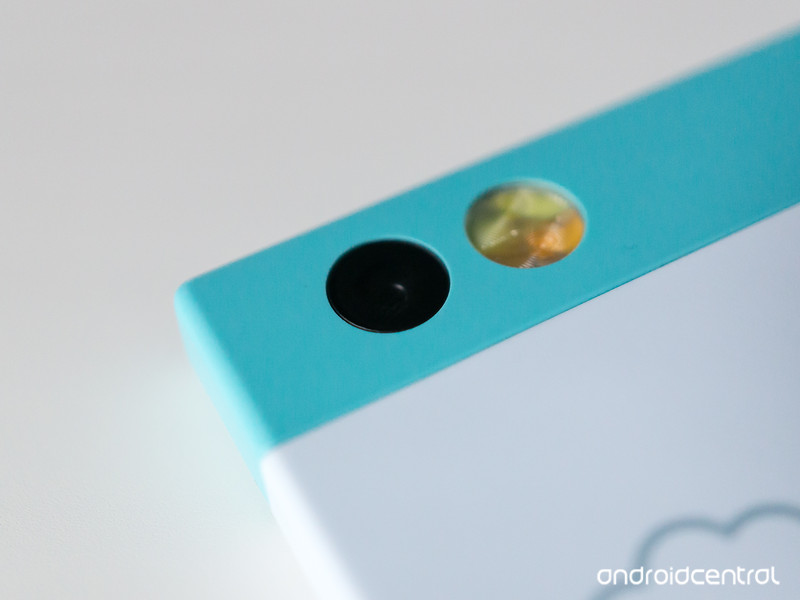
There’s some bad news for supporters of the Nextbit Robin smartphone. The company has revealed it will not be able to release the U.S. CDMA version of the device that would have worked on Verizon and Sprint’s networks.
In a message to backers of the Robin, Nextbit CEO Tom Moss explained why the company made this decision. Originally, Nextbit was not going to even release a U.S. CDMA variant during the Kickstarter campaign to help fund the Robin, but the company got a lot of requests to add that version in with the already planned GSM phone:
As you can imagine, we were in a rush. The Kickstarter campaign is only 30 days long, and it wasn’t until the second week of the campaign that we realized the demand and started the investigation. Because of this, we had to go with the best information we could get before the campaign was over, and over time it turned out that this information was not accurate. What people at the carriers, in good faith given our need for quick answers, thought would take “weeks” has turned into “months”. What they thought would cost “hundreds of thousands of dollars” has turned into “millions”. And we’re still not there. The goal posts are still being moved, and at this point, we think it is better to cancel this version rather than continue to try and make progress with no clear answers to offer regarding when we would actually be able to ship.
We first realized there was a big delta between what we originally thought and reality in January. It should have been sooner but to be honest a big part of the problem is how long it takes just to get the right information (and in some cases, what we were doing was a “one-off” for the carriers and they didn’t even decide themselves yet how it would be treated until as late as a week ago). Even then, we believed we could recover and launch in March. Then new information came up and it became April. We really thought that would be it, but yet again, we were wrong. We should have known better. We were not sufficiently doubtful of what we were told given everything we already knew from our experience at previous companies. We were too optimistic, too bullish, and as a result we have to deal with our biggest fear, disappointing you, our supporters. This is bad for you, and this is bad for us. The best we can do is send you this explanation with our sincerest apologies, and try to make sure you don’t suffer any financial loss in addition to the disappointment of not receiving a CDMA Robin.
Backers of the U.S. CDMA version will receive a full refund of their order within the next 48 hours, along with a code for a 25% discount on any one item from the store.
Check out our Nextbit Robin review
See at Nextbit

Amazon Echo can now track your Fitbit performance

The Amazon Echo can do many a things, but now the integrated speaker platform can communicate with Fitbit. Owners of Echo will now be able to ask the speaker about how they are doing with regards to progress towards their assigned Fitbit goals.
The Echo will be able to relay information such as how you slept throughout the week and how much activity has been successfully tracked. Alexa will also offer words of encouragement when inquiring about steps for the day, as well as being able to provide more complex statistics from the connected Fitbit account.
Amazon Echo
- Read our updated review
- Get the latest news
- Join the discussion
- Download the Echo app
Amazon

T-Mobile adds new BingeOn partners, including YouTube, Discovery Go, Redbull TV and others

T-Mobile has announced a number of new partners for its BingeOn program, including YouTube, Discovery Go, Redbull TV and others. John Legere took to Twitter with some stats that the company has collected, like that millions of subscribers are now streaming more than twice the amount they were before BingeOn, and that on the T-Mobile network you get 480p Netflix instead of the 360p that others are offering.
7/ @TMobile has been listening to customers and thanks to a little partnership, @YouTube is now a #BingeOn partner!https://t.co/VQVZoM86Jh
— John Legere (@JohnLegere) March 17, 2016
While T-Mobile’s BingeOn isn’t perfect, it is still a feature that many seem to be enjoying. If you are using a BingeOn, do these new partners excite you?

 AIVAnet