


Apple Watch Tips and Hidden Features: Handoff, AirPlay, and More
The Apple Watch is a brand new product platform for Apple, offering a significantly different experience compared to Apple’s already established platforms, iOS and Mac OS. As the device is getting onto more and more wrists over the coming days, weeks and month, we’ve collected a bunch of helpful tips to help users acclimating to Apple’s brand new platform in this video.
We’ve also highlighted some of the tips from the video, below.
Fast switching between apps – If you need to bounce between two apps, or one app and your watch face, it can become fairly cumbersome and take some time. Instead, it’s easier and quicker to simply fast switch between apps by double tapping the Digital Crown. Double tapping a second time goes back to the last thing you were doing. This way, you can spend some time on the watch face, quickly zoom over to the Music app to select a new song, and then double tap again to go back to the watch face.
Use Siri to launch apps – The app icons on Apple Watch can be fairly small, and their tiny touch targets can make it difficult to accurately choose which app you want to launch. An easier way to launch an app is to use Siri, which can be launched by either saying “Hey Siri” or holding down the Digital Crown. Once that’s done, a user just has to say “launch” or “open” followed by the name of the app.

Handoff Any Apple Watch Notification Back to the iPhone – It was already known that the Apple Watch would be able to handoff app activities from to the iPhone, but it can also be used to handoff any push notification back to your iPhone. Users can go back through the Apple Watch notifications they missed by swiping down on the watch face and hand those off at a later time. The original iPhone app doesn’t even have to be built to support it.

AirPlay Controls – Using Force Touch in various apps on the Apple Watch can yield new ways to interact. One of the more useful (yet hidden) ways Force Touch changes an app is within the Music app, where Force Touching while playing a song, allows you to choose your iPhone’s Airplay target for your music. This Airplay option isn’t available from any other screen in the Music app except for the song-playing screen.
You can also play music straight off your Apple Watch. Choosing “Source” from the same menu, lets you play music straight off your Apple Watch to any Bluetooth target.

Battery and Control Center Glances – On the watch face, swiping up reveals your Glances, which are quick looks at your various apps. They let you do certain things without having to open your app, and there are some Glances from Apple that can make using the Apple Watch a lot easier. The Battery glance allows you to check your battery percentage and manually start Power Reserve mode, while the Control Center glance allows you to turn on Airplane mode, Do Not Disturb, mute sound and ping a sound on your iPhone if you can’t find it.

Taking a Screenshot – One of the social phenomena emerging from the first week of the Apple Watch is people showing off how they’ve customized their watch faces and how they’ve arranged their home screen. Taking a screenshot is the best way to show off how personal users have made Apple’s most personal device, and to do so all one has to do is click the Digital Crown and the button underneath that at the same time.
You can watch the above video for even more tips and tricks, and if you’ve just got your Apple Watch and need help setting it up we’ve got a guide to help you get it up and running. Additionally, you can head over to our forums, where new Apple Watch users are discussing Apple’s newest device and sharing their home screens and watch face customizations.
Audi makes eco-friendly diesel from carbon dioxide and water

In an ideal, pollution-free world, everyone would be driving electric and hydrogen fuel cell cars. Audi knows society isn’t quite there yet, however, so it has a stopgap if you still get around using conventional vehicles. The automaker recently produced its first batch of “e-diesel,” a synthetic diesel based solely on carbon dioxide and water — readily available chemicals that are far nicer than sulfur and other typical diesel elements. It’s even relatively eco-friendly to make, as you use electrolysis to break down the water and merge it with the CO2 in a high-efficiency synthesis process.
The resulting liquid runs in existing cars, and you can mix it with fossil-based diesel if necessary. Just don’t expect to find e-diesel at the pump for a while. Audi’s experimental plant will only make about 793 gallons of the stuff in the months ahead, so you likely won’t get to use it unless energy companies welcome it with open arms.
Filed under: Transportation
Via: Geek.com
Source: Audi
LG Watch Urbane hits the Google Store for $349
style=”display:block”
data-ad-client=”ca-pub-8150504804865896″
data-ad-slot=”8461248232″
data-ad-format=”auto”>
(adsbygoogle = window.adsbygoogle || []).push();
The latest edition to the Android Wear mafia has made its self available through the Google Store today. The highly anticipated LG Watch Urbane is now available to help your drain your bank account a further $349, a full $100 more than the Moto 360 usually lists at (it is on sale for $179 by the way). Would be buyers have the option to choose the silver housing version or the gold housing version. (looks more copper or bronze to me)

Either watch housing option is available for order, but don’t expect it to hit your doorstep next week. Looks like they will start leaving the warehouse on May 8th. We have seen early orders of devices leave and arrive sooner than listed in the past though. According to the country availability page for devices, the LG Watch Urbane orders are only being accepted for Australia, Canada, France, Germany, Hong Kong, Ireland, Italy, South Korea, Spain, United Kingdom and the United States. My heart-felt apologies to everyone else at the moment. It at least has a broader scope of availability than the LG G Watch R has at the moment.
The exterior of the watch design is the bulk of your purchase as the innards are sporting the same Snapdragon 400, 410mAh battery, 1.3-inch 320×320 P-OLED display and 4GB of storage. In the box you will get the watch, charging cradle, Micro USB charging cradle, travel adapter and your usual reading material.
Interested? Bounce to the Google Store and get and order in. Otherwise, for those in the states, you can give it a few days and see if it hits Verizon as I expect it to or other store shelves before the shipping timeline.
The post LG Watch Urbane hits the Google Store for $349 appeared first on AndroidSPIN.
Google Store has gone down in Australia, LG Watch Urbane to blame?
style=”display:block”
data-ad-client=”ca-pub-8150504804865896″
data-ad-slot=”8461248232″
data-ad-format=”auto”>
(adsbygoogle = window.adsbygoogle || []).push();
The Google Store has gone down in Australia, and conveniently the same day that the LG Watch Urbane was launched on it. Coincidence? I think not. At the moment, we’re only able to confirm that the Google Store in Australia is down at the moment, but the U.S. version appears to be still working – if yours is down too, we’d love to hear from you in the comments. What’s most interesting is that there isn’t a splash to inform you that the Google Store has gone down, rather that the Google Store is not yet available in that region, which seems pretty ironic seeing as that shouldn’t be the case (unless we’ve been spontaneously cut off by Google).
If this is really due to the launch of the LG Watch Urbane and somehow overloading the servers with prospective buyers, I would be supremely surprised – while in the U.S. the device launched for a relatively fair $349 USD, the device is launching at $459 AUD, a full $160 more than the LG G Watch R which is currently discounted. Whatever the real cause is, those who are actually trying to get their hands on the LG Watch Urbane will have to be patient just a little longer.
What do you think of the LG Watch Urbane? Let us know your thoughts in the comments below.
Source: Google Store
The post Google Store has gone down in Australia, LG Watch Urbane to blame? appeared first on AndroidSPIN.
LG Watch Urbane now available in the Google Store
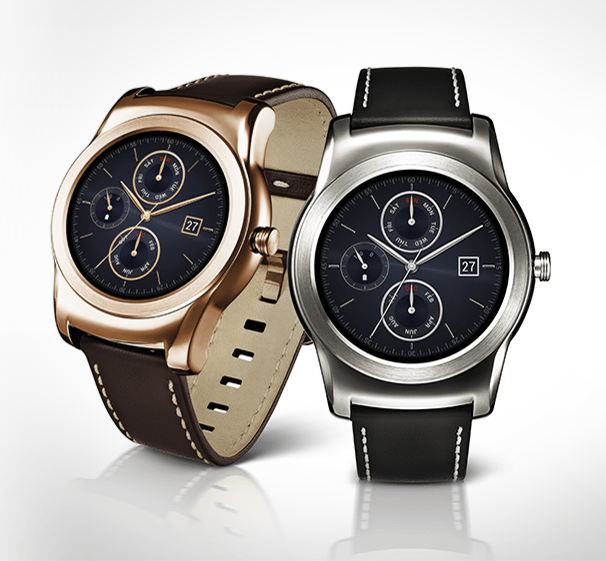 LG’s stylish Watch Urbane has finally become available to purchase in the Google Store, so if you’ve been waiting for your chance to pick one up, the wait is finally over. It’s carrying a $349 price tag, similar to what we were expecting, so no surprises there.
The Watch Urbane sports a Snapdragon 400 CPU with 512 MB of RAM, a 1.3-inch P-OLED display with a 320 x 320 resolution, IP67 certification for dust and water resistance. And, of course, it’s running on the Android Wear platform. The biggest selling point, though, is the design of the watch. With a gold or silver face and a sophisticated leather band, this is easily one of the most attractive Android Wear designs we’ve seen.
Another side effect of this release is that the G Watch R’s price has taken a dip down to $249, so if the Watch Urbane is too rich for your blood, the older model is slightly more affordable now.
source: LG Watch Urbane
Come comment on this article: LG Watch Urbane now available in the Google Store
LG Watch Urbane now available at Verizon Wireless

As expected, Verizon Wireless has now made the LG Watch Urbane available for $349, which is the same price as the Google Store. From what we can tell, it appears to be online only. Unfortunately the gold version isn’t showing, but that might change over the next few hours.
Two day shipping is also free, which is better than what the Google Store if offering. Even better, Verizon is shipping now so you will get your watch even sooner. Google is showing May 8th for shipping at of the time of this post.
Are you ordering one?
source: Verizon Wireless (Silver)
Come comment on this article: LG Watch Urbane now available at Verizon Wireless
Facebook Messenger takes on Skype and Hangouts with video calling feature
 Facebook is rolling out a new feature to their Messenger platform to take on the likes of Skype and other video chatting services. You’ll now be able to make video calls to your friends through Messenger, offering a completely platform agnostic way to keep in touch with friends and family.
Sure, Hangouts and Skype both offer easy ways to video chat with people on other operating systems, but it involves swapping usernames and sometimes downloading appropriate apps. Facebook has its foot in the door, as a vast majority of its users have Facebook already installed, and a good chunk of them are using its Messenger service.
Will you be using Facebook Messenger to make video calls, or are you sticking to whatever you’re using now?
source: Facebook
Come comment on this article: Facebook Messenger takes on Skype and Hangouts with video calling feature
Don’t expect to see the ASUS ZenWatch 2 before 2016
 ASUS is preparing their highly anticipated ZenWatch 2 for release sometime “soon,” but “soon” to ASUS doesn’t mean by the end of 2015. According to CEO Jerry Shen, the watch won’t be ready for debut until 2016 at the earliest. No word on what part of 2016 he’s expecting, but I would imagine we should see it within the first few months of the year, with that being over 3/4 of a year away.
An interesting note he made, however, was that ASUS plans to release two versions of the ZenWatch 2. One model will be for men, and one for women. Seems like a no-brainer move in retrospect, but I guess most companies think that a majority of their products at geared at men, so they’ve never bothered making female-specific models. Of course, when companies do make products targeted at a more feminine audience, they tend to be a disaster. Anybody remember the HTC Bliss?
We may not have anything official until 2016, but we’ll keep you updated as we learn more about the watch.
source: Android Authority
Come comment on this article: Don’t expect to see the ASUS ZenWatch 2 before 2016
Humble Tin Man Games Mobile Bundle expands to twelve games

The latest Humble Mobile Bundle, co-hosted by Tin Man Games, has grown to twelve games. With any donation, you receive four games. Matching or exceeding the average, which currently stands at $6.69, nets an additional six games. Then, donations of $9 or more adds another two games.
Any donation:
- Judge Dredd: Countdown Sector 106
- Slaves of Rema
- Siege of the Necromancer
- An Assassin in Orlandes
Average donation or more:
- Trial of the Clone
- Curse of the Assassin
- Fighting Fantasy: Caverns of the Snow Witch
- Sultans of Rema
- Zombocalypse Now
- Appointment with FEAR
Donation of $9 or more:
- Ryan North’s To Be Or Not To Be
- Fighting Fantasy: Starship Traveller
Those feeling extra charitable and donating $35 or more receive a Tin Man Games shirt and button. The charities benefited by this Humble Mobile Bundle are SpecialEffect and AbleGamers. Both charities work to provide people with disabilities access to video games.
Source: Humble Bundle
Come comment on this article: Humble Tin Man Games Mobile Bundle expands to twelve games
Simplifying widgets with DashClock Widget (Monday Makeover)
T
here is a plethora of apps out there that allow you to customize just about every single thing on your android smartphone without even rooting. That is why we have started the weekly series “Monday Makeover.” Each week we will take one of these customization apps and talk about setting it up, discuss the features of it, and show you how you can make your android device truly one of a kind. Last week we talked about HD Widgets. This week we are taking a look at DashClock Widget.
What is DashClock Widget?
The idea behind DashClock Widget is simple: have a single widget to notify you of the things you care about. The basic widget shows just a clock, but you are able to add extensions to view notifications about the apps you choose. You can see how many unread emails you have, how many appointments you have today, how many calls you have missed, and anything else you can imagine. The best part is that DashClock Widget is open source so any developer can create an extension for it. That means that the Play Store is full of extensions that can add even more usability into the single widget. You can get things like weather, battery percentage, and CPU usage from add-ons from the Play Store.
Why should I use DashClock Widget?
If you like the glanceable nature of widgets but do not want numerous amounts of them crowding up your homescreen space, then DashClock Widget is definitely for you. You can combine all of those widgets into one and still see the information that is most important to you. This also means that you will not have to swipe through your homescreens to find the widget you are looking for because they are all on one page.
How do I use DashClock Widget?
 This widget is extremely simple to setup and use. After downloading, go to your widgets and select “DashClock” and place it on your homescreen. From here, you will be taken into the DashClock settings. You will see the “Extensions” page where you can add, remove, rearrange, and customize the extensions that are displayed in the widget. You can remove and extension you want by tapping the three dots to the right of each one and selecting “Remove” from the popup menu. In the same menu, some extensions might have a “Settings” option for you to do some further customization. For example, the Gmail extension has settings that let you choose for which accounts and which label to show the unread count. Tapping “Add Another Extension” at the bottom shows you all of the possible extensions you have have on the DashClock widget. You can rearrange extensions by tapping and holding the “handle” to the left of them and dragging them where you want.
Tapping “Extensions” at the top opens another menu with more customization options. Under “Appearance,” you can change how the widget looks. By sliding your finger across the screen, you can change the style of the clock half of the widget and the date half.
If you use DashClock widget as Daydream on your device, you can customize its appearance under the “Daydream” menu. You can change the text color and animation as well as turn “Night mode” on and off.
If you are looking for more control over the DashClock widget, the “Advanced” menu offers some more options. You can choose what app opens when you tap on the clock. You can also choose where the Settings button is on the widget. For the widget on your homescreen or lockscreen, you can change how transparent the background is, what color the text is, and whether or not the clock is shown.
Where do I get DashClock Widget?
DashClock Widget is free to download in the Play Store. You can also find hundreds of other extensions in the Play Store for free. I would recommend spending some time looking at different extensions because there are several out there that are very useful to have which are not included in the DashClock Widget itself.
If you are like me and love the glanceable information that widgets provide but do not like having lots of them crowding your homescreen, do yourself a favor and check out DashClock Widget. I had heard of it before, but never used it. However, now I will be using it on every phone I buy. It does what it promises and does it extremely well. Are you going to try out DashClock Widget or have you in the past? Tell us what you thought of it in the comments! While you are down there, please leave some suggestions for apps you would like to see featured in a future Monday Makeover. Have a great week!
The post Simplifying widgets with DashClock Widget (Monday Makeover) appeared first on AndroidGuys.
 AIVAnet