


Moto Maxx images leak, may be international version of DROID Turbo

Some new images surfaced today thanks to Google Plusser Guilherme Henrique that purports to show a Motorola device named “Moto Maxx” that looks like a DROID Turbo. As you are probably aware, the latest DROID device continues as a Verizon exclusive in the U.S. market. Some smartphone shoppers have noted that the DROID Turbo, with its high-end specs, is very similar to another Motorola produced device, the Nexus 6, but in a smaller size. Unfortunately for those potential buyers, a rebranded DROID Turbo going by Moto Maxx will probably only be available in markets outside the U.S.
One of the images that was posted shows a protective film for the screen still attached to the device. That film indicates the name of the device is the Moto Maxx and then provides some icons highlighting key hardware of the device. The specs match the DROID Turbo, including the Turbo Charging feature. Noticeably absent is any sign of Verizon branding. The images also appear to show a device with a kevlar type back, again appearing to match the announced colors and materials for the DROID Turbo. The back material also matches an image for a press event Motorola has scheduled in Brazil for November 5th.


source: +Guilherme Henrique
via: Android Police
Come comment on this article: Moto Maxx images leak, may be international version of DROID Turbo
Update to Google Calendar app heralds a new day for users

In the lead-up to the official launch of the Nexus 9 today, and be extension Android 5.0 Lollipop, we have seen several leaks regarding updates to Google’s stock apps. One of those was the calendar app which was getting a Material Design overhaul of the interface. Google has announced today that the updated calendar app includes more than just an update of the interface, it includes some new features as well.
One of the new features included in the Calendar app is the ability to turn an email containing information about events into a calendar entry. In the past this involved a lot of copying and pasting of information. The new app not only enables users to skip over all that work, they will not even have to do anything like forward an email to the calendar or share an email – the calendar app will just automatically create the event using the details from the email. Google even says the resulting calendar entry will stay updated in real-time if it is for something like a flight.
Should users receive an event via email that does not include all the needed information or if they want to enter something manually themselves, they will find the Calendar app will try to autocomplete an entry as the user is typing, showing relevant suggestions similar to how Google search works when typing in the omnibar.
As far as the interface, the Calendar app does get the Material Design updates. However, the improvements don’t stop there. Google also includes a new Schedule view in the app that enhances the entries with pictures, icons or avatars to help liven things up.
The new Calendar app is coming preloaded on all Android 5.0 Lollipop devices. The update will be available for download from Google Play in “coming weeks” for devices running at least Android 4.1 or higher.
What do you think of this update from Google?
Click here to view the embedded video.


source: Official Gmail Blog
Come comment on this article: Update to Google Calendar app heralds a new day for users
AT&T launches new HTC phones, Lumia 830 and G Watch R on November 7th

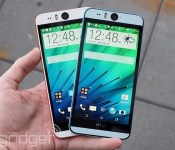
When it rains, it pours — on top of its Galaxy Note Edge announcement, AT&T has unveiled launch plans for no less than six smart devices that should reach stores by November 7th. It’ll be a particularly big day for HTC fans, who’ll get the Desire Eye ($150 on contract, $550 off), One (M8) for Windows ($200/$670) and RE camera ($199 contract-free). And that’s just the start. The previously promised Lumia 830 will arrive at the same time, costing $100 on contract and $450 up front; you’ll get a free Fitbit Flex activity tracker with the Windows Phone if you act quickly. Meanwhile, smartwatch lovers will like that both LG’s G Watch R and Motorola’s Moto 360 will go on sale for respective prices of $299 and $249. That’s a lot of release info to digest, but it’s hard to complain too much about getting so many gadgets in one day.
Filed under: Cellphones, Wearables, Mobile, Microsoft, HTC, Nokia, AT&T, LG, Lenovo

Google Nexus 9 review: The first taste of Lollipop is a sweet one

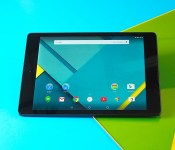
It’s been nearly five years since Google released its very first Nexus device, and by now we all basically get what the Nexus name stands for. It’s all about building devices to show off the bleeding-edge version of Android, to give us a better sense of Google’s vision of our collective mobile future. That future isn’t just phones, either: It’s about screens of all sizes, and that’s why Google and HTC teamed up to build the new Nexus 9. Now that ancestors like the Nexus 7 and 10 have been forcibly shuffled off this mortal coil, the 9 stands alone as the sole tablet in Google’s Nexus hardware lineup. So, does it live up to the standard geeks expect from the Nexus name? And more importantly, is it actually worth the asking price?
Hardware
Forget rewriting the rule book: When it comes to design, Google and HTC wanted to keep the Nexus 9 looking as subtle — and as familiar — as possible. Don’t believe me? A quick look at its backside should prove my point. Putting that sturdy aluminum frame aside, you’d think someone threw a shrink ray in reverse and aimed it at last year’s Nexus 5. That broad, gently curving expanse of matte black plastic is punctuated by a big Nexus logo in the center, while a familiar-looking 8-megapixel camera and LED flash sit prominently in the top-left corner. Those telltale angled edges are back too, housing the power button and volume rocker and sloping to meet the Nexus 9’s understated face. A pair of hefty horizontal bezels frames the top and bottom of that 8.9-inch display (they’re thankfully not as heinous as the ones on the Nexus 7), which happens to be where HTC’s pair of BoomSound speakers live. Throw in a 1.6-megapixel camera just north of the screen and you’ve got the Nexus 9’s appearance in a nutshell.
There’s a certain thrill in seeing how hardware design shifts year after year, but neither HTC nor Google was trying to break new ground this time around. And that was entirely by design, of course. After all, the star of the show is Android 5.0 Lollipop (much more on that later), and the design buffs working on the 9 were seemingly more than happy to let the tablet’s looks fade into the background. If anything, it’s what’s inside that makes the biggest difference. The quad-core Qualcomm silicon that powered the 2013 Nexus 7 has been dumped in favor of NVIDIA’s new 64-bit, dual-core Tegra K1 chipset with 2GB of RAM. That step back to a 2.3GHz dual-core processor might sound like a downgrade at first blush, but you can rest easy knowing that’s not the case (especially when it comes to graphics performance, but more on that in a moment). The Nexus 9 I tested is a little pricier than the most basic version because it comes loaded with 32GB of internal storage — no expandable memory here — though it doesn’t have a 3G/LTE radio like the top-tier model.

Let’s put those technicalities aside for a bit, though. How does this thing feel? If I’m honest, a 9-inch tablet (especially one that weighs in at 15 ounces) can feel awkward to use at times, even though the package itself is undeniably sturdy and well-constructed. That probably sounds a little odd considering it’s just about the same thickness as a Retina display iPad mini, but we’ve got the Nexus 9’s weightier plastic-and-aluminum hybrid build to thank for that. Even though it only tips the scales at 15 ounces (0.94 pound), it’s still noticeably heavier in my hands than the 8.4-inch Samsung Galaxy Tab S and Amazon’s Kindle Fire HDX 8.9. In fact, it’s just a teensy bit lighter than the new iPad Air 2, despite Apple’s tablet having a thinner frame, plus a bigger screen and battery.
Yes, yes, it’s been made clear that the Nexus 9 isn’t meant to be an iPad killer, but I still can’t help but wish Google and HTC pushed the envelope a bit more here. Your mileage might vary, but over the days I’ve been testing it, the 9 feels just a little too dense, too large to grasp with a single hand for long periods of time, while full-on two-hand typing on that screen can be a little precarious. HTC’s put together a little something just for that scenario — a surprisingly handsome physical keyboard case — but I didn’t have the chance to try one out. Long story short: The Nexus 9 lives in the upper strata of the no-man’s-land between more popular 7- and 10-inch tablets, and it would’ve been nice to see Google and HTC pay a little more attention to the minute details that make big tablets feel handier.
Display and sound

Don’t take this the wrong way, but after five days of testing the Nexus 9, I stopped paying the screen any mind. Sounds weird, I know, but it’s not because it’s lacking. The Nexus 9’s namesake 9-inch display, with its bright colors and respectable viewing angles, is more pleasant than it is jaw-dropping. Consider it another example of HTC and Google not worrying about pushing an envelope.
Alright, let’s dig into things a little further. This time around, HTC went with a screen that runs at 2,048 x 1,536, which means it squeezes 281 pixels into each linear inch. In case you’re keeping tabs, that isn’t quite as densely crisp as the panels in Samsung’s 8.4-inch Galaxy Tab S (359 ppi) or the Kindle Fire HDX 8.9 (339 ppi), but you’re still not going to pick out individual pixels without a magnifying glass and a persnickety personality. By nature, the Nexus 9’s IPS LCD also isn’t as sumptuous (or as easy on the battery) as the typically gorgeous AMOLED screens that grace some of its competitors, but that’s no dealbreaker. All told, the Nexus 9’s LCD is really a good screen, just not an outstanding one. Google sure knows it, too — the search giant carefully avoids crowing about the display quality on the Nexus 9’s product page, noting only that its size makes it both portable and immersive. You won’t hear any arguments against that logic.

I’ve loved HTC’s BoomSound speakers since they first graced the One M7, so it’s no surprise that I had high hopes for the Nexus 9. Alas, thanks to the lack of HTC’s audio-enhancing software and the seemingly smaller drivers moving that air around, these speakers don’t live up to the bar set by the ones on the One M8. Tight, energetic rock? Mellow jazz, laden with husky vocals? Soaring orchestral suites? I tried them all, and the results were the same each time: They all sounded more subdued and muddled than I’d hoped. Now, lest you think I’m being harsh, the speakers aren’t bad by any stretch. They get plenty loud (though not as loud as the M8) and still have enough nuance to draw you into whatever video you happen to be watching. It’s just that the crisp channel separation you’d get out of the M8’s BoomSound speakers is missing here, and so is the bright, vibrant sound that’s been a hallmark of HTC’s high-end phones. Bummer.
Software
Now we’re getting to the good stuff. Like all Nexus devices, the 9 isn’t just meant to be a solid tablet. No, no: It’s meant to be the standard-bearer of Google’s Android tablet vision, a device that highlights the best that Android is capable of. That’s basically just a long-winded way of me saying the Nexus 9 comes loaded with a shiny new build of Android 5.0 Lollipop. We’ve got a full initial preview for you right here, but read on for my distinctly tablet-y impressions. Still with me? Good. Brevity is apparently the soul of wit, so I can sum up what it’s like to use Lollipop in just a few words: It’s stunningly smooth.
Part of that’s because of the NVIDIA chipset thrumming away inside the 9’s metal-and-plastic frame, but really, the Android team deserves a lot of credit for crafting an experience that feels damned near seamless. You’ll probably notice that bump in speed and responsiveness most when you’re swiping through multiple home screens and sifting through all your open apps; the latter feels outrageously quick, without a hint of lag on my test unit. Even better, app previews show up nearly instantaneously once the simulated inertia starts to slow down those app cards in motion. Speaking of apps, they launch quickly and run with fewer hiccups than on other similarly specced devices, though those rocket starts tend to slow down a touch when you’ve got loads of apps going at the same time. C’est la vie.

We’ve got Google’s newish Android Runtime (better known as ART) to thank for that. With Android 5.0, Google’s team officially ditched its old-school Dalvik runtime in favor of ART, which it promised would offer some noticeable app performance gains. Why? It’s because certain key bits of code are converted into native machine code the device can interpret when the app is installed, instead of every time the app is launched. You probably didn’t need to know that, but hey — it’s what we’re here for. In the end, just about every interaction I had with the Nexus 9 felt snappier than I expected, especially since I avoided the Android L Developer Preview. (What can I say? I like surprises.) Nicely done, Mountain View.
And there are the unsung heroes, the features that make Lollipop just that much more pleasurable to use. A quick double-tap on the screen will rouse the 9 from its slumber, for instance — no more fumbling for that hard-to-reach power button when the tablet’s resting on your desk. Priority notifications, which can be toggled from the notification shade, ensure that you can get your productivity on without the risk of getting distracted by the din of Facebook updates and chirping Hangouts messages. The ability to add new users and restricted profiles is back too (you can have up to eight total), but it’s also joined by the option to “pin” certain apps into place so unwitting guests can’t pop out of them and root through your stuff. With a little bit of coaxing (by which I mean a quick jaunt into the separate Google Settings app), you can teach your Nexus 9 to listen for that trademark “OK Google” command even when the screen is off, too. The reality isn’t quite as good as the promise, though: While Google Now can pick up questions and commands issued in hushed tones, I had to raise my voice a few decibels each time I wanted to wake up the tablet with a question.

Of course, not all of Lollipop’s big changes take place behind the scenes: Android as we know it has gotten a hefty face-lift thanks to Matias Duarte and the rest of Google’s mobile design team. Just about every trace of the cold, digital Holo aesthetic has been excised, replaced by something vibrant, warmer and a little more physical. It’s Material Design, and it’s here to stay.
In its simplest form, the story of Material Design is one centered on a new approach to colors, layers and motion. The first bit is easy enough to explain. Material Design plays host to lots of vivid colors, from the red and deep salmon of the excellent new dual-paned Gmail app (a tablet exclusive) to the greenish teal and light blue that give the stock Calculator app a new dose of personality. Meanwhile, some of Google’s stock apps aren’t flat any more. Elements are layered like sheets of paper stacked atop each other, with subtle drop shadows to keep everything distinct.
And that focus on motion? It’s meant to help keep things feeling consistently physical. Remember the inertia I mentioned when it came time to swiping through app cards? That’s part of it. So is the app launcher button’s explosion and expansion into the app tray itself — Google wants us to feel like the bits and bobs that spring to life on the Nexus 9’s screen stem directly from where we touch. Here’s the big thing to remember, though: Duarte says that Material Design is going to be a focal point of sorts for all of Google’s properties going forward. Web apps? Chrome OS? It’ll all get the same kind of visual revamp down the road, though I’d advise against holding your breath until all that happens. These things take time.
Camera

Let’s face it: Tablet cameras are rarely ever anything to write home about, and the pair of shooters shoehorned into the Nexus 9 don’t do anything to buck that trend. The pair in question consists of an 8-megapixel main camera around back and the selfie-friendly 1.6-megapixel front-facer located right above the screen. There’s still a weird stigma attached to using a tablet camera for on-the-go photography, but if you do that, expect the results out of that rear camera to be mostly crisp and well-saturated. As always, quality starts to take a dive when the photons start getting scarce, and it isn’t long before you start seeing grain infiltrating your photos. Meanwhile, the front camera (low-resolution as it is) yields photos that are mostly smudgy and unsatisfying. It’ll do in a pinch for a video Hangout, but you’d best turn to your phone when it comes time to snap a selfie or six. Video quality lies in the middle of the road too: The Nexus 9 can shoot 1080p footage and it’s usually quite nice until the ambient sound levels pick up and you’re left with some messy audio.
All of the above is driven by Google’ stock Camera app, and guess what: It’s about as straightforward an experience as you’ll find. Wanna snap a photo? Nudge that gigantic, rectangular shutter button. Swiping from left to right lets you jump among shooting standard photos, Photo Spheres (remember those?), panoramas and videos. A deeper dive into the settings lets you decide whether you want location data to be saved with each shot, and if you want manual exposure controls for even more granular shot-taking. Feel free to leave that particular option unchecked though; most of my best shots came about through careless pointing and shooting.
Performance
| Google Nexus 9 |
Samsung Galaxy Tab S**
|
NVIDIA Shield tablet | iPad Air 2 | |
|---|---|---|---|---|
| Quadrant 2.0 | 13,737 | 18,597 | 20,556 | N/A |
| Vellamo 2.0 | 2,653 | 1,672 | 3,055 | N/A |
| SunSpider 1.0.2* (ms) | 948.3 | 1,109 | 463 | 303 |
| 3DMark IS Unlimited | 24,256 | 12,431 | 30,970 | 21,659 |
| GFXBench 3.0 Manhattan Offscreen (fps) | 31 | 5.5 | 31 | 32.4 |
| CF-Bench | 18,495 | 31,695 | 43,033 | N/A |
|
*SunSpider: Lower scores are better. **Average scores for the 8.4- and 10.5-inch models. |
||||
This might go without saying, but I can’t help but feel the Nexus 9 really got short-changed when it came to our usual slew of benchmarks, thanks at least in part to the architecture of NVIDIA’s 64-bit Tegra K1 chipset. You see, this version of the K1 has a dual-core processor configuration rather than the quartet of cores the 32-bit edition spotted in the NVIDIA Shield tablet, and that made for some rather interesting dips in the 9’s Quadrant and CF-Bench scores. That said, the Nexus 9 put up some stronger numbers when it came to tests that relied on more visual pizzazz, like GFXBench’s offscreen Manhattan rendering and 3DMark’s Ice Storm. Curious, I pitted the K1-toting Nexus 9 and Shield tablet against each other in a few more tests — the 9 boasted a stronger single-core score than the Shield in Geekbench 3 (1,643 vs. 1,074), but the multi-core score definitely skewed in the Shield’s favor.

The thing about these synthetic benchmarks is that they can’t tell the true story of a gadget all on their lonesome. Going off the numbers you see above would lead you to believe that the Nexus 9 is some sort of mediocre also-ran. If you glean one thing from this section, make sure it’s the knowledge that despite some seemingly off-kilter numbers, the Nexus 9 can and will handle just about anything you throw at it. As I made abundantly clear in the software section, the Nexus 9 runs incredibly smoothly while you poke around the OS and launch apps. That sort of computational oomph carries over into graphically intense situations like games, too — just what you’d expect from a chipset with the K1’s pedigree. You might remember that the quad-core, 32-bit version was featured in NVIDIA’s own Shield tablet not long ago, where it helped the thing push pixels with plenty of grace and fluidity.
The 64-bit variant (and its similar assortment of 192 Kepler GPU cores) inside the Nexus 9 is meant to step things up even further, and it shows. Watching the events of République unfold was as fluid and as engrossing an experience as I’ve seen on a tablet, and taking hard corners in Asphalt 8 looked as gorgeous as ever, even with its graphics settings cranked up. There’s just one concerning bit to note: The top-right corner of the tablet (presumably where its brains are located) can get very warm once you starting pushing it around. In my case, it was most apparent while swatting at pumpkin-headed zombies in Dead Trigger 2 — I haven’t noticed the thing getting alarmingly hot, but I did occasionally wonder whether I was gripping a tablet or a warm cup of tea.
Google claims that the Nexus 9’s battery will hang in there for about 9.5 hours on a charge if you’re surfing the web or watching videos, and my initial spin with the slate fell just short of that mark. It was nothing if not an able companion as I plowed through my daily routine, sticking with me through about 12 hours of mixed usage (you know, web browsing, shooting off emails, the odd gaming break in the bathroom, with plenty of standby time mixed in between). The first few times through our standard video rundown test (with an HD video set to loop indefinitely while screen brightness is locked at 50 percent), the Nexus 9 usually managed to hang in there for about 9 hours and 10 minutes before giving up the ghost. Here’s the thing, though: Google dropped one last big software update on us yesterday — it’s the version that’s shipping on the Nexus 9s you’ll get — and right now I’m retesting the battery to see if we can squeeze even more out of it.
Configuration options and the competition

After slogging through those thousands of words, you’ve probably got a good sense of what the Nexus 9 brings to the table. Right now you can claim either a WiFi-only Lunar White or Indigo Black model with 16GB of internal storage for $399 (there’s a handsome Sand model that isn’t ready just yet). Since you don’t have the option of sticking a memory card in there, you’ll probably want to shell out the extra $80 to double your storage capacity too. Oh, what’s that? You’re a big spender? As the most premium member of the family, the 32GB LTE/HSPA+/EV-DO/GSM model will be right up your alley — it’s not quite ready for public consumption yet, but it’ll cost $599 when it ships. Now the question is, well, what other tablets out there are worth your cash and consideration?
As I noted before, the Nexus 9’s screen — while totally adequate — is unlikely to knock your socks off. If that’s the sort of experience you’re after, consider Samsung’s Galaxy Tab S family, a pair of ultra-slim slates that pack some of the prettiest Super AMOLED screens we’ve ever seen. The most basic model runs at $400, and has a slightly smaller 8.4-inch display running at a mind-boggling 2,560 x 1,600 (that’s the most pixel-dense AMOLED you can find on a tablet). That’s not to say there aren’t trade-offs, though. The combination of Samsung’s bloatware fetish and the tablet’s 1.9GHz Exynos 5 Octa 5420 processor means you’re prone to hit more hiccups than on the Nexus 9.
Meanwhile, if you’re a media buff who digs the idea of a nearly 9-inch screen, you’ll want to consider Amazon’s Kindle Fire HDX 8.9. Its screen measures the same diagonally as the Nexus 9, but it squeezes even more pixels into all that space, and the aspect ratio is stretched out to a more video-friendly 16:10 so you can plow through all those Amazon Prime movies with fewer black bars in sight. The plus side: Amazon didn’t pussyfoot around with design, so it’s noticeably slimmer and lighter than the Nexus 9 to boot. It’s just a touch cheaper than the Nexus 9, too: The basic 16GB WiFi model will only set you back $379.
Of course, all of the above assumes you’re already dead-set on an Android slate. If that’s not the case, you’ll want to consider Apple’s iPad Air 2: It’s thinner and roughly the same weight as the Nexus 9 despite its bigger screen, and it starts at $499 if you think 16GB of storage will suffice. And in the event you’re looking for a taste of untainted Lollipop, let me offer a more unorthodox choice: How about the Nexus 6? Its 6-inch screen means it’s close enough to tablet territory for some people, and for now, the Android 5.0 pickings are pretty slim. Of course, you’ll want to wait until we publish our full Nexus 6 review before deciding one way or the other, but it’s at least worth keeping in the back of your head.
Wrap-up

I didn’t expect to feel so torn about the Nexus 9. On the one hand, Android 5.0 Lollipop is refreshing, what with its snappiness and welcoming redesign. On the other, I can’t help but feel a little frustrated that Google and HTC compromised on the Nexus 9’s screen, speakers and design. I get the rationale. The software’s the real highlight here, so they didn’t feel the need to go bonkers with the hardware niceties (and the costs that come with them). What that all boils down to is a tablet that’s stunning in some ways and seemingly average in others. Long story short: If you want to live on Android’s bleeding edge, buy a Nexus 9. Buy it because of Lollipop. Those few shortcomings won’t overshadow all the good that Google and HTC have done here. But if that’s not you — if you don’t demand the latest software that springs forth from Mountain View’s depths as soon as it’s ready — there are plenty of attractive options that might fit your life a little better.
Photos by Will Lipman. Sean Buckley contributed to this story.
Android 5.0 Lollipop preview: Google’s biggest mobile update in years

There’s something magical about the idea that, in the space of a few minutes, your smartphone or tablet can look dramatically different and do some cool new things, to boot. That’s why operating system updates can be oddly exciting, and Android’s latest upgrade — known as version 5.0 or Lollipop — is the firmware equivalent of opening a stack of presents on your birthday. The upcoming release, which is now available on the Nexus 9 and heading to dozens of mobile devices in the coming months, brings a fresh design and no shortage of new features. Join me as I unwrap Google’s latest gift to the wireless community.
Material Design

If you’ve been using Android over the past few months, you may have noticed that several Google apps have been updated with a fresh design — and they all look the same. This is no coincidence: Google’s putting its three-year-old “Holo” design language out to pasture, moving instead toward a look known as “Material Design.” This new aesthetic is featured prominently in Android 5.0 Lollipop, and soon the rest of Google’s ecosystem — desktops, autos, TV and wearables — will be following suit.
If you ask me, this consistency between apps and OS is a good thing, especially since Material Design is cleaner and more colorful than Holo. Google says this kind of cohesiveness breeds visual harmony, and I have to agree: Whether you’re using Google apps and services or a third-party option, a universal design language can ease your frustration of not knowing where anything. Since most apps look similar to each other and the rest of Lollipop, it should be less difficult for people to understand what to look for and how to find what they need.

All told, the new design language can be split up into three parts: visual, interaction and motion. Let’s start with the first. Material Design isn’t skeuomorphic, but its inception was based on a concept that is: paper and ink. Using a print-like design with surfaces that appear tactile is easy for our brains to understand. Toolbars act like strips of paper along the top of apps, while cards can come together to form seams and move together as one. Meanwhile, Google creates the illusion of depth by allowing cards, buttons and other elements to be raised over the rest of the page, using shadows and spacing, so it looks like some content is closer to the glass. (The closer it is, the more important that content should be.) Slide a panel out from the side and it slips right over the rest of the app as if you were sliding a piece of paper over another.

This use of depth makes it possible to add new elements that help direct the user to critical actions. One such concept is a Floating Action Button, a small circular icon raised above the rest of the app meant to catch your attention. It represents a single hallmark action — compose emails, the play button in a music app, add files to a cloud service — and is meant to stand out to the user as a signpost for what to do next.
Color and typography are also important here. Material Design features a palette of bold and dynamic colors that stick out in the app bar, located on the top of the screen (these bars typically disappear as you scroll down the page). The choices in the palette are designed to give each app a friendly, welcoming vibe that’s pleasing to the eye; users are much more likely to jump out of an ugly app than a beautiful one, so first impressions are critical. Similarly, the designers also tweaked the Roboto font by making it rounder and wider, giving the text a more pleasant look. This, along with the colors, icons and layouts used in Material Design, is meant to be positive and optimistic. Material Design is also minimalistic in nature, favoring open space and simplicity as often as possible. As you’ll see later in the review, one of Google’s main goals in Lollipop was to get rid of unnecessary junk. The stuff you need should be easy to find so you can get in and get out.

(Credit: Google)
The way you interact with the design is just as important as its layouts and colors. Material Design isn’t dull or boring — on the contrary, it feels alive. When you touch something, it reacts; I never had to worry about whether or not I actually tapped on a button, because I’d see a ripple effect every time I touched it. When I touch and drag a “hamburger button” (the stack of three lines used for sidebars and extra menus) out from the corner, it sometimes does a radial turn and morphs into a back arrow; and in cases where I’m rearranging cards or lists, items appear to lift closer to the screen as I move them, as if they’re magnetically attracted to my finger.

(Credit: Google)
The final part of Material Design is motion, which involves the transition from one visual state to another. These animations, Google says, should abide by the laws of physics (scrolling takes a little while to pick up momentum), be well-choreographed (each element in the transition moves in and out of the screen in a coordinated pattern, like top-left to bottom-right) and refrain from hard, jarring cuts back and forth. Each transition should be gradual and subtle, yet not slow down the user experience. Photographs fade in and out of screens like Polaroid pictures and cards and chips open by expanding out from a central point of origin. While many animations can be distracting, most of the ones I used with Material Design are quick and natural enough that I never felt like they were getting in the way or making the process take longer than it normally would.
User interface

Armed with a basic understanding of Material Design, let’s turn to the actual user interface in Lollipop. You’ll certainly see elements of the new design language scattered about the setup process (which I’ll discuss shortly), but your first impression of the home screen likely won’t be too different from what it is now. You still have the same screen of apps and the same status bar, but the Google search bar uses Material Design and is no longer transparent; the soft navigation keys at the bottom now look more like buttons on a PlayStation controller: a sideways triangle for the back button, a circle for home and a square for the new multitasking menu (now known as “Overview”).
Swiping right still takes you to Google Now, which looks almost the same, except the customization options, reminders and settings no longer live on the bottom of the screen, but rather, an overlay menu accessible by another swipe to the right or by pressing the hamburger button on the top-left. This is just one example of Google cleaning up unnecessary clutter and placing it in a location that’s more consistent with the rest of the OS.
The app menu is functionally identical, but has a fresh coat of paint to give it more of a Lollipop look. Icons now sit on top of a sheet of digital paper, rather than a transparent background with the wallpaper underneath.

What was once a vertically scrolling app-switcher menu is now Overview, a carousel-like list that displays not only your recent apps, but also your Chrome tabs. Instead of going into your browser and having to hunt around for a specific tab, you can now go directly to it in Overview. I can see why this could be convenient to a lot of people, but I actually turned it off in the browser settings after a while for two reasons: First, it gets rid of the tab-switcher button normally found in the top-right corner of Chrome, forcing me instead to go to the app switcher every time. Second, when I have more than a dozen or so tabs open (I often have more than 30!), it means my Overview has a lot more clutter for me to sift through; if I have to scroll through endless thumbnails just to find an app I opened two days ago, it’s easier to go into the app launcher and find it the old-fashioned way. But at least Google gives you the ability to choose how you want to use Overview.
Notifications and quick settings have been merged into one big menu. This is a cleaner, easier setup than keeping these things separate. When you pull down the status bar, you first see notifications in dark text on a white, paper-like canvas; keep pulling and you’ll get to quick settings. (The two-finger pull gesture is still there, however, so you can bypass notifications and go straight to your quick settings if you prefer.) Here, you’ll see a slider to adjust brightness, along with toggles for WiFi, Bluetooth, flashlight, rotation preferences, airplane mode and screen casting; date and time show up in their own section along the top, next to battery percentage and buttons for the full settings menu and user modes (more on this soon). And instead of appearing over a black background, the new menus lie over whatever screen you were already working in (that screen dims down bit so it doesn’t become visually distracting). I prefer this design because it no longer feels like I’m leaving my current task just to see who emailed a few minutes ago.

So much of Lollipop is focused on making things more efficient and streamlining apps. I’ll discuss many features that prove this throughout my review, but there’s no better example than the new Gmail app, which now comes with support for non-Gmail and Exchange accounts. I was elated about this because I have a Yahoo account and I’ve always been frustrated that I couldn’t just merge the two of them into one single app. Finally, this Material Design-ified app eliminates the need for a separate “Email” application.
Setup

Lollipop turns what was once a frustrating setup experience into a faster, more pleasant one. If you’ve ever tried to switch from one Android device to another, you’ve likely noticed that the OS wasn’t particularly adept at restoring apps, settings or personal preferences. Now, there’s a setup feature called Tap and Go that lets your old phone tell your new one which apps to install, what wallpaper and screen layout you’d like (provided you’ve been using the Google Now launcher) and other setup information like WiFi, location prefs and more. Every app is still downloaded through the Play Store, so you’ll need to re-enter your logins, but at least everything is exactly where you want it. This transfer is done through Bluetooth, but both devices need to have NFC in order to pair with each other.
Even if you don’t have NFC, not all is lost; you just have to get through a manual restore option. Here, you’ll first sign into your Google account, and then choose which of your previous Android devices you want to restore. Then, you select which apps you want to install from that phone or tablet. Sadly, this option doesn’t include your home screen layout or wallpaper, so you’ll need to rearrange things how you see fit. Either way, both restore options are better than what Android offered before: a hodgepodge process that didn’t allow you to pick and choose which apps to restore. This always meant I had to waste time uninstalling several apps that I’d deleted on my older devices long ago.

A couple of other things take place behind the scenes as you set up your new device. One of the first things the phone or tablet does once it gets connected through WiFi or cellular is search for updates; Lollipop has an OTA function built into the setup process itself, in case it needs to push quick system updates or any other emergency fixes as early as possible.
One of the quietest additions to Android in Lollipop addresses one of the biggest shortcomings in the platform: preloaded carrier bloatware. The feature, called Play Auto Installs, makes it possible to uninstall apps that mobile operators like Verizon and AT&T require on their devices. During setup, when the system detects a carrier SIM has been inserted, it automatically downloads apps from that carrier. (Before, those apps were already preinstalled on the phone.) This move makes those apps part of Google Play, which means they can easily be uninstalled at any time.
Notifications

The notifications menu has mostly changed in design, not function, but that’s only a small part of the story. In reality, Lollipop fundamentally enhances the way we interact with Android notifications entirely. A key goal in Android 5.0 is to eliminate (or at least lessen) distractions to our daily workflow and make multitasking more efficient, and improving notifications goes a long way toward satisfying that goal.
When you receive a call, you no longer have a new screen suddenly popping up in place of what you’re currently doing; now it appears as a heads-up notification (a banner) on the top of the screen with the option of answering or ignoring the call. Messages, alarms and low-battery alerts will also appear the same way, as well as other notifications deemed a priority.
Notifications also now appear on the lock screen. These pop-up alerts have been on iOS for years, and although previous versions of Android made it possible to access the notification panel from the lock screen (if you chose not to lock your device), it was still an extra, unnecessary step. The new notifications are also actionable: When you get a new email, you can delete it without leaving the lock screen or you can hit reply and go directly into an email compose screen. (As an aside, lock screen widgets have disappeared. I rarely use them, but I know a few people who’ll be sad to see them go.)

But a lot of people don’t want sensitive details to just pop up on their lock screen; there’s nothing worse than getting an inappropriate text from a friend when your phone’s sitting on a conference room table for all to see. So Android now comes with an option to shield notification details when your phone’s locked, so you only see that a new message or email is waiting for you. (You can also choose not to have any pop-up notifications at all when the phone is locked.)
And what about those annoying notifications for all of those apps you just don’t care about? (I’m looking at you, Asphalt 8.) Before, you had to go into that app’s settings and opt out of receiving notifications, but now it’s all built into the system settings; you’re presented with a list of apps, and when you open each one, there’s an option to block the notifications entirely. It would be even better to have a checklist in which you could easily check off the apps you wanted to block, but this is a step in the right direction. Besides, the reason you can’t just check off a full list of apps is because blocking is not the only option in that menu: You can also prioritize the app so that its notifications rise to the top of your list, and gets whitelisted so you still receive them when you’re in Do Not Disturb.
Except Google doesn’t call it Do Not Disturb. In Lollipop, it’s known as “Interruptions” and it’s yet another fantastic feature. Nearly every other mobile platform has this feature, so Google is hardly the first to the scene; there have even been plenty of third-party and manufacturer options available on Android as well. Now it’s finally baked into the OS, and comes with a few nice touches.

All the usual Do Not Disturb options are here: You can set a recurring schedule and decide whether to allow calls from everyone, anyone on your contact list or starred contacts. It also gives you the option to silence calls, messages and events/reminders (or any combination of the three). This is a wonderful feature, though I’d like to see Android support multiple schedules; many people go to sleep and wake up at different times on different days, so I should be able to set 10 PM to 7 AM on Sunday and 1 AM to 9 AM on Tuesday if I want to. (Apparently I like to party hard on Monday nights.)
Now, about those nice touches. When you adjust the volume on your device, you’ll notice options for “none,” “priority” and “all.” This indicates the type of interruptions you want to allow: If you’re going into a meeting, for instance, you can select “none” to get absolutely no notifications or “priority” to only get calls or messages from those people of your choosing. And when you select either setting, you’ll be asked how long you want to stay in that mode, so it’ll automatically revert back to normal at a set time.
Performance enhancements

It wasn’t a problem on the Nexus 5, but non-Nexus devices running KitKat (excepting the Moto X, of course) couldn’t use “OK Google” voice activation, which lets you dictate commands to your phone hands-free. Lollipop is taking the feature one step further by letting you do it when the screen is turned off and the phone is locked. Technically, Google says that any phone with a capable digital signal processor should be able to take advantage of the functionality now; unlike the new Moto X, however, you’re still unable to use your own hotwords to activate the device.
There are quite a few other features embedded into the OS that will improve the performance of your Android device. First, Lollipop is optimized to support 64-bit apps and architecture (such as some versions of ARM, x86 and MIPS). While this won’t make much of a difference to you if your phone doesn’t have the hardware to support it — the Nexus 9 comes with a 64-bit chipset, while the Nexus 6 does not — it’s going to become increasingly important as more apps and more phones become compatible with it. Google says the native Android apps (Gmail, Calendar, etc.) now have 64-bit, as well as pure Java language apps.
Not that this is going to mean a whole lot at first; it’s going to take a while for the development community to switch gears and code their apps with this support. And as is widely reported, one benefit of this next-gen computing is the higher ceiling of device memory so you can fit more than 4GB of RAM in phones and tablets; that’s still a ways out, so it seems pointless right now to make a fuss about 64-bit since no mobile device even comes with that much memory, but when they do, Android will be ready for it. However, there’s more to 64-bit support than that. For one, it increases the amount of data that chips can process per cycle, and it’s inspiring chipset makers (like NVIDIA and Qualcomm) to not only upgrade their silicon to the higher capacity, but also find new ways to make these chips more powerful and energy-efficient. In other words, the 64-bit support is great news, but it’s just one piece of the puzzle.
Even if you aren’t enjoying a 64-bit chip, you’ll still see an increase in overall performance through the new Android Runtime (ART). In short, the runtime is what Android uses to convert developer code into an actual running app, and until now, this was done through an older option called Dalvik. ART could be accessed in KitKat in test form, but it’s now the default in Lollipop, and Google says it’s made it even more advanced this time around. By switching to ART, Google promises a four-fold increase in performance: Apps will run faster and more responsively and they’ll conserve more battery, although the programs will take up a little extra space on your mobile device.

The power efficiency of the Android Runtime is just one part of Google’s latest project, known as Volta. Since Jelly Bean, the Android team has done a project on each version of the OS to address specific points of weakness and improve the user experience; Project Butter worked on making the system smoother, while Project Svelte made the OS more pleasant on low-powered devices. Project Volta is Lollipop’s big fix, and focuses on increasing battery life.
The Volta team spent a lot of time analyzing what makes the device’s battery drain (and why) and cleaned up many of the inefficiencies that affect different areas of the system. The solution was to bundle bland, behind-the-scenes activities together, tell the device not to wake up for a routine network task if you’re not actually connected to anything and throw in some new battery stat trackers. It also includes a battery saver feature akin to what’s found on Samsung and HTC devices, in which it cuts off a lot of activities, data and performance when the device gets down to 15 percent. And when you’ve plugged your phone or tablet in, it’ll tell you how much time it will take to reach a full charge.
Lollipop also comes with OpenGL 3.1 and an Android extension pack, both of which bring more functionality for advanced 3D graphics. This means you’ll get games with a new set of visual effects and bring your phones and tablets closer to a console-quality experience.
Security

With each new release of Android, Google adds more security features to its mobile OS. Many of them might seem insignificant because they’re meant to be backend enhancements, which are added to keep the system at least one step ahead of malicious attackers. Lollipop comes with plenty of these behind-the-scenes patches as well; one of them is SELinux Enforcing mode, which continuously monitors the system and apps to ensure nothing’s wrong on your device. Your Lollipop phone or tablet is also automatically encrypted by default. However, these kinds of features are accompanied by a few clever user-facing features that I found incredibly useful.
The first is Smart Lock, which lets a trusted Bluetooth device — smartwatch, earpiece, speaker system and so on — act as a form of authentication. When the phone and accessory are within range of each other (roughly 30 feet, or 10 meters), you won’t need to put in your password or PIN code to unlock your phone. If you’re already on the fence about buying a smartwatch, something like this is certainly a good reason for getting one.
Lollipop also comes with Guest mode for phones and tablets, so if for some reason your friend wants to use your device, they can do so without being able to see your personal information. In addition, phones also have multi-user support, something that, until now, was only available on tablets. As an admin, you can disable phone calls and messages for other users — especially helpful when you’re handing off the device to your kids — and even delete their accounts. (Curiously, you can only have restricted profiles on Lollipop tablets, and there’s no way to manage or delete apps installed by other users.) Although each user can manage their own space, download their own apps and even lock their profile with a password, the settings you change will also affect everyone else; if you connect to a WiFi network, you’ll stay connected to it even when you switch users.

What if you’re not comfortable letting your kids have their own user account on your device (or perhaps they’re too young)? Now you can pin (or lock) apps so that the user can’t get out. This way, you can let them play games and not have to worry about them calling your boss or deleting half of your inbox. Once you’re in the app you want to pin, go to the Overview and you’ll find a pin button floating above your current app. (To get out, you just need to press and hold the back and Overview soft keys at the same time.)
After three years of virtually no improvements, Face Unlock is getting its first major face-lift. It’s also changed its name to Trusted Face and is meant to resolve some of the issues originally brought up when the feature debuted on Ice Cream Sandwich. Previously, you had to wait for the phone to recognize you before you could view anything. With Trusted Face, the camera will look for your face as you read your notifications, so it’s ready to go by the time you swipe up to unlock the device. But how can you tell the feature did its job? It’s difficult to see an indicator of success at first, but look closely enough at the icon at the bottom of the lock screen, which changes as soon as the device recognizes your face. If it doesn’t recognize you, swipe up to type in your PIN code and you’re in.
Miscellaneous

Android 5.0 introduces RAW image support when taking pictures. This format offers the full, uncompressed version of each shot you take, rather than scrunching it down into a bite-sized JPEG. It mainly comes in handy when you want to manipulate the shot in Photoshop or Lightroom. Because of this, it’s more useful for professional photographers or enthusiasts (especially since each image takes up at least 15MB, so you can find yourself quickly running out of storage space on your device). It’s also not available natively, so you’ll need to wait for a developer to create an app that enables this function. No such app is available on the Play Store yet, but I found an open source Android app called L Camera, which can be downloaded via the web.
There’s also built-in USB audio support, so devices running Lollipop should be able to use professional audio equipment like microphones, speakers, amplifiers, mixers and so on. (A few devices already came with this feature, but it wasn’t natively built into KitKat.) This addition doesn’t sound like a critical feature for the average user, but it’s huge news for artists whose best option for recording on mobile devices has been iOS. This may also indicate that we’ll eventually see manufacturers abandon the 3.5mm headphone jack and begin using USB headphones, as Apple is rumored to be considering as well. Another point of contention for many artists and producers is Android’s audio latency, which affects their ability to process music in real time; Lollipop boasts a reduction in latency, so developers can now make apps to take advantage of this enhancement. Finally, there’s support for mixing up to eight channels, including 5.1 and 7.1.
Lastly and certainly least, Google’s latest Android Easter egg is… a Flappy Bird clone. No, really! Hold down the color-changing lollipop and you turn into a small Android robot trying to navigate its way through a series of lollipops. Strangely enough, it’s actually much more difficult than the game that inspired it; my high score was 6, and even that took a few minutes of solid effort to achieve. (Don’t judge me.)
Wrap-up

It’s hard not to be impressed by Google’s efforts in building Android 5.0. It not only introduced a completely new design, but it also managed to squeeze in a boatload of great features that improve the Android experience. Lollipop brings more intuitive notifications, improvements to performance and battery life, clever security features and developer tools for better apps. It’s one of the biggest upgrades Android has seen yet, and it’s definitely worth making the jump when your device eventually gets it.
(Editor’s note: Since we only had access to a final build of Lollipop on the Nexus 9, we won’t publish a full review with performance tests, impressions and a score until we test the official firmware on a phone as well. We’ll update this post when that time comes.)
Chris Velazco contributed to this report. Lead photo by Will Lipman.
Filed under: Cellphones, Tablets, Software, Mobile, Google
Google Nexus Player review: a strong, but flawed, introduction to Android TV

Google has been trying to get into the living room for a long time, but it hasn’t always worked out. The Google TV platform it launched four years ago never really took off and the curiously shaped Nexus Q was so beleaguered by its limited functions and high price that it didn’t stand a chance. Last year, however, Google finally managed to get a taste of success with the Chromecast, an inexpensive video-streaming dongle that was so simple it eschewed the need for a remote control or dedicated UI. Almost too simple, some would say — you still need another device lying around to cast content to it and the lack of a UI means it’s not quite as user-friendly as a Roku or an Apple TV.
So, Google is taking yet another stab at home entertainment with Android TV, a version of the Android OS rejiggered for the living room. Fittingly, the first Android TV device out of the gate is Google’s own Nexus Player, a set-top box made in partnership with ASUS. Unlike the Chromecast, the Nexus Player (and the Android TV ecosystem in general) is squarely going up against the likes of Roku and is also positioned to take on the Amazon Fire TV with its Android-based gaming chops. But can it?
Hardware

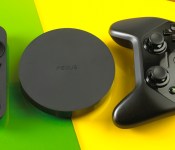
The ASUS-made Nexus Player could essentially be described as a large hockey puck. It’s a flat, disc-shaped device with the Nexus logo proudly inscribed on top. Yet, unlike the spherical Nexus Q, the Player is quite inconspicuous. Sure, its slightly unusual circular design might stand out amidst your home theater setup, but its small footprint and compact form factor — it’s barely the size of my hand — means you probably won’t notice it most of the time. Indeed, the only indication that it’s powered on is a small LED positioned underneath the unit. That, combined with the fact that the remote works over Bluetooth and not IR, means you could tuck it out of sight and never have to deal with it once it’s hooked up.
Speaking of which, setup is pretty easy. Simply plug the player into a power outlet, connect it to your TV with an HDMI cable (which is sadly not included) and you’re done. There’s also a micro-USB port located on the rear, which Google tells us is for developers to use to create and debug apps. If you decide to get a gamepad (which I’ll get to shortly), there’s also a button underneath the Player that you can press to initiate the Bluetooth pairing process with the accessory. From there, setup is as easy as going through the on-screen instructions: You’ll pair your remote, choose your WiFi network and sign in with your Google account. And no, there’s no Ethernet port: The Nexus Player is WiFi-only by default. That might not be a big deal for some, but I would’ve really liked the option; streaming videos over wired connections is typically faster and more reliable than wireless. You could get a micro-USB-to-Ethernet adapter, but that’s an additional cost you would have to factor in.
On the inside, there’s a 1.8GHz quad-core Intel Atom processor plus an Imagination PowerVR Series 6 Graphics 2D/3D Engine, which makes it more powerful than most, if not all, other streaming devices on the market. Navigating through the menus certainly feels zippy enough, and I experienced no noticeable lag when launching apps or playing games. It has 1GB of RAM and 8GB of storage, though the actual capacity might be less. That isn’t a whole lot of space, which means you’ll need to be careful not to load too many games on here.

The Nexus Player has a dead-simple remote control that’s slim, lightweight and home to just a few buttons. It’s curved on the sides, so it nestles comfortably in your palm. And, just like the Fire TV’s remote, it has a slight groove on the underside for your finger as well. Since the Fire TV is also based on Android OS, it’s no surprise that the button layout is similar. There’s a voice search button right at the top and a large, circular directional pad underneath. But the similarities end there. Instead of going with the traditional Android navigation controls, the only other keys are a Back button, a Home button (it’s the one with the circle on it) and one for play/pause. The remote’s overall build quality is a little chintzy, but the buttons have great travel and a nice “clicky” feel when pressed.
If you’d prefer to use your Android phone as a remote instead, no problem: There’s also a handy Android TV Remote Control app in the Play store. I installed it on a Samsung Galaxy S5 and was able to navigate through the menus just like I did with the physical remote.
Gamepad

The Nexus Player is more than just a streaming box; you can also use it to play games. And while you can certainly play some of them with the regular ol’ TV remote, it’s much easier to execute killer combo kicks or maneuver hairpin turns on a racetrack with an actual game controller. So, if you so choose, you can purchase the optional Gamepad for the Nexus Player for $40.
The ASUS gamepad looks a lot like the Xbox 360‘s controller, but with a joystick arrangement that’s more similar to the PlayStation‘s. In other words, the d-Pad is on the left; the two analog joysticks are in the middle toward you; and the four face buttons are on the right. Positioned in the center are the back, power and home buttons, while the triggers and shoulder buttons are located on the rear. The buttons aren’t nearly as polished as the ones for the Xbox; the aforementioned triggers are on the squishy side, while the d-pad just feels clunky and cheap. Still, it gets the job done most of the time.
Software

As we saw a few months ago at Google I/O, Android TV has a fairly simple card-based user interface. You’ll see a list of recommended titles and recently played shows at the top, and beneath that are your installed apps. YouTube and Songza come preloaded, as well as all the Google Play apps like Movies & TV, the Play store, Music and Games. Underneath that is a list of installed games, and right at the bottom is access to the usual network and display settings. Most apps look the same, with the navigation menu situated on the left and the various options on the right.
Right at the top of the home screen, however, you’ll see a search prompt along with the current time. You could go ahead and click on that button to start a search, but it’s far easier to just click on the microphone button on your remote and speak into it — a small LED on the remote will blink to indicate it’s listening. The voice interface works very much like Google Now in that you can ask pretty much any question and it’ll try to respond as best as it can.
And so I did. One of my questions was, “Who is Neil Gaiman?” and it brought up a brief biography (which it’ll actually read to you) along with relevant links on YouTube, related movies such as Stardust and Coraline and a list of people who are connected to him. When I asked, “Who is Doctor Who?” it pulled up a brief description of the show, a list of current and previous cast members, YouTube links and, of course, a link to the Movies & TV app where you could choose to rent or buy episodes. I also queried “Oscar-nominated movies 2011″ and it returned with a list of the films that were up for an Academy Award that year.

Bear in mind, however, that all of the movies and TV show links that the search feature brings back will undoubtedly lead to Google’s own Movies & TV offerings. In other words, you won’t find links to Netflix or Hulu or other content sources even if you have those apps installed. That’s not entirely surprising given that this is Google’s TV platform, but be sure to check that a show or movie is available on those other services before you plunk down your Google Wallet cash for the evening’s entertainment.
The voice recognition is accurate for the most part, but I did encounter a few occasions when it wouldn’t understand me, interpreting “acted in” as “accident” for example, even after I enunciated the words slowly and carefully. Additionally, sometimes I would ask a question and the light would continue to blink, as if it were waiting for me to finish my query. I had to then press the center circle pad to confirm that I was done. It’s clear the voice-input feature, while good, still has room for improvement.
Android TV is relatively young, so there aren’t too many third-party apps for it just yet. But it does come with the two mainstays — Netflix and Hulu Plus — which should satisfy most people. Other entertainment apps include Food Network, PBS Kids, Bloomberg TV, UVideos, TED TV, Crackle, Plex, Red Bull TV, HuffPost Live, DramaFever, AOL On, Dailymotion, Pluto and Madefire Motion Books & Comics. There’s also a variety of music apps beyond Google’s own to choose from: Vevo, iHeartRadio, Pandora, MusiXmatch and TuneIn.

If you’re thinking, “But where’s Rdio? Spotify? How about HBO Go?” then you might be initially disappointed by their absence here. But there’s no need to fret, as Android TV also wisely supports Google Cast, which means that any app that can be streamed to the Chromecast can also be streamed to an Android TV device. This means you can continue to use Rdio, Spotify, HBO Go and countless other Chromecast-compatible apps with the Nexus Player. I managed to watch the latest episode of Game of Thrones by selecting the “Nexus Player” dropdown in the HBO Go iPad app, and it works just like it does with the Chromecast.
As for games, there appears to be quite a number of them available at launch — I counted around 50, most of which are compatible with the optional Gamepad. I downloaded a few games to test the controller out — Final Fantasy III, Riptide GP2, Rabbids Big Bang and good ol’ Pac-Man. Some of them certainly felt as if they were tablet games shoehorned into a console experience (e.g., commands like “Touch to start”), but it wasn’t as bad as I thought. Racing the hydro jets in Riptide GP2, for example, felt just as quick and responsive as most console racing games, with good graphics and no noticeable lag.
Yet, I did encounter a few problems where an app would crash or I would lose connection with the controllers. I would just be tinkering with a game’s display settings, for example, and it would stall. Once when I was playing Rabbids, I lost Bluetooth connectivity with my Gamepad controller entirely. I’m not sure whether to blame the hardware or the software here, but suffice to say that the fit and finish of Android TV is not quite done.
The competition

The Nexus Player’s most direct competitor is Amazon’s Fire TV, which also costs $99. It offers a nearly identical feature set, except that Amazon promotes its own content, while the Player is all about pushing Google Play. Amazon’s Fire TV seems to have a more robust game library from the outset, and it does have Ethernet while the Player doesn’t. However, the Player has a huge ace up its sleeve with Google Cast and a long list of Chromecast-compatible apps, which seems to be growing all the time. When you throw in the wider Android ecosystem into the mix and the potential for lots more apps and games over time, it tips the scales in favor of the Nexus Player.
Of course, I would be remiss if I didn’t mention the Roku 3 and the Apple TV, the two other set-top juggernauts on the market. The $100 Roku 3 is perhaps the most formidable in terms of pure content selection — it supports video content from both Google Play and Amazon along with a whole host of providers that make the lack of Chromecast compatibility acceptable. It also has an Ethernet port, which the Nexus Player lacks, and the remote control has a headset jack. Yet, it doesn’t offer quite the same gaming experience and it doesn’t have that neat voice search feature that both the Fire TV and the Nexus Player have.
The Apple TV, which also costs $99, is on another planet altogether, with an ecosystem all its own. If you’re an iTunes addict, you would do wise to stick to the Apple TV no matter what. Additionally, if you have an iPhone or an iPad, you can stream content to it over AirPlay, which is essentially its answer to the Chromecast. But if you like the option of a game library or a video source from Google or Amazon, Apple TV is certainly not for you.
Last, but certainly not least is Google’s own Chromecast. The $35 dongle does offer huge bang for the buck; the ability to cram in so many streaming services in a tiny, affordable package is very attractive. But, as I mentioned up top, it can be considered almost too simple — there’s no real UI and you do need an external device to stream to it. In a way, the Nexus Player is like the Chromecast on steroids — it combines all of its functionality with a real set-top interface, gaming features, access to Google’s own Play store and more. Is that worth the extra $64? I certainly think so.
Wrap-up

The Nexus Player is a fantastic, if flawed, introduction to Android TV. Yes, it has a few bugs and it doesn’t quite have the app library that its competitors have. The gaming experience also seems completely secondary, as none of the currently available titles are that compelling and most don’t appear to be configured with the television in mind. Also, Android TV might not sit well with you if you’re not a big consumer of content from Google’s Movies & TV library.
But if you are, or if you’re at least open to the idea, then the Nexus Player is a very compelling proposition. As I mentioned above, Android TV essentially makes the Nexus Player a grown-up Chromecast. You can stream content to it just like you would with the $35 dongle thanks to Google Cast, but you also get an actual, well-designed user interface, a real remote control, a pretty good voice search interface and the entire Android ecosystem for not that much more. While I hesitate to recommend the Nexus Player due to some chintzy hardware and the lack of Ethernet, Android TV is a platform worth keeping an eye on.
Photos by Will Lipman.
Filed under: Home Entertainment, HD, Google

China will use lasers to take down low-flying drones

In order to defend itself against small drones, China built a laser-based system that can shoot down the compact aircraft up to 1.2 miles away. According to the official Xinhua news agency, the tech can bring down the rogue flying machines within five seconds of locating them at altitudes of up to 500 meters (1,640 feet). It’s said to be effective against the small UAVs flying at speeds of up to 112 MPH, and will primarily be used to secure events in urban locales and lock down unauthorized mapping efforts. The new system can be installed on existing vehicles to ensure troublemakers and their drones are kept from causing any mayhem. In statement by the China Academy of Engineering Physics (CAEP), tests of the laser-based setup showed a 100 percent success rate, shooting down more that 30 drones during the trials. The CAEP is working on more robust systems with longer range as well.
[Image credit: Fabrice Coffrini/AFP/Getty Images]
Filed under: Misc
Source: The Guardian
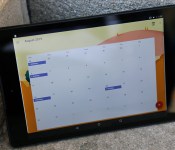
Google Calendar gets smarter and prettier

As part of the Google’s continued push forward with Lollipop, Calendar is getting a major (and long-overdue) upgrade. Obviously that includes a Material Design facelift (which we can only assume will come to the web app eventually), but it also includes a metric ton of new features. The most impressive is its ability to mine your inbox for valuable information and automatically create appointments for you. Rather than suggest an event when you open your flight itinerary in Gmail, the new Google Calendar will just pull in that information — including your flight number and check-in time. Best of all, those events are automatically updated, say if your flight is delayed or your pottery class is canceled. Assists are an other effort to save you time by suggesting locations, people or even events titles based on your behavior. As an example, Google says if you frequently go running with your friend Peter in Central park, typing “r-u-n” should automatically suggest “Running with Peter in Central Park” complete with a link to the location on the map and contact for Peter.
The last major new feature is more aesthetic than anything else: Schedule View. Basically it’s an updated take on the agenda view that those with the most crowded calendars have come to rely on as a crutch. Schedule takes the same entry-by-entry approach but adds maps, photos and illustrations to brighten up the presentation. It all blends quite well with the bright, construction paper-esque layout that Material Design brings to the party.
If you’ve got a device running Lollipop (meaning if you have a Nexus 9) then the updated calendar should already be available to you. The rest of you Android users will have to be a little more patient as the new calendar rolls out over the next several weeks. Let’s hope it doesn’t take too long however… we’re already getting impatient enough waiting for the Gmail update.
AT&T to carry Moto 360 on November 7
AT&T, having a busy start to the week, announced the upcoming arrival of the Moto 360 smartwatch. Powered by Android Wear, the watch will be sold for $249.99 at Ma Bell’s stores and through its website. Although it’s the same price you’ll find through Google Play Store or other retailers, there is a bit of… Read more »
The post AT&T to carry Moto 360 on November 7 appeared first on SmarterWatching.
Read the rest at SmarterWatching.com!
The post AT&T to carry Moto 360 on November 7 appeared first on AndroidGuys.
AT&T announces LG G Watch R for November 5
AT&T announced today that the second generation of LG smartwatch will be here in a matter of days. Yep, the G Watch R is slated to arrive at Ma Bell’s doorstep on November 5. If interested in picking up the new Android Wear watch you’ll find it for $299 online this Wednesday, followed on November… Read more »
The post AT&T announces LG G Watch R for November 5 appeared first on SmarterWatching.
Read the rest at SmarterWatching.com!
The post AT&T announces LG G Watch R for November 5 appeared first on AndroidGuys.
 AIVAnet