


How to make sure your Android phone or tablet is backed up on Google’s servers

Android phones and tablets have had the “Back up my data” option for some time now, but it’s actually a lot more useful now that Android 5.0 Lollipop is upon us.
Upon setting up a new device with Lollipop, you are given the opportunity to install apps from an older device. You can do it with Tap & Go, which uses NFC to pair the older device with the newer one, but you won’t have a choice as to which apps you want to install on the new device. It’s all or nothing. The second option allows you to select from one of your existing devices, and you can hand pick the apps you want to be restored. The caveat is that the older device needs to be set to back up to Google Servers, which is the “Back up my data” option.
This setting is one of the first options that is seen during the initial setup process for any Android device prior to Lollipop. You might have unchecked it, and if that’s the case, you want to make sure it’s turned on. This will also help in the event you misplace your device or you had to perform a factory reset. In either of these events, you won’t be able to use the Tap & Go feature.
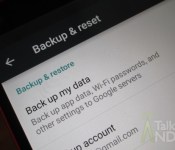
To turn it on, it’s quite simple. Every Android phone is different, but you need to head into your Settings, and find Backup & Reset. It’s under the main settings screen for Nexus, Google Play Edition, Motorola, LG, and HTC devices. For Samsung devices, it’s under Settings, but you have to go to the General tab. Once you find, Backup & Reset, just tap it and you will then see the option, Back up my data. Just make sure it’s either checked or switched to the On position.

Now under Back up my data, it says, “Back up my app data, Wi-Fi passwords, and other settings to Google servers.” I just want to point out that “app data” isn’t meant in the literal sense. It just means your actual apps, and not the data that is in them. So no game progress or any settings or databases saved in those apps.
I hope this helped you out. If I missed something please let us know in the comments.
Come comment on this article: How to make sure your Android phone or tablet is backed up on Google’s servers
 AIVAnet