


Copying apps from your old phone or tablet to your new phone or tablet with Android Lollipop
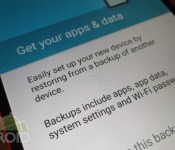

Android 5.0 Lollipop has a very cool new feature that will make it so much easier to setup a new phone or tablet. You can now restore all or some of the apps from a particular device. No more will you have to type and search for every app that you want to download and install because Google will automatically download and install all the apps that were installed on your older phone or tablet.
In this guide, I will walk you through how it all works. I have also included a hands on video at the bottom to give you a better idea.
A couple of caveats though. The first is that actual app data (such as game progress or settings) will not transfer over so you will still need to restore backup data manually and/or sign in to accounts. Also, your home screens on your new device won’t get configured exactly the same as your old device. In my experience, only a few of the apps were actually placed on the home screens, and no widgets. Any proprietary apps that are tied to certain manufacturer’s phones will not get downloaded. That also holds for any apps that simply aren’t compatible with your new device. Lastly, if you have performed a factory reset of your phone or tablet and starting from scratch as in not really moving to a new device, you might not be able to restore the apps that were on the device before the factory reset. Most of the time, the device that was factory reset didn’t show up in the device list, but it did appear one time for me.
With all that said, this new feature is so convenient, you’re going to love it. There are two ways in which to initiate the process and it all happens during the initial setup of your Android phone or tablet.

If you have the old device handy and it has NFC (as well as your new device), you can simply select the first option, which is Tap & Go. Just make sure both devices are turned on and unlocked. Hold them together back-to-back and you will hear a tone which will begin the process. The two devices will connect via Bluetooth and the information from the old device will get transferred to the new device once you verify your Gmail password. Your new device will proceed to download every app that was on the older device.

You can opt to skip the NFC method and select from any devices that are currently backed up on Google’s servers. This is actually the better option in that you will have the ability to select which apps you actually want installed on your new device. All you need to do is enter your Gmail address and password to get the ball rolling. You will then be able to choose which device you want to restore from. One caveat is your older device needs to be set to back up to Google’s servers. You can find that under Settings > Backup and Reset. Just make sure “Back up my data” is checked or switched to on.
As I said, depending on the scenario between devices, the setup of your home screens from your old device will either get partially transferred or not at all to your new device. For example, if you’re new device has the Google Now launcher, but your old one doesn’t, you won’t see anything on your new device’s home screens after the restore process has finished. If both devices have the Google Now Launcher, Google will place some of them correctly. I have yet to see an example of a full restore, but that could happen if both devices are running Lollipop (I didn’t test), but the bottom line is that you just saved a lot of time trying to figure out all the apps that you needed to download. Your home screens probably need a new look anyway.
I put together a video showing you how it all works below.
Click here to view the embedded video.
I hope this guide helped. If you have any issues or I missed something, please let us know in the comments.
Come comment on this article: Copying apps from your old phone or tablet to your new phone or tablet with Android Lollipop
 AIVAnet