


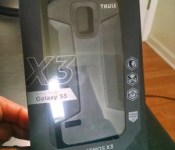
Thule Atmos X3 Case for Samsung Galaxy S5: Review

Overall your looking at a case with no extras like a kickstand or blast proof protection, but a quality, simple all around protection package. My only gripe is that the case is not the most stylish, not in a bad way I just don’t think the Atmos X3 was meant to make a fashion statement. The Atmos X3 is a great option at 39.99 and we rate it a solid 4.5/5. If this sounds like the case for you you can place an order at Thule as the Atmos X3 is available now.


The post Thule Atmos X3 Case for Samsung Galaxy S5: Review appeared first on AndroidGuys.
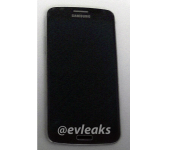
Alleged Galaxy F in black caught posing in the wild

It seems like every few days we get a new leak of Samsung’s premium offering, the Galaxy F device. We’ve recently shared a full render of the device as well as its first live photo. The rumors/leaks continue…
Known leaker @evleaks has yet another photo for us, this time we get the Galaxy F in black color posing in the wild, you can see it in the picture above. There are no additional information at this time though, the leaker just shared the picture and the following sentence:
“Samsung Galaxy F, in the wild, 2014″
If leaks are to be believe this device will feature (amongst other aspects) a QHD display, 3GB of RAM and a Snapdragon 805 chip. As it was mentioned many times before it should also feature a metal material design instead of current plastic ones. The device is expected to see the light of day around IFA, September 12 was rumored (2 days after the Berlin based event).
Source: @evleaks
The post Alleged Galaxy F in black caught posing in the wild appeared first on AndroidGuys.
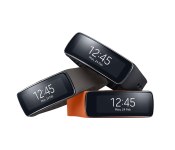
Grab the Samsung Gear Fit for only $99

Hurry folks, Amazon are selling the Samsung Gear Fit for only $99. At half price of the normal $199 price tag, this is a great deal if you want to take advantage of Samsung’s fitness tracking platform.
The Gear Fit features a 1.8-inch curved Super AMOLED display, Bluetooth LE connectivity, a heart rate monitor, and is dust and water-resistant. A 210 mAh battery is also thrown in that will last three to four days per charge with typical usage or five days with low usage. The wearable device will track your steps and can show you your phone’s notifications when paired with the latest Galaxy phones.
If you pick one up , let us know what you think of it in the comments below.
Source: Amazon
The post Grab the Samsung Gear Fit for only $99 appeared first on AndroidGuys.
The evolution of the PC: A decade of design

Computers have gone through nothing short of a renaissance in the decade since Engadget was born. When we started in 2004, desktops still ruled the roost; laptops were frequently clunky; and tablets were niche devices for doctors.
That state of affairs didn’t last for long, though. Netbooks briefly took over the world, bringing tiny laptops to the masses. Ultrabooks proved that slim machines could still be powerful. And just about the entire PC market has had to confront the rise and domination of touchscreen-enabled mobile devices like smartphones and tablets. In short, it’s pretty remarkable how much of a difference 10 years can make in tech.
2004: Sony VAIO X505

Notable specs: 1.1GHz Pentium M processor, 20GB hard drive, 1.73-pound weight, 10.4-inch (1,024 x 768) display.
Sony didn’t realize it at the time, but it was laying the groundwork for the next decade of laptops with the VAIO X505. The 10-inch system was so featherlight and slender that it was easy to take anywhere, much like a netbook or Ultrabook. If it weren’t for the astronomical $2,999 price tag, it’s possible it could have started a mobile-computing revolution.
2005: IBM ThinkPad T43

Notable specs: 1.6GHz to 2.13GHz Pentium M processors, 30GB or larger hard drive, 6-pound weight, DVD drive, 14.1-inch (1,024 x 768 or 1,400 x 1,050) display.
The ThinkPad T43 was the swan song for an era of computing when laptops were mostly for globe-trotting professionals. One of the last PCs to bear the IBM name before Lenovo closed its acquisition of IBM’s PC business, it represented everything good about the ThinkPad badge: It was fast, well-built and relatively easy to carry in a briefcase.
2006: Dell XPS 700

Notable specs: Core 2 Duo or Core 2 Extreme processors, dual 320GB hard drives, dual DVD drives, dual GeForce 7900 GTX graphics.
Dell had built up a reputation for high-performance PCs well before 2006, but the XPS 700 was the system to own that year if you wanted a gaming desktop from a major brand. Its aggressive design still holds up today, and it was often as powerful as custom-built rigs. It was a dream machine at a time when you still needed a giant tower for serious online gaming.
2007: ASUS Eee PC 701

Notable specs: 800MHz or 900MHz Celeron M processors, 2GB to 8GB solid-state drives, 2-pound weight, 7-inch (800 x 480) display.
The Eee PC 701 marked the official start of the netbook craze, which lasted until the iPad’s arrival in 2010. Its screen, speed and storage were very modest even when new, but it showed that you didn’t need a big, expensive portable just to check your email at the coffee shop.
2008: Apple MacBook Air

Notable specs: 1.6GHz or 1.8GHz Core 2 Duo processors, 80GB hard drive or 64GB solid-state drive, 3-pound weight, 13.3-inch (1,280 x 800) display.
The archetypal Ultrabook. While it wasn’t without its quirks, the MacBook Air successfully bridged the gap between ultraportables and full laptops. It was fast enough for most tasks, yet light enough that you’d hardly notice it in your bag.
2009: HP Firebird

Notable specs: 2.66GHz or 2.83GHz Core 2 Quad processors, dual 250GB or 320GB hard drives, DVD or Blu-ray drives, dual GeForce 9800S graphics.
While HP’s Firebird line wasn’t perfect by any stretch, it showed how efficient desktops had become. You could get a reasonably quick, ready-made gaming PC that both looked good and didn’t swallow up too much surface area. It’s arguably the prototype for the small-yet-strong Steam Machines that would follow five years later.
2010: Lenovo IdeaCentre A300

Notable specs: 2.2GHz Core 2 Duo processor, 500GB hard drive, 21.5-inch (1,920 x 1,080) display.
Although the iMac is virtually synonymous with all-in-one computers, Lenovo’s sleekly designed IdeaCentre A300 was proof that Apple didn’t have a complete lock on the category. Rather than glom the computer on to the A300′s back, Lenovo tucked it away in the base. The result was a relatively subtle, stylish desktop that looked right at home in just about any environment.
2011: Samsung Chromebook Series 5

Notable specs: 1.66GHz Atom processor, 16GB solid-state drive, 3.3-pound weight, 12.1-inch (1,280 x 800) display.
Unlike the other PCs here, the Chromebook Series 5′s real revolution was its software — with Chrome OS, both Google and Samsung were betting that you only needed a web browser for most of your day-to-day computing. That was optimistic on a slow, Atom-based machine circa 2011, but the Series 5 helped launch a wave of stripped-down, affordable laptops that could do a lot without relying on conventional apps.
2012: Apple MacBook Pro with Retina display

Notable specs: 2.3GHz or 2.6GHz Core i7 processors, 256GB to 768GB solid-state drives, 4.5-pound weight, 15.4-inch (2,880 x 1,800) display.
Apple’s 2012 MacBook Pro redesign was just an iterative upgrade in some ways, but it was also a bellwether for where laptop design would go. It wasn’t just that extra-sharp Retina display that turned heads; this was also one of the first high-end, full-size laptops to ditch optical discs and hard drives in the name of both an easier-to-carry body and faster, flash-based storage.
2013: Acer Aspire R7

Notable specs: 1.8GHz Core i5 processor, 500GB hybrid hard drive, 15.6-inch (1,920 x 1,080) adjustable display.
Windows 8′s touch-friendly interface prompted a flood of PCs that tried to be everything to everyone, and that’s epitomized in Acer’s one-of-a-kind Aspire R7. Depending on how you adjusted its multi-hinged display, the R7 could serve as a desktop, laptop or tablet. It wasn’t especially good at any of these, but it revealed how eager PC makers were to keep you from buying mobile tablets.
2014: Microsoft Surface Pro 3

Notable specs: Core i3, i5 or i7 processor, 64GB to 512GB solid-state drive, 12-inch (2,160 x 1,440) display.
If you want a system emblematic of the changes to PCs in the past 10 years, you only need to look at Microsoft’s latest flagship device, the Surface Pro 3. So long as you get its (practically mandatory) keyboard cover, it blurs the lines between tablet and laptop — it’s as useful for watching movies on the couch as it is for serious media editing at your desk.
Jon Turi contributed to this post.
Filed under: Desktops, Laptops, Tablets, Apple, Samsung, Microsoft, HP, Dell, Acer, Lenovo

Galaxy F allegedly leaks in a first live photo

Samsung’s choice of smartphone build material has been a target of many complains. While some users love Samsung’s extensive use of plastic materials, others would prefer a metallic build. Galaxy F should be such a device and it has been leaking for a long time now.
2 days ago we wrote about and shared a full render of the device. This time around we get what is allegedly a first live photo of Samsung’s premium Galaxy F smartphone, courtesy of GSMArena. The device is expected to feature a Snapdragon 805 chip, 3GB of RAM and a QHD screen. That’s what most rumors have been pointing towards at least. September 12 has been mentioned as a release date for this device, which is after IFA. These are all rumors though, nothing is confirmed yet so we’ll leave it up to you whether to believe it or not.
We’re of course all somewhat sceptical when someone mentions Samsung and metal in the same sentence, though this Galaxy F device might actually exist. We’ll let you know when we get more information of course. What do you think, will Samsung actually release something like this in the next few months?
Source: GSMArena
The post Galaxy F allegedly leaks in a first live photo appeared first on AndroidGuys.
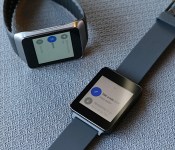
Android Wear review: Taking smartwatches in the right direction

When I was a tiny tot, I watched Knight Rider and pretended I was Michael Knight, talking to KITT on my watch. Yet now that there are real-life watches that can do even more things, I don’t find myself quite as excited as my 5-year-old self was. Smartwatches have been around for over a decade already (remember Microsoft SPOT?), but the category hasn’t evolved at the same pace as smartphones. It’s not because there’s a shortage of digital wrist-worn timepieces. The problem is that there’s no common platform for third-party apps, which means there’s little potential for growth.
There also doesn’t seem to be any vision. Some watches act as Android phones with SIM cards and tiny touchscreens, while others try to establish their own platform to entice developers. Still others have even tried to put fitness bands and smartwatches into one device, to limited success. Even worse, most of the watches on the market today are what you might call “fashionably challenged” — they simply aren’t attractive enough to entice the masses. Google’s solution is to extend its Android platform — which has very strong market share and developer support — to the wearables genre with Android Wear.
Why Android Wear?
Manufacturers don’t have to waste precious resources on developing a watch ecosystem from scratch. Android Wear provides a low-cost launchpad for more companies to come out with a smartwatch of their own. Take Fossil: It has little to no experience developing software, so the introduction of Wear opens up more doors for the company to produce fashionable smartwatches without pouring quite so much money into R&D. Meanwhile, other manufacturers are reportedly attacking the lower end of the market with cheap Android Wear watches.
In any case, that’s precisely what Wear promises: a wide variety of options in price, form and (we hope) fashion sense. But flooding the market won’t magically make smartwatches a success. So what will? They have to look good and make life easier.
Functionality

Android Wear wasn’t designed to replace your smartphone; it’s just meant to reduce the number of times you have to pull out your phone. With Wear, you can change your music, send and view emails and texts, dictate notes and reminders, answer or reject calls, keep track of a few fitness stats, look at your calendar appointments and ask a number of different questions.
Wear isn’t meant to replace your smartphone.
Wear treats your watch as a wrist-worn version of your phone’s notification bar. By scrolling down through the various cards displayed on my watch, I can see my most recent emails, Facebook messages, Google+ alerts, missed calls, number of steps I’ve taken today and how much time it’ll take me to commute home. Swiping to the left of these cards reveals actionable items (replying to emails, marking a text as read, looking at my fitness history and so on), while swiping to the right allows you to dismiss the notification entirely.

The watches also use Google Now. Cards will pop up with information about stocks, time to my next destination, a friend’s birthday, upcoming hotel reservations and when I need to leave for my upcoming flight. It’ll even show me my boarding pass. (This is through Google Now, but Delta and American Airlines just came out with apps that do the same thing.) The latter case is actually one of the best arguments I’ve heard yet for Android Wear — it’s easier to scan a boarding pass on your watch if your hands are full with luggage and you don’t want to take out your phone.

Wear also has voice search and Knowledge Graph access built in. Saying, “OK Google,” will prompt me to make a voice command. I can ask it to do a variety of tasks — send messages, set alarms and timers, show how many steps I’ve taken, pull up my calendar agenda for any given date, navigate a route and so on. I can also ask Wear random questions: When is the next Giants game? How tall is Mark Wahlberg? When was Chris Rock born? What’s the tallest building in the world? Essentially, this is all the same type of stuff you can do with Google Now on the phone; it’s just now accessible hands-free on your watch. If it can’t find the answer, it’ll pull up the top three search results for you to look up on your phone. Not quite as handy, but I suppose it’s better than nothing.
If a third-party app uses notifications, it’s technically going to show up on Wear, but its functionality will be limited unless the developer puts in some extra effort. The number of potential use cases will expand over time as more developers come out with apps of their own. Indeed, that’s one of the most exciting parts of the platform: It’s very basic at the moment, but its usefulness will grow as developer interest increases.
Even so, there are already some clever things you can do with Android Wear. You can check your finances, share your location with a friend through Glympse, take and read notes via Evernote, respond to tweet mentions with Tweetings, browse through a recipe on Allthecooks, activate your Phillips Hue light setup and get updated on the latest World Cup scores. I’ll stop there, but you get the point: These are just a few examples from the first wave of Wear-ready apps.

The number of Wear apps is steadily growing (you can find a comprehensive list here), but one of my favorites is Lyft. I told my watch to “call a cab” and it not only requested a driver for me, it also added a card that told me the driver’s name and estimated time of arrival, and gave me the option to tell the driver my destination before she picked me up. After the ride was over, I got a card showing me how much it cost and asking me to rate my driver.
Fortunately, fragmentation shouldn’t be as huge an issue with Wear as it’s been on smartphones. Excepting some manufacturer-specific clock faces, Google won’t allow the use of custom skins or user interfaces. If a company wants to build a Wear watch, it’ll need to follow Google’s rules. In theory, this should reduce the number of obstacles when pushing updates to the watch (which can be done in the About screen deep in the settings menu), and it’ll make for a consistent user experience across the board. It’s ironic, then, that Wear’s reach is limited because of fragmentation — the system is only compatible with devices running Android 4.3 or higher, which means 76 percent of current Android users won’t even be able to use Wear.
User experience

So far, we’ve seen Wear watches that are square (think: the LG G Watch and Samsung Gear Live) or circular (like the Moto 360, seen above). This is really a matter of personal preference; the user experience is the same either way. Since most watches will have small screens, Google knows it doesn’t have a lot of real estate to work with; thus, it’s tried to make the user interface as simple as possible. That’s why there’s typically only one card per screen, and when you swipe to the left, you’re only presented with one option per screen. Easy enough, right?
As minimal as the UI might be, it’s hard to come up with an intuitive user experience on a touchscreen watch, and Wear doesn’t do much to address that. There’s a significant learning curve, and even though there’s a tutorial the first time you use it, it’ll take a while to get accustomed to the layout. The use of voice commands is a massive improvement for the smartwatch experience because it reduces the amount of times you need to touch it, but it’s still impossible to get around your watch without doing a lot of swiping.
It’s hard to come up with an intuitive user experience on a touchscreen watch, and Wear doesn’t do much to address that.
Before anything else, you need to know this: You turn on the Wear screen by lifting up your arm. The watch interprets this act as a sure sign that you’re ready to look at something. (The Wear display is always on by default, which means you can look at the time whenever you want without activating voice commands by accident.) As you’d expect, you’re presented with a clock face. There are currently about a dozen faces to choose from; just long-press the face to look at all of your options.
You’ll first be greeted by the Context Stream. This is your vertical-scrolling list of notification cards. You can’t change the order in which these cards appear, and it seems as though many of them get put in a random order each time you scroll through the list. Cards that appeared near the top of the list would often sink farther down the next time I checked my watch, even though no new notifications had popped up.

If a notification has more information than a single card can manage, its corresponding card can be expanded. You’ll have to be careful with long emails — touch the card to expand it and you’ll find yourself scrolling down for an eternity before you get to the next card. (This is one of those times in which it’s just easier to whip out your phone and read it on the larger screen.) Some apps, such as Gmail and Calendar, will stack cards on top of each other; if you have six events coming up, Wear will show you the first and then feature a small button underneath that indicates you have five more. Touch this button and you’ll see all six events laid out vertically. If you need to take action on one of them, you’ll have to tap the individual event again before scrolling. You can’t swipe to dismiss individual events, however — just as on your phone, one swipe will dismiss all notifications for that particular app.
Saying, “OK Google,” or tapping the open space at the top of the Context Stream will prompt you to give a voice command. I explained earlier this feature can do, but if you need help figuring out what to say in the heat of the moment, there’s a handy set of examples in a scrollable list. (And yes, scrolling defeats the purpose of being hands-free, but your reliance on this cheat sheet will decrease as you get used to Wear.) You can even tap on each example and Wear will ask follow-up questions; for instance, if you tap the option to send a text, it’ll ask you to whom you want to send it and what you want to say.
Oddly, apps and settings are hidden away at the very bottom of this list. If Google is trying to encourage developers to create apps for Wear, it sure has a weird way of expressing its gratitude. Granted, a lot of apps don’t do much when you access them this way, but it’s still confusing at first; if you’re looking for a specific app, you’re better off searching for it with voice commands (e.g., “open Evernote”).
If you rely heavily on your phone for notifications, be prepared for some good and bad news. The good news is that you have access to all of those notifications on your wrist, so you don’t have to take your phone out. The bad news is that while you can filter out certain apps from sending you notifications (bye-bye, Candy Crush Saga invites), you can’t pick and choose which notifications you receive from within a particular app — in other words, the watch can’t decide which emails make it to your watch and which ones don’t, so you have to see all of them.
When I pull down from the top of the screen, I see a shade with battery percentage and today’s date; I can also mute my notifications if I continue pulling. This is handy when I don’t want to be distracted or am trying to sleep, but I wish Wear offered quiet hours during which it would automatically turn off notifications when I go to bed. (That’s if my battery lasts through the day and night, which wasn’t always the case with the early Wear watches I’ve played with.)
The Samsung Gear Live comes with a button on the side that lets you turn the display off, but covering the screen with your palm will do the same thing on every Wear device.
Companion app

To pair the watch with your phone, you’ll need to download the Wear companion app through the Play Store. It’s essential for setting up your watch, but you’ll find little use for it otherwise. The main screen shows a link to Wear-compatible apps in the Play Store and a list of eight voice actions. You can choose which app to use for each particular command, which will come in handy as more apps start showing up. So, let’s say Uber adds the same ability to call a car as Lyft does, and I want to use that service instead; I’d have to select the “call a car” voice action and choose Uber from the list of possible apps, so that Wear doesn’t keep defaulting to Lyft.
The companion app also has a list of settings tucked in the top-right section of the app. You can mute specific apps, as mentioned earlier; turn off the always-on display; silence notifications on your phone when the Wear is connected (why get vibrations on your wrist and in your pocket?); show calendar events; and keep the top card from showing up when your display is dimmed. Finally, you can use the app to pair a different Wear watch if necessary.
The app doesn’t have an option to manage watch apps, which seems odd since there isn’t a way to do this on the watch either. Perhaps it’s because Wear-compatible apps automatically get installed on your watch once you’ve downloaded them onto your phone. This seems like an oversight. There may be certain apps that you barely use on your handset and have no interest in using on your watch; why not give users the option to get rid of the unnecessary clutter?
Challenges

Essentially, Wear is a version 1.0 product, which means there’s still a lot of work to be done. It’s been a good experience thus far, but there are plenty of ways that Wear simply doesn’t fit the bill, and you’ll need to be aware of them if you’re going to plunk down $200-plus for a smartwatch.
First, there’s the excessive touching. If users have to go through the effort of tapping or swiping the screen on a regular basis, there’s little incentive to use the watch instead of simply pulling out a phone. Most activities on Wear eventually point back to your handset anyway: Nearly every card in the Context Stream (excepting the step tracker) has an option to open on your phone, as if it’s somehow faster to swipe down to the card, swipe across to that button, tap on it and then pull out your phone to access it. If you’re going to use your phone, you might as well just whip it out from the start. What’s more, if you give a voice command that isn’t included in the supported list, or if you ask a question that can’t be found in the Knowledge Graph, the watch provides you with a series of three cards, each one representing a different website that — shocker — you can tap and open up directly on your phone. Congratulations, you just wasted a minute by using your watch.
If you’re going to use your phone, you might as well just whip it out from the start.
I’ll discuss this more in the next section, but battery life is a big challenge here. There’s a huge amount of computing and processing going on behind the scenes, on a colorful, capacitive touchscreen that by default doesn’t turn off. Throw in voice commands, keyword detection and a tiny battery, and it makes sense: Of course the battery life is going to suffer. The problem is, users aren’t going to want to plug in their watch as often as their phone. Until Google can find a way to extend the battery life by a few days, Android Wear will struggle to be anything more than a niche product.

Navigation is also an issue. Google Maps is technically compatible with Wear, but it only shows one step at a time. Given that card-stacking is an option on other apps, it’d make sense to use this style to display upcoming steps along your route so you could plan ahead. Swipe to the left to reveal a high-level map of the entire route that’s void of any useful details; my brain comprehends visual maps more quickly than text, so I’d find this screen more useful if I could zoom in closer.
Additionally, voice commands for navigation will automatically default to driving directions. You can specify if you want biking or walking. Oddly, if the phone can’t find a route, it doesn’t bother telling the watch — you simply get taken back to your clock face as if nothing even happened. And when I asked Wear for walking directions from my office to the Golden Gate Bridge, it presented me with a card with Google search results for three unrelated websites. (OurSausalito.com? Really?) Unfortunately, transit directions aren’t supported either.
I’ve already mentioned the problem of excess notifications. The longer my Context Stream, the more inconvenient the watch experience becomes. Not only am I wasting time with countless swipes, but my anxiety increases when my wrist is vibrating a hundred times a day (this is actually a low estimate for me). There’s no VIP list and no way to block out unimportant emails. It’s possible to mute specific apps, but that’s of little help when you’re getting a flood of messages that don’t require your immediate attention. At least when you do dismiss a notification, it disappears from both the watch and the phone.
Hardware: Samsung Gear Live and LG G Watch

LG and Samsung are the first companies to produce Wear watches, and both are available in the Play Store (LG’s G Watch is $229 and Samsung’s Gear Live is $199). A third watch, the Moto 360, was shown off at Google I/O last week and will be released later this summer. I’ll touch briefly on the G Watch and Gear Live; since Google won’t allow custom firmware or user interfaces, you’ll essentially get the same Wear experience on both watches.
When it comes to firmware, the only differences you’ll see between the two are in the clock faces. That said, Samsung’s found a loophole by adding its own stopwatch and compass, so you can choose to use either those or the stock versions. In any case, those are minor alterations, so the important points of differentiation are in the hardware, with each offering a unique personality.
The Gear Live is definitely your best looking option. At least, until the Moto 360 comes out.
Which one is better? Suffice to say, the two watches each have trade-offs you’ll need to weigh, but the Gear Live is definitely the best looking (at least, until the Moto 360 comes out). Their internals are similar too:
| Samsung Gear Live | LG G Watch | |
|---|---|---|
| Display | 1.63-inch sAMOLED, 320×320 pixels | 1.65-inch IPS LCD, 280×280 |
| Battery | 300mAh | 400mAh |
| Processor/RAM | 1.2GHz dual-core Snapdragon 400; 512MB RAM | 1.2GHz dual-core Snapdragon 400, 512MB RAM |
| Water resistance | Yes, IP67-certified | Yes, IP67-certified |
| Dimensions | 37.9 x 56.4 x 8.9mm, 59g | 37.9 x 46.5 x 9.95mm, 63g |
| Storage | 4GB internal storage | 4GB internal storage |
Both have the same dual-core 1.2GHz Snapdragon 400 processor, 512MB of RAM and 4GB internal storage. They each offer interchangeable wrist straps — I especially appreciate this on the Gear Live — and both feature a square shape. They’re also IP67-certified, which means they have the same water and dust resistance as the Samsung Galaxy S5. I wouldn’t take either one scuba diving, but you’ll be fine wearing them while washing dishes or taking a shower.
Because both watches have the same engine underneath the hood, I didn’t notice any difference in performance. They both smoothly, with only the occasional frame skip. In my comparisons, apps loaded in the same amount of time, and each one processed voice commands quickly.
I’ve already alluded to battery issues, but let’s get specific. The Gear Live’s battery is a mere 300mAh, while the G Watch has a capacity of 400mAh. That sounds small, and it is small. I strapped both watches on my wrist and used them during a full workday. My to-do list included four navigation routes, at least a hundred emails, hailing a Lyft driver and countless voice commands. When I finally got home 12 hours later, the G Watch had 20 percent life remaining, while the Gear Live had 15. After leaving them on mute overnight — a seven-hour event — I woke up to find the G Watch at 5 percent and the Gear Live at 2 percent. All told, LG’s watch lasted around 90 minutes longer than Samsung’s. The G Watch almost made it a full 24 hours, while the Live came in at roughly 22.
On weekend days with lighter use, I was able to push the life of both watches another eight hours or so, at best. There are a few ways to extend your battery life further, but since they significantly reduce how useful the device is, it completely defeats the point of using a smartwatch. You can turn off the always-on display setting so you’re just staring at a black screen whenever the watch sits idle. You can turn down the brightness (I tested the watch at about 60 percent), limit the number of routes you navigate, mute notification-heavy apps and so on. But if you’re constantly worrying about battery life, you’re basically chained to yet another device.
Samsung Gear Live

You might confuse the Gear Live for one of its Tizen-based siblings, the Gear 2. It has a chrome band around all sides of the display, but it’s all for show; you won’t find any cameras or buttons here. There is, however, a button on the right-hand side, which powers off the active display with a quick press and brings up the settings menu when you hold it down for a few seconds. (I’d love the option to map this button to other actions.) Just like the latest Gear watches, the Live comes with a heart rate sensor on its belly, along with some pogo pins to connect a charging cradle.
It has a 1.63-inch Super AMOLED display, with a resolution of 320 x 320. Breaking out my trusty pixel-density calculator (or cheating by looking at Google’s product page), this translates to 278 ppi, which is actually good for a smartwatch. Of the two watches, the Live is easily the sharpest and most color-saturated, but it’s also a fingerprint magnet and hard to see in direct sunlight.
Because the back of the Gear Live has a slight curve on the top and bottom, it’s more comfortable to wear than the G Watch. That is, as long as you don’t count the miserable wristband that feels like you need five hands and divine intervention to snap together. It’s a mere four grams lighter than LG’s watch, but a full millimeter thinner.
The charging cradle is nothing new for Samsung, but it’s just as annoying. For a device that you’ll need to charge once a day, it’s not so easy to manage. It’s a tiny cradle that has to be fitted just right onto your watch, and then you have to make sure it’s snapped in securely before plugging the charger in.
LG G Watch

The G Watch has many redeeming qualities, but attractiveness isn’t one of them. Featuring Gorilla Glass 3, stainless steel on the sides and a polycarbonate back, it’s very solidly built, but it’s also a boring square with no stand-out features. In fact, though, this was very much done on purpose: According to LG’s design team, the G Watch is designed to help content look like it’s floating above the screen. Extra tweaks often distract from the point of the product. I get the concept, but unfortunately it also works the other way — the lack of any design whatsoever can often be just as distracting. It’s a stark contrast to the gorgeous LG G3, which successfully found the middle ground between too flashy and not flashy enough. This watch falls in the latter category, and it’s going to struggle to stand out from the Moto 360 when it launches. (Admittedly, the white option is a little more aesthetically pleasing than the black one.)
The IPS LCD screen is slightly bigger than the Gear Live — 1.65 inch versus 1.63. The difference in resolution, however, is much more noticeable. At 280 x 280, it’s easier to see pixelation without squinting. On the upside, it’s more readable in bright sunlight than the Gear Live, and the screen has brighter whites. Then again, the darks aren’t as dark as the Gear, and the colors aren’t nearly as saturated.
Like the Gear Live, the G Watch also requires a separate cradle to charge up, but LG smartly uses a magnetic base that’s much easier to attach the watch to than that of its Korean rival. The magnets do a great job of holding the watch in place.
The company’s pricing strategy is a little confusing. It’s $30 more than the Gear Live, even though it doesn’t add any features or performance benefits (aside from a meager increase in battery life). I’d be surprised if this cost doesn’t come down quickly — especially once it has even more competition from the Moto 360 — but in the meantime, LG is facing an uphill battle by selling its premier smartwatch at a higher price.
Wrap-up

Android Wear has me more excited about the future of smartwatches than any other platform or device. It’s more solid than I expected in a first-gen product, and of the options on the market, it has the most opportunity for growth. Wear enjoys a universal user experience; it’s backed by a robust operating system with tons of user and developer support; and there’s buy-in from manufacturers.
Still, there are plenty of issues that need to be fixed. Few users will be content charging their watch on a daily basis or wasting time scrolling through endless cards and unwanted notifications. A smartwatch should make life simpler, more productive and more efficient, and at the present time, it’s just as easy — if not more so — to do most things on a phone. The platform will blossom as more apps come out, but it still has a long way to go before shoppers will be willing to spend hundreds of dollars on accessories.
For now, Wear is the best OS for Android users who are in the market for a smartwatch, but since these devices aren’t necessities, they’ll need to be more stylish and add more convenience to your life if they’re going to attract the average consumer. Unfortunately, the Gear Live and G Watch just don’t have what it takes for Wear to go mainstream, although I’m holding out hope for the Moto 360.
Filed under: Wearables, Wireless, Mobile, Samsung, Google, LG

Samsung slams iPhone users as “wall huggers” in latest commercial

You know you’ve seen these guys… the ones who plug in their smartphones at airports, coffee shops, bathrooms, and other places. Heck, we’ve all been there. Early Android smartphones were outright terrible for battery life. Samsung’s latest TV spot, “Wall Huggers”, takes aim at the iPhone and its internal battery. As they see it, these tethered folks are unable to enjoy the finer things in life, like grabbing a drink or sharing a laugh with co-workers.
The post Samsung slams iPhone users as “wall huggers” in latest commercial appeared first on AndroidGuys.
Samsung is closing its video store, but your purchases will survive

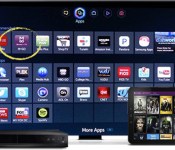
Samsung revealed that it was shuttering its book and music stores not long ago, and today it’s saying goodbye to its last paid content portal, the Video and Media Hub. The tech firm has announced that it’s closing the shop on August 1st to “focus on exciting new video products” — and, no doubt, to stay on Google’s good side. You won’t be left high and dry as a customer, unlike what we’ve seen with other recent service closures. Samsung has struck a deal with M-Go (one of its partners for 4K video) to let you transfer any purchases to M-Go for no extra charge; make the move and you’ll get both $5 in credit as well as 50 percent discounts on up to two movie rentals.
As M-Go chief John Batter explains to Recode, this all too rare handover wasn’t an altruistic gesture; the studios were aware of the backlash they’d face if legions of viewers lost their video collections. Shifting ownership, on the other hand, might just foster some goodwill. Whether or not there’s any sincere kindness involved, the offer is helpful if you’re a frequent shopper at Samsung’s store. In some ways, you won’t miss a beat.
Filed under: Cellphones, Home Entertainment, Internet, HD, Mobile, Samsung
Source: M-Go, Samsung Content & Services
This is Samsung’s last year making plasma TVs

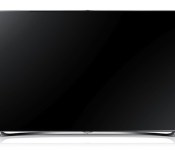
If you’ve been flirting with buying a new plasma TV, now’s the time: Samsung SDI has announced that it’s stopping production of PDP (plasma display panels) later this year. The Korean firm’s reasons for abandoning the technology echos Panasonic’s PDP shut-down — low demand and declining profits. Of course, the real culprit is likely an increasing focus on 4K, and an inability to manufacture higher-res plasma sets for the mass market. It isn’t clear how long the company’s remaining plasma sets will remain on the market, but Samsung plans to have the last of its PDP facilities closed by November 30th. Plasma production resources will be repurposed or sold to support Samsung’s battery and materials business. This leaves LG as the last major player making PDP-based HDTVs, but if you’re a die-hard plasma fan, it might better to hedge your bets and upgrade sooner rather than later.
Filed under: Home Entertainment, HD, Samsung
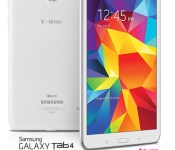
T-Mobile offers pre-registration for Galaxy Tab 4; tablet due July 16

T-Mobile on Wednesday announced that the Samsung Galaxy Tab 4 is now available for pre-registration. Touching down at the Un-carrier’s website on July 16, the tablet comes with 200MB of 4G LTE data for the life of the device. Anyone who purchases one on a Simple Choice Plan will also get an additional 1GB of data each month through the remainder of 2014. Retail stores are expected to carry the tablet a week later, on July 23.
At $0 down and with 24 monthly payments of $16, the Galaxy Tab 4 ultimately costs $384 for the 8-inch tablet.
The post T-Mobile offers pre-registration for Galaxy Tab 4; tablet due July 16 appeared first on AndroidGuys.

