



VOXOA HD Wireless Headphones review

We’ve certainly reviewed wireless headphones previously, but none quite like these. The VOXOA HD Wireless Headphones will provide a great sound, portability, and ease of use to your everyday life. They can be connected to any device via Bluetooth, but if you feel like plugging them in, you can do that as well.
We’ve used these headphones almost everyday for roughly three weeks, so let’s take a look at our final verdict.
Build quality

The VOXOA Wireless Headphones offer a sleek, durable design. They’re mostly composed of matted soft-touch plastic, allowing for a light weight, premium-feeling experience. They’re foldable at the hinges (what headphones aren’t), and they extend out quite a bit for even the biggest-sized heads out there. Once folded, they seem surprisingly small and able to fit in a backpack or purse quite easily.
On the right side sits a big square multifunction button, along with volume buttons towards the back, and navigation buttons towards the front. The bottom of the right side sits a Micro USB port, an LED connection light, and the 3.5mm headphone jack. Both sides have a premium-feeling brushed aluminum edges, which is a very nice design touch.
Earpieces are these headphone’s strong suit, offering the most comfortable headphone experience we’ve had in quite a long time. They swivel to ensure the best-feeling fit for anyone who decides to wear them. Paired with the earpieces, the padding towards the top of the headphones is also quite comfortable, leaving the overall experience a great one.
These headphones offer a 430mAh battery inside to ensure a long wireless lifespan. VOXOA is quoting about 16 hours of continuous music playback with this size battery, and we’d say that’s pretty accurate. It also takes about 3 hours to charge them from 0-100%, which isn’t horrible for wireless headphones.
The 3.5mm headphone cable that’s included could be longer, only measuring about three feet. However, if you’re at a desk or something similar, the cord will be perfect for connecting to a laptop or the phone in your pocket. What are you doing connecting these headphones anyway? You should be connecting them wirelessly!
Performance
 We’ve really enjoyed using these headphones for all types of listening needs. The bass and treble had a great mix the entire time we tested them. For $100, music quality should be the #1 priority, and that’s very apparent in these. Call quality was just okay, leaving the other party constantly thinking they were on speakerphone.
The earpieces did a great job with canceling out background noise, even though these aren’t officially considered “noise canceling”. If you aren’t the one wearing them, you can barely hear what the other person is listening to, which is a huge plus. Also, using the controls was really easy and felt completely natural in terms of button placement.
There is one difficulty that comes with using wireless headphones: switching devices. If I’m connected to a computer and want to switch to my phone, there is just no simple way to do that. First, Bluetooth needs to be turned off and the headphones need to be unpaired from the computer (at least in my experiences). Then you can begin pairing the headphones to another device. This problem certainly isn’t caused by these headphones or VOXOA, but it does need to be addressed eventually. This is the one area where you may want to use the headphone cable provided.
Should I buy?

Overall, these are a great pair of headphones. If you’re looking for a mid-to-high end pair of premium-feeling wireless headphones, you should absolutely consider these. With the sleek and comfortable design, great performance, and wireless capabilities, you’d be hard pressed to find a better deal for the money.
You can pick up the VOXOA HD Wireless Headphones from Amazon for $99.95 in black or white.
Let us know if you decide to choose these for your next headphones, and tell us your experiences!
The post VOXOA HD Wireless Headphones review appeared first on AndroidGuys.
BlueAnt Pump HD Sportbuds Review

Bluetooth headphones have been gaining popularity, but some users may still be searching for great headphones that can withstand their daily routine. Enter BlueAnt, a company specializing in Bluetooth accessories, and their Pump HD Sportbuds. BlueAnt put a lot of time and thought into these rugged Bluetooth headphones, and it shows in every aspect, from the build quality to the usability.
Specs & Initial Impressions
- Bluetooth 3.0
- Up to 8 hours of play time (up to 2 weeks of standby time)
- Charges in less than 2 hours
- Supports APTX and AAC codecs
- 7 pairs of earbuds tips, varying sizes
- 12 month warranty
- Waterproof, thanks to Teflon and Kevlar coating
Now all that is interesting, but how does it translate into real-world usage? The short answer is that the Sportbuds are some of the best Bluetooth headphones for their value on the market.
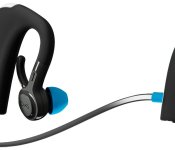
 In other words, these headphones get the job done, and that begins with the build quality. BlueAnt decided to make them behind-the-ear headphones, which is a love-or-hate decision. After a week of usage and testing, I found that I had no problem with their form factor. They were fairly easy to put on, and felt comfortable as I went about my day. Of course, it doesn’t hurt that the Sportbuds are mostly covered in a soft-touch matte material that just looks and feels great. They’re connected by a wire, so that users don’t lose one of the headphones. BlueAnt offers the SPortbuds in three colors: black, blue, and green. I got the chance to review the black version (pictured above), which is accented with blue highlights.
The bodies of the headphones look rather large and intrusive at first glance, but they fit behind the ear fairly well (with one exception, which we’ll discuss later). From the body, a slim arm connects the earpiece itself. The spine of each headphone is mostly covered in a shiny plastic, with small “Pump” logos embedded near the bottom. Along the bottom of the left headphone, you’ll find a small silicone cover, which pulls back to reveal the MicroUSB charging port. This cover serves to protect the port from dirt, sweat, and water. Despite being so small, the cover opens very easily.
Along the side of the right headphone are three buttons: play/pause, volume up, and volume down. These are still covered in the matte material, but are raised from the surface of the body of the headphone itself. These buttons serve multiple purposes, but we’ll get into that in just a moment. They are solid buttons, giving off a defined clicking feeling when pressed.
Usability
 One of the biggest concerns surrounding this style of headphones is the ease of getting them on and off the ears, and it seems that BlueAnt focused heavily on this area as they developed the Sportbuds. Out of the box, I had no trouble getting the Sportbuds on and off, and BlueAnt even includes a section in their user manual that shows users how to put the Sportbuds on properly. Once they’re on, the Sportbuds are stable and comfortable. BlueAnt intended for these headphones to be used in extreme conditions (i.e. going for a jog in the pouring rain and being chased by zombies), and they designed them to stay on the user’s ears very well. I went on several runs with the Sportbuds, and had no problems with keeping them on my ears. The wraparound design serves its purpose by keeping the headphones stationary, so that users never have to worry about them falling off or coming loose during a run/workout/zombie apocalypse. BlueAnt also included two pairs of “stabilizers,” which are meant to make the Sportbuds even more stable.
While they are very comfortable, I ran into a slight problem the first time I put them on. Because I wear glasses virtually all the time, the Sportbuds were nearly impossible to fit behind my ear. At first, I thought that this would prevent me from using the Sportbuds completely, which would have been an issue that BlueAnt might need to address, given the number of users who wear glasses (or Google Glass, of course). I quickly learned that I have to take the glasses off and put the Sportbuds on first, then put the glasses back on, so that the headphones rest under the legs of the glasses. Once I discovered this, it became easier (although slightly irritating) to put the Sportbuds on my ears. While it is somewhat bothersome, it was actually not that noticeable once I got into the habit.
 It’s worth mentioning that BlueAnt gives users seven pairs of earbud tips for the Sportbuds: two pairs of large tips, two pairs of medium tips, and two pairs of small tips. The seventh pair is labeled as “Comply Premium,” and unlike the rest of the rubberized earbud tips, these are covered in foam. While that does sound nice, I was sadly disappointed by these “premium” tips. They are covered in foam, but they’re supported in the middle by a small tube that appears to be made of some kind of heavy plastic. Because the foam is very pliable, the end result here is the tube pressing into the ear canal, which makes for a very unpleasant listening experience. After listening to one song with these tips, I had to take them out of my ears and replace them with the normal comfort seal tips. I appreciate BlueAnt trying to go the extra mile by giving users foam inserts, but the support tubes in them are far too uncomfortable to use. Other than this, I had no real issues with the comfort level that the Sportbuds provide.
So they fit well, but how easy are they to set up? This was one concern I had when I began using the Sportbuds, but BlueAnt again made sure that this process was as seamless as possible. Pairing the headphones with my Galaxy S4 was as simple as holding down the play/pause button and searching for them in the Bluetooth menu of my phone. The whole process took less than half a minute, and I was able to start playing music immediately. The play/pause and volume buttons work like a charm, with each having multiple functions. Holding down the volume up/down buttons will skip songs (up for Next, down for Previous, respectively), and the play/pause button serves to turn the Sportbuds on and off by holding down for three seconds. In addition, users can double-click this button and it will start a voice search in Google Now. The play/pause button also serves to answer or reject calls. All its functions are listed in the user manual.
 Battery life on the Sportbuds fits with the 8 hours that BlueAnt boasts. I had no trouble getting 7-8 hours of life out of the headphones, with music playing at nearly full volume. This was a nice bonus, as I worried that they would need charging after just a few hours. BlueAnt wanted to make sure that users were able to listen to music for as long as possible, and in harsh conditions. Charging the Sportbuds is as simple as opening the charging port cover and plugging in a standard MicroUSB cable (one is included with the headphones). That 2-hour charge time is also accurate based on my testing. After finally managing to run the battery all the way down, the Sportbuds charged completely in a little under two hours.
The specs mentioned that the Sportbuds are waterproof, which is one major advantage that they hold over many other Bluetooth headphones. Even so, they do have some limitations. Obviously the charging port cover must be fully closed before they’re subjected to water. In addition, BlueAnt recommends that users not shower with the Sportbuds (because the audio will sound garbled when the ears fill up with water), although they can certainly withstand it. The headphones can even be rinsed (in cold water) if they get dirty, which was a great addition on BlueAnt’s part. For the most part, I would imagine the waterproof aspect appeals most to users heavily focused on fitness, as the Sportbuds are designed to handle water, dirt, and sweat.
Sound and Range
The Sportbuds actually have a very high quality sound, which BlueAnt calls “Energize HD Audio.” They made sure that every level of sound got the proper attention, from the bass to the mids to the highs. Whatever they did, it gives users a great sound that doesn’t appear to compromise in any area. Every song I listened to, no matter the genre, came through crystal clear with strong bass and treble output. I was surprised by the bass that BlueAnt threw into the Sportbuds, which played even the most bass-heavy songs I have (namely some dubstep and remix tracks) with clarity and ease.
Interestingly BlueAnt claims that users can get up to 100 feet of range with these Bluetooth headphones. After testing, I was only able to get around 45 feet away from my phone before the audio began cutting in and out. 45 feet is still impressive, but it is a far cry from the 100 that BlueAnt is boasting.
What We Liked
- Build quality is great
- Form-fitting headphones that stay in the ear as advertised
- Waterproof
- Sound quality is fantastic
- Very easy to set up and use
- 8 hours of battery life and 2-hour charge time
Room for Improvement
- Range is not even close to the advertised 100 feet
- Slightly bothersome for users who wear glasses to put on the Sportbuds
- “Premium” earbud tips are highly uncomfortable
If you’re intrigued by the Pump HD Sportbuds, you can grab a pair directly from BlueAnt, or from Amazon for $129.99
The post BlueAnt Pump HD Sportbuds Review appeared first on AndroidGuys.

Blu Studio 6.0 HD Review, The Mid-range Phablet For Everyone!

Blu Studio 6.0 HD Specifications
See official press release here
Blu Studio 6.0 HD:
- Network: 2G (GSM/GPRS/EDGE) 850/900/1800/1900 MHz, 3G (HSPA+ 21Mbps) 850/1900 or 850/2100, Dual Mini-SIM Cards
- Display: 6.0 inch HD 720 x 1280, with OGS and Full Lamination Touch Panel
- Processor: MediaTek MT6582 Quad-Core 1.3GHz Cortex-A7 with MALI-400 GPU.
- OS: Android v4.2 Jelly Bean, upgradeable to 4.4 KitKat (End of May)
- Camera: Rear – 8.0 megapixel, autofocus with LED Flash, Video Record 1080p @ 30fps, Front – 2.0 megapixel
- Connectivity: WiFi b/g/n, GPS, Bluetooth v4.0 with A2DP, Wi-Fi Hotspot, micro-USB, FM Radio
- Sensor: Accelerometer, Proximity, Gyroscope
- Memory: 4GB internal memory + microSD slot expandable up to 32GB, 1GB RAM
- Dimensions: 168 x 83 x 8.5 mm, 206 grams
- Battery: Non-removable Li-Po 3000 mAh battery
- Colors: Polished Black, Lustrous White
Devices are now shipping for just $249!
The Blu Studio 6.0 HD is shaping up to be a solid budget competitor in the phablet game. This device is everything that the Galaxy Mega should have been; LCD display, AOSP Android 4.2.2, with a quad-core processor. There’s no LTE and while it’s only got 1 GB of RAM as opposed to the 1.5 GB of the Galaxy Mega, keep in mind that the device isn’t running the resource-heavy TouchWiz UI, so it evens out.
Hardware
Both the black and the white versions are very classy looking. I prefer the black, but even though I don’t generally care for the look of large white devices, I would take either color in a heartbeat. The front of the device is a nearly bezel-less design around the gorgeous 6 inch 720p display. Rather than waste the screen real-estate on a navigation bar, they gave the bottom bezel to the same buttons which would normally reside on the nav-bar, and bravo to Blu for putting them in the correct order: back, home, recents. The sides have the traditionally placed volume rocker on the left, power/sleep button on the right. You’ll find the microUSB charging port centered on top of the device and the 3.5 mm headset jack to it’s left. There’s also a very classy silver, metallic bezel which surrounds the device. The device’s rear is beveled to a very aesthetically pleasing degree. There’s a centered 8 MP camera at the top crowing the LED flash and the “BLU” logo a quarter inch beneath, and a quarter-inch from the bottom center there’s a half-inch speaker slit.
Software
Possibly the most exciting feature of the Blu Studio 6.0 HD is the firmware, even though it’s still on Android 4.2.2, (soon to be upgraded to 4.4.2 KitKat) It’s running a nearly perfect AOSP UI with just a few enhancements in the browser, settings and quick settings menus. The one downfall of the device’s software is that the recent apps button is mapped to menu, and you have to long-press it to activate recents. But I’ve been in touch with their product manager about that and am hoping for a fix to map the recents button correctly and enable the overflow menu button in a future update. We’ll see how that pans out. Blu’s software team has made some enhancements to the AOSP browser app to make the best of the spacious display. There’s now a bar at the bottom which shows back and forward, tabs and bookmarks buttons.  The rest of the devices software is pretty much stock Android 4.2.2, but to Android fanatics, that’s a wonderful thing! How we’ve needed a larger selection of devices with less of these OEM skins. This device is absolutely a contender in the Phablet race. To quote my editorial on Blu:
Take the Galaxy Note series. Great devices, always leading Samsung’s Galaxy line, and often leading the market in specs, but for most people to get the new one without selling a minor organ will literally cost years of your life in the form on a contractual agreement with a carrier, or a financing plan adding a monthly fee to your bill until the retail price of the device is paid-in-full. The question is, do the people who use the Note series all need the power that these expensive devices pack? I don’t think they do. Most of the people I’ve known who swear by the Note line are just in it for the screen size, and nothing more. Most don’t even play games or do anything much more taxing than watching Youtube videos and browsing the web. The Galaxy Note 3 has an MSRP of $699.99, but for what a lot of users need (I won’t necessarily say “most” but a lot) they would be better off with Blu’s new Studio 6.0 HD which is prices at $249.99 unlocked, out the door with no contract.
If you want a large screen and don’t need the leading edge specs, check out this device!
Real World Usage
One of the great things about this device is that it’s totally usable throughout the day and it doesn’t slow down. I consider myself a power user and using this device hasn’t slowed me down in the least. Getting used to the larger display has taken more acclimation than anything else.
Looking at the specs on paper, I expected to have to give the device a bit of a handicap in my review, but that hasn’t been the case. It’s lived up to and sometimes exceeded my expectations in most areas. The only time it seems to drag a bit is when activating the recent apps menu from a taxing application, but that’s a small price to pay for the value you’re getting with this phone. I hope soon to hear of friends in the Android community excited to receive their new Blu devices!
Website: Blu Studio 6.0 HD
The post Blu Studio 6.0 HD Review, The Mid-range Phablet For Everyone! appeared first on AndroidGuys.

Galaxy S 5, Is It Really The Best? A Review

The Samsung Galaxy S 5 is disappointing in precisely one area, build quality. But even in that, it’s slightly better than the previous member of the Galaxy S line. Although even that complaint may soon be a non-issue in the wake of the rumors of the Galaxy S 5 Prime which has been confirmed here. On to the review.

Hardware
Powered by a Snapdragon 801 processor, with 2 GB of RAM, while there hasn’t been much progress since the Galaxy S 4, the device is no slouch. (Full Specifications here) Although the Galaxy S 5 is still made of plastic, it’s much higher quality feeling than it’s predecessor. New features to the Galaxy S 5 include a heart-rate sensor on the back of the device and the added fingerprint scanner functionality built into the home button.
The updated Galaxy S 5 is also waterproof similar to the Galaxy S 4 Active, with a plugged USB 3 charging port and rubber gasket-ed removable battery door. Aside from those details and the textured battery door, the device looks remarkably similar to its younger brother the Galaxy S 4.
Software
In the Software of the Galaxy S 5 we can see the result of Samsung’s agreement with Google to tone down the TouchWiz interface. Like the Nexus 5′s Google Edition launcher, the “Okay, Google…” command will activate Google’s voice search from the the new TouchWiz home screen of the Galaxy S 5. On the Verizon edition, at least, the TouchWiz web browser is gone and Google Chrome is the stoc browser (but this isn’t the case on all Galaxy S 5 variants.)
Unlike the Galaxy S 4′s categorized tabs, the settings menu on the Galaxy S 5 is automatically organized as a straight menu list, reminiscent of the Nexus devices. You’re able to switch to the new “Grid view” layout using the menu button at the top right.

When accessing the menu located on in the app drawer you’ll find the familiar options to edit and change views of the application list. New to this menu is the “GALAXY Essentials” option which will take you to a store dedicated to Samsung Galaxy apps. It seems that this option and a “GALAXY Essentials” widget are the only ways to access this market.

Lastly, although there isn’t much exciting and new about the camera app on the Galaxy S 5, The 16 MP sensor does perform admirably, I did a little comparison between the HTC One M8 and the Galaxy S 5 here:
Want One?
Take your pick!
Galaxy S 5 – T-Mobile
Galaxy S 5 – AT&T
Galaxy S 5 – Sprint
Galaxy S 5 – Verizon
The post Galaxy S 5, Is It Really The Best? A Review appeared first on AndroidGuys.
Micro USB cable die? Amazon offers perfect solution

If you are like me, you have probably ran into a short in your manufacturer provided Micro USB cable at some point. Most replacements are expensive. Dealers often charge $20 – $30 for a charger and even $15 for just a USB cable. The cheap ones imported form Asia on Ebay are just that… cheap. There has to be a better way. Thanks to Amazon, the AmazonBasics line has a great, affordable solution.
While looking for a new cable and being thrifty, every site imaginable was checked until finally discovering the offer from Amazon. Upon first glance at the cable, it was shrugged off as “generic”. That assumption could not have been more wrong.
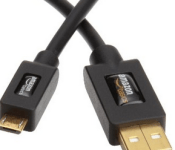
AmazonBasics offers a thick, gold plated Micro USB cable. The price? A whopping $5.09 for a 3 foot cable (.9 meters) that comes with free shipping if purchased with Amazon Prime. Amazon is also cool enough to put it in hassle-free packaging.
How did the “cheap” AmazonBasics cable hold up? Well after using the cable for about 90 days, the cable is still as sturdy as day one. It has served way beyond initial expectations. Bottom line is if you have a need for a Micro USB cable that doesn’t break the bank, this is the solution to fix your problem.
You can pick up the AmazonBasics USB cable starting at $5.09 on Amazon.
The post Micro USB cable die? Amazon offers perfect solution appeared first on AndroidGuys.

Adaptxt promises to prevent Mom’s embarrassing AutoCorrects [App of the Day]

Ever received that odd text from your mom? Remember that one word that was changed and scarred you for life? Chances are she was victim of some sort of AutoCorrecting feature on her device creating the awkward conversation. Adaptxt is a solution that can help eliminate your mother’s frustrating AutoCorrects just in time for Mother’s Day.
Adaptxt for Android is an app that learns the typing style of your mother as she interacts with her apps, emails, and text messages. The app also touts a learning ability to help do a “smart” prediction of the next word which would help reduce errors. The app does this by using location-based suggestions like street names and landmarks, application-based suggestions for specific topics and writing style, and the ability to learn from your general writing style via Gmail, Facebook, and Twitter. Silent dictionary updates have also been included so that she won’t be left behind on the newest trending words. God knows Mother needs to spell “twerking” right.
In addition to the smart features, Adaptxt also comes bearing 93 languages, 44 industry-specific dictionaries including medicine, law, business, sports, and entertainment, tape and glide, 12 key layout, language-specific layouts (QWERTY, QWERTZ, AZERTY, etc.), and other customizations that put you in control and make typing easier on mobile devices.

One feature missing from the app would be the ability to recognize two (or more) languages at once. For people who frequently type in multiple languages, it can be annoying to switch between languages. Despite that one feature lacking this is a solid keyboard that promises to make it easier to type smarter by correctly predicting words based on your specific writing styles, location, and interests.
This is a paid app at the cost of $2.98, but for those of us that would like to test it out before your purchase, you can also grab a 30 day free trial. Both are available on the Google Play Store.
The post Adaptxt promises to prevent Mom’s embarrassing AutoCorrects [App of the Day] appeared first on AndroidGuys.

UpTo vs. Sunrise vs. Today Calendar: Which new Android calendar is the best?

Smartphones do so much for us. They offer all forms of media, keep us connected, and keep most of us productive. So what good is a smartphone without a great calendar application?
Just in the past few weeks, Android users have seen a slew of new calendar apps arrive on their favorite mobile platform. UpTo and Sunrise Calendar were previously iOS exclusives. While UpTo made its way to Android in a full-fledged app, Sunrise is still stuck in Beta. Today Calendar is the third app we’re going to look at today, offering a great alternative to the stock Google Calendar.
Trying to decide which new app best suits you? Take a look below at are comparison.
Before we begin, we understand that Sunrise is still in Beta, meaning the app isn’t fully ready for all consumers quite yet. However, we feel that it’s good enough to stand up against some new competitors.
Layout

From left to right: UpTo, Sunrise, Today Calendar
UpTo: The main screen of UpTo shows the current week at the top, while focusing mostly on the agenda view towards the bottom. There are small dot indicators on the week preview that tell you when you have an event scheduled. Small weather icons are shown next to the day in the agenda view, which adds a ton of functionality.
Pull from the left side of the screen to access the settings menu and to check out the different calendars that you follow (more on that later).
Sunrise: Sunrise has mostly the same appearance as UpTo. It shows a two-week view up top with an agenda view at the bottom. There are no dot indicators on the two-week preview yet, but we’re told the developers are going to add it in. Sunrise even gives weather information, as well.
Pull from the right side or press the three vertical lines to enter a detailed “today” mode.
Today Calendar: Today Calendar still offers a similar experience, but it takes its inspiration from the stock Google Calendar. It shows a full month view on the top half of the screen with your events for the day on the bottom.
There are no fancy gestures that come with this one. To switch your view to Day, Week, Month, or Agenda, click the date at the top and select it from there.
Functionality and features

From left to right: UpTo, Sunrise, Today Calendar
UpTo: UpTo is by far the most functional out of the lot. It’s main feature is the addition of “layers” to your calendar. The first layer being your personal events: entries that you create that you personally have going on. The second layer is filled with events or groups that you follow. For example, if you follow Chicago Events, you’ll have museum tours, concerts, and more added to your calendar. If you’d like to RSVP, simply pull the event to the left, and select Add. This second layer adds tons of new functionality to your normal calendar app.
You can also connect with friends and see what events they’re attending, whether personal or just ones that they’re following.
Other than layers, UpTo acts just like a normal calendar app. You can sync with Google Calendar, Outlook, or Facebook events, and even click the location of your event to quickly open Google Maps.
Sunrise: While Sunrise doesn’t have multiple layers of events. it still offers an intuitive user experience. Like we said before, swiping from the right is a great way to get a detailed look of your day, while most people will just settle for the agenda view on the bottom. Each day is broken up between morning, afternoon, and night, and an informative weather icon is displayed next to each one.
Sunrise also offers smart event icons that know which events you’re going to. These are really handy and are a really nice touch. It’s compatible with Gmail, Exchange, and iCloud, and can also open Google Maps to navigate to your event in a few steps. There’s also an invitation button towards the top to RSVP and respond to events quickly.
Today Calendar: Today Calendar has the least amount of features out of the rest, but it’s still a great option. Basing most of it’s functionality out of improving the stock calendar app, Today Calendar does a great job at doing all of the stock options better. The addition of a month/agenda hybrid view is enough to get people to switch from the stock app.
Not too many original features are offered with this app, but the things that it can do, it does very well. It has a clean, uncluttered UI that would appeal to minimalists that are looking for a bit more out of their stock calendar.
Widgets

From left to right: UpTo, Sunrise, Today Calendar
UpTo: UpTo offers one agenda view widget with a nice black and blue theme. You can choose to include only your events, events from friends, or synced Facebook events. There aren’t any additional customization options when it comes to look or feel of the widget.
Sunrise: Sunrise just recently added a widget to their app in the most recent update. It’s white and orange, sticking to the apps theme. Unfortunately since it’s new, there are a few problems with it. The only way to jump to the app from the widget is to click on an event. Clicking the icon on the top doesn’t do anything, but we wouldn’t be surprised if it was update pretty quickly. No other customization options are available with this one.
Today Calendar: Here is where Today Calendar really shines. It offers month and agenda view widgets, and each are highly customizable. There are light and dark themes, background opacity options, and even an option to show a bar rather than a circle as an event indicator. We’re not going to write out all of the customizations for this one, but trust us, you won’t be disappointed with these widgets.
The verdict
So, there’s no clear winner here. Each of these calendars are great at a few things, and others aren’t so great. UpTo has accomplished exactly what it set out to do: change the way we use calendars. They’re right, adding more layers to a calendar app bring a lot to the table. Though it still has a long way to go, Sunrise offers a beautiful, intuitive design that the average user is going to love. Today Calendar offers some of the best widgets we’ve ever seen while improving on its Google Calendar roots.
If you’re interested in downloading UpTo or Today Calendar, head to the Play Store from the links below. Since Sunrise is still in Beta, you’ll need to join the Google+ Community, then go to the Play Store to download it.
Have you tried any of these calendar apps? Which one did you find to be your favorite? We’d love to hear it in the comments!
The post UpTo vs. Sunrise vs. Today Calendar: Which new Android calendar is the best? appeared first on AndroidGuys.
Heckler Design WindFall Stand for Nexus 7 (2013) review

If you’re a small business owner looking to use your Nexus 7 (2013) as a payment system, you may want to check this out. The Heckler Design WindFall Stand is sturdy, sleek, and offers premium security for your premium tablet. It’s specifically designed for point-of-sale use in business settings, and not much more than that.
We’ve tested this stand for a few weeks, so let’s take a closer look.
Design

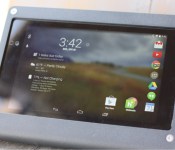
The design of this stand is absolutely beautiful. It’s made from Powdercoated Steel with a sleek finish, and blends in with the tablet quite nicely. What’s more to say? This thing is gorgeous.
There are four tamper-resistant screws that hold the device in place, securing the rear brackets to the tablet. The tablet has a snug fit once it’s in the stand, so there’s no wiggle room to worry about.
The only gripe we found when using this stand is it is quite difficult to remove the tablet, even if we have the correct tools. We suppose it’s somewhat of a good thing, for security purposes. So if your business is looking to purchase this, hopefully you’re okay with keeping the tablet in the stand every night.
Other than that, all of the buttons and ports are accessible, so we’d say this is a really well-designed stand.
Functionality

This stand performs great. It’s extremely sturdy, and at a hefty 2 pounds, it feels much more premium than anything else we’ve tested. This stand is compatible with the PivotTable, PivotTrack, and Kensington ClickSafe (sold separately), allowing you to feel great about walking away from it for a little while.
It also performs especially well when the friction feet are stuck to the bottom. For mobile payments, we tested our stand with the Square card reader, though it’s compatible with a ton of others.
Overall, the WindFall stand functions just like you’d hope it would. It’s sturdy and offers compatibility with a ton of locks and cables.
Value

This stand is a great value for small businesses looking to offer quick payments to their customers. If you’re thinking of picking one up, remember that it’s a bit difficult to get the tablet in and out of the stand. However, once it’s secured, it’s not going anywhere.
The WindFall stand will run you $89 directly from the Heckler Design site, and unfortunately doesn’t come with many extras. The price is a bit steep for our liking, but it’s one heck of a stand.
The post Heckler Design WindFall Stand for Nexus 7 (2013) review appeared first on AndroidGuys.
Lumsing 10,400mAh “Harmonica Style” Power Bank review

In what seems like our never-ending journey to find the best external battery pack, we may have stumbled over something to pay attention to. We’ve already taken a look at Lumsing’s 11,000mAh 5-Port Battery Pack, and told you to run out and buy one. There’s a new product out from the company, and we love it.
The Lumsing “Harmonica Style” 10,400mAh Power Bank is our favorite yet, and for the price, you won’t find a better option.
ATTENTION: We’re giving one away! Head here for the contest rules!
Design
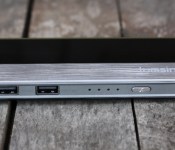
The battery pack is made from plastic, with a smooth finish. There’s a faux-brushed metal lining towards the bottom, which adds a premium feel to the device. On the front sits a power button, 4 blue LED lights, two outputs, and to the side, the Micro USB input to charge the device. Other than that, the edges are smooth and sleek.

Unlike the previously reviewed battery pack, the “harmonica style” option only has two outputs – one 1A, and one 2.1A. It’s not necessarily a deal-breaker, but we would have liked to see more.
Included with the battery pack is one Micro-USB cord that is about 1.5 feet long. It offers a flat shape to decrease it’s ability to tangle. It’s not horribly long, but you may find yourself not needing an overly-lengthy cord. For car rides, plane rides, or setting it on a table, the 1.5-foot long cord will be enough.
Overall, the design is great. It’s smooth, sleek, and offers a unique design.
Performance

The performance of this battery pack is great. It does exactly what it’s supposed to do. The ports charge as quickly as they should, and the LED lights are an accurate depiction of how much battery is left. Lumsing is quoting that it will be completely charged in 6.5 hours, and we’d say that’s very accurate.
With this power bank, we’ve charged a Nexus 5, Nexus 7 (2013), Pebble Smartwatch, and a Galaxy S3. It hasn’t given us any problems with the charging process, which is what we need.
Should you buy?

Being totally honest, yes. With a battery size of 10,400mAh, the quality of cord that’s included, and the design, this is exactly what we’re looking for in a power bank. If you can get passed the fact that it only has two outputs, you should buy this.
Pick one up on Amazon for $19.99 in black or white variants. It has excellent hardware, a great big battery, and does what it should.
The post Lumsing 10,400mAh “Harmonica Style” Power Bank review appeared first on AndroidGuys.
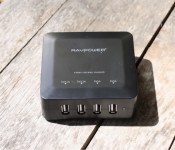
RAVPower BOLT 4-Port USB Charging Station review

If you find yourself constantly running out of charging cables or using way too many extension cords, you may want to take a look at this charging station. With 4 ports available, you can plug your devices in without having to mess around with limited power outlets or the length of your charging cords. Let’s take a look at how it performs, and whether you should consider this for your desk.
Design
In the box, comes the charging station, a power adapter, and an instruction manual. There are no power cables included, though that shouldn’t be a problem for most people. The power adapter that’s included is a bit less than 4 feet long, so you’d need to have an outlet nearby your desk or table.
The charging brick is small and plastic, with a matted finish. Though our black model picks up fingerprints very easily, it still remains sleek and attractive. The brick has four feet at the bottom to ensure it stays in place, which is a very nice touch. There are two 2.1A and two 1A outputs, allowing devices of all sizes to charge simultaneously. It also features a bright blue LED light to the right of the ports, which brings us to our one big gripe of the product.

The LED light is way too bright – so much that you wouldn’t be able to sleep if it was sitting next to your bed. Putting a piece of tape over the LED light is a must in order to have it in the bedroom. It’s distracting, and there’s no way to turn it off. A small piece of electrical tape blends in perfectly with the black version, though, so there is a workaround.
In all, the design is great, if you don’t mind using a bit of tape.
Performance
The performance of this charger is great. It does what it’s supposed to do, and we haven’t experienced any problems with the outputs at all. The 2.1A outputs are great for charging tablets or phones very quickly, and the 1A outputs are great for charging phones or smartphones.
Should you buy?

If you’re sick of using countless power outlets and extension cords, you should buy this. Though we had some gripes with the LED light, the design is otherwise great and the performance is spot-on. If you’re interested, you can pick up this charging station from Amazon for $19.99 in white or black.
It’s lightweight, small, and does what it needs to. For $20, it’s a steal!
The post RAVPower BOLT 4-Port USB Charging Station review appeared first on AndroidGuys.

