



Best cases for the Nexus 6
brightcove.createExperiences();
If you’re looking for some cases to protect your shiny new Nexus 6 we’ve gone ahead and rounded up a few that we think are the best options out there for protecting your Nexus 6! Check them out down below!
Casemate Naked tough Case


We’re going to kick this list off with the two official cases for the Nexus 6 starting with the Naked tough case by Casemate. This case features a dual-layered design with a TPU bumper to protect those corners and sides and a plastic outer shell for extra reinforcement. As the name suggest this case is going to provide protection while still allowing you to show off the aesthetics of the Nexus 6 due to it’s clear design. It’s a slim and lightweight style case so it’s not the most protective case in the world but it should hold up just fine against the average drop. The case fits well and doesn’t add much to the Nexus 6 at all and all the openings for the camera and ports are very precisely cut. The metallic buttons for the power and volume keys mimic the real buttons for the Nexus 6 so you still get that ridged power button which is a really nice touch and they’re also very responsive and tactile. Another great feature on this case is the built in kickstand which is awesome for watching Youtube and movies. However, I did notice that the stand felt a little bit flimsy which can be concerning as to how well it’s going to hold up over time. Another thing that I will say with this case is how much dust and lint can get inside of it due to the large opening on the back for the camera and motorola logo and since this case is clear you’re going to notice it very easily. Directly from Google Play this case is pretty expensive coming in at 35 dollars so my recommendation is to go through Amazon where it’s going to cost you half that price.
Casemate Stand Folio
The second official case for the Nexus 6 is the Stand Folio case and this one is also by Casemate. This is a wallet style case for combining both your phone and wallet into one. There’s a hard plastic shell on the inside to hold and protect your phone and the cover is made of a faux leather material to give it that wallet like feel. The case fits well with openings for the front facing speakers and camera but nothing for the Motorola logo. The top and bottom are completely exposed so you should not have any problems fitting larger micro USB cables or headphone jacks but keep in mind there’s not a whole lot of protection in these areas. Just like the naked tough case the power and volumes keys mimic the real keys of the Nexus 6 with a metallic look and a ridged power button. The case also features sleep to wake functionality built into the cover and there are two slots on the inside to hold two credit cards, IDs, or whatever else you want to put in there. Just don’t get too carried away because the cover is not going to close all that well if you pack way too many cards inside and even having just a minimum of two cards will prevent sleep to wake from functioning. The cover can also be used to prop up the Nexus 6 for viewing media and it seems to hold itself up well despite not having anything to lock it in place. The case overall is pretty solid but the build quality is a little bit questionable as the gray lining on the inside separated almost immediately when I started using it. Again, just like the naked tough case the stand folio is very pricey at 40 dollars through Google play. It is cheaper at 30 dollars on Amazon but even at that price it’s still pretty expensive.
Spigen Neo Hybrid
The next few cases are made by Spigen, starting with the ever so popular and very stylish looking Neo Hybrid. As with most hybrid cases the Neo Hybrid features two materials that make up the case: A TPU housing for shock absorption and a plastic frame to give the case some extra flair and more protection on the corners and sides. The frame comes in several different colors but the one that I have is champagne gold. The case is very slim and form fitting and not only does it look good but it shows off the natural curves of the Nexus 6 very well making it one of my favorite cases at least when it comes to aesthetics. The cutouts for the camera, Motorola logo, 3.5 mm headset jack and micro USB port are all very precise as you would expect from a company like Spigen but what I really love is the metallic power and volume buttons. They look good and are very tactile and easy to press and I like how Spigen chose to give the volume key a different look by separating them into two buttons. In the hand the case feels fantastic with the frame providing plenty of rigidity and the TPU on the backsides helps out with the grip. For a price of 20 dollars or less depending on color this is one of the most well rounded cases you can buy for the Nexus 6. Available colors include champagne gold, dante red, gunmetal, and satin silver.
Spigen Slim Armor
A case that Spigen offers that is very similar to the Neo Hybrid is the Slim Armor case but instead of a plastic frame wrapping around the sides of the TPU housing you have a plastic shell that wraps around the entire back of the device. Also like the Neo Hybrid the shell on the Slim Armor comes in a few different colors but unlike the Neo Hybrid the Slim Armor features a built in kickstand. It’s not the sturdiest of kickstands and it can feel rather flimsy but it props up the Nexus 6 without much of a problem. In the hand the Slim Armor feels practically identical to the Neo Hybrid in terms of overall size and weight but the back is slightly thicker and you can definitely notice that by how recessed the camera and Motorola logo are. The coverings for the power and volume buttons are flat but they’re clearly labeled and very easy to press with a very satisfying click. All in all it’s another solid option from Spigen that’s very good looking and sturdy and for less than 20 dollars it’s very affordable. Available colors include metal slate, satin silver, and shimmery white.
Spigen Thin Fit
If you’re not into these thicker, more protective cases Spigen does offer their Thin Fit series that isn’t going to add much of anything to your Nexus 6 at all. This case is super slim and lightweight but like all cases designed to be this thin you’re not going to get much in terms of drop protection especially along the top and bottom which are completely exposed. The plus side of it being thin is that it preserves the overall size and shape of the Nexus 6 giving it a very sleek feel in the hand. All the cutouts are perfect including the power and volume which are spacious enough that you can still easily press them with your thumb. The best part about this case is the non-slip matte coating that gives it a ton of grip. I never felt like the Nexus 6 was going to slip out of my hand and it actually makes using the Nexus 6 in one hand a lot easier because of how grippy the back is. With a price ranging between 11 to 12 dollars depending on color this case is an absolute bargain. Available colors include clear, mint, shimmery white, and smooth black.
Supcase Unicorn Beetle Series
Next up is the Unicorn Beetle Series by Supcase and this is another hybrid style case with TPU wrapping around the sides for shock absorption and a hard plastic shell for the back. Unlike some other hybrid style cases the two materials have been fused into a single piece. The case hugs the Nexus 6 nice and tight and provides a pretty solid amount of drop protection without adding that much extra girth to the Nexus 6. It’s not the grippiest of cases because the back is smooth plastic but the textured TPU sides still make it a heck of a lot easier to hold onto than a bare naked Nexus 6. All the cutouts are very clean and spacious and the coverings for the power and volumes keys are very meaty and tactile, even more so than the raw buttons themselves. At a current price of 13.99 on Amazon it’s pretty inexpensive and is easily one of my favorite cases as far as overall aesthetics, protection, and feel in the hand is concerned. Available colors include black/black, frost clear, clear/black, clear/blue, and clear/red.
Caseology Bumper Style Case
And finally our last case for the Nexus 6 comes from Caseology. This particular case is very similar to the Neo Hybrid from Spigen in the sense that it is a two piece design with a tpu housing and a plastic colored frame wrapping around the sides to complete the look. The unique part about this case though is the backing which comes in several different materials and colors like carbon fiber, mesh, and leather. The one that I happen to have here is the leather version in burgundy red and if you happen to have some Motomaker envy these particular cases might be the perfect solution. I can’t speak for the other materials but the leather version does provide a nice amount of grip for the back but the plastic frame is a little bit on the slippery side. You will get a very solid amount of protection with this case without making the Nexus 6 feel overly bulky and the cutouts for the camera and ports are precise but one thing to note is this case does not feature a cutout for the Motorola logo like some of the previous cases we’ve mentioned. The only drawbacks to this case that I’ve found is the coverings on the power and volume keys are a little on the mushy side when it comes to the feedback and the plastic frame doesn’t fit quite as flush to the TPU housing as I would like but otherwise this is a very decent case for the price.
But that wraps it up for our list of top cases for the Nexus 6! What do you think of this list and are you currently using some of the cases we’ve mentioned? If not, what cases are you using? Please feel free to sound off in the comments!

Unlocked Nexus 6 (32 GB) in both Cloud White and Midnight Blue now available at Amazon

The Nexus 6 might not be the most popular phone in the land, but it certainly is the toughest one to purchase. If you’ve been trying to get your hands on one, you can grab the 32 GB version at Amazon for $649.99, just $0.99 more than what you would pay Google through the Play Store. They have both Cloud White and Midnight Blue in stock, and it’s on Prime so you can save the shipping costs and receive it in 2 days, assuming you’re a Prime member.
Just hit the source link below and choose which color you want to get your order in.
source: Amazon
Come comment on this article: Unlocked Nexus 6 (32 GB) in both Cloud White and Midnight Blue now available at Amazon

Nexus 6 now available through Amazon, free shipping included

After months of playing hard to get, the Nexus 6 stock has stabilized to the point where the phone is no longer this elusive creature that we can only get our hands on if we constantly press the refresh button on Google Play store and other partnering retailers.While Google Play remains one of the most well known sources the Nexus 6, at least outside of carriers and Motorola’s website, Amazon has finally joined the party.
The 32GB Nexus 6 is in stock right now for $649. Unlike Google Play, you can get free shipping for the phone, and for Prime members you can get it in as little as 2 days without an extra charge.
.rvs_wrapper
width: 335px;
.rvs_wrapper.align_left
float: left;
.rvs_wrapper.align_right
float: right;
.rvs_wrapper.align_center,
.rvs_wrapper.align_none
width: 100%;
.rvs_wrapper.align_center
text-align: center;
.rvs_wrapper.align_center.cbc-latest-videos ul li
float: none;
display: inline-block;
vertical-align: top;
.rvs_wrapper.cbc-latest-videos:not(.align_none) ul li:nth-child(2n+1)
clear: both;
.rvs_title
font-weight: 600 !important;
margin: 0 !important;
.rvs_wrapper.align_right .rvs_title
padding-left: 20px;
.rvs_title a
font-family: ‘Roboto Condensed’;
color: #3a3a3a;
.rvs_wrapper.cbc-latest-videos ul
padding-top: 10px;
.rvs_wrapper.align_left.cbc-latest-videos ul li,
.rvs_wrapper.align_none.cbc-latest-videos ul li
padding: 0 15px 0 0;
.rvs_wrapper.align_right.cbc-latest-videos ul li
padding: 0 0 0 15px;
float: right;
.rvs_wrapper.align_center.cbc-latest-videos ul li
padding: 0 7px;
.rvs_wrapper.cbc-latest-videos ul li > a
font-weight: 400;
.rvs_wrapper.cbc-latest-videos ul li > a .yt-thumbnail
margin-bottom: 0;
@media only screen and (max-width : 480px)
.rvs_wrapper
width: 100%;
text-align: center;
#page .rvs_wrapper.cbc-latest-videos ul li
padding: 0 7px;
display: inline-block;
float: none;
vertical-align: top;

Technically folks have been able to buy the Nexus 6 on Amazon before now, but only through 3rd parties and often at prices that are higher than you’d find it through Google. Rest assured, the model being sold is directly through Amazon, and is the XT1102KIT model designed for use on North American networks.
Not sure if the Nexus 6 is right for you? Be sure to check out our full review.
Nexus 6 Tips and Tricks!
brightcove.createExperiences();
Ever since Google’s Nexus 6 was announced last year, it’s become one of the most polarizing smartphones ever to be released. In the past, Nexus smartphones have been modest and (mostly) affordable, but the Motorola-made Nexus 6 takes a different stance. It’s big, powerful, and features one of the best Android experiences on the market today.
Looking past its flaws, the sleek design, crisp screen and the promise of timely updates make the Nexus 6 a great purchase. If you’re a recent adopter of the handset, we’ll help you get the most out of your shiny new device. Today, we’ll be taking a quick look at some of our top tips and tricks for the Nexus 6!
Note: A common theme with these tips and tricks is that they may not be specific just to the Nexus 6, with a lot of the new features related to Android 5.0 Lollipop, and will depend on the hardware capabilities of your device.
Tip #1 – It will work on practically any network in the US

The Nexus 6 comes unlocked directly from Google. While that may a standard for Nexus devices, this one in particular can work on most US mobile carriers. There are only two different SKUs for the Nexus 6: one for North America only and one for the rest of the world. If you managed to pick up the North American model, you’ll get support for GSM bands 850, 900, 1800 and 1900, CDMA bands 0, 1 and 10, WCDMA bands 1, 2, 4, 5 and 8, and support for practically all LTE bands.
This basically means that you can grab an unlocked Nexus 6 straight from Google and pop in a Verizon SIM card (or basically any other mobile carrier’s SIM card) and get full network support right away. And theoretically, if you snagged a device from Verizon and managed to get it unlocked, you could take the device to another carrier and active it, if the carrier permits. One thing to remember, though, is that the Nexus 6 has the capability to move from carrier-to-carrier, but it’s ultimately the carrier’s decision whether or not to allow that.
Tip #2 – Data consumption

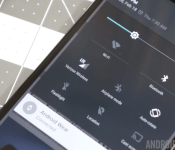
When using a multimedia-centric smartphone with 4G LTE capabilities everyday, it’s very easy to reach your data cap very quickly. The Nexus 6 has a convenient way to easily keep track of data usage. First, head to your notification shade, then pull down once more to get to Quick Settings. Next, tap the Mobile Networks setting icon. It will immediately show you a quick overview of your data consumption. From there, you can access your data settings, set a data limit, and even check out which apps are using the most data.
Tip #3 – Save battery by turning off Ambient Display

The 3,220mAh cell in the Nexus 6 may be larger than your standard smartphone’s battery, but it’s also powering a giant, 5.96-inch display. Despite the proclaimed one-day battery life, many users still struggle to last an entire day on a single charge. Fortunately, there are some ways to combat that problem. One way is by turning off the Ambient Display mode which pulses a dimmed screen as notifications come in, not unlike Motorola’s own Moto Display feature. Personally, I find the Ambient Display feature to be really helpful, but if you turn it off, Google claims your phone will get an extra 80 hours of standby time.
If you’d like to save a considerable amount of battery life on your Nexus 6, you may want to consider turning off this feature.
Tip #4 – Turbo charger

If you’re not one to turn off awesome features to get more stamina out of your device, you might want to keep the charger that comes with the Nexus 6 handy. It’s a Turbo Charger, which is said to get you another six hours of use out of a 15-minute charge. It supplies a whopping 15W and can give you the added boost you need to make it through the day.
The Turbo Charger is definitely worth keeping around, and if you have an extra $35 lying around, it may be worth it to pick up a second one.
Tip #5 – Wireless charging

The Nexus 6 has Qi wireless charging capabilities, though that feature was omitted on its original spec sheet. Despite the omission, it is in fact on the device, and offers an easy way to get a supplementary charge while you’re at a desk or bedside table.
Tip #6 – Water resistance

Another feature not originally listed on the spec sheet is the fact that the Nexus 6 is water resistant. Like the Moto X, it features a nano coating that doesn’t necessarily come with an ingress protection rating, but it is at least somewhat protected against the elements.
Tip #7 – Shoot 4K video

The 13MP rear-facing camera not only means you can take high-resolution images, but also high-resolution video. While it’s not enabled by default, you can enable it by launching the Camera, the choosing Settings>Resolution and quality>Back camera video>UHD 4K.
Tip #8 – Downtime settings

Lollipop’s new notification and sound settings might take some getting used to, but they do come with a really helpful feature called Downtime. It’s basically a ‘Do Not Disturb’ mode that you can put on a set schedule. To set this up, head to Settings>Sound and notification>Interruptions, then head to the bottom of the screen. Here you can schedule Downtime by selecting the days of the week and start and end times.
Tip #9 – Hidden LED notification light

Another lesser-known fact about the Nexus 6? It actually comes with a notification LED. It’s hidden beneath the top earpiece speaker, and is unfortunately turned off by default. But with a little elbow grease and determination, you can get it working. You’ll need to gain root access, then download Light Flow from the Google Play Store. Head to this page for more information on how to go through the steps.
Tip #10 – Numbers row in Google Keyboard

Since the Nexus 6 has such a large display, it makes sense to employ a different keyboard to use some of that extra room. Of course, you can always download a third-party keyboard from Google Play, but there’s also a larger layout built directly into the Google Keyboard.
Long-press the comma key to jump into the keyboard settings, head to ‘Appearance and layouts’, choose ‘Custom input styles’, and add another keyboard. Select ‘PC’ as the keyboard layout, then enable it in the Language settings. The next time your keyboard pops up, tap the globe icon and you will have a keyboard with a dedicated number row. If you aren’t fond of the new number row, switching back to your old keyboard is as simple as pressing the globe key again.
See also:
- Nexus 6 review
- Nexus 6 unboxing and first impressions
- Nexus 6: Camera shootout
- 6 common problems with the Nexus 6 and how to fix them
- Nexus 6 vs iPhone 6 Plus
- Nexus 6 vs Samsung Galaxy Note 4
So, there you have it, some useful tips and tricks to help you get the best experience on your Nexus 6! If there is anything we missed in this video, feel free to let us know in the comment section below!
Nexus 6 vs iPhone 6 Plus
brightcove.createExperiences();
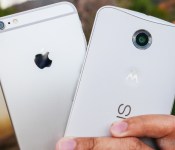
The change to the Nexus line came as a big surprise to many, not only in terms of the jump in size, but also with regards to its more premium design, and matching price tag. On the other hand, it was an inevitable move on the part of Apple to finally introduce a larger form factor with their flagship iPhone, with the two versions available bringing the fight, at least in terms of size, closer to their Android counterparts. So how do the so-called 6th iteration of both lines fare against each other? We find out, in this comprehensive look at the Nexus 6 vs iPhone 6 Plus!
Design

The most significant change with both these smartphones is clearly the size. The Nexus 6 is dramatically larger than the Nexus 5, and in the case of the iPhone 6 Plus, the jump is even more impressive when compared to the much smaller iPhone 5 family.

The iPhone 6 introduced a rounded look to its design language, with the larger Plus edition an identical counterpart, only with a screen bumped up to 5.5-inches. The result, as always, is an attractive phone featuring Apple’s typical design cues, only made a little bit harder to handle because of its size. Typical buttons include the volume rocker on the left side with the silence toggle, and the power button, which has been brought to the right side from its usual position up top for better access. A lone tactile home button up front also includes a fingerprint scanner underneath, and it lies somewhat concave to the front panel, with the 2.5D glass adding to the rounded look. The metallic construction automatically increases this phone’s attraction, with lines denoting where the separations are in the part. The Apple logo on the back is under the camera optics in the top corner.

In the case of the Nexus 6, Motorola’s design language takes center stage here, as the phone looks like a large Moto X (2014), albeit without the numerous customization options available. No buttons on the front mean that the inputs are made with software keys. One of the big concerns with the Nexus 6 was in terms of the handling, but the curve on the back does help with the phone’s feel in the hand. The camera optics are up top on the back of this white edition, with the now iconic Motorola dimple underneath, along with the Nexus logo in landscape. A metallic frame also helps the Nexus 6, adding to what is one of the most exquisite Nexus devices yet.

Design aesthetics remains a matter of opinion, but the main story in the case of either smartphone is with regards to their respective handling experiences. The iPhone 6 Plus is thinner, and its rounded sides do make it a bit more comfortable to grip, but the larger bezels on the Apple phone actually make it similar in size to the Nexus 6. It’s thickness makes the Nexus 6 a little harder to handle in one hand, though its curve does what it can to help.
In either case, you’re always going to have to perform some form of hand gymnastics to go from side to side or to reach the top, and while both are not the easiest to handle, they certainly do manage to be really easy on the eyes.
Display

Large displays are par for the course here as the trend continues to pick up steam, but in the case of the Nexus 6, an extra half inch and a higher resolution might be enough to make you choose the Android phone over its Apple competitor.

Apple’s display technology gets a bump up to 5.5-inches and offers Full HD resolution, which results in in a pixel density of 401 ppi. An IPS construction makes this screen pretty easy to view in daylight, and text is easier to view on this larger display, compared to previous smaller iterations of the iPhone. What I always notice on the iPhone screens, however, is that its color output is a little more subdued, for example, when compared to the AMOLED displays commonly found on Android devices.

That is exactly what the Nexus 6 sports, an AMOLED screen at just under 6-inches with Google and Motorola deciding to meet the trend of Quad HD, resulting in a pixel density of 493 ppi. The result is a display that is outputting some intense power, and for work and play, you will be able to read sharp text and enjoy any media in a large fashion. There have been some issues with screen burn-in reported, but on my particular unit, it hasn’t been an issue at all.
The colors on the iPhone 6 Plus are not bad at all, but they seem to pop out a little more on the Nexus 6. This can also be owed to the highly colorful motif of Android 5.0 Lollipop, though. Nonetheless, we have an evolution in both of these devices, and is surely a welcome change for veterans in either camp. If you do want a higher resolution to eke out that much more enjoyment from your smartphone usage though, the larger and more powerful screen of the Nexus 6 is the obvious choice.
Performance

Talking about performance in a comparison like this is always a bit of an odd situation, because what we’re pitting against each other are two completely different architectures, catering to equally different ecosystems.
Under the hood, the Nexus 6 packs a quad-core Qualcomm Snapdragon 805 processor, clocked at 2.7 GHz, backed by the Adreno 420 GPU, and 3 GB of RAM. The device boasts the kind of high-performance processing package you’d expect to find with a flagship Nexus smartphone, and can handle anything you throw at it with ease. Opening, closing, and switching between applications is a breeze, and gaming is also extremely smooth and enjoyable. While I might have seen a few hiccups here and there, it has more to do with the occasional bug in Android 5.0 Lollipop, which are sure to be fixed in updated versions.

Apple likes to put together their own processing packages, and any iOS user can tell you that their architecture works well for their needs. The A8 is the processor of choice for the iPhone 6 Plus, and its dual-core 1.4GHz Cyclone chip is backed by quad-core graphics in the PowerVR GX6450. iOS has gradually become more about flashiness in its interface, but overall, the simplicity of the operating system can be felt. Moving among applications is pretty seamless, and even the 1 GB of RAM is able to keep a good number of apps running simultaneously. Gaming is also a standard affair, with games moving along well without much incident.

Comparing Android and iOS on different processing architectures is really tough, but what I can tell you is that users in both camps have reported very good experiences nonetheless. Ultimately, iOS performs the way it should on the iPhone 6 Plus; and Lollipop, despite the need for just a little more polishing, performs really well on the Nexus 6.
Hardware

Hardware offerings on either of these phones are mostly typical fare, with the iPhone 6 Plus boasting one specific addition over the Nexus 6.
The fingerprint reader on the iPhone is a press version, meaning you can easily unlock the phone by pressing and holding the home button. The reader can also be used for some other functions like unlocking payments. Aside from that, however, you get the standard fare with various connectivity options and even NFC, though it is restricted to Apple Pay for the time being. With versions of the phone available across all networks, mobile internet is never an issue. The bottom mounted speaker performs as expected, offering a pretty good soundstage. On the storage front, the iPhone 6 Plus does come in a 128 GB flavor, but you’re going to have to put down a pretty penny to get that much storage.

A 2,915 mAh battery powers the iPhone 6 Plus, bringing a fair amount of battery life, though with enough power usage, it will struggle to get past the one day mark. Previous versions of the iPhone did have problems with longevity, and the larger and higher resolution screen on this edition does bring the bigger battery back down to size a bit.
On the Nexus 6, the lack of a fingerprint reader is made up for with its media consumption features. The main enhancement on the Nexus 6 is right on the front, with its dual front-facing speakers, whose placement simply trump the bottom mounted unit on the iPhone 6 Plus. NFC on the Nexus 6 is also wide open, and not left to just a payment platform. As far as connectivity goes, the Nexus 6 is the first of the line to get access across the board, with versions on AT&T, T-Mobile, Sprint, US Cellular and one possibly coming to Verizon soon.
In battery life, the Nexus 6 actually suffers from the same issues as the iPhone 6 Plus. A much larger display and a big bump in resolution means that the 3,220 mAh is just about what is necessary to make this phone get close to the day and a half mark, but never really going past it.
Unless you want a fingerprint scanner to unlock your phone, the dual front-facing speakers are a compelling notch in the Nexus 6’s belt, boosting media consumption along with the gorgeous screen.
Camera

The camera situation in this comparison is influenced by the ecosystem history. While the iPhone has a pedigree with good performing cameras, things have been a bit uneven in the case of the Nexus line.
The app on the iPhone 6 Plus is about as simple as you can get. Swiping on the viewfinder changes the various modes, and the different options for your pictures are accessed via buttons on the side. You get modes for regular photos, for video, for slo-mo video, and even a square interface that makes Instagramming easy. Panorama and time-lapse modes are also available for anyone that wants to get fancy with their smartphone photography.

When it comes to the Nexus 6, the interface of the Google Camera has gotten simpler over time. Swiping from the left side of the viewfinder brings up the photo and video modes, but adds Photo Sphere and Lens Blur, the latter of which is more usable due to its stylish defocusing. Accessing HDR+ is done via the small button on the opposite corner, which also allows for switching to the front facing camera and adding a few elements to the viewfinder.
Picture quality here, perhaps more so than in any other comparison between Android and iOS, shows that the evolution in either system has gone in the right direction. I’m quite familiar with the good quality of the iPhone cameras, so the way the pictures turned out were no surprise. The Nexus 6, on the other hand, has really stepped up its game with pictures that have a higher color saturation and good detail in the 13 megapixel photos.
Nexus 6 Camera Samples
What I did notice is that the metering systems in both phones are a bit different. In cases when the Nexus 6 would get a good exposure, the iPhone would underexpose, and the other way around at times. Where the iPhone does get a step ahead is in low light performance. Details are simply better captured in it than the grainier results from the Nexus 6.
iPhone 6 Plus Camera Samples
HDR modes on both of these cameras are at their best when used in the right spots. While the iPhone opts to have an HDR Auto mode, the Nexus 6 requires a little thought put into the shot, so that you’re taking advantage of how the scene can benefit from it. Video modes also fall under a similarly even scope, because both cameras benefit from optical image stabilization. The Nexus 6, however, can record in 4k resolution, putting it over the Full HD capabilities of what is already a good performer in the video space.
If this were last year’s competition, the iPhone 5S would have trumped the Nexus 5, and it did. This year though, we have a more even playing field, because Google and Motorola stepped its game up in the Nexus 6. The iPhone pushes ahead a little bit especially with its low light capabilities, but the Nexus 6 isn’t that far behind, and that’s saying something.
Software

Finally, we get to the age old question of Android vs iOS, and truth be told, if this was a comparison being made a couple years ago, there would be a far gap between the ecosystems. This situation has drastically reduced over time. iOS was a pioneer in app development, getting many now-essential applications far before Android did, but now, Android has matured, and even with a few niche holes here and there, the difference has become mostly negligible.

In the newest version of the operating system, iOS has been able to bring a number of features that Android pioneered, like the notification dropdown, a quick settings panel called “Control Center,” and a Holo-like design that has refreshed its look quite well. However, functionally, iOS remains about the same. No app drawer means organization requires folders, and despite the additions of the notification dropdown and Control Center, much of what veteran Apple users call home remains as such. That being said, there are still few limits on what you can do on iOS, and choosing is purely based on how you feel about its aesthetic, perhaps more than any thing else.

Android, on the other hand, has become rather ubiquitous outside of the Apple space, and its limits are just as far and few between now. The newest version of Android, Lollipop, brought with it a much starker aesthetic change, taking what already worked before, and finding ways of presenting them in even better fashion. Google Now is now a launcher that comes with a second homescreen for quick news and contextual cues from your Google history, and the notification dropdown has been made easier on the eyes, hiding an equally attractive quick settings panel.

The only real hole that I’ve ever seen in the Lollipop changes is in the recent apps screen – it is a nice rolodex-style way of going through apps, but putting all Chrome tabs there makes the list a little unwieldy. Thankfully, you can turn this function off in Chrome to clean things up a bit. Despite a few bugs here and there with this early version of Lollipop, it is a step forward for Android, whose forward movement over the last number of years has been readily apparent.
Will you find many applications that work on one but not the other? I bet not. So, choosing between these two depends on the interface you want to look at on the daily to access the ecosystem you support.
Specs Comparison
| Nexus 6 | iPhone 6 Plus | |
|---|---|---|
| Price | $649 | $749 – $949 |
| Display | 5.96″ AMOLED | 5.5″ IPS LCD |
| Resolution | 1440 x 2560 (493 ppi) | 1080 x 1920 (401 ppi) |
| SoC | Snapdragon 805 | Apple A8 |
| CPU | 4x 2.7GHz Krait 450 | 2x 1.4GHz (ARMv8 based) |
| GPU | Adreno 420 | PowerVR GX6450 |
| RAM | 3GB | 1GB |
| Memory | 32GB / 64 GB | 16/64/128 GB |
| MicroSD | No | No |
| Battery | 3220mAh | 2915mAh |
Gallery
Pricing and Final Thoughts


5 of the best camera apps for the Nexus 6
Today, many people only own one camera and they always keep it in their pocket. It is their smartphone. This has caused phone manufacturers to constantly improve the cameras and camera software on their phones with each new generation, and developers focus on making camera apps that improve photo quality and add features to make smartphone cameras as useful as possible. Motorola put a great 13 megapixel camera in the Nexus 6, and today we are looking at the 5 best camera apps you can get on the Nexus 6.
A Better Camera

A Better Camera brings several great features to the Nexus 6 that other apps do not. It also takes advantage of Lollipop’s Camera2 API, but you do not have to be running Lollipop to download this app. A Better Camera offers both HDR photos and HDR video; however, the latter is not working on the Nexus 6 but is coming with the next update. Multishot allows you to take a group picture and choose the best face for each person, take a sequence shot, and remove unwanted objects from a picture. Preshot takes pictures before you press the shutter button to ensure you will not miss the shot. Best shot takes several pictures and automatically chooses the best one and deletes the rest. A Better Camera also includes a Burst mode and Night mode plus many other modes and options to fine tune your photo. For more experienced photographers, it also includes exposure bracketing, a live histogram, and the option to shoot in RAW. Of course, A Better Camera is not without its flaws. You cannot shoot video in 4K resolution, the time-lapse feature is not available in the Nexus 6, and the interface is not as appealing as other apps on this list. A Better Camera is free in the Play Store, but there are in app purchases that unlock other feature that some might find useful which can be purchased these individually or buy them all for $7.99.
Camera FV-5

Camera FV-5 is an app that gives you almost full manual control over your phone’s camera, but it also has some other goodies baked in. You have the option to adjust shutter speed, ISO, focus distace, and white balance. For those looking for a more professional experience will be glad to see the inclusion of light metering, exposure bracketing, and a live RGB histogram. One of the coolest features in Camera FV-5 is the ability to assign a camera function to the volume keys. In other apps, you can use the volume keys to take a picture, but in this app you can use them to control different setting in the camera. You can assign you most used setting, such as shutter speed, to the volume keys to that you can raise or lower it by simply pressing the buttons. Another feature that some will find appealing is the option to do a time-lapse. While Camera FV-5 has some great features, it also has its downsides. While there is a video camera icon in the app, video recording is not available. Touching the icon will simlpy give you the option to install a separate video app. Also, the Lite version will only take pictures up to 640×480 resolution. To unlock higher resolutions, you have to buy the Pro version. Camera FV-5 has the ability to shoot in RAW, but the Pro version is also required for that. It is also not the most visually appealing camera app out there. However, if you want a plethora of options and are up for shelling out a few bucks, you can pick up Camera FV-5 Lite free and Camera FV-5 Pro for $3.95 in the Play Store.
Google Camera

Google Camera is the stock camera app that comes preloaded on the Nexus 6, but that does not mean that it is bad. Google Camera has several cool features that you simply will not find on the other apps in our list. One is Lens Blur which allows you to blur the background around an object in the center of the photo. Photo Sphere is another feature that allows you to take a full 360-degree photo in the shape of a sphere. Google Camera also has one of the best panorama modes out there. It gives you the option to shoot video in 4K resolution and take HDR pictures. The shutter is extremely fast with almost no time between touching the shutter button and taking a picture. While Google Camera has several great features, it is also missing many features that other camera apps include such as control over white balance, shutter speed, ISO, burst mode, scene modes, and full camera control. If you are looking for an easy to use, beautiful camera app that just works, you do not need to look further than Google Camera which you can get free in the Play Store.
L Camera

L Camera is different from the other camera apps on this list because it is not available on the Play Store. You have to download the APK from their website and install it from there. Also, L Camera is an experimental app that demonstrates and tests the new features in Lollipop’s Camera 2 API which means you have to be running Lollipop to use it. With L Camera, you are given the option for manual control over focus distance, shutter speed, and ISO. You can take pictures in RAW format and record in 4K which are both useful options. You also have the option to record video at 60fps in 1080p. One of the most appealing features of L Camera is its use of Material Design. The app looks amazing and takes Google’s new design language into account with every detail. Since this app is experimental, there are several functions that are simply not there. You do not have the option to control white balance, there is no photo review, there is no flash control, and no portrait orientation. Since the developers are constantly working to sort out every bug and bring new features to the app, it will definitely be updated to include more options. Unfortunately since it is not on the Play Store, you will have to go check their website periodically to check for new updates. All that being said, L Camera is still a fantastic looking and operating camera app that takes full advantage of the Camera2 API even though it may be lacking some features. You can get L Camera free from their website.
Manual Camera

Manual Camera is currently my favorite camera app out there. This app takes advantage of Android Lollipop’s new Camera2 API which causes photos to look even better. The best part about Manual Camera is that it give you full manual control over your camera’s settings. You can control exposure, shutter speed, ISO, focus distance, and white balance. White balance is not working on the Nexus 6, but that should be fixed in a later update. You are also given the ability to capture pictures in RAW format which many will find extremely useful. On of the best features of this application is the selection wheel. When you choose a setting you want to change such as shutter speed or focus distance, you can change them by rotating a wheel in the bottom right. This is extremely well implemented and makes the app fun and easy to use. Overall, the app looks and functions very well, but there are some downfalls. As I mentioned, white balance is not working yet on the Nexus 6. Also, there is no video mode so you will need a separate video app if you want to record any. The app also requires Lollipop and, according to the description, only the Nexus 5 and Nexus 6 work well with this app. That being said, if you are using the Nexus 6 and want full control over your camera and a great looking camera app, you should pick up Manual Camera for $2.99 in the Play Store.
These 5 camera apps give you the best control of your new Nexus 6’s camera and several take advantage of the new Camera2 API that was introduced with Lollipop. Give one or all of them a try and leave a comment telling us your favorite one. If we missed your favorite camera app, tell us down below in the comments, too!
(function() var script = document.createElement(‘script’);script.src = ‘https://stacksocial.com/widget.js?publisher=androidguys&type=editorial_post_widget_preferences’;script.async = true;var entry = document.getElementsByTagName(‘script’)[0];entry.parentNode.insertBefore(script, entry);)();
http://www.androidguys.com/pubgalaxy/728×90.html
The post 5 of the best camera apps for the Nexus 6 appeared first on AndroidGuys.
Nexus 6 for Verizon has Big Red’s logo stamped on the rear

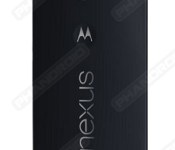
Branding is very important for carriers in the United States. They feel that putting their name and logo everywhere and anywhere will help sell the device. Among the nation’s four largest carriers, Verizon has been the worst with branding. So people are worried that the Nexus 6, when released through Verizon, will have excessive branding that takes away from the Nexus experience. Well, we have good news. Big Red will only place its logo at the bottom of the back panel on the Nexus 6.
At this time, we know nothing about the bloatware coming to Verizon’s Nexus 6. It is expected that some Verizon services such as MyVerizon and Visual Voicemail appear.
In all, it should not be too bad considering where Verizon’s branding strategy once lied with devices. Remember the Galaxy Note II? Yep, times have changed since then.
Source: Phandroid
Come comment on this article: Nexus 6 for Verizon has Big Red’s logo stamped on the rear
Nexus 6 Shows Up on Verizon’s Page Under ‘Coming Soon’
The Nexus 6 was announced to the world about four months ago, and it was told to us that it would be available for the four major carriers in the US. Of course that being said: Verizon is late to the game once again. Many Verizon users out there were probably wondering where their Nexus […]
The post Nexus 6 Shows Up on Verizon’s Page Under ‘Coming Soon’ appeared first on AndroidSPIN.

Verizon’s site now lists the Nexus 6 as “coming soon”

A recent report stated that Google’s Nexus 6 handset would make its way to Verizon sometime in February, but as of now, we still have no idea when the phablet will launch on Big Red. As the rumored mid-February release date approaches, we’re seeing signs of the smartphone pop up on Verizon’s site. As of today, the Nexus 6 is listed on Verizon’s website as “coming soon.” If you’re interested in receiving updates as to when the device will be officially available, follow the Verizon link below to sign up for updates.
The Nexus 6 was launched back in October of 2014 and has since made its way to carriers such as AT&T, T-Mobile, US Cellular, Sprint, and even to Mexico, Canada and various other countries around the world. Given the carrier’s track record with previous Nexus handsets, it should come as no surprise to anyone that Verizon would be one of the last major carriers to make the handset available.
With that said, if you can get your hands on the unlocked Nexus 6, it can be activated on Verizon’s network. However, if you’re not able to front the $649.99 price tag to Google or Motorola, the time to buy the Verizon Nexus 6 on-contract may be almost here.
Since its launch, the Nexus 6 has been extremely difficult to get a hold of. Months after multiple carriers and retailers couldn’t keep the device in stock, Google admitted to not being able to keep up with Nexus 6 supply demands.
Nexus 6 listed as ‘coming soon’ on Verizon’s website

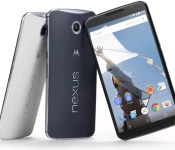
The Google Nexus 6 smartphone has been available for over two months through carriers like T-Mobile, Sprint and AT&T. However, the nation’s largest carrier, Verizon Wireless has been somewhat absent from the action. It seems like that could change over the coming weeks, with the smartphone going up on the carrier’s website with a “coming soon” sign.
Unfortunately, there’s still no word on when the smartphone will actually arrive on the carrier’s shelves. But we like to think that the day is not far away now. At this point, users can’t do much apart from signing up to receive updates on the smartphone.
The Nexus 6 is Google’s latest flagship smartphone and its arrival on Verizon will certainly be welcomed by the fans.
The device packs a 5.96 inch QHD display, a 2.7 GHz Snapdragon 805 chipset, a 13-megapixel camera with OIS, a 2-megapixel front camera, 3GB of RAM, 32 or 64GB of internal storage, Android 5.0 Lollipop with the promise of latest updates and a 3,220 mAh battery.
Source: Verizon
Via: Droid Life
Come comment on this article: Nexus 6 listed as ‘coming soon’ on Verizon’s website
 AIVAnet