


Nokia shows off ‘MD-12’ Bluetooth speaker to match its new smartphones

It’s not all fun phones and games at Nokia’s Build shindig here in San Francisco. In addition to giving us a closer look at the new Lumia 930, 630 and 635, the company is showing off a Bluetooth speaker to accompany them. The MD-12 (even Stephen Elop seemed embarrassed by the name) is available in the same cheerful color palette as the new handsets, including a bright orange hue. On the audio front, this is really just a companion device, but Nokia is claiming the bass is still better than you’d expect on a device like this. As for size, it’s especially compact — this thing is about the size of a hockey puck, making it even smaller than, say, the Mini Jambox. That said, there appears to still be a robust battery inside: Nokia is claiming 15 hours of audio playback, compared with 10 hours for the Mini Jambox. No word on when, exactly, it will go on sale, but Elop himself said it will cost $55.
Filed under: Peripherals, Microsoft, Nokia
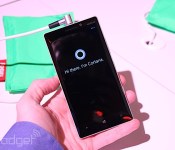
The Nokia Lumia 930 is a global version of the Icon (hands-on)

The Nokia Lumia Icon is a fantastic Windows Phone that comes with a bunch of top features that most Windows Phone users haven’t been able to enjoy until recently, but it had one critical flaw: it was an exclusive to Verizon, which meant that only a handful of users in the US could buy it. For the rest of the world, the only way to get a top-of-the-line Windows Phone (in nearly every spec, that is) has been to buy the Lumia 1520, but its large 6-inch display — though beautiful at 1080p — simply made it too big for a lot of people. Fortunately, that’s about to end because Nokia announced a global version of the Icon known as the Lumia 930.
Interestingly enough, there’s not much of a difference between the two devices. This actually is a bit surprising, considering Verizon has historically landed design exclusives with Nokia like the Lumia 822 and 928. The resemblance is definitely striking, with the only major hardware changes manifest in the presence of GSM bands instead of CDMA and the additional colors that Nokia will offer.
Unlike the Icon, Stephen Elop mentioned that we likely won’t be seeing the 930 in the US — at least, not on a carrier, and not anytime soon. Still, this will be an ideal Windows Phone for many folks in other corners of the globe; it comes with pentaband LTE (bands 1, 3, 7, 8 and 20), quad-band HSPA+ (up to 42.2Mbps) and quad-band GSM/EDGE, so you should be able to get solid speeds nearly anywhere you go, even if you’re not getting LTE in your neck of the woods.
The 930 will come in four color options: white, black, bright orange and bright green. Just like on the Icon, these colors are mainly reflected as part of the polycarbonate panel on the back, and aren’t swappable like the covers on the 630 and 635, also announced earlier today.
Ultimately, Nokia’s latest high-end device takes the Lumia Icon and resolves a lot of our primary concerns with it: it now has global LTE and HSPA+ for international users around the world, it comes in more colors and isn’t limited to just one specific carrier. And if the 5-inch 1080p display and Snapdragon 800 processor fit the bill, you’ll want to keep your eyes peeled for it starting in June for around $599 (though price may vary on market and operator).
We’ll have a video and a bunch more images ready for you shortly, but here are a few to get you started.
Filed under: Cellphones, Wireless, Mobile, Microsoft, Nokia
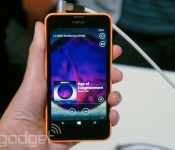
Nokia Lumia 630 and 635 bring Windows Phone 8.1 to budget seekers (hands-on)

Nokia may not be an official part of Microsoft yet — that should finally happen later this month, if you ask either company — but that doesn’t stop the phone maker from cranking out more devices at the software giant’s developer conference. This morning at Build, Stephen Elop announced three new Lumia devices, although two of them are about as close to twins as you can possibly get: the Lumia 630, which is a 3G device that comes in single and dual-SIM flavors, and the 635, which adds LTE. Both are sub-$200 smartphones aimed squarely at both emerging markets and anyone else who just wants a Windows Phone 8.1 device without spending a lot of money in the process.
At 4.5 inches, the pair of devices hit a sweet spot in display size, but its 854×480 FWVGA resolution isn’t going to bedazzle. It’s an inexpensive phone, however, so it’s not horrible given what you’re paying for. The handsets aren’t necessarily designed from a premium perspective, but just like the 620 and 625 before them, these phones are colorful and offer interchangeable shells, which make them a lot more personable and customizable. In addition to the standard black and white hues, you’ll be able to choose from green, orange and yellow (all bright).
When we played with the new devices, we saw two different types of covers. One of the options is matte, while the other is a two-toned option that is essentially an inverted version of the Lumia 620′s cover. They’re easy to swap and they add an element of fun to the phones. It’s 9.2mm thick and has blunt edges that slant slightly, and this actually works in the handset’s favor — sure, it’s not the thinnest device on the market, but it’s very comfortable and easy to hold.
Thanks to this morning’s update to Windows Phone, the Lumia 630 comes with a whole bunch of firsts for a Windows Phone: the inaugural dual-SIM device, the first we’ve seen with virtual soft keys and the first without a physical shutter button on the right-hand side. If you’re going to be using the 5MP rear camera on a regular basis, you’ll at least be able to add the camera into the action center as a quick access shortcut. You’ll also be able to take advantage of Cortana, the new virtual assistant on Windows Phone 8.1.
It comes with a Snapdragon 400 chipset and a mere 512MB of RAM, which means it doesn’t have that much extra horsepower. Fortunately, we were pleasantly surprised in our first impressions; when we played with the 630, it felt a lot snappier than we originally expected. Of course, we’ll have to see if that translates into regular real-world use in our full review when the time comes, but at least for now we’ll take this as a good sign.
When the devices come to market in May, the single-SIM 630 will be $159, while you’ll be able to get the dual-SIM variant for $169 and the Lumia 635 for $189. This may not be quite as inexpensive as the tremendously successful Lumia 520, but we’d be very surprised if we don’t see a Lumia 530 or similar with Windows Phone 8.1 sometime in the near future.
Dana Wollman contributed to this report.
Filed under: Cellphones, Mobile, Microsoft, Nokia
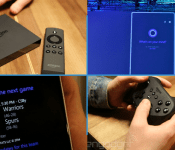
Daily Roundup: Amazon Fire TV, Microsoft announces Windows Phone 8.1 and more!

You might say the day is never really done in consumer technology news. Your workday, however, hopefully draws to a close at some point. This is the Daily Roundup on Engadget, a quick peek back at the top headlines for the past 24 hours — all handpicked by the editors here at the site. Click on through the break, and enjoy.

Amazon’s Fire TV promises a premium set-top experience
What you’re looking at is Amazon’s new Fire TV set-top box. Above all, this tiny, $99 media streamer is lightning fast thanks to its “ASAP” technology, which preloads content based upon your location in the UI. But this little black box isn’t just for TV, it plays games too.

Windows Phone 8.1 and Cortana officially revealed at Build 2014
Windows Phone 8.1 has finally arrived! Today at Build 2014, Microsoft unveiled the latest version of its mobile OS, featuring a brand new notification center (“Action Center”) and the anticipated Cortana digital assistant.

Microsoft unveils Cortana, its answer to Siri and Google Now
Earlier today, Microsoft announced Cortana, its new, Bing-powered digital assistant for Windows Phone 8.1. The search tool currently exists as a beta, but 8.1 users can access it via its own special Live Tile. What’s more, Microsoft opened the API to select developers like Hulu and Facebook.

Fire TV ‘isn’t trying’ to be a game console, but is Amazon’s first real investment in gaming
Is the Fire TV simply a gaming-capable media streamer, or vice versa? Well, we spoke with Amazon VP Pete Larsen and he assured us that the Fire TV “isn’t trying to be a game console.” Regardless of the company’s “create-a-market” approach with The set-top box, Amazon has indeed invested in the world of video games.
You also might like:
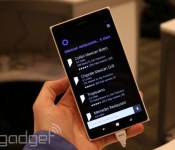
Having a chat with Cortana, Windows Phone’s new personal assistant

Anyone who’s played Halo, the iconic first-person shooter based 500 years in the future, knows where Microsoft came up with the name of Cortana, its new voice recognition program on Windows Phone 8.1. Master Chief might be the star of the video game series, but Cortana is the heroic digital sidekick that saves his behind in almost every level. Granted, the Windows Phone version may not help you explore an alien planet or teach you how to defeat the bad guys, but it’s still capable of some great stuff.
Just press the search button on the bottom of every Windows Phone device (as long as it uses 8.1, of course) and Cortana pops up, ready to listen and obey your commands. What kinds of things can she do? You can tell her to call someone, send a text, set reminders, take notes and hook you up with all sorts of information that you might need throughout the course of any given day. And since it’s powered by Bing, the engine working behind the scenes has a solid amount of oomph.
At present time, there’s one major catch to the feature, which is currently in beta status: while Cortana is quite functional, the only way to activate the service is to physically press a button on the screen. We’re told that always-listening capabilities (as seen on devices like the Moto X) are in the works and hopefully can be incorporated at some point down the road, but for right now that remains a significant limitation to the service.
We hope to get more personal time with Cortana in the coming weeks as new Windows Phone 8.1 devices come out, but we at least got a few minutes to play around with the service. It’ll start out in beta mode, which means that Microsoft still has some work to do before it’s a completely solid and reliable feature. In its early stages, interacting with Cortana was still an enjoyable experience, although there were a few instances in which we had to repeat (or rephrase) our request in order for the system to recognize what we were asking. For instance, Cortana interpreted “find me a…” as “find Mia,” and attempted to find a contact in the People Hub under that name. Still, we were also in a crowded room with a lot of voices nearby, so we have a feeling that it performs more reliably in quieter environments.
Regardless, we’re pretty happy with what Cortana is capable of. When you first try to set up the service, you’ll be prompted to answer a few questions about yourself, so Cortana can become better acquainted with your preferences. You can assign nicknames to yourself and other contacts, and it uses its own “virtual notebook” to remember what you’ve done in the past. The service can parse email and detect that you have a flight booked — and then it will ask you if you want her to track that flight. Indeed, Microsoft is taking a more personal (as in, personal assistant) approach to Google Now.
Additionally, Cortana will learn your voice and your preferences as time goes by, so in theory the service should get even more accurate and reliable the more you use it. And since developers have access to Microsoft’s speech API, third-party apps can be a part of the fun; because of this, you’ll be able to pull up your contacts’ Facebook pages, send out tweets, add shows to your Hulu Plus queue and do plenty more. Finally, Windows Phone 8.1 now features geofencing, which means you can tell Cortana to remind you to pick up groceries when you pass by the store of your choice.
Even though it’s not completely perfect yet, Cortana’s off to a pretty good start. There’s a lot of room for improvement, of course, but we’re excited by what Microsoft has been brewing up for the past two years. And who knows — perhaps in a few years the actual Cortana herself will pop up as a hologram to the delight of video game fans everywhere, but we might be getting ahead of ourselves.
Filed under: Cellphones, Wireless, Mobile, Microsoft
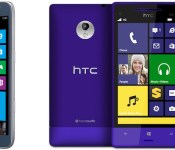
Sprint will roll out Windows Phone 8.1 upgrades this summer

Windows Phone fans on Sprint don’t have to worry about when they’ll get the 8.1 update on their devices. The carrier tells Engadget that both the HTC 8XT and Samsung’s ATIV S Neo are getting 8.1 sometime this summer; more details should come closer to the rollout. That’s later than when we’ll see the OS preloaded on brand new devices, but it’s good news for those who are still happy with both Microsoft’s mobile platform and Big Yellow’s network.
Filed under: Cellphones, Mobile, Samsung, Microsoft, HTC, Sprint
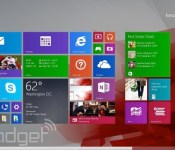
Windows 8.1 update aims to win over mouse-and-keyboard users, arrives April 8th as an automatic download

The whole point of Windows 8 was to make Microsoft’s aging OS easier to use on touchscreen devices. Mission accomplished, we’d say (more or less). But now the folks in Redmond have a new challenge afoot: Make Windows 8 equally easy to use on tablets and traditional PCs. The company’s already made some progress — last year’s Windows 8.1 update was all about keyboard shortcuts, better multitasking and the return of the Start button (sort of). Now, with its latest update, Microsoft is going after mouse-and-keyboard users. In particular, you can pin Windows Store apps to the desktop Taskbar, and close out of a Metro app by pressing an “X” in the upper-right corner. Heck, you can even shut down without having to open the Charms Bar. Shocking, we know.
It’s all very exciting, and indeed, you can see for yourselves soon enough; the update will arrive as a Windows Update download on April 8th, which means most folks will simply install it automatically. In the meantime, we’ve got a full primer after the break, along with a healthy dose of screenshots (we know you love your screenshots).
Desktop

Since this update is aimed mostly at keyboard-and-mouse users, let’s start where those folks are likely to spend a lot of their time: the desktop. For starters, depending on what kind of machine you have, the PC manufacturer might program it to boot into the desktop by default. Of course, that was already an option in Windows 8.1; the difference is that if you buy, say, a mouse-and-keyboard machine, like a clamshell laptop, the OEM can make that the default so that you never even have to bother with the settings. And yes, if you’d rather go straight into the modern Start Screen, you can do that too by unchecking a box in Taskbar settings.
Speaking of the Taskbar, the rumors were true: You can now pin Windows Store apps to the bottom of the screen, along with traditional legacy programs. In particular, the Windows Store shortcut will come pinned by default on every Windows machine, though you can, of course, remove it if you’re so inclined. As for everything else, you’ll have to pin those programs manually. In fact, the default setting is not to show Windows Store apps on the Taskbar at all, which means another visit to the Taskbar settings is in order.
Start Screen and Windows Store apps

It’s not just Windows Store apps making a cameo on the desktop — the Start Screen has meanwhile gotten more mouse-friendly. Most exciting of all, perhaps, are those new power and search buttons you can see in the upper-right corner. That’s right, you no longer have to expose the Charms Bar to power down or restart your machine (search is a bit different, because all you ever had to do to bring up search results was start typing). What’s interesting is that if you’re using a touch-first device like a tablet, the power button won’t be there; just the search icon. The reason: Users are apparently used to shutting down their mobile devices by holding down a physical power button, but with laptops they still expect a soft key. We won’t argue with that.
But wait, here comes another revelation: right-clicking. Now, if you right-click on something like a Live Tile, you’ll see a pop-up menu right there, where your cursor is. That way, you don’t have to bring your mouse to the bottom of the screen, where the menu options would normally show up. Forgive us if we sound sarcastic here — we really don’t mean to — but there just isn’t much to say about this. It’s a welcome change, but also something that probably should have been part of Windows to begin with. Additionally — and this feels like a small change — anytime you install a new app you’ll see an arrow at the bottom of the Start Screen with a message that says something like, “12 new apps installed.” See? Fairly minor change. But it makes sense.

Meanwhile, inside the Windows Store apps themselves, navigation will feel a little more similar to using Windows on the desktop. In particular, if you hover at the top of the screen, you’ll bring up the Title Bar, showing the name of the app, with an options menu on the left, and an “X” on the right to close out. And when you’re inside an app, you can also bring up the Taskbar on the bottom of the screen. Again, the desktop making a cameo where you previously wouldn’t have expected it.
Throughout, too, Microsoft has fine-tuned Windows so that all of the existing mouse gestures are more precise. For instance, in earlier builds of Win 8, it was perhaps too easy to move your cursor into the upper-left corner and accidentally pull up a list of open apps (remember that the back button in IE is located in the same corner, which makes it a tough spot to avoid). Now, following this latest update, mousework in Windows feels more… controlled. So, if you want to see that list of open apps, you can still poke around in the upper-left corner, but you’ll really have to push your mouse in there; you’re less likely to pull up the list by mistake. Ditto for bringing up the Charms Bar on the right, or menu settings on the bottom of the screen; they’re the same gestures, just with a little less sensitivity.
Performance enhancements

In addition to all the fun stuff (read: features we can capture in screenshots), Microsoft also made a bunch of under-the-hood tweaks that should improve performance, regardless of what kind of device you’re using. First off, Microsoft will be shipping its operating system to manufacturers as a compressed image, so that it takes up less space than it would have otherwise.
Additionally, the so-called Process Lifetime Manager in Windows more aggressively suspends apps to reclaim memory. The keyword there, of course, is “suspend,” as opposed to “terminate,” which means although the OS should now be more memory-efficient, apps should still open quickly the next time you use them. Think of it as a deeper sleep state for apps, similar to what laptop makers have already achieved for Ultrabooks. Finally, Microsoft improved compatibility with IE, a tweak that should be especially good news for enterprise folks using Internet Explorer on Windows 7.
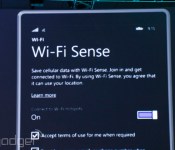
Windows Phone 8.1 will automatically sign in to trustworthy WiFi

Tired of having to slog through web portals on your Windows Phone just to sign on to a coffee shop’s WiFi? That won’t be a problem once Windows Phone 8.1 arrives. Its Wi-Fi Sense feature can automatically accept the terms of use for networks that are both free and trustworthy, getting you online much faster than usual. You also won’t have to verbally share login details for your own WiFi network. You can securely share your router’s password with contacts in Facebook, Outlook.com and Skype, giving friends an internet connection (but not full network access) without setting up a guest mode. If you’re the sort who sometimes avoids WiFi because of the hassles involved, you may want to give Microsoft’s mobile OS a closer look.
Filed under: Cellphones, Networking, Mobile, Microsoft
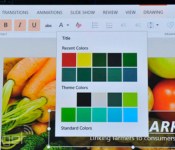
Here’s what a touch-native Office for Windows looks like in action

You didn’t think Microsoft was going to launch Office for iPad without a Windows counterpart waiting in the wings, did you? Sure enough, Microsoft has just shown off its long-expected touch-native Office for Windows in beta form. The software shares a few interface elements in common with the iPad release, but not much — this is clearly built for Windows tablets, with a more traditional layout that expands objects to make them finger-friendly. There will be plenty of gesture support, though. You can circle an item with your finger to highlight it, and you can pinch and swipe to get around much of the productivity suite. Unfortunately, the folks in Redmond aren’t saying when this touch-ready Office will ship. The demo is just a preview of what to expect, so it could be a while before you’re using the software yourself.
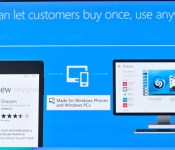
Microsoft pushes universal apps that run on everything Windows

Crafting a seriously great app experience for one device is hard enough, but these days developers have plenty of form factors to tackle. Microsoft is trying to ease their suffering a bit with the introduction of universal Windows apps, which just took that the stage the company’s Build conference in San Francisco. Long story short, you’d theoretically only really have to write an app in Visual Studio once. Most of the code (in the language of your choosing, Microsoft insists) remains the same, but that universal app will take on a different appearance depending on what device it’s running on. Well, if you want it to, anyway. Naturally, developers can fine-tune the finished product too, so the experience of using the app on Windows Phone feels as polished as it does on a PC. You’d be forgiven for thinking this is a bit on the dry side, but this is a big deal — Microsoft is trying to break down the app barrier so devs can make more consistently good apps for us faster.
 AIVAnet