


Goldman Sachs wants Google to ‘unsend’ email, seeks court order

Everyone makes mistakes… just some of them are a little more costly than others. A Goldman Sachs employee made a rather serious error when instead of sending a message to a gs.com email address, it went to a stranger with a Gmail account. That might sound innocent enough, except this email happened to contain the confidential data of a client. Google has blocked access to the message at the request of Goldman, so the user in question has not been able to read it, but the financial firm wants the internet giant to go one step further and actually delete the email. And that’s where the two companies find themselves — at a legal stalemate.
Google says it can’t and won’t delete a message from a user’s account without their consent, unless compelled to by a court order. So Goldman has filed a complaint in a New York state court seeking just that. Goldman and its clients understandably want to avoid the email becoming public knowledge. The company stands to lose not only money, but it could also suffer damage to its reputation. (Though, it’s arguable that there isn’t much of a reputation to salvage at this point.) On the other hand, if Google were to simply delete a random user’s email because a message was sent on accident it could set a troublesome precedent. While “unsending” an email would still involve jumping through serious hoops, accepting a mistake as reason enough to delete a message from a user’s account would set an extremely low legal bar.
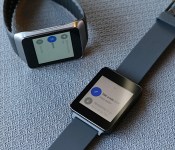
Android Wear review: Taking smartwatches in the right direction

When I was a tiny tot, I watched Knight Rider and pretended I was Michael Knight, talking to KITT on my watch. Yet now that there are real-life watches that can do even more things, I don’t find myself quite as excited as my 5-year-old self was. Smartwatches have been around for over a decade already (remember Microsoft SPOT?), but the category hasn’t evolved at the same pace as smartphones. It’s not because there’s a shortage of digital wrist-worn timepieces. The problem is that there’s no common platform for third-party apps, which means there’s little potential for growth.
There also doesn’t seem to be any vision. Some watches act as Android phones with SIM cards and tiny touchscreens, while others try to establish their own platform to entice developers. Still others have even tried to put fitness bands and smartwatches into one device, to limited success. Even worse, most of the watches on the market today are what you might call “fashionably challenged” — they simply aren’t attractive enough to entice the masses. Google’s solution is to extend its Android platform — which has very strong market share and developer support — to the wearables genre with Android Wear.
Why Android Wear?
Manufacturers don’t have to waste precious resources on developing a watch ecosystem from scratch. Android Wear provides a low-cost launchpad for more companies to come out with a smartwatch of their own. Take Fossil: It has little to no experience developing software, so the introduction of Wear opens up more doors for the company to produce fashionable smartwatches without pouring quite so much money into R&D. Meanwhile, other manufacturers are reportedly attacking the lower end of the market with cheap Android Wear watches.
In any case, that’s precisely what Wear promises: a wide variety of options in price, form and (we hope) fashion sense. But flooding the market won’t magically make smartwatches a success. So what will? They have to look good and make life easier.
Functionality

Android Wear wasn’t designed to replace your smartphone; it’s just meant to reduce the number of times you have to pull out your phone. With Wear, you can change your music, send and view emails and texts, dictate notes and reminders, answer or reject calls, keep track of a few fitness stats, look at your calendar appointments and ask a number of different questions.
Wear isn’t meant to replace your smartphone.
Wear treats your watch as a wrist-worn version of your phone’s notification bar. By scrolling down through the various cards displayed on my watch, I can see my most recent emails, Facebook messages, Google+ alerts, missed calls, number of steps I’ve taken today and how much time it’ll take me to commute home. Swiping to the left of these cards reveals actionable items (replying to emails, marking a text as read, looking at my fitness history and so on), while swiping to the right allows you to dismiss the notification entirely.

The watches also use Google Now. Cards will pop up with information about stocks, time to my next destination, a friend’s birthday, upcoming hotel reservations and when I need to leave for my upcoming flight. It’ll even show me my boarding pass. (This is through Google Now, but Delta and American Airlines just came out with apps that do the same thing.) The latter case is actually one of the best arguments I’ve heard yet for Android Wear — it’s easier to scan a boarding pass on your watch if your hands are full with luggage and you don’t want to take out your phone.

Wear also has voice search and Knowledge Graph access built in. Saying, “OK Google,” will prompt me to make a voice command. I can ask it to do a variety of tasks — send messages, set alarms and timers, show how many steps I’ve taken, pull up my calendar agenda for any given date, navigate a route and so on. I can also ask Wear random questions: When is the next Giants game? How tall is Mark Wahlberg? When was Chris Rock born? What’s the tallest building in the world? Essentially, this is all the same type of stuff you can do with Google Now on the phone; it’s just now accessible hands-free on your watch. If it can’t find the answer, it’ll pull up the top three search results for you to look up on your phone. Not quite as handy, but I suppose it’s better than nothing.
If a third-party app uses notifications, it’s technically going to show up on Wear, but its functionality will be limited unless the developer puts in some extra effort. The number of potential use cases will expand over time as more developers come out with apps of their own. Indeed, that’s one of the most exciting parts of the platform: It’s very basic at the moment, but its usefulness will grow as developer interest increases.
Even so, there are already some clever things you can do with Android Wear. You can check your finances, share your location with a friend through Glympse, take and read notes via Evernote, respond to tweet mentions with Tweetings, browse through a recipe on Allthecooks, activate your Phillips Hue light setup and get updated on the latest World Cup scores. I’ll stop there, but you get the point: These are just a few examples from the first wave of Wear-ready apps.

The number of Wear apps is steadily growing (you can find a comprehensive list here), but one of my favorites is Lyft. I told my watch to “call a cab” and it not only requested a driver for me, it also added a card that told me the driver’s name and estimated time of arrival, and gave me the option to tell the driver my destination before she picked me up. After the ride was over, I got a card showing me how much it cost and asking me to rate my driver.
Fortunately, fragmentation shouldn’t be as huge an issue with Wear as it’s been on smartphones. Excepting some manufacturer-specific clock faces, Google won’t allow the use of custom skins or user interfaces. If a company wants to build a Wear watch, it’ll need to follow Google’s rules. In theory, this should reduce the number of obstacles when pushing updates to the watch (which can be done in the About screen deep in the settings menu), and it’ll make for a consistent user experience across the board. It’s ironic, then, that Wear’s reach is limited because of fragmentation — the system is only compatible with devices running Android 4.3 or higher, which means 76 percent of current Android users won’t even be able to use Wear.
User experience

So far, we’ve seen Wear watches that are square (think: the LG G Watch and Samsung Gear Live) or circular (like the Moto 360, seen above). This is really a matter of personal preference; the user experience is the same either way. Since most watches will have small screens, Google knows it doesn’t have a lot of real estate to work with; thus, it’s tried to make the user interface as simple as possible. That’s why there’s typically only one card per screen, and when you swipe to the left, you’re only presented with one option per screen. Easy enough, right?
As minimal as the UI might be, it’s hard to come up with an intuitive user experience on a touchscreen watch, and Wear doesn’t do much to address that. There’s a significant learning curve, and even though there’s a tutorial the first time you use it, it’ll take a while to get accustomed to the layout. The use of voice commands is a massive improvement for the smartwatch experience because it reduces the amount of times you need to touch it, but it’s still impossible to get around your watch without doing a lot of swiping.
It’s hard to come up with an intuitive user experience on a touchscreen watch, and Wear doesn’t do much to address that.
Before anything else, you need to know this: You turn on the Wear screen by lifting up your arm. The watch interprets this act as a sure sign that you’re ready to look at something. (The Wear display is always on by default, which means you can look at the time whenever you want without activating voice commands by accident.) As you’d expect, you’re presented with a clock face. There are currently about a dozen faces to choose from; just long-press the face to look at all of your options.
You’ll first be greeted by the Context Stream. This is your vertical-scrolling list of notification cards. You can’t change the order in which these cards appear, and it seems as though many of them get put in a random order each time you scroll through the list. Cards that appeared near the top of the list would often sink farther down the next time I checked my watch, even though no new notifications had popped up.

If a notification has more information than a single card can manage, its corresponding card can be expanded. You’ll have to be careful with long emails — touch the card to expand it and you’ll find yourself scrolling down for an eternity before you get to the next card. (This is one of those times in which it’s just easier to whip out your phone and read it on the larger screen.) Some apps, such as Gmail and Calendar, will stack cards on top of each other; if you have six events coming up, Wear will show you the first and then feature a small button underneath that indicates you have five more. Touch this button and you’ll see all six events laid out vertically. If you need to take action on one of them, you’ll have to tap the individual event again before scrolling. You can’t swipe to dismiss individual events, however — just as on your phone, one swipe will dismiss all notifications for that particular app.
Saying, “OK Google,” or tapping the open space at the top of the Context Stream will prompt you to give a voice command. I explained earlier this feature can do, but if you need help figuring out what to say in the heat of the moment, there’s a handy set of examples in a scrollable list. (And yes, scrolling defeats the purpose of being hands-free, but your reliance on this cheat sheet will decrease as you get used to Wear.) You can even tap on each example and Wear will ask follow-up questions; for instance, if you tap the option to send a text, it’ll ask you to whom you want to send it and what you want to say.
Oddly, apps and settings are hidden away at the very bottom of this list. If Google is trying to encourage developers to create apps for Wear, it sure has a weird way of expressing its gratitude. Granted, a lot of apps don’t do much when you access them this way, but it’s still confusing at first; if you’re looking for a specific app, you’re better off searching for it with voice commands (e.g., “open Evernote”).
If you rely heavily on your phone for notifications, be prepared for some good and bad news. The good news is that you have access to all of those notifications on your wrist, so you don’t have to take your phone out. The bad news is that while you can filter out certain apps from sending you notifications (bye-bye, Candy Crush Saga invites), you can’t pick and choose which notifications you receive from within a particular app — in other words, the watch can’t decide which emails make it to your watch and which ones don’t, so you have to see all of them.
When I pull down from the top of the screen, I see a shade with battery percentage and today’s date; I can also mute my notifications if I continue pulling. This is handy when I don’t want to be distracted or am trying to sleep, but I wish Wear offered quiet hours during which it would automatically turn off notifications when I go to bed. (That’s if my battery lasts through the day and night, which wasn’t always the case with the early Wear watches I’ve played with.)
The Samsung Gear Live comes with a button on the side that lets you turn the display off, but covering the screen with your palm will do the same thing on every Wear device.
Companion app

To pair the watch with your phone, you’ll need to download the Wear companion app through the Play Store. It’s essential for setting up your watch, but you’ll find little use for it otherwise. The main screen shows a link to Wear-compatible apps in the Play Store and a list of eight voice actions. You can choose which app to use for each particular command, which will come in handy as more apps start showing up. So, let’s say Uber adds the same ability to call a car as Lyft does, and I want to use that service instead; I’d have to select the “call a car” voice action and choose Uber from the list of possible apps, so that Wear doesn’t keep defaulting to Lyft.
The companion app also has a list of settings tucked in the top-right section of the app. You can mute specific apps, as mentioned earlier; turn off the always-on display; silence notifications on your phone when the Wear is connected (why get vibrations on your wrist and in your pocket?); show calendar events; and keep the top card from showing up when your display is dimmed. Finally, you can use the app to pair a different Wear watch if necessary.
The app doesn’t have an option to manage watch apps, which seems odd since there isn’t a way to do this on the watch either. Perhaps it’s because Wear-compatible apps automatically get installed on your watch once you’ve downloaded them onto your phone. This seems like an oversight. There may be certain apps that you barely use on your handset and have no interest in using on your watch; why not give users the option to get rid of the unnecessary clutter?
Challenges

Essentially, Wear is a version 1.0 product, which means there’s still a lot of work to be done. It’s been a good experience thus far, but there are plenty of ways that Wear simply doesn’t fit the bill, and you’ll need to be aware of them if you’re going to plunk down $200-plus for a smartwatch.
First, there’s the excessive touching. If users have to go through the effort of tapping or swiping the screen on a regular basis, there’s little incentive to use the watch instead of simply pulling out a phone. Most activities on Wear eventually point back to your handset anyway: Nearly every card in the Context Stream (excepting the step tracker) has an option to open on your phone, as if it’s somehow faster to swipe down to the card, swipe across to that button, tap on it and then pull out your phone to access it. If you’re going to use your phone, you might as well just whip it out from the start. What’s more, if you give a voice command that isn’t included in the supported list, or if you ask a question that can’t be found in the Knowledge Graph, the watch provides you with a series of three cards, each one representing a different website that — shocker — you can tap and open up directly on your phone. Congratulations, you just wasted a minute by using your watch.
If you’re going to use your phone, you might as well just whip it out from the start.
I’ll discuss this more in the next section, but battery life is a big challenge here. There’s a huge amount of computing and processing going on behind the scenes, on a colorful, capacitive touchscreen that by default doesn’t turn off. Throw in voice commands, keyword detection and a tiny battery, and it makes sense: Of course the battery life is going to suffer. The problem is, users aren’t going to want to plug in their watch as often as their phone. Until Google can find a way to extend the battery life by a few days, Android Wear will struggle to be anything more than a niche product.

Navigation is also an issue. Google Maps is technically compatible with Wear, but it only shows one step at a time. Given that card-stacking is an option on other apps, it’d make sense to use this style to display upcoming steps along your route so you could plan ahead. Swipe to the left to reveal a high-level map of the entire route that’s void of any useful details; my brain comprehends visual maps more quickly than text, so I’d find this screen more useful if I could zoom in closer.
Additionally, voice commands for navigation will automatically default to driving directions. You can specify if you want biking or walking. Oddly, if the phone can’t find a route, it doesn’t bother telling the watch — you simply get taken back to your clock face as if nothing even happened. And when I asked Wear for walking directions from my office to the Golden Gate Bridge, it presented me with a card with Google search results for three unrelated websites. (OurSausalito.com? Really?) Unfortunately, transit directions aren’t supported either.
I’ve already mentioned the problem of excess notifications. The longer my Context Stream, the more inconvenient the watch experience becomes. Not only am I wasting time with countless swipes, but my anxiety increases when my wrist is vibrating a hundred times a day (this is actually a low estimate for me). There’s no VIP list and no way to block out unimportant emails. It’s possible to mute specific apps, but that’s of little help when you’re getting a flood of messages that don’t require your immediate attention. At least when you do dismiss a notification, it disappears from both the watch and the phone.
Hardware: Samsung Gear Live and LG G Watch

LG and Samsung are the first companies to produce Wear watches, and both are available in the Play Store (LG’s G Watch is $229 and Samsung’s Gear Live is $199). A third watch, the Moto 360, was shown off at Google I/O last week and will be released later this summer. I’ll touch briefly on the G Watch and Gear Live; since Google won’t allow custom firmware or user interfaces, you’ll essentially get the same Wear experience on both watches.
When it comes to firmware, the only differences you’ll see between the two are in the clock faces. That said, Samsung’s found a loophole by adding its own stopwatch and compass, so you can choose to use either those or the stock versions. In any case, those are minor alterations, so the important points of differentiation are in the hardware, with each offering a unique personality.
The Gear Live is definitely your best looking option. At least, until the Moto 360 comes out.
Which one is better? Suffice to say, the two watches each have trade-offs you’ll need to weigh, but the Gear Live is definitely the best looking (at least, until the Moto 360 comes out). Their internals are similar too:
| Samsung Gear Live | LG G Watch | |
|---|---|---|
| Display | 1.63-inch sAMOLED, 320×320 pixels | 1.65-inch IPS LCD, 280×280 |
| Battery | 300mAh | 400mAh |
| Processor/RAM | 1.2GHz dual-core Snapdragon 400; 512MB RAM | 1.2GHz dual-core Snapdragon 400, 512MB RAM |
| Water resistance | Yes, IP67-certified | Yes, IP67-certified |
| Dimensions | 37.9 x 56.4 x 8.9mm, 59g | 37.9 x 46.5 x 9.95mm, 63g |
| Storage | 4GB internal storage | 4GB internal storage |
Both have the same dual-core 1.2GHz Snapdragon 400 processor, 512MB of RAM and 4GB internal storage. They each offer interchangeable wrist straps — I especially appreciate this on the Gear Live — and both feature a square shape. They’re also IP67-certified, which means they have the same water and dust resistance as the Samsung Galaxy S5. I wouldn’t take either one scuba diving, but you’ll be fine wearing them while washing dishes or taking a shower.
Because both watches have the same engine underneath the hood, I didn’t notice any difference in performance. They both smoothly, with only the occasional frame skip. In my comparisons, apps loaded in the same amount of time, and each one processed voice commands quickly.
I’ve already alluded to battery issues, but let’s get specific. The Gear Live’s battery is a mere 300mAh, while the G Watch has a capacity of 400mAh. That sounds small, and it is small. I strapped both watches on my wrist and used them during a full workday. My to-do list included four navigation routes, at least a hundred emails, hailing a Lyft driver and countless voice commands. When I finally got home 12 hours later, the G Watch had 20 percent life remaining, while the Gear Live had 15. After leaving them on mute overnight — a seven-hour event — I woke up to find the G Watch at 5 percent and the Gear Live at 2 percent. All told, LG’s watch lasted around 90 minutes longer than Samsung’s. The G Watch almost made it a full 24 hours, while the Live came in at roughly 22.
On weekend days with lighter use, I was able to push the life of both watches another eight hours or so, at best. There are a few ways to extend your battery life further, but since they significantly reduce how useful the device is, it completely defeats the point of using a smartwatch. You can turn off the always-on display setting so you’re just staring at a black screen whenever the watch sits idle. You can turn down the brightness (I tested the watch at about 60 percent), limit the number of routes you navigate, mute notification-heavy apps and so on. But if you’re constantly worrying about battery life, you’re basically chained to yet another device.
Samsung Gear Live

You might confuse the Gear Live for one of its Tizen-based siblings, the Gear 2. It has a chrome band around all sides of the display, but it’s all for show; you won’t find any cameras or buttons here. There is, however, a button on the right-hand side, which powers off the active display with a quick press and brings up the settings menu when you hold it down for a few seconds. (I’d love the option to map this button to other actions.) Just like the latest Gear watches, the Live comes with a heart rate sensor on its belly, along with some pogo pins to connect a charging cradle.
It has a 1.63-inch Super AMOLED display, with a resolution of 320 x 320. Breaking out my trusty pixel-density calculator (or cheating by looking at Google’s product page), this translates to 278 ppi, which is actually good for a smartwatch. Of the two watches, the Live is easily the sharpest and most color-saturated, but it’s also a fingerprint magnet and hard to see in direct sunlight.
Because the back of the Gear Live has a slight curve on the top and bottom, it’s more comfortable to wear than the G Watch. That is, as long as you don’t count the miserable wristband that feels like you need five hands and divine intervention to snap together. It’s a mere four grams lighter than LG’s watch, but a full millimeter thinner.
The charging cradle is nothing new for Samsung, but it’s just as annoying. For a device that you’ll need to charge once a day, it’s not so easy to manage. It’s a tiny cradle that has to be fitted just right onto your watch, and then you have to make sure it’s snapped in securely before plugging the charger in.
LG G Watch

The G Watch has many redeeming qualities, but attractiveness isn’t one of them. Featuring Gorilla Glass 3, stainless steel on the sides and a polycarbonate back, it’s very solidly built, but it’s also a boring square with no stand-out features. In fact, though, this was very much done on purpose: According to LG’s design team, the G Watch is designed to help content look like it’s floating above the screen. Extra tweaks often distract from the point of the product. I get the concept, but unfortunately it also works the other way — the lack of any design whatsoever can often be just as distracting. It’s a stark contrast to the gorgeous LG G3, which successfully found the middle ground between too flashy and not flashy enough. This watch falls in the latter category, and it’s going to struggle to stand out from the Moto 360 when it launches. (Admittedly, the white option is a little more aesthetically pleasing than the black one.)
The IPS LCD screen is slightly bigger than the Gear Live — 1.65 inch versus 1.63. The difference in resolution, however, is much more noticeable. At 280 x 280, it’s easier to see pixelation without squinting. On the upside, it’s more readable in bright sunlight than the Gear Live, and the screen has brighter whites. Then again, the darks aren’t as dark as the Gear, and the colors aren’t nearly as saturated.
Like the Gear Live, the G Watch also requires a separate cradle to charge up, but LG smartly uses a magnetic base that’s much easier to attach the watch to than that of its Korean rival. The magnets do a great job of holding the watch in place.
The company’s pricing strategy is a little confusing. It’s $30 more than the Gear Live, even though it doesn’t add any features or performance benefits (aside from a meager increase in battery life). I’d be surprised if this cost doesn’t come down quickly — especially once it has even more competition from the Moto 360 — but in the meantime, LG is facing an uphill battle by selling its premier smartwatch at a higher price.
Wrap-up

Android Wear has me more excited about the future of smartwatches than any other platform or device. It’s more solid than I expected in a first-gen product, and of the options on the market, it has the most opportunity for growth. Wear enjoys a universal user experience; it’s backed by a robust operating system with tons of user and developer support; and there’s buy-in from manufacturers.
Still, there are plenty of issues that need to be fixed. Few users will be content charging their watch on a daily basis or wasting time scrolling through endless cards and unwanted notifications. A smartwatch should make life simpler, more productive and more efficient, and at the present time, it’s just as easy — if not more so — to do most things on a phone. The platform will blossom as more apps come out, but it still has a long way to go before shoppers will be willing to spend hundreds of dollars on accessories.
For now, Wear is the best OS for Android users who are in the market for a smartwatch, but since these devices aren’t necessities, they’ll need to be more stylish and add more convenience to your life if they’re going to attract the average consumer. Unfortunately, the Gear Live and G Watch just don’t have what it takes for Wear to go mainstream, although I’m holding out hope for the Moto 360.
Filed under: Wearables, Wireless, Mobile, Samsung, Google, LG
Living with Google: Google Maps

Google Maps is the go to map and navigation app for your android phone. With years of mapping experience, an ever growing library of satellite photos and new roads Google is the go to source for your navigation and location needs. Google is always making improvements to the mapping experience. With real time traffic updates, satellite, street view, and a fairly accurate navigation it’s hard to not get to where you are going. Google has also acquired Waze recently integrating their amazing and useful social mapping.
Maps has a very good sense of direction on getting you where you need to go. Just by asking your phone to navigate to anywhere, Google will quickly and accurately give you directions. Need to find a gas station, restaurant, hotel, or a host of other locations Google provides them on the map. Click on the individual location and you are provided with a quick description, a phone number, reviews, and a street view if one is available. Google uses your current location to find the things you want close to you and also provide the estimated quickest route. Most all Android devices come standard with Google Maps and your Google account is linked to it providing you with immediate access to addresses you may already have on your account such as home and work.

With navigation on Google Maps you can have turn by turn voice navigation or just have a simple map with written directions. You can also store your directions to your destination in case you lose your service while traveling. Another perk while traveling is that Google provides voice navigation to keep your eyes on the road. When you have reached you destination you are provided with a street view of the location so you can see what the building or place looks like as you arrive. Google is proficient in keeping maps accurate and up to date so there is no worrying about whether or not it will lead you where you need to go.
On a daily basis I use maps constantly with the integration of Google Now letting me know how long my travel to work or home will be and letting me know if there is a accident. If I need to find just about in anything I rely on Google maps to provide me with directions and information to where I want to go. I have never been lost where I go thanks to Google Maps and with Google’s constant vigilance in making maps more efficient and accurate it should stay that way for years to come.
LIVING WITH GOOGLE is an ongoing series of articles dedicated to highlighting the many ways in which Google can help better our lives. With innumerable apps and services to choose from, our aim is to educate readers on the ways in which we use them.
See Also:
- Living With Google: Google Now
- Living With Google: Gmail
- Living With Google: Google Music
- Living With Google: Google Drive
The post Living with Google: Google Maps appeared first on AndroidGuys.

Google will let you use Oculus and Cardboard VR headsets inside Chrome

We know how Facebook imagines it’ll work in VR, but what about the rest of the internet? Google’s Brandon Jones has announced that he’s working on a way to add virtual reality support for Oculus Rift and Cardboard into Chrome. It’s the second browser to champion WebVR, since the platform has been seeded into experimental builds of Firefox over the last week. Of course, the internet won’t be a city you can walk through, but Jones believes that 360-degree product shots and interactive exhibits should be reasonably easy to create and use. It’s still a long way away from being ready for consumers to use, but we have to admit — surfing the ‘net would be wayyy radder if it was done in Virtuality. Wait, is this 1994?
Filed under: Wearables, Internet, Google
Source: Tojicode, Vladimir VukiÄeviÄ

Google forced to ‘forget’ history of Merrill Lynch CEO’s incompetence

Welcome to the happy Google search page. Where links to historical articles can be deleted at the request of cowards people with fragile reputations. Where the former boss of Merrill Lynch, Stan O’Neal, is a fresh, dynamic and highly employable banker, rather than a disgraced executive who contributed to the sub-prime lending crisis of 2007. Where truth-telling journalists like Robert Peston wake up to find that their articles have been cast into oblivion within the EU, thanks to a blanket ruling by a bunch of clueless laywers the European Court of Justice. Where facts and opinions no longer count for anything if someone, somewhere doesn’t like them.
Via: BusinessInsider
Source: BBC News
“OK Google” hotword is now available in a bunch of new languages

Google Now is a really useful service which keeps on getting better and better. For some it is more useful than for others. Google Now launcher offers you the benefit of activating voice search on which ever home screen you’re in while the Moto X is a completely different story thanks to its custom chip and some nifty software which makes it possible for users to activate voice search even when the phone is locked.
Up until now you had to use the service in English (US or UK) in order to activate voice search, but if you update your Google Search app to version 3.5 you won’t be that limited any longer. Presuming you also have Google Services 5.0 which rolled out to Android devices recently. Google decided to include a bunch of new languages to the service, so that people would be able to activate voice search while using the service in their native language. If you’re using any of the following languages you should be able to activate the service: English (all accents), Spanish (Spain and Mexico), German, French, Italian, Russian, Portugese (Brazilian only), Korean, Japanese.
Share your thoughts once you try it out. Presuming you’re using the service in one of the listed languages (excluding English of course).
Source: Google Play Store
Via: Pocketnow
The post “OK Google” hotword is now available in a bunch of new languages appeared first on AndroidGuys.
Google Play Services 5.0 rolling out to devices worldwide

A few days ago we presented you with a way to update Google Play Services to version 5.0. This update was done manually and it worked only on certain devices. Well, this version of Google Play Services is now rolled out to devices worldwide, according to Google.
This update brings a slew of features and improvements to the service. It introduces Android wearable services APIs, Dynamic Security Provider and App Indexing. This version also includes updates for Google Play game services, Cast, Drive, Wallet, Analytics, and Mobile Ads.
You can find more information on this if you follow the source link in the end of this article or just watch the video which is embedded below.
Source: Android Developers Blog
The post Google Play Services 5.0 rolling out to devices worldwide appeared first on AndroidGuys.

Project Ara’s chief designer departs Google

Google’s Project Ara reached beta status. Those are some great news and we should see it hit the market in eight months. However there are some bad news as well. Unfortunately Project Ara’s chief designer Dan Makoski is leaving his position and Google altogether.
This information comes directly from Dan Makoski’s blog. He started his blog post with: “Starting tomorrow, there will be no more free lunches, subsidized massages, weekly company meetings, ringing colorful bicycle bells, or working with the brilliant pirates at Google’s Advanced Technology & Projects team, or ATAP.” Dan Makoski departs Google in order to join Capital One where he’ll become VP of Design. He ends his post with: “So goodbye Google. You’ve been amazing to me and continue to inspire with your openness and your moonshots.” You can read his full statement if you click on the source link below.
We have no idea if Google offered him a new contract considering his 2 years are up. This leaves Project Ara without a lead designer but despite that we have no doubts everything will go as planned and cannot wait to see those devices in action.
Source: Dan Makoski
Via: Android Police
The post Project Ara’s chief designer departs Google appeared first on AndroidGuys.
Early Android L tests show serious battery life improvement

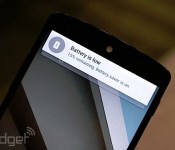
One of the big reveals for Android 4.4 KitKat’s successor, Android L, was Project Volta — new tweaks to improve battery life. Those include a new API that schedules minor tasks better, a “battery historian” to track battery-sapping activities and ART, a more efficient runtime. There’s also a “battery saver” mode that kicks in aggressively when only 15 percent of the battery remains. Now that the developer preview has been in the wild, Ars Technica has put it through its paces, along with a number of users on the XDA developer forums. The results? So far so good, with some caveats. Under tightly controlled conditions, Ars Technica managed a whopping 36 percent better battery than KitKat, without even using the battery saver mode. Many XDA users saw comparable results, though battery life was actually worse than on Android 4.4 for some. However, that was likely influenced by apps and other factors — one user noticed WhatsApp sucking 15 percent of his battery life, likely a beta bug. We’ll be running our own battery of tests, as it were, but the takeaway for now? Hey, it’s still a developer preview — but we’re optimistic.
Filed under: Cellphones, Software, Mobile, Google
Source: Ars Technica, XDA Developers
Get ready for Android Wear’s first round of apps

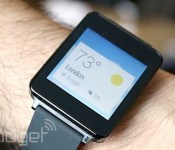
If you’ve pre-ordered an Android Wear watch and want to have everything ready for the very moment you slap that device on your wrist, Google is more than happy to help; the company has posted everything you’ll need on day one. To start, you can both grab the official Android Wear app (needed to link up) and look out for the automatic Google Play Services 5.0 upgrade that adds the underlying Wear framework. After that, you’ll want to check out Google Play’s new dedicated app section that highlights early titles with Wear support, including third-party tools like Allthecooks, Evernote and IFTTT. These apps aren’t going to make your wristwear arrive any sooner, but getting yourself ready could make the wait a little more bearable.
Filed under: Wearables, Google
Via: Android Developers (Google+), Phandroid
Source: Google Play (1), (2), Android Developers Blog

