


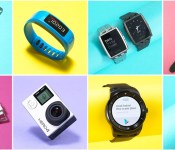
The top 10 wearables you can buy right now

This year’s CES was awash in wearables and while many of them took the form of wrist-worn fitness trackers and smartwatches, the genre has expanded beyond the basics. While some iOS users may be holding out for the Apple Watch in April, there’s still a great selection of cross-platform devices available right now. Withings’ Activité Pop has classic analog style while still tracking steps and calories burned, all with the help of an eight-month battery. LG’s G Watch R is a decent Android Wear option that offers a truly circular display, while the Moto 360 still cuts a striking figure — although neither can manage more than a single day on a charge. The Basis Peak is also a contender, with reliable sleep and fitness tracking in a water-resistant package. As for wearable cameras, GoPro remains the go-to brand in the genre and its latest series of Hero4 cams don’t disappoint. You can find our full list of picks in the buyer’s guide, but we’ve also listed them in the gallery below. Who knows? Maybe skimming through will help you burn a calorie or two.
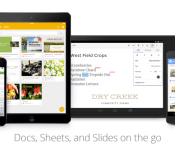
Google Docs, Sheets and Slides updated with UI improvements

Google has released an update for its full suite of Google Drive companion apps by way of the Play Store. This upgrade brings a few minor additions, which are purely designed to enhance the overall user experience, to the Docs, Sheets and Slides applications.
Docs now has support for selecting, cutting, copying and pasting text along with images, tables, and charts in Office Compatibility Mode, as well as the ability to insert links in Google documents.
The action bar has now switched places with the toggle between list/grid view button for Docs, Sheets and Slides, and an “Open Saved Document” button has been added in place of the standard switch.
All pretty trivial stuff, but very welcomed changes. Hit the links below to download and install the update.
Download: Docs
Download: Sheets
Download: Slides
Come comment on this article: Google Docs, Sheets and Slides updated with UI improvements
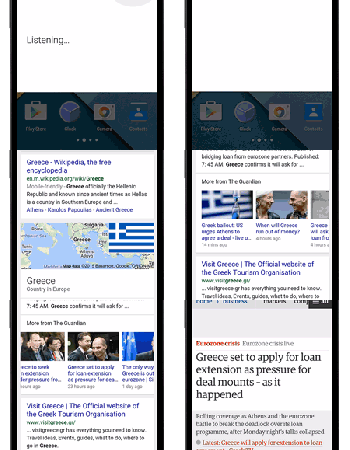
Google Search “carousel” highlights the most recent news
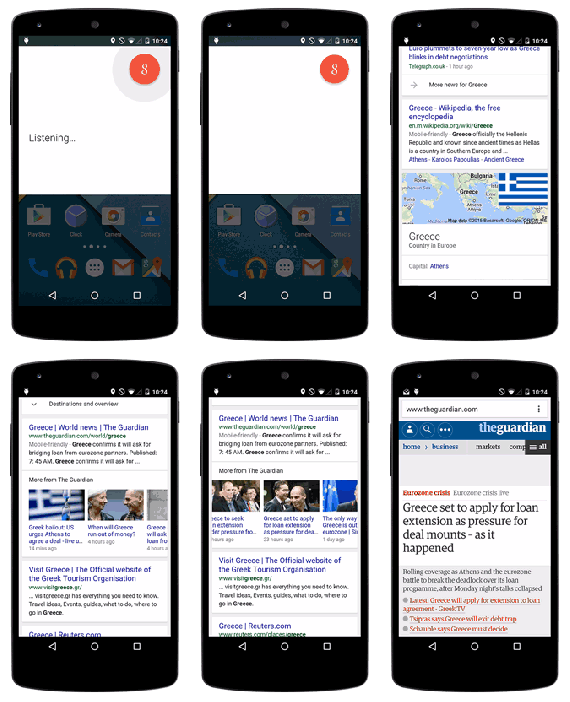
Today, Google is pushing out a new update to its mobile search platform, designed to group a publication’s most recent content on your topic of choice together into a single, easy to peruse list.
If you query a particular topic, news item, or even a sports team, Google Search for mobile will now display a “carousel” of recent articles and videos on the subject, exactly like in the GIF at the top of this page. However, Google only appears to pick from a single source for each search result, so you won’t necessarily find all of the content that you’re after located in the carousel.
The feature doesn’t apply to all websites either, so you might not see a full selection of results appear for all your usual sites. Google plans to bring the new search feature to additional websites in the near future.
Google has already brought a couple of other features to its mobile search platform this year, including information regarding health conditions and a new mortgage payment calculator.
Have you spotted the new carousel news feature, what do you think about it?

A YouTube app just for kids is coming February 23

YouTube Kids, a new app designed especially for the little ones, is reportedly coming next week.
Let’s face it – for many kids these days, tablets have replaced TV, toys, or that old-fashioned concept of “playing outside” as their favorite pastime. Whether that’s good or bad is up to every parent to decide, but tech companies are more than eager to capitalize on this trend. Enter a variety of kid-centric tablets (Fire HD Kids Edition, Samsung Tab 3 Kids, Fuhu Nabi, etc.) and now this new app geared towards YouTube’s youngest users.
USA Today reports that the app, expected to launch February 23, features a simple, kid-friendly interface, stripped of non-essentials like comments. The main interface will consist of eight thumbnails showcasing popular content, as well as shortcuts to video, radio, educational, and exploration sections. Parental controls such as password-protection, timed use, and search filters are all available.
“Parents were constantly asking us, can you make YouTube a better place for our kids,” the project’s product manager told USA Today, noting that family-oriented content is growing four times faster than YouTube’s overall view growth.
At least initially, YouTube Kids will only be available for Android devices. Stay tuned for an official announcement on Monday.

Kids will have their own YouTube app starting February 23

There is a ton of content for kids on YouTube, but there is only one problem…..There is also a ton of content that isn’t appropriate for kids. To solve this issue, Google will launch a YouTube Kids app on February 23.
YouTube Kids was designed by in-house engineers with parenting credentials along with other third-party testers such as Common Sense Media. It will offer a simpler interface in that viewer comments will be disabled. Parents can even set a timer that will automatically shut down the app at a specified amount of time.
USA Today was able to get a demo of the new app and they report that it will offer large icons to make it easier for kids to find what they are looking for. Tapping on the TV set will get shows like Thomas the Tank Engine and Yo Gabba Gabba, while the radio will offer videos of popular songs. Then there is a lightbulb that represents educational programming like Khan Academy, and binoculars for exploring top videos.
Children will also be able to search for videos by typing or speaking. Of course, your three year old might have trouble doing that, but it’s there for when they get older. The good news is that if they were to search for something like “sex”,. the app will come back with “Try something else.”
For starters, the app will only be available on Android, but it’s a safe assumption that Google will launch it on iOS soon. No word on Chromecast and Android TV compatibility, but I would imagine the app will be compatible with both at launch or very soon after.
source: USA Today
Come comment on this article: Kids will have their own YouTube app starting February 23
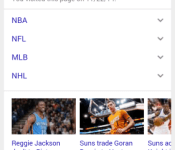
Google Search displays most relevant content from a single source

The next time you fire up Google Search on a mobile device, take a good look at the results because there is an interesting addition. In the section at the top where Google houses all of its own aggregated items, a spot for the most relevant content from a single source now appears. So, as seen in the image above, searching “ESPN” will return The Worldwide Leader in Sports’ top stories. It works when searching for sources or topics. The carousel design is used to keep content organized horizontally. Links included are for both articles and videos.
Hit the break to see GIFs of the feature in action.


Source: Google Inside Search
Come comment on this article: Google Search displays most relevant content from a single source
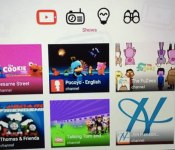
YouTube launches a dedicated app for kids on February 23

YouTube is launching a new app (initially on Android phones and tablets) that will run only kid-friendly content. YouTube for Kids — home run right there — will field age-appropriate videos of cats, Minecraft, Thomas the Tank Engine and other things wholesome / hilarious. The app launches on February 23, but USA Today has already snuck a look at it. The viewer opens up into eight large tiles, each focusing on popular kid-friendly video series, as seen above. There’s then five symbols at the top of the app that will take kids to TV shows, music content, educational programming and a binocular icon for discovering top-ranking video.
Notably, the new app strips out a lot of the complications of classic YouTube: comments are gone and the interface is tiny finger friendly. “The images are big as are the tap targets for small fingers, and since most younger children can’t type, they can search with voice,” says Shimrit Ben-Yair, the project’s group product manager. Parents can also set a viewing timer: once that runs out the password needs to be reentered before more video can be watched. Or the kid will probably just open the standard YouTube app — they’re tricky like that.
Nexus 6 Tips and Tricks!
brightcove.createExperiences();
Ever since Google’s Nexus 6 was announced last year, it’s become one of the most polarizing smartphones ever to be released. In the past, Nexus smartphones have been modest and (mostly) affordable, but the Motorola-made Nexus 6 takes a different stance. It’s big, powerful, and features one of the best Android experiences on the market today.
Looking past its flaws, the sleek design, crisp screen and the promise of timely updates make the Nexus 6 a great purchase. If you’re a recent adopter of the handset, we’ll help you get the most out of your shiny new device. Today, we’ll be taking a quick look at some of our top tips and tricks for the Nexus 6!
Note: A common theme with these tips and tricks is that they may not be specific just to the Nexus 6, with a lot of the new features related to Android 5.0 Lollipop, and will depend on the hardware capabilities of your device.
Tip #1 – It will work on practically any network in the US

The Nexus 6 comes unlocked directly from Google. While that may a standard for Nexus devices, this one in particular can work on most US mobile carriers. There are only two different SKUs for the Nexus 6: one for North America only and one for the rest of the world. If you managed to pick up the North American model, you’ll get support for GSM bands 850, 900, 1800 and 1900, CDMA bands 0, 1 and 10, WCDMA bands 1, 2, 4, 5 and 8, and support for practically all LTE bands.
This basically means that you can grab an unlocked Nexus 6 straight from Google and pop in a Verizon SIM card (or basically any other mobile carrier’s SIM card) and get full network support right away. And theoretically, if you snagged a device from Verizon and managed to get it unlocked, you could take the device to another carrier and active it, if the carrier permits. One thing to remember, though, is that the Nexus 6 has the capability to move from carrier-to-carrier, but it’s ultimately the carrier’s decision whether or not to allow that.
Tip #2 – Data consumption

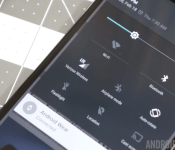
When using a multimedia-centric smartphone with 4G LTE capabilities everyday, it’s very easy to reach your data cap very quickly. The Nexus 6 has a convenient way to easily keep track of data usage. First, head to your notification shade, then pull down once more to get to Quick Settings. Next, tap the Mobile Networks setting icon. It will immediately show you a quick overview of your data consumption. From there, you can access your data settings, set a data limit, and even check out which apps are using the most data.
Tip #3 – Save battery by turning off Ambient Display

The 3,220mAh cell in the Nexus 6 may be larger than your standard smartphone’s battery, but it’s also powering a giant, 5.96-inch display. Despite the proclaimed one-day battery life, many users still struggle to last an entire day on a single charge. Fortunately, there are some ways to combat that problem. One way is by turning off the Ambient Display mode which pulses a dimmed screen as notifications come in, not unlike Motorola’s own Moto Display feature. Personally, I find the Ambient Display feature to be really helpful, but if you turn it off, Google claims your phone will get an extra 80 hours of standby time.
If you’d like to save a considerable amount of battery life on your Nexus 6, you may want to consider turning off this feature.
Tip #4 – Turbo charger

If you’re not one to turn off awesome features to get more stamina out of your device, you might want to keep the charger that comes with the Nexus 6 handy. It’s a Turbo Charger, which is said to get you another six hours of use out of a 15-minute charge. It supplies a whopping 15W and can give you the added boost you need to make it through the day.
The Turbo Charger is definitely worth keeping around, and if you have an extra $35 lying around, it may be worth it to pick up a second one.
Tip #5 – Wireless charging

The Nexus 6 has Qi wireless charging capabilities, though that feature was omitted on its original spec sheet. Despite the omission, it is in fact on the device, and offers an easy way to get a supplementary charge while you’re at a desk or bedside table.
Tip #6 – Water resistance

Another feature not originally listed on the spec sheet is the fact that the Nexus 6 is water resistant. Like the Moto X, it features a nano coating that doesn’t necessarily come with an ingress protection rating, but it is at least somewhat protected against the elements.
Tip #7 – Shoot 4K video

The 13MP rear-facing camera not only means you can take high-resolution images, but also high-resolution video. While it’s not enabled by default, you can enable it by launching the Camera, the choosing Settings>Resolution and quality>Back camera video>UHD 4K.
Tip #8 – Downtime settings

Lollipop’s new notification and sound settings might take some getting used to, but they do come with a really helpful feature called Downtime. It’s basically a ‘Do Not Disturb’ mode that you can put on a set schedule. To set this up, head to Settings>Sound and notification>Interruptions, then head to the bottom of the screen. Here you can schedule Downtime by selecting the days of the week and start and end times.
Tip #9 – Hidden LED notification light

Another lesser-known fact about the Nexus 6? It actually comes with a notification LED. It’s hidden beneath the top earpiece speaker, and is unfortunately turned off by default. But with a little elbow grease and determination, you can get it working. You’ll need to gain root access, then download Light Flow from the Google Play Store. Head to this page for more information on how to go through the steps.
Tip #10 – Numbers row in Google Keyboard

Since the Nexus 6 has such a large display, it makes sense to employ a different keyboard to use some of that extra room. Of course, you can always download a third-party keyboard from Google Play, but there’s also a larger layout built directly into the Google Keyboard.
Long-press the comma key to jump into the keyboard settings, head to ‘Appearance and layouts’, choose ‘Custom input styles’, and add another keyboard. Select ‘PC’ as the keyboard layout, then enable it in the Language settings. The next time your keyboard pops up, tap the globe icon and you will have a keyboard with a dedicated number row. If you aren’t fond of the new number row, switching back to your old keyboard is as simple as pressing the globe key again.
See also:
- Nexus 6 review
- Nexus 6 unboxing and first impressions
- Nexus 6: Camera shootout
- 6 common problems with the Nexus 6 and how to fix them
- Nexus 6 vs iPhone 6 Plus
- Nexus 6 vs Samsung Galaxy Note 4
So, there you have it, some useful tips and tricks to help you get the best experience on your Nexus 6! If there is anything we missed in this video, feel free to let us know in the comment section below!
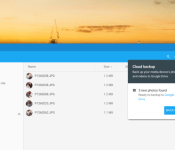
Google testing cloud backup for external devices in latest Dev Channel Chrome update
 Google appears to be testing a new feature for Chrome OS that will let you automatically upload files and folders from external media devices to your Drive cloud storage. The feature is only available in the Dev Channel as of right now, but it puts a new cloud backup option in the My Files app when browsing photos on something like an SD card or flash drive.
The option obviously only works with Google Drive, and it’s only going to work on devices that are set up using the standard DCIM folder for photos and videos. That means you won’t be able to sync music or documents this way, but Google does offer several other ways to take care of those.
Keep an eye out for this to roll into the official Chrome update channel sometime soon.
source: Google
Come comment on this article: Google testing cloud backup for external devices in latest Dev Channel Chrome update
Google Docs for Android gets improved Office Compatibility Mode

Starting today, users of the Google Docs app will see an update arrive in the Play Store. The update benefits users of the Office Compatibility Mode and those who have be trying to insert links into documents.
The following was included in the changelog for the update:
- Support for selecting, cutting, copying and pasting text along with images, tables, and charts in Office Compatibility Mode
- Ability to insert links in Google documents
A slow, staged release track for the update is not the case here. Instead, Google has opted for a “rapid release.” That means all users should see the update within the next few days rather than weeks.
Source: Google
Come comment on this article: Google Docs for Android gets improved Office Compatibility Mode

