


Lenovo, Asustek bringing lower cost Chromebooks to market in 2015

Although Chromebooks have only grabbed a small part of the laptop computer market thus far, despite much success in the education sector, the race to bring out less expensive models to entice buyers appears to be heating up for 2015. A new report from Digitimes Research indicates both Lenovo and Asustek are preparing new Chromebooks equipped with Rockchip technology to hit the market at a $149 price point.
Thus far, most Chromebooks have been priced in the $200 – $300 range, so the products from Lenovo and Asustek could set new lows for notebook devices. Both devices are expected to come with 11.6-inch screens and the Rockchip processors, but other details are not yet known. Acer is currently the biggest Chromebook producer and these new devices would be priced 25% lower than the Acer C720 that runs $199. Digitimes Research indicated that in addition to the price pressure this move will create for other Chromebook producers like Acer, it will also put pressure on Microsoft which has been modifying license costs in an effort to stave off Chromebooks’ growth in the market.
Rockchip is a “first-tier tablet application processor (AP) designer” from China. They have worked with Intel on chip design and distribution. They are also a Google-certified solutions provider.
source: Digitimes
Come comment on this article: Lenovo, Asustek bringing lower cost Chromebooks to market in 2015

Chromebooks continue to dominate in the education sector

This week Google is hosting the Global Education Symposium, a meeting of education ministers from 18 countries, where participants will explore how technology can be implemented to meet educational needs. This gave Google an opportunity to highlight the success of their Chromebook devices in the education sector.
According to Google, IDC continues to find Chromebooks are the best-selling devices in the U.S. education market this year. During 2014, several major deployments started, including 50,000 units in Montgomery County, MD; 32,000 devices in Charlotte, NC; and 26,000 units in Cherry Creek, CO. These examples join existing deployments like Malaysia where the national school system has converted to Chromebooks. According to Google, their education oriented technologies, including Chromebooks, are now used by 40 million students globally.
Besides the market success that Google is enjoying, they also point out the successes end-users are achieving by having technology available to them. At a school in Oakland, CA, the students are able to use Scratch to create video games. Students in Chesterfield County, VA, can get access to feedback and support from teachers even after school hours and in Fairfield County, SC, when combined with other technologies like Google Apps for Education, the school system saw double-digit improvements on state performance tests.
Do you have any experiences with Chromebooks being used in education?
source: Google Blog
Come comment on this article: Chromebooks continue to dominate in the education sector
Schools in the US love Google Chromebooks

When it comes to the Chromebook, Google isn’t shy about its beliefs that it is the perfect computing device for education sectors around the world. And here in the US, schools and students have started to feel the same way. In a blog post, where it highlights different ways in which educational institutions in California are using Chromebooks, Google pointed out that recent IDC numbers have its line of computers as being the best-selling device in K-12 education. The report takes into consideration laptops and tablets, so this is a notable achievement for the technology company.
Some school districts like Montgomery County, MD, for example, are using over 50,000 Chromebooks, and that’s after only beginning adoption earlier this year. But Google isn’t quite satisfied, as it wants Chromebook to keep reaching even more students and schools — especially outside its home soil, where resources are particularly limited.
Filed under: Desktops, Laptops, Google
Source: Google
Acer Chromebook 13 on Sale at Amazon
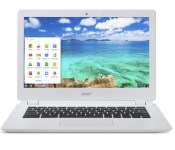
 Acer’s CB5-311-T9B0 Chromebook is now on sale at Amazon for only $250! The computer comes with a 13.3″ Full HD screen, 2 GB of RAM, 16 GB of storage, an NVIDIA Tegra K1 Quad Core 2.1 GHz Processor, and an NVIDIA Kepler GPU. If you purchase from Amazon’s website, the Chromebook is Prime eligible, so you will receive your new computer in two days with free shipping.
However, keep in mind that this is the base model. The 32 GB storage and 4GB RAM version is not on sale and is still $380.
Chromebooks are increasingly becoming better and better computers on the hardware side, yet they are retaining their attractive value. Acer has always had the best value Chromebooks, so go check out the CB5-311-T9B0 at the link below:
Come comment on this article: Acer Chromebook 13 on Sale at Amazon

How would you change HP’s Pavilion 14 Chromebook?

In a way, How Would You Change is a bit like archeology, digging back through the gadgets of yesteryear to find out what we think of them now. We sat HP’s Pavilion 14 Chromebook down in front of Myriam Joire, who did not have too many nice things to say about the device. Points of critique included the lackluster display, poor battery life and the fact that the company just hollowed out a Pavilion 14 rather than building something more tailored to Google’s operating system. In fact, the conclusion of the review is just a list of other devices that you can buy instead. But if you disregarded her advice and picked one of these up anyway, why not head over to the forum and tell us what the last year has been like?
Filed under: Laptops, Google, HP
Source: Engadget Product Forums

Engadget Daily: HTC’s new action cam, Apple’s iPad event and more!

It’s true: HTC’s new action cam looks a lot like a periscope made of PVC pipe. That’s not all we have on deck though — read on for our news highlights from the last 24 hours, including Apple’s upcoming iPad event, a ping pong-playing robot and more!
Filed under: Misc
.CPlase_panel display:none;
Google’s latest Chromebook update makes it easy to juggle multiple accounts

Has your company bought into Google’s pitch for a Chrome-powered office? Then this update is for you: Google just announced a handful of Chromebook features specifically for office environments, including the ability to easily switch between personal accounts and your organization’s credential-secured account. The enhanced identity features primarily focus on enabling the SAML standard used by common enterprise authorization providers, but a new multiple sign-in mode allows that security to live alongside your personal Google account — possibly enabling users to bring their own Chromebooks to the office with relative ease. The update tacks on a handful of other business-specific features too, including better IT management for network certification and web app provisions, improved virtualization solutions from Citrix and VMware and a new annual subscription plan of $50 per device per year. Sound like it could improve your work life? Forward the source link (below) to your IT manager and get the ball rolling.
Source: Google
.CPlase_panel display:none;

USB file transfer support comes in latest Chrome OS update
Chances are many of you Android lovers out there also have a Chromebook. Whether you use it as your daily laptop, or just as your casual lightweight browser, it is something that you want to keep updated when updates go out. A new updated build of the Chrome OS is rolling to Chromebooks that brings along build number 38.0.2125.101 (Platform version: 6158.49.0). This update is rolling out for all Chrome OS devices, minus Chromeboxes.

Updates to the Chrome OS aren’t always HUGE deals, but this update brings in something that many have been itching for since Chromebooks first started landing in consumers hands, MTP support. MTP stands for Media Transfer Protocol and is what you need to make life simple when transferring images, videos and files to and from the Chromebook to and from your Android devices. MTP support on the Chromebook isn’t entirely new, but it is new to the stable channel of the Chrome OS. There for making it something the average user will love to have access too finally.
The update also makes mention of a set of features to enhance touch screen accessibility, for Chromebooks like the Lenovo N20p. They don’t give details on the posting, but they do in comments in the Git about the update. Many of which are beyond my understanding.
Source: Google Chrome Releases
//<![CDATA[
ord = window.ord || Math.floor(Math.random()*1E16);
document.write('‘);
//]]>
The post USB file transfer support comes in latest Chrome OS update appeared first on AndroidSPIN.
.CPlase_panel display:none;
Lenovo N20p Chromebook Multimode touchscreen Chromebook [Review]
Lenovo took a little bit of time to break into the Chromebook space. They initially started off with phones, tablets and a couple of Android powered all-in-ones. We know Acer, Samsung, HP and others have started to really up their game when it comes to the Chrome OS powered laptops, especially the upcoming Acer NVIDIA Tegra K1 powerhouse. Lenovo’s first round of commercially available Chromebooks might be a little late to the game, but they definitely bring some things that the others don’t.

Hardware overview:
Spec wise, the Lenovo N20p offers up many of the same specs that are on par with competitor models on the market.
- 11.6-inch HD (1366 X 768) 10-point multitouch screen
- 11.6 x 8.34 x 0.70 inches
- 2.86 lbs
- Intel Celeron Processor
- 2GB of RAM DDR3L
- 16GB SSD
- Up to 8 hour battery life
- Bluetooth 4.0
- Wi-Fi 802.11 ac
On a physical connection front you have two USB ports, one is a USB 2.0 and one is a USB 3.0. They are found on opposite sides of the Chromebooks base. You can see where the USB 3.0 port is due to the blue colored centered.
On the USB 3.0 side you also have the charging port, which is a proprietary style charger, along with a mini HDMI out and a combo headphone/mic jack.

On the opposite site you find that USB 2.0 port, your power button and the SD card slot.

Above the screen you find your 1.3MP 720p resolution web cam and integrated mic.

Internal connection options offer up a few things that are pretty nice. The N20p does sport the latest Bluetooth 4.0 technology, but probably a bit more surprising, and exciting fro some, is that it also offers up 802.11 a/c WiFi. To the best of my knowledge, and checking out a few of the Chromebooks offered on the Play Store, this is the first Chromebook to offer that newer 802.11 a/c connection.
In the specs above I only mentioned that the Lenovo N20p Chromebook offered an Intel Celeron processor, but I didn’t give you details on the specific processor or clock speed. That is because there are two choices for you to make in that department, and the cost difference is only $20. In one model you get a Intel Celeron N2830 processor (2.16GHz 1333MHz 1MB) and in the more expensive you get an Intel Celeron N2930 processor (1.83GHz 1333MHz 2MB). Looking through a comparison of the two chips at CPUBoss, the lower clocked Celeron N2930 variant of the N20p should be a little quicker, but I don’t have both versions in front of me to compare and test. This review is centered around the N20p that offers up the Intel Celeron N2830 clocked at 2.16GHz.
Currently on the market I am aware of two other Chromebooks, that are made by bigger named companies, that offer a touch screen in conjunction with the track pad. The Acer C720p and the Chrome Pixel. The Chrome Pixel is probably the dream Chromebook for many, but its price tag is pretty up there for most average consumers. That leaves the Acer C720p as the most comparable device to the N20p. The hardware specs are similar with the exception of the 802.11 a/c Wi-Fi connection and the Acer C720p sports an Intel Celeron 2955U (1.4GHz, 2MB L3 cache) processor. However, the Lenovo N20p does something that the C720p can’t, and that is flip into multi-mode.
Lenovo is pretty famous for their design elements in both appearance and functionality. The Yoga, ThinkPad and IdeaPad lines are probably the more famous line of devices that allow users to flip their netbooks, tablets and laptops around in configurations that others just don’t. The N20p is in the IdeaPad line up and offers 3 primary modes that Lenovo advertises, but it also has a 4th that is pretty useful. First you have your traditional laptop mode.

This is the one you usually see when you see people using a laptop. Screen up and keyboard facing you. Nothing all that special, but I will admit, that the space beside the track pad and the edges of the Chromebook are plenty big enough more my wrists to rest without touching the trackpad by accident. I have had issues with that in the past on other laptops.

The second advertised mode is Stand mode. You rotate the screen 300 degrees and face the screen forward with the keyboard as the base of the stand. When you rotate the screen to a certain degree, which seems to be just past the 180 degree mark, or just past it being flush with the keyboard, the N20p disables the keyboard for you automatically. There are also a set of rubber pads positioned in such a way that elevates the keyboard from directly touching the surface.

The third method, and one of my favorites, is what is traditionally called tent mode. This mode potions the device in a tent, or triangle, fashion. Placing the keyboard behind it and the screen facing forward. It takes up less space than stand mode and points the speakers, which are located on the bottom, more towards you than straight up in the air. It Also sits better on your lap if you are looking to play games or cruise around the web ect. and only want to use the touchscreen aspect. While in the tent style mode, you can also go vertical. The screens image will rotate in any direction that it is orientated.


While in any mode that disables the physical keyboard there is a replacement on-screen keyboard that will pop up if needed. It only appears if you tap on a place that you need to type, and easily goes away. It is just like any tablet a keyboard and is responsive to quick typing if you are fast with an on-screen keyboard, which I am not. I feel it is more of a nice idea when in touch only modes for quick messages and searches and things, but if you need to write an email, a post or a lengthy response to something you will just end up flipping it back to the regular laptop mode. Besides, the angles that it sits in stand or tent mode makes it a little awkward to type efficiently.
The Physical Keyboard
While processor, screen, RAM, storage and things are important, the physical keyboard and how it feels when in use are just as important. If the keys feel strange, take more pressure than one would think or are to close together, that can cause a poor user experience as well. The N20p keyboard isn’t quite a softouch, meaning silent when pressed, but the click from pressing it isn’t terrible. I am a heavy typer and my desktop keyboard makes a heck of a lot more noise. Each press of each key is nice, and feels nice. You can feel the action when you press it knowing that you have pressed it without wondering. This is also a big deal for me as I am not very good at typing without looking at my fingers. I still miss some letters here and there, but that is mostly due to my distaste for laptops and feeling cramped. The keys are flat as well, meaning they lack any indentation for your fingers.

There is still something a little off about it though. The insert that surrounds the keys and the keys themselves move. By move, I mean you can see the keyboard flex when you are typing. I don’t know if this is by design because of the stand mode, or if it is just an over sight in the quality of the keyboard. It doesn’t give me a feeling that it will become unresponsive or break, it just isn’t as solid as I would expect.
Battery Life
Battery life is a pretty important aspect of a mobile device. Being stuck to a charger is never really a good thing. I spent one day using the N20p as an average internet user. Spending time surfing the web, cruising around Google+, responding E-Mails and the likes. The expected battery remaining time I gathered compared to the actual time used was pretty good. I started utilizing the N20p at 8:45 in the morning, at 10:15 I was down 10%. That is about a 1.5 hours of battery per 10%. Mathematically that should give 15 hours of battery. Well over the expected 8 hour claim on the spec sheet. Much of that time was spent sitting here writing with the screen brightness at about 60%. However, the remaining on time displayed showed 7.45 hours remaining. Add that to the 1.5 hours I already used and I would expect over 9 hours of use easily.
The first full charge to battery death I did was in tent mode streaming movies. I kept the screen at about the 60% brightness level and streamed movies from Plex to the Chromebook. I started the flick at 3:19 pm and ever hour or so I started a new movie or restarted the one playing. The N20p finally died completely, as in shut off, at 10:26pm. That was 7 hours and 7 minutes of screen-on streaming time. Not bad at all.
If you mix these times for an average day of use between media, and average web usage, the 8 hour claim is pretty easily achievable. I use the Chromebook sparingly. More so it is what I use when I am forced downstairs, on trips or other situation where being at my desktop is not an option. I have yet to ever been disappointed with the N20p in battery life. Even when it sits idle for days at a time.
Overall performance
I spent lots of time forcing myself to use the Lenovo N20p Chromebook. Not because I was disappointed with it, more so because I prefer full size keyboards and desktop PCs. I actually wrote this entire review sitting on my couch, watching Finding Bigfoot and using the N20p. It worked out wonderfully for me and is the first time I have written something on a laptop/Chromebook in a number of years. It is also the first time that I didn’t have to spend as much time fixing my errors as I did writing the review. (I’m sure there are still plenty, I am far from a great writer.)
Like all other Chromebooks I have used, or read reviews of, once you get going beyond 4 or so tabs things start to get a little slow in terms of visual lag. It is dramatically better than the Acer C710 that my daughter has currently for school and with each sequential update to the OS it seems to be running smoother.
Overall thoughts
I have been very pleased with the N20p’s performance and abilities. It expands beyond the traditional Chromebook look and what it can do for you. The touch screen is quick, responsive and I was easily able to not only type with the onscreen keyboard, but I also didn’t have any difficulty with my touches not registering what I was attempting to tap.
There are two things that come to mind that I think would just put this Chromebook over the top for me. I would like Lenovo to swap out the keyboard with one that is backlit. Night usage on Chromebooks is still a bit tricky. However, with the N20p’s on-screen keyboard when in touch only modes, it isn’t the end of the world, but if you need to type a book, the physical keyboard is still a better choice. Second was speaker placement. The speakers are placed on the bottom near the front. When I first saw images of the Chromebook I had expected them to be sitting on either side of the screen where it flips. That would have positioned them facing you in any mode.
Feel free to get one ordered through Amazon for $329.99 right now
.


//<![CDATA[
ord = window.ord || Math.floor(Math.random()*1E16);
document.write('‘);
//]]>
The post Lenovo N20p Chromebook Multimode touchscreen Chromebook [Review] appeared first on AndroidSPIN.
.CPlase_panel display:none;
Lenovo N20P Chromebook Review

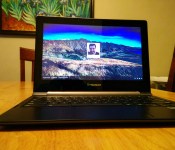
Tablets and laptops are getting closer with many notebooks now having touchscreens. Lenovo’s new 11.6-inch N20P Chromebook is no exception. The Chromebook offers the best that Google has to offer in a sleek body and allows you to use just touch if that’s what you desire. If you want to find out if the new touchscreen Chromebook from Lenovo is a contender, then read on. First let me say that I won’t be focusing on Chrome OS too much in this review since if you’ve used Chrome OS before or even the Chrome browser on your desktop or mobile device, you’ll know how it works. Moving on to the hardware…
Hardware
The Chromebook sports an 11.6-inch LED backlit display that comes in at 1366×768 resolution, which isn’t bad, but not the best. I noticed that the display looked fairly nice in use, but it did pick up some reflections if there was too much sunlight. One nice thing about the device is the 10-point touchscreen display that you don’t see on too many Chromebooks except for the Pixel and Acer’s C720P. Although Chrome OS isn’t as optimized for a touchscreen as say Android is on a tablet or smartphone, it still works very well and is both intuitive and easy to use. We’ll get to the hinge on the device later in the review, but if you have it rotated to the point where you can’t use the keyboard, there is an on-screen keyboard that’s just as easy to use as the Android keyboard. It almost makes me really want a Chrome OS tablet, but who knows if we’ll ever see one. Moving on to the other specs, one of the downfalls is the processor and it sports a 2.16GHz Intel Celeron N2830 with 2GB of DDR3L/1333 RAM. As you would expect, this dual-core processor isn’t the speediest, but provides more than enough to allow you to do some simple web browsing and running your Chrome OS apps. The Chromebook starts in under 10 seconds and has very fast browser tab/app switching, which could just be because of the OS. I noticed that after a while, the laptop starts to slow down and my solution was to restart, which again was only about 20 seconds total of my time. I still found the Chromebook to be too slow to be a full computer replacement and coming from a Core i7 Macbook Pro, the decreased speed is highly noticeable. The N20P sports a 34.8-watt-hour battery, which brings an impressive 8 hours of battery life. While it gets about 8 hours, depending on your settings you will get at least 6 or more hours and if you only use it slightly as a second computer while on the go, expect it to last a long time in standby mode. I found that in standby mode, it could last a few weeks on a single charge, especially since I would only use it for an hour or two at a time while on the go. One of the most unique features of the N20P besides the touchscreen is the ability to rotate the screen 300 degrees. If you’re familiar with Lenovo’s Yoga laptops, this is no different. Rotating the display to 300 degrees or even a little less, it gives you almost a tablet with a stand. Having never used such a device before, it was a bit awkward at first, but then you get used to it. It makes the browsing experience all the better. It also has 16 GB eMMC storage, a USB 3.0 port, USB 2.0 port, HDMI-out and a 2-in-1 (SD / MMC) card reader. Lastly, as far as the hardware, the Chromebook is fairly thin and starting at 3.08 pounds, it’s easy to carry around with you.
Software
As with all Chromebooks, the N20P is running the latest and greatest version of Chrome OS and updates automatically. It’s the same OS as on all other Chrome OS devices and you should be familiar how to use it if you ever used a Chrome browser. As I mentioned above, one noticeable difference is that it has a touchscreen and therefore an onscreen keyboard, which works extremely well. One of the latest additions to Chrome OS, not specific to the N20P is that it the OS can now run Android app, although only four at the time of writing this. I got to try Evernote and Vine and both work just as you would expect on an Android device.
Price
One of the other downfalls I see with this Chromebook is that it’s a bit steeper than its competition, starting at $329, when most sell for under $200 and Acer’s touchscreen Chromebook can be had for $279. You’ll have to decide for yourself whether the touchscreen and 300 degree rotating display is enough to justify the price.
Overall
At its latest attempt at a Chrome OS device, Lenovo did an admiral job with the about 3 pound N20P. The viewing angles and display are more than adequate, it offers a great touchscreen experience and enough speed to run all of your Chrome apps, but at $329, it’s a bit expensive. At $50 over the Acer touchscreen Chromebook, I would have expected a bit more speed. You can however get a little bit more speed if you buy the $349 model, which I didn’t have the opportunity to test. The premium model comes with a Intel Celeron N2930 processor clocked at 1.83GHz. If you have the money to spare and really want a Yoga-like Chromebook with a touchscreen display, look no further.


Deals, Discounts, Freebies, and More! Click here to save today!
The post Lenovo N20P Chromebook Review appeared first on AndroidGuys.
.CPlase_panel display:none;
 AIVAnet