


Instant: A must-have app for people who live for life logging (review)


As smartphones become smarter, they are able to track more and more of our day. While some of us might start breaking out the tinfoil hats, worried about Big Brother tracking our every move, others are embracing all of the life logging that our pocket partners can offer.
In comes Emberify’s Instant, a life log app with more trackers than you can shake a stick at. If you’re at all interested in logging your daily activities or phone use, you need to give Instant a try.
- Developer: Emberify
- Price: Free, Subscription $2/Month
- Download: Google Play and iOS
Setup
Instant is quick to get up and running, only requiring a few permissions to be able to access phone app usage and location, and it can be connected to Google Fit for some additional access to workout data. No further login is required; just a few taps you’ll be on your way.
Overview
 Instant starts off with tracking your phone usage. It records how long you use your phone for, how long you use specific apps for, and even the number of times you’ve unlocked your phone.
There’s also an alert you can set for total phone usage time. The default is 4 hours of use a day, at which time it will send you a push notification to let you know you have reached your limit. This is great for people looking to limit their daily usage.
All of this was especially useful for me because I’m constantly using my phone for work, which can digress to me flipping through Flipbook to see what’s new, or scrolling through my Twitter feed. Now, I know how long I’m using work and non-work apps for, which helps me know what apps to avoid in the middle of my day so I can stay on track. This is also neat to see what apps you really need and what’s just taking up space.
I am a self-proclaimed app pack-rat. If an app does something cool or unique, I download it — even if I’m not going to use it besides to show off to others. Thanks to Instant, I’ve managed to trim down a few apps after seeing a breakdown of the apps that I actually do use.
Instant also keeps track of a number of things right from your pocket. Steps taken, walking duration, and running duration are pretty standard in apps that track fitness, but Instant takes it a step further to include things such as the amount of time you’ve slept, and even time spent traveling to work.
If you set up your home and work location, it can even log how much time you spend at each location, useful for those who are looking to manage a good work/life balance. In my experience, location tracking is good for a general area but isn’t entirely reliable. I went to the gym this week and it listed that I spent time the next block over. It’s close, but not 100%. The app description says that it also has cycling integration, but unfortunately I was unable to try out this feature.
 Instant makes charts and graphs even more fun by adding in interesting facts about your stats
The last feature of this app is the virtual Coach that’s. It provides you with a daily stat breakdown, and you can ask it for information about what you did on certain days or info about usage about previous weeks.
It works well for those specific things, but in my tests, it doesn’t seem to be all that intelligent. If I ask for things like last week’s phone data, it works, but even if I ask something like “What can you do?” to get a list of features, it answers back that it doesn’t understand. It’s still a work in progress and will surely get better with time, but for right now seems a little limited.
To get the most out of Instant, you will need a subscription to its service. Without one, you still have access to a large number of features, such as phone unlocks, total phone usage time, top three apps and usage, and basic fitness history for the day. Additional stats, such as what day you used your phone the most, your most used app of the week, travel time for the week, and how you slept all week are only available to paid subscriptions.
The current subscription price is only $2 per month, so for all the content you’re getting, it is really a great value. Features are also constantly being added, which is great. I would love to see some sort of meal tracker added, or integration with S Health, which is where I log my sleep and meals.
Conclusion
 I promise I was only using Facebook for work!
All in all, Instant is a fantastic app. It’s easy to use with beautiful animated charts and graphs that track daily and weekly phone use and activities such as walking, exercise, traveling, and even cool things like the amount of time spent places.
The small subscription fee is totally worth the amount of information you’re getting access to. I didn’t fancy myself much of a lifelogger before Instant, but after trying Instant out, I’m completely fascinated by all the details it provides about my life. This goes especially in areas I wouldn’t even think twice about normally. If you are at all interested in personal stats and lifelogging, this is the app you can not pass up.
Sync for Reddit: The gilded way of browsing Reddit (review)

I can’t quantify the amount of hours that I’ve wasted in my life thanks to Reddit. I’m always scrolling through /r/Android looking for interesting news, or through /r/iphone to see if I find new apps, /r/soccer to see everyone making fun of Manchester United, and so on. The possibilities are endless. Some people are reluctant to use Reddit, but it can be really useful and a place where I’ve met some good people.
After trying different Reddit clients, I just keep coming back to Sync for Reddit, an app with an impressive amount of customization, delightful interface, and a constant flow of updates. Not only it is one of the best apps to consume Reddit content, but one of the top apps in the Play Store.
Developer: Red Apps LTD
Price: Free (Pro version available)
Setup
 The menu is home to your profile, messages, settings, and your subreddits.
This is one of those nice developers that have understood that not everyone wants to use an app only after logging in. In fact, you could use Sync for eternity without logging in. Sure, the experience won’t be as satisfying but it’s entirely possible.
If you want to connect your account to Sync, then you can tap on the hamburger menu button at the top left and then tap on Add Account. This will open a webview in which you can input your account details.
I’ve never really thought about how the permission system works in Reddit, but every single app that I’ve tried asks for this extremely long list of permissions. Fortunately, they all sound very logical and you can see how it is being used in the app.
After logging in successfully, you will be taken to the app’s main screen again, but this time, you’ll be logged in! All of your subreddits are automatically synchronized, and you might notice that the side menu now has a couple more options to play around with. We’ll analyze them all later on.
Overview
If you don’t know about Reddit, then the easy, concise way of describing it is “a social news aggregation, web content rating and discussion website” (courtesy of good ol’ Wikipedia). Users submit content into subreddits (think of them as a category where all the content follows the same subject), be it news links, GIFs, pictures, information, and everything in between, and then other users discuss about it. If used correctly, Reddit can be an extremely useful source of information and an easy way of learning about a specific topic without going to multiple sites.
Reddit’s web interface looks outdated in my opinion, but their mobile site is clearly more suitable for our times. However, Sync takes this to another level, presenting a beautiful, yet simple interface. It is inspired by the card-style interface introduced by Google some time ago, and it works wonderfully for every kind of content.
 A dark theme is available too!
When you start the app, you’ll see the Front Page, which is an aggregation of all the subreddits you follow. Each card shows the title of the post, the user, the date, the subreddit it belongs to and the points/comments. Also, a big picture accompanies every post, be it either the post’s featured image, the picture uploaded by the user itself, or a preview of a video/GIF.
At the top, there’s a button to enter swipe mode, in which all news will appear full screen; you swipe to the right or left to change between them. Personally, I think it’s a really slow and inefficient way to consume news, but that’s why there are options: some might like them, some might not.
By default, Sync shows you the “Hot” variant of the home page, which aggregates posts that are — wait for it –hot right now. You can also change it to New, Rising, Top (and order it from hour, day, week and even the top post of all time), and Controversial (with the same time frames as Top).
At the top right, you will see an overflow button. This is the home of several very useful functions, such as searching for subreddits/posts, switching the type of view (compact, list, full height, and so on), recently viewed, hide read posts, and sync. There’s also a very peculiar option: Random. It takes you to a random subreddit. The developer has thought of everything.
You can also filter the kind of posts you want to see. Only fancying images? In the mood for some funny GIFs? You actually want to get stuff done and read some news? Maybe a combination of them? Your wish is Sync’s command.
Post view
Selecting a post isn’t as straightforward as it sounds. Selecting the image part will always lead to the resource itself. Be it a news link, an image, a GIF, a video, or everything in between, Sync will always open the content.
For this, the app incorporates an in-app browser, a image viewer (and gallery when there’s more than one image), and a video/GIF viewer. This provides a seamless experience, keeping you in the app as long as possible instead of relying on webviews to see media. Other clients I’ve tried are very eager to take me to webviews in order to see images and videos. This is one of the strongest points of Sync for Reddit, and one that keeps me from using other clients.
 The detail view shows more about the content and the comments that they’ve generated.
Hitting the bottom part of a post will take you to the discussion itself. Since a comment can have multiple sub-comments, which in turn can have sub-comments by themselves, Sync uses colors to identify the level of each comment. This can be a confusing system, but Reddit itself uses it, so changing it would be unpopular among users. Fortunately, you can collapse different levels by long-pressing a comment. Commenting and replying can be done in a breeze too.
Profile, Messaging and Subreddits
 Your profile shows your badges, karma, and the comments you’ve made.
The overflow menu has so many things to choose from. It even changes its options depending on if you’re signed in or not. First, this is where you sync the app with your reddit account, in order to get your subreddits, messages and favorites.
The Profile menu entry lets you check out different stuff regarding your activity at Reddit, such as the comments you’ve made, posts you’ve upvoted, and links you’ve marked as favorite. Also, you can access the messages you’ve sent and received through the Messaging tab. Also, this is the place you can check your comments and posts replies. The good think about Sync is that everything is where you would expect it to be. There’s no overly complicated flows or digging through different screens.
Finally, the list of all the subreddits you follow will be here. If you follow a lot of subreddits, this can get quite long, and it’s probably the least intuitive part of the whole application. There’s also a list with multireddits (a group of subreddits joined together) at the bottom. This is another case in which having a long list of subreddits could hamper usability of these multireddits.
Options
So. Many. Options. Sync is probably one of the most customizable apps in the Play Store. There’s so many you can change that if I talked about everything, this review would look like a research paper.
Settings are divided into four categories: Appearance, Content, General and Other. All of them are pretty self-explanatory, but I will mention the most important aspects of each one.
Appearance deals with the way the app looks. Here you can change stuff like themes (light or dark), font size, animations, and customization for every view type. This last item is amazingly powerful: not only you can choose between different views to consume the app, but you can change every aspect of each view. Pretty cool stuff.
 Sync offers a mind-blowing amount of options to choose from.
The content category controls how you consume Reddit content. You can change the default post sort (Hot, Top, Controversial, etc.), different options for handling the comments view, notifications for messages, image/video viewer, and link handling.
General deals with more broad options, such as the data usage (through preloading of full images, thumbnails and GIFs), content filtering (NSFW posts, domain filtering, keyword filtering, and such), and backup of your current configuration. The Other category groups stuff like app version, licenses, privacy policy and similar.
As we can see, as is always a constant with Sync, everything is exactly where you expect it to be. The app has powerful options and customization, but it never strays away from dealing with a lot of information and features in a no-nonsense way.
Conclusion
For years, Sync for Reddit has been one of the most important Reddit clients in the Play Store. It’s easy to see why: a plethora of features, immensely powerful customization options, and pleasant interface are only a few of the benefits that the app presents. There’s also a Pro version if you don’t want to deal with ads, and want to support the constant updates of this amazing client. Give it a go and I’m sure it won’t disappoint you.
Download Sync for Reddit from the Google Play Store.
Tap Numbers: An almost too-simple Android game (review)

If you’re looking for a deep, intensive, complex gaming experience… you’ve come to the  wrong review. For this is a review for Tap Numbers, a well-done but very, very simple gaming experience on your Android device.
The game comes from the developer MateriUp. It’s a type of match game that is very friendly for all ages. Let’s take a fairly quick tour of this game.
Setup
 Like the rest of this game, setup is dead-simple. Just download from the Google Play Store, and click on your shiny new icon. From there you jump right into the game. Done.
There are some simple settings (sound effects, music on/off, etc.), and an achievements screen; but there really won’t be much use for these for most folks.
Gameplay
How to explain this and give the game the credit it deserves? Upon entering play, you are given a random number which immediately begins counting up. Directly above is a static number within a circle. You only job is to tap the screen when the ascending bottom number matches the static one above. 
That’s it; that’s your only job.
If or when you do stop the count-up so both numbers match, you are immediately transferred to a new screen with an new static number to match. The goal is to survive, matching the number you’re given and moving on. The risk is either tapping too soon or too late, missing the number-match. You are scored a point for each match you make. If you do miss, your game is immediately over and you must begin from zero.
There is a bit of variation to the game, but it lies specifically with the speed of the counting-up of the numbers. When you begin play, the game moves very steady, and fairly pedestrian in its pace. This allows you to get used to the game and find your groove.
But, after a few rounds of this easy speed, the pace begins to waver. At first it will speed up slightly with each round, and though the increase is incremental and rather expected, it does a good job in ramping up the tension.
Then the game changes a bit; the speed will begin to vary in its increase and decrease. If you would record the speed on a scale of 1 to 10, one round would be a 3, then the next a 5, then a 9, then a 4, 7, 6, 2, 8, and so on.
The real challenge lies in once you get to the upper levels of your game. With this variation in speed also comes a variation in the difference between your goal number and the number you start with.
In the beginning most/all of your numbers are at least separated by 5; this gives you a decent amount of time to gauge the speed in which to anticipate your tap. But as you progress through the levels, this difference in numbers you start with starts to vary. One level you may have a difference of 7, then 4, then 11, then 3, then 6, 2, 8, 3, etc.
Coupled with the speed variation, getting to higher levels drastically increases the difficulty of this game – as simple as it seems. Sometimes the best tweaks to a game lie in its simplicity, and that’s what you have here. The upper levels are just as difficult for adults as it is for kids, and that makes Tap Numbers a great game for family members to challenge each other with.
 What We Liked
- Simple game, and doesn’t apologize for what it is.
- Sneaky-good variations as you progress.
- Nice color palette.
- Easy pick-up and replay value.
- Very responsive to your taps.
What We Didn’t
- Very simple gameplay; perhaps seemingly too simple for experienced gamers.
- Replay can get repetitive quickly.
Download Tap Numbers from the Play Store here.
Full Fact wants to automate fact checking to fight fake news
“If we can’t discriminate between serious arguments and propaganda, then we have problems.” That’s President Obama speaking to the threat of outright fake and inaccurate news. In an effort to combat this, and ensure that people are well-informed, UK charity Full Fact is trying to make fact checking fully automated. So far it’s working on UK-focused stuff like what members of Parliament say during addresses, and claims made by trade groups in addition to print, online and broadcast media organizations, according to TechCrunch. But in the future, it plans to cross the Atlantic.

Full Fact staffers will keep checking a claim even after their initial report publishes, too, will address corrections and retractions from sources as well. The human touch is key, because sometimes analyzing what’s available requires context and judgment, according to project director Will Moy.
“Some types of claims can be handled as easily as spellcheck, including claims that were fact checked by human beings before,” he told TechCrunch. “But some claims will always require human judgment, for example, about what’s a fair and balanced way of expressing things, or what methods of analysis should be applied to answer a question about crime.”

The primary aim is giving journalists the tools needed to see if a statement made on out of date statistics, or patently wrong, but Full Fact wants its tools to help inform the people who read news in addition to writing it as well. The current plan is for mobile and web apps, and to help get there, Google’s Digital News Initiative (GDNI) has contributed some EURO 50,000 ($53,113) to help make that happen. Full Fact says that to guard against conflicts of interest, it’s limiting a single entity from donating more than 15 percent of its total funding.
From GDNI’s donation overview:
“FACTS will be the first fully automated factchecking tool: our original technology will recognise claims in political debates and online media and immediately alert journalists if they are inaccurate. FACTS will give journalists the killer question the moment they need it. It will save time, when journalists have never had less.
It will help stop misinformation spreading through the news. It will help journalism maintain the credibility that audiences demand. Our tool has two modes. One identifies claims we have factchecked before and provides a verdict.
The most innovative mode factchecks claims automatically using statistical analysis—something never done before.”
Source: Google Digital News Initiative, TechCrunch
Volvo Concierge brings the gas station to you
Today at the LA Auto Show, Swedish car maker Volvo introduced its new Concierge app. The application is a quick way to get third-party vendors to wash, refuel and service Volvos. The best part is that you don’t even have to leave your house to have any of these services completed.
So you can stay indoors and keep binge watching Luke Cage while a vendor that has been vetted by Volvo takes care of your car. You don’t even have to hand over your keys; the app creates a one-time digital key to open the vehicle. Once service on the car has been completed, the digital key is revoked and the car locks itself.

Volvo says that the service is open to add additional third-party companies, but it will be vetting vendors before they are added to Concierge. It’s also not adding all Volvo owners to the service initially.
A pilot program will run for about six months in San Francisco. After that pilot period ends, the company says it’s keen to start rolling out the service to owners of the new CX90 SUVs and S90s. The automaker notes that for the app to work, the vehicles require hardware only found in those cars.
Source: Volvo
Put an end to dead spots and slow internet in your home with the AmpliFi HD mesh network (review)
There’s a battle going on for control of your home. It’s not just for control of smart devices like the Google Home or Amazon Echo. It’s for everything in your home that’s related to technology.
Arguably the most important battle is over your Wi-Fi network. While wireless routers have stayed relatively unchanged for the past decade, we are quickly seeing rapid development in mesh network technology. Google even entered the mix this year but still has people waiting on its waitlist for the next generation networking hardware.
It makes a whole lot of sense to fight for our networks. We rely more now on our Wi-Fi than ever. We watch videos on Netflix, Youtube, Hulu. We stream endless hours of music to our computers, tablets, smartphones and wireless speakers. Smart home products like the Nest, Google Home, Amazon Echo, and security cameras all rely on a powerful Wi-Fi signal.
When using the internet at home, there’s nothing worse than a dead spot, or laggy speeds when you move further away from your router.
Wi-Fi problems are more noticeable now because of our heavy dependance on the internet. Decade old technology just doesn’t cut it anymore.
Walls, electrical signals, competing networks, microwaves, and a wide variety of things can slow your internet down. Consumers have attempted to solve their networking problems with extenders or repeaters, but most have found those to be nothing short of inadequate.
That’s where AmpliFi aims to solve your Wi-Fi problems.
How does AmpliFi work?
AmpliFi uses enterprise networking technology for the home. It uses multiple radios and access points to amplify your wireless signal.
 Basically plug in the AmpliFi wireless router into your existing modem, and then connect mesh points around your home to create a network as large as you like.

You no longer need to be an IT expert in home networking with next generation Wi-Fi technology. AmpliFi has an app in the Apple App Store for iOS devices and an Android app in the Google Play Store.
It walks you through the entire setup. Novices can set up this network in no more than five minutes. That’s if they’re slow. I’m a novice and it literally took me three minutes.
Once the main router is setup, you simply plug in the two piece boosters into any standard wall outlets. Depending on how many you purchase will determine the size of your mesh network. The three piece system I have is designed to work on home up to 20000 square feet. My home isn’t that big even in my dreams!

What’s nice about the boosters are the two-piece magnetic construction. You can point them in any direction based on your plug.

It creates on heck of a reliable and fast network
I used the AmpliFI HD (high-density) system for over a month and absolutely loved it. Admittedly it was a bit of overkill for my 1500 square foot town home, but every single room had 100mbps download which is what I would get if I sat within 10 feet of the original modem. My place has cement walls which really make my wireless a challenge to use in places like my bedroom which is the furthest room from the base station.
 I would frequently get Netflix buffering or skipping and dropping on my Wi-Fi speakers in my office and bedroom in the past. The AmpliFi HD home system fixed all of those problems.
I also take my dog outside several times a day and can walk up to 50 yards away while still maintaing a usable Wi-Fi signal. Normally without the AmpliFi HD, I could walk maybe one tenth of that distance and lose signal.
It’s ridiculously easy to use
The days of needing to know your IP address or crazy password provided by your internet company are over with next generation systems. Through the app is where you set up your password, monitor the mesh points, and even control the devices that are connected. You can pause the internet on your entire home. It shows every single device connected to your network so you can keep track of your internet security. The last thing you want is a rogue device that is attempting to break into your personal files.

You can create a separate network for guests too. That way you can limit what they have access to in your home. Turning the guest network on and off literally takes seconds. You also have the ability to set the guest network to shut off after a predetermined time.

I have an embarrassing amount of devices connected to my network at peak times. I have an Android TV, several laptops, five Wi-Fi high-definition speakers, three Google Homes, three Amazon Dots and one Echo, too many smartphones to count, and several tablets. With AmpliFi I never once experienced slow internet except for the time that Time Warner went down.
I opened the AmpliFi app and it showed I had no internet connection. To verify there wasn’t a problem with my home network, I called Time Warner and they confirmed that a switch went down a block away from me.
Once it was back on, my network came right back on.
The AmpliFi next generation Wi-Fi solution also updates itself with new firmware and software. It’s a great solution for those who are looking to get the most out of their internet.
It’s a great investment

The AmpliFi HD system I tested is designed for homes over 20000 square feet. You certainly don’t need that much horsepower if you live in a home as small as mine. If you ever plan on moving or expanding your home, you can rest easy knowing that the AmpliFi starter system can be expanded at anytime and it is listed at $149.99. All you need to purchase is an additional router to expand your mesh network.
The wireless router even has a gorgeous look to it that will fit anywhere in your home. It has a touch screen that offers real-time status, and even offers a clock.
 The HD system isn’t cheap at $349.99 but it is an investment in your home, but it’s one of the best you can make. Wireless internet is almost as essential as electricity these days.
You can order the AmpliFi HD at Amazon for $349.99 or at http://www.amplifi.com.
Product description:
- Wi-Fi Mesh Technology for Complete Home Coverage
- Plug and Play High-Density Mesh Points to Eliminate Dead Spots
- Dual-Band 802.11ac Wi-Fi System Delivers Up to 5.25 Gbps Aggregate Speed
- Convenient Smart-Touch Display for Real-Time Status
- Easy Setup and Powerful Wi-Fi Management using the AmpliFi App
- Secure WPA2-PSK AES/TKIP Wi-Fi Encryption; (5) Gigabit Ethernet Ports (1 WAN and 4 LAN)
- System Includes: AmpliFi Router HD, (2) AmpliFi Mesh Points HD, Ethernet Cable, Power Adapter, Quick Start Guide

Oodles: A solid e-book reader, if you can ignore its looks (review)
It’s amusing to know that, even with the rise of e-books, tablets, and Amazon’s Kindle services and devices, recent studies show that Americans are reading less than in previous years. The media probably blames millennials, as they always do, but what are you going to do? I figure people can’t stop scrolling through their Facebook timelines in search of memes.
Books are easier to get and read than ever, thanks to improved channels of distribution and the ubiquity of connected devices. For those who want to read but are on a budget, there are several free alternatives in the Play Store ready for your reading pleasure. One of these options is Oodles, which offers quality e-books and audiobooks for the always-welcome price of zero. Nada!
Developer: Oodles
Price: Free
Setup
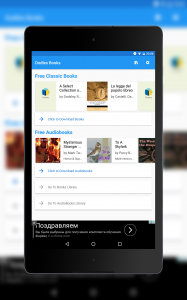 The main screen gives you quick access to the available e-books and audiobooks, while also allowing you to access your library.
When you first open the app, it asks you to create an account. Fortunately, for those of us who don’t like to create accounts, especially when the only account creation methods are Google and Facebook, there’s a “Sign-in later” option. It makes you wonder why the app asks you to create an account so early in the first place, especially if it isn’t required at all for the app to work properly. After this, you’re ready to use the app.
Overview
The main screen of Oodles shows two carousel-style sections: one for free e-books and another one for free audiobooks. Clicking on either will yield a grid (or list, it depends on the screen) with the available options. You’ll also have the option to swipe between different views, such as Categories, Top Books, and Top Authors. Think of the way the Play Store is organized and you’ll get an idea of what you will find here. Everything looks neat and works quickly enough.
When you choose a specific book, you’ll be directed to the book’s detail page. This will show the cover at the top, along with detailed information about the book and the option to download it. There’s also suggestions at the bottom, based on the book you chose. Since the available books here are probably not well-known, this is a crucial option and it’s nice that the developer decided to add it.
You can also browse your library of e-books and audiobooks, all neatly organized and with a percentage bar that shows you your current progress on that specific book. You can also import books you already own but are stored in your SD card or internal memory.
E-books
There’s a lot to say about this part of the app, so much that it merits a section of its own. When you finally download your books and are ready to consume them, you are treated with the reading screen.
I have mixed feelings regarding this specific activity, since some things work so well but, on the other hand, it looks outdated and out of place in a world where Android apps have gotten much more beautiful than they were just a couple of years ago.
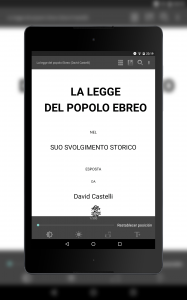 Gingerbread called. It wanted its interface back.
The screen has a top and a bottom bar, each one with different controls and options. The problem is that these icons look like they were brought in a time machine right from the days of Gingerbread.
Some buttons even have a gradient color, something that is frowned upon in today’s design. Actually making things worse is the fact that not all of them are gradients. There’s no consistency between design languages here.
Anyways, regarding the functionality of the buttons themselves, they all work more or less like you would expect. At the top, you’ll find a list button which will let you browse the chapters of your book and jump to any of them directly. There’s also a button to save bookmarks (actual bookmarks, you know, not the browser-related ones).
Next to it you’ll find a search function that works rather well. There’s also an overflow menu for getting to the app’s settings (I will come back to this later), book information, and increase/decrease font size (even though there’s a dedicated button for that at the bottom).
At the bottom you’ll find more useful stuff, such as brightness control, toggle between day and night modes (awesome), rotation lock, and the aforementioned font size changer. There’s also a slider to move between pages, and a button to return to the page you were reading before acting on this slider.
The book part is invisibly divided in three columns. Hitting the center part will toggle the top and bottom bars, leaving more screen state for reading your book. Touching the right side will take you to the next page, while the left region will take you to the previous page. Swiping will also move you through the pages. These gestures and tap recognitions work swiftly enough, although swiping too fast generates a wonky animation.
 Specific book information is available in one click. There’s also the option of browsing similar books.
Just as a Lannister always pays his debts, I am fulfilling my promise of coming back to the settings section. The options available here are actually richer than the options for the app itself. There’s options for changing appearance, margins, page turning, dictionary, colors, text, etc. Possibly every aspect that can be configured has some kind of entry. That’s really cool, but what’s with the design? If the icons weren’t Gingerbread enough, this settings app looks completely out of date.
The whole reading screen looks (and probably is) a library written by other developer and integrated to this app. There’s nothing wrong with that, but at least some additional work could have been made in order to avoid such an inconsistent experience.
Audiobooks
You can download your audiobooks in different parts (as opposed to a single big file) to make it lighter for your internet connection. The player for audiobooks works exactly as expected, with the book cover front and center, and then your regular buttons to play, pause, rewind, and similar events that you expect. There’s very little to say about it other than it works and audio quality is decent enough for an audiobook.
Ads
Being a free app by an independent developer, ads are expected. These come in two different flavors: a banner at the bottom of the screen, and a full-screen ad when you leave the reader screen.
I never hide my hate for full-screen ads, and I won’t start today. It’s really unfortunate that user experience has to be interrupted in such an abrupt manner in order to get the revenue to pay the bills. That’s the way the current market is, however, and there’s nothing in the near future that will change this. At least I haven’t seen a full-screen video ad yet.
Options
 Here’s the option screen, where you can configure the two of them.
Touching the gear button at the top of the main screen will take you to the app’s settings screen. Even though it seems full, it’s probably the settings screen with the least amount of options I’ve ever seen.
You can change your language, although it’s limited to English and another language that I can’t understand (sorry for the ignorance).
A kind of cool feature comes in the form of reminders. You can ask the app to remind you at a specific time that you need to stop being lazy and read those books you downloaded. These can be configured for any time of the day, any day of the week.
There’s also the option to remove ads (thankfully) and share the app with your friends. Other than that, there’s no noteworthy aspects to analyze further.
Conclusion
Oodles does a good job in categorizing and providing a nice one-stop place to download e-books and audiobooks. The problems start to show up when you’re reading the books themselves, with a really outdated library to handle the situation.
If you can ignore the fact that the reading interface looks like the apps you used on your Samsung Galaxy S2 back in 2011, then you can use Oodles to satisfy your reading needs.
Download Oodles from the Google Play Store.
Joby Griptight POV Kit: The selfie stick has evolved (review)

Everyone has a friend whose face is always in front of their phone. You can usually sniff that person out by going to eat at a restaurant and seeing who pulls their phone out to Instagram their food. Selfies have increased exponentially with apps such as Snapchat, where sending pictures through text messages has become obsolete. Companies like Joby have taken advantage of the selfie game and have come out with accessories to capture the perfect picture. Let me introduce you to Joby’s Griptight POV Kit.
Build
- Product dimensions: 4 x 6 x 9 cm
- Weight: 60 grams
The package contains a Griptight POV, universal flash shoe, and an Impulse Bluetooth remote.
 The Griptight POV is a portable smartphone mount that is built with a lightweight, plastic design. It will fit most phone sizes using an adjustable locking clamp. The clamp contains a jagged grip to ensure a secure fit on your phone.
 This versatile mount has multiple viewing angles that are adjusted with the black screw towards the back. The multiple viewing angles can be achieved by rotating the handgrip, which will rotate 180 degrees. This allows everything from taking a selfie, all the way to a grip that will give you a camera-like feel. The mount can also be angled so that your smartphone will stand up on its own like a tripod.
 Located at the top of Griptight POV is the Impulse Bluetooth remote that can be removed by sliding it out. The remote is paired by long-pressing the Joby button and then pairing it to your phone. This allows you to take a picture by simply pressing the Joby button.
 The Griptight POV’s handgrip can be unscrewed and put onto a GoPro mount. You can capture all your action-packed moments by attaching it a wide array of GoPro mounts.
 Usage
Usage
I was under the impression when I first saw the Joby Griptight POV that it was going to be just a portable selfie stick. I was pleasantly surprised at the versatility of this smartphone mount after using it for the past couple of weeks. I must admit the selfie game was pretty strong while I was using the Griptight POV mount. The Bluetooth remote worked effectively, especially when I put the mount in the tripod position to take a picture of my family.
I have a friend who uses a GoPro frequently while skateboarding. I had no trouble hooking it up to the GoPro helmet mount and caught a couple of laughable attempts at my inability to skateboard. I wouldn’t recommend using this for hardcore activities like on a motorcycle. The clamp is tight on the phone but I don’t know how it will hold up when you are flying at 85 miles per hour.
My favorite use for this mount was in the smartphone stand position. My biggest first world problem is having to hold my phone while watching Netflix before I go to bed. My arm gets tired holding the phone up to my face. I’ve tried leaning it against my alarm clock but it falls over all the time. This handy smartphone mount made my first world problems go away by letting me watch my favorite shows hands-free.
 Conclusion
The Joby Griptight POV kit is so much more than just a selfie stick. This portable smartphone mount has so many functions, despite its small size. Multiple viewing angles combined with a removable Bluetooth remote ensures that you will always capture the perfect picture. The kit is compatible with GoPro mounts, so you will never miss another action shot. The Griptight POV kit can be found on Joby’s website for only $49.95. With the holidays coming around the corner, make sure your friends have all the right tools for their selfie-obsession.
Unitek 60W 5 Port USB Car Charger: Keep your backseat passengers happy with a USB charging extension hub (review)

The dreaded low battery symbol shows up on my phone at least four times a week. You would think that I would learn to plug in my phone before going to bed every night, but I guess I subconsciously enjoy making my life difficult. There seems to be a correlation to my phone dying only when I am following directions from Google Maps. Luckily, Unitek offers an inexpensive car charger that will keep you fully charged at all times. Let me introduce you to the Unitek 60W 5 port USB car charger.

Build
The package contains a USB car charger and a USB extension hub
 The main USB car charger that plugs into your car is equipped with two USB ports. The top port supports QC3.0 technology. QC3.0 is a technology developed by Qualcomm that allows your phone to be charged from 0% to 80% in 35 minutes. This relatively new technology is only supported by a limited number of phones. However, the QC3.0 port will automatically detect if it is compatible and if it isn’t it will change to the correct power output. The great thing about QC3.0 is that it is backwards-compatible with QC2.0 and QC1.0 which supports many more phones.
 The bottom port on the main car charger is a standard 2.4A USB port. There is a light indicator at the top of the main charging unit that lights up green when quick charge is detected or blue when regular charging is detected.
The USB extension hub connects at the bottom of the Unitek Smart Car Charger. The extension hub is aimed towards backseat passengers so everyone can have the option of charging their devices. The extension hub features two standard 2.4A USB ports and one USB Type C for those that have newer devices.

 Usage
Usage
My car comes with a USB port so that I can charge my phone. However, over the past year, I’ve noticed the charging wasn’t as quick as I would like it to be. The Unitek car charger was a great addition to my car. The QC3.0 port was extremely useful because it decreased the charging time significantly. I have the LG G5 and found that it only takes around 40 minutes to charge my phone from 0% to 80%. Rapid charging is extremely convenient for me because I do not take many car trips longer than 20 minutes. Its ability to charge my phone to at least 50% in that time span is really crucial because of my bad habit of not charging my phone.
The extension hub is a nice addition for road trips with friends. It measures 22 inches which isn’t that long, but it should reach the backseat with the additional length of the charging cable. I took a trip up to Big Bear with my buddies for the weekend and had no problem charging four phones at one time.
 Conclusion
Smartphone companies aren’t focusing on increasing battery life in phones so it is absolutely imperative to have various options of being able to charge your phone on the go. Many newer cars have a USB port that comes standard; however, these USB charging ports do not charge our smartphones fast enough. There are better options available such as the Unitek 60W 5 port USB charger.
Five ports allow for many devices to be charged at the same time. There is one port that has QC3.0 charging capability, which is also backwards-compatible with QC2.0 and QC1.0. The fifth port is strictly for USB Type C. Amazon is having a sale on the Unitek 60W 5 port USB charger for only $21.99 with free shipping. If you are like me and always forgets to charge your phone, then this charger will be a great addition to your car.

Apps to watch the upcoming college football championships and bowl games

With only a few weeks left in the college football season, it’s the all-important time for your favorite teams to buckle down. One (more) loss and your guys could be knocked out of contention. Given the way things have transpired as of late, we wouldn’t be surprised if there were a few more shakeups before things wrap up.
Regardless of how the standings look when the season ends, the conference championships and bowl games are going to be fun to watch. As we see it, there are few things on TV as enjoyable as two top teams going head to head.
One area where would-be cord-cutters sometimes balk is on the topic of live sports. To them, getting rid of cable or satellite is a risky proposition, especially at this time of year. As it turns out, there are plenty of ways that one can get their football fix on smartphones, Android TV, and Fire Stick devices.
Below is a list of key games and apps to help you watch college championships and bowl games. We’ve listed Amazon and Google Play Store links, respectively.
Dec 2:
● PAC-12 Conference Championship (FOX Sports Go) (FOX Sports Go)
Dec 3:
● American Championship (WatchESPN) (WatchESPN)
● SEC Championship (CBS Sports) (CBS Sports)
● Big Ten Championship (FOX Sports Go) (FOX Sports Go)
● ACC Championship (WatchESPN) (WatchESPN)
● MWC Championship (WatchESPN) (WatchESPN)
Dec 30:
● Capital One Orange Bowl (ESPN on the Sling TV app) (Sling TV)
Dec 31:
● Chick-fil-A Peach Bowl (WatchESPN) (WatchESPN)
● Fiesta Bowl (ESPN on the Sling TV app) (Sling TV)
Jan 2:
● Parade of Roses (ABC, NBC, and HGTV) (ABC, NBC, HGTV)
● Rose Bowl (ESPN on the Playstation Vue app)
● Allstate Sugar Bowl (ESPN on the Sling TV app) (Sling TV)
● Goodyear Cotton Bowl (WatchESPN) (WatchESPN)
 AIVAnet