


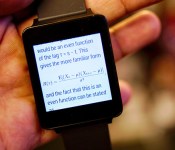
Android Wear app tries to squeeze Wikipedia onto your wrist

Android Wear will soon be buzzing our wrists numb with notifications, but what else can you do on such tiny screens? An app called Attopedia is testing those limits by letting you browse Wikipedia on your smartwatch. The logic is that mobile phone screens weren’t great for browsing either until sites were designed for them, so why not take it down even further? After loading a page, the grid interface lets you use your watch’s tactile screen to scroll up or down to access menus and left or right to see more detail. We’re not sure it’s the best way to view a content-saturated site like Wikipedia, but it’s a pretty good test for Android Wear — it’ll have to be more than a one-trick pony to take off. Grab it here if you’ve got an Android Wear device, you early adopter you.
Filed under: Wearables, Internet, Software
Source: Attopedia
.CPlase_panel display:none;
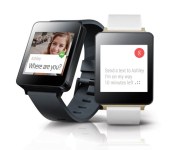
LG to fix G Watch corroding problem

Wearers of the first Android Wear powered smartwatch have been hitting LG with complaints that the charging connectors on the back of the watch are starting to corrode, some within weeks of wearing the device. For most users the problem is just causing some discolouration on the metal pins but for other users this corrosion…… Read more »
The post LG to fix G Watch corroding problem appeared first on AndroidGuys.
.CPlase_panel display:none;

San Francisco airport beacons help the blind get around using their phones

San Francisco International is about to make life decidedly easier for blind and visually impaired travelers. The airport has teamed up with Indoo.rs to unveil a Bluetooth beacon system that will help these passengers find their way through Terminal 2 using only their phone. When users walk past one of the 500 transmitters, their devices will announce nearby points of interest; they can find flight gates, ATMs, information desks and power outlets without asking for help. An early version of the necessary app also has a directory for sighted visitors.
The guide technology only works on iOS devices so far, but The Verge understands that it will eventually support Android-toting guests as well. Indoo.rs expects the service to be available either late in the third quarter or early in the fourth (think September or October), although you won’t want to plan trips around that estimate — it’s up to SFO to flip the switch. Whenever the beacons are ready for action, they should give many fliers a new level of independence.
[Image credit: Thom Watson, Flickr]
Filed under: Cellphones, Transportation, Mobile
Via: The Verge
.CPlase_panel display:none;

You can now try Android L on the LG Optimus G, the second port to a non-Nexus Device
 The collective Android community’s jaw dropped when Android L was shown off at Google I/O 2014 and since then, only a select few devices, namely the Nexus devices (and unofficially, the HTC One M7) have had a taste of what Android’s next version is going to feel like. You can now add the LG Optimus G to that very short list as it becomes only the second non-Nexus device to receive a ‘working’ port of the Android L Developer Preview. Thanks to a bunch of clever people over at XDA, you can now install the custom ROM on your device; for the file and installation instructions, you can visit the original forum post below:
Naturally, there are still a few bugs and issues to be figured out: NFC isn’t working and the camera isn’t working exactly as intended. There are also apparently some heat issues, but there are workarounds that hopefully lessen the impact of the issue. All the same, if you have an LG Optimus G, this is a perfect opportunity to try something that a large proportion of the Android community has yet to try, so get on it.
If you could see Android L on another device next, what device would it be? Let us know your pick in the comments below.
Source: XDA via The Android Soul
//<![CDATA[
ord = window.ord || Math.floor(Math.random()*1E16);
document.write('’);
//]]>
The post You can now try Android L on the LG Optimus G, the second port to a non-Nexus Device appeared first on AndroidSPIN.
.CPlase_panel display:none;
Sprint LivePro review: A mediocre projector hotspot that appeals to few

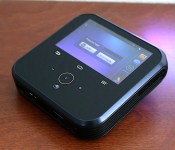
The “Swiss Army knife of electronics.” That’s the best way Sprint can define the LivePro, a touchscreen projector/Android hotspot made by Chinese manufacturer ZTE. The device, which goes for $300 with a two-year contract, is the first in a brand-new hybrid category — and depending on how successful it is, it may well be the last. Although the LivePro has a wide range of capabilities that make it useful on many different fronts, its demand will be incredibly niche. What kind of person needs such a unique device, and is it good enough to even attract them?
Hardware

The LivePro is an awkward-looking box, but then again, it’s clearly not trying to win any beauty contests — what do you expect from an Android-powered hotspot with a built-in projector and 4-inch display? It’s portability and utility that buyers will crave the most; this odd little thing will spend most of its time dragged around by a suit in a briefcase, purse or roller bag en route to endless meetings. Sprint customers won’t buy the LivePro to show off at parties.
For the sake of comparison, it looks in some ways like a larger (4.7 inches square) and fatter (1.1 inch) version of the Apple TV with a screen and buttons fashioned onto the top and a few ridges and curves on each side. That’s still a stretch, though: Despite a few commonalities, you’re unlikely to mistake the two devices. (Come to think of it, you probably won’t mistake it for anything else, either.) The LivePro weighs in at 14.1 ounces (0.88 pound), in large part due to the projector and fan that sit inside. Not only that, but you’ll also need to take your charger along with you if you plan to use the projector (more on that later), so you’ll need more packing room as a result.
The LivePro has several job descriptions, including a projector, mobile hotspot, media player, smart device and external battery charger for other devices. It’s a jack-of-all-trades and master of none, but that was likely ZTE’s objective in the first place: Bundle all the things together so it’s ideal for road warriors and families who want to consume media during a long road trip.

The 4-inch WVGA display on top is disappointing. Not only because its 800 x 480 resolution produces a below-average experience and viewing angles are quite bad, but also because of how the screen is laid out. The most comfortable way to hold the device is in landscape mode, but you’re given very little space to work with; whenever I needed to send an email, the keyboard blocked out the entire text field, so I had to minimize it anytime I wanted to see what I was typing. It’s possible to switch to portrait mode, but it’s even more awkward to hold the LivePro this way, because the screen is situated on the right side of the device. Simply put, you won’t want to use the LivePro as an Android device unless you’re turning on the hotspot or finding something to watch on the projector.
Adding to the awkwardness is the spread of buttons below the display. In addition to three capacitive navigation buttons (back, home and menu), there’s also a key to fire up the projector, another to turn the display on and off and separate controls for adjusting the volume. A couple buttons line the left side of the box: One is a standard power button and the other one turns the power bank on and off. Additionally, there’s a dial to adjust the focus for your projector and a hidden tab covering the micro-SIM and microSD card slots. (The latter can support up to 32GB cards, a bit low compared to most Android devices on the market today.)
On the bottom of the device sits connector ports for 12V power input, USB, HDMI and 3.5mm headphone jacks. You can put away all of the micro-USB cables you have, though, because you won’t find any such port here. At least the LivePro comes with USB and HDMI cables in the box, so you don’t have to dig through boxes of old cords to find some that work. Miracast support is also included in the device for wireless mirroring, and you’ll get Bluetooth 4.0 throw in as well.
You won’t be able to take the LivePro on a trip around the world, because it only comes with support for Sprint’s frequencies (bands 25, 26 and 41) and CDMA.
Projector

Your purchase of the LivePro hinges on how often you plan to use the projector. Why else would you want to get a high-priced device that takes up precious space in your backpack or purse? If all you need is an Android-powered hotspot, there are plenty of smartphones, tablets and other devices out there that will take care of you (and they’ll likely be much smaller, too!). By adding a projector into the mix, Sprint is targeting specific demographics: Professionals who are always traveling and giving presentations, and parents looking for new ways to entertain their kids when they’re away from a TV (but close to a power outlet).
With a 100-lumen DLP bulb, the LivePro features a standard projector compared to most in its price range. (The best I’ve seen is a $350 Viewsonic model with a 3,000-lumen bulb, but that’s an extreme outlier; most comparable devices are around $300 and sport 85 to 100 lumens.) Of course, this isn’t an apples-to-apples comparison, since the LivePro is subsidized under a service agreement ($300, or $450 off-contract) and ZTE tacked on a full Android device; a brighter bulb would’ve increased the cost of manufacturing. The resulting picture is still respectable, and it’s a massive improvement over older devices like the 15-lumen Samsung Galaxy Beam, which simply was a waste of a phone altogether.

In case you get any crazy ideas, don’t even think about using the LivePro for your home cinema. You’ll definitely need something larger, brighter and more expensive. It’s fine in a pinch, as you get a reasonable amount of color in a dark room, but it’s meant to help you temporarily rather than be a permanent fix. However, presentations, documents, shared-app demos — the LivePro is more than ideal for any of those. It features a native resolution of 854 x 480 and can project up to a 120-inch display on the wall or ceiling, so you won’t get a very high-quality viewing experience, and it’s pretty tough to see anything when you’re in a well-lit room. You’ll also want to place the LivePro between 10 inches and 10 feet from the surface you’re projecting onto.
The other problem you’ll run into is the audio. The device is actually pretty loud, but the built-in fan is even louder, which makes it incredibly difficult to get a good experience when you’re watching a quiet movie or on the far side of a long conference room. It’s not bad if you’re close to the LivePro, but the farther away you are, the more you’ll be straining your ears. In this case, you’ll need to add a Bluetooth speaker to your list of things to pack around with you.
While you’re rounding up extra stuff to take along with you, add a small tripod to your list. There’s a small kickstand to prop up the LivePro if needed, but the device comes with a tripod mount if you need to adjust the projection height and angle (this will happen more often than you think).
Software

The LivePro comes with a mostly stock version of Android 4.2 Jelly Bean, which is nearly two years old. I’ve grown so accustomed to using devices with KitKat that using the LivePro felt like going back in time. Of course, there are a few differences: As you’d expect, you won’t find any phone-related features here, nor is there a camera. Sprint’s also added a File Manager and Lookout security, but otherwise the carrier kept bloatware to a minimum. In fact, you won’t even find Hangouts, Calendar or Google+ pre-installed on the device. You can still download them, but since the LivePro comes with less than 2GB available storage (4GB total internal space), it was smart of Sprint to cut down on the number of preloaded apps.
There are a few minor tweaks to the UI. The lock screen and notification bar are both ZTE creations, and a homemade hotspot widget occupies a large chunk of real estate on the front screen. (You can move it or get rid of it if you’d like, but you’re going to need it if you plan to connect other devices via HDMI or WiFi Direct). Aside from these, you won’t find many significant changes; just an old operating system with few software features or limited internal storage.
Performance and battery life

An hour and a half. That’s how much battery life I got when the projector played a 720p movie (the display was turned off during this time). It’s barely long enough to get through a Disney princess movie, and it definitely won’t get you through most standard films, either. A 5,000mAh battery may sound large, but it’s nowhere close to what’s required to run a small projector. If you’re planning to use the projector, a charger will be mandatory regardless of where you go.
The battery can be used to power other electronic devices, but look elsewhere if this is on your list of top LivePro features. There are plenty of external battery chargers on the market at a much lower cost, and they’ll still provide ample power for your devices without taking up as much room. When I used the power bank, the LivePro lasted for around four hours from full to empty.
The LivePro comes with a 1.2GHz dual-core Snapdragon S4 chipset, which is even older than the OS it’s powering up, and 1GB RAM. Specifically, this device uses the same MSM8930 processor found in the HTC One VX and SV, both of which were mid-range smartphones when they came out in early 2013. I’ll cut ZTE a little bit of slack for this since the user experience is focused more on using the device as a media player and mobile hotspot, so the processor isn’t meant to be taxed with intensive tasks. Few people will find it easy, pleasurable or necessary to use this like a tablet.

This is one of those rare instances in which I was less interested in what I could do on the device’s display (the low specs and subpar screen certainly don’t help) and more interested in other things I could potentially do with the product. For instance, I was able to project my Xbox One via HDMI. I played a few rounds of Titanfall, but as I expected, the gaming experience wasn’t anywhere close to my 1080p TV. I couldn’t see enough details; I barely could differentiate who was on which team; and darker maps were ridiculously hard to see. But at least in terms of performance, everything was just as smooth here as it is on my television. Any HDMI or WiFi Display device is compatible with the LivePro, so there are quite a few potential uses for it outside of just playing Netflix — just don’t expect the LivePro to outshine HDTVs and larger projectors.
Lastly, because Sprint is Sprint, the hotspot performance will depend primarily on where you’re at. The carrier’s Spark network is still only located in a handful of cities (oddly, San Francisco isn’t covered yet, but Oakland is), while the remainder of Sprint’s network is comprised of inconsistent EVDO and LTE service. I’m located in an area with moderate LTE and have averaged around 2 Mbps down and 2 Mbps up, but Spark will likely be much faster.
Wrap-up

The LivePro is the best product of its kind… because it’s the only product of its kind. To ZTE’s credit, it came up with a crazily unique device that nobody’s ever seen before. Most consumers won’t find much interest in it, but Sprint likes it because it adds variety to its existing lineup and introduces a product category that none of the other carriers have explored. Unfortunately, the few who might find the LivePro useful may be turned off by its short battery life, high price and aging specs. It’s a device that could catch the attention of the corporate world — if it’s done correctly.
Filed under: Cellphones, Wireless, Mobile, Sprint
.CPlase_panel display:none;

Google Now Launcher available for most Android phones

The trusty Google Now launcher that debuted on the Nexus 5 had already made its way to the rest of that family and Play Edition devices. Now, folks wielding any handset running Android 4.1 (Jelly Bean) and later can grab the feature, even if it’s absent one of the aforementioned monikers. The software add-on makes Google’s card-based repository accessible by swiping to the right of the home screen or speaking an “OK Google” voice command from that main UI. Gadgets that weren’t officially stamped by Google hadn’t been privy to the functionality, but now even if OEMs drape the OS with their own look and features (looking at you, Samsung), you can still get a taste of stock Android.
Upgrade your home screen with the #GoogleNowLauncher – launching today for all #Android 4.1+ devices http://t.co/2blmlJE0Vh
– Android (@Android) August 1, 2014
Filed under: Cellphones, Software, Mobile, Google
Via: Android (Twitter)
Source: Google Play
.CPlase_panel display:none;

Moto 360 to be made out of plastic?

When Motorola announced Moto 360 smartwatch they haven’t exactly revealed much details about the smartwatch itself. Everyone assumed the device will be made out of metallic material, most probably stainless steel. Latest report indicate that might not be the case though. According to a Chinese portal “TechWeb”, Moto 360 might be made out of plastic……. Read more »
The post Moto 360 to be made out of plastic? appeared first on AndroidGuys.
.CPlase_panel display:none;

ASUS MeMO Pad 7 and 8 review: small, speedy tablets that cut a few corners

The MeMO Pad HD 7 was arguably the sleeper hit among small tablets in 2013. ASUS’ device didn’t have the speed of the Nexus 7 or the interface tricks of Samsung’s Galaxy Tab 3 line, but it was superbly balanced. It ran smoothly, packed smart software and (most importantly) carried a sub-$200 price. For that reason, this year’s MeMO Pad 7 and 8 are potentially exciting; they stick to that familiar formula while bringing in faster processors and a fresher interface. What’s not to like? As you’ll find out in our review, there are a few aspects that definitely need improvement, or even take steps backward — but it’s also clear that ASUS has budget-tablet design down to a science.
Hardware

The strongest evidence of ASUS’ if-it-ain’t-broken philosophy manifests on the outside. If you’ve used either the MeMO Pad HD 7 or HD 8, the basic layouts of their MeMO Pad 7 and 8 sequels will be very recognizable. And that’s mostly a good thing. They’re easy to hold, with rounded edges and side buttons that you’re unlikely to hit by accident. You’ll find micro-USB and headphone ports on the top, the power and volume controls on the right and a microSDXC storage slot on the left. There’s little on the front besides the company logo and the front-facing camera (0.3 megapixel on the Pad 7, two megapixels on the Pad 8). On the back, you’ll spot a rear camera above (two and five megapixels, respectively), and stereo speakers below.
That’s not to say that ASUS is simply recycling its hardware. Both of the new entries are a tad thinner and lighter than their predecessors. The 7-inch MeMO Pad 7 is the featherweight of the bunch, at 0.65 pound and 0.37 inch thick; its 8-inch counterpart is unsurprisingly heavier, at 0.7 pound, but it’s also slimmer at 0.3 inch. The designs are narrower than last year’s models too (4.4 and 4.9 inches, respectively), so they’re ever so slightly easier to grab with one hand. I was happy to use either for significant stretches of time without propping them up on my lap; these are fine devices for reading on the couch or playing games that demand a two-handed grip.

That conservative design approach does mean the MeMO Pads inherit a few flaws. Those buttons may prevent unintended presses, but they’re also harder to activate on purpose. Since you can’t see them most of the time or quickly identify them by feel, it’s all too easy to accidentally lower the volume when you meant to put the device to sleep, or vice versa. The matte finishes also have their quirks. The 7-inch slate’s smooth backing tends to stay relatively pristine (at least in a red hue), but it’s a bit slippery; the textured 8-inch model is more stable in my hands, but it picks up lint like nobody’s business. The MeMO Pad 8′s new camera layout also doesn’t do anyone any favors. ASUS has moved the camera from near the center to the corner, making it a little too trivial to block the lens when you’re shooting. The Pad 7′s rear shooter is in the same position as on the HD 7, though, so you won’t easily smudge its glass.
Not much has changed on the inside apart from the processor, although that’s not shocking given that the Pad 7 and 8 cost just $150 and $200 respectively. In US models, you’ll still see 16GB of built-in storage (11.1GB free), 802.11n WiFi and Bluetooth 4.0. Sadly, there’s no HDMI output, so you’ll have to lean on Miracast streaming to send video to a TV. ASUS does have an ace in the hole with its built-in GPS and GLONASS positioning, however. You can use any of these devices for navigation so long as you have offline maps; many rivals, including iPads, can’t do that unless you buy their cellular-equipped variants.
Display and sound

Although the MeMO Pad 7 and 8 are separated by an inch in screen size, you get the same basic display technology: a 1,280 x 800, IPS-based LCD. Neither tablet’s screen is especially sharp (the Nexus 7 and Dell’s Venue 8 have much crisper-looking 1,920 x 1,200 panels), but they’re reasonably attractive for the price you’re paying. Both deliver rich colors that aren’t overdone, and you only really lose brightness when you look at them from sharp angles. There are a few practical differences beyond the raw surface area, mind you. The Pad 8′s display is a bit brighter, at a high 400 nits versus 330. Either model is easily visible indoors, but you’ll definitely want the larger slab if you venture outside. I also noticed that the Pad 8 had a warmer, slightly yellowish color cast out of the box, although ASUS’ Splendid screen utility makes it easy to dial that out.
Really, it all comes down to dimensions. Just how much screen real estate do you need? Having held the two MeMO Pads side by side, I can safely say that you’ll want the 8-inch version if you can at all swing the extra cash. It’s much easier on my eyes for long gaming and reading sessions, and it gives me more overall breathing room than I get with the cramped 7-incher. The lower pixel density isn’t a problem at normal viewing distances, in my experience. The tinier hardware will do if you don’t have the money or free space for the bigger hardware, but it’s tougher to justify in an era when many smartphones aren’t that much smaller.
There’s a similar split when it comes to sound quality. While the MeMO Pad 7′s stereo speakers are clear-sounding, they’re a bit quiet and lack even the vaguest hint of bass. The Pad 8 isn’t an audio powerhouse, but it produces louder, fuller output that’s just good enough to make me forego my headphones. With that said, the stereo separation on both tablets is virtually nonexistent. I’d really like to see ASUS put the speakers on opposite ends, like it does with the larger Transformer Pad TF103C.
Software

If you’ve read our review of the new Transformer Pad, you’ll know what to expect software-wise. The two MeMO Pads are running the same ZenUI interface, which spruces up Android 4.4.2 KitKat with a trendy “flat” look and a handful of customizations. ASUS strikes a careful balance between adding its own flourishes and leaving Android’s better features alone. You’ll get quick settings, some well-done media galleries and app drawer sorting, but multitasking and most other Google-made elements remain intact. Yes, that means you’ll miss out on multi-window support and other perks from heavier Android skins, like what you get on Samsung’s Galaxy Tab 4 line. Still, it’s hard to object to ZenUI’s more restrained approach — it’s simple, colorful and responsive.
There isn’t an avalanche of preloaded software, either. ASUS’ own titles are dominated by simple utilities like the previously mentioned Splendid display tool, What’s Next (a simplified calendar view) and Do It Later (a to-do list). The more substantial apps are a mixed bag. SuperNote is great for scribbling and typing notes, but I just couldn’t find a use for Story’s diary-keeping abilities. The third-party app selection, meanwhile, is small, yet smart. Flipboard and Kindle are practically must-haves for reading, and I can see some subscribing to either eMusic’s song-download service or some of Zinio’s magazines.
Performance and battery life
| ASUS MeMO Pad 7 and 8 ** | Nexus 7 (2013) | Samsung Galaxy Tab S *** | Amazon Kindle Fire HDX (7-inch) | |
|---|---|---|---|---|
| Quadrant 2.0 | 19,495 | 6,133 | 18,591 | 19,655 |
| Vellamo 2.0 | 1,933 | 1,597 | 1,672 | N/A |
| SunSpider 1.0.2 (ms)* | 607 | 602 | 1,109 | 554 |
| 3DMark IS Unlimited | 14,171 | N/A | 12,431 | N/A |
| GFXBench 3.0 Manhattan Offscreen (fps) | 7.5 | N/A | 5.5 | N/A |
| CF-Bench | 22,284 | 15,366 | 31,695 | N/A |
|
*SunSpider: Lower scores are better. **Average score for the 7- and 8-inch models. ***Average score for the 8.4- and 10.5-inch models. |
||||
Don’t expect to see a performance gap between the two MeMO Pads… or the TF103C, for that matter. They’re all using the same quad-core, 1.33GHz Atom Z3745 processor with 1GB of RAM, which means the benchmark scores are virtually interchangeable. Not that there’s much room to complain. As you can see above, either of the entry-level tablets can match or beat more expensive challengers. It’s not shocking that they can outpace ASUS’ own Nexus 7, a year-old device using an even older processor. However, they also fare well against Amazon’s speedy Kindle Fire HDX, and even the premium Galaxy Tab S 8.4 — not too shabby when you’re paying up to $250 less.
The numbers translate well to the real world. The Atom chip doesn’t break a sweat while navigating through the interface, and it’s equally adept at both web browsing and intensive 3D games like Real Racing 3. As I touched on with the Transformer Pad, the low resolution goes some way toward easing the workload. You don’t need a rocket to power a paper airplane, after all. However, the offscreen graphics tests suggest that neither MeMO Pad would have much trouble handling 1080p. It’s just a shame that the displays can’t match the might of what’s under the hood.

More memory would be nice, too. Although the devices didn’t get bogged down as I juggled different apps, it’s evident that 1GB of RAM isn’t quite enough for very demanding apps. One benchmark I ran would randomly spit “out of memory” errors, even after rebooting to give it as many resources as possible. You might never encounter these problems yourself, but I’m concerned that the MeMO Pads could choke on software a year or two down the road.
I don’t have similar reservations about the battery life. Where the Transformer Pad TF103C’s runtime was disappointing for its size class, both the MeMO Pad 7 and 8 are at least on par for their price tier, if not a bit above average. ASUS claims that both of them should last for nine hours when looping a 720p video at a low 100-nit brightness, but that’s fairly conservative. In my testing, which upped the brightness to the halfway mark and threw in periodic updates from Facebook and Twitter, both gadgets were still within the ballpark of that official estimate. The 7-inch unit managed a respectable eight hours and 36 minutes before shutting down, or enough to trump the current Nexus 7 and multiple older Samsung tablets. Meanwhile, the 8-inch model lasted for nine hours and 21 minutes, putting it ahead of both the TF103C and Sony’s Xperia Z Tablet series. Neither result holds a candle to the longevity of the Galaxy Tab S, ASUS HD 7 or most iPads, but they’re more than acceptable given the blend of raw power and discount pricing.
| Tablet | Battery Life |
|---|---|
| ASUS MeMO Pad 8 | 9:21 |
| ASUS MeMO Pad 7 | 8:36 |
| Microsoft Surface 2 | 14:22 |
| iPad Air | 13:45 (LTE) |
| Apple iPad mini | 12:43 (WiFi) |
| Samsung Galaxy Tab S (10-inch) | 12:30 |
| Samsung Galaxy Tab S (8-inch) | 12:22 |
| Apple iPad mini with Retina display | 11:55 (LTE) |
| Apple iPad (late 2012) | 11:08 (WiFi) |
| ASUS Transformer Book T100 | 10:40 |
| Apple iPad 2 | 10:26 |
| Samsung Galaxy Note Pro 12.2 | 10:04 |
| ASUS MeMO Pad HD 7 | 9:56 |
| Apple iPad (2012) | 9:52 (HSPA) / 9:37 (LTE) |
| Acer Iconia W4 | 9:50 |
| Nexus 7 (2012) | 9:49 |
| Microsoft Surface RT | 9:36 |
| Toshiba Encore | 8:45 |
| Sony Xperia Tablet Z | 8:40 |
| ASUS Transformer Pad TF103C | 8:26 |
| Sony Xperia Z2 Tablet | 7:57 |
| Nexus 10 | 7:26 |
| Dell Venue 8 Pro | 7:19 |
| Samsung Galaxy Note 8.0 | 7:18 |
| Nexus 7 (2013) | 7:15 |
| Samsung Galaxy Tab Pro 8.4 | 7:13 |
| Samsung Galaxy Tab 3 10.1 | 6:55 |
And in real life, the battery is healthy enough that you likely won’t notice the difference. I can get through a day of moderate browsing, social networking and photography even on the MeMO Pad 7, and I had less to worry about with the Pad 8. Heavy-duty gaming chews up a lot of that precious energy, although you can counter that by invoking a special energy-saving mode that cuts internet access when the tablets aren’t in use. It’s a last-ditch measure, to be sure, but it might save your hide if you need a working device at the end of a daylong trip.
Camera

Here’s where ASUS seemingly backtracks on its earlier successes. I lauded the MeMO Pad HD 7 for having solid cameras, but you’re not guaranteed a similar experience with its 2014 follow-ups; to achieve what I saw in the HD 7, you’ll have to spring for the costlier MeMO Pad 8. Its 5-megapixel autofocusing rear camera is nothing special with noisy low-light shots, blown-out highlights and processing that tends to erase finer details, but it generally produces accurate colors and can take reasonably well-exposed photos in dim indoor environments. The front 2-megapixel sensor is similarly unremarkable, but it’s good enough for an HD-quality video call or selfie. Whichever camera you use, there’s a fairly sophisticated set of filters and manual camera settings, so you can add an effect or tweak the white balance if an image isn’t quite to your liking.
It’s the MeMO Pad 7 that you have to watch out for. ASUS has dropped the HD 7′s 5-megapixel back camera in favor of a 2-megapixel, fixed-focus shooter, much like that in the TF103C. Predictably, the downgraded equipment is terrible — you can’t get close to many subjects without losing focus; colors are slightly off; and shots in anything less than good lighting generate an abundance of noise. Both this and the equally lackluster 0.3-megapixel front camera are serviceable if you only need to capture a chalkboard or join a Hangouts chat, but they’re unfortunate regressions on a tablet that’s otherwise a big leap forward.
The competition

Just what represents competition will depend heavily on whether you’re considering a MeMO Pad 7 or 8. The smaller slab may be the easiest choice. Poor cameras notwithstanding, the Pad 7 outmuscles much of what you’ll find around its $150 sticker. Amazon’s Kindle Fire HD, Barnes & Noble’s Nook HD, LG’s G Pad 7.0 and Samsung’s Galaxy Tab 4 7.0 are slower and carry less storage. The Kindle and Nook don’t even have any cameras to speak of, while LG and Samsung don’t offer much more photographic prowess than ASUS. HP’s Tegra 4-packing, $200 Slate 7 Extreme is no real threat either. The biggest danger may come from Dell’s Venue 7, which offers noticeably higher-resolution cameras (if also a slightly pokier Atom chip) for $10 more. Neither the Kindle Fire HDX nor the Nexus 7 justify their premiums as much as they did roughly a year ago — $80 more gets you an exceptional screen and perks like the Nexus’ wireless charging, but they’re not faster.
Move up to eight inches and it gets trickier. Frankly, the Venue 8 may be a better buy than the MeMO Pad 8 if you’re interested in getting the best hardware possible for $200. It’s using a dual-core Atom, but it has a far nicer 1,920 x 1,200 LCD for a similar hit to your wallet. You will get more for your moolah than other tablets can typically muster, though. The G Pad 8.0 isn’t available in the US yet, and the $270 Galaxy Tab 4 8.0 is both more expensive and comparatively sluggish. If you’re open to trying Windows, keep your eye on the Venue 8 Pro; Amazon affiliates frequently sell it for as little as $200, and it may be worth giving up some battery life in the name of a desktop-class operating system or (optional) pen input.
Wrap-up

Of the two MeMO Pads, I’d choose the 8-inch model without hesitation, as it’s simply a better bargain. Spending $50 more nets you better cameras, longer battery life and that all-important larger display. The 7-inch system offers superb speed for a $150 tablet, but it’s somewhat hobbled by the downgraded cameras. I’d make the sacrifice, as I rarely snap photos with any tablet, but it isn’t as well-rounded as last year’s MeMO Pad HD 7.
It’s a harder call when pitting ASUS against its opponents. While it should be clear by now that the MeMO Pads can take on most any task you’d expect from a mobile tablet, they’re not the best at everything; you can find nicer screens and cameras without much difficulty, especially if you’re willing to go beyond the $200 mark. I don’t think that specs alone tell the whole story, though. ASUS makes a good case for custom Android interfaces. ZenUI is more helpful than the largely stock Android implementation on the Dell Venue 7 or 8, yet it never gets in your way. I can comfortably recommend both the MeMO Pad 7 and 8, but you do have to be aware of what you’re giving up — these aren’t so much sleeper hits as they are wisely calculated trade-offs.
Filed under: Tablets, Mobile, ASUS
.CPlase_panel display:none;

Watch This App: Mechanical Gears Watch Face

So you’ve got an Android Wear device and now you’re looking for some Android apps to go along with it. We’ve got you covered. Our Watch This App column is designed to help educate readers in the various apps available for the platform and highlight the best of the bunch. Watch This App: Mechanical Gears Watch Face This Wear app…… Read more »
The post Watch This App: Mechanical Gears Watch Face appeared first on AndroidGuys.
.CPlase_panel display:none;

Take a look at HP’s luxury smartwatch

Despite their utility, smartwatches remain a geeky niche item thanks to a certain lack of je ne sais quoi. However, HP is partnering with a retailer called Gilt to build an Android and iOS compatible smartwatch that may finally tick the style box, thanks to US designer Michael Bastian. He’ll take care of the design, which will feature a circular, 44mm stainless steel design and three swappable bands: black rubber, brown leather, olive green nylon and a limited edition black.
Bastian says the design cues came from luxury automobiles, namely interior features like the dashboard and trim. Meanwhile, HP will will add the watch’s smart features, which will reportedly include notifications like email, text and calls, along with user controls for music and other apps. It’ll reportedly arrive this fall, with no word yet on pricing — but we imagine it will be in the “if you have to ask” category.

Via: Hypebeast, Fashionista
Source: Gilt
.CPlase_panel display:none;

