


Your pet will love this $139 Furbo treat-tossing dog camera

Amazon is offering 30% off the Furbo Treat-Tossing Pet Camera, bringing the final price down to just $139 shipped. The discount should apply automatically when you click this link and add the item to your cart, but if it gives you any trouble, try using the code 30FURBODOG during checkout. This item typically sells for around $240, and today’s price is a match for the best in history.
You may remember this pet cam from when it was featured on The Ellen Show. It uses a free app and Wi-Fi to let you toss your furry pal a treat using your phone. The app is compatible with both iOS and Android. The 1080p wide-angle camera is complete with night vision, so you’ll always be able to keep an eye on your little rascal, and there is even a two-way chat feature that lets you check in using your voice. It can even work with Alexa, so you can schedule hands-free treat tossing to keep your fur baby happy while you’re away. It’s easy to set up, easy to use, and easier than ever to play with your pet from afar.
Use this while on vacation, for behavioral training, or just to reconfirm your suspicions that a certain furry someone has been knocking over your furniture while you’re at work.
See at Amazon
Keep your browsing private for life for $49
It’s probably trite and a bit cliché at this point, but we increasingly live our lives online. Our bank information, personal information, likes, dislikes, and more are all over the internet — often whether we like it or not. That’s all data, and nowadays, data is a commodity. Your information is being bought and sold. Sometimes it’s simply to show you catered ads; other times it’s for the stuff that after-school specials used to warn you about.
What can you do to combat all of this online tracking? Do you turn to VPNs? Sure, but they don’t necessarily block tracking in every sense. Did you know that there are services and apps that actually block online trackers in order to keep your data safe?
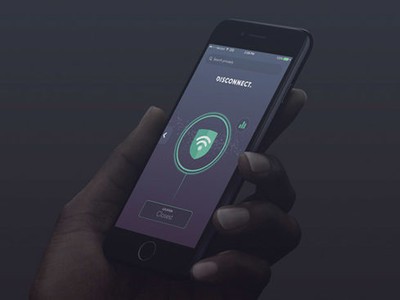
Disconnect is one of the best tracker blockers around. It blocks tracking requests from connecting to any of your devices, thereby keeping your data safe. It even masks your location so that you can access websites as though you’re in another country (like a VPN). Apps like these have subscription rates, and some charge an arm and a leg. If you were to go directly to Disconnect for a lifetime subscription, you’d pay $500. Through Android Central Digital Offers, you’ll pay only $49, a savings of 90%.
Disconnect is available for iOS, Android, PC, and Mac, so you can cover all of your devices and keep your browsing habits private. If you often deal with sensitive information or would rather just keep your internet habits completely your own, you’ll need a quality tracker block, and Disconnect is one of the best around. Check it out at Android Central Digital Offers and save 90%.
Best Android Launchers in 2018

Want to upgrade your Android experience? Try upgrading your launcher.
The way we arrange, organize, and interact with our apps on Android is called the launcher. Launchers usually consist of a series of home screens, where we can arrange app shortcuts and widgets and an app drawer. Every phone comes with a launcher, but when they drop the ball, there are endless third-party launchers that not only pick it up again but knock it clear out of the park.
Previous incarnations of this article have tried to claim that there is one launcher to rule them all, that there truly is a best launcher out there. I don’t believe that’s possible, even though I have a launcher I value over all others. You use your phone differently than I do, and I use my phone differently than my co-workers do or my friends or my family do. Everyone has their perfect launcher, but if you haven’t found your favorite yet, then here are a few launchers we think will satisfy users of every type.
Best light and easy launchers
- Evie Launcher
- Microsoft Launcher
Best customization launchers
- Nova Launcher
- Action Launcher
Honorable mention launchers
- Best app drawer: Smart Launcher 3
- Best business launcher: BlackBerry Launcher
Best light and easy launchers
Are you someone who doesn’t want to mess with a lot of bells and whistles? Do you just want to put your most-used apps front and center, maybe a widget or two, and get one with your Android experience? You want a fast launcher, a light launcher, one that doesn’t need a lot of fussing and tweaking, and these are the launchers for you.
Best light launcher: Evie Launcher

Evie Launcher is a lightweight launcher that just doesn’t quit and uses its few gestures in effective ways. First and foremost, like so many modern launchers, Evie has a swipe up gesture to open the app drawer. Another popular launcher gesture Evie offers is the ability to double-tap the screen to put your phone to sleep, either using the phone-locking Instant Lock or Smart Lock-friendly Timer Lock.
Evie is easy to set up and run with, but you can customize the desktop grid and turn gestures on and off as needed. It’s a quick launcher that’s also getting quick updates, so look forward to more optimizations and tweaks to help speed up your launcher experience. You can even back up your Evie layout and settings directly to Google Drive.
Read more: Evie Launcher review
Download Evie Launcher (Free)
Runner-up: Microsoft Launcher

You’d think that if Microsoft was going to bring a launcher to Android it’d be a launcher that matches the launcher on Windows Phone — and you’d be wrong. Microsoft Launcher doesn’t look a thing like Windows Phone, and that’s great news. Not only is Microsoft Launcher a completely Android-native experience, but it’s a top-quality launcher to boot, and one of the few launchers besides Nova Launcher to offer edge-to-edge widget placement.
Microsoft Launcher is a browser that’s centered around a clean home screen with a robust dock, a smart feed centered around your Microsoft account and your daily phone use, and a speedy app drawer where you can easily find all your apps. Microsoft Launcher’s set up is a touch long-winded, but it’s a breeze to navigate. It’s not quite as bare-bones as Evie, but it is a light launcher that’s well-worth considering, especially if you have an Outlook account for work or school that it can tie into for email and calendar appointments.
Download Microsoft Launcher (Free)
Best customization launchers
Do you want full control over your home screens? Want to set more than just an app grid and a widget or two? Want to make your home screen look and act the way you want? Then you want a customization-based launcher. Often called theming launchers because theming is one of their more obvious uses, these launchers are for far more than just making your home screen look pretty; they’re for making your home screen function more efficiently and more effectively for your life.
By giving you control over gestures, advanced UI controls, and almost every aspect of your launcher experience, these launchers let you customize the way you interact with your phone in ways that truly exemplify the Android experience. These two customization-based launchers dominate much of the third-party launcher market, and there’s a very good reason: they’re awesome.
Best customization launcher: Nova Launcher

Nova Launcher is over six years old, and this storied launcher has been a major player in the Android launcher market longer than most of us have used Android. The reason for this continued dominance is simple: Nova’s mix of customization, convenience, and cunning is unparalleled. Nova lets your phone look more Pixel-y than a Pixel and more TouchWiz than a Galaxy S9 and does it with ease and grace. In fact, Nova’s biggest strengths are things that are hidden in plain sight, like its pocket ace Subgrid Positioning or its excellent backup system.
When we build themes for our Android Central readers, nine times out of 10 the launcher we use to build it and to share it with you is Nova Launcher. It’s an excellent launcher if you want to build complex themes or if you just want a smartly laid out launcher with excellent gesture controls.
Read more: Nova Launcher review: Still king of the mountain
Download Nova Launcher (Free, $4.99)
Runner-up: Action Launcher

Action Launcher is one of the most popular launchers on the market, and the watchword of both the launcher and its users is QUICK. Quicktheme, Quickdrawer, Quickpage, Quickbar, quick, quick, quick. Action Launcher is determined to be a launcher that gets what you need to be done quickly so that you can get back to doing whatever you actually need to get done. To ensure that Action Launcher can be the quickest and best launcher for users who want to set everything up just so, Action Launcher has taken it upon itself to be one of the most customizable launchers on the market. From its robust gesture controls to its ubiquitous Covers and Shutters to hide folders and widgets under a seemingly plain looking app shortcut, no matter what you want to use, Action Launcher makes it easy to set up, even if its Quicktheme sometimes misses the mark.
Action Launcher is also quick to support features from the newest versions of Android, and it’s already started integrating some Android P flair. There’s a reason it’s the only launcher Phil uses: Action Launcher is damn good at what it does. While it’s not quite as intense as Nova Launcher, it’s a launcher that’s incredibly — well, quick — about getting you set up and on your way.
Download Action Launcher (Free, in-app purchases)
Honorable mention launchers
Now, there are launchers that don’t quite top the list for the lighter, easier quick launchers and can’t quite crack the intense theming prowess of Nova and Action. This doesn’t mean that these launchers aren’t awesome, and in an effort to highlight launchers with a standout feature or that serves a launcher niche excellently. After all, there are a lot of launchers out there, and there are a lot of ways to use them to interact with your apps.
Lawnchair Launcher was going to be added to this list, however the Lawnchair team just announced that they’re dialing back on the current version as they ramp up an overhauled v2. As such, while Lawnchair Launcher is a neat take on Launcher 3 — the AOSP launcher and base of Google’s Pixel Launcher — with some Pixel flair, edge-to-edge widget placement, and basic but beautiful theming, we’ll wait and see what Lawnchair v2 brings before adding it as the Best Early Access launcher.
Best app drawer: Smart Launcher 5

Smart Launcher has been around for a while, but this spring, Smart Launcher kicked things up a level or 2 with its jump from Smart Launcher 3 to Smart Launcher 5. The home screen features a new gridless widget-placement system, Smart Search has not only been overhauled, it allows you to switch search providers if you want to use something other than Big Brother Google.
But the real star of the show here is the app drawer. Smart Launcher 5 automatically sorts your apps into several categories, and if you pay for Smart Launcher Pro, you can even add your own custom categories and sort your various drawer tabs in a variety of ways, from most-used to install time to even icon color!
Smart Launcher 5 has a lot here to like, from a responsive and comprehensive categorical app drawer to some of the most precise widget placement on Android to the most diverse icon options on the market. Its gestures are also top-notch, especially the double-tap shortcuts that can at least double the functionality of every app on your home screen.
Read more: Smart Launcher 5 review: An amazing balance of customization and simplicity
Smart Launcher 5 (Free, $6.99)
Best business launcher: BlackBerry Launcher

BlackBerry has made something of a comeback since its migration to Android a few years ago, and nowhere is this more apparent than BlackBerry Launcher, which is openly available on Google Play. BlackBerry Launcher is a stable launcher that eases Android newcomers into the many, many possibilities available in an Android launcher today. Part of this is by necessity, as millions of government and enterprise users are introduced to Android and what an Android launcher can do through DOD-certified BlackBerry phones.
From pop-up widgets that can appear with the swipe of an icon to one of the easiest-to-understand Shortcut galleries I’ve seen on Android to a no-nonsense approach to launcher settings and customization, BlackBerry Launcher lets you get things set up just the way you like them and then streamline your launcher experience for efficiency.
BlackBerry Launcher’s keyboard shortcuts are the best on Android
Keyboard shortcuts on BlackBerry Launcher are exclusive to BlackBerry’s physical keyboard phones, but they offer unparalleled ease and versatility. In the esteemed words of our own Jerry Hildenbrand:
My KEYone and its keyboard shortcuts let me keep my home screen blank and I just long press a keyboard key to open the app I want to open: “A” for the AC app, “C” for Chrome, “G” for Gmail, “K” for Slack, and “S” for Signal. This keeps me from tapping things with my bumbling fingers or worrying about things happening in my pocket.
How to set up keyboard shortcuts on the BlackBerry Launcher
As a business-geared launcher, BlackBerry Launcher offers a premium experience, and rather than paying a one-time fee for the launcher, BlackBerry Launcher relies upon a BlackBerry Hub subscription to eliminate its ads after 30 days. Or you could buy a BlackBerry phone and get access to the best launcher shortcuts on Android.
Download BlackBerry Launcher (Free, subscription)
What’s your favorite?
Do you have a favorite launcher? What’s on your Android phone now? Sound off in the comments below.
Updated May 2018: Best Launchers has been updated to reflect new features and expanded outside the traditional quick and custom launcher categories with some honorable mention launchers.
How to get the Android P beta on your OnePlus 6
Have a OnePlus 6 and want to load Android P on it? Here’s what to do.
The OnePlus 6 is OnePlus’s big flagship for 2018, and like we heard at Google I/O, is one of a handful of phones you can use to download the Android P beta right now.
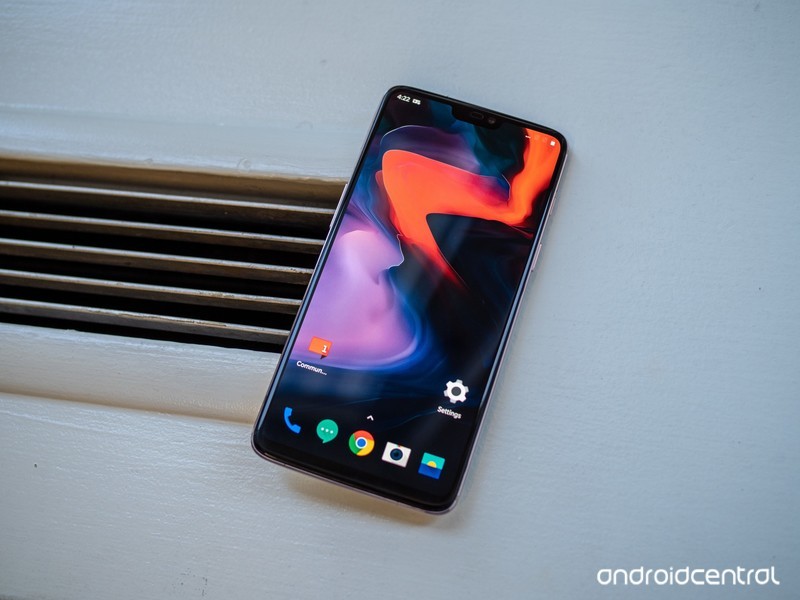
Android P is currently in a Developer Preview 2 stage, meaning there are still a few bugs here and there that could make your experience a bit rough. However, if you’re okay with that and want to start playing with the new software, here’s what you need to do.
One more thing! Before you begin this process, make sure you understand the risk involved. Flashing software can potentially brick your phone if you’re not careful, so be certain you’ve got enough time to complete the process and read all the instructions are careful as possible.
From your OnePlus 6, go to OnePlus’s website and head to the Android P beta page.
Tap on the Download Now button.
Navigate to Settings.
Tap System updates.
Tap the top right corner icon.
Tap on local upgrade.
Tap the installation package.
Tap immediately upgrade.
Once these steps have been completed, you’ll want to dive into Recovery Mode
To turn your OnePlus 6 off, hold the power button and tap the shut down option.
Hold the power button and volume down buttons at the same time to enter Recovery Mode.
Select the Wipe data/factory reset option.
Click power and select yes to confirm your selection.
Select Reboot system now.
Your OnePlus 6 will then download the Android P file, and after a few minutes, should be up and running with the new software!
There are a ton of new features and goodies to check out with Android P, but it’s important to note there are a few things that aren’t working. Right now, known issues include:
- VoLTE doesn’t work
- Bluetooth connectivity has “compatibility issues”
- The Wi-Fi SoftAP device manager isn’t functional
- Slow motion mode in the camera is unstable
- Face Unlock isn’t working
- Widevine L1 is not operational
Enjoy Android P on your OnePlus 6!
OnePlus 6 hands-on preview: Still the best deal in town
Android P
- Android P: Everything you need to know
- Android P Beta hands-on: The best and worst features
- All the big Android announcements from Google I/O 2018
- Will my phone get Android P?
- How to manually update your Pixel to Android P
- Join the Discussion
OnePlus 6
- OnePlus 6 hands-on preview
- OnePlus 6 vs. OnePlus 5T: How much changes in six months?
- OnePlus 6 vs. OnePlus 5: Should you upgrade?
- These are the official OnePlus 6 cases
- The OnePlus 6 doesn’t work on Verizon or Sprint
- Join the discussion in the forums
HTC U12: Rumors, specs, and latest news!
The HTC U11 was one of 2017’s most underrated phones, so you’d be a fool to let the U12+ slip under your radar.
There were a lot of excellent phones that came out in 2017, and while much of the limelight was reserved for the likes of the Galaxy S8, Google Pixel 2, and Apple’s iPhone X, HTC also kicked out a truly awesome phone with the U11. The U11 didn’t receive anywhere near the amount of attention as it should have, and while it’s unclear if the U12+ will be able to change this, one thing is certain – it’ll be a darn nice phone.
| Operating System | Android 8.0 Oreo with Sense 10 |
| Display | 6-inches at 2880 x 1440 18:9 aspect ratio Super LCD 6 HDR10 compatible |
| Processor | Qualcomm Snapdragon 845 |
| Storage | 64GB or 128GB |
| RAM | 6GB |
| Rear cameras | 12MP wide-angle (f/1.75) + 16MP telephoto (f/2.6) Optical image stabalization |
| Front camera | Dual 8MP sensors |
| Battery | 3,500 mAh |
| Water resistance | IP68 |
| Connectivity | USB Type-C Bluetooth 5.0 NFC |
| Security | HTC Face Unlock |
May 17, 2018 — Full spec sheet and three colors leaked

Just a few days before HTC officially unveils the U12+, Evan Blass has taken to Twitter to give us a full glimpse into what the phone has to offer.
The colors include black, a red similar to the V30’s Raspberry Rose, and one with a transparent back. Along with the host of colors, Blass also shared a full spec sheet for the U12+ — the highlights of which can be seen above.
May 3, 2018 — A big announcement is coming on May 23
HTC’s been rather quiet regarding its flagship for this year, but that recently changed with a Tweet the company shared today. Above a picture teasing a May 23 announcement date, HTC says “Coming Soon. A phone that is more than the sum of its specs.
Coming Soon. A phone that is more than the sum of its specs. pic.twitter.com/m2skJSK0qt
— HTC (@htc) May 3, 2018
In other words, we’re just a few short days away from the HTC U12+.
Bezels will be a lot smaller compared to the U11

Get ready to say goodbye to these massive bezels 👋
Although the U11 was one of 2017’s most eye-catching phones when viewed from the back, its front resembled a device that could have been released in 2015. Large bezels don’t necessarily make or break a phone, but when the U11 was fighting against the Galaxy S8 and LG G6, its traditional front design could quickly lead you to believe it was outdated when compared to the competition.
Thankfully, the HTC U12+ will adopt a much more modern design. A device render from early January showcased a phone with very minimal bezels (at least from what we could see), and this was followed up by hands-on photos of what’s being reported as the U12+ in the flesh.


It’s possible that the phone in the hands-on photos is nothing more than a dummy unit HTC is using to test out 5G speeds, but even if that’s the case, it’s likely the U12+ will end up closely resembling it.
The back won’t be a fingerprint magnet

While the U11 looked outdated on the front, its back design remains stunning to this very day. We’re expecting the U12+ to retain the same general design with a metal frame sandwiched between glass on either side, but according to HTC Source, at least one variant of the U12+ will look slightly different.
Per sources that are familiar with the U12+, HTC’s creating a version of the phone with a matte white finish on the back. It’ll still be made out of glass, but the matte design should both look great and help to drastically reduce the number of fingerprints that pop up.
You’ll still be able to get a U12+ with a reflective design, but I’m personally much more interested in seeing what the matte aesthetic looks like.
It’ll be powered by the Snapdragon 845

Qualcomm’s latest and greatest mobile processor for 2018 is the Snapdragon 845, and we have no reason to believe that the U12+ will ship without it.
The 845 is one beast of a CPU, offering substantially faster performance, improvements in the camera department, increased data speeds, and much more. The HTC U11 provided an incredibly slick user experience with the Snapdragon 835, and we can only imagine how zippy the U12+ will be thanks to the faster silicon.
Full support for Project Treble
Since the U12+ will be launching with Oreo out of the box, it’ll be rocking support for Project Treble. LlabTooFeR notes that HTC will also offer A/B updates, meaning that new software releases should be available on the U12+ not too long after Google’s Pixel devices get them.
Squeeze controls aren’t going anywhere

Edge Sense – the feature that allows you to squeeze your phone to perform a variety of commands – first debuted on the HTC U11. Google integrated the tech as a way for quickly prompting the Google Assistant on the Pixel 2, and it made a return later in the year with the HTC U11+.
There was a lot of doubt surrounding Edge Sense’s usefulness following the announcement of the U11, but once the phone was released and people started getting their hands on it, it became clear that it was way more practical than anyone was expecting it to be. Edge Sense isn’t the sole reason to buy a U11 or Pixel 2, but it’s one of those things you come to appreciate the more you use it.
It’s reported that Edge Sense 2.0 will make a debut on the U12+ this year, and while we don’t know quite yet how this will be different from the current version of Egse Sense, we’ll likely see deeper customization of how it can be used, more apps/commands it can tie into, etc.
What are you hoping to see?
As information regarding the U12+ slowly trickles in, what features or specs are you looking forward to the most? Will a refreshed design be enough to keep you interested, or would you like HTC to try something new like it did last year with Edge Sense? Let us know in the comments below!
HTC U11
- HTC U11 review
- HTC U11 specs
- Manufacturing the U11: Behind the scenes
- Join our U11 forums
- HTC U11 vs Galaxy S8
- HTC U11 vs LG G6
Amazon
Sprint
HTC
Updated 5/17/18 — Added all new info about the HTC U12+!
How to edit an HEIC photo on Android

HEIC saves tons of storage space, but it’s not widely supported yet.
HEIC, otherwise known as HEIF, is the high-efficiency image format that Apple has been using on its newer iPhones to save on internal storage space. Because of the unique way the format compresses images, the MPEG group that developed it says that you can store twice as much information in a photo using HEIC versus a JPEG of the same file size, meaning your photos can take up way less space without losing out on any quality.
As great as that sounds, HEIC isn’t supported on most devices just yet. Even though Apple was the first to implement the format on its phones, it took months after rollout to be able to even view HEIC photos on a Mac. On the Android side of things, you can view HEIC images directly within Google Photos, but you can’t edit them within the app — and many default gallery apps can’t even get that far. So what good is a format like this if you can’t do anything with the images?
While you’re still going to have a better time editing HEIC photos in iOS (at least until Android P rolls out with full support for the format), there are still ways to go about it on your favorite Android phone. Here are the best methods that we’ve found.
Snapseed

The easiest way to edit your HEIC shots directly from Google Photos is through Snapseed, Google’s own image editor. In fact, if you have it installed on your phone, Google Photos can directly forward you into Snapseed from your image through the overflow menu. If you’ve never used Snapseed, the interface can seem a bit complicated, but it doesn’t take long to become a natural with the swipe-heavy UI.
From the Looks tab (which you’ll see by default), you can choose from a number of presets like Smooth, Accentuate, or Faded Glow. If you know how to get your desired effects on your own, though, you can jump into the Tools tab and find a long list of photo editing features — there are a whopping 28 tools at your disposal, each with its own set of settings. The best part of Snapseed is that despite being an extremely powerful photo editor, it’s completely free to use.
Download: Snapseed (free)
Prisma

Remember when Prisma was super popular a few years back? It’s still alive and kicking with great photo filters that help turn your photos into interesting works of art, and it’s unfazed by HEIC. Toss your iPhone or iPad shots into the editor just as you would with any other photos, and you’ll immediately be able to apply any one of Prisma’s powerful presets.
The downside to Prisma? It’s mostly a paid service — you can make edits in standard definition for free, but should you decide you want HD processing or an ad-free experience, you’ll have to shell out $1.99 each month or spring for an annual subscription for $18.99. Don’t get too comfortable with the free trial, either. Prisma only grants you three days to try its premium services before you’re automatically charged for the year.
As fun as Prisma can be, though, Snapseed is still probably your best bet, since it doesn’t cost anything and still offers advanced editing tools.
Download: Prisma (free)
Luma

On top of Snapseed and Prisma, I tried plenty of popular photo editors like Instagram, VSCO, and Lightroom CC — none of which natively support HEIC. If you prefer one of those editors to the two I’ve presented, you may just be better off converting your HEIC shot into a JPEG, then choose whatever photo editor you like. For that, Luma is a great tool. Just load your HEIC image through the file browser, then tap the image icon in the upper right from the viewer to save it to your gallery in a much more widely compatible format.
Luma is supported by ads, but if you just can’t stand the occasional popup, you can tap Info in the upper right corner and donate between $1.99 and $4.99 to the developer to remove ads and show your appreciation.
Download: Luma HEIF Viewer and Converter (free)
What do you use?
Have you been using one of these apps to edit HEIC images, or is there another app that we missed? Have you ever run into this problem before, or has it been a non-issue for you? Let us know in the comments!
That Google Duplex demo at I/O may not be as impressive as we think
What isn’t Google telling us?
Google I/O is always home to a lot of exciting announcements, but this year, the more impressive highlight was Google Duplex. Jaws collectively dropped when we saw the Google Assistant using Duplex technology to call and make appointments at real-world businesses, but it turns out those calls may not have been as natural as we thought.

During the two demos, Google showed Assistant/Duplex making an appointment at a hair salon and calling a restaurant to schedule a reservation. Axios decided to dig a bit deeper into these calls, and while doing so, discovered that they were likely staged to some degree.
As Axios notes —
When you call a business, the person picking up the phone almost always identifies the business itself (and sometimes gives their own name as well). But that didn’t happen when the Google assistant called these “real” businesses.
The employee that answered at the hair salon said “Hello, how can I help you?” while the person at the restaurant said, “Hi, may I help you?”
Furthermore —
Axios called over two dozen hair salons and restaurants — including some in Google’s hometown of Mountain View — and everyone immediately gave the business name. There also does not seem to be ambient noise in either recording, such as hair dryers or plates clattering. We heard that in most of the businesses we called, but not in all.
Axios says that it asked a Google representative for the names of the businesses that were called and whether or not the calls were edited, but in both cases, the representative declined to say either way.
This is highly suggestive that the calls Google showed were staged, and while that’s not entirely surprising, does take away some of the magic. I’m still very anxious to see how this technology is implemented into Google’s various projects, but the fact that the company’s being less than transparent about the demo is a tad concerning.
What are your thoughts on this?
I’m ecstatic to live in a Google Duplex world
Samsung Compares Galaxy S9 to Very Slow iPhone 6 in Frivolous Ad
Samsung has released a new ad encouraging iPhone users to upgrade to the Galaxy S9, but there are several holes in the video.
First and foremost, instead of comparing the two-month-old Galaxy S9 to the iPhone X, or even the iPhone 8 or iPhone 8 Plus, the one-minute clip shows a woman becoming increasingly frustrated with her seemingly glacially slow iPhone 6, released in 2014, as she travels by plane to visit her sister.
Samsung acknowledges this fact with fine print that says “newer iPhone models are currently available,” but that doesn’t stop it from comparing its 2018 flagship with a nearly four year old iPhone model.

The woman’s woes start at an airport security checkpoint, where a security officer reminds travelers to have their boarding passes and IDs ready. The woman taps on the Wallet app on her iPhone, but a white screen appears, suggesting the device is lagging badly. The security officer is visibly displeased.
The next scene shows the woman attempting to open the TV app to watch a movie during her flight, as the person with a Galaxy S9 is doing next to her, only for the same white screen to occur again, suggesting the iPhone is still lagging.

The ad is deceiving, however, as it never shows whether the Wallet or TV apps eventually manage to open. Instead, Samsung conveniently cuts away to the next scene after a split second each time. The fine print also says “screen images simulated,” suggesting the slowness might not even be real to begin with.
Later in the night, the woman visits an Apple Store and asks if her slow iPhone can be fixed that night. In a monotonous voice, the employee advises her that she can turn off Apple’s performance management, at the risk of unexpected shutdowns, without mentioning that a battery replacement may solve the problem.
Looking exhausted, the woman leaves the store and walks by a person with a notch-shaped haircut that clearly mocks the iPhone X, as seen in an earlier ad.

At the end of the ad, the woman can be seen unboxing and using a Galaxy S9, having finally upgraded to that device.
Samsung’s decision to use an older iPhone in the video may have something to do with the iPhone X outperforming the Galaxy S9 in benchmark tests, but it also gave them an opportunity to mock Apple’s performance management, which isn’t enabled on the latest iPhone 8, iPhone 8 Plus, or iPhone X.
In reality, even a four-year-old iPhone 6 being throttled by Apple’s performance management shouldn’t be nearly as slow as Samsung depicts in the ad. And if it is, then there are likely underlying issues.
It’s fair game for Samsung to try to convince iPhone users to switch to the Galaxy S9, but its execution in this ad was poor.
Tags: Samsung, Galaxy S9
Discuss this article in our forums
Apple Begins to Sell Out of AirPort Base Stations
AirPort base stations are beginning to sell out or disappear entirely from Apple’s online and retail stores in select countries, a few weeks after Apple announced it has discontinued the lineup of routers.
The first casualty is the AirPort Extreme, now listed as “sold out” on Apple’s online store in the United States, and unavailable for pickup at Apple’s retail stores across the country. The base station remains available in limited quantities in select other countries, including Australia, Canada, Japan, and Singapore.
AirPort Express and AirPort Time Capsule models remain in stock on Apple’s online store in the United States, and select other countries, but they will eventually sell out too as inventory continues to dwindle.
In addition, the entire AirPort lineup is no longer listed on Apple’s online store in several European countries, such as France, Germany, Italy, Spain, and the United Kingdom, as spotted by MacGeneration. It’s possible that some of Apple’s retail stores still have inventory remaining in those countries.
Apple said that its AirPort products would only remain available while supplies last, so this was to be expected eventually.
Prior to being discontinued, Apple hadn’t refreshed its lineup of AirPort base stations in five to six years. The high-end AirPort Extreme and AirPort Time Capsule were last updated at WWDC 2013, while the smaller AirPort Express was last updated in June 2012 and still uses the old 802.11n Wi-Fi standard.
The end of the road for AirPort products comes roughly a year and a half after Bloomberg’s Mark Gurman reported that Apple ceased development of the base stations to “sharpen” its focus on other major products.
While the AirPort lineup has been discontinued, Apple will be providing service and parts for the current-generation base stations for up to five more years. Apple also shared a new support document offering tips on choosing a router to use with its devices, and now sells the Linksys Velop mesh system.
Related: Linksys Aims to Fill Apple’s AirPort Void With Cheaper Dual-Band Velop Mesh Wi-Fi System
Related Roundup: AirPort
Discuss this article in our forums
Instagram Now Letting Users Share Feed Posts to Stories
Instagram today added a feature that’s designed to let users share posts from their accounts and public accounts that they follow directly to their story feed as a sticker.
Today, we’re introducing a new way to easily share feed posts to your story.
When you come across something in feed that inspires you — like a post from a friend raising money for a cause or a photo of a new design from your favorite brand — you can now quickly share that post as a sticker to your story for your friends and followers to see.
Instagram users can share a feed post to a story by tapping on the paper airplane button below a post, which is the same gesture used to send it through a Direct message.
At the top of this interface, there’s a new option to create a story. Tapping that option will transform the feed post into a sticker with a customized background that can be shared to a story. Like other stickers, the post sticker can be rotated, scaled, moved, and otherwise customized.
Every post shared to stories will display the original poster’s username to make it clear who an image belongs to. Users can also tap on a post in someone’s story to see the original post and more content from the person who shared it.
Instagram is only allowing content from accounts that are public, not private, to be shared to stories. Instagram users who do not want their posts shared to stories by other people can opt out in the settings section of the app.
Tag: Instagram
Discuss this article in our forums

