


OnePlus 6 vs. Samsung Galaxy S9 Plus: Which big phone is better?
You like big screens and you cannot lie — and the recently revealed OnePlus 6 has one of the biggest in the business. But the “flagship killer” isn’t the only large display in the Android game, and the Samsung Galaxy S9 Plus is one of the best premium, large-screened phones that you can get.
With tip-top performance and the latest technology, both phones are amazing choices — but which one deserves your hard-earned money? We took a look to find out.
Specs
OnePlus 6
Samsung Galaxy S9 Plus
Size
155.7 x 75.4 x 7.8 mm (6.13 x 2.97 x 0.31 inches)
158.1 x 73.8 x 8.5 mm (6.22 x 2.91 x 0.33 inches)
Weight
177 grams (6.24 ounces)
189 grams (6.67 ounces)
Screen size
6.28-inch AMOLED display
6.2-inch AMOLED display
Screen resolution
2,280 x 1,080 pixels (402 pixels per inch)
2,960 x 1,440 pixels (529 pixels per inch)
Operating system
Android 8.1 Oreo
Android 8.0 Oreo
Storage space
64GB (with 6GB of RAM), 128GB, 256GB (both with 8GB of RAM)
64GB, 128GB, 256GB
MicroSD card slot
No
Yes, up to 256GB
Tap-to-pay services
Google Pay
Google Pay, Samsung Pay
Processor
Qualcomm Snapdragon 845
Qualcomm Snapdragon 845
RAM
6GB, 8GB
6GB
Camera
Dual 16MP and 20MP rear, 16MP front
Dual 12MP (with OIS) and 12MP (with OIS) rear, variable aperture, 8MP front
Video
2,160p at 60 frames per second, 1080p at 30/60/120, 720p at 480 fps super slow motion, HDR
2,160p at 60 frames per second, 1,080p at 240 fps, 720p at 960 fps
Bluetooth version
Bluetooth 5.0
Bluetooth 5.0
Ports
3.5mm headphone jack, USB-C
3.5mm headphone jack, USB-C
Fingerprint sensor
Yes (back)
Yes (back)
Water resistance
No
IP68
Battery
3,300mAh
DashCharge
3,500mAh
QuickCharge 2.0
Qi wireless charging
App marketplace
Google Play Store
Google Play Store
Network support
AT&T and T-Mobile
T-Mobile, AT&T, Verizon, Sprint
Colors
Midnight Black, Mirror Black, Silk White
Midnight Black, Coral Blue, Lilac Purple
Price
$530
$840
Buy from
OnePlus
Samsung, Amazon
Review score
Hands-on review
4.5 out of 5 stars
Performance, battery life, and charging
Make no mistake, these are two fast phones. Both are powered by Qualcomm’s new Snapdragon 845, which gives blisteringly good performance, and top-tier real world speed. You’ll find the same amount of RAM in the Galaxy S9 Plus and the OnePlus 6’s 64GB model, but the OnePlus 6 does have more RAM in the 128GB and 256GB models, giving the challenger something of an edge — even if that edge is minimal.
Moving to battery life, there’s not much in it again. The Galaxy S9 Plus is rocking a larger battery, but the lower resolution on the OnePlus 6 should see some power savings there. The OnePlus 6’s Dash Charge leaves the Galaxy’s QuickCharge 2.0 in the dust — but the Galaxy S9 Plus has the convenience of wireless charging.
We’re finding it too difficult to separate these two in this category. While the OnePlus 6 has a larger amount of RAM, the performance impact from that is likely to be minimal. The same goes for the S9 Plus’s larger battery. Until we’ve had more time with the OnePlus 6, this is a tie.
Winner: Tie
Design and durability
Andy Boxall/Digital Trends
2018 is calling with two of the best looking phones of the year. No matter which of these two behemoths you pick, you’re getting a phone worth gazing at. OnePlus has broken its love affair with metal to give the OnePlus 6 a full glass construction and a gorgeous bezel-less design, and while the Galaxy S9 Plus is very similar to the previous S8 range, that’s not a bad thing, since the S9 Plus is utterly stunning. Both phones get full marks in the design category.
Things start to go downhill when we look at durability, though. Glass is, well, fragile — even if it is Gorilla Glass — and you’re probably going to want a case for both of these phones. However, this is where the Galaxy S9 Plus starts to show some of its premium quality, with an IP68 rating which indicates that it can handle a short dunk. The OnePlus 6 lacks any water resistance, making it a phone you’re going to have to be careful with around the bath or toilet.
While both of these phones are neck and neck in looks and design, the Galaxy S9 Plus really pulls ahead with that water-resistance — and that wins it the round.
Winner: Samsung Galaxy S9 Plus
Display
Julian Chokkattu/Digital Trends
Both of these devices showcase great visual fidelity with their massive AMOLED screens, and you might be hard pressed to notice any differences at first glance. The differences are definitely there once you look for them, though — you’ll find a 2,280 x 1,080-pixel resolution on the OnePlus 6’s 6.28-inch screen, which just isn’t as sharp as the 2,960 x 1,440 pixels on the Galaxy S9 Plus. The OnePlus 6 also has the notch at the top of the screen, extending the available screen real estate — but possibly at the expense of style, if you’re not a fan of the notch trend.
While the difference between 1080p and 1440p might not be hugely noticeable on screens this size, we have to award this to the phone with the objectively better display.
Winner: Samsung Galaxy S9 Plus
Camera
Andy Boxall/Digital Trends
Camera quality has become a serious battleground for higher-end phones, with recent phones seeing some serious upgrades in this area. The OnePlus 6 isn’t necessarily focused on the camera, but that doesn’t mean OnePlus has slacked off. You’ll find two lenses arranged vertically on the back of the OnePlus 6 — a 16-megapixel and 20-megapixel lens — as well as a 16-megapixel selfie shooter around the front. Both the front and back cameras are kitted out with Portrait Mode selective blur, and the few sample pictures we took looked good.
In contrast, the Galaxy S9 Plus was focused on the camera, and comes with two 12-megapixel lenses, and an 8-megapixel lens at the front. The S9 Plus has all the same selective blur trickery, but Samsung has really upped the game here with a variable aperture that does the business in strong and low light, and provides good pictures across the board.
Moving over to video, both offer support for shooting in 4K at 60 frames per second, but the S9 Plus delivers super slow-motion at 960 fps, while the slow-motion option in the OnePlus 6 is limited to 480 fps.
We’re hesitant to declare a winner before we’ve had a proper chance to play with one of the cameras, so this is a tie for the moment.
Winner: Tie
Software and updates
Andy Boxall/Digital Trends
Being flagships of their respective brands, you’ll find the top tier of Android on both of these, albeit with both manufacturers having placed their own skins over the top.
OnePlus can be pretty speedy in getting new versions of Android out to its phones, with the OnePlus 3 and 3T receiving updates to Android 8.0 Oreo in November of last year. By contrast, Galaxy S8 users had to wait until February 2018 to get Oreo on their phones. While it was longer until the OnePlus 5 and 5T got the Oreo update, based on previous performance we’re confident that OnePlus will have an Android P update out faster than Samsung.
Winner: OnePlus 6
Special features
Being a phone focused on bringing great performance to a lower price bracket, the OnePlus 6 doesn’t have all that many special features to call its own. There’s a face unlocking feature, as well as the Shelf, which contains recently used apps and the like — but otherwise, it’s fairly barren in this regard.
By contrast, the Galaxy S9 Plus is stuffed with features. If you’re into using your phone as a workstation, there’s the Dex Pad or Dex Station. If trying your hand at VR sounds like fun, the Gear VR is there. There’s Samsung’s built-in voice assistant Bixby too, not to mention AR Emojis.
The Galaxy S9 Plus has so many extra features built-in that this is simply one-sided.
Winner: Samsung Galaxy S9 Plus
Price
You’ll be able to pick up the OnePlus 6 from May 22, with prices starting at $530 for the 64GB model, but the handset will only work on AT&T and T-Mobile. The Galaxy S9 Plus is a lot more expensive, starting at $840 for the 64GB model, but it will work on all the major U.S. carriers.
Overall winner: Samsung Galaxy S9 Plus
While this result may mean the OnePlus 6 falls short of its reputation as a flagship killer, don’t let that put you off. With all the latest hardware and software, the OnePlus 6 is a force to be reckoned with, and it delivers all the power and performance you’d expect from a phone that costs hundreds of dollars more — it’s only in the peripheral areas that it falls short, like water-resistance, special features, and not having a 4K resolution. These are areas that most people can afford to ignore or may not notice. If you’re restricted to around $500 for a phone, then the OnePlus 6 is one of the best phones you can buy, maybe the best.
However, if money is no object, then it simply has to be the Samsung Galaxy S9 Plus. Yes, it’s over $300 more, but money really does talk, and in this case it means an extra level of polish that the OnePlus 6 simply doesn’t have the budget to meet. It has the power, the performance, the display, the design, and that amazing camera which all adds up to a seriously tempting smartphone.
Editors’ Recommendations
- The Galaxy S9 Plus vs. Galaxy Note 8: Samsung’s heavyweights slug it out
- OnePlus 6 vs. OnePlus 5T vs. OnePlus 5: Is it worth it to upgrade?
- Huawei P20 Pro vs. Samsung Galaxy S9 Plus: Are three better than two?
- Samsung Galaxy S9 vs. Apple iPhone X: Heavyweight smartphone clash
- Flagship face-off: Samsung’s Galaxy S9 Plus vs. Google’s Pixel 2 XL
It’s easy to get serious about self-care with the quirky, fun Aloe Bud app
Brenda Stolyar/Digital Trends
App Attack is a weekly series where we search the App Store and Google Play Store for the best apps of the week. Check out App Attack every Sunday for the latest.
More often than not, life can become busy and stressful — which means self-care gets put on the back burner. This week we have an app that will help make it easier and more enjoyable to check in with yourself each day.
Aloe Bud is a self-care companion app that gives users gentle reminders via push notifications. Whether it’s staying hydrated throughout the day or making sure you’re taking a break from work, you have the freedom to choose from a variety of different activities to set for yourself.
How Aloe Bud grew into an app
The idea for Aloe Bud came to fruition when creator and entrepreneur Amber Discko was looking for a tool that would help motivate her to keep up with self-care in a positive way. Having just finished working on the Hilary Clinton campaign in 2016, Discko realized their own personal needs were severely neglected throughout the process. But having noticed the lack of apps out there for simple self-care reminders, Discko turned to the Calendar app on their iPhone — until the notifications started to become too much.
“I had my calendar booked by the half an hour and I was trying to find a way to separate my personal from my professional because it was so important. I tried different apps and I just felt like I wasn’t sticking with it… and I felt really guilty. So, I decided that I needed to build something for myself that I knew what would work for me,” Discko told Digital Trends.
Brenda Stolyar/Digital Trends
Aloe Bud first started as a free online survey check-in tool, which Discko posted to the online community they founded called Femsplain. After thousands of people (a majority of which were mobile users) took the survey, Discko started receiving requests to turn it into a mobile app.
Having had prior experience in fundraising to bring Femsplain to life, they were able to raise the funds needed to create Aloe Bud. With a background in computer science, Discko also teamed up with a development team to help build the app into what it is today.
While the concept of Aloe Bud clearly resonated with a large group of people, there were also those who were puzzled by its simplicity.
“When I did the Kickstarter campaign people were like, ‘Who needs an app to be reminded to drink water?’ and … a lot of people do … Establishing routines is not the easiest thing,” Discko said.
Using Aloe Bud on a daily basis
When you first download Aloe Bud, you’re brought to your personal dashboard where you can start to add in activity cards. After tapping on the plus sign in the left-hand corner, you can then choose your activity and begin to customize it. For example, by choosing ‘Move’ as my activity type, I can then add in what day and time I’d like the push notification as well as what the reminder will say. You can either choose from the custom reminders already written out or you can write your own. You can also pick whether you want the notifications to repeat everyday, every work day, every weekend, or only on specific days of the week you set.
I was immediately drawn to how light and airy it felt when it comes to its look and features. In comparison to other self-care apps, Aloe Bud goes against the grain to remind users that taking care of yourself doesn’t have to feel like a chore and that it can actually be fun. Filled with bright colors and pixel art illustrations, the app gives off a nostalgic vibe to it that feels comforting.
For someone like me who tends to lose track of time when there’s deadlines or will sometimes become so hyper-focused on what I’m doing, I can forget to complete essential tasks that are crucial to my mental health. Even though it may not seem like it in theory, taking a walk or rehydrating can do a lot for one’s mental clarity. Seeing the push notifications on my phone gently nudging me in a way that’s nurturing, makes me want to stay committed to checking in and completing the activities.
But while you can find yourself wanting to set notifications for every activity, Aloe Bud does remind you to set them sparingly, for the most effective results. That way, you can avoid “notification fatigue” and won’t feel like you’re receiving too many alerts or taking on too much.
In addition to checking in, Aloe Bud also includes a feature that allows for self-reflection. Instead of choosing to check-in with each notification, you can choose the reflection option instead. This will prompt questions like “What are you currently grateful for?” or “What have you been reading lately?” followed by a space to write up to 350 characters with your particular thoughts. That way, you’re also able to use the app as your own personal journal to help express how you’ve been feeling. While I specifically stuck to the check-in feature, I like how convenient it is to be able to jot down quick thoughts throughout the day that you otherwise wouldn’t reflect on.
Aloe Bud is free to use but there’s in-app purchases to allow you to further customize your experience. Ranging between $2 and $5, you can add bundles that give you the ability to unlock more gentle reminders or write your own personalized reminder messages.
Setting the tone for self-care
While Discko set out to keep the aesthetic of Aloe Bud cute and enjoyable, they also stressed the importance of the language. Rather than being told to do an activity such as “drink water, or “take a break” the app uses specific language that feel less overbearing.
“I spent months developing that because I wanted to make sure the words that we use weren’t triggering to anyone, or made people feel irritated by them,” they eplained. “For example, ‘fuel’ before was obviously ‘food’ or ‘eat’ and those words [were] not the tone that we wanted.”
Aloe Bud also includes plenty of customization options in order to make the app feel as tailored to the user as possible. While using the app, I’m easily able to delete specific activities, edit the day and time I want to receive the notifications, and even snooze reminders right in the check-in screen. Discko stressed this type of personalization was key — especially on days when you feel like you’re really struggling with your mental health.
“I’ve lived with depression my entire life and I completely understand not wanting to be told to do something you know you’re supposed to do. And so … I made sure to include or to promote that these [activities] can be adjusted at any time” Discko said, “I’ve seen it in people’s posts saying that, ‘While it can be annoying, I’m still doing it and that’s important for me — to say that I’m actually doing one of the three things I have set.’”
While Aloe Bud can be used as a tool for mental health, it’s not a replacement — especially for those seeking serious help. Included within the app’s settings is a tab for mental health resources, which will bring you to Aloe Bud’s site where a page lists the National Suicide Prevention Lifeline and tons of other help lines to refer to.
Discko explained that since talking about mental health is extremely important, they save the discussions for Aloe Bud’s social channels. Whether it’s on Twitter, Instagram, or Facebook, each account acts an extension to the app with positive and uplifting content, while still encouraging an open dialogue.
In the future, Discko plans on adding more features to Aloe Bud — starting with more options for reminders. Rather than having the reminder go off each day, she’d like to give users the ability to set it within intervals — like being able to set reminders to go off five times between 10 AM to 6 PM. Or, also having the option to set a reminder to go off once every two weeks. They also hope to have Aloe available in other languages as well, for those using the app outside of the U.S.
Currently, Aloe Bud is only available for iOS. But Discko is raising funds via Patreon to develop an Android version, which will be available for the platform sometime next year.
Editors’ Recommendations
- 20 awesome indie games you should be playing right now
- 2018 Volkswagen T6 Transporter California first drive review
- Google Home review
- Help us, our sides have split: The best 2018 April Fools Day gags
- Guns N’ Roses alum Matt Sorum rocks beyond blockchain to fight labels, YouTube
Rule your home with custom voice commands for Alexa and Google Assistant
These days, it seems like everyone has a Google Home or Amazon Echo installed in their home. We rely on these devices to do just about everything for us, and, more often than not, they deliver. Alexa can teach you how to be a champagne connoisseur, among other things, and Google Assistant has its own bag of digital tricks, including the ability to preheat your oven. It’s even possible to create custom commands with the app IFTTT (If This, Than That).
Our how-to guide will have you barking at Alexa or Google Assistant in no time.
We’ve already created a crash course to IFTTT, but for our smart home device owners who are unaware of service, let’s just say that this app lets you create custom voice commands for your Home and Echo. Getting started is simple, too, and our how-to guide will have you barking at Alexa or Google Assistant in no time.
First, download the IFTTT app for either iOS or Android. You will then need to set up an account, though, you can do so using your Google or Facebook accounts, in addition to your email address.
After you’ve downloaded the app, connect either your Google Home or Echo. To do this, click the search icon in the upper-right corner of the screen and type in either “Google Assistant” or “Amazon Alexa.” Then, tap either assistant to sync your smart home device with IFTTT.
Once you’ve connected your device, you will see a host of “Applets,” which essentially function as triggers or packaged actions that are ready for you to use and install. To create your own, tap “My Applets” in the bottom-right corner.
Next, tap the addition sign in the upper-right corner and choose either Google Assistant or Amazon Alexa to create a “trigger,” a custom phrase that will prompt an action. It will then direct you to a screen where you can enter your voice command using lowercase letters. Tap the check mark in the upper-right corner when finished.
Now the “this” part is complete, you have to choose the “that,” meaning you need to pick which service you want to use this command for. For example, say you want to set up a trigger that will prompt your Philips Hue bulbs to pulse blue when you say the phrase, “party mode.” To do so, click That once you’ve completed the “this” component and search for “Philips Hue” using the entry field at the top. Then, set up your desired action and tap the check mark in the upper-right corner once again.
Note: You’ll have to log into each individual account for any services you have yet to set up.
The app will then show your active Applet, which you toggle on and off using the enlarged slider in the middle of your screen. You can also edit or delete your Applet from within the My Applet section located in the bottom-right corner of your screen. To set up another custom command, simply repeat the process!
David Cogen — a regular contributor here at Digital Trends — runs TheUnlockr, a popular tech blog that focuses on tech news, tips and tricks, and the latest tech. You can also find him on Twitter discussing the latest tech trends.
Editors’ Recommendations
- Want a smart home? Start with these best smart home devices
- How to set up Routines on your Google Home device
- How to connect your smart home gadgets to your Amazon Alexa device
- Google Home review
- Deezer is now available on your Google Home if you’re in the U.K.
Anker chargers and headphones, Hot Wheels, and food dehydrators are all part of today’s best deals!
Whether you’re looking for new tech gear or household items, we’ve got you covered.
Today you can get big discounts on Anker gear, Hot Wheels, smart sprinklers, and much more! Don’t pass these up.
View the rest of the deals
If you want to know about the deals as soon as they are happening, you’ll want to follow Thrifter on Twitter, and sign up for the newsletter, because missing out on a great deal stinks!
Carbon fiber bikes may become a whole lot cheaper with 3D-printed frames
A company backed by the CIA that calls itself Arevo is hoping to lead a revolution in manufacturing that uses 3D printing to build products in a more efficient and cost-effective manner. The Silicon Valley, California startup recently picked up $12.5 million in funding to help pursue this goal and has revealed an impressive proof-of-concept product to help demonstrate its capabilities. That product is a carbon fiber bike frame that could give us a glimpse of the future for the cycling industry.
According to Arevo, its bike frame is the first to be 3D printed using carbon fiber. The company uses 3D printer technology, paired with a custom-built robotic arm and web-based software, to create products made from proprietary raw materials. The robot arm is able to print out shapes in a single pass using a thermoplastic material that is melted into strands of carbon fiber that helps bind everything together. The end result is a bike frame that costs about $300 to make, which is considerably less than what most bike manufacturers pay.
When most cycling companies set out to create a new carbon fiber frame for their latest bicycles, they must first create a mold of what the frame will look like. That mold typically costs between $60,000 and $100,000 depending on a number of variables. Once that mold is built, workers fill the mold with individual layers of carbon fiber, which are combined with resin, into it. The mold is then placed in an industrial oven to bake the resin into the carbon to bind everything together. The entire process takes a great deal of time and is fairly labor intensive, making a carbon fiber bike frame very lightweight, but expensive.
Arevo, which was initially funded by In-Q-Tel, a nonprofit venture capital firm backed by the CIA, says that it can scale up its manufacturing process for use in a number of different projects. While the carbon fiber bike frame is an indication of what the company’s hardware and software are capable of, it can also reportedly build products as large as the fuselage of an aircraft. It can also 3D print parts for space vehicles and other complex machines, too.
Editors’ Recommendations
- FuroSystems FX is a first-of-its-kind full-carbon folding ebike
- Lyft pledges to offset its carbon emissions, commits to carbon-neutral rides
- Urwahn’s Stadtfuchs smart bike is built for the modern urban commuter
- Lenovo ThinkPad X1 Carbon (2018) review
- Zortrax M300 review
Best Speakers To Use With Your Amazon Echo Dot in 2018
- Best overall
- Best for simplicity
- Best for portability
- Best for sound quality
Best Overall
Sonos Play:1

See at Amazon
The Sonos Play:1 isn’t a Bluetooth speaker — it’s much more than that. As part of a whole-home sound system, the Sonos Play:1 is a small and powerful musical conduit that can fill rooms with lush sound. But that’s an investment.
On its own, connected via 3.5mm jack or over Bluetooth, the Sonos Play:1 connects to Alexa, allowing an Echo Dot, either in the same room or another, to send it music commands. The setup is easy thanks to work from both Amazon and Sonos — it just involves hooking the systems together using an Alexa Skill — and it works flawlessly. Plus, at $149, it’s cheaper than some Bluetooth speakers and sounds much, much better.
Bottom line: If you’re looking for the absolute best sound in a small form factor, connect the Sonos Play:1 to your Echo Dot.
One more thing: If you’d rather go Echo-free, the Sonos One has Alexa built right in.
Why the Sonos Play:1 is the best
Sonos makes great-sounding speakers. Always has, likely always will. The beauty of Sonos’s collaboration with Amazon is that a speaker like the Play:1, which may already be part of a dedicated Sonos system, can work independently with any Echo, including the tiny Echo Dot.
That means you can hide the Dot somewhere in a room and have it always listening for commands. “Alexa, play The Beatles,” takes just a second to say, but with a Sonos Play:1 in the room, the two gadgets become more than the sum of their parts. The beauty is that you aren’t connecting the Sonos to the Echo via Bluetooth, so sound coming out of the Play:1 sounds just as good as if you were using the dedicated Sonos app (which you can still do if you want).
Best for simplicity
Bose SoundLink Color II

See at Amazon
While it’s designed to be a Bluetooth speaker to connect your phone, the design and audio quality from the Bose SoundLink Color II speaker makes it perfect for filling most rooms with sound.
You can connect your Amazon Echo Dot to this speaker and leave it forever as a better Amazon Echo, or you can take the $130 Bose Soundlink Color II with you when leaving the house thanks to its internal battery. It’s a great flexible option for just about every occasion and looks nice enough that it can sit in a room without standing out or taking up too much space.
Bottom line: This speaker will turn your Amazon Echo Dot into something better than an Amazon Echo, and does a whole lot more.
One more thing: You can pick up the Bose SoundLink II in either black or white to match your Echo Dot.
Best for portability
VAUX speaker for Echo Dot

See on Amazon
Why bother with buying multiple Amazon Echo Dots when you can buy a speaker that powers your single Echo Dot so it can come with you wherever you are in the house? VAUX is one of several speaker designers clever enough to make the body of the speaker something that can actually hold the Echo Dot while in use, so it not only powers the brains of the operation but makes the whole system a single portable unit.
This $40 speaker promises six hours of portable runtime, and the dual 52mm drivers will certainly make this little Echo Dot fill a room with sound. Best of all, you don’t need a different power cord to charge this combined unit. The charger you used to power the Echo Dot is also capable of charging this speaker.
Bottom line: If portability is your goal, this is a great place to start.
Best Audio Quality
B&O Play Beoplay A6
See on Amazon
The speaker on a taller Amazon Echo is fine, but in larger rooms, it frequently feels a little flat. If your goal is high audio quality so you can stream across an entire house and really rattle the windows, you either want a complete standalone stereo system or you want a Beoplay A6.
Bang & Olufsen is the champion of high-quality audio in portable form, but you pay for the privilege. These speakers are not cheap, but the audio difference couldn’t be more clear when compared to other standalone speakers. While the Beoplay series does come in other, smaller formats that do a good job filling a room with sound, the $799 Beoplay A6 speakers are built for style and room-filling audio. It’s a strange looking speaker for sure, but one of those experiences where you don’t know you can listen to anything else after listening to this.
One more thing: These speakers are available in a bunch of different color fabric options, but tracking something down outside of the standard off-white or textured grey (sorry, Light Gray and Oxidized Brass) isn’t easy.
Conclusion
There are a lot of great options for speakers to add to an Amazon Echo Dot. The Sonos Play:1 is the best of all worlds, since it can exist as a dedicated Echo Dot speaker or as part of a larger Sonos system. The Bose SoundLink Color II is simple — it’s a fantastic Bluetooth speaker that has a 3.5mm input. If your goal is portability over all else, the VAUX is your speaker. And if audio quality is the most important thing to you, grab a B&O Play Beoplay A6 and have a blast.
Best Overall
Sonos Play:1
See at Amazon
The Sonos Play:1 isn’t a Bluetooth speaker — it’s much more than that. As part of a whole-home sound system, the Sonos Play:1 is a small and powerful musical conduit that can fill rooms with lush sound. But that’s an investment.
On its own, connected via 3.5mm jack or over Bluetooth, the Sonos Play:1 connects to Alexa, allowing an Echo Dot, either in the same room or another, to send it music commands. The setup is easy thanks to work from both Amazon and Sonos — it just involves hooking the systems together using an Alexa Skill — and it works flawlessly. Plus, at $149, it’s cheaper than some Bluetooth speakers and sounds much, much better.
Bottom line: If you’re looking for the absolute best sound in a small form factor, connect the Sonos Play:1 to your Echo Dot.
One more thing: If you’d rather go Echo-free, the Sonos One has Alexa built right in.
Update, May 2018: The Sonos Play:1 is our new pick for the best speaker for your Echo Dot, and we’ve replaced the Bose SoundLink II with the cheaper, more portable Bose SoundLink Color II. Happy listening!
Quick Replies make the Fitbit Versa a much better smartwatch
Yes, yes, a thousand times yes.

Two months after the Versa was first announced, Fitbit’s since rolled out a new feature for Android users called Quick Replies. Fitbit told us to expect Quick Replies, but what we weren’t told is that this update was also going to overhaul the way Fitbit smartwatches (including the Versa and Ionic) handle notifications.
Notification support has been one of the Versa’s weakest points since its release, so with the release of Quick Replies, is that changed for the better?
You betcha.
Starting first with Quick Replies themselves, these work just as advertised. After receiving a text, message on Facebook Messenger, Twitter, or another similar app, you’ll see a new Reply button that allows you to send off one of five pre-made messages (as well as a collection of emojis).
Being able to shoot off a text without touching my phone is a convenience that never gets old.
These messages have generic responses by default, such as “Yes”, “Sounds good!”, and “What’s up?”, but you can customize these to say whatever you’d like up to a max of 60 characters.
One of the unexpected features with Quick Replies lies with how detailed you can get with these customizations. You can have your set of five messages appear across all notifications you receive, but if you want to take things a step further, you can have different Quick Replies for each app. In other words, the Quick Replies you get when you receive a Twitter notification can be different from the ones you have for responding to a text.
I’d still love to see an on-screen keyboard or microphone for speech-to-text on a future smartwatch from Fitbit, but this current implementation is an excellent first step.
How to use Quick Replies on Fitbit Versa and Ionic
The presence of Quick Replies would have been a fine enough treat on its own, but Fitbit added something else that I’ve been loving even more — proper syncing of notifications on your phone and watch.

Prior to this update, clearing notifications on your phone wouldn’t clear them from your Versa — meaning you’d have to clear the same notifications twice to get them off both your phone and wrist. This could prove to be incredibly irritating at times, and as a welcome surprise, Fitbit decided to fix this.
After the Quick Replies update, clearing a notification on your Versa now also removes it from your phone (and vice versa).
This might sound like a small feature on paper, but in reality, it’s become invaluable in my day-to-day use. My Versa’s no longer a cluttered mess of notifications, and when you combine this with the ability to respond to texts without having to pick up your phone, you end up with a much smarter smartwatch.
Is the Versa a perfect gadget? Not quite. I still wish NFC was available on on models, I’d like to see even more developer support, and as mentioned above, a microphone for voice dictation would be fantastic. However, Fitbit’s quickly showing that it’s got what it takes to create a very competitive smartwatch platform. The progress we’ve seen from the company in less than a year since the Ionic was released is beyond impressive, and with Quick Replies, the Versa (and Ionic) are far better smartwatches than before.
If you still haven’t checked out the Versa for yourself, now’s the time.
See at Fitbit
Fitbit

- Fitbit Versa vs. Fitbit Ionic: Which should you buy?
- Fitbit Versa hands-on: Fitbit’s finally getting serious about smartwatches
- Fitbit Versa and fitness: Everything you need to know
- Best Fitbit fitness tracker
Fitbit Ionic
Fitbit Versa
Fitbit Charge 2 HR
3 Google Assistant Routines you should set up right now
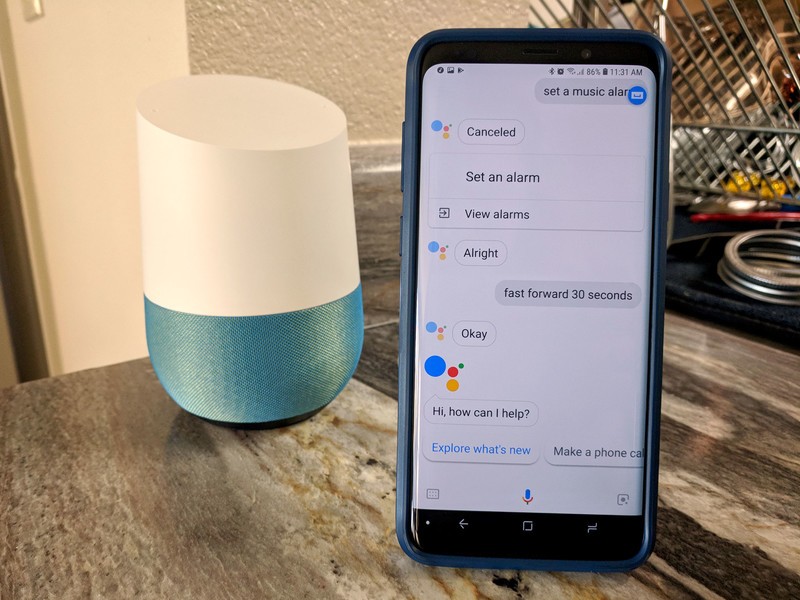
Make your mornings brighter, your commutes stress-free, and your evenings more relaxing with a bit of help from Google Assistant
In just a few short years, Google Assistant has gone from a cool glimpse of the future to come to a legitimate digital helper that you can use every day with your smartphone, Google Home speakers, and soon via Google Assistant-powered smart displays.
One of the coolest new ways to use Google Assistant is the Routines feature which allows you to use one command to get Assistant to complete multiple actions. This feature is not available in all language and is best supported for English (U.S.), where custom created routines are still rolling out to users in America.
But custom routines aside, these are the most convenient Assistant routines you should set up right now!
Google Assistant Routines: Everything you need to know
Enhance your morning routine

Mornings are hard, but Google Assistant can help you be more productive as you’re waking up. It’s pretty common for people to reach for their smartphone as soon as you wake up in the morning — whether it’s to check for any emails or messages received or simply to turn your phone off silent. But that ultimately distracts you from the other routine stuff you need to do to prepare for your day.
With the “Good Morning Routine”, your Assistant can handle those mundane tasks like taking your phone off silent while also give you the day’s weather forecast so you can plan your outfit and an estimation on your commute to work so you know how much time you have before you need to be out the door.
Depending on the Assistant-controlled smart devices in your home, you can also control the smart lights around the house or start brewing your day’s first cup of coffee.
Then you can have Google play your favorite playlist, give you a rundown of the latest news, start playing your favorite morning radio station or load up a podcast to start your day. I’d personally recommend The Daily by the New York Times, which has become the informative highlight of my mornings.
All this can be triggered by simply saying “Good Morning”, “Tell me about your day”, or “I’m up”.
These Products and Services Work with Google Home
Create a worry-free commute experience
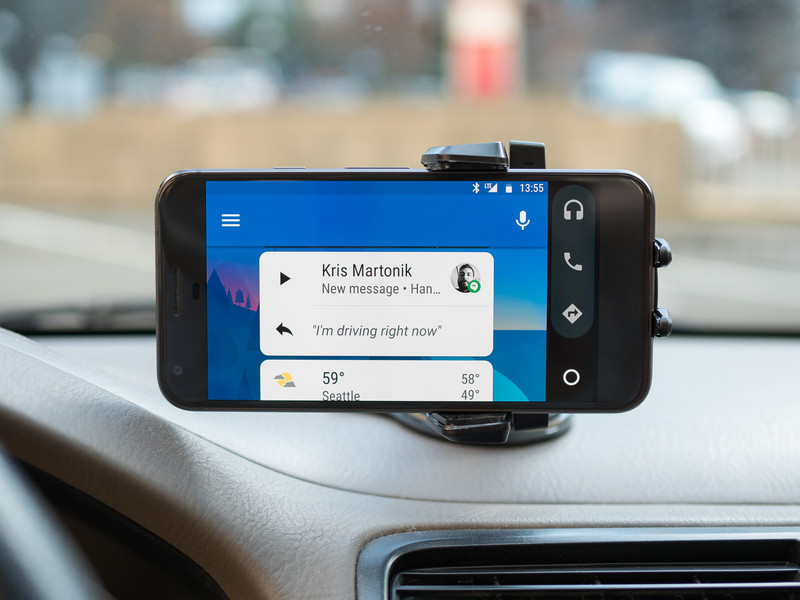
Once you’re ready to leave the house, use your Assistant to improve your daily commute.
Using Assistant on your phone, you can use the “Commute to Work” routine to get a briefing of any upcoming events for the day from your Google Calendar, get an up-to-the-minute update about traffic conditions for your commute, and adjust your Nest smart themostat to a lower temperature to cut down on your energy bills.
Finally, you can get Assistant to launch into your favorite playlist or podcasts and more and adjust the volume just the way you like it.
There’s also a “Commute to Home” routine which offers a few different features, including sending texts to your significant other letting them know you’re on your way home, or even broadcast that you’re on your way home to Google Home devices around your house.
As you’d expect, there’s a bit of setup required to set up some of these cool features, including which playlists or podcasts you want to listen to, and the cell phone number and message you want to send to your loved one. But once you’ve got everything configured, all you need to say is “Let’s go to work” or “Let’s go home” and Google handles all the rest.
Best Universal Car Mounts for 2018
Let your Assistant shut down the house at night
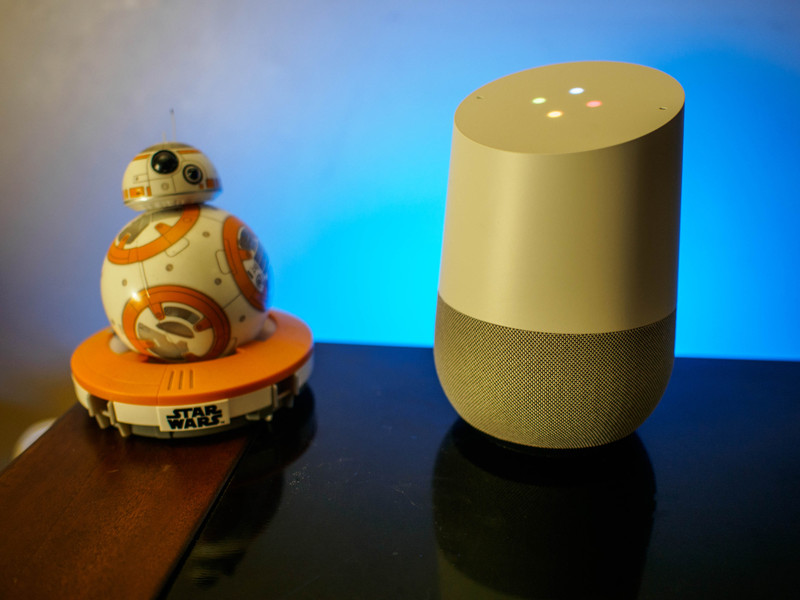
Technology can be a real thorn at nighttime when your body is trying to wind down for the night but you can’t rip your eyeballs away from your phone screen. Google Assistant won’t fix your bad habits, but it can help you get ready for bed in other ways.
With the “Bedtime Routine”, your assistant can put your phone on silent, give you a quick rundown of what’s going on tomorrow, and toggle off any smart lights or plugs you have set up in your home. Then you can set your alarm for the following morning and then choose your favorite relaxing music or “Sleep sounds” (think a relaxing babbling brook or white noise) to help you fall asleep peacefully.
Once it’s set up simply tell your Assistant “Bedtime” or “Good night” and then tuck yourself in. Sweet dreams!
How to get Google to softly lull you to sleep
What’s your favorite Assistant routine to use?
These are our recommendations, but we want to know how you use Google Routines! Let us know in the comments.
Google Home
- Google Home review
- Google Home Mini: Everything you need to know!
- Google Home Max review
- These services work with Google Home
- Google Home vs. Amazon Echo
- Join our Google Home forums!
Verizon
Best Buy
Target
Google Store
You can now project Waze from your iPhone to your Ford’s infotainment screen
If you have both an iPhone and a Ford vehicle and are a fan of Google’s Waze navigation app, you’ve been out of luck when it comes to integrating it into your car. While Ford’s SYNC connectivity system supports Apple CarPlay, Apple itself does not allow users to use Waze through CarPlay. There is a way around this now, as Ford announced that SYNC 3 equipped vehicles can project the Waze app from an iPhone directly onto the touch screen via SYNC AppLink. This follows Ford’s announcement of the integration at CES, which was followed by beta demonstrations.
You need to have Waze downloaded onto your iPhone, and the phone must be plugged into a USB port in your Ford. You can then open Waze through SYNC. Once Waze is on the big screen, you can control the app thorough voice command and hear the voice guidance through the vehicle speakers.
This brings Waze’s real-time traffic and navigation directly into your vehicle, along with the most efficient traffic routes, cheapest fuel prices, and traffic accident alerts. You can be routed to high-occupancy vehicle (HOV) lanes and get accurate arrival times. You can even keep an eye out for the police.
“Our goal is to make it as easy as possible for people to access the smartphone features, apps and services they care about most in the car, without having to pick up their device,” Don Butler, executive director, connected vehicle platform and product at Ford, said. “With Waze, our customers get the benefits they’re accustomed to with the added luxury of experiencing them on a bigger screen.”
Waze uses crowdsourcing to deliver real-time information about everything from road hazards and conditions to route changes and fuel prices. You can connect with friends to share data such as arrival time.
“We’re excited drivers of Ford SYNC 3-enabled vehicles will now be able to use Waze for iOS right from their dashboard, getting access to features like planned drives, alternative routes, talk to Waze voice commands and more,” Jens Baron, product lead, in-car applications at Waze, said. “They’ll also benefit from the best routes and most accurate ETAs, thanks to our global community of drivers on the go who update the map in real-time — helping our mission to one day eliminate traffic.”
To use Waze on Ford’s AppLink, you’ll need SYNC 3 version 3.0 or greater, and your iOS running 11.3 or later. It’s worth the effort, as we found Waze to be among the most useful apps you can have on your iPhone.
Editors’ Recommendations
- How to reset your iPhone
- You can now use Alexa on your tablet to call your contacts
- How to delete your Tinder account
- The best GPS for your car you can buy
- Tesla just made it easier to access Autopilot in your Model 3 sedan
Today’s best deals you won’t want to miss
Whether you’re looking for new tech gear or household items, we’ve got you covered.
Today you can get big discounts on Twelve South’s Fermata headphone stand, Anker’s powerful wall charger, and much more! Don’t pass these up.
View the rest of the deals
If you want to know about the deals as soon as they are happening, you’ll want to follow Thrifter on Twitter, and sign up for the newsletter, because missing out on a great deal stinks!

