


Where To Buy an Unlocked Samsung Galaxy S9 or S9+

Your phone doesn’t have to come from your carrier.
You can buy a Galaxy S9 or S9+ just about anywhere, and in the U.S. most people will typically buy directly from their current carrier or one they’re in the process of switching to. But you don’t have to buy from a carrier — you can buy a GS9 or S9+ unlocked, and even have a choice of multiple retailers from which to get it.
The U.S. unlocked Galaxy S9 is designed to work on all major carriers, including Verizon and Sprint, and in terms of hardware it’s identical to what you’d get from those carriers. There are differences in software, too, but for the better — you don’t have carrier customizations or pre-loaded apps to contend with. There are also zero hoops to jump through if you ever want to switch carriers — being unlocked from the get-go, you can just switch SIMs and be on your way.
You really should consider buying your Galaxy S9 or S9+ unlocked — and when you do here are the places you can buy one, and the reasons why you’d choose each retailer.
Amazon
When buying unlocked from Amazon, it’s important to be sure that you’re buying the proper model. Amazon does sell proper unlocked Galaxy S9 and S9+ models with full U.S. carrier compatibility and warranties, but third-party sellers also offer international models — ones that may not have complete carrier compatibility and definitely don’t have a U.S. warranty. We’ve linked to the proper model below.
Amazon offers 12-month no-interest financing for purchases of $599 or more using its self-branded credit card. This isn’t as generous as what Samsung or carriers may offer, but it does help you spread out the cost of these expensive phones when buying unlocked.
See at Amazon
Best Buy
Best Buy has the Galaxy S9 and S9+ available unlocked right next to the carrier versions. In many cases, the unlocked models will be listed for less than the carrier ones as well, though you won’t see all of the purchase incentives the carriers offer. There aren’t any concerns over getting the right model — Best Buy only sells the U.S. unlocked version of the phones.
You can also get 12-month no-interest financing from Best Buy on your Galaxy S9 or S9+ purchase using its store credit card.
See at Best Buy
Samsung
If you’re going to buy a Galaxy S9 or S9+ unlocked, Samsung is the simplest way to go — though it may not always be the cheapest. There’s a better chance you’ll find a discount on Amazon or Best Buy, but there’s never anything wrong with buying direct from the manufacturer on Samsung’s website.
One huge benefit of buying from Samsung directly is that you can get your Galaxy S9 or S9+ with more internal storage. For an extra $50 your can move to 128GB of storage, or for $120 you can get 256GB of storage. This is only available from Samsung’s online store, so if you need more storage, this is your only choice.
You can also get 24-month no-interest financing for Galaxy phone purchases, which is on par with the terms that carriers offer.
See at Samsung
Samsung Galaxy S9 and S9+
- Galaxy S9 and S9+: Everything you need to know!
- Galaxy S9 review: A great phone for the masses
- Complete Galaxy S9 and S9+ specs
- Galaxy S9 vs. Galaxy S8: Should you upgrade?
- Join our Galaxy S9 forums
Verizon
AT&T
T-Mobile
Sprint
Apple Drops to #4 Spot in Annual Fortune 500 Rankings
After retaining the #3 spot on the Fortune 500 list for the past two years, in 2018 Apple has dropped one place and now sits at #4 on the list of the top U.S. corporations based on gross revenue. Apple’s displacement on the list came due to Exxon Mobil rising from #4 in 2017 to #2 in 2018.
The full top five spots were Walmart at #1, Exxon Mobil at #2, Berkshire Hathaway at #3, Apple at #4, and UnitedHealth Group at #5. Other technology companies on the list include Amazon at #8, AT&T at #9, Verizon at #16, Alphabet at #22, and Microsoft at #30.
Fortune broke down Apple’s spot on the list, mainly citing the “overall saturation of smartphones” as a potential reason for the company’s inability to rise higher in the rankings. Fortune discussed similar problems for Apple in the company’s profile last year, stating at the time that “Apple finally appeared to hit a wall” in reference to its reliance on iPhone sales.

Apple took a small step back, from No. 3 to No. 4, despite a 6% gain in annual sales, but it led the way in profits with more than $48 billion in net income. In short, the Apple juggernaut continues at tremendous scale and despite the overall saturation of smartphones, which make up the vast majority of the company’s sales and profits. In an unusual move, Apple introduced three new phones, the upgraded iPhone 8 and 8 Plus, as well as the redesigned iPhone X (pronounced “ten”), powered by facial-recognition technology. Services likes Apple Pay and Apple Music continued to rise too.
Going back eight years, Apple’s previous rankings include 5th place in 2015 and 2014, 6th place in 2013, 17th place in 2012, 35th place in 2011 and 56th place in 2010. This year marks 24 years that Apple has been on the Fortune 500 list, with $229.2 billion of revenue and $48.3 billion of profits in the 2017 fiscal year. Although it lags behind the companies in revenue, Apple still beats the top three Fortune 500 companies in terms of annual profits, with Walmart at $9.9 billion, Exxon Mobil at $19.7 billion, and Berkshire Hathaway at $44.9 billion.
Tag: Fortune 500
Discuss this article in our forums
Speculative Report Claims ‘Low-Priced’ HomePod Will Fall Under Beats Brand
A questionable new report from Apple’s supply chain claims that the company’s rumored “low-priced” version of the HomePod will be placed under the Beats by Dre brand instead of the expected Apple branding. The report comes from Chinese news site Sina, which also says the $199 speaker will have MediaTek as the supplier, a change from Apple’s decision to give Inventec sole supplier duties on the first HomePod (via LoveiOS).
Reports about a cheaper HomePod began appearing quickly after news of lackluster sales for the first version of the speaker emerged earlier this year, with former KGI Securities analyst Ming-Chi Kuo and other industry watchers predicting a low-cost speaker priced between $150 and $200. What’s new in this week’s report is the idea of a Beats-branded version of the HomePod, but it’s unclear exactly what form the speaker would take, what features it would carry over from the $350 version of the speaker, and where Sina is sourcing the news from in the first place.
It seems unlikely that Apple would somehow combine the HomePod and Beats brands into one product, and due to all of this it’s important to take the new report with a dose of skepticism. Beats last updated its Pill line of speakers with the Pill+ in 2015, which ran for $230 at launch but nowadays is priced closer to $130 when purchased on sale. Pill devices lack persistent “Hey Siri” functionality, likely due to their lack of constant AC power, so it also seems unlikely that Apple would extend that feature beyond its own line of devices, currently including the iPhone, iPad, HomePod, and Apple Watch.
In his prediction, Ming-Chi Kuo said that Apple is “mulling” a “low-cost version” of the HomePod in an effort to boost short-term shipments. Apple’s main selling point on the $350 HomePod is its high-quality audio playback, with reviewers agreeing that the speaker blows other smart speakers out of the water in terms of audio performance, but Siri’s performance, the lack of certain languages, and Apple’s walled garden ecosystem (particularly excluding any music service besides Apple Music) left many to wonder if the price was actually justified.
As a point of comparison, two of Apple’s rivals sell entry-level versions of their smart speakers for as low as $50 in the United States, including Amazon’s Echo Dot ($49.99) and Alphabet’s Google Home Mini ($49.00). The smaller, cheaper devices allow users to expand features of the connected speaker system into other rooms around their home, without having to spend a lot of money on purchasing the base speakers multiple times.
For now, the HomePod still lacks a few features Apple announced prior to the speaker’s launch, namely AirPlay 2 support and multi-room audio, both pegged for release through a firmware update sometime later in 2018. Although there have been many reports about a cheaper HomePod, none have yet hinted at a potential launch window for the rumored lower-cost speaker.
Related Roundup: HomePodBuyer’s Guide: HomePod (Buy Now)
Discuss this article in our forums
‘Procreate Pocket’ Gets Major 2.0 Update With New Interface, Hundreds of Handcrafted Brushes, and More
Illustration app Procreate today updated its Procreate Pocket iPhone app to version 2.0, which developer Savage describes as “reengineered from the ground up” and “an entirely new app.” Procreate Pocket 2 is powered by Silica-M, the same graphics engine that powers Procreate for iPad, as well as Apple’s own Metal technology.
Savage says that with the upgraded technology boost in version 2.0, Procreate Pocket can now create canvases with rich P3 color depth, and users can choose from 136 hand-made brushes that include pencils, inks, wet painting, and digital-only abstract effects. Procreate Pocket also now includes “almost every Procreate feature from iPad,” like ColorDrop, QuickLine, Perspective Guides, Layer Masks, custom brush creation, and more.
The developer specifically optimized Procreate Pocket 2 for iPhone X users, with features that take advantage of 3D Touch and haptic feedback.
“We literally threw the Procreate Pocket 1.0 codebase away and started fresh. Every pixel and every line of code is new, and we’re so happy to finally bring Silica-M to our iPhone users,” said James Cuda, CEO and co-founder of Savage.
The app is also gaining two new features not yet available on iPad, including Brush Set export and import, allowing artists to easily share their creations through online marketplaces or expand their own libraries with thousands of custom brushes from other users. The second addition is a 30 second time-lapse export, which uses a custom built algorithm to remove non-essential frames from any time-lapse and offers a shortened version that can easily be shared on social media.
Procreate Pocket 2 is available today on the iOS App Store as a free update for existing users, and those who haven’t downloaded the app yet can do so for $4.99 [Direct Link].
Tag: Procreate
Discuss this article in our forums
New Samsung ad compares Galaxy S9 to iPhone 6, for some reason
Samsung may be ordered by a U.S. court this week to pay Apple anything between $28 million and $1 billion at the culmination of a lengthy case that found the Korean company to have infringed various Apple patents linked to the iPhone.
Whether the misdemeanors ever caused any red faces at Samsung isn’t clear, but it certainly hasn’t stopped the company from ripping into its rival periodically over the years, targeting the iPhone in a series of ads that aim to promote its own Galaxy handsets.
The most recent effort landed on YouTube a couple of days ago, though the content of the ad is bound to leave some scratching their head in confusion.
The latest in its “Moving On” series, where Samsung hopes to persuade iPhone users to ditch their handset in favor of one of its own, shows a woman becoming frustrated with her Apple-made handset while traveling.
Samsung features its flagship Galaxy S9 phone in the ad, but, rather oddly, puts it alongside the iPhone 6, a phone that Apple launched in 2014. Yes, that’s four years ago.
OK, it soon becomes clear that Samsung wants to highlight the frustrations of battery throttling, a system Apple secretly built into many of its phones that slows performance when the battery ages, in order to prevent sudden crashes. Apple apologized to its customers after the system was uncovered at the end of last year, and offered to replace iPhone batteries at less than half the usual price. On top of that, a recent iOS update included a performance management feature that lets iPhone owners turn off battery throttling.
In Samsung’s ad, the woman’s slow iPhone 6 keeps letting her down, prompting her to visit an Apple Store. The helpful assistant tells her she can turn off the performance management feature to speed things up, but that it may lead to unexpected shutdowns. “Or you can just upgrade it,” he adds, though a new $29 battery for her current phone would also help.
Remembering a guy she saw earlier on the plane with a smug look on his face as he played on his shiny new Galaxy S9, she opts for, you guessed it, the Galaxy S9. And in the ad’s final shot, she looks really happy for it.
We get that Samsung wanted to target the hassle caused by battery throttling rather attack the iPhone 6, but a different kind of ad would’ve compared the Galaxy S9 to its more obvious rival, the iPhone X. If you’re currently trying to decide between the two, then be sure to check out Digital Trends’ informative comparison guide to help you make the right choice.
Editors’ Recommendations
- iPhone explodes, catches fire in terrifying Las Vegas security footage
- Apple facing complaints over its iPhone battery-replacement pledge
- Apple reveals healthy iPhone sales as Cook hints at more handset variations
- Samsung Galaxy S9 vs. Apple iPhone X: Heavyweight smartphone clash
- Everything you need to know about the performance dip on your iPhone
Google Duo should let you share your screen, but it doesn’t work right now
Android users have been looking forward to the possibility of screen sharing with Google Duo for several months now, and while the feature has rolled out, it hasn’t been quite what users were hoping for. In fact, it’s totally broken. When I tested the feature with my friends’ Android devices, we found that we were only able to see a frozen image of the calling party’s display, or in some cases, a gray frame instead of an image at all.
Womp womp.
Theoretically, the functionality should be quite straightforward. Back in October, Android Police shared an APK teardown that made clear that the feature would soon be coming to Google Duo. All you would need to do is tap on the new screen-sharing button, which is located closest to the floating mirror button, and then Duo would ask for permission to record your screen. Once you gave permission, you would see your home screen with a red outline denoting what part of your screen you’re sharing, as well as a floating button featuring pause and stop functionality. The person on the other end of the line would still be able to hear you, but would see your screen instead of your face — or a blank screen.
Again, this was all in theory.
Despite the hype and anticipation, this does not appear to be the experience most people are having. As Android Police noted and we verified, the screen you try to share is frozen, and remains this way even if you attempt to switch camera angles, and even if you actually try to end the screen share session. Only be ending the call altogether can you get out of the frozen mode, which needless to say, is not the best user experience.
Of course, when features first begin rolling out, they often experience a few hiccups like this one, so it’s likely that Google will soon release yet another update to Duo to make our lives a little bit better (and screen sharing actually possible). Until then, we’ll just have to sit tight and believe that the feature will soon be not only available, but functional too.
Editors’ Recommendations
- Google addresses problem caused by Chrome’s new block of autoplay videos
- Chromecast users can now skip intros on Netflix to binge on shows faster
- A Ring doorbell vulnerability lets people snoop even after a password change
- 9 things you need to know about the Russian social media election ads
- Google’s Android Auto update now lets you swipe to unlock your phone
How to transfer your bookmarks and favorites to Google Chrome
New to Google Chrome? Make sure to bring your favorite sites with you!

If you’ve been a power user of the Internet as long as I have, there’s a good chance you have your favorite sites saved to your bookmarks or favorites bar. And if you’re new to Google Chrome, you can easily move all your bookmarks over.
Here’s how to move your bookmarks to Google Chrome!
- Automatically import your bookmarks inside Chrome
- Export your bookmarks from Mozilla Firefox
- Export your bookmarks from Internet Explorer
- Export your bookmarks from Microsoft Edge
- Import your bookmarks inside Chrome
Automatically import your bookmarks from within Chrome
Chrome has a built-in method for importing bookmarks from Firefox, Internet Explorer and Edge. This method should work for you, but we’ll include manual export and import methods below. Here’s how to import your bookmarks!
Open the Chrome browser.
Click the three dot menu in the upper-right corner.
Hover your mouse icon over bookmarks.


Click Import bookmarks and settings.
Select the browser you are importing the bookmarks from.
Click Import.
The bookmarks should be imported, and you’ll see them in the bookmarks bar below the address bar.
Export your bookmarks from Mozilla Firefox
If for some reason the automatic method doesn’t work — or if you just like to do things the manual way — it’s easy to backup your bookmarks yourself. Here’s how to backup your bookmarks from Firefox!
Open the Firefox browser.
Click the bookmarks icon in the upper-right corner.
Hover your mouse icon over bookmarks.

Click show all bookmarks.
Click Import and Backup.
Click Export Bookmarks to HTML.
Choose where you’d like the file to be saved at on your computer.
Click Save.
Export your favorites from Internet Explorer
If for some reason the automatic method doesn’t work — or if you just like to do things the manual way — it’s easy to backup your favorites yourself. Here’s how to backup your favorites from Internet Explorer!
Open Internet Explorer.
Click on the Favorites (star) icon in the upper-right.
Click the down arrow next to “Add to favorites.”

Click Import and Export.
Select Export to a file.
You’ll want to export your favorites, but you can also export feeds and cookies if you’d like.
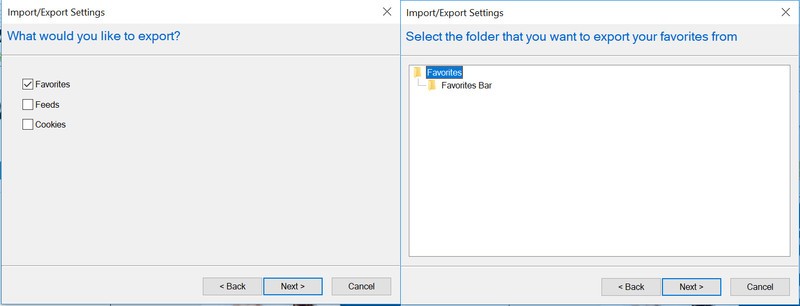
Select the folder of favorites you’d like to export.
Choose where you’d like the file to be saved at on your computer.
Click Save.
Export your favorites from Microsoft Edge
If for some reason the automatic method doesn’t work — or if you just like to do things the manual way — it’s easy to backup your favorites yourself. Here’s how to backup your favorites from Microsoft Edge.
Open Microsoft Edge.
Click on the three dot menu in the upper-right corner.
Click Settings.

Click Import favorites and other info.
Click Export to file.
Choose where you’d like the file to be saved at on your computer.
Click Save.
Now that your bookmarks or favorites are backed up, we can import them into the Chrome browser!
Open the Chrome browser.
Click the three dot menu in the upper-right corner.
Hover your mouse icon over bookmarks.
Click Import bookmarks and settings.
Select Bookmarks HTML File.

Select the file you backed up from another browser.
Click Import.
How often do you switch browsers? Let us know down below!
Chromebooks
- The best Chromebooks
- Chromebooks in education: Everything you need to know
- Should you buy a Chromebook?
- Chromebook Buyers Guide
- Google Pixelbook review
- Join our Chromebook forums
LG G7 vs. Samsung Galaxy S9+: Which should you buy?

Two powerful flagships, two fundamentally different designs.
If you haven’t gotten yourself a new phone in the last year or two and you feel like you’re overdue for an upgrade, you’re in luck: 2018 has produced some amazing new phones, and two of them come straight from South Korea.
The Galaxy S9+ is the current cream of the crop in Samsung’s lineup, with a sleek and curvy design, dual cameras, and one of the best displays we’ve ever seen on a phone. It’s not hard to see why it’s already one of the most popular phones of the year. On the other hand, LG’s new G7 ThinQ offers an alternative option for those who prioritize things like high fidelity audio and wide-angle photography, all without sacrificing anything in build quality or other premium features.
So what do you choose when both options are so compelling?
Specifications

You shouldn’t judge a phone based entirely off of its spec sheet — there’s much more to a phone than the sum of its parts — but comparing the Galaxy S9+ and G7 on paper at least gives you a decent idea of where each device strides (spoiler alert: they’re both almost identical).
| Operating System | Android 8.0 Oreo | Android 8.0 Oreo |
| Display | 6.2-inch 18.5:9 Super AMOLED 2960 x 1440, 529PPI | 6.1-inch 19.5:9 IPS LCD 3120 x 1440, 564PPI |
| Chipset | Octa-core Qualcomm Snapdragon 845, four 2.8GHz Kyro 385 Gold cores, four 1.7GHz Kyro 385 Silver cores | Octa-core Qualcomm Snapdragon 845, four 2.8GHz Kyro 385 Gold cores, four 1.7GHz Kyro 385 Silver cores |
| GPU | Adreno 630 | Adreno 630 |
| RAM | 6GB | 4GB/6GB |
| Storage | 64GB/128GB/256GB | 64GB/128GB |
| Expandable | Yes (microSD slot) | Yes (microSD slot) |
| Battery | 3500mAh | 3000mAh |
| Water resistance | IP68 | IP68 |
| Rear Camera | 12MP f/1.5-2.4 + 12MP f/2.4, PDAF, 4K at 60fps | 16MP f/1.6 + 16MP f/1.9, PDAF + laser autofocus, 4K at 30fps |
| Front Camera | 8MP f/1.7, 1440p video | 8MP f/1.9, 1080p video |
| Connectivity | WiFi ac, Bluetooth 5.0, NFC, GPS, GLONASS, USB-C | WiFi ac, Bluetooth 5.0, NFC, GPS, GLONASS, USB-C |
| Security | Fingerprint sensor (back), iris scanner | Fingerprint sensor (back) |
| SIM | Nano SIM | Nano SIM |
| Dimensions | 158.1 x 73.8 x 8.5mm | 153.2 x 71.9 x 7.9mm |
| Weight | 189g | 162g |
What the Galaxy S9+ does better

With the specs out of the way, now we can get into the good stuff. The Galaxy S9+ is the culmination of all of Samsung’s design prowess over the years, with one of the best industrial designs in the business. The unique curved glass design and metal frame work together to make the phone feel incredibly well-machined, and it’s built to withstand water and dust with its IP68 rating. That glass back also allows for wireless charging — just one of the many perks to Samsung’s feature-packed hardware.
The Galaxy S9+ is a great option for people who can’t stand the 2018 notch craze.
The display is also top-notch — actually, it isn’t. The S9+ is one of the only flagship phones released so far in 2018 that doesn’t feature a notch at the top of display, which is sure to please critics of the design trend pioneered by Apple and Essential. That notchless display is absolutely stunning, with incredibly rich colors and a wide range of brightness, letting you go from nearly pitch dark to bright enough to clearly view under direct sunlight. The curved edges are more about form than function, but they’re entirely without purpose; Edge Panels have become increasingly useful over the years, and the curves help trim down the phone’s width, making it easier to hold.
A few years ago, Samsung’s software would’ve been considered a huge downside, but these days it’s actually a nice add-on to the already great Android platform. Samsung Experience 9.0 is fast and responsive, and offers its own ecosystem of Samsung apps parallel to Google’s, the most useful of which is arguably Samsung Pay, which uses MST to emulate a physical card swipe on terminals, allowing you to use it almost anywhere — even at locations that don’t typically accept mobile payments.
Like the G7 ThinQ, the Galaxy S9+ touts dual cameras on the back, though Samsung’s arrangement of cameras is a bit different than LG’s. The primary camera is a 12MP sensor that’s capable of dual apertures, allowing it to organically switch between f/1.5 and f/2.4 — you can even watch it happen. In addition, the secondary lens allows for 2x zoom, and when combined with the main camera offers a pretty solid portrait mode. More impressively though, the S9+ takes absolutely stunning low light shots, and in video mode it’s capable of shooting at a whopping 960fps for slow motion — though understandably, you’ll have to settle for 720p to get those frame rates.
See at Amazon
What the LG G7 ThinQ does better

Not to be outdone, LG has thrown every feature it possibly could, new and old, into the G7 ThinQ. It adopts new trends like the display notch — for better or worse — yet it still provides the company’s incredibly impressive Quad DAC, which offers better sound through the phone’s 3.5mm headphone jack than any other phone can hope to match. Whether you’re after wireless charging, water resistance, or something else, the G7 ThinQ almost certainly offers it, along with just about every other hardware feature and the kitchen sink.
Perhaps one of the G7’s biggest hardware advantages over the Galaxy S9+ is its fourth hardware button, beyond the power and volume keys. While users and reviewers alike have bemoaned Samsung’s Bixby button since it first emerged on the Galaxy S8 last year, LG is taking a different approach with a dedicated shortcut key to the more popular and often more useful Google Assistant. It’s also positioned quite a bit lower than Samsung’s extra button, making it harder to mistakenly press — that’s a big win if you ask me.
You should definitely pick up the G7 ThinQ if you prefer wide-angle over telephoto.
Some of the most high profile benefits of the G7 ThinQ come in the form of the cameras. Most people who have used both will agree: wide angle on a phone is more useful and allows for more creative shooting than a zoom lens. LG’s phones have been making use of wide-angle secondary sensors for years, and the G7 has the company’s best implementation yet. Wide angle isn’t all the G7 is good for, though; like the Galaxy S9+, it excels in low light thanks to pixel binning technology, and the phone’s AI enhancements (this is where the ThinQ moniker comes from) help it better understand when to automatically switch to different shooting modes to optimize for settings like food, outdoors, and portraits.
The G7 ThinQ pulls ahead in various smaller ways, as well. Though it only has a single rear-firing speaker, the output is shockingly loud — loud enough to fill a room, and with good sound quality to boot. The G7 also provides excellent haptics, maybe the best on Android, and while it seems like an inconsequential factor (and for many, it probably is) it makes the software feel more interactive, more alive; particularly in the camera software, you can feel the interface ticking and clicking at you while you adjust certain settings, almost as if you were interacting with a physical dial.
Oh, and let’s not forget LG’s renewed commitment to timely and consistent software updates. That’s hugely important for users that want to stay up to date with the latest versions of Android and the most recent security patches, and it’s something that Samsung historically just can’t match.
See at LG
Which is right for you?

Both phones are absolutely incredible devices, each an accomplishment of different design philosophies. Where the Galaxy S9+ feels like an evolution of last year’s S8+, the G7 ThinQ takes a different direction than LG’s previous models with a display notch and a larger focus on AI. As for which phone is worth your hard-earned dollars, that’ll depend on where your priorities lie in a few key aspects.
If you just can’t yet cope with the idea of a notch at the top of your display, the choice is obvious — get the Galaxy S9+. On a less superficial note, you should also grab the S9+ if you’re interested in Samsung’s ecosystem as much as you are in Google’s; Knox is a huge boon for the security-focused, and Samsung Pay allows for more flexibility than any other mobile payment service. The Galaxy S9+ also offers more options for security than LG; in addition to the fingerprint sensor, the Galaxy S9+ touts both iris scanning and facial recognition, and can use all three methods in tandem to quickly authenticate you in any situation.


On the other hand, the G7 ThinQ could be the better option for creative minds that really want to make use of that wide-angle secondary lens. Save for attaching huge and clunky third-party lenses to the back of your phone, there’s just no way to get that wide-angle effect on the S9+, and it allows the G7 to capture shots that no other phone can. The G7 is just as great for media playback, as well, thanks to its incredible Quad DAC that was once exclusive to LG’s V series, and the loud speaker output. If you’re equal parts creator and consumer of content, it’s hard to argue with the G7 ThinQ.
If you were stuck trying to choose between these two powerhouses and this comparison helped you make your decision, let us know in the comments below! What phone would you choose, and if you’re already rocking the S9+ or you’re planning on pre-ordering the G7, what feature or trait do you wish you could take from the other phone?
Samsung Galaxy S9 and S9+
- Galaxy S9 and S9+: Everything you need to know!
- Galaxy S9 review: A great phone for the masses
- Complete Galaxy S9 and S9+ specs
- Galaxy S9 vs. Galaxy S8: Should you upgrade?
- Join our Galaxy S9 forums
Verizon
AT&T
T-Mobile
Sprint
How to View All Events as a List in Your Mac’s Calendar App
Some third-party calendar apps (Fantastical, for example) allow you to view all your upcoming events as a vertical list. Many users find this sort of viewing mode beats staring at the regular calendar interface, since it provides a quick at-a-glance summary of their entire schedule over the coming days and months.
Fantastical 2 for Mac
On the face of it, Apple’s Calendar for macOS lacks an equivalent feature. However, there is one way to force a list view that includes all your events, which we’ve detailed below. The trick even works with iCal going back at least to OS X Mountain Lion, which makes us wonder why Apple doesn’t make the option a bit more obvious.
How to View All Events as a List in Calendar
Launch the Calendar app on your Mac.
Click the Calendar button.
Select which calendars you want to include in the list view using the checkboxes.
Click the Search field in the upper right corner of the Calendar window and type two double quotes (“”) to generate a list of all upcoming events.
We find the list view makes it easier to copy multiple events and paste them into other apps in chronological order. For example, to copy several contiguous events, hold the Shift key, click the two outlying events bordering a given period, right-click (or Ctrl-click) an event in the selection, and select Copy from the contextual dropdown menu. You can then paste the events (including their details) straight into a document in date order.

To copy non-contiguous events in your calendar, simply perform the same action but hold down the Command key instead of Shift. (Note that you can also open multiple event info boxes using the same method – just select Get Info from the contextual dropdown menu.)

Tag: Calendar
Discuss this article in our forums
Fire! Gadgets thrown in the trash are causing battery blazes at waste centers
We’ve read countless stories over the years of unstable lithium-ion batteries suddenly exploding, including in smartphones, hoverboards, and vape pens — sometimes with tragic consequences — so it’s kind of surprising we’re not more careful about how we dispose of them.
Left inside trashed electronics that can include anything from those listed above to laptops, cameras, and power tools, the batteries are causing fires at garbage and recycling centers across the country, according to a USA Today report.
Take California. The state blamed exploding batteries for 65 percent of fires at its waste facilities in 2017. The issue has become so serious that it’s launched an awareness campaign to highlight the dangers and to ask consumers to stop throwing their old battery-powered gadgets into the trash.
New York, too, is facing similar challenges. USA Today’s report points out that in March a battery caused a fire at a recycling facility in Queens that burned for two days and caused disruption to nearby train services.
Garbage truck workers are also at risk. An incident in New York City last year saw a lithium-ion battery explode as the truck compacted the trash, setting fire to the burnables inside.
The problem is that if the battery’s exposed metal parts touch something metallic, sparks can fly, resulting in a blaze. Damaged batteries can also malfunction with similar results.
George Kerchner, executive director of the Rechargeable Battery Association, told the news outlet that some consumers get rid of the batteries without too much thought, “hoping that somebody at the end of the line will recycle them eventually.”
But he cautioned that “these are high-energy batteries, no question about it. If they’re not properly handled, they can catch on fire.”
With demand for the technology continuing to rise, it’s all the more important that consumers understand the possible consequences of tossing used batteries into the garbage.
For ways to recycle them, try doing an online search to find local services willing to handle them. Call2recycle, for example, is a useful source of information.
Alternatively, save them up for your next visit to a Home Depot, Best Buy, or Lowe’s, all of which recycle lithium-ion batteries for free.
To be on the safe side, when you’re done with a removable lithium-ion battery, be sure to place it by itself inside a closed plastic bag to isolate the terminals, or simply put tape over them. That way you’ll reduce the chances of your battery ending up in the news for reducing a garbage truck to a burned-out shell, or worse.
Editors’ Recommendations
- Autopsy confirms exploding vape pen caused Florida man’s death
- Another smart luggage startup packs its bags following stricter airline rules
- Say hi to Daisy, an Apple-made robot that recycles old iPhones
- Tesla’s giant Australian battery reduced service costs by 90 percent
- Mini built a gasoline-free classic car, but you can’t have one

