


Apple Releases Safari Technology Preview 60 With Bug Fixes and Feature Improvements
Apple today released a new update for Safari Technology Preview, the experimental browser Apple first introduced over two years ago in March of 2016. Apple designed the Safari Technology Preview to test features that may be introduced into future release versions of Safari.
Safari Technology Preview release 60 includes bug fixes and feature improvements for Web Animations, Dark Mode, Web Inspector, Media, CSS, WebRTC, Security, Plug-ins, Intelligent Tracking Prevention, WebDriver, and Accessibility.
The new Safari Technology Preview update is available for both macOS High Sierra and macOS Mojave, the newest version of the Mac operating system that’s currently being beta tested by developers.
Of note, Apple says Safari Technology Preview 60 will crash on launch with the first macOS Mojave developer beta. To avoid crashes, users should upgrade to the second beta. Also, after updating to release 60, the homepage preference and the Develop menu preference will be lost.
Safari Technology Preview 59, the prior update, introduced support for Intelligent Tracking Prevention 2.0, which prevents social widgets from tracking you without your permission and introduces other tracking prevention updates.
The new Safari Technology Preview update is available for both macOS High Sierra and macOS Mojave, the newest version of the Mac operating system that’s currently being beta tested by developers.
The Safari Technology Preview update is available through the Software Update mechanism in the Mac App Store to anyone who has downloaded the browser. Full release notes for the update are available on the Safari Technology Preview website.
Apple’s aim with Safari Technology Preview is to gather feedback from developers and users on its browser development process. Safari Technology Preview can run side-by-side with the existing Safari browser and while designed for developers, it does not require a developer account to download.
Tag: Safari Technology Preview
Discuss this article in our forums
Third Beta of tvOS 12 Now Available for Registered Developers
Apple today seeded the third beta of a new tvOS 12 operating system to developers for testing purposes, two weeks after releasing the second beta and a month after introducing the new software at the 2018 Worldwide Developers Conference keynote.
Designed for the fourth and fifth-generation Apple TV, the tvOS 12 developer beta can be downloaded onto the Apple TV via a profile that’s installed using Xcode. Subsequent betas can be downloaded via the software update mechanism on the Apple TV.
tvOS 12 brings support for Dolby Atmos sound, which was activated in beta 2. Apple says that iTunes will be home to the largest collection of Dolby Atmos-supported movies anywhere, with Apple upgrading titles customers have purchased for free.
Building on single sign-on, a new zero sign-on feature will further simplify the cable authentication process. With zero sign-on, the Apple TV can detect a user’s broadband network and automatically sign them into supported apps they receive through their cable subscription.
Aerial screensavers include location information and there are new screensavers captured in collaboration with the International Space Station.
Other improvements to Apple TV in tvOS 12 include AutoFill passwords from iPhone, an Apple TV Remote automatically added to Control Center on the iPhone or iPad, and Apple TV support on Home control systems like Control4, Crestron, and Savant.
Related Roundups: Apple TV, tvOS 12Buyer’s Guide: Apple TV (Neutral)
Discuss this article in our forums
Apple Releases Third Beta of New watchOS 5 Operating System to Developers
Apple today seeded the third beta of an upcoming watchOS 5 update to developers, two weeks after releasing the second beta and a month after introducing the software at the Worldwide Developers Conference. watchOS 5 is the newest version of the software that runs on the Apple Watch.
To install the beta, you’ll need the proper configuration profile, which can be obtained through the Apple Developer Center. Once the profile is in place, the watchOS 5 beta can be downloaded using the dedicated Apple Watch app on the iPhone by going to General –> Software Update.
To update, the Apple Watch must have 50 percent battery, it must be placed on an Apple Watch charger, and it must be in range of the iPhone. It would be wise to install the beta on a secondary device instead of a primary device given that this is an early version of the watchOS 5 software that still has bugs to be worked out.
watchOS 5 is a major update to watchOS, introducing Activity Competitions so you can compete on workouts with friends, Walkie-Talkie with push-to-talk functionality for quickly communicating with the people you talk to most, and auto workout detection to make it easier than ever to start and stop workouts.
Other new features include an improved Siri watch face with support for third-party apps, a dedicated Apple Podcasts app, new Workout types that include Yoga and Hiking, new features for runners, WebKit support for viewing some web content on Apple Watch, and enhanced notifications, which will make notifications on the Apple Watch interactive.
Early software betas often introduce new functionality, so we’ll update this post if anything new is found in the third beta of watchOS 5. The second beta brought full support for the Walkie-Talkie feature, which was unavailable in the first beta.
watchOS 5 is only available to developers and will not be provided to public beta testers (because there’s no way to downgrade Apple Watch software), so non-developers will need to wait until the software is officially released in the fall to try it out.
The watchOS 5 update runs on all Series 1, Series 2, and Series 3 Apple Watch models, but it is not available for the first-generation “Series 0” Apple Watch models.
Related Roundups: Apple Watch, watchOS 4, watchOS 5Buyer’s Guide: Apple Watch (Neutral)
Discuss this article in our forums
Apple Seeds Third Beta of iOS 12 to Developers
Apple today seeded the third beta of the upcoming iOS 12 update to developers for testing purposes, two weeks after seeding the second beta and a month after introducing the new software at the Worldwide Developers Conference.
Registered developers can download the new iOS 12 beta from Apple’s Developer Center or over-the-air after installing the proper certificate.
The iOS 12 update introduces significant changes to the iOS operating system, with Apple working from top to bottom to make iPhones and iPads, especially older models, faster and more responsive. In beta 3 specifically, Apple is adding an entirely revamped and rebuilt Maps app for the San Francisco Bay Area with a slight design change that will display foliage, pools, buildings, pedestrian pathways, and other map elements more accurately, along with improvements to traffic, real-time road conditions, construction, and more.
 Image via TechCrunch
Though limited to the San Francisco area during beta testing, the new Maps features will roll out to all of California when iOS 12 launches, followed by additional locations across the United States.
On the iPhone X, there are new Animoji characters along with “Memoji” customizable, personalized Animoji that can be used both in Messages and in FaceTime. Messages and FaceTime have also gained fun new camera effects, and Group FaceTime support allows for calls with up to 32 people.
Siri is smarter in iOS 12 with a new Shortcuts feature that lets you create custom automations using first and third-party apps that can be activated with Siri, with Apple planning to introduce a dedicated Shortcuts app in the future.
Apple also built a comprehensive set of time management and monitoring tools into iOS 12 with Screen Time, allowing you to keep track of just how much time you’re spending on your iPhone and iPad.

Updated Do Not Disturb options make turning off notifications and distractions easier than ever, with a new Do Not Disturb at Bedtime feature cutting down on nighttime interruptions.

Group Notifications make incoming notifications easier to view and manage, while a new Instant Tuning feature lets you tweak your notification settings on a notification-by-notification basis.

Apple News has a new Browse feature, the Stocks app has been redesigned, iBooks has been overhauled with a new look and a new name – Apple Books – and Voice Memos has been revamped with iCloud support and an iPad app. There’s also a new ARKit-based Measure app.
ARKit 2.0 introduces new capabilities like shared experiences that let two people see the same AR environment on separate devices, and persistence, which allows AR experiences to be saved across multiple sessions.
Tons of other small tweaks and features have been added to iOS 12, so make sure to check out our dedicated roundup for additional detail on what’s new in iOS 12.
Early betas of new operating system updates always introduce tweaked features and new functionality, and we’ll be outlining what’s new in the third beta below. We also rounded up all of the changes that were introduced in the previous beta, beta 2.
Related Roundup: iOS 12
Discuss this article in our forums
Exposure compensation: What it is and how to master it
Daven Mathies/Digital Trends
It’s never been easier to take a great picture, as even the cameras inside today’s smartphones are incredibly capable and easy to use. But that doesn’t mean we always get perfect results. You’ve probably been in a situation where you tried to take a picture of your friend, dog, or pet rock in front of something like a window or other bright background, only to have your subject appear as a silhouette. This is a simple problem of the camera not knowing which area of the frame to expose for — the bright window, or the shadowed pet rock on the sill?
Fortunately, the issue of images coming out too dark or too bright is quite easy to prevent thanks to a tool called exposure compensation. Exposure compensation may sound complicated, but it’s actually the easiest way to adjust a camera’s exposure and is a setting you will find on virtually any camera, from professional DSLRs and mirrorless cameras to, you guessed it, your phone.
What is Exposure Compensation?
Simply put, exposure compensation is an easy way to adjust the exposure value (EV) of your camera’s metering system. When you increase the EV value, you are making an image brighter; decreasing it will make an image darker. Exposure compensation doesn’t tell you how it chooses to make the image brighter or darker, but that’s the whole point: You don’t have to worry about shutter speeds and f-stops, or ISO settings.
For cameras that offer manual controls, note that exposure compensation doesn’t actually affect your images if you are already shooting in manual mode — but it will work in both shutter and aperture priority.
Photography 101
Shoot better photos at the golden hour
How to use a histogram to expose photos
Exposure, aperture, shutter speed, and ISO
The rule of thirds and how to use it
How to take great actions shots
It’s important to understand that exposure compensation isn’t the same as setting exposure manually or using exposure lock — your exposure is still automatic and the camera may make adjustments from shot to shot as the light changes. But if you are in a situation where you know your camera is prone to underexpose — like the aforementioned backlit scene — setting an exposure compensation of, say, +1 EV will tell the camera to allow in one additional stop of light compared to what it thinks it needs, and you should get consistently accurate exposures from then on.
Where Is the Exposure compensation Setting?
Can’t track down the exposure comp menu or settings? On a phone, the location depends on the specific app you are using, but you can generally find exposure compensation in the default camera app simply by holding your finger down on the screen. This will lock focus and exposure on that area of the frame and allow you turn the brightness up or down simply by dragging your finger. You may have done this already, even without realizing it was called exposure compensation.
An example of an exposure valuation scale.
On dedicated cameras, exposure compensation is always represented by a sliding scale with a 0 in the middle. Some cameras may have dedicated dials for exposure compensation, while others will have a button or menu option. Both in a camera’s menu and on a button, exposure compensation is identified by a universal “plus/minus” symbol (phone apps with advanced controls may use this symbol, too).
Depending on the camera, you can adjust your exposure in 1/2 or 1/3 stops. Going to +1 or +2 means you’re making your exposure one or two full stops brighter. Negative numbers indicate that you’re making the exposure darker. Note: One stop represents a doubling or halving of exposure; an image shot at +1 EV will have twice the light as one shot at the base exposure value, while setting exposure compensation to -1 EV will result in half that amount of light.
When Can I Use Exposure Compensation?
Modern cameras have the ability to meter perfectly fine exposures most of the time. There are instances where you want to have the exposure control in your own hands, however. For beginners, exposure compensation is a very easy way to make your photos darker or lighter in challenging lighting situations without worrying about what’s actually going on under the hood.
Like the initial example of photographing a subject in front of a bright background, the opposite is also true. A subject in front of a dark background could trick your camera’s meter, which will see all that darkness and try to brighten it up, only to result in overexposing your subject. In this situation, move your exposure compensation meter to the minus side to make the photo darker. The end result is that the main subject of your photo will be properly exposed. You may have to experiment with varying levels of compensation to find the perfect exposure.
On live-view cameras like smartphones, point-and-shoots, and mirrorless cameras, you can see the effect of exposure compensation on the screen as you make adjustments. When using the optical viewfinder on a DSLR, you obviously won’t be able to see the effect until you play back the picture. Particularly in this case, it is important to remember to turn exposure compensation off before you move to a new setting. Otherwise, you may accidentally shoot your kid’s entire soccer game at +3 EV and end up with a set of hopelessly overexposed photos.
Exposure compensation also can’t fix every type of exposure problem. If you’re trying to expose properly for a dark subject and a bright background, it can’t help you — but other techniques, like high dynamic range compositing or fill flash, come into play. Especially for beginners or phone photographers, however, exposure compensation is the easiest way to take exposure into your own hands. Your pictures will thank you for it.
Editors’ Recommendations
- How to use the histogram when working with digital photography
- How to photograph kids
- The best photography tips for beginners
- How to take better pictures when you know nothing about photography
- Photography 101: exposure, aperture, shutter speed, and ISO
High-speed sync: What it is and how to master it
Flash photography can be a mystery, but when done correctly, it can also add character and depth to an image that otherwise wouldn’t be possible. One of the more mysterious flash technologies is called high-speed sync (HSS), which may as well be magic — but this is one trick you can master.
HSS enables the use of flash at very high shutter speeds (up to whatever a camera’s fastest setting is). This comes in handy for outdoor portraits, when a shallow depth of field is desired, thus necessitating a fast shutter speed.
The effect is nicely demonstrated in the above video by Chicago-based photographer Manuel Ortiz (via PetaPixel). This demonstration works well because Ortiz focuses not on the usual difference of flash versus no flash, but specifically on HSS flash versus non-HSS flash. Without HSS, his shutter speed is limited to 1/250 of a second, so he compensates by stopping down the aperture which has the effect of increasing depth of field (his ISO is already at the lowest setting). With HSS, however, there is no such shutter speed limitation, and thus Ortiz is able to shoot at 1/4,000 of a second to enable the maximum aperture of f/1.4.
The indirect effect of HSS, therefore, is a shallow depth of field, which pulls the subject out from the background. But you may be wondering: Why is shooting above 1/250 of a second intrinsically different than shooting at a slower speed when it comes to flash? To understand that, one first has to understand how a focal plane shutter works (that’s the type of shutter used in DSLRs and mirrorless cameras).
A focal plane shutter has two parts: a front (or first) curtain and a rear (or second) curtain. The front curtain drops to begin the exposure, and the rear curtain follows it to end the exposure. Every camera has what’s called a “maximum sync speed” (usually either 1/200 or 1/250 of a second) that is the fastest shutter speed available to use with a non-HSS flash. Above this speed, the rear curtain begins closing before the front curtain has exposed the entire sensor, so the shutter becomes more like a scanner, passing a bar of light over the sensor. (If it helps to have a visual, this process is illustrated very well on Fstoppers.)
That’s a problem for a standard flash, which shines a burst of light that often lasts 1/1,000 of a second or less. At a high shutter speed, that won’t be enough to light the entire frame, as at any given moment, the shutter curtains are blocking part of the sensor. HSS gets around this problem by pulsing the flash extremely quickly over the entire duration of the shutter movement. In essence, a flash in HSS mode behaves more like a constant light.
The downside of HSS is that extending the duration of a flash reduces its maximum output power, which can be a problem if you’re trying to overpower the sun or use a large light modifier. HSS is a standard feature of most first-party external flashes, like those from Sony, Canon, and Nikon, but is also included in some high-end studio lights. The Flashpoint Xplor 600 TTL that Ortiz uses in the video offers significantly more power than a Sony flash, and thus is more flexible when it comes to high-speed sync.
Editors’ Recommendations
- Hasselblad X1D review
- The Leica SF 60 is both a flash and a video light with off-camera possibilities
- Sony Cyber-shot RX10 IV review
- Photography 101: exposure, aperture, shutter speed, and ISO
- Your phone’s flash has nothing on the powerful, pocketable Lume Cube
This is the OnePlus 6 Red
After the launch of the OnePlus 6 Marvel Avengers Limited Edition a few months ago, OnePlus has introduced a new variant of the OnePlus 6 — OnePlus 6 Red — which will be available across all OnePlus global markets.
Editor’s Pick
OnePlus 6 review: the spiritual successor to the Nexus
Buy OnePlus 6
Move over OnePlus 5T, the OnePlus 6 has arrived. The latest iteration of the OnePlus family brings us an all-new design on the outside, and more of what we already love on the …
Aside from the cosmetic changes in the design, the OnePlus 6 Red edition is of course a OnePlus 6 at heart with the same internals, and that isn’t a bad thing. The OnePlus 6 is a solid smartphone and has a well-rounded appeal for a broad audience.
This is not the first time OnePlus has offered a red color variant. Last year, OnePlus had offered a OnePlus 5T Lava Red Edition, a limited-edition variant built to celebrate OnePlus’ four-year anniversary and was inspired by the color of cooling lava. The color on the OnePlus 6 Red though is quite different from the Lava Red.

The OnePlus 6 Red sports a stunning reflective finish achieved by layering sheets of glass for a beautiful amber-like effect that supposedly took several months to refine and perfect. In order to achieve the amber-like depth and clarity, it used a new film coating process that’s never been attempted before in the smartphone industry. There’s also silver metal highlights around the camera lens and rear fingerprint scanner for a touch of sophistication.

OnePlus 6 Red is available in the 8GB RAM and 128GB storage configuration and is priced at the same level as other OnePlus 6 variants — ₹39,999 ($583) in India, that is. Essentially, there’s no premium on the red color variant — except the limited availability of course.
The OnePlus 6 Red will go on sale in India on July 16 (12 noon IST), in China on July 9, and other regions in North America and Europe on July 10.

I wasn’t a big fan of the Lava Red edition, but OnePlus 6 Red is totally rad, and looks stunning. What are your thoughts on the new color variant of the OnePlus 6, and are you looking to pick one up? Let us know in the comments!
Huawei’s got a free way of turning your phone into a monster gaming machine
Andy Boxall/Digital Trends
Huawei has seen gaming-centric phones from Razer and Asus, and has its own ideas about what will make the new generation of mobile gamers flock to its smartphones, and for a change, it doesn’t involve buying a new model. Games rely on the Graphics Processing Unit (GPU) to perform well, and Huawei has a software update coming that will boost the efficiency of the GPU by 60 percent and cut down battery consumption by 30 percent. The cost to you, Huawei phone owner? Zero. Excellent news.
It’s called GPU Turbo, and boosting the GPU’s ability means even mid-range phones will be able to run complex mobile games at a higher frame rate, and with all those flashy HDR+ visual effects switched on. Huawei even believes some of the Honor phones with simple GPUs will be able to outperform phones with stronger GPUs. What’s more, the GPU Turbo will also support augmented and virtual reality applications in the future, presumably if they’re specifically coded for compatible devices.
How does this magic work? Huawei’s not giving away many of its trade secrets, but it uses hardware-software acceleration in the GPU, in a similar way to how Google fine-tuned the software ahead of activating the Visual Core chip in the Pixel 2. Huawei has long spoken about how much it spends on research and development, plus how tweaks inside its EMUI user interface keep Android running faster for longer. That it has found a way to make the gaming experience better on many phones through software alone shouldn’t be a surprise.
Software updates
The GPU Turbo update is free and makes your phone better at playing games, so is there a downside? No, because Huawei’s committed to delivering the software update to a wide range of current phones from both it and sub-brand Honor. In August, the Huawei P20, P20 Pro, Mate 10, Mate 10 Pro, and Mate RS are scheduled to receive the GPU Turbo update. In September, the P20 Lite will join them, along with the Mate 9, Mate 9 Pro, the P10, and the P10 Plus.
The Honor 10 should also see the update arrive in August. In China, a special edition of the Honor 10 called the Honor 10 GT has been released with the software already in place. In September the Honor 9, Honor 7X, and the Honor View 10 should benefit from the GPU Turbo software. Other phones for September include the Honor 8 Pro, the Honor 9 Lite, the Huawei Y9, Huawei P Smart, and the Mate 10 Lite.
Software update schedules are notorious for last-minute changes, so take all these dates as very approximate. Just because it says August, don’t expect it to be August 1, as it may be more like August 31. We also expect some future Huawei and Honor phones to have the GPU Turbo software installed on release. We’ll keep you updated with news of the update’s progress here.
Editors’ Recommendations
- Here’s everything you need to know about the Huawei P20
- Honor 10: Everything you need to know
- Huawei P20 Pro review
- When is your phone getting Android P? We asked every major manufacturer
- When is your phone getting Android 8.0 Oreo? We asked every major manufacturer
How are you liking the LG G7 ThinQ?
Turns out the G7 is a pretty darn good phone.
The LG G7 has been out in the wild for a hot minute at this point, but unless you’ve been actively following the phone, chances are you might not have known that.

LG put together a really solid gadget with the G7, but even so, it continues to be overshadowed by competitors like the Galaxy S9, Pixel 2, and OnePlus 6.
For the folks that waded through that sea of competition and decided to give the G7 a shot, the feedback has been mostly positive among the Android Central forum community. When asked how they’ve liked the phone so far, this is what they had to say:
Nubwy
06-28-2018 05:16 PM“
It’s been about two weeks with my G7 ThinQ. I love it so far. The only gripe I have is battery life but it’s still easily getting me through a whole day. I had a G6 I regretted trading for a Pixel that ended up burning me in the long run. Glad I made the choice to stick with LG. Solid phones and a great UI. Love it! How’s everyone else’s holding up?
Reply
biswasd
06-28-2018 08:21 PM“
Ditto for me…..selling my iphone X……love this g7….used to have a G6 as well, but night day in terms of performance / speed and the g-damn screen is incredible, sharp, and bright A-F.
🙂
P.S. works great with the $70 Verizon Wear 24 LTE watch that I bought from dailysteals….
Reply
pastafarian
06-29-2018 08:21 AM“
Compared to the 2 Samsung s7e’s our g7’s replaced, this phone has been a revelation. Far less frustrating with no black screen of death issues. It works perfectly with android auto, something that couldn’t say about the S7. My wife no longer having the all too common pink vertical stripe on her screen is also nice (damn you Samsung!). On the negative side, a few too meany app crash…
Reply
phillymade
06-29-2018 07:58 AM“
I am super happy with my G7. Infact, we bought an LG Thinq TV and it promted me to get the G7. I have had LG devices before and loved them, so thought this would be a good time to come back. Battery life is good and gets better every week but am also not a slave to it, I just use my device and don’t think too much about it. I am happy that I have this device and am sick of hearing all the…
Reply
Now, we want to pass the mic over to you — How’s your experience with the LG G7 been?
Join the conversation in the forums!
LG G7
- LG G7 hands-on preview: All about that bass
- LG G7 Specifications: Everything you need to know
- Join the LG G7 forums
Android P features you’ll love: A better camera experience

Android P provides built-in support for multiple cameras and ways to help developers take high-quality photos in a jiffy.
Android P is going to make it easier to support almost any camera configuration with things like the new Multi-Camera API.
Android comes in all shapes and sizes. It’s one of the few consumer operating systems that allows a company to tailor the experience to their hardware platform and that’s a big reason it’s become so popular — a company that can do something different or better than the competition is free just to do it. You’ll see that being taken advantage of in numerous ways once you start looking at the vast assortment of Android-powered phones, but few if these details are as evident as it is with the camera.
Your phone probably has two or three actual physical cameras with lenses and all. But it could have four, or even just one, because like we mentioned Android lets a company that makes phones do things its own way when it comes to hardware features. But that doesn’t mean it was easy — engineers and developers have had to work hard to support their own configuration for cameras. While there will still be a lot of work involved to support different camera configurations, Google has addressed some of the tough details with Android P.
Multi-camera API
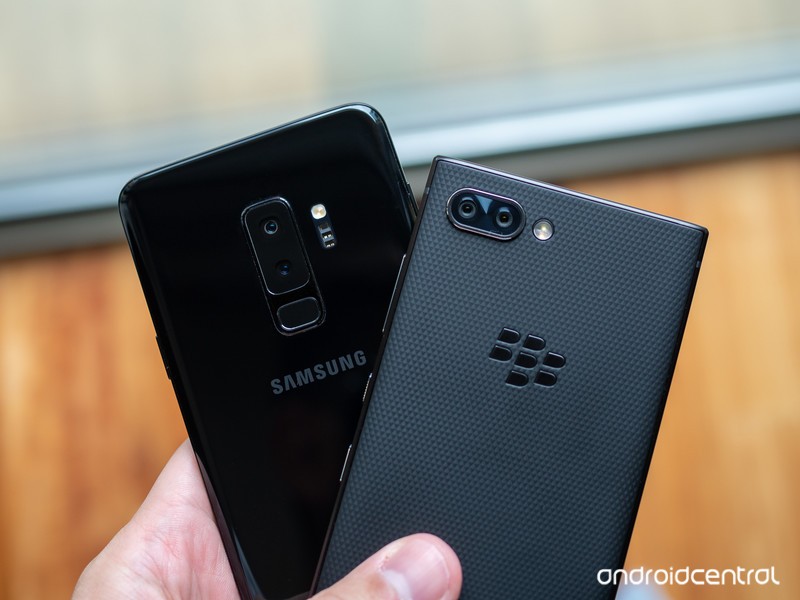
You might have noticed that some phones, like the Samsung Galaxy S9, use two cameras on the rear of the phone while others only have one. This isn’t just for looks or because three cameras are one better than two cameras and the second lens is there to collect information the other isn’t collecting while you take a photo.
Wide-angle photos aside (there is no way a computer algorithm can recreate them), you can do everything as good or better with one lens than you can with two but it’s not easy. Google uses a single rear camera and a laser diode in the Pixel 2 to capture excellent photos with a single lens, but it is also using incredibly powerful ML (machine learning) algorithms that “know” what the objects you see in a photo are supposed to look like. The software can then adjust the photo, so the things look the way the algorithms, and hopefully, our eyes, think they should.
Not every company making smartphones has the resources to build out proper real-time support for multiple cameras. Now Google is doing it for them.
Samsung doesn’t have access to ML algorithms like this, at least not ones it is satisfied with using. What Samsung does have is a team of crack hardware engineers who can solve almost any problem and the software team who can make the hardware work as it should. The Galaxy Note 8 (and other high-end models) uses two cameras on the rear of the phone to do things like measure distance and adjust focus and there is no denying that it does an equally excellent job. This is because Samsung has the resources to tackle the issue of supporting something like Portrait Mode photos in their own way.
Not every company making Android phones has the resources to use two or more cameras at the same time to gather data and pack it all into one photo, so Google is making it easier with Android P’s new Multi-camera API.
In Android P developers will be able to gather image data from two or more cameras simultaneously. That means a phone with two rear or two front cameras could combine image data from each in real time and create photos that use seamless zooming, bokeh, stereo vision or almost anything else a developer can dream of doing with two different streams of image data. Developers can also grab data from a “logical” camera that switches between one or more cameras while in use.
These ideas aren’t new but native Android support is and that’s a big deal.
This means a third “virtual” camera could be created that grabs image data using one or both rear cameras. An application can grab “normal” data through one camera, distance data for a seamless zoom through a second, and switch the original camera back and forth to form a virtual stream in order to process something like a photo filter on the background. This switching would be done so quickly the original image data should be unchanged.
You could have a zoomed in photo through a telephoto lens that is also able to use hardware to create a black and white background complete with digital bokeh. You probably shouldn’t ever do such a thing, but if a developer wanted to offer it he or she could.
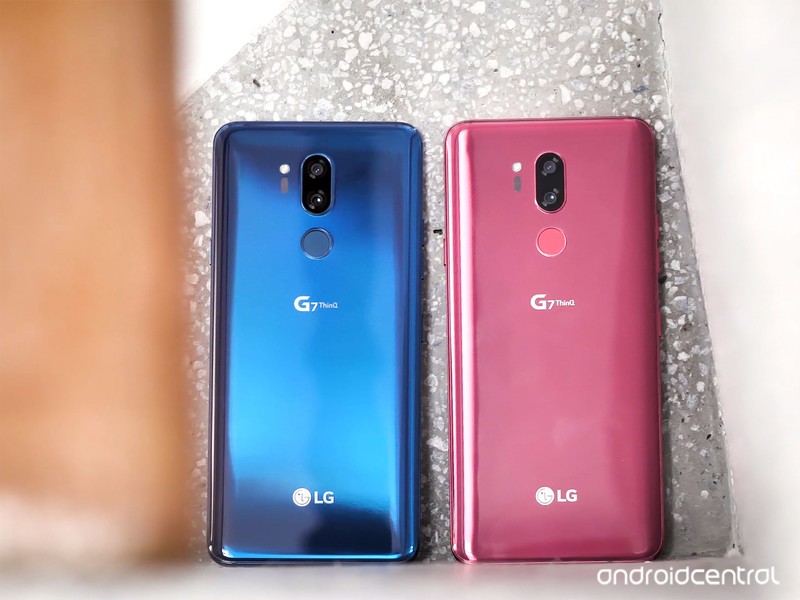
These changes are not “new” ideas. They are very similar to what companies like Samsung and LG have done with phones that use more than one camera to capture a photo. The difference is that Samsung and LG had to do it because it was something not ever done before. Google adding this support directly into Android means better photos from manufacturers that don’t have the same resources Samsung or LG has.
The Multi-camera API will also support monochrome (think black and white) cameras. If the cameras are capable they will be supported fully just like the main high-resolution camera on a phone.
Even more goodies
The Multi-camera API in Android P will get all the attention and will make for the bigger impact, but there are a few other important changes coming to the camera with Android P.
Session parameters are a way developers can have their app grab a picture without it taking forever to process, even if they are leveraging the new Multi-camera API. Functions like “Session_Regular” and “Session_High-Speed” let a developer decide how much of a phone’s limited resource pool can be used to grab a photo quickly when it needs to be done and not so quick when it doesn’t.
Surface sharing will let applications “handle various use-cases without the need to stop and start camera streaming.” This means an app doesn’t have to stop working on getting image data it sees through the lens(es) while you decide what to do with the previous photo. That’s important when you think of things like the short clips we think of as live photos.
Smaller changes can have an impact, too. Android P has several important ones.
Other even smaller changes are an API to allow the screen to act as a flash by blinking white times as a regular camera flash instead of a developer needing to code that themselves, as well as access to OIS (optical image stabilization) timestamps for application-level special effects — any app can stabilize a photo as well as the built-in camera app can with this change.
Last but not least, proper support for external USB cameras is coming so things like inspection cameras, microscopes or even telescopes can be used through your phone’s USB port without a lot of developer work writing a driver but with more features than a basic “USB webcam” interface that works in some cases today.
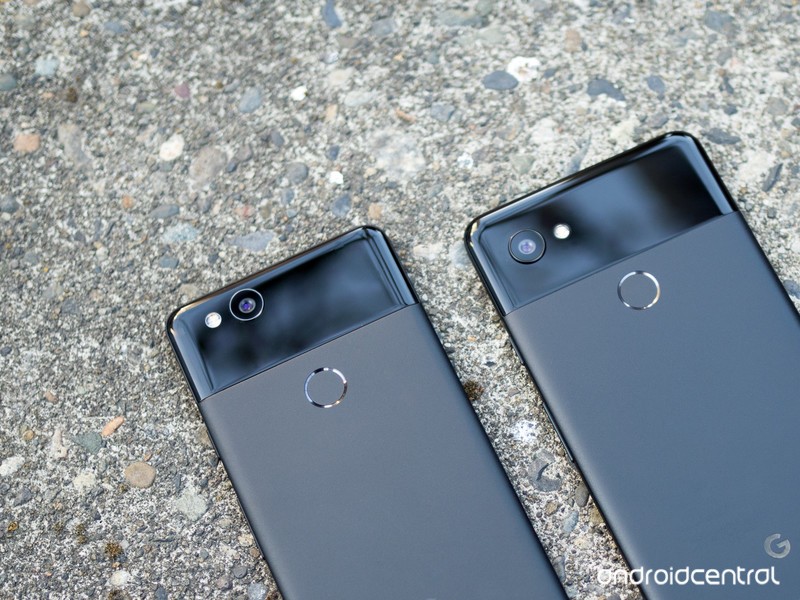
None of these changes will make us a better photographer, but it will make our cameras good enough that we can take better photos. In the end, that’s all that counts, right?
Android P
- Android P: Everything you need to know
- Android P Beta hands-on: The best and worst features
- All the big Android announcements from Google I/O 2018
- Will my phone get Android P?
- How to manually update your Pixel to Android P
- Join the Discussion

