


‘Minimal Turing Test’ asks humans to prove they’re human with only one word
A test that is designed to highlight the difference between human and machine — or prove that a human really is a human — is nothing new. In fact, it’s the basis for the Turing Test, a test devised by pioneering computer scientist Alan Turing all the way back in 1950. Here in 2018, machines have gotten considerably smarter, and the idea of a machine that thinks is no longer quite as crazy as it sounded almost 70 years ago. It’s therefore no surprise that the question of what separates humans from machines is at the forefront of a lot of people’s minds — as a new “Minimal Turing Test” makes clear.
Devised by two researchers from the Massachusetts Institute of Technology’s Department of Brain and Cognitive Sciences and the University of Pennsylvania, the new spin on an old classic asked 1,089 human participants to name a single word they would use to explain just what makes humans, well, human.
“We proposed a new method for studying how people think about other kinds of agents, or people that belong to other social groups — essentially give one word to prove your identity,” John McCoy, an assistant professor of Marketing at the Wharton School of the University of Pennsylvania, told Digital Trends. “We asked people to give one word to prove that they’re not a smart robot, and to judge the words of others. We used techniques from natural language processing to cluster the words that people gave, and modeled people’s words and judgments with ideas from game theory.”
The words human respondents used to prove their humanity included “love” (a massive 14 percent of responses), various answers relating to emotions, compassion, religion, and … “poop.” Because what are we as the planet’s current most intelligent beings if not for lovers of toilet humor?
In fact, poop had a whole lot of significance for the project. After the answers had been collected, the researchers randomly formed pairs of words and then told another group of 2,405 participants to choose which word they thought was from a human and which one was from a robot — despite the fact that both were selected by humans. “Poop” was the one that most people thought had been picked by a human. The least successful, for obvious reasons, was “robot.”
“Most of the words make sense once you see them, but they’re not necessarily what I would have predicted ahead of time,” Tomer Ullman, a postdoctoral associate in the Computational Cognitive Science group at MIT, told us. “Some of the words still have us scratching our heads. That the taboo category word beat out everything else isn’t something I would’ve bet a lot of money on before we ran the study, though it may seem obvious in retrospect.”
Editors’ Recommendations
- Algorithm outperforms humans at spotting fake news
- Strawberry-picking robots could replace human workers in the field
- Internet connectivity is a human right, and Rightmesh has a plan to fulfill it
- A.I. players master ‘Quake III Arena,’ manage to outperform humans
- JackRabbot 2 is Stanford’s friendly new campus-roaming social robot
Nvidia GeForce RTX 2070 joins the ray tracing future on October 17 for $499
Riley Young/Digital Trends
If Nvidia’s RTX 2080 Ti is a bit too rich for your gaming blood, you can pick up the RTX 2070 next month instead. Nvidia announced through its GeForce Twitter account that the RTX 2070 will be available on October 17 at a starting price of $499. If you opt for the Founders Edition card, that version will cost $100 more at $599. Like the GeForce RTX 2080 Ti flagship, the RTX 2070 will utilize Nvidia’s new Turing architecture, which will support artificial intelligence-enhanced features, ray tracing, and Deep Learning Super Sampling.
While the RTX 2070 represents a more affordable option for gamers compared to the RTX 2080 and RTX 2080 Ti flagships, it may not be an immediate upgrade compared to the aging GeForce GTX series. In our early benchmarks of both the RTX 2080 and RTX 2080 Ti with current games, we found that the RTX 2080 delivers performance that’s about on par with the GTX 1080. For its part, Nvidia claims that the new RTX series should be capable of up to six times the performance of the GTX platform. However, for this performance to become a reality, you need to wait for games that support ray tracing and Deep Learning Super Sampling (DLSS). And at this time, it’s unclear if ray tracing games will be available when the RTX 2070 launches in October. Without ray tracing and DLSS, gamers won’t be able to realize the card’s full potential.
Nvidia is placing huge bets on ray tracing as the future of gaming. The feature allows scenes to be rendered in real time, showing how light can be absorbed, reflected, or refracted off of surfaces. The effect is similar to computer-generated imagery, or CGI, in movies. In games, Nvidia claims that this will lead to more realistic scenes and animations. However, if you don’t need ray tracing, you may get better bang for your buck by finding a GTX series cards that are being discounted now that the RTX series are starting to arrive.
If you’re interested in investing in Nvidia’s vision for the future of gaming, you can sign up on the dedicated GeForce RTX 2070 portal to be notified when pre-orders go live.
October is shaping up to be a big month for the PC industry. In addition to the RTX 2070 hitting shelves, Microsoft is also slated to take the wraps off of the next major update to Windows 10, which the company is aptly calling the October 2018 Update.
Editors’ Recommendations
- Nvidia’s GeForce RTX 2060 might launch next year without ray tracing
- Nvidia GeForce RTX 2080 vs. GTX 1080
- A.I. makes Nvidia’s RTX 2080 twice as powerful as the GTX 1080
- Nvidia GeForce RTX 2080 vs. RTX 2080 Ti
- Nvidia GeForce RTX 2080 Mobile sighting hints at more powerful gaming laptops
The HP Tango smart printer clearly wants you to confuse it for a book
Previous
Next
1 of 3


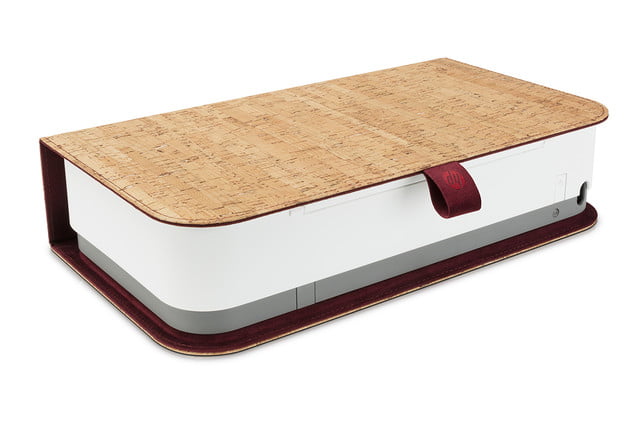
Remember when printers used to look like, well, printers? HP’s latest addition to the world of paper and ink is the Tango — a device designed to look nothing like a conventional printer. At first glance, the HP Tango appears to be perhaps a small fabric layer box, or a very thick book, but within is a small wireless printer boasting some tricks. Starting from $150 for the base unit, and $50 extra for the Tango X model with fabric, the mini-stealth printer might play as more of a centerpiece than something to hide away.
Announced as the world’s first smart home printer, the HP Tango is more than just a little printer with a form factor of 14.8 x 8.1 x 3.6 inches and only 6.8 pounds. Starting with more traditional functions, the Tango can wirelessly print a black print resolution of up to 1,200 x 2,000 dpi and a color resolution of up to 4,800 x 1,200 dpi. The printer itself is a thermal inkjet machine and can print at up to 11 pages per minute. Overall, the HP Tango presents decent specifications for its size to those looking to purchase a new inkjet printer.
But, none of the above functions make this printer any smarter than the one you might already own, so what is it hiding? HP says the Tango gains extra smarts for the home thanks to its ability to allow users to print from anywhere, whether that is on the same Wi-Fi network as the device or half-way around the world. The Tango works in conjunction with the HP Smart app to enable printing almost anywhere.
HP has also squeezed a few other smart features into the app including instant notifications for when you run out of ink, easy scanning of documents with your smartphone’s camera, and a setup wizard for getting your Tango connected and ready. Users can also opt to have the printer automatically order additional ink when it is low thanks to the company’s Instant Ink service.
Lastly, we all know that a device isn’t truly smart unless we can talk to it, and HP has made sure that we are never lonely by bestowing the printer with voice functionality. Currently compatible with Amazon Alexa, Google Assistant, and Microsoft Cortana, you can inform your virtual assistant that you need a specific type of form printed, and it will automatically communicate with your HP Tango.
Buyers looking to get their hands on the new HP printer can begin ordering now; however, the version that includes the linen cover, the Tango X, will be available next month. Owners can pick from either Indio linen or charcoal linen to start, with corck currant coming later this year. Those purchasing the regular Tango have the ability to add on a linen cover after their purchase for an additional cost.
Editors’ Recommendations
- HP slices prices on laptops for its huge back to school sale
- Home printer buying guide: How to choose a printer that best fits your needs
- The best portable photo printers of 2018
- The best printers of 2018
- The best 3D printers under $1,000
Functional Apple-1 Computer Sells for $375,000 at Auction
A rare fully operational Apple-1 computer auctioned off by RR Auction at WeWorks in Boston today fetched a total of $375,000.
The Apple-1 came from a person who purchased the machine from The Byte Shop, the store where Steve Jobs and Steve Wozniak originally sold the computers for $666.66. The seller used the Apple-1 to learn BASIC and wrote small programs before he decided to hold onto it because it “could one day be a piece of computing history.”
Bobby Livingston, Executive VP of RR Auction said that the company was “thrilled” with the price that the Apple-1 earned.
“We are thrilled at the price achieved and that’s why we thought it fitting that the Apple 1 should headline our annual Rare and Remarkable auction– it’s a museum-quality piece that has earned a special place in history.”
Apple-1 expert Corey Cohn restored the machine to its original, operational state in June 2018, and the auction included a comprehensive technical condition report prepared by Cohen. Cohen rated the condition of the computer at 8.5/10 after it worked without fault for eight hours during a comprehensive test.
Over the course of the last few years, several Apple-1 computers have surfaced at auction and have sold for $130,000 to $815,000. The Apple-1 that fetched the highest price as known as the “Celebration” Apple-1 and was ultra rare due to its black “green” PCB board that was not sold to the public and was not part of a known production run.
There are an estimated 60 to 70 Apple-1 computers still remaining of the original 200 machines that were designed and built by Jobs and Wozniak.
Discuss this article in our forums
Camera Comparison: iPhone XS Max vs. iPhone X
Compared to the iPhone X, the iPhone XS and iPhone XS Max offer up an upgraded wide-angle camera with a larger sensor and new features like Smart HDR and Depth Control, all of which bring quite a few changes to photo quality on Apple’s newest iPhones.
We did an in-depth comparison between the iPhone X camera and the camera in the iPhone XS Max to highlight the feature updates and what you can expect to see in your images when upgrading from iPhone X to iPhone XS or XS Max.
Subscribe to the MacRumors YouTube channel for more videos.
Both the iPhone X and iPhone XS Max feature dual-lens camera systems with an f/1.8 12-megapixel wide-angle lens paired with an f/2.8 12-megapixel telephoto lens that enables 2x optical zoom, but there are some notable differences between the two.
The wide-angle camera on the iPhone XS Max is just a bit wider with a 26mm focal length equivalent vs. the 28mm focal length equivalent on the iPhone X, and Apple has introduced a new image sensor that’s twice as fast and 32 percent larger with bigger, deeper pixels that bring out more detail in your photos.

Both iPhones use a TrueDepth camera system with a 7-megapixel front-facing camera for selfies, but the iPhone XS features a faster A12 chip with an upgraded Neural Engine and a new image signal processor, enabling several new features for both the front and rear-facing cameras.
A Smart HDR option offers better dynamic range, bringing out more detail in the highlights and shadows of your images, while a new Depth Control option for Portrait Mode lets you adjust the amount of background blur in your images after a photo is taken. Apple has also introduced improved bokeh, for more aesthetically pleasing blurring of the background details in a photo when using Portrait Mode.

In our experience, Portrait Mode with both the rear and front-facing cameras is improved in the iPhone XS Max compared to the iPhone X with the new features Apple has introduced. The camera is better able to distinguish between the foreground and the background of a photo so it doesn’t blur out as much detail as the iPhone X. It’s by no means perfect and there are still issues with some images, but it’s a definite improvement.

Apple’s Smart HDR feature brings out more detail in iPhone XS Max photos when compared to photos taken with the iPhone X. For example, in images of the sky, the iPhone X will blow out the details due to the variance in lighting, while the iPhone XS Max is able to provide a better photo with the Smart HDR. Smart HDR kicks in often, and paired with the larger sensor, it offers up images with more detail in most photos with low lighting.

Almost all iPhone X photos in low light or with areas where there’s a lot of difference between brightness and darkness overexpose photos or feature too much overcompensation for shadows, a problem that the iPhone XS Max does not have.

Unfortunately, in some situations, Apple’s Smart HDR and/or some heavy-handed noise reduction blurs or smooths out images, something that’s especially noticeable with the front-facing camera in lower light. There is, for example, an entire thread on Reddit filled with users complaining about the ultra smoothing Apple has introduced for the selfie camera.

The strange smoothing effect is primarily noticeable with the front-facing camera when lighting is not great, but it does also affect the rear-facing camera and can sometimes result in soft images that lose their crispness. The iPhone X, which does not use Smart HDR or the same noise reduction algorithms, does not seem to have this issue.

When it comes to capturing video, the experience is nearly the same, though we did feel stabilization was a bit better. The iPhone XS Max continues to be able to record 4K video at up to 60 frames per second, but audio is improved due to new stereo recording functionality.

All in all, iPhone XS Max photos are better than iPhone X photos with a noticeable difference between the two cameras, but there are quirks to be aware of, such as the Smart HDR and heavy noise reduction.
The images featured in the video and in the article can be found in a higher resolution in an Imgur album for clearer comparisons. What do you think of the camera in the iPhone XS and iPhone XS Max? Let us know in the comments.
Buyer’s Guide: iPhone XS (Buy Now)
Discuss this article in our forums
Fight against trackers on the web with Brave Browser (Review)
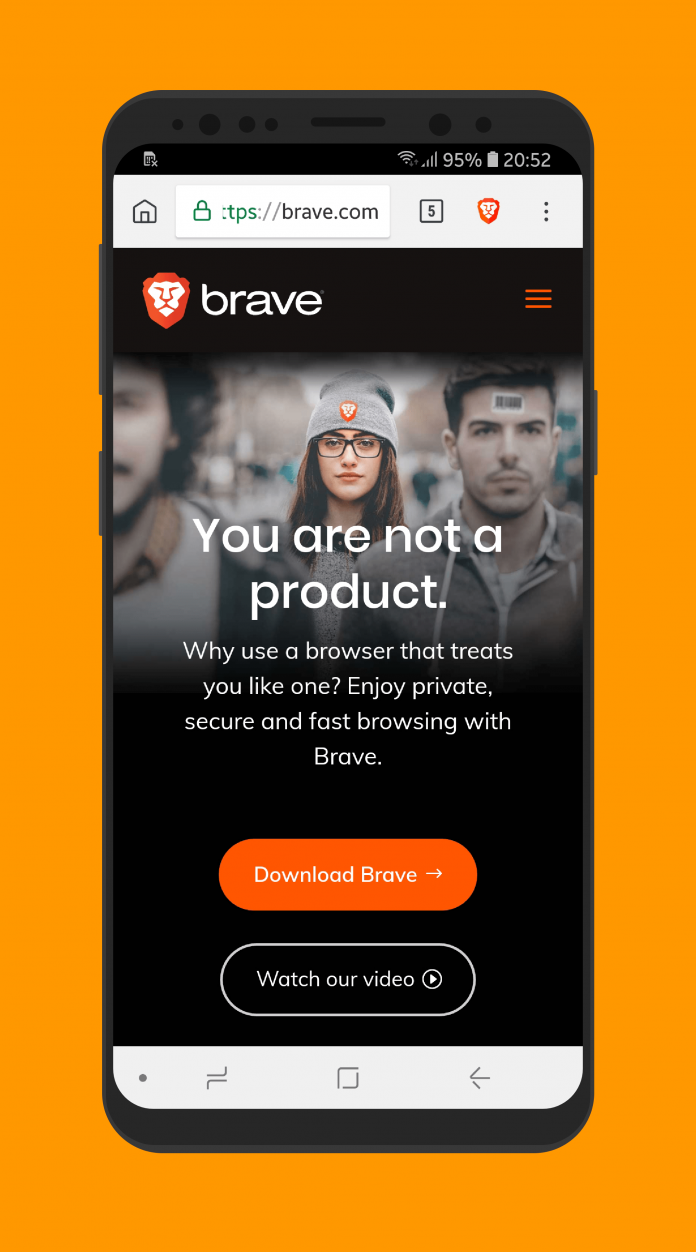
With the increasing number of privacy scandals, leaks of information, and other creepy “features” implemented by websites, the average customer is increasingly worried about the data collected from them and what the companies decide to do with it. In these times 1984-esque times we live in, Brave offers a browsing experience without ads, trackers, and fingerprinting.
Developer: Brave Software
Price: Free
Overview
 After accepting the Terms of Service and Privacy Notice, Brave takes you right into the action and shows you the homescreen. If you feel like the interface looks similar to Google Chrome, it is because Brave is also based on the open-source Chromium project. Brave tries to combine the simplicity, power, and speed from Chromium with security features such as an ad-blocker, tracking protection, enhanced security, and optimizations for consuming less data and battery life.
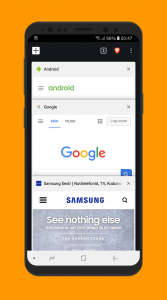
On the top bar, there is a home icon that (unsurprisingly) takes you to the home page. The address bar works exactly like in Chrome, acting also as a search bar. There’s also a button that lets you see your open tabs, taking you to a screen that resembles what you get when you tap on the Recents button on the navigation bar on your Android device (if you manufacturer hasn’t tampered with it).
The Brave Button
The one interface element that differs from Google Chrome is the Brave button. Upon tapping it you will get information about the additional security measures put in place by Brave. It will show you the number of ads and trackers blocked, HTTPS upgrades (explained in a moment), the number of scripts blocked, and fingerprint methods intercepted.
You can also deactivate all the previously mentioned shields, or do it separately. Block Ads & Tracking, Block 3rd party cookies, and Block Scripts are self-explanatory. HTTPS upgrades is a new functionality in which Brave determines if a site you are browsing under the HTTP protocol has the more secure HTTPS version available. If it does, then it automatically redirects you to ensure you are always navigating securely when it is possible.
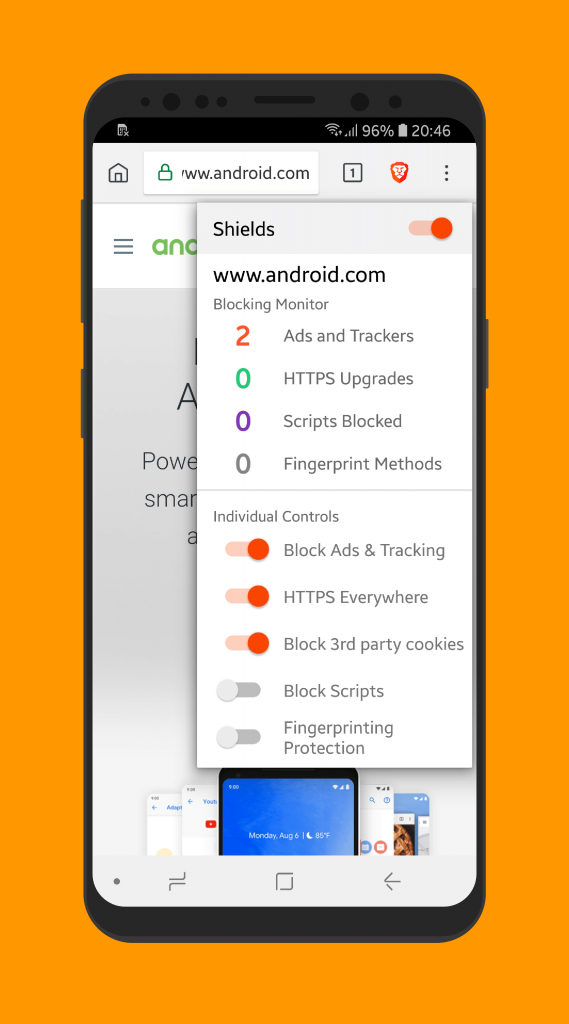
Fingerprinting is a little more complex. The process involves taking information from several sources, such as your IP, country, hardware information, and other similar parameters, and making a fingerprint that allows companies to track your movements across different websites. Brave tries to prevent this by blocking well-known methods of fingerprinting, such as canvas and WebGL. You can read more about it here.
Inside the Overflow
An overflow button lets you go to a bunch of different options, which are all expected if you come from Chrome. Well-known features such as bookmarks, history, downloads, find in page, adding a site to the homescreen, and downloads are all available, thanks to its Chromium roots.
There is a private mode as well, in which the Brave filters and shields still keep working. Inside it, Brave prompts you to switch search engines from Google (which is the default) to DuckDuckGo, a safer alternative that does not track your movements.
Performance
 Brave behaves and performs exactly like you would expect from a browser in 2018. Granted, I do all of my tests in a Samsung Galaxy S8, but I also have a Galaxy J5 2017 at hand and it performed wonderfully there as well. Launching the app is within the normal range of apps in both devices.
Sites load fast, scrolling is smooth, and content hardly suffers from any of the built-in protections. It even adopts the navigation bar coloring feature, in which it automatically changes colors based on the site you are browsing. There is no problem watching YouTube videos or streaming content. Because of the numerous shields that Brave has implemented, sites, in theory, should be even faster to load than other alternatives like Chrome and Firefox.
Settings
On the overflow menu, you will find the Settings button. Inside, you will find options to change the default engine, to save passwords, autofill, notifications, and accessibility. These are rather unchanged from Chrome. The one where the Brave team focused the most is in the privacy option. Here you will also be able to turn off a plethora of options that you can also do from the Brave button, such as tracking protection and ad blocking. However, this will do it on a browser level, not on a page level. There is also an option to turn off regional ads.
Unfortunately, I didn’t find a way of activating some kind of syncing of bookmarks between devices. With the big players such as Firefox, Chrome, and Opera offering syncing across devices, it is a glaring omission that could force some power users to look elsewhere.
Conclusion
In an era where every company seems to track your movements everywhere you go, Brave comes to the rescue and tries to mitigate the dangers of browsing the web. The fact that something like this exists is sad, to be honest. However, knowing that there are companies that are still committed to privacy give us a glimmer of hope.
As websites constantly test the patience of its users and cram ads, pop-ups and auto-playing videos, ad blocking has become more and more popular. However, as a site that depends on ads as a source of income, we encourage you to turn them off for sites that you rely on and don’t annoy you. Regardless, if you are looking for a browser that gives you more control on the sites you visit, even with some omissions on their part, Brave is one of the top-notch alternatives on the Play store.
Download and install Brave Browser from the Google Play Store.
Mobile network growth drives new businesses, access to education, report says
The smartphone industry continues to grow, and according to a new report from the GSMA, the industry is having a massive impact on global infrastructure and the number of people with connectivity. According to the report, more than 5 billion people are now connected to mobile networks, and 400 million new subscribers have joined mobile networks since 2015. The GSMA is a trade body that represents the interests of mobile network operators worldwide.
The report, called the “Mobile Industry Impact” report, highlights the UN’s Sustainable Development Goals, or SDGs, of which there are 17. Not all of the 17 goals are related to technology, but mobile network access plays a significant role in many of the goals — especially SDG 9: Industry, Innovation, and Infrastructure. The progress on that goal is the result of almost universal mobile network coverage of some kind, which is driving new business models and the adoption of mobile savings and credit.
“More than two-thirds of the people on the planet are now connected to a mobile network and, for many, mobile is the primary – sometimes only – channel for accessing the internet and life-enhancing services,” said Mats Granryd, director general of the GSMA. “Today’s report outlines how the mobile industry is playing a central role in accelerating delivery of the SDGs and leveraging the power of mobile networks and services to transform lives around the world.”
Thanks to the increased coverage around the world, it’s expected that more than half of the world’s population will be accessing the internet through their smartphones, which is up by 36 percent from 2015.
With internet access comes access to other technologies that could be helpful in developing areas. For example, the study highlights that around 250 million people have started using mobile money since 2015, bringing the total number of mobile money accounts to 690 million around the world. According to the report, this helps “expand financial and social inclusion.”
Education is another big advantage of increased connectivity. The report notes that there are now 750,000 education-related mobile apps available for smartphones, which is up by 62 percent from 2015. The result is that a massive 1.2 billion people are using their smartphones to improve their education or the education of their children. Not only does this help improve overall education in underserved areas, but making education more accessible also helps bridge the gender gap related to education access. Better and accessible education is SDG 4, while gender equality is SDG 5.
It’s likely increased connectivity will impact other UN goals, too. For example, SDG 3 is related to improved health and better access to health care, while SDG 7 relates to clean energy.
Editors’ Recommendations
- Facebook responds to Myanmar genocide report, bans accounts that reached millions
- ‘Destiny 2: Forsaken’: Everything you need to know
- Here is our ‘World of Warcraft: Battle for Azeroth’ leveling guide
- How to Use Facebook: The unofficial user manual
- Just add speakers: The Sonos Amp puts music muscle in smart homes
Virtual reality breaks free as the HTC Wireless Adapter hits store shelves
Gamers can finally break free from the tethers of virtual reality (VR) as HTC’s Vive wireless adapter officially hits store shelves today, September 25. With models available for both the HTC Vive and Vive Pro, hardcore gamers and developers alike can enjoy stepping into VR without needing to worry about tripping over wires or becoming entangled in cables. The Vive wireless adapter marks the first significant step into the future of graphically intense wireless VR for consumers, starting at $300.
Offering flexibility to its users, the Vive Wireless Adapter removes the need to have data, power, and video cables running from the headset to a Windows PC. The T-bone shaped adapter sits atop either an HTC Vive or Vive Pro, wirelessly transmitting data between the headset and a supported Windows computer with Vive’s PCIe WiGig card installed — the card itself is included in the box with the wireless adapter.
Weighing in at only 129 grams, we don’t expect the accessory to be causing any neck strain. The Vive wireless adapter’s battery is a small pack that the user attaches to their waist and can provide up to 2.5 hours of charge at a time. Don’t worry though, if you need to jump back into the game quickly the pack does support Qualcomm’s Quick Charge 3.0 technology for refueling in practically no time at all.
HTC is currently offering two version of the Vive wireless adapter, one designed for the HTC Vive and the other for the Vive Pro. Each headset uses a different interface to communicate with a PC and requires its own solution. While the Vive uses three separate HDMI, USB, and DC connectors, the Vive Pro opts to use a singular cable to get the job done. HTC Vive users can pick up their addition for $300, while HTC Pro users will need to shell out an addition $60 for their version.
Those looking to pick up the headset will be gifted a two-month Viveport subscription for no cost. Just ensure that your PC meets the minimum requirements with an Intel Core i5-4590/AMD FX 8350 CPU, Nvidia GeForce GTX 1060/AMD Radeon RX 480 GPU, 4 GB RAM, and an available PCIe slot.
Editors’ Recommendations
- HTC’s new wireless adapter for the Vive arrives in September for $300
- HTC Vive review
- HTC breaks down VR barriers by bringing Oculus Rift titles to Viveport
- HTC ditches digital buttons for its midrange U12 Life
- HTC U12 Plus review
Just like an eagle, this autonomous glider can fly on thermal currents
An eagle soaring may look majestic but in technical terms, there is some impressive physics happening “under the hood” when they do. Specifically, eagles and other soaring birds take advantage of the upward currents of warm air, known as thermals, to help them more easily sail through the sky. What scientists don’t know, however, is how these birds discover and navigate said thermals. It turns out that artificial intelligence can help — and it could offer an assist to drones as an added bonus.
“This is a big challenge, as it is very difficult to conduct controlled experiments with soaring birds,” Jerome Wong-Ng and Gautam Reddy, two researchers from the University of California, San Diego, wrote in an email to Digital Trends. “Our approach was to instead teach a learning agent to soar in a realistic environment and see if this tells us something about how birds soar.”
This teaching was carried out using a type of machine learning called reinforcement learning. This type of A.I. creates A.I. agents which learn behavior based on the results of trial and error experiments. In this case, the researchers kitted out a glider with a flight controller able to implement the reinforcement learning-based instructions. Soaring to heights of almost 2,300 feet, the glider was able to figure out how to navigate atmospheric thermals autonomously.
“On a technical level, reinforcement learning hasn’t been applied to train agents to learn in the field,” the researchers continued. “In the field, the number of training samples we have is really low, and we have to come up with ways of using all available training data. There were also technical advancements regarding how to measure the local wind environment near the glider using onboard devices.”
In terms of practical applications, the researchers think their new navigational strategy could be employed to develop unmanned aerial vehicles (UAVs) able to fly for long periods of time without needing to recharge. In addition, it might be useful for creating an autopilot-style “recommendation system” for novice glider pilots.
“In this work, we focused on how to find and navigate a single thermal,” Wong-Ng and Reddy said. “But migrating birds glide from one thermal to another, and how to do this efficiently is a line of work we plan to explore in the future. Another line of research is to track soaring birds and figure out if their navigational strategy is similar to the one we’ve found in our study.”
Along with the University of California, San Diego, other educational institutions involved in this research included the Salk Institute for Biological Studies and the Abdus Salam International Center for Theoretical Physics in Trieste, Italy.
A paper describing the research was recently published in the journal Nature.
Editors’ Recommendations
- A.I. players master ‘Quake III Arena,’ manage to outperform humans
- By studying patient data, A.I. can limit toxicity in cancer treatment
- How 3,000 streetlights turned San Diego into America’s smartest city
- IBM’s Holodeck-style classroom tech makes language-learning apps look primitive
- Machine learning? Neural networks? Here’s your guide to the many flavors of A.I.
How to navigate iOS 12 with the iPhone XS, iPhone XS Max, and iPhone XR
This year, it’s out with the old and in with the new for Apple’s latest iPhones. Following the iPhone X, the company made a permanent switch to the same design for all its iPhones — an edge-to-edge display, notch at the top, and the removal of the Home button. While the updated design is a refreshing change, it might take some time to adjust to the new gestures and functions. To make the transition easier, we’ve put together a guide on how to navigate iOS 12 with the iPhone XS, iPhone XS Max, and iPhone XR.
How to unlock the screen
Rather than using your fingerprint to unlock the device, now all you have to do is look at the screen. On the iPhone XS, XS Max, and XR, Touch ID has been replaced with Face ID thanks to Apple’s TrueDepth technology.
You can set up your Face ID profile by going into your settings. It will then ask you to complete a series of movements, like rotating your head in a circular motion to capture all the angles of your face. Once it’s set up, you’ll be able to unlock your iPhone XS or XR by simply looking at the screen. With iOS 12, you can now add two different Face ID profiles to unlock your phone — for those who want to add another appearance.
How to switch between apps
Rather than double tapping on the home button to pull up all your open apps, you now have to use gestures. Prior to iOS 12, accessing the App Switcher required swiping up from the bottom edge of the device. Then, to close the apps you had to hold down on a specific app until the red minus appeared on the top left corner. Now, all you have to do is swipe up from the bottom of the screen to access all your open apps and switch between them. You can close apps by swiping up on each one.
How to activate Siri and open Apple Pay
To enable Siri, tap and hold the power button until you see the voice assistant appear on your display. Whenever you’re at the store and ready to pay for your items, you can conveniently pull up Apple Pay by double-tapping the power button.
How to take a screenshot
Taking a screenshot with the iPhone XS, XS Max, and XR is easy — even with the absence of the Home button. Simply hold the power and volume up buttons at the same time. But make sure to only quickly tap the buttons — holding them down will pull up a window with options to power off your iPhone or use the Emergency SOS features. After taking the screenshot, you’re then able to mark up or edit the image before sending it.
How to open the Control Center and Notification Center
Getting used to the gestures on your new iPhone might be a little tricky, especially for those switching from any model that’s older than the iPhone X. For starters, accessing the Control Center requires swiping down from the top right corner on both the lock screen and home screen — rather than swiping up from the bottom as you normally would. The same goes for the Notification Center, but in this case you’ll have to swipe down from underneath the notch in the center or from the top left corner.
How to turn off the iPhone
Turning off the iPhone can be done by holding down the power button and the volume up or down button simultaneously. Don’t let go until you see the option to turn off the phone. You’re also provided with quick access to your Medical ID and Emergency SOS here.
How to use reachability
To use reachability on an older model of the iPhone, you’d normally tap the Home button twice, and this would allow you to pull the apps down from the top to the middle of the display — making it easy to tap on them.
With the iPhone XR’s 6.1-inch display and the 6.5-inch display on the XS Max, it might be even harder for those with smaller hands to reach certain apps. To use the reachability feature, you’ll have to make sure it’s turned on first. Go to Settings > General > Accessibility > Reachability and toggle the feature on. To access apps, swipe down on the horizontal bar at the bottom of the screen. To bring everything back into its place, swipe up about an inch above the bar or tap anywhere on the display.
Editors’ Recommendations
- How to buy the iPhone XS, iPhone XS Max, and iPhone XR in the U.K.
- Apple iPhone XS vs. iPhone XS Max vs. iPhone XR
- Master your iPhone XS and iPhone XS Max with our favorite tips and tricks
- iPhone XS review
- iPhone XS Max review

