


Alexa’s new Whisper Mode is rolling out to users in the U.S.
You wouldn’t have the Amazon Echo (or Echo Dot, or Echo Show, or whatever) without Amazon Alexa. Here’s what you need to know about the two.

Latest News
October 18, 2018 — Alexa’s new Whisper Mode is rolling out to users in the U.S.
During Amazon’s big Alexa event last month, the company announced a slew of new features for the voice assistant — one of which was a new feature called “Whisper Mode.” A little less than a month since it was revealed, Whisper Mode is now rolling out to everyone in the United States.
You can turn Whisper Mode on/off in the Alexa app, and when enabled, Alexa will respond to you in a whisper when it detects you’re whispering/talking quietly to it.
Do you have access to Whisper Mode yet?
September 20, 2018 — The Lenovo Smart Tab blends the best of Alexa and Android in one device
Per a press release that was shared on its website, Lenovo announced that it’s working on a new device called the Lenovo Smart Tab. We don’t have any specs on the Smart Tab or even know what it looks like, but Lenovo says it features Amazon Alexa and has a “Show Mode” that “will offer more visual Alexa experiences to enhance the way users interact with their music, control smart home devices, and more.”
We also know that the Smart Tab will feature Lenovo’s “versatile and beautifully designed Android tablet technology”, but aside from that, this gadget is still mostly a mystery.
Lenovo will be sharing more details on the Smart Tab later this year, so stay tuned!
September 20, 2018 — Amazon announces whisper mode, offline smart home control, and more at fall event

Amazon just wrapped up its big fall event at its HQ in Seattle, and as expected, a lot of new Alexa goodies were announced.
The first thing Amazon unveiled is a new whisper mode for Alexa. Alexa can now detect when you’re whispering to it and then whisper a response back in return. According to Amazon, the functionality will be “rolling out soon.”
Also new is offline support for controlling smart home devices. For example, if you say “Alexa, turn off the lights”, your command will still go through even if there’s no active internet connection.
If home security is important to you, Alexa Guard will probably become one of your new favorite features. Alexa Guard connects to any home security systems you’ve got set up, so if you say something such as “Alexa, I’m leaving”, Alexa Guard will trigger all of your devices to lock down your home even if you’re using stuff from other brands. To get things started, Amazon’s partnering with Ring and ADT to kickstart the platform.
On a similar note, the newly announced Alexa Doorbell API will allow you to have two-way interaction on an Echo Show and Echo Spot when someone rings a connected doorbell. Anyone can tap into this, meaning it won’t be tied to just specific partners Amazon okays.
Lastly, in an attempt to make everything a smart gadget, Amazon’s launching the Alexa Connect Kit.
Alexa Connect Kit is a new developer kit that features various radios and a real-time OS that devs can integrate into appliances and make them “smart.” Brands like Hamilton Beach, P&G, and others are already using it.
July 26, 2018 — Alexa Cast launches as a way to cast Amazon Music from your phone to Alexa speakers
If you own an Alexa-powered speaker, there’s a good chance you subscribe to Amazon Music. Amazon Music is a great service for using your voice to listen to tunes on your Alexa device, and today with a new update that’s rolling out to the app, you can finally use Amazon Music on your phone to cast music to your Alexa speakers.
Aptly called “Alexa Cast”, this works just like we’ve seen from Google with Chromecast for years. When listening to a song in Amazon Music on your phone, tap the Alexa Cast button, choose the speaker you want to send your tunes to, and it’ll automatically switch to it from your phone.
You can start using Alexa Cast after updating the Amazon Music app on your Android or iOS device.
April 18, 2018 — A new Call of Duty skill delivers personalized coaching, tips on objectives to complete, and more
We don’t blame you if you never thought of pairing Alexa with Activision’s Call of Duty: WWII, but someone apparently did and made a skill just for that.
The new Call of Duty Alexa Skill can connect to your Call of Duty account, and after doing so, you can ask your Echo about how to improve your game based on the last match you just played, get updates on new Contracts you should complete, see which friends are playing, and more. Activision says the skill allows for personalized responses to over 2,500 questions and can dish out 250,000 responses using a custom “solider” voice.
Although it’s still in beta, you can start using the skill right now by enabling it and then saying “Alexa, Ask Call of Duty ___”
April 4, 2018 – Hands-free Alexa comes to more Fire tablets, music now available with Routines, and Canadian users can use Alexa in the Amazon Music mobile app

Whew, what a day! Amazon announced a heap of Alexa goodies on April 4, and without further ado, let’s run through what’s new.
First off, the online shopping giant has now allowed you to turn the Fire 7 and Fire HD 8 tablets into hands-free Alexa speakers. This is a feature that was previously reserved for just the Fire HD 10, and it allows you to say “Alexa” and have the tablets respond just like an Echo. The tablets will need to have their screens on or be plugged into a power source in order for this to work, but even so, it’s a nice way to get Alexa listening to you no matter where you go.
Moving over to Alexa Routines, you can now add music to these. Alexa Routines enable you to perform a variety of actions with one single command, and up until now, playing music wasn’t an option when creating a new Routine. With this update, however, you can play your favorite album, artist, podcast, etc. from Amazon Music, Spotify, Deezer, Pandora, and TuneIn.
Last but not least, users in Canada can now talk to Alexa inside the Amazon Music app for Android and iOS.
What is Alexa?
Amazon Echo. Or Alexa. They’re one and the same, really. That is, an Amazon Echo without Alexa really isn’t any more than just a speaker. And Alexa without a speaker is just … Well, nothing.
Confused yet. I don’t blame you. Let’s explain the difference this way:
Echo is hardware, Alexa is software
Amazon Echo — and all of its permutations — is hardware. Alexa is software. She (and I have zero problem if you refer to Alexa as a she) is the brains behind the Echo, and all the things you can do with it. And because she’s software, she’s available on more than just Amazon’s own devices.
Anyone can put Alexa on anything. You can make your own Alexa speaker for just a few bucks and a little bit of nerdy know-how. There are third-party Alexa speakers that look like Amazon’s own Echo Dot. There are third-party Alexa speakers that look like speakers. You can get Alexa baked into a smart thermostat. She’s built into the HTC U11 smartphone.
The point is, Alexa can be built into pretty much anything these days.
But that’s just half of the story.
It’s all about the Alexa Skills, baby …
Alexa starts out by knowing what Amazon tells it. She already knows how to tell the time, and set alarms and timers, or answer general questions and read headlines. But Alexa also has the ability to learn more. A lot more.
Or, more precisely, you have the ability to teach Alexa new things.
See all of Amazon’s Skills here
Amazon calls these things “Skills,” and there are hundreds of them.
Want to teach Alexa to turn on your smart lights, or open your garage door, or do anything she doesn’t already know how to do? You need a Skill. That’s where developers come in. Amazon has made it so that anyone can write an Alexa Skill, and companies and their developers have been doing so for years now.
Think about the things you do every day. Listen to satellite radio? There’s a Skill for that. Lock your house after you’re already at work? It’s a little daunting, actually. There are hundreds and hundreds of Skills, of varying degrees of usefulness. (Dog facts, uh, OK.)
How to enable and disable Alexa Skills
Support for Sonos speakers
Amazon Echo speakers are pretty decent, but Sonos speakers are better! The latest version of the Sonos One speaker has Alexa built right in, making it arguably the best sounding Alexa speaker you can buy.
If you’ve already got a bunch of Sonos speakers set up around your home, don’t fear — simply use the Sonos Skill and you’ll be able to control all the different speakers around your home. It’s not the greatest experience with some very mixed reviews from users, but it’s still the best way to connect your high-end smart speakers with Alexa.
Alexa Routines makes life easier — now with music!

One of the coolest parts of smart speakers is the ability to get the latest news, play music, and control your connected smart home devices all with your voice. With Alexa and your Amazon Echo products, you have the option to do so on an individual basis or group actions together using Routines.
Routines are built right into the Alexa app and are entirely customizable. You can create your own Alexa Routines right in the app which can be triggered by a phrase you say (ex: “Alexa, good morning”) or at a scheduled time.
Each Routine can trigger a combination of up to seven different action types, which are each customizable to some extent depending on what you need Alexa to do:
- Alexa Says: Mostly silly stuff. You can set Alexa to say a specific greeting, wish you a happy birthday, sing a song, or tell a story or joke.
- Music: The latest feature to be added to Routines, you can use an Alexa Routine to trigger music. For example, saying “Alexa, it’s party time” could automatically play your favorite party playlist on Spotify.
- News: Adding this to a routine will trigger Alexa to read out the latest Flash Briefing news reports.
- Smart Home: Get Alexa to toggle or control your connected smart home products. For example, I have a routine set up for when I say “Alexa, I’m leaving” that turns off all the smart lights in my house.
- Traffic: To add traffic updates to an Alexa routine, you’ll first need to dive into the Alexa settings and enter location information for your daily commute.
- Volume: You can set a routine to automatically adjust Alexa’s volume. For example, if you’re a really heavy sleeper you can have Alexa crank the volume when you say “good night”.
- Weather: Adds a weather update to your custom routine.
How to set up Routines on your Amazon Echo
Alexa calling and messaging
All of that connected home stuff is great, and it’s important. But one of the more exciting avenues of potential lies in Alexa Calling and Messaging. As the name implies, it’s the ability to make calls and leave messages through Alexa. From the outset, it works with Echo devices and the Alexa app on phones and tablets. If you have an original Echo or Echo Dot, you can make voice calls. If you have an Echo Show, you can make video calls, or even “drop in” on a close acquaintance (they have to approve you first) without them having to hit a single button.
That’s where these $50 Echo Dots really make a lot of sense. Now Amazon has a means for you to communicate not just on that little Dot, but also on your phone. It’s two birds with one stone, and it’s really just the start of things. And it makes up for where Amazon failed in trying to make its own phone. Folks didn’t want a Fire Phone, but they do want an Echo — especially an inexpensive on — and in buying one they have to put the Alexa app on their phone.
It’s not quite a benevolent Trojan Horse, but it’s close.
Read: Amazon is getting close to being the king of all messaging
Update May 2018: Added sections on Sonos speaker support and Routines.
Amazon Alexa
- Which Amazon Echo should you buy?
- Get more Alexa Skills
- How to enable and disable Alexa Skills
- How to customize Flash Briefing
- How to get sports updates
- How to sync your calendar with Alexa
- How to shop with Alexa
- Send voice messages with Alexa
See more at Amazon
Tweetbot 5 for iOS Now Available With Refreshed Look, Dark Mode, and GIPHY Support
The newest version of the popular Tweetbot Twitter app for iOS devices launched this morning, introducing a revamped look for the app along with several new features.
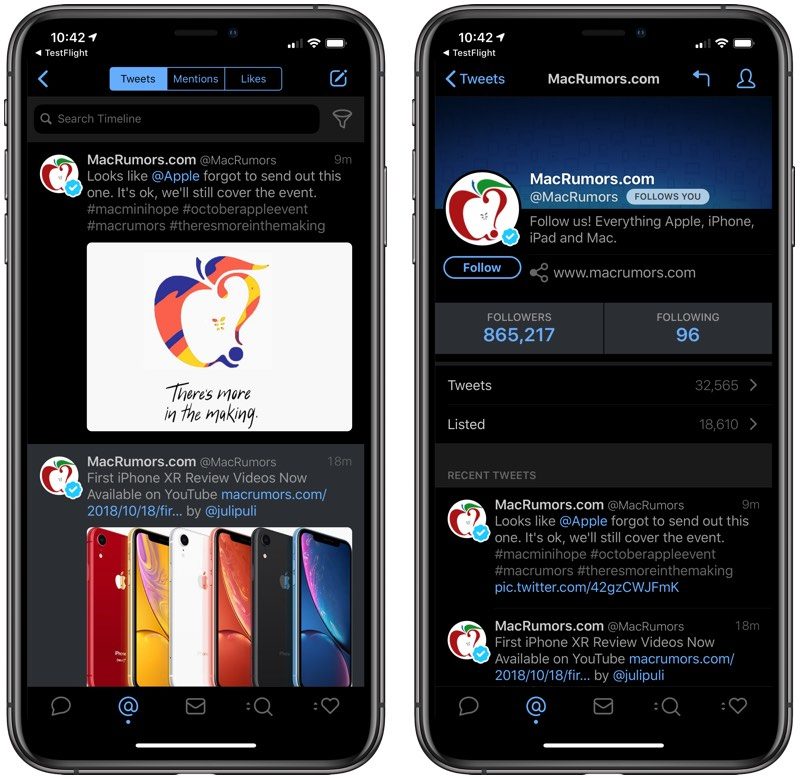
Tweetbot 5’s new look better matches the redesigned Mac version of Tweetbot that was introduced back in May, with redesigned profiles, tweet status details, timeline, and more. The app also adopts the new Tweetbot app logo that first debuted for Mac.
The updated version of the iOS app includes a revamped Dark Mode that looks great on Apple’s lineup of OLED iPhones, and GIFs and videos can now be set to autoplay. Autoplay is turned on when updating, but can be adjusted within the settings of the app.
Built-in support for GIF service GIPHY adds a new GIF button to the compose window for quickly searching for and then adding a GIF to a tweet. Descriptions can be added to an image when creating a tweet, and Tapbots has added haptic feedback support.

Full release notes for the update are below:
– GIF support in compose view (Powered by Giphy).
– Redesigned profiles.
– Redesigned tweet status details.
– New iconography and app icon.
– Optimized dark theme for OLED displays.
– Support for haptic feedback.
– Auto video playback in the timeline (which can be disabled in the settings).
– Ability to add descriptions to images when composing.
Tweetbot can be downloaded from the App Store for $4.99. The new update is free for existing users. [Direct Link]
Tag: Tweetbot
Discuss this article in our forums
Apple Invites Media to October 30th Event in New York City
Apple today sent out media invites for a second major 2018 event set to be held in New York City on Tuesday, October 30 at the Brooklyn Academy of Music, Howard Gilman Opera House.
Apple’s October event, which will focus on products not introduced at the iPhone-centric event in September, will kick off at 10:00 a.m. Eastern Time.
Image via Neil Cybart
Apple sent out multiple different Apple logo designs on the invitations that it sent out to members of the media, all of which feature the tagline “There’s more in the making.”
 Image via Todd Haselton
We’re still awaiting multiple product refreshes before the end of 2018, including updates to several Mac models and the iPad Pro, which are likely to see a debut at the event.
 Image via Lance Ulanoff
2018 iPad Pro models are expected to adopt an iPhone X-style design with no Home button, slimmer bezels, and a TrueDepth camera system that will enable Face ID for biometric authentication.

Image via Joanna Stern
While the iPad Pro is expected to continue to use an LCD rather than OLED due to the high price of OLED displays, rumors suggest it could adopt a USB-C port instead of a Lightning port and that the headphone jack could potentially be eliminated.
 2018 iPad Pro mockup by Álvaro Pabesio
Along with new iPad Pro models, we’re also expecting refreshes to the MacBook line. Refreshed 12-inch MacBooks are said to be in the works, and based on rumors, Apple has developed a low-cost notebook with a Retina display that could be positioned as an updated MacBook Air.
The Mac mini, which has not been updated for more than 1,400 days, is expected to be refreshed for the first time since 2014. We don’t know a lot about what to expect for the Mac mini update, but upgraded internals and faster processors are a sure thing.
It’s possible that at this iPad and Mac-focused event, we’ll also hear more about the modular Mac Pro that Apple is working on for a 2019 debut.
Apple’s 2018 iPhone keynote event will begin at 10:00 a.m. Eastern Time. Apple typically streams the event live on its website and on Apple TV, but for those who are unable to watch, MacRumors will be providing full event coverage both on MacRumors.com and through our MacRumorsLive Twitter account.
Related Roundups: iPad Pro, Mac mini, MacBook Air, MacBookBuyer’s Guide: 10.5″ iPad Pro (Don’t Buy), Mac Mini (Don’t Buy), MacBook Air (Don’t Buy), 12.9″ iPad Pro (Don’t Buy), MacBook (Don’t Buy)
Discuss this article in our forums
Apple Launches Special Event Page for October Event With Dynamic Set of Apple Logos
Apple today sent out invites for an upcoming October 30th event set to be held in Brooklyn. Apple did something special for its invites this time around, and each one features unique artwork with a different Apple logo.
Apple also designed a new event page for the event, and each time you reload the page, you can see a new Apple logo that Apple created.
It’s not clear how many different Apple logos Apple designed for the event, but it appears to be at least several dozen. You can see a selection of approximately 10 of them by refreshing the event page, but not all of the artwork that showed up on the invites appears to be on the page.

Apple’s event, which will focus on the iPad Pro and its Mac lineup, is set to take place on Tuesday, October 30 in New York City at the Howard Gilman Opera House in Brooklyn. It is Apple’s first NYC event in several years.

Rather than starting at 10:00 a.m. Pacific Time, Apple’s October event will kick off at 10:00 a.m. Eastern Time, or 7:00 a.m. Pacific Time because the event is taking place on the East Coast instead of the West Coast.
According to the event page, Apple will live stream its New York event. You will be able to watch through the Events app on the Apple TV or on Apple’s website through the Events page.
Discuss this article in our forums
Key settings you need to change on your brand-new Google Pixel 3 or 3 XL phone
Got your hands on a new Pixel 3 or Pixel 3 XL smartphone? We’ve rounded up a few settings we think you should tweak or turn on to make the best use of your new Android phone.
You can check out our Pixel 3 and Pixel 3 XL reviews for our impressions, and check out our picks for best Pixel 3 and Pixel 3 XL cases to add some protection to these all-glass phones.
Turn on Now Playing
One of our favorite features on the Pixel 3 actually debuted on the Pixel 2. Now Playing uses on-device machine learning to listen to the music in your surroundings — whether you’re in a cafe or a restaurant, the Pixel 3 will try to find the name of the song, and it will display it on the lock screen and as a notification. Don’t worry, this is all being done offline, and “never sends songs or conversations to Google.” It’s turned off by default, so here’s how to turn it on.
Head to the phone’s Settings either by pulling down the notification shade all the way down and tapping the gear icon, or by finding the Settings app in the app drawer. Now go to Sound > Now Playing and tap on Show songs on lock screen. You can also choose to get notifications here or turn them off. Now Playing has improved on the Pixel 3 with a new “Now Playing History” section. Tap on it, and you’ll see a history of the songs identified by the phone sorted by date. Even better, tap on one of the songs, and you’ll get direct access to play the song on any installed music service like YouTube Music.
This is also a good time to make sure your Ambient Display is turned on so you can see these music alerts by heading to Settings > Display > Advanced > Ambient Display.
Turn on fingerprint gestures
The fingerprint sensor on the back of the Google Pixel 3 does more than just unlock your phone. You can swipe your finger down or up on it to pull the notification drawer down or push it up. It’s especially handy on the Pixel 3 XL, where it can be hard to reach the top of the large 6.3-inch screen. It’s turned off by default, so here’s how to toggle it on: Head to Settings > System > Gestures > Swipe fingerprint for notifications and tap the toggle. Now swipe down or up on the fingerprint sensor, and you’ll see the notification drawer magically move up and down.
Tweak Active Edge
Google’s Active Edge feature that lets you squeeze the sides of the phone to activate Google Assistant makes a return. You’ll be prompted with the option to configure this during the phone’s setup process, but there’s a way to tweak the sensitivity afterward. You can also turn it off completely if you want to just rely on pressing and holding down the home button, or on tapping the Assistant icon in the Google Search bar. Head to Settings > System > Gestures > Active Edge. Here you can manually move the dot on the slider around to require a firm or light squeeze to activate Assistant, and there’s an option to turn it off completely below, or to make it work even when the screen is off.
Active Edge isn’t purely to access Google Assistant either. You can squeeze the phone to silence an alarm, timers, notifications, and incoming calls, and you can toggle this off in the same screen.
Turn on Flip to Shhh, and customize Digital Wellbeing
One of the new software features exclusive to the Pixel 3 and 3 XL is ‘Flip to Shhh,’ which, as it sounds, silences your device when you flip the phone on a table (display facing down). It’s a quick way to turn on Do Not Disturb, especially if your phone is vibrating loudly in a meeting or interview. Head over to Settings > Digital Wellbeing > Flip to Shhh and toggle it on. Alternatively, the setting option is also available in Settings > System > Gestures > Flip to Shhh.
While you’re in the Digital Wellbeing menu, we recommend taking a look at Google’s options to help curtail smartphone usage. We don’t think app timers are too useful (unless you’re setting one up for a child), but we do recommend turning on Wind Down, which will turn the display to grayscale at night and will automatically turn on Do Not Disturb mode. It’s a great way of staying off your phone before bed, and not getting distracted. Just tap Wind Down, choose a start and end time, and you can customize whether you want Do Not Disturb turned on, as well as a grayscale screen, or even whether the phone should turn on Night Light (which turns the screen yellow to protect from blue light).
Choose a device theme
There’s no full on “dark mode” in the Pixel 3, but there’s a way to make the app drawer and notification drawer a darker color. It’s easier on the eyes when you’re in a dark room and don’t want to be blinded. By default this setting is on “Automatic (based on wallpaper),” which means if you have a dark wallpaper, the notification and app drawer will swap to a dark theme automatically, and vice versa if you have a lighter wallpaper. If you want to manually configure it, just head to Settings > Display > Advanced > Device Theme > and choose Light or Dark.
Lockdown your phone quickly
There are several ways to have your phone bypass the lock screen. You can set up Smart Lock, so your phone will not ask you to unlock it when you’re at home, or you can set it to trust connected Bluetooth devices so your smartwatch or headphones will keep your phone unlocked. But there may be a few moments when you may want to quickly lock down your phone to make sure no one can access it without your lock screen password. Google has made it easy, but you’ll need to turn this function on first.
Head over to Settings > Security & Location > Lock Screen Preferences > and toggle on Show Lockdown Option. Now when you press and hold the power button, you’ll see an option to “Lockdown” the phone. This turns Smart Lock off, doesn’t let you use the fingerprint sensor, and hides notifications from the lock screen. It’s unlikely you’ll need to use this feature much, but it can be very handy in certain scenarios.
Keep Auto-rotate off
Julian Chokkattu/Digital Trends
Tired of your screen constantly rotating when you shift orientation? Auto-rotate is a handy feature, but it can be a bit too sensitive. A new smart rotation tool in Android 9 Pie makes it so that you can leave the auto-rotate toggle turned off all the time. How does it work? Well, first you actually do need to turn screen auto-rotate off. Pull down the notification bar all the way down until you see the quick settings tiles. Find Auto-rotate, and tap on it to turn it off (if it was on already). Now go into any app and rotate your screen to landscape — you’ll see a rotate icon pop up next to the home button. Tap it, and the screen’s contents will rotate to the correct orientation and it will stay locked. When you go back into portrait orientation, the button will pop up again, and just press it to lock it back to portrait. It’s a much smarter implementation than having to deal with an overly sensitive auto-rotate system.
Turn on RAW photos
The Pixel 3 takes excellent photographs, and if you’re a professional photographer, you may want further control over editing those images. There’s now a handy way of making sure the Pixel 3 captures JPEGs and RAW file formats. Open the camera app by double tapping the power button, or by finding it in the app drawer. Tap More then Settings. Go to the Advanced tab, and then toggle on RAW+JPEG control. You’ll now see a separate album in the Google Photos app that will let you access these RAW photo files. Keep in mind, this uses up more device storage.
Configure battery saver
The Pixel 3 and Pixel 3 XL don’t pack the biggest batteries inside, and they left us wanting more. You’ll want to make sure you have enough juice to last you a full day, and you can have Battery Saver mode automatically kick in when your phone hits a certain battery level. To do this, head to Settings > Battery > Battery Saver > Turn On Automatically. A slider will show up, and you can move the dot around to choose at what percentage you want Battery Saver mode to kick in. Battery Saver turns off some features in the phone and restricts background use for a few apps, which in turn helps extend battery life.
Change the display colors
A lot of people complained about the Pixel 2 XL’s screen last year looking a bit muted, so Google added a few display configurations to appease. We’ve yet to see any major problems with the screen on the Pixel 3 XL, but in both phones you will see the same screen color options. Head to Settings > Display > Advanced > Colors. There are three options to choose from: Natural, Boosted, and Adaptive. As the name suggests, Natural gives you the most realistic-looking colors, while Boosted cranks up the saturation. The default Adaptive mode similarly increases the saturation, but it ensures things like skin tone and reds are toned down, according to 9to5Google.
Those are some of the key settings we think you should change, but we have plenty more tips and tricks to customize your Pixel 3 and 3 XL further. Enjoy your new phone!
Editors’ Recommendations
- Pixel 3 and Pixel 3 XL: 5 features we love, 5 features we don’t
- Google Pixel 3 and Pixel 3 XL: Everything you need to know
- An app can solve all your problems with the Pixel 3 XL’s notch
- Google Pixel 3 XL review
- Google Pixel 3 review
Next week, Xiaomi will announce a phone with 5G and 10GB of RAM
Xiaomi will announce the Mi Mix 3 on October 25, and it promises to be one of the most exciting Xiaomi phones we’ve seen in a while, due to an unusual way of maintaining the all-screen look synonymous with the Mi Mix range, and some incredible world-first technology.
Rumors, official videos, and plenty of early details have already spread about the device, so here’s what we know about the Mi Mix 3 so far.
Design
The Xiaomi Mi Mix pioneered the all-screen, bezel-less style design we’re seeing so much more of today. How will the Mi Mix 3 change things? An official video has shown us everything we need to know — the phone will have a slide-up camera module, something like the Oppo Find X, but likely not motorized.
In the video, people appear to be physically sliding the screen down to reveal the camera module, which is likely to only expose the selfie camera. On Twitter, Xiaomi global spokesperson Donovan Sung said the Mi Mix 3 will have, “A next generation full screen display, with a sliding form factor.” Clues about the slide-up design can also be seen in the official teaser for the phone, which you can see in this article’s main image.
This is different to the approach taken with previous Mi Mix phones, where the selfie camera has been in the phone’s chin, forcing you to turn the phone upside down to take a selfie from the correct angle. It was a neat, but cumbersome solution. Sung continued to explain in a further tweet that the design was chosen to provide “an even better full screen display experience, especially for photography,” and revealed the company had also experimented with a pop-up camera like that seen on the Vivo Nex S, but decided not to pursue it for the Mi Mix 3.
Rumors place the screen resolution at 2,340 x 1,080 pixels, with a 19.5:9 aspect ratio, but do not state the size of the OLED panel.
Specification
Xiaomi isn’t holding back with the specification on at least one of the new Mi Mix 3 phones. According to the company’s global spokesperson, Donovan Sung, the Mi Mix 3 will be capable of 5G connection speeds, and feature 10GB of RAM. This would make it a world first on both counts, and the specs have since been shared via the official Xiaomi Twitter account, too.
I know exactly what to do with #10GB. Let Mi know if you want #MiMIX3 pic.twitter.com/7CHZqxoEC3
— Mi (@xiaomi) October 17, 2018
Xiaomi often launches more than one version of its devices, so we would expect only one model to have both these specs, and for other more affordable models to use 4G LTE and have a smaller amount of RAM. Rumors indicate the Mi Mix 3 will use Qualcomm’s Snapdragon 845.
Are you as excited as Mi about #MiMIX3? RT now if you want #5G! pic.twitter.com/RFDwqLye6v
— Mi (@xiaomi) October 16, 2018
Sung has previously shared a photo of a smartphone in front of a computer screen showing network connection speeds. Look closely at the phone’s screen, and you can see it says “5G” in the information bar. Considering 5G networks are not available to the public yet, and aren’t expected to be until sometime in 2019, this is not evidence that 5G speeds will be available at launch on the Mi Mix 3. Huawei’s modem inside the Mate 20 Pro will connect to compatible 4G LTE networks at up to 1.2Gbps, and is the fastest currently available.
It will be interesting to see what Xiaomi has planned for 5G and the Mi Mix 3.
Announcement and release
Xiaomi will reveal the Mi Mix 3 on October 25 at an event in Beijing, but the release date is unknown. While a U.S. launch is unlikely, Xiaomi has expanded out into Europe over the past year, making a launch in Spain, France, and Italy possible in the future.
We will keep you updated with all the Mi Mix 3 news right here.
Editors’ Recommendations
- Xiaomi Mi A2/Mi A2 Lite: Everything you need to know
- Xiaomi Mi A2 hands-on review
- Mi 8 Pro looks like an iPhone, but has a feature Apple fans can only dream of
- Pocophone F1 by Xiaomi review
- Essential PH-1 Phone: Everything you need to know
Key settings you need to change on your brand-new LG V40 ThinQ
Now that your brand new LG V40 ThinQ is in hand, it’s time to set it up. We’ve compiled a short list of settings you may want to tinker with in order to get the best experience on your new phone. And once you have your new phone all set up, you may want to find a good case to keep your LG V40 ThinQ gorgeous and safe.
How to hide the notch
To say the display notch is controversial is an understatement. If the notch is not your cup of tea, you may find yourself with relatively few premium smartphone options in 2018. Although the LG V40 ThinQ does have a notch, it’s relatively easy to hide.
If you want to hide the notch, go to Settings > Display > New Second Screen. Tap on the Custom radio button. If you want to customize what LG calls New Second Screen more, you can easily adjust its color by tapping on one of the circular palette icons, or even adjust the way the corners of the screen appear by toggling the App Corners radio buttons.
How to set a schedule for the blue light filter
Blue light hype reached fever pitch in 2018. And while blue light exposure will probably not cause blindness, it may interfere with a good night’s sleep. Luckily the LG V40 ThinQ has a great blue light filter.
When you’re ready to set up the blue light filter, tap Settings > Display > Comfort View. If you want the blue light filter to be active all the time you can toggle on the Use Comfort View slider, otherwise you’ll want to toggle on the Schedule slider below and then tap the overflow (three dot) icon to its left. From here you can adjust the times you’d like the blue light filter to be active.
How to add Shortcuts to the Lock Screen
Lock screen notifications make it easy to quickly get updates from your favorite apps and messaging services without unlocking your phone. But did you know you can also add shortcuts to frequently used apps to the lock screen?
Adding shortcuts to the lock screen is simple. Go to Settings > Lock Screen & Security > Customize Lock Screen > Shortcuts. From here you can add up to five shortcuts by tapping on the + icon. Once you’ve added your selected apps, they should appear at the bottom of the lock screen.
How to turn on the Floating Bar
If you’re the type that uses the same few apps or contacts the same few people, the LG V40 ThinQ has a feature that may be very useful. It’s called Floating Bar and its basically a menu of frequently used shortcuts or contacts that you can access by swiping in from the edge of your screen.
To get started with the Floating Bar select Settings > Extensions and toggle on the option for Floating Bar. Tap the overflow (three dot) icon to customize your Floating Bar by toggling on the features you want to add. You can then organize the active features by dragging the tabs to the left of its name.
Once you have the Floating Bar enabled, you’ll see a small indicator on the right side of the screen. Tap it to open the Floating Bar and swipe to the left to move through the selected features.
How to turn off Smart Bulletin
Smart Bulletin is not exclusive to the LG V40 ThinQ; it has been making appearances on LG phones for some time now. While some may find it useful, it doesn’t compare to Google Assistant which is built in as well.
Disabling Smart Bulletin is easy. Just go to Settings > Display > Home Screen > Left Home Screen and select the radio button next to None. Tap OK to finish.
If you want to use Google Assistant, just long tap on the home button.
How to create an app drawer
Like to keep your home screen tidy? Well, there’s a setting you’ll definitely want to update on the LG V40 ThinQ. It’s called Apps list icon and it’s basically an app drawer that allows you to hide all of your apps from the home screen.
You can create an app drawer with just a few steps. Go to Settings > Display > Home Screen > Select Home. Select the Home With Separate Apps List radio button and toggle on the Apps List Icon option below. Press OK to complete.
How to set up Do Not Disturb
After being tethered to your phone for hours on end, it’s important to get a little time away from your screen. The LG V40 ThinQ has a robust Do Not Disturb feature that allows you to schedule quiet time every day (or night).
Setting up Do Not Disturb takes a few moments but is worth the effort. To do so, go to Settings > Sound > Do Not Disturb and select Add schedule. Toggle on the On slider and name your Do Not Disturb schedule. Select the days and times when you’d like Do Not Disturb enabled. When you’re finished tap Save.
Editors’ Recommendations
- LG V40 ThinQ vs. V35 ThinQ vs. V30: Which of LG’s big phones is best for you?
- Hear everything: Get the best from the LG G7 ThinQ’s brilliant audio system
- LG V40 ThinQ: Everything you need to know
- LG V40 ThinQ vs. LG G7 ThinQ: Which LG flagship is right for you?
- LG V40 ThinQ Review
Microsoft patent highlights a potential VR text input system
Nick Mokey/Digital Trends
Microsoft has been awarded a patent for a new virtual reality text input system that could prove to be a better way for writing complicated or lengthy text in VR when using motion controllers and Xbox gamepads. It uses a radial design with layered inputs and predictive elements that put the most likely of letters within easy reach depending on what’s being “typed.”
Despite QWERTY keyboards not offering the most accurate or intuitive keyboard layout, they still remain the most efficient mainstream method of creating lots of digital text quickly. We should know, we spend all day doing it. But there may come a time when typists need to learn to use something else and the transition to virtual reality with motion controllers that don’t facilitate easy access to a keyboard — virtual or physical — could be that turning point.
To that end, Microsoft is looking to create an input mechanism for the virtual future and in the same breath, offer console gamers something more intuitive to use when “typing” with a gamepad. Its new patent offers a wheel interface that’s not too dissimilar to its Surface Dial, as WindowsCentral highlights, and could prove to be a much easier way for VR and console gamers to input text quickly and accurately than existing floating keyboards.
The patent recognizes that the QWERTY layout is designed with 10-finger inputs in mind, making it a poor choice for the single-cursor system currently offered by joystick controlled inputs. Its new typing wheel could see usage in virtual reality, mixed reality, and any platform where game controllers are the most common input mechanism.
As with any patent, there is no guarantee that Microsoft ever makes a product that utilizes this radial mechanism, but it did originally file it back in March 2018. That could mean that the company been developing the idea in the meantime, so in theory, it doesn’t have to be years away from a more general release. Since it’s a software-based solution to the typing problem in VR and on gamepads, it wouldn’t take much more than a patch to make it available to gamers the world over.
If such a move did take place, it would be interesting to see if such a technology was eventually used in other company’s VR headsets, like Oculus VR’s new Quest.
Editors’ Recommendations
- Tap Strap wearable keyboard gains support for VR applications
- VR experience shows caregivers what it’s like to live with Alzheimer’s disease
- Oculus Rift review
- The $400 Oculus Quest brings more power to untethered VR gaming
- Firefox Reality wants to bring the ‘whimsical web’ to VR
Keep Notes is the latest app to get Google’s Material Design makeover
Tired of looking at the same old yellow aesthetic on Google’s Keep Notes app? An update is rolling out that updates Google’s note-keeping app to the new Material Design 2, bringing it in line with the look of the latest version of Android.
In case you’ve been asleep under a rock for the last couple of months — or if you’re some sort of weird person who doesn’t keep up with breaking news on cosmetic changes to apps — Google has been updating its primary apps to conform to its new design standards. Material Design 2 had been on the horizon for some time, but it’s come to a head with the release of Android 9.0 Pie, which brought the new style to the forefront. As such, we’ve seen Android Messages, Google Photos, and Google News get a design refresh in the last couple of months.
Keep Notes (formerly known as Google Keep) is the latest app to get the update, and it’s broadly what we expect to see from Material Design 2. The bright yellow theme of the past is gone, and it has been replaced by a predominantly white borderless design. Like other apps, the removal of hard borders has opened the app up a little, giving you more room for your content on-screen. The button to switch between side-by-side cards and a list format has been made more prominent, and personal information has been entirely removed from the side bar — though you’ll still be able to change accounts by tapping your icon in the top-right of the app’s main page.
Unfortunately, while the update brings a new design to Keep Notes, it doesn’t add any new features. So that means no dark theme for night-time note-keeping — yet. Google has shown an interest in darker themes, and has added them to Android Messages and Google News so far, so it’s not beyond the pale to expect one for most of Google’s apps and services in the future.
The app is currently rolling out to Android devices, and if it hasn’t hit your device yet you can either wait for it to arrive, or sideload it onto your device by downloading the update APK.
Editors’ Recommendations
- Material Design 2 update spruces up Google Photos — here’s how to get it
- The news is stressful, but easier on the eyes with new Google News dark theme
- New Android Messages update adds Dark Mode and Material design
- Riddled with problems, Chrome 69 isn’t the celebration Google hoped for
- Samsung Galaxy Note 9: Everything you need to know
The Google Pixel 3 XL is the best Android phone for most people

The Google Pixel 3 XL is easily the best phone Google has ever made, and that also makes it the best Android phone for most people. Simplicity is the name of the game here: the hardware is efficiently designed, the software gets out of your way, and all of the features have a distinct purpose. It also offers the best overall camera experience of any Android — and comes in two sizes to fit any hand (or pocket).
Our pick
Google Pixel 3 XL

- $899 from Best Buy
- $899 from Verizon
The best Android phone for most people.
The Pixel 3 XL focuses on having the fastest, simplest, and most helpful software experience, running on simple and powerful hardware. It accents everything with an amazing camera and a handful of features that make it stand out from the competition.
Who should buy this phone
The Pixel 3 XL is not for those who measure a phone’s quality by the level of its specs or the raw number of features it offers. But if you just look at the spec sheet and the features, you’re missing out on the bigger picture: the Pixel 3 XL is an amazing phone to use and experience.
The Pixel 3 XL offers an exceptional smartphone experience, whether you’re a novice or a pro.
Whether you’re a novice or a seasoned pro, Google’s software experience is appealing. Android 9 Pie is simple, smooth, easy to use, and doesn’t have a bunch of features or extras that get in your way. You won’t experience bloatware or unwanted apps, and the deep integration with Google services makes setup and sync effortless. Everything you do on the Pixel 3 XL is fast and easy to manage, and you can do as much, or as little, as you see fit with it.
One of the biggest selling points is its cameras. The rear camera takes the best photos in the business, whether you want to just point and shoot or get deeper into the extra features. On the front, a pair of cameras offers fantastic selfies for just you or a group.
This phone is the complete package. Sure it’s missing a couple of the highest-end specs, and it isn’t as customizable as the competition, but the pros heavily outweigh those cons.
Is it a good time to buy this phone?
Yes. The Pixel 3 XL was just released, and Google holds to a strict yearly cycle for releasing phones. This will be the latest and greatest from the company for months to come.
Reasons to buy
- Amazing photo quality
- Great selfies
- Super loud stereo speakers
- Simple, intuitive software
- Wireless charging
- Guaranteed software updates
Reasons not to buy
- No headphone jack
- Display notch
There are so many great Android phones available, but the Pixel 3 XL stands out
It should come as little surprise that Google’s own Pixel phones offer the best possible Android experience. It starts with the hardware, which is clean, efficient, and robust. The three color options give you choices on the look, but regardless you get great speakers, wireless charging, and solid (if unspectacular) battery life. The screen is also great, with the extra large 6.3-inch OLED panel giving you plenty of room to view everything.
It should come as little surprise that the best Android experience comes directly from Google.
Android 9 Pie is an excellent operating system filled with nice-to-have features, but at the same time isn’t weighed down by extra cruft or bloatware that you don’t want. It’s capable of being a simple and easy to use system, or a super-powerful tool for more advanced users — the choice is yours. In either case you benefit from fantastic performance and smooth animations, plus deep integration with Google’s services. You also get three years of guaranteed software updates, plus unlimited Google Photos backups at full resolution — nice perks.
On both phones, you get the same industry-leading camera performance. The rear camera has just a single sensor and lens, but Google’s software takes it to new heights. You can take amazing photos with little thought in any scene, and new enhancements to processing give you better digital zoom and multi-frame capture without any configuration or changing of modes. The dual selfie cameras give you flexibility to shoot super-sharp single shots, group wide-angle shots, or uniquely processed portrait mode photos.
Alternatives to the Google Pixel 3 XL
The Pixel 3 XL is a great choice for so many people, but of course there are some potential buyers who don’t want to go all-in with the Google way of doing things. That’s why there are other phones out there that offer a different experience and are worthy of considering.
Compact pick
Google Pixel 3

$799 from Best Buy
The complete Pixel experience, in a smaller size.
This is a pretty simple equation: take the Pixel 3 XL, and scale it down to a size that’s much more manageable in one hand. You get all of the same specs, features and camera quality as the larger phone — you just get less screen to work with, and a smaller battery that leads to shorter battery life.
Not everyone wants a huge phone, and the Pixel 3 delivers the same great Pixel experience while keeping the size comfortable for a wide range of hand (and pocket) sizes. The Pixel 3 is small enough to fit in your bag or pocket even with a case on, and you won’t find yourself fumbling around to awkwardly wrap your hand around it.
Despite being smaller, the Pixel 3 has all of the same great hardware, specs, features and camera quality as the larger 3 XL. That includes the glass build, wireless charging, screen quality and stereo speakers. The only things you miss out on here is just the sheer size of the 3 XL’s screen, and its larger battery. Things may feel a little more cramped in some apps, requiring a little more zooming or scrolling, and at the end of the day you’re going to have less wiggle room in the battery. If you’re a heavy phone user, the Pixel 3 may not be able to manage everything you throw at it without a midday top-up.
Value pick
Samsung Galaxy S9+

$715 from Amazon
A great all-around phone with mass appeal and amazing hardware and features.
The Galaxy S9+ is the phone anyone can pick up and make their own. You don’t miss out on a single spec or hardware feature, and it has one of the best displays and best camera experiences available. And it’s cheaper than Google’s latest phones.
Samsung makes phones that appeal to the widest possible market, and that’s why the Galaxy S9+ is so easy to recommend. It has every hardware feature and spec you could want out of a phone in 2018, and the software is there to make it all work. You can also customize the software to do whatever you want, but that also means it takes a lot more setup and massaging to work just right — and in the end, it still won’t match Google’s simplicity.
But the GS9+ does most things just as well as the Pixel 3 XL, and even bests it in a couple areas: namely its higher display brightness, expandable storage and headphone jack. Being several months old, it’s also much cheaper. You’ll pay about $715 for the Galaxy S9+, which is a considerable savings over the Pixel 3 XL and enough of a discount to make many people consider it.
Special stylus
Samsung Galaxy Note 9

$959 from Amazon
An incredible phone with a huge price to match.
The Galaxy S9+ is great, but the Samsung Note 9 is even greater. It does everything the GS9+ does, but adds in a larger screen, more storage, longer battery life and an S Pen stylus. And it’s about $200 more because of it.
The Galaxy Note 9 is easily the best Note phone Samsung has ever made, and for once it’s actually better than the latest Galaxy S phone in every way. The battery has jumped up to 4000mAh, which gives you effortless all-day battery life, and the rest of the experience is the same as what the Galaxy S9+ offers.
That means you get top-end specs, a great camera, an industry-leading display and so much more. And the Note has an S Pen, which remains unmatched in the smartphone world. The problem is its $1000+ price tag, which is a tough pill to swallow when you can get almost the same experience for about $200 less with the Galaxy S9+. That makes this an “upgrade” and not the standard recommendation.
Feature-packed
Huawei P20 Pro

A high-end device that checks all the right boxes.
The Huawei P20 Pro is all about the cameras — a 40MP main sensor is assisted by an 8MP telephoto camera and a 20MP monochrome camera to give you so many shooting options and out-of-this-world results. It’s a photographer’s dream.
$720 from Amazon
You may think that the “Leica” branding is a bit of a joke at first, but don’t let that turn you away — the Huawei P20 Pro has an amazing set of cameras that can produce the best photos of any smartphone today. The combination of a 40MP main sensor, an 8MP telephoto camera and a 20MP monochrome sensor give you unending shooting options, and the software pulling it all together knows all of the tricks to create stellar photos.
The rest of the phone experience isn’t subpar, either — Huawei’s built a beautiful phone here with powerful specs and good battery life. It’s just let down as ever by the Huawei software that heavily tweaks and modifies Android — to a fault. Some can look past that to get those wonderful cameras, though, and will even go so far as to import an international version to the U.S.
Budget pick
Moto G6

$219 from Amazon
This is the best budget Android phone for most people, giving you all of the basics at an incredible price.
The Moto G6 is a budget-priced winner in every respect. From the modern design to the dual camera setup and excellent performance, the Moto G6 represents the pinnacle of Motorola’s dominance in the budget phone space.
In a world filled with great low-cost Android phones, the Moto G6 stands above the rest — and that makes sense, because Motorola has been dominating this space for years. The Moto G6 is just over $200, yet offers a modern design and many of the same software features as the higher-end smartphones on this list.
It offers a big screen, good battery life, surprisingly good performance and a nicer camera than you’d expect for the money. It has modern conveniences like a USB-C port and fast charging, plus bonuses like a 3.5mm headphone jack. Motorola’s software is also fantastic, with a clean interface and useful features you’ll take advantage of every day.
Bottom line
The Google Pixel 3 XL is the best overall Android phone available today. It has amazing performance, simple and powerful software, great cameras and no clear issues or downsides. Its hardware matches the competition in terms of quality and features, and finally isn’t let down by a subpar screen. It’s also available in a compact size with the standard Pixel 3. Samsung’s Galaxy S9+ and Note 9 offer compelling alternatives to those who want more features and can manage the software, and Huawei’s P20 Pro is a good option at a lower price that’s still packed with features.
Credits — The team that worked on this guide

Andrew Martonik is the Executive Editor, U.S. at Android Central. He has been a mobile enthusiast since the Windows Mobile days, and covering all things Android-related with a unique perspective at AC since 2012. For suggestions and updates, you can reach him at andrew.martonik@androidcentral.com or on Twitter at @andrewmartonik.

Daniel Bader is the Managing Editor of Android Central. As he’s writing this, a mountain of old Android phones is about to fall on his head, but his Great Dane will protect him. He drinks way too much coffee and sleeps too little. He wonders if there’s a correlation.

Jerry Hildenbrand is Mobile Nation’s Senior Editor and works from a Chromebook full time. Currently he is using Google’s Pixelbook but is always looking at new products and may have any Chromebook in his hands at any time. You’ll find him across the Mobile Nations network and you can hit him up on Twitter if you want to say hey.
 AIVAnet