


2017 iPhone X Outperforms iPhone XS and XS Max in Battery Life Test
Tom’s Guide has published the results of a battery comparison test pitting Apple’s new iPhone XS and iPhone XS Max against a variety of smartphones, with some surprising results.
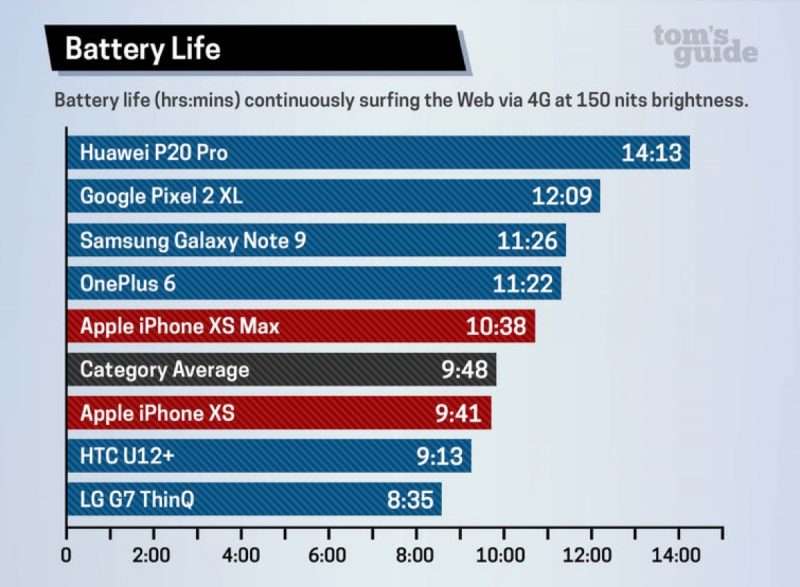
Both of Apple’s latest flagship models failed to reach the heights of last year’s first-generation iPhone X using the same battery endurance test, which involved surfing the web continuously over a 4G data connection. Displays were set to 150 nits of brightness, with both auto-brightness and TrueTone disabled.
The iPhone XS Max lasted 10 hours and 38 minutes, while the iPhone XS managed 9 hours and 41 minutes. Those figures compare unfavorably to the results of the original iPhone X, which lasted 10 hours and 49 minutes in the same test last year.
As far as rival phones go, the iPhone XS and XS Max outperformed the HTC U12+ (9 hours, 13 minutes) and the LG G7 ThinQ (8 hours, 35 minutes), however both Apple models were beaten by flagship devices in the Android category. Google’s Pixel 2, for example, lasted 12 hours and 9 minutes, while Samsung’s Galaxy Note 9 lasted 11 hours and 26 minutes. However, the overall winner was Huawei’s P20 Pro, clocking in 14 hours and 13 minutes.
Apple advertises that the iPhone XS can last up to 12 hours during internet use (the same figure given for last year’s iPhone X) while the iPhone XS Max can last up to 13 hours on a single charge. However, battery performance can be affected by various factors, including OS version, hardware optimization, and even cellular reception, which is why Apple only offers approximate numbers.
Earlier this week, iFixit teardowns confirmed the existence of a new single-cell L-shaped battery in the iPhone XS, while the iPhone XS Max remains two cells. Chinese regulatory filings also earlier revealed the iPhone XS and iPhone XS Max have battery capacities of 2,658 mAh at 3.81V and 3,174 mAh at 3.80V respectively.
Last year’s iPhone X has a battery capacity of 2,716mAh at 3.81 V, yet Apple claims iPhone XS customers can expect a 30-minute increase in operating time over that device, while XS Max users can expect an hour and a half. If you’re an iPhone XS or XS Max owner, let us know what kind of battery life you’re seeing by using the comments below.
Related Roundup: iPhone XSBuyer’s Guide: iPhone XR (Buy Now), iPhone XS (Buy Now)
Discuss this article in our forums
Apple Devices Earn Highest Customer Satisfaction Score Among PC and Tablet Makers
Apple’s Macs and iPads continue to have the highest customer satisfaction score among PC and tablet makers, according to the American Customer Satisfaction Index’s new 2018 Household Appliance and Electronics Report.
Apple earned an ACSI score of 83 in 2018, the same score that it had last year, remaining in the lead over Amazon, Samsung, ASUS, HP, Lenovo, and more.
According to the ACSI, Apple’s machines earned best-in-class ratings across “nearly every aspect of the customer experience” from device design to features and available apps.
Apple earned the highest score despite the fact that much of its Mac and iPad lineup has yet to be refreshed in 2018. We are awaiting refreshed iPad Pro models with major upgrades like an edge-to-edge design with slimmer bezels and Face ID, along with updates to the MacBook, Mac mini, and other machines.
Based on ASCI’s numbers, Amazon is closing in on Apple with an ASCI score of 82, with customers satisfied with design, ease of operation, and sound/graphics quality on the company’s line of tablets.
Samsung tied with Amazon, also earning a score of 82. Samsung also scores well across the customer experience, but can’t match Apple on features that include operating system, preloaded apps, and data storage.
According to the American Customer Satisfaction Index, overall customer satisfaction with personal computers (a category that includes laptops, desktop machines, and tablets) continues to earn a score of 77 on the ACSI scale.
Smartphones outpaced personal computers in customer satisfaction back in 2014, and customers continue to be more satisfied with their handheld devices, using them for more tasks that had previously been limited to computers.
Among PC owners, desktop machines earned the highest overall satisfaction score, followed by tablets and then laptops. Just 17 percent of respondents to the ACSI survey purchased a desktop computer in the last year, but customer satisfaction grew 4 percent. Satisfaction with tablets also grew 4 percent, while laptop satisfaction declined.

To create its scoring system and compile device scores, the ACSI uses data from interviews with approximately 250,000 customers each year, analyzing customer satisfaction with more than 380 companies across 46 industries.
Tag: ACSI
Discuss this article in our forums
How to Force-Quit Misbehaving Apple Watch Apps
Apple Watch apps rarely misbehave, but if one becomes non-responsive or fails to refresh data, sometimes force-quitting the app and relaunching it can solve the issue.
Fortunately, it’s a simple procedure. The following steps show you how it’s done on Apple Watch models running watchOS 4 or watchOS 5.
Open the misbehaving app on your Apple Watch, either by tapping its complication or selecting it from the honeycomb-style app menu/list view, so that it takes over the display.
Now, press and hold the Side button.
Release the Side button once the power down menu appears.
Next, press and hold the Digital Crown. You can release it once the app is whisked away from view and you’re returned to the watch face.And that’s all there is to it. The next time you launch the app in question, it will load up as if for the first time, and hopefully play nice again.
If the problem you’re having still persists, try restarting your Apple Watch from the power down screen, or consider re-installing the related app on your iPhone.
Related Roundups: Apple Watch, watchOS 5Tags: WatchOS 4, watchOS 5Buyer’s Guide: Apple Watch (Buy Now)
Discuss this article in our forums
Microsoft and Shell build A.I. into gas stations to help spot smokers
The last thing you want to see when you pull into a gas station is some doofus lighting up a smoke.
Whether they missed the warning notices or, perhaps, the science class back at high school about open flames and flammable vapor is, in that moment at least, largely immaterial.
As for your own course of action upon seeing such reckless behavior, you can either put your foot down and hightail it out of there before the whole place goes up, or yell at the smoker to put it the hell out.
Tackling the very same issue, Shell has been working with Microsoft on a solution that aims to make all future visits to gas stations stress-free, at least in terms of potential explosive activity. The system uses Microsoft’s Azure IoT Edge cloud intelligence system to quickly identify and deal with smokers at a gas station, and it’s already being tested at two Shell stations in Thailand and Singapore.
It works like this: High-tech cameras positioned around the gas station filter the footage on site to identify behavior that suggests someone is lighting up, or already smoking.
Images that appear to show such behavior are then automatically uploaded to the Microsoft Azure cloud, which can power more sophisticated deep learning artificial intelligence (A.I.) models to confirm whether the person is actually smoking. If so, an alert is sent immediately to the station manager who can then shut down the pump before anything potentially cataclysmic happens. The system presumably could also be fully automated and configured to shut down the pump without the manager having to do it manually, with an audible warning given to the smoker via a speaker in the pump. Taking it to the extreme, the setup could even blast the perpetrator with foam from a fire extinguisher incorporated into the pump.
The entire process, from identification to shutdown, can take place in a matter of seconds. Shell said that this is because so much of the initial data is processed by on-site computers rather than sending everything to the cloud for processing — a feature of Azure IoT Edge. In other words, only the important data — in this case images that appear to show someone smoking or about to smoke — is sent to the cloud, a procedure that helps to speed up analysis and response time.
“Each of our retail locations has maybe six cameras and captures something in the region of 200 megabytes per second of data,” said Daniel Jeavons, Shell’s general manager for data science. “If you try to load all that into the cloud, that quickly becomes vastly unmanageable at scale. The intelligent edge allows us to be selective about the data we pass up to the cloud.”
As Microsoft explains on its A.I. blog, the intelligent computer vision tools could be used in a range of industries to automatically detect dangerous behaviors or conditions, for example, “it could be deployed on construction projects to flag when employees aren’t wearing proper safety equipment or to inspect equipment sitting on the seafloor thousands of feet underwater.”
Editors’ Recommendations
- Ford recalls 2 million of its popular F-150 trucks due to fire risk
- OneDrive leans on A.I. to simplify searches for multimedia files
- Armormax’s AWD Dodge Charger SRT Hellcat may be the ultimate cop car
- Get your Sagan on with 60 awe-inspiring photos of the final frontier
- Don’t be fooled — this automated system sneakily manipulates video content
Microsoft and Shell build A.I. into gas stations to help spot smokers
The last thing you want to see when you pull into a gas station is some doofus lighting up a smoke.
Whether they missed the warning notices or, perhaps, the science class back at high school about open flames and flammable vapor is, in that moment at least, largely immaterial.
As for your own course of action upon seeing such reckless behavior, you can either put your foot down and hightail it out of there before the whole place goes up, or yell at the smoker to put it the hell out.
Tackling the very same issue, Shell has been working with Microsoft on a solution that aims to make all future visits to gas stations stress-free, at least in terms of potential explosive activity. The system uses Microsoft’s Azure IoT Edge cloud intelligence system to quickly identify and deal with smokers at a gas station, and it’s already being tested at two Shell stations in Thailand and Singapore.
It works like this: High-tech cameras positioned around the gas station filter the footage on site to identify behavior that suggests someone is lighting up, or already smoking.
Images that appear to show such behavior are then automatically uploaded to the Microsoft Azure cloud, which can power more sophisticated deep learning artificial intelligence (A.I.) models to confirm whether the person is actually smoking. If so, an alert is sent immediately to the station manager who can then shut down the pump before anything potentially cataclysmic happens. The system presumably could also be fully automated and configured to shut down the pump without the manager having to do it manually, with an audible warning given to the smoker via a speaker in the pump. Taking it to the extreme, the setup could even blast the perpetrator with foam from a fire extinguisher incorporated into the pump.
The entire process, from identification to shutdown, can take place in a matter of seconds. Shell said that this is because so much of the initial data is processed by on-site computers rather than sending everything to the cloud for processing — a feature of Azure IoT Edge. In other words, only the important data — in this case images that appear to show someone smoking or about to smoke — is sent to the cloud, a procedure that helps to speed up analysis and response time.
“Each of our retail locations has maybe six cameras and captures something in the region of 200 megabytes per second of data,” said Daniel Jeavons, Shell’s general manager for data science. “If you try to load all that into the cloud, that quickly becomes vastly unmanageable at scale. The intelligent edge allows us to be selective about the data we pass up to the cloud.”
As Microsoft explains on its A.I. blog, the intelligent computer vision tools could be used in a range of industries to automatically detect dangerous behaviors or conditions, for example, “it could be deployed on construction projects to flag when employees aren’t wearing proper safety equipment or to inspect equipment sitting on the seafloor thousands of feet underwater.”
Editors’ Recommendations
- Ford recalls 2 million of its popular F-150 trucks due to fire risk
- OneDrive leans on A.I. to simplify searches for multimedia files
- Armormax’s AWD Dodge Charger SRT Hellcat may be the ultimate cop car
- Get your Sagan on with 60 awe-inspiring photos of the final frontier
- Don’t be fooled — this automated system sneakily manipulates video content
iPhone XR Production Issues Cause Apple to Reallocate Orders Among Suppliers
Apple is reportedly shifting around iPhone XR orders amongst its manufacturing partners to ensure production issues don’t cause supply constraints when the smartphone officially launches late next month.
According to a Chinese-language Economic Daily News (EDN) report, Pegatron has lost up to half of its original iPhone XR orders to Foxconn, following delayed shipments of some key components and a shortage of workers at its plants in China.
Apple had originally divvied up between 50 and 60 percent of total orders for the lower-cost LCD iPhone to Foxconn, with Pegatron taking about 30 percent of orders. However, Apple has recently lowered the portion of iPhone XR orders allocated to Pegatron to below 30 percent, while ramping up those to Foxconn substantially.
On top of that, the supply of LCD panels from Japan Display (JDI) for the production of the iPhone XR has not been steady, according to the report. Pegatron and Foxconn declined to comment.
Morgan Stanley analyst Katy Huberty cautioned in July that Apple’s 6.1-inch LCD iPhone would not launch until October because of issues with backlight leakage, although it’s not clear whether the latest LCD supply constraints are down to the same problem.
The iPhone XR starts at $749 in the United States. The October launch means Apple will likely lose a few sales to customers this month who are interested in a new iPhone but don’t want to pay several hundred dollars more for the iPhone XS and XS Max, which start at $999 and $1,099, respectively. Because of this, Huberty saw Apple delivering a “slightly weaker-than-consensus September quarter.”
Global shipments of Apple’s new iPhone lineup are expected to exceed 85 million units in the second half of the year, with the more budget-friendly iPhone XR expected to account for over half of all sales.
Apple’s lower-spec iPhone XR features an edge-to-edge “Liquid Retina” LCD display with wide color and True Tone support, and the same all-screen design as the OLED-based iPhone Xs and Xs Max, but with an aluminum frame instead of stainless steel.
Other downgrades from the iPhone XS that make the XR cheaper include a single-lens rear facing camera instead of the dual lens on the XS, and a lack of 3D Touch support.
The lower-priced iPhone XR becomes available to order on Friday, October 19, with orders shipping the following Friday, October 26.
(Via DigiTimes.)
Related Roundup: iPhone XRBuyer’s Guide: iPhone XR (Buy Now)
Discuss this article in our forums
How to Use macOS Mojave’s New Dynamic Desktop Feature
Apple in macOS Mojave introduced Dynamic Desktops, which are wallpapers that shift with the time of day, changing the lighting and look of the wallpaper with the progress of the sun across the sky.
For example, in the afternoon, the lighting in the wallpaper is at its peak brightness and the image of the Mojave desert is depicted as it would be if you visited it in the daytime with well-lit sand dunes and a bright blue sky.
Subscribe to the MacRumors YouTube channel for more videos.
At night, the sky in the wallpaper shifts to darker blue to reflect that it’s now evening. The shift between daytime and nighttime happens gradually over the course of the day, so you’ll see subtle changes each time you look at your Mac’s display.

Dynamic Desktop is simple to enable. Here’s how:
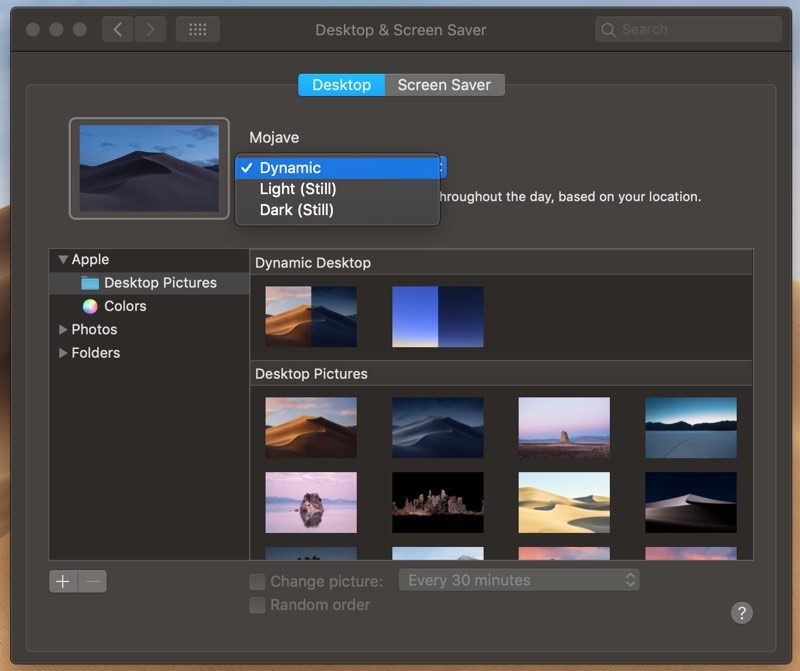
Open up System Preferences.
Choose Desktop & Screensaver.
Select one of the options from the “Dynamic Desktop” section under “Desktop.”
Using the dropdown menu underneath the wallpaper’s name, make sure “Dynamic” is enabled.
At the current time, there are two wallpaper options in the macOS Mojave beta, which work with both Light and Dark Mode.
You can choose between the wallpaper that depicts the Mojave desert and a Solar Gradients wallpaper that shifts from a lighter sky blue in the daytime to a darker twilight blue. Apple is likely to add additional Dynamic Desktop options in the future.
Apple’s Dynamic Desktop feature relies on your location to be able to match the lighting of the wallpaper with the lighting outside, so to use it, you will need to have Location Services enabled.
Related Roundup: macOS Mojave
Discuss this article in our forums
How to Use Quick Look in macOS Mojave
In previous versions of macOS, the Quick Look feature lets you view photos and files without having to open them in an app. In macOS Mojave, Apple has also introduced some convenient new editing tools to Quick Look, allowing you to perform actions specific to the kind of file you’re viewing. Let’s take a look at how it all fits together.
How Quick Look Works
For those unfamiliar with Quick Look, the feature can be used for items on the Desktop, in Finder windows, in emails, in messages, and other places. It supports numerous file types, including HTML, PDF, Plain text, RTF, iWork, MS Office, RAW, JPEGs, and QuickTime formats. To activate it, simply select one or more items, then press the Spacebar or force-click using your Mac’s trackpad.
In the top left of the Quick Look window you’ll find the Maximize button next to the Close button. (You can also manually enlarge the window by dragging the corners.) Open with [App] and Share buttons are located in the top-right corner of the Quick Look window, along with a Rotate Left button if you’re working with images or video.

As before, if you select multiple items, you’ll see arrow buttons to navigate through them, as well as a Sheet View button to see the items in an index sheet view. If you opened a document such as a PDF, you’ll see a column of thumbnails along the side of the window for quickly navigating through the pages.
What’s New in Quick Look
New to Quick Look in Mojave is the ability to access Markup tools. Simply click the Markup button to reveal the toolset.

Quick Look lets you draw on and annotate images or PDF documents using arrows, shapes, and text. You can also use Markup to quickly sign a document with your digital signature. Click Done, and your changes are automatically saved.

If you’re viewing a video file in Quick Look, you’ll see a new Trim button that allows you to trim the clip without having to open QuickTime.

Clicking the Trim button reveals the scrubbing and edit ribbon along the bottom of the clip. You can click anywhere in the ribbon to jump to another point in the video, and drag the edges of the yellow frame to trim the clip to the desired length.

Again, simply click Done when you’re finished and your changes are automatically saved.
Related Roundup: macOS Mojave
Discuss this article in our forums
How to Use Finder Quick Actions in macOS Mojave
In macOS Mojave, Apple has introduced a range of new Finder Quick Actions that make it easier for you to perform quick edits to files without having to open the apps associated with them.
To view available Quick Actions, you need to enable the Preview panel in Finder. To do this, open a Finder window and select the menu bar option View -> Show Preview, or press the keys Shift-Command-P.
Quick Actions for Images, Video, and Audio
Quick Actions are located in the bottom right of the Finder window, just under the preview of the selected file. These actions will change depending on the file: For images, clicking Rotate Left turns the image counterclockwise, while clicking Markup invokes an enhanced Quick Look window containing a set of markup tools.

If two or more images are selected in Finder, the Markup button will change to Create PDF, allowing you to turn the images into a single portable document. If a QuickTime compatible video or audio file is selected, Markup will be replaced by Trim. Clicking this brings up a Quick Look window with an editing ribbon to trim the file.
How to Customize Quick Actions
You’ve probably noticed the More… button beside the default Quick Actions. Click this and then select Customize…, and you’ll be taken to the Extensions pane in System Preferences, where you’ll be able to select other actions to add to Finder’s Preview pane.

The actions available to you will depend on which applications you have installed and any pre-existing Apple scripts on your Mac. Apple is encouraging third-party developers to add support for more Quick Actions in their apps, but you can also create your own custom ones using the Automator app. For a useful example, check out our tutorial on how to quickly resize images using your very own Automator service.
Related Roundup: macOS Mojave
Discuss this article in our forums
Critical MacOS Mojave vulnerability bypasses system security
macOS Mojave is Apple’s latest operating system.
With the launch of a new version of macOS from Apple typically comes a culmination of new features, better performance, and enhanced security. Unfortunately, the previous statement might not necessarily be true as security researcher Patrick Wardle, co-founder of Digita Security, has discovered that MacOS Mojave includes a severe security flaw; the bug is currently present on all machines running the latest version of macOS and allows unauthorized access to a users’ private data.
Wardle announced his discovery on Twitter, showcasing that he could easily bypass macOS Mojave’s built-in privacy protections. Due to the flaw, an unauthorized application could circumvent the system’s security and gain access to potentially sensitive information. With the Twitter post, Wardle also included a one-minute Vimeo video showing the hack in progress.
The short video begins with Wardle attempting to access a user’s protected address book and receiving a message that states the operation is not permitted. After accessing and running his bypass program, breakMojave, Wardle is then able to locate the user’s address book, circumvent the machine’s privacy access controls, and copy the address book’s contents to his desktop — no permissions needed.
Wardle is an experienced security researcher who has worked at NASA and the National Security Agency in his past; he notes that one of his current passions is finding MacOS security flaws before others have the chance. While it is unlikely Wardle will release the app as a malicious tool, he does want to spread knowledge of its existence so that Apple addresses the issue in a timely fashion.
As usual for such a discovery, Apple has yet to comment on the vulnerability, so our eyes will be tied to future OS updates, looking for a bug fix. As MacOS Mojave was only officially launched September 24, the finding is indeed considered a ‘day-zero’ vulnerability, and we hope that Apple will jump to address the problem as soon as possible.
For fellow security researchers who want to know more details about the attack, Wardle will be speaking about the bug at the upcoming Mac security conference ‘Objective by the Sea,’ hosted in Hawaii in November. For the rest of us, we are in Apple’s hands until the security vulnerability is patched.
Editors’ Recommendations
- Earn up to $10,000 by squashing printer-based bugs in HP’s bounty program
- Facebook’s security chief has quit — now who’s watching the watchmen?
- Apple’s unsafe Mac App Store is simply inexcusable
- Researchers hack and steal a Model S; Tesla says vulnerability now fixed
- California passes bill that regulates security for Internet of Things devices
 AIVAnet