


Anti-Surveillance Coalition That Includes Apple Condemns Proposals for Device Backdoors
The Reform Government Surveillance coalition, which includes several major tech companies who have teamed up to lobby for surveillance law reform, this week released a statement condemning recent proposals for backdoor access into electronic devices and reaffirming a commitment to strong encryption.
The coalition is made up of multiple tech companies who have taken a strong stance against weakening encryption, including Apple, Google, Microsoft, Dropbox, Snap, Evernote, LinkedIn, Oath (owned by Verizon) and Facebook.
Reform Government Surveillance recently announced a new core principle on encryption that will guide our advocacy efforts, and we continue to believe that strong encryption helps protect the security and privacy of individuals and companies around the world. We have consistently raised concerns about proposals that would undermine encryption of devices and services by requiring so-called “exceptional access” for law enforcement. Recent reports have described new proposals to engineer vulnerabilities into devices and services – but they appear to suffer from the same technical and design concerns that security researchers have identified for years. Weakening the security and privacy that encryption helps provide is not the answer.
As ZDNet points out, the statement comes following a WIRED article profiling Microsoft chief technical Ray Ozzie and his suggestion for a solution called “Clear” that would supposedly provide law enforcement with access to encrypted data with less security risk.
Ozzie’s proposal uses a public key and a private key (housed and protected by a company like Apple) that are used to encrypt and decrypt a PIN generated on the device. No one is meant to be able to decode and use the PIN to unlock the device aside from the vendor, using the aforementioned private key.
So, say the FBI needs the contents of an iPhone. First the Feds have to actually get the device and the proper court authorization to access the information it contains–Ozzie’s system does not allow the authorities to remotely snatch information. With the phone in its possession, they could then access, through the lock screen, the encrypted PIN and send it to Apple.
Armed with that information, Apple would send highly trusted employees into the vault where they could use the private key to unlock the PIN. Apple could then send that no-longer-secret PIN back to the government, who can use it to unlock the device.
Ozzie demonstrated his “Clear” solution to representatives from tech companies that included Apple, Google and Facebook, according to WIRED, but unsurprisingly, none of them had “any interest whatsoever” in voluntarily implementing that kind of access into their devices and services.
The coalition Apple is a part of in April published a core principle pledging to ensure device security through strong encryption and calling on governments to avoid taking actions that would require companies to “create any security vulnerabilities in their produces and services.”
Strong encryption of devices and services protects the sensitive data of our users – including individuals, corporations, and governments. Strong encryption also promotes free expression and the free flow of information around the world. Requiring technology companies to engineer vulnerabilities into their products and services would undermine the security and privacy of our users, as well as the world’s information technology infrastructure. Governments should avoid any action that would require companies to create any security vulnerabilities in their products and services.
The renewed activity from the Reform Government Surveillance group follows reports that have suggested law enforcement officials are quietly revisiting proposals that would require tech companies to add backdoor access into electronic devices for use by law enforcement officials.
FBI and DOJ officials have been meeting with security researchers with the aim of developing approaches that would offer “extraordinary access” to encrypted devices like the iPhone, with DOJ officials reportedly “convinced” there is a way to create a backdoor without weakening a device’s defense against hacking.
Apple software engineering chief Craig Federighi recently said that this kind of backdoor access would “inject new and dangerous weaknesses into product security.”
“Weakening security makes no sense when you consider that customers rely on our products to keep their personal information safe, run their businesses or even manage vital infrastructure like power grids and transportation systems,” Federighi said.
Apple vehemently opposes backdoor solutions like the one Ozzie proposed because they have the potential to weaken device encryption and provide new ways for bad actors to access device data.
Apple’s strong stance against weakened device protections for the sake of law enforcement access was highlighted in the 2016 Apple vs. FBI conflict that saw Apple refuse to create a backdoor access solution to allow the FBI to crack the iPhone 5c owned by San Bernardino shooter Syed Farook.
 GrayKey iPhone unlocking box via MalwareBytes
Without device backdoors, law enforcement officials have still found ways to crack devices like iPhones through other means. At the current time, for example, agencies like the FBI and DOJ have access to an iPhone unlocking box called GrayKey, which is capable of unlocking Apple’s most recent iPhones running modern versions of iOS.
Note: Due to the political nature of the discussion regarding this topic, the discussion thread is located in our Politics, Religion, Social Issues forum. All forum members and site visitors are welcome to read and follow the thread, but posting is limited to forum members with at least 100 posts.
Tags: privacy, Encryption, Apple-FBI
Discuss this article in our forums
NeoPen M1/N2 review – expensive and niche, but effective

Hand-written notes are a chore. I grew up in an era where we still wrote everything on paper, with laptops, tablets, and phones all being cost-prohibitive to bring into the classroom. I’d have killed for a device that would automatically digitize and transcribe my notes, when I was in school. Instead, I’d spend hours manually transcribing my notes at home into the Family Dell. With a gadget like the NeoPen, all that time could’ve been saved. That was a decade and more ago, though. In a world where smartphones, tablets, and laptops follow us literally everywhere, is there a place for a digital, transcribing pen? Read on, dear Android Guys.

Build & Design
NeoLAB clearly did its best to design a smart pen that still feels like a normal ballpoint. And in that, it certainly succeeded; the fiberglass body of the M1 feels no different than any other run-of-the-mill ballpoint pen. And while that may be great for some, I prefer to have a pen that feels like an instrument, rather than a piece of plastic. The N2, however, is an all-aluminum body with real heft that scratches that premium itch.
The M1 comes in five colors: Black, Navy, Grey, Red, or Yellow. All feature rather “loud” secondary accents; red, yellow, neon, white, and brown, respectively. If I had my way, my NeoPen would’ve been matte black aluminum, with no accent colors – fortunately, the N2 delivers on that with either aluminum or black styling.

While the body and design of the M1 are nothing to write home about, it’s very light (17.4g) and durable thanks to its fiberglass construction. Both the M1 and N2 use standard D1 refills, making them cheap and easy to keep filled. Interestingly, the LEDs on the back end of the pens are multicolored, rather than your run of the mill red-green LED. The result is some nifty status indicators and patterns that play for various occasions. It’s a cute touch.
Battery Life
At 280mAh, the internal batteries on NeoLab’s NeoPens are pretty small. As such, they charge quickly (just 90 minutes for a full charge using the MicroUSB port on the back of the pen), but support 6 hours of continuous use or 125 days of standby power. The pen powers on when you remove the cap, and likewise powers off when you re-cap it. Additionally, the pen goes into standby mode when it hasn’t been used for ten seconds – it comes out of standby automatically when you start writing again.
Overall, it should withstand all but the most extreme writing marathons – and even if you manage to kill it, you can just plug it in with any MicroUSB you have laying around. One thing I’d love to see in the next generation of NeoPens is an inductive charger on the side of the pen, similar to a smartwatch – maybe even Qi support. I think that would be pretty cool.
Ncode Tech
 Each page of a NeoLAB notebook is microprinted with Ncode.
The technology that backs the NeoPen is rather impressive. It’s really two or three pieces of technology that work in perfect sync to deliver on its output. There’s a built-in scanner under the barrel of the pen that scans what you’re writing, as you’re writing it. In addition to scanning your writing, it also reads a micro-printed coding on the NeoLAB notebooks and paper that detects which notebook you’re in, which page of that notebook, and which line on that page. It’s all very, very cool. Unfortunately, this means you can’t use any other kind of paper with the NeoPen if you want it to work properly, but – as we’ll talk about below – there are other options to use your NeoPen.
Writing with a NeoPen
- Transcription is surprisingly accurate. It gets fooled a little by repetitive or corrective strokes.
- I’m thoroughly impressed with both the NeoPen and its companion app – it works better than I ever expected, and I can see myself using it to transcribe the hundreds of words I scribble on a daily basis.
- The companion app allows you to select and edit writing, allowing you to change
colors, add outlines, or highlight text as you please. - It also lets you share your pages in a variety of formats, including bitmap, vector,
and text. - I found myself trusting the Neo Pen more and more, writing more quickly and less carefully, and the M1 warmed to the task.
- Scratching words of leaves them out of the transcription and the app knows what bullets and hyphens are. It doesn’t, however, detect broken up words on two lines.
- While transcription is impressive, the NeoNotes app does not give you the option to backup your transcriptions automatically – only by sharing the pages individually to Google Drive, via .txt format. For the NeoPen to truly be a tool to digitize handwritten notes, stories, calendars, etc, it needs to be able to seamlessly transfer that information to a format that’s easily manipulated by the user.
- While this problem is minimized when using the M1 with a Windows computer – allowing you to copy and paste with impunity – it’s harder when you’re trying to migrate notes and such to a Mac, which does not have a NeoNotes App.
But How Does it Work?
You tell me. The above section was written entirely with the NeoPen M1, exactly as-is – all I did was copy, paste, and format. As you can see, it works pretty well, detecting bullets, hyphens, and non-standard English words.
I’d say 90% of my experience with the M1 has been pleasant. It’s accurate and precise, and its transcriptions are fairly accurate as long as your handwriting isn’t awful. That other 10% was a defective review unit that produced some rather odd results. The replacement unit that NeoLAB sent me, though, works perfectly with no trouble.
By and large, though, that shouldn’t be a problem. In the week I tested the M1, that was the only hiccup I encountered; every other occasion handled like a dream. The pen reliably recreates the notes you write on paper, digitally, and then has the ability to transcribe them.

Transcription
Unfortunately, the transcription is a bit limited right now. The app creates a digital version of your handwritten notes, but it has very limited formatting, sharing and no backup support whatsoever. This can all be fixed via software update of the NeoNotes app, and I hope the functionality is added. Being able to transcribe notes is great, but unless you can actually do something with those notes, it becomes less useful.
What I’d like to see is the ability to backup our notes via Google Drive, in multiple formats; Raster, Vector, Text, and PDF. You can currently share your notes in these formats, why not back them up that way? I reached out to NeoLAB for any comment or insight – I’ll let you know if we hear back from them.Try not to let these samples dissuade you from giving the NeoPen M1 a try. It’s not 100% reliable, but it’s close enough to it that it’s an asset to those that prefer to handwrite notes. For instance, at my day job I don’t have the luxury of using a computer, but I have plenty of downtime to write. As such, the ability to digitize my notes automatically – and transcribe them – is invaluable. It saves time retyping my notes, instead allowing me to simply copy, paste and edit.
UPDATE: Looks like automatic transcription format and upload are planned features, but not on the roadmap for 2018. Shame.
Accessories
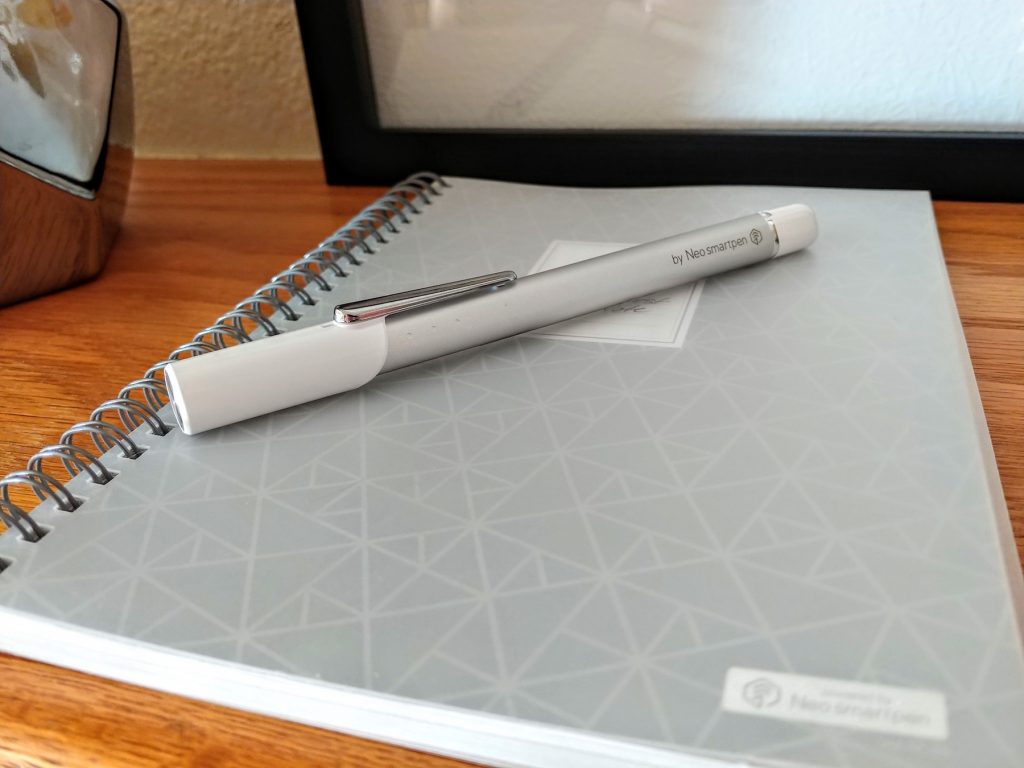
NeoLAB has a great selection of notebooks and folios compatible with the M1, including Moleskine – a personal favorite for notebooks. They have college ruled, standard, memo, pocket, planners, and professional – which features a faux leather cover and half-ruled, half-blank pages.
Additionally, NeoLAB designed printable PDFs in various styles to print your own Ncoded pages. There are a lot of formats, including Plain, Grid, Dot, Landscape, Manuscript, Checklist, Cornell, Meeting Minutes, Log Sheet, Letter, A5, and A5 string. Very clever.
While this won’t help you create your own Ncoded Code & Quill notebook (for example) it is nice to know that it’s not a requirement to buy proprietary notebooks in order to use the Neo Pen.
Value
If you hand-write notes frequently, the ability to transcribe them seamlessly and automatically is well worth the $130 (plus notebooks) cost of entry. If you don’t write much by hand, you may find this price tag to be too high. I fall into that former group, so you bet I’ll be using it – and probably investing in one of those fancy leather folios.
With the exception of the error I had earlier, the NeoPens performed admirably. In fact, every word of this review was written with the pen, and then formatted manually. I’d say it cut my writing time in half or so, when compared to manually transcribing.
Where to Buy
NeoPen M1: Amazon (Prime) – $129 | NeoLAB – $103 (on sale as of this writing)
NeoPen N2: Amazon (Prime) – $159 | NeoLAB – $169
Apple neglects Macs on second-quarter earnings call, again
Apple had its second-quarter earnings call today, and while it was mostly good news for stockholders, it wasn’t as good for Mac customers. For the second time in a row, the entire Mac lineup got the cold shoulder from Tim Cook and company when discussing revenue and plans for the future.
It’s worth mentioning these earnings calls are typically just updates for stockholders — the CEO walks everyone through quarterly earnings, profit margins, market share and all that. We usually get a few small glimpses at what’s coming up in the next quarter, when the CEO — in this case Tim Cook — mentions upcoming plans, or answers a particularly pointed question from a well-heeled stockholder.
However, with WWDC just around the corner and rumors that we might see a new MacBook Air, we expected we might hear a little something about Mac revenue, plans for the future, that kind of thing. Instead, there were only a few offhand comments about the Mac.
“The market for us is more than iPhone,” Tim Cook began, in response to a question about Apple’s plans for expanding in China. “Mac gained share there as well. Watch is getting some traction there. Services is doing extremely well. Several catalysts. I’m very pleased with the results that we were able to show during the quarter.”
It’s disappointing for Mac and MacBook users but it’s not much of a surprise. Despite making efforts to connect with its professional audience, with the upcoming Mac Pro and the new iMac Pro, Apple continues to pull away from its computer division. Hardware updates are infrequent, woefully outdated products like the MacBook Air continue to be sold at full-price, despite featuring outdated and under-powered hardware for the price.
Even the MacBook Air’s product page remains unchanged, still featuring language that describes components that have long-since become the standard in essentially every major laptop.
“MacBook Air is powered by fifth-generation Intel Core i5 and i7 processors. This ultra-efficient architecture was designed to use less power and still deliver high performance,” the MacBook Air’s product page reads and will continue to read since the rumored MacBook Air refresh got pushed back again.
Nobody expected Tim Cook to get on the Q2 earnings call and announce a slate of new MacBooks, but even a small amount of recognition would’ve gone a long way toward assuaging the fears of Mac users who might be looking at upgrading or switching platforms entirely. Instead, Mac users were neglected again, and it’s starting to seem like that’s not going to change. But hey, Apple sold a lot of AirPods.
Editors’ Recommendations
- Apple plans a radically redesigned Mac Pro for 2019
- Tim Cook says people don’t want iOS and MacOS to merge. What do you say?
- Apple is reportedly planning to abandon Intel hardware by 2020
- Apple aficionado, huh? Here are the 20 best Mac games
- Windows 10 vs. MacOS vs. Chrome OS
Have you always dreamed of having a personal robot? Misty II ready for pre-order
It’s been nearly a year since Sphero, the company known best for making lovable Star Wars droids into connected toys, announced that it would be spinning off a new startup, Misty Robotics, that’s dedicated to bringing robot assistants to smart homes. And now, we’re getting our first chance to bring one of these bots into our homes.
Misty recently showed off the Misty II, a slightly more advanced version of the original Misty robot the company debuted at CES in January 2018. Crowdfunding pre-orders are officially open for what’s being called the “personal robot you’ve been waiting for,” and prices begin at $1,499.
As per Misty’s new landing page for the bot, the Misty II is “professional grade, hardware-extensible, and purpose built as a development platform.” Meant for developers of both the amateur and professional variety, the Misty II promises to be “easy to make powerful,” but is DIY enough to keep robotics fans interested.
At six pounds and just over a foot tall (14 inches, to be exact), the Misty II is a relatively small robot, and meant for either the home or the office. It comes complete with a number of features that can help it safely navigate these scenarios, including a 3D Occipital sensor for mapping, a 4K Sony camera for facial and object recognition, and eight sensors to help avoid obstacles.
But what Misty II actually does for its owners is completely up to them. Depending on how the robot is programmed, it could serve as a security guard, tasked with investigating strange noises or opening the door; or as an extra pair of hands for mom and dad, checking in on children to ensure they’ve completed their chores. But ultimately, Misty wants its customers to dream up applications for the Misty II that the company itself can’t even conceive of. After all, the company’s goal is to put a robot in every home, which means that its robots will have to be able to execute a wide range of tasks.
To program Misty II, users can leverage a block-based programming interface Misty developed itself, as well as JavaScript APIs to create new skills or integrations with third-party services like Amazon Alexa or Google Assistant. Misty II is also able to run on TensorFlow, Caffe, and Windows ML and has two Qualcomm SnapDragon processors running Windows IoT Core and Android 7 operating systems.
Editors’ Recommendations
- Having problems with your Xbox One? We have some possible solutions
- Walmart says that store employees have embraced new robots
- Keep an eye on what you have in the oven with the CombiSteam Pro
- With this browser, ads can’t steal your attention — they have to pay you for it
- Help us, our sides have split: The best 2018 April Fools Day gags
Samsung partners with Oath to pre-load 4 Verizon apps on Galaxy S9 series
The S9/S9+ will now come with Yahoo Newsroom, Sports, Finance, and Go90.
Oath, Verizon Wireless’s digital media subsidiary, is partnering with Samsung to pre-load four of the company’s apps onto all Galaxy S9 and S9+ smartphones.

With this deal, Samsung’s Galaxy S9 series will now come pre-installed with Yahoo Newsroom, Yahoo Sports, Yahoo Finance, and Go90 (Verizon’s video streaming service). Along with the apps themselves, Oath content will also be presented to users via Bixby Home.
In addition to placing the content of these apps in more users’ hands, this will also allow Oath to get people where it counts – advertisements. According to Reuters –
The agreement will also allow advertisers to place ‘native ads’, or advertisement that blend in with the content where they appear, within Oath’s apps as well as Samsung’s Galaxy app.
Commenting on this, Oath CEO Tim Armstrong said, “This gets ads one step closer to being direct to consumer. You can’t be more direct than being on the mobile phone home screen and app environment.”
Although this is a big win for Oath, I can’t imagine too many consumers will be pleased to see more bloatware on their $700+ phone.
If you own a Galaxy S9/S9+, how do you feel about this partnership?
Samsung Galaxy S9 and S9+
- Galaxy S9 and S9+: Everything you need to know!
- Galaxy S9 review: A great phone for the masses
- Complete Galaxy S9 and S9+ specs
- Galaxy S9 vs. Galaxy S8: Should you upgrade?
- Join our Galaxy S9 forums
Verizon
AT&T
T-Mobile
Sprint

Never forget another password with a subscription to Dashlane!
Keeping all your online accounts secure is so crucial these days — but then with so many different accounts to keep track of, it can be hard to keep things straight while avoiding one password to use for all accounts (never do this).
If improving the security of your accounts is one of your goal for 2018, you should consider checking out a top-rated password manager such as Dashlane Password Manager.

Built with patented security architecture, Dashlane is available across all platforms and browsers and makes it a breeze to log into all your favorite websites and apps. Dashlane will remember all your passwords and autofill them when it’s time to log in, and also allows you to generate a brand new strong and unique password with a single click. And since Dashlane does all the remembering and auto-filling, you don’t have to remember a dozen different cryptic passwords.
Right now, first-time users can save 50% off a yearly subscription to Dashlane, which are available in one-year ($19.98), three-year ($59.94), and five-year terms ($99.90). With a Dashlane subscription, you’ll be able to manage and secure 500 different accounts at one time, which gives you the peace of mind to focus on the things you want to do without getting bogged down trying to remember your own password. You’ll want to act now, as this deal is only here for a limited time!
For a limited time, use coupon code DASHLANE10 and get an additional 10% off!
See at Android Central Digital Offers
Samsung Galaxy S9 vs. Galaxy S6: Should you upgrade?

It’s time.
Most people, particularly in the U.S., have fallen quite comfortably into a two-year phone upgrade cycle. But if you’re buying your phones outright, or you’re just one of the sensible set who doesn’t want to splash money on a new phone until you really need to, perhaps you make your flagship last a full three years. If you bought a Galaxy S6 or S6 edge, that was probably a pretty tough ask — but nonetheless, we know many people who did it.
At three years old, your Galaxy S6 is probably feeling the weight of time, and we know they’re unsurprisingly no longer being considered for software updates. So, is the Galaxy S9 the right phone to upgrade to? Here’s what you need to know to make the jump.
What’s the same
Samsung has done a masterful job of keeping its flagships in a consistent design language.
Samsung has done a masterful job of keeping its flagship phones following the same basic identity from year to year, and even looking at a three-generation change it’s undeniable that the Galaxy S6 and S9 are both Samsung phones. The Galaxy S6 still feels like a solid, well-made and modern device even in 2018, and that identity carries over entirely to the Galaxy S9. The newer phone is a bit more sleek and curved, but this is still the familiar metal-and-glass sandwich formula from 2015.
Funny enough, Samsung is still using the same Quick Charge 2.0-level charging speeds on the Galaxy S9 as it did back with the Galaxy S6, so you actually aren’t missing out on anything in that respect. Dual-mode (Qi and PMA) wireless charging was introduced on the Galaxy S6 and remains today as well, though the Galaxy S9 has at least added support for a bit faster speeds.
What’s different
As you’d expect for a phone that’s three years newer, the Galaxy S9 is better than the Galaxy S6 in every way. Hardware-wise Samsung has made advancements across the board: you get water resistance, USB-C charging, dual speakers and a notably improved display (albeit at the same resolution) on the Galaxy S9. And we should remember that Galaxy S6 owners haven’t had an SD card slot, so even though that came back with the Galaxy S7 it’s still “new” if you’re upgrading to the GS9.
Design similarities aside, the Galaxy S9 is better than the S6 in every way.
So long as you aren’t pushing things hard, the Galaxy S6 actually still performs pretty well. And with the Oreo update it has a very similar experience to the newest phones — albeit at a slightly slower pace. But from this point forward it won’t be getting any fresh software updates, and that Exynos processor and 3GB of RAM are really starting to show their age — particularly if you set it alongside the new Galaxy S9 and see how much quicker everything is. Apps are far more demanding today than they were in 2015, and if you want to keep up with the latest software you’ll need to move on to a new phone as well.
Then there’s battery life. We know the Galaxy S9 isn’t a stellar performer in this category, particularly with the Exynos processor, but even with that being said it’s going to be far better than the Galaxy S6. Battery life was arguably the biggest drawback of the Galaxy S6, with its 2550mAh battery incapable of making it through a day for most people — and three years on, it’s nowhere near what a new GS9 can do with 3000mAh.
A massive mark of progress three years on is in photography. Even the single-camera Galaxy S9 is a big improvement from the GS6. The same core idea of a good sensor, OIS and a fast lens are at play here, but all of the components have improved — the sensor is an entirely new generation of chip, the aperture is now wider at f/1.5 and Samsung’s processing has greatly improved. The daylight photos may not show as big of an improvement as you’d initially think, since Samsung had that well-handled even in 2015, but the low-light shots are in a new league. Plus, you get that awesome 960 fps slow-motion video.
Should you upgrade?

If you’ve held onto your Galaxy S6 or S6 edge this long, you got your money’s worth out of it. And perhaps the more telling thing about using a GS6 for that long is that you have to be a fan of Samsung’s hardware and software — and that points you right at the Galaxy S9.
If you enjoyed 3 years with a Galaxy S6, you’ll love the Galaxy S9.
If you’ve still been enjoying many aspects of the Galaxy S6 as a whole, and want to upgrade because you need something more modern so you can keep up with the times, Samsung’s latest flagship will be a fantastic upgrade for you. In typical Samsung fashion, the company has managed to add a whole lot to the experience without taking anything away — and the scale is simply higher when you look at a three-year upgrade.
And here’s the great thing: you can still sell a good-condition Galaxy S6 for about $100-150 on the second-hand market. That makes the $720 retail price on the GS9 far easier to handle. It’s time to upgrade.
Samsung Galaxy S9 and S9+
- Galaxy S9 and S9+: Everything you need to know!
- Galaxy S9 review: A great phone for the masses
- Complete Galaxy S9 and S9+ specs
- Galaxy S9 vs. Galaxy S8: Should you upgrade?
- Join our Galaxy S9 forums
Verizon
AT&T
T-Mobile
Sprint
Update May 2018: Updated with the latest information based on the age of the Galaxy S6.
How does Instagram’s new Focus mode compare to your phone’s portrait mode?

We pitted Instagram’s Focus mode against the stock portrait mode on a few popular flagships.
Instagram recently rolled out a new shooting mode in its Stories camera called Focus, which allows you to take artsy photos of yourself and friends with artificial bokeh and separation from your background. That’s right — it’s basically portrait mode, and it’s rolling out to iPhone and Android users as we speak. But a lot of phones already have portrait mode, so … what’s the difference, and should you ditch your default camera app and start taking photos with Instagram instead?
The answer may depend on what phone you’re carrying. I gathered some of the most popular phones I had sitting around the office and took some sample shots to compare the strengths and weaknesses of Instagram Focus. Here’s a collection of photos of me looking cold and frustrated at gray skies and flurries in the middle of April, all taken with different phones and shooting modes!
iPhone X
When Instagram launched Focus, it immediately began rolling out to all iPhone users, so it only made sense to compare it to the iPhone X’s portrait mode, which has frankly been pretty far behind what most modern Android phones are capable of. Focus solves one of the iPhone’s biggest problems with shooting in portrait mode; since the default camera app uses the secondary zoom lens for portrait shots, you need to be far away from your subject, making it hard to get photos of friends in close quarters.
Portrait mode (left) / Instagram Focus (right) — click to view full image.
Using the Natural Light effect in Apple’s portrait mode, image separation is impressive, doing a good job blurring out the banner behind me while leaving my hair mostly untouched. Background blur is mostly good as well, without any egregious stitching errors or focal plane oddities. Unfortunately, none of that can be said of the photo taken with Instagram Focus. Object separation is horrendous, with random sections of my body coming in and out of focus. The background and foreground are also uniformly blurred, which simply isn’t how natural bokeh works. Image quality is also noticeably lower in general than the photo taken with the stock camera app.
Selfies
So about how selfies? Like Instagram, the iPhone X’s stock camera app allows for portrait photos with artificial depth from the front camera as well as the rear. Comparing the two again, it’s a more even split of pros and cons. Once again, the Focus photo has noticeably less facial detail, almost as if it were out of focus. However, this time Instagram seems to do a better job of object separation, as the iPhone’s stock camera app inexplicably blurs my shirt along with the background.
Instagram’s object separation still isn’t perfect, though. Both of my ears are blurred away, whereas the stock app does a slightly better job of leaving them intact. Interestingly, Instagram Focus actually takes a reversed photo by default. I uploaded the original photo as well as a flipped version in case you’d want a closer comparison against the shot taken with Apple’s default camera app.
Galaxy S9
Things start to look better when we switch to the Galaxy S9, though Instagram Focus is still significantly softer than the selective focus mode in the stock camera app. From my glasses to my facial hair, the logo on my hoodie, and the sleep-deprived bags under my eyes, the S9’s own camera software was simply able to pull in more detail. Samsung’s selective focus also did a much better job at separating my hair from the sky behind me, whereas Instagram Focus seems to have started blurring the image just past my hairline. In Focus’s defense, however, the S9’s selective focus seems to have decided the entire lower half of my torso was on a different focal plane, leading to an unnatural bokeh effect.
One thing to keep in mind is that Instagram captures photos in the same aspect ratio and resolution as your display, so while the selective focus shot was captured in 4:3, the photo taken with Focus matches the Galaxy S9’s 18.5:9 aspect ratio, and measures in at 2076×1080. While the aspect ratio isn’t necessarily a big deal, the reduced resolution can be, since the 4:3 shot comes in at a much larger 4032×3024.
Selfies
The difference is a bit less noticeable when taking selfies. Instagram’s photo actually looks sharper than Samsung’s this time, though it still struggles with hair separation, and the difference in resolution is still in play.
One thing I didn’t care for with the photo taken with Instagram is how heavily saturated it is, but aside from that I’d call these sample shots pretty evenly matched. You may also find the Focus shot a bit oversharpened, pulling out more undesirable details and imperfections, but I personally prefer it to the softer look of the stock camera’s results.
Huawei Mate 10 Pro
On to the Mate 10 Pro, my go-to phone for dependable battery life, the differences here are a bit more subtle, with a few standouts for each camera. Yet again, the photo taken with Instagram Focus is less sharp, but by a slimmer margin than on the Galaxy S9. While the Mate 10 Pro’s portrait mode has more detail, I’m happy with the clarity in either photo.
The biggest difference I noticed was color; while the Focus photos were more saturated on the Galaxy S9, I found the opposite to be true with the Mate 10 Pro. The image taken in Huawei’s camera app is much more saturated, particularly in the shadows, and there’s a warmer overall tone than in Instagram’s Focus mode.
Selfies
Just like the Galaxy S9, the Huawei Mate 10 Pro allows you to take portrait mode shots with either camera, as well as within Instagram’s Focus mode. The Mate 10 Pro’s front-facing camera is far from my top pick for taking selfies, but my findings with the rear camera seem to remain true up front, as well. My hoodie is much darker in the shot taken within Huawei’s own camera app, and the grass shows a much warmer characteristic.
I actually prefer the background blur from Instagram’s camera here, though; particularly with the tree behind me, the blur looks considerably spottier in Huawei’s shot.
OnePlus 5T
Finally, we get to the OnePlus 5T, one of my favorite phones of 2017. This one exhibits the most drastic differences between stock and Instagram cameras, mostly because OnePlus’s built-in portrait mode is such a subtle effect. While this sounds like a criticism at first, I actually really appreciate this — it’s a much more natural look, in my opinion, and more closely matches the results you’d see from a dedicated DSLR at f/3.5 or so. There’s no overly heavyhanded background blur in the shot from the 5T’s default camera software, though my right arm (pictured left) falls out of focus around my elbow.
On the other hand, background blur is much stronger with Instagram Focus. I’m completely separated from the brick wall — even the spot I’m leaning against. Separation is noticeably weaker here compared to the Focus shots taken on other phones, with spotty stitching all around me from my hood to my shoulders. My face is also a bit blown out in the Focus shot, and colors are dramatically cooler toned than the photo taken with the OnePlus camera software.
While Instagram Focus still works with the front-facing camera, the OnePlus 5T doesn’t offer portrait mode for the front camera in its own software, so these rear shots wrap up the comparison!
What’s your take?
With a limited selection of phones at my disposal to test and compare, I can’t definitively say that Instagram Focus will be better or worse than your phone’s stock camera software overall. That’ll largely depend on factors like which phone you’re using, how important resolution and aspect ratio are to you, and whether you prefer a more natural look or full-stop artificial bokeh.
Whatever your preference, let us know in the comments below!
Google Now Launcher is (finally) dead

Sleep well, Google Now Launcher; you’ve earned yourself a rest.
Google Now Launcher was Google’s first public launcher, and it was shipped on Nexus phones as well as millions of other devices thanks to its inclusion in the Google Mobile Service package that Google offers to manufacturers. This was a simpler launcher for a simpler time in the Android ecosystem, and while its namesake feature has now been added to several launchers like Nova Launcher, Action Launcher and Lawnchair Launcher. Google Now Launcher’s retirement was announced back in February of 2017, but sunset never seemed to come for the historic — and historically popular — launcher.
At least, until May 2, 2018.
As of our check against dozens of devices of varying age, the Google Now Launcher shows as not compatible with just about every recent device except the Pixelbook — which can’t use it anyway — and the BlackBerry KEYone, for some reason. This has been a long time coming, and now that it’s here, it’s time to pour one out for the first launcher Google ever published to the Google Play Store for all users to enjoy. The Google Now page that sat to the left of the home page was something an Android lover could get addicted to, and many of us did. Alas, in the days of Google Assistant and its great and growing functionality over the old Google Now feed, the old launcher’s charm was wearing a bit thin.
 Google Now panes, now in Nova Launcher, Action Launcher, and more.
Launcher 3 — what Google Now Launcher is based on — is a part of AOSP and the basis for many other launchers today, and with the Google Now pane can be added to launchers using an API that is sadly not Google Play-compatible yet, but separate add-ons have enabled it for many popular launchers. If you still have Google Now Launcher installed and you still use it, you can keep using it. When you upgrade phones, however, you’ll need to look for a new launcher, and if you want to replace it with something similar, here are a few ideas:
- Want a super simple launcher like Google Now with an easy-to-set grid and some handy gesture shortcuts? Try Evie Launcher, a light and fast launcher with a light touch of customization. It is lacking a Google Now pane, but a simple swipe down on the launcher brings up a search window.
- Lawnchair Launcher is a Launcher 3-based launcher that basically replicates the Pixel Launcher —the launcher Google currently develops for its Pixel phones — look and features for everyone to use. Lawnchair might even be better than Pixel Launcher since you can customize its feel and look. Lawnchair uses an add-on to enable a Google Now pane, if desired.
- Nova Launcher is one of the most popular launchers on the market and it can look like just about anything, including Google Now Launcher. Nova Launcher’s Settings can look a little daunting, but I promise you, this launcher is an absolute breeze to use. Nova has a Google Companion that can enable a Google Now pane.
- Action Launcher is a launcher with quick on the mind, with a Quickdrawer, Quickpage, Quicktheme, and more. It’s easy to set up, it can automatically adjust its colors to match your wallpaper, and its getting new features every day. It has a add-on to enable a Google Now pane for you, though you will have to choose between the Quickdrawer and Google Now.
Looking for something else? Check out the Best Launchers for Android

Let’s raise a glass to Google Now Launcher! May it rest in peace, and live forever in the myriad of launchers it has inspired and pushed to new heights. What features of the launcher did you love? What launcher have you moved on to? Does this finally mean that the Pixel Laucher will replace the Google Now Launcher during Google I/O next week and become available to all users? Share your thoughts in the comments.
Set up some bias lighting behind your TV with this $9 LED light strip
Spend all day reading a screen? You need this.
The Minger 6.56-feet TV Backlighting LED strip is down to $8.99 with code BN9Z2AGP on Amazon. This strip is $12 without the code and hasn’t dropped this low directly before.

Set this strip up behind your TV or computer monitor to create a bias lighting effect, which helps create ambient light around the screen and reduce the strain of using monitors in dark rooms. It also has a built-in mic and special mode that allows the lights and colors to sync with any music you’re playing. The strip is 6.56-feet long but can be cut on the marks to fit whatever size you need. The 3M adhesive attaches to most surfaces as well. It also comes with a portable controller. Users give it 4.2 stars based on 44 reviews.
See on Amazon
 AIVAnet