


BlackBerry thinks shipping 850,000 KEYOne phones is a success
TCL unveiled the Blackberry KEYOne at MWC 2017 and now, a year later, we have an idea of how well it sold as well as a glimpse into the company’s outlook going forward. IDC’s Francisco Jeronimo says that just 850,000 BlackBerry devices shipped last year, a very low number that’s well behind those of companies like Apple and Samsung. But according to The Verge, who spoke to two members of the BlackBerry Mobile team, the company considers last year’s sales a success.
Blackberry and TCL are apparently coming into this year “with a feeling of mission accomplished,” which has less to do with actual sales numbers and more to do with how available their devices are to consumers. With the KEYOne, having it be available in many direct sales channels was important, and in that regard, BlackBerry is pretty pleased with how 2017 went. The company plans to launch two new phones this year.
As CNET reports, BlackBerry Mobile’s chief commercial officer, Francois Mahieu, would like to see the company grab three to five percent of the market for premium smartphones. “It doesn’t have to be a niche business,” he said. “I would not be satisfied with market share in premium (phones) that is sub-one percent forever.” And that would require sales of around 10 million units per year, according to Counterpoint Research analyst Neil Shah. One factor holding the company back is that many consumers don’t yet know that BlackBerry phones now run on Android, not BlackBerry’s own OS, says The Verge, and the company has had to put in a more concerted effort to make that more widely known. BlackBerry plans to shutter its app store at the end of 2019.
In regards to BlackBerry Mobile getting that increased market share, Shah told CNET, “That looks difficult for now.”
Via: 9to5Google
Ford is updating Sync with Waze and a driving assistant
Ford is updating its Sync infotainment software with a few new navigation options. Sygic is a name we haven’t heard in quite awhile, but the GPS company will bring its voice assistant to certain Ford vehicles. If your blue-oval-clad ride has Sync 3 and you’ve got Sygic’s nav app installed on your phone, you’ll be able to press a button on your steering wheel to activate Sygic’s new voice-powered Driving Assistant. According to TechCrunch, you can ask Driving Assistant for traffic info, gas prices and parking advice, among other tasks. It sounds quite a bit easier than using voice commands while driving with Siri, or fiddling with your car’s infotainment screen.
Like TC notes, Sygic’s navigation app has worked with Sync since last year. If you’re already a Sygic fan, this is great news. But what if you prefer Waze? You’re covered there as well. This April, TC reports that iOS users will be able to link the app with Sync 3 vehicles via AppLink. Sure you could always use Apple Maps or Google Maps, but neither of those allow Liam Neeson to get you out of a traffic jam with his particular set of skills.
Source: TechCrunch (1), (2)
FCC Chairman Ajit Pai talks 5G, net neutrality repeal at MWC 2018
After cancelling his CES 2018 appearance in January, reportedly due to death threats, FCC Chairman Ajit Pai today attended a panel at MWC 2018 in Barcelona. During the event, titled “The Future of the Industry: Transatlantic Digital Policy and Regulation,” Pai discussed his plans for 5G connectivity and, of course, his decision to repeal net neutrality in the US. He said that, despite public perception on the moves he’s made since taking over the FCC as part of President Trump’s administration, the internet will remain open and free and that “no one gets a pass.” The “no one” he mentions is likely a reference to the idea that certain companies, particularly network carriers like Verizon, will get special treatment after net neutrality ends on April 23rd.
Pai emphasized that his version of the internet won’t be any different from what was in place during the the 1990s and until 2015, which he said is what allowed companies like Amazon, Facebook and other to thrive and become the tech titans that they are now. He also said that taking his market-based, light-touch regulation approach is key to making 5G a success in the States. “To realize the promise of 5G, we will need smart networks, not dumb pipes,” Pai said. “Dumb pipes won’t deliver smart cities. Dumb pipes won’t enable millions of connected, self-driving cars to navigate the roads safely at the same time.”
He added that these “dumb pipes” won’t give US the networks needed to “enable the 5G applications of the future,” noting that he has the country’s best interest at heart and this will allow the US to be a leader in the technology. “The United States needs modern, flexible, light-touch network regulation,” he said, “not a one-size-fits-all utility model from the 1930s.” He said that model was what Obama and his FCC administration implemented in 2015: “Without question, our most important move here was to reverse the previous administration’s decision to subject our 21st century networks to 20th century utility-style regulation.”
Pai knows how many people, and the majority of tech companies, feel about his decision to repeal net neutrality. And he knows there’s a long legal battle ahead. Still, he said he’s confident consumers will see how his plan will benefit them by looking “at the facts,” rather than be influenced by viral campaigns like Burger King’s net neutrality ad — which he referred to after the panel moderator said to him that his decision was so frowned upon that even a fast-food chain felt the need to mock him.
Developing…
Catch up on the latest news from MWC 2018 right here.
I found a Gemini PDA running Sailfish OS, and it was wild
At CES, a certain portion of Engadget’s staff fell in love with the Gemini, a reimagining of the Psion PDA from the late 1990s. If the promise of a dual-booting Android and Linux phone had you drooling at the mouth, strap in, because I’ve just seen the same hardware running Sailfish OS. That’s right, the alternative mobile operating system that Jolla has been working on since 2011. It’s one of the strangest and most surprising phone collaborations of 2018, and I can’t help but applaud the audacity of it all. The only problem is that the phone isn’t very fun to use — not yet, anyway.
If you haven’t used Sailfish OS in a while, let me bring you up to speed. The Linux-based platform is a successor to the MeeGo project that then-Nokia CEO Stephen Elop abandoned in favor of Windows Phone. It’s heavily reliant on swipes; the original Jolla Phone didn’t ship with a home button or navigation keys. Instead, you have to slide your finger in from the left or right-hand side of the display to go home. From there you can swipe left to see a notification center of sorts, or up to browse the colorful app drawer.
At first, it’s a confusing interface to wrap your head around. Thankfully, I’ve used the Jolla Phone a couple of times before and quickly remembered how to traverse between the various software layers. If you’re a newbie, though, expect a few frustrating hours as you try to recall how to switch apps or find the system settings. On the Gemini, you’ll also need to grapple with its landscape-oriented display. The swipes are all the same, but it’s tricky to open the app drawer because the keyboard tends to get in the way. It’s also nearly impossible to do any of the gestures one-handed.
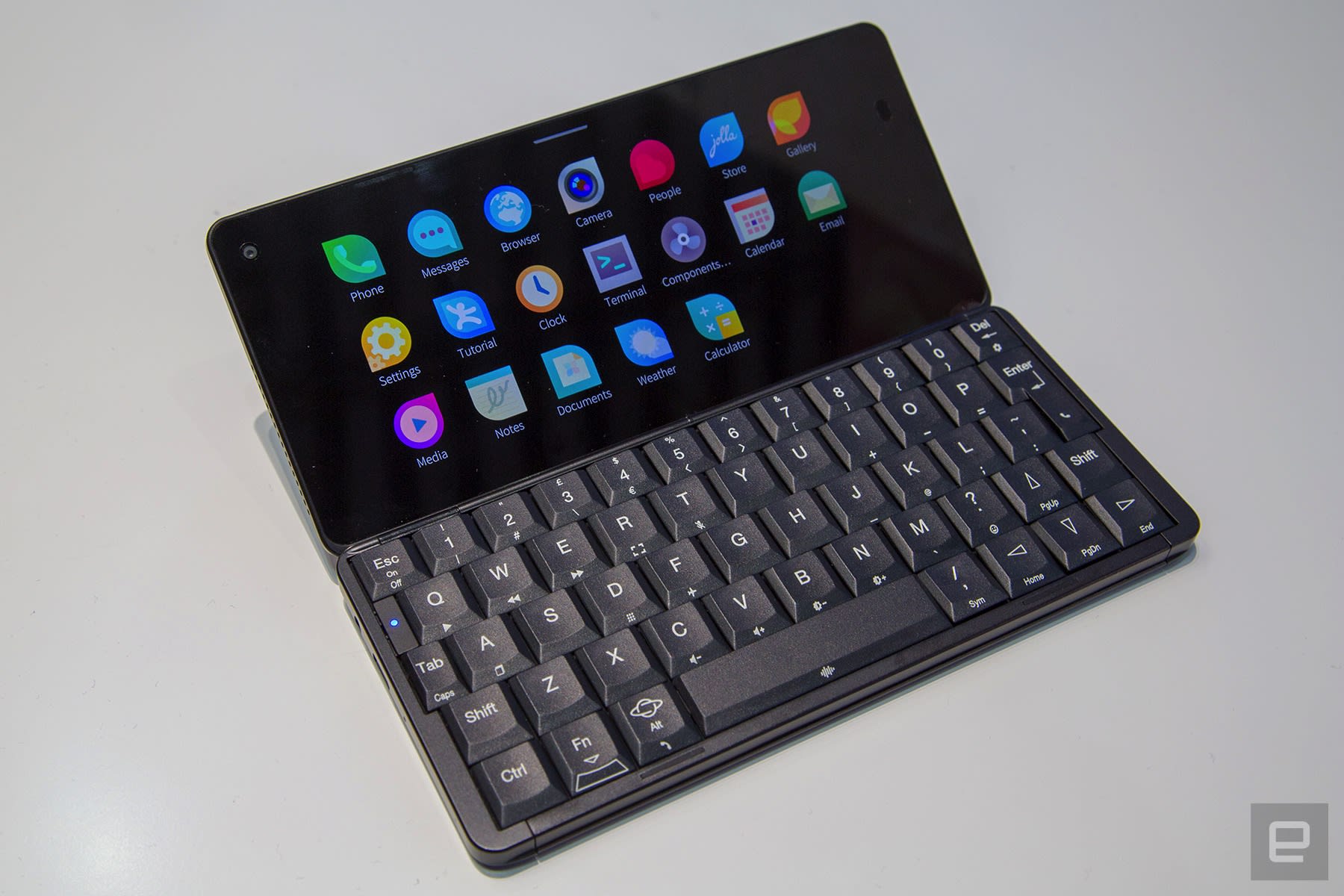
Performance was generally smooth as I opened apps and webpages in the browser. That’s no surprise given the deca-core MediaTek processor and 6GB of RAM powering the Gemini PDA. As far as I can tell, it’s the best mobile hardware that Sailfish OS has ever been paired with (Sony’s Xperia X, which also supports Sailfish OS, has a Snapdragon 650 and 3GB of RAM.) Typing, though, felt like a slog. The keyboard is cramped and the stock note-taking app missed some of my keystrokes. I also found it difficult to reach the keys in the center of the keyboard with my little thumbs.
A Jolla spokesperson stressed, however, that I wasn’t using final software. The company has a major update in the works, called Sailfish 3, that will introduce a new multitasking interface, a light theme, and “full cloud integration” including bookmark, note and photo syncing. That could eliminate some of the typing problems and add some Gemini-exclusive functionality. The Planet key, for instance (the Gemini is being built by a British company called Planet Computers) doesn’t do anything right now. A Jolla employee also hinted at keyboard shortcuts — pressing C while you’re on the home screen, for instance, could open the camera or calendar app.
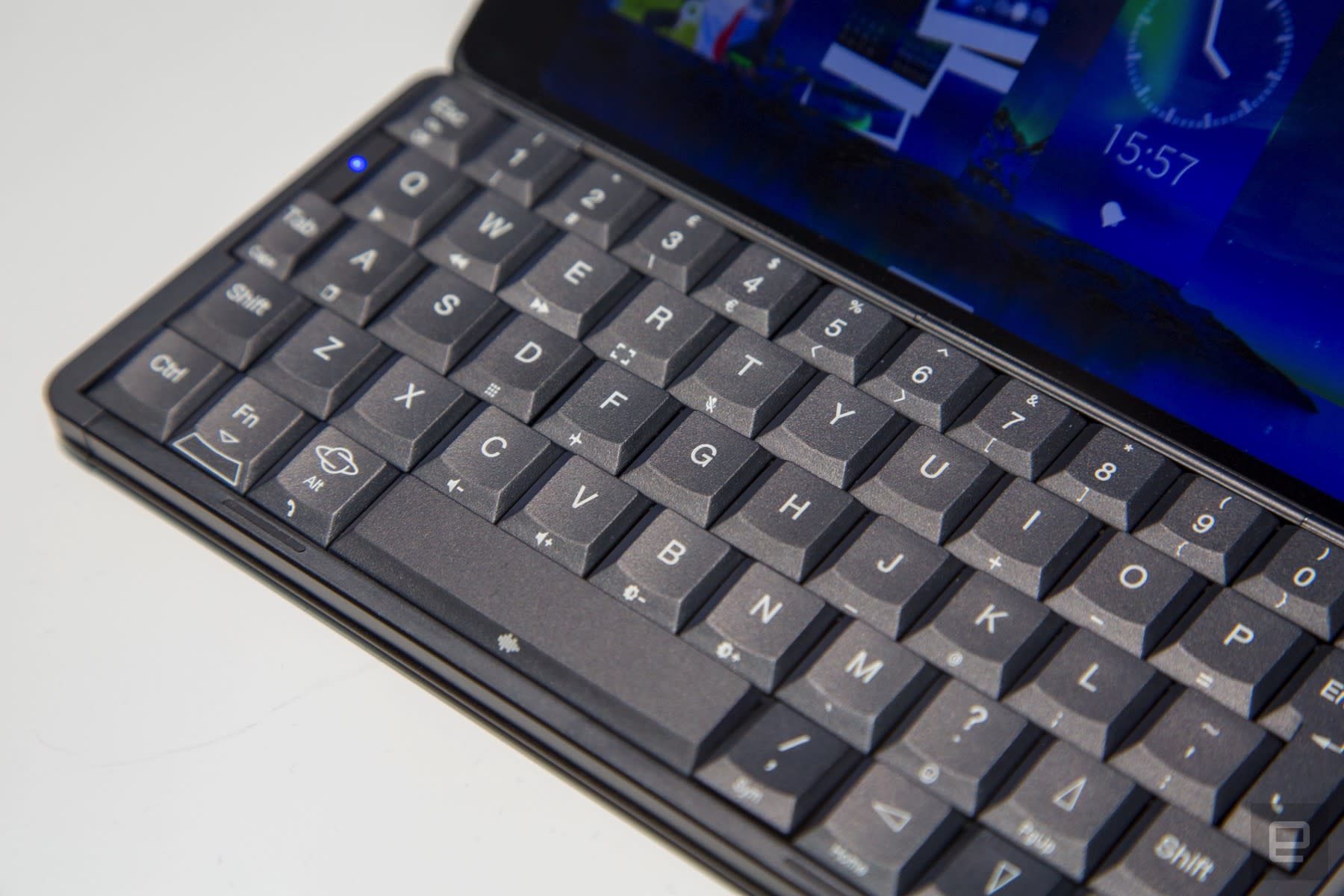
I love this idea. It would turn the Gemini into a pocket-sized laptop with Spotlight and Alfred-style key commands. I suspect it would be impractical — again, this sort of input requires both hands and a flat surface — but in a way, it would be faithful to the classic PDA and its power computing ambitions. For now, though, that sort of functionality is purely hypothetical. The device I was shown at Mobile World Congress was ultimately cumbersome and unintuitive. If you plan on buying a Gemini, you’re probably better off sticking with the Android and Linux software.
Catch up on the latest news from MWC 2018 right here.
Netflix Rolling Out iOS Update That Adds Bottom Tab Bar for Easier Navigation
Over the past few days there have been multiple reports of a new update to the Netflix app on iOS and Android devices, which includes a design overhaul for the streaming service’s navigation bar on smartphones. Instead of placing every piece of navigation within the top lefthand corner “hamburger” menu, Netflix has introduced a simpler tab bar at the bottom of the app with four tabs for Home, Search, Downloads, and More.
Netflix’s hamburger menu (iPad) compared to the new bottom tab bar (iPhone)
Previously, the left-handed menu housed profile switching, notifications, downloads, My List, and various themed categories. Now, these options are mostly located in the “More” tab, and Netflix has broken out Search and Downloads as a quicker method of jumping into those areas of the app. TV and film categories are also now located in the Search tab, including those Available for Download, Netflix Originals, Action, Dramas, Horror, and more. On Android, it appears that there will be an additional tab for users called “Coming Soon,” displaying TV shows and movies launching soon on Netflix.
Apple encourages developers to use tab bars at the bottom of their apps in its Human Interface Guidelines, since they’re easier to use one-handed and provide more information at a glance. Two years ago Spotify made a similar change, replacing its hamburger menu with five tabs for Home, Browse, Search, Radio, and Your Library, akin to Apple Music’s tabs on iOS. Earlier this month, Google Maps added a bottom tab bar in its iOS app as well, so users could easily jump to Explore, Driving, or Transit information.
Netflix’s rollout plan for the new tab bar remains unclear, with some iPhone and iPad users already seeing the update and others remaining on the older hamburger menu style.
Tag: Netflix
Discuss this article in our forums
iPhone X Clone ‘Leagoo S9’ Will Cost $150 and Include ‘Face Access’ Biometric Security Feature
Late in 2017, a crop of iPhone X clones began popping up in China, with each device deciding to copy the tenth anniversary iPhone’s main identifier: the front-facing “notch.” One such model was the “Leagoo S9,” and at Mobile World Congress this week the company has announced new details about the phone, including a price tag of $149.99.
Images via Leagoo
Leagoo confirmed that the device has a 5.85-inch “HD+” IPS notch display, further describing the phone as the “World’s First Android iPhone X.” Leagoo’s notch includes technology that fuels a “Face Access” feature, allowing users to unlock the phone in under 0.1 seconds. According to the company’s website, there will also be a “Leagoo S9 Pro.”
Other internal specs include an eight core chipset, 4GB RAM, a 3,300 mAh battery, and 32GB of storage, with a microSD card slot for further expansion possibilities. As a comparison, iPhone X’s A11 chip includes six cores, the smartphone has 3GB of RAM, and it uses a 2,716 mAh battery.

The Leagoo S9 also features a rear fingerprint sensor for additional biometric security entry options for users, physical lock and volume buttons on the right of the device, a vertical rear camera, and a bottom bezel with the Leagoo logo. Each shot of the phone’s software shows what appears to be consistent on-screen controls for returning home and going backwards within apps, suggesting these might be Leagoo’s answer for the iPhone X’s swipe up to go home gesture.
Besides the new information on the internals and cost of the Leagoo S9, the company has yet to announce a release date. Many more Android versions of the iPhone X are expected throughout 2018, with Google itself said to be expecting such a huge wave of iPhone X clones that it’s “embracing” an iPhone X notch-like design within Android P.
Related Roundup: iPhone XTag: AndroidBuyer’s Guide: iPhone X (Buy Now)
Discuss this article in our forums
Apple’s 6.5-Inch ‘iPhone X Plus’ Said to Have 1242 x 2688 Resolution, Could Come With Dual-SIM and Gold Color Option
Apple in 2018 will release three new iPhones, according to a report shared by Bloomberg this morning. The three devices, as we’ve heard before, will include an upgraded version of the iPhone X, “the largest iPhone ever” with a screen size close to 6.5 inches, and a third less expensive model.
Apple is said to be aiming to offer “a model for everyone” to rekindle iPhone sales after iPhone X sales came in lower than analyst expectations last quarter.
iPhone X Plus rendering via iDrop News
Bloomberg’s report confirms details we’ve been hearing from KGI Securities analyst Ming-Chi Kuo, who often shares accurate insight into Apple’s plans. Kuo has said for months now that Apple is working on a second-generation 5.8-inch OLED iPhone, a larger 6.5-inch OLED iPhone that can be thought of as an “iPhone X Plus,” and a lower-cost 6.1-inch iPhone with an LCD display.
While the 6.1-inch iPhone will feature a lower price tag, Kuo (and now Bloomberg) say all three devices will feature Face ID. The three devices will also feature edge-to-edge displays with the exception a notch on the front of each device that will house the TrueDepth camera system.
The two higher-end devices will use A12 processors and will feature stainless steel edges, and at least one model could be available in gold, a color Apple is said to be considering adding. As for the lower-cost model, it will feature aluminum edges to keep costs down. Like the two higher-end models, it will feature a glass back for wireless charging.
For the larger iPhone model, Apple is said to be considering implementing a dual-SIM feature that would make it easier for people to switch carriers when traveling, but Bloomberg says it’s not yet clear if the company will implement the feature.
Apple hasn’t made a final decision on including the feature and could choose to wait for E-SIM technology, which will connect phones to multiple networks without the need for a removable chip. Apple has wanted to offer E-SIM technology, but some carriers are resistant to the idea and Apple needs their support. A dual-SIM capability would provide a compromise.
Apple’s largest iPhone, which will measure in at 6.5 inches, is code named “D33.” According to Bloomberg, some prototypes of this device feature a screen resolution of 1242 x 2688. Kuo has previously said the device will feature 480 to 500 pixels per inch, similar to the new 5.8-inch model, codenamed “D32.”
Our first look at what could be the display for Apple’s larger 6.5-inch iPhone leaked over the weekend, allegedly sourced from an LG Display plant in Vietnam. Apple is rumored to be sourcing displays for the larger 6.5-inch iPhone from LG, so the leak is potentially accurate.

As you might expect, the display component and digitizer looks a lot like an iPhone X display, only larger. The cutout at the top for the TrueDepth camera is visible, but little else can be gleaned from the image.
According to Bloomberg, Apple is already running production tests with suppliers, and so we could start seeing a significant pickup in part leaks in the near future.
Related Roundup: 2018 iPhones
Discuss this article in our forums
How to use Skype
As one of the world’s most premier text, video, and voice chat applications, knowing how to use Skype is a great idea — especially since it’s entirely free unless you’re calling mobiles or landlines. With just a few clicks, you can call someone on the other side of the world in crystal-clear HD video and you don’t need to know a single phone number.
So, how do you actually use Skype? It’s easier than you might think, but if you’re at all concerned or confused by its array of options, we’re here to help. In this guide we’ll walk you through how to download, run and use Skype and all of the great features it has to offer, so you’ll be chatting and calling in no time.
Note: Although Skype is available on everything from Xbox consoles to smartwatches today, this guide will focus on Windows 10 users. Many of the same tips and steps will apply elsewhere, but they may not be exact.
Getting set up
The first step in using Skype is downloading it and setting up your account. They are two steps that are far easier today than they’ve ever been and will get you well on the way to your first Skype chat or call.
Step 1: Open your browser of choice and navigate to the Skype homepage. Click the big, blue “Get Skype” button and it will open the corresponding Microsoft store page. Alternatively, open the Microsoft Store yourself by clicking the taskbar icon, or searching for “Microsoft Store” in the search box. When there, search for “Skype,” and click the corresponding app page.
Step 2: Click the blue “Get” button to download and install Skype for Windows 10. The Microsoft store may ask you if you want to use it across multiple devices, in which case you’ll need to sign in with your Microsoft account. If you’d rather just have a dedicated Skype account, choose “no thanks.”
Step 3: Skype should now be installed on your system. To start it up, use the search box in your Windows taskbar and look for “Skype.” When it pops up in the search box, click the corresponding icon.
Step 4: If you already have a Skype account, you can login with your Skype name, email or phone number and skip through to the next section. To make a new account, click the “Create a new account,” text.
Step 5: You can sign up to a Skype account with an email address or phone number. It’s totally up to you which you would prefer to link with your new account. When you’ve decided, input the relevant information and click “next.” Note: Doing so automatically agrees with Microsoft’s services agreement and privacy statement.
Step 6: The next screens will ask you to input personal information like age, name and location. Input all of that and continue clicking through. When asked for a verification code, check your corresponding email or phone number and input the code.
Step 7: If asked for a CAPTCHA code, input that and click “Create Account.” You now have a functioning Skype account.
Finding friends and family
Where once you needed to know all of your friends’ details and had to add them as Skype contacts, today all you need to know is a single piece of information and you can find them easily and start chatting straight away.
Step 1: When you first login to your account, Skype will ask you if you want to import your existing contacts. If you already have some set up on your Microsoft account, doing so will fill out your contact list immediately.
Step 2: To find anyone else you want to talk to, select the “Search Skype” box in the top left-hand corner and search for their real name, Skype name, or email address.
Step 3: If your friend has a common name — and sometimes if they don’t — you may find that there are a number of people to choose from in the list that pops up. Use profile pictures to find the person you’re looking for, or alternatively click on them, then the name at the top of the window, to view their profile information.
That’s it, you’re ready to begin chatting. Anyone you talk to will automatically be added to your contact list.
Text chats
Not in the mood for a voice call? Having a sneaky chat at work while the boss isn’t looking? Text chats are just as useful today as they’ve ever been; there’s a reason Facebook Messenger and WhatsApp remain two of the most popular apps in the world. Here’s how to text chat on Skype.
Step 1: Select the person you want to talk to either from the list of recent conversations on the left, or from your contact list at the top of the Window. This will open up a conversation on the right-hand side of the app window.
Step 2: Click the bottom of the conversation panel where it says “Type a message.” Type what you want to say and hit enter, or click the send arrow on the right-hand side.
Step 3: Await a response. Rinse and repeat!
Voice calls
When Skype first launched, its big selling point was its voice over internet protocol (VOIP) abilities. While it would go on to facilitate voice calls to landlines and mobile devices, its Skype to Skype voice calling function remains a key component of its service. Setting up a call is as easy as ever.
Step 1: Make sure you have a compatible microphone and headphones/speaker set up. Plug them in and make sure Skype has picked them up by clicking the three dotted menu at the top of the Window, then going to “Settings.” You can leave your “Speakers” and “Microphone” as “Default device,” but you can specify your chosen input and output options with the drop-down menus if so choose.
If you want to test that your hardware is working correctly, use the “Test audio” link in the Settings menu. Alternatively, call Skype’s “Echo” services using the same steps as below.
Step 2: Select the contact or person you want to talk to in the same manner as the text chats.
Step 3: Click the blue phone icon in the top right-hand corner. If that person is online and Skype is open, you will then call them directly. If they accept the call, you will begin a voice call automatically.
If someone rings you in the same manner, just click the corresponding button to pick up the call. Alternatively, if you don’t want to talk to them click the red button instead.
Video calls
To add an extra dimension to your conversations, why not use Skype’s video call function? All you need is a webcam and a willingness to show your face on it.
Step 1: Make sure that your camera is working correctly with Skype in a similar manner to your speakers and microphone. Click the three-dot menu icon and select Settings. Click “Default Device” under the video heading at the top of the page and select your webcam from the drop-down menu.
If you want to double check it’s working correctly, toggle the “Test video,” button in the settings menu. If it’s working correctly, a live-video of you will appear within the menu.
Looking thrilled is optional.
Step 2: When ready, select the contact you want to call and click the blue camera icon in the top right-hand corner. Alternatively, start a voice call and then click the same camera button in the call window.
When the call is running, you can see a miniature version of the video your friend sees in the bottom right-hand corner. If they start their webcam in return, you’ll see them in the main window.
Step 3: If you want to text chat during the call for whatever reason, click the text chat button in the top right-hand corner of the video call window. That will shrink the main video section of the window and give you the usual text chat options below.
Editors’ Recommendations
- New to Snapchat? Follow our guide and go from newbie to pro
- How to fix Microsoft Edge’s most common problems
- How to make a YouTube channel
- How to resize an image in seconds
- How to convert MOV files to MP4
O2 will begin testing its 5G network at The O2 in 2018
The entire venue will have 5G access by 2020.
While we often talk about U.S. carriers developing their 5G networks here at AC, there are exciting things happening in these regards in other parts of the world, too. Earlier this month, O2 announced that it will soon be adding 5G coverage to certain parts of The O2 so customers can get an early test of what’s to come from the carrier over the next few years.

O2 will begin installation of its 5G network this March, and it expects visitors of The O2 will be able to use the network beginning at some point in the second half of 2018. The O2 Blueroom and O2 Store will be the first to parts of the venue to initially support these enhanced speeds, and visitors will be able to test them out thanks to VR, AR, and live streaming demos that will be available.
This project will be used as a testbed for O2’s 5G network, and along with gathering customer feedback, it’ll be able to test out new technologies and potential use cases to see where it wants to focus its 5G plans going forward.
Commenting on this announcement, O2 CEO Mark Evans said:
The arrival of 5G technology, and the range of unprecedented benefits it will bring, will play a key role in keeping our society and the British economy moving for years to come. That’s why we are delighted to announce our plans to launch a 5G test bed at The O2 later this year.
O2 plans on expanding its 5G coverage to the entire footprint of The O2 by the end of 2020, and as expected, access to the increased speeds will be exclusive to O2 subscribers as it rolls out.
Qualcomm’s simulated 5G tests show a 20x increase in download speeds over 4G
Samsung’s AR Emoji are better than Animoji in every way but the one that matters
You’re going to see way more AR Emoji than you ever will Animoji.

Apple’s iPhone X launched with a quirky little emoji thing where you can use your face to animate an emoji message to send to your friends. It’s cute, but Samsung’s Galaxy S9 is launching with something far more feature complete and accessible. The new AR Emoji feature is going to see adoption rates well over what Apple has seen with Animoji, but there’s one huge thing Samsung has done that will have people arguing over which implementation is “better” for quite a while.
The winner right now is clearly Samsung, but there is one important thing Apple is doing better.
Emoji everyone can use

In much the same way Google built AR Stickers into its Pixel Camera app, Samsung has baked AR Emoji right into the camera app for its phones. You can open up your camera, grab an AR Emoji photo or video, and instantly share it anywhere like any other thing you do in the camera app. It’s an instant thing you can do anywhere and share with anyone. Because you’re using the camera app, you get the flexibility of GIFs or photos or videos with ease.
Meanwhile, Animoji on the iPhone X is locked to Messages. You can only record Animoji from within the Messages app, and then you have to export the video from a message so you can upload the file to whatever service you want to use. It’s frustrating, to say the least, and not something a ton of people are going to want to do. It’s also entirely video, no other options are available.
Apple’s commercials for Animoji are fun, but Samsung’s implementation is a great deal more accessible.
Personalized and customizable

When you use AR Emoji for the first time, the app scans your face and creates a character for you based on your actual facial features. The end result is like an instant, personal Bitmoji that can smile when you smile and be just as excited as you are. You can even put your character in costumes, creating a unique look. You can save multiple people’s faces as AR Emoji for you to mess with, and if you’d rather not use a human face you can choose from a selection of cartoonish characters as well.
Animoji on the iPhone X is not at all personal or customizable. You’re limited to a handful of admittedly adorable emoji-style characters, but you can’t do anything to alter their appearance. Apple has added additional Animoji over time, but the characters themselves are locked to the aesthetic Apple created.
Even if you’re not excited about personalization, Samsung has done quite a bit here to let you have some fun with its creation that Apple is nowhere near implementing.
Accuracy and tracking

While both the Galaxy S9 and the iPhone X offer a face tracking system, only one of these companies uses that technology in its animated emoji offerings. As much fun as AR Emoji are, it’s clear Apple’s Animoji do a better job tracking your face and providing lifelike expressions.
Apple’s implementation uses the Face ID sensor on the iPhone X to get a map of your face before you start recording Animoji, and then uses the camera to do the rest. The Galaxy S9 skips that initial facial scan, which means the movement is less detailed and occasionally inaccurate. In fact, the AR Emoji system works almost exactly the same way Animoji work if you cover up the Face ID sensor on the iPhone X before starting Animoji.
Is this a deal-breaker when using AR Emoji? Not at all, but it’s interesting to see where these companies placed priorities. Apple’s implementation is a little more polished, but extremely limited. Samsung’s AR Emoji are not only a great deal more fun to use, but very easy for everyone to use everywhere. It couldn’t be more clear which is more likely to be seen everywhere, so be prepared for the wave of AR Emoji headed to everywhere later this year!
Samsung Galaxy S9 and S9+
- Hands-on with the Samsung Galaxy S9 and S9+
- Galaxy S9 and S9+: Everything you need to know!
- Complete Galaxy S9 and S9+ specs
- Galaxy S9 vs. iPhone X: Metal and glass sandwiches
- Galaxy S9 vs. Google Pixel 2: Which should you buy?
- Join our Galaxy S9 forums
 AIVAnet