


Facebook and Apple Work Out Deal for Subscription News Purchases in iOS App
Facebook in October introduced a new feature designed to let publishers sell subscriptions to their news sites directly on Facebook, but the social network could not work out a deal with Apple, preventing the news subscription options from being available on Facebook for iOS.
At issue was Apple’s demand for its standard 30 percent cut of any subscription revenue brought in through the Facebook iOS app, while Facebook wanted all money to go to publishers.
At today’s Code Media event, Facebook executive Campbell Brown said the dispute with Apple had been resolved, which means the subscription service tool will launch on iOS devices on March 1.

Brown did not provide details on the deal that Facebook and Apple worked out, so it is not clear if Apple will be taking a standard 30 percent cut, a lower cut, or no cut at all.
Facebook’s news service does not offer subscriptions purchased directly on Facebook, but instead redirects customers to sign up for a subscription on the publisher website once the article limit has been reached.
Publishers have asked Facebook to change the number of free articles Facebook users can view without a subscription from 10 to 5, a change Facebook will also implement starting on March 1.
Tag: Facebook
Discuss this article in our forums
Google Pixelbook review: is it worth $999 now?
Google’s previous Chromebook Pixels were pretty mixed bags. The original launched in 2013 for $1299 and its successor for $999. The hardware was definitely worth the cash, but the software wasn’t.
Chrome OS was a glorified browser, which made the laptop inconvenient (or nearly impossible) to use for those who required specialized software. But times have changed and so have Chromebooks. The newest model is piggybacking on Android’s ample app portfolio, making the software struggle much more bearable. On top of that the lineup has undergone a complete re-branding and redesign. Throw in a shiny stylus and you have a whole new concept to show Chrome OS fans.
Are these changes enough to validate spending $999 on the Google Pixelbook though? We’ve spent the last two weeks putting the new Chrome OS 2-in-1 through its paces, so let’s jump in.
It all starts with the display
Love at first sight exists — when it comes to fancy tech, at least. It’s why we can stand in store aisles for hours, staring at fancy 4K content that seems to look better than real life. Screen quality can make or break your experience. It’s what you look at the whole time you use your computer.
Google never skimps on its Chromebook displays, and the Pixelbook is no exception. It touts a 12.3-inch panel with a 2400 x 1600 resolution and 400 nits of brightness; bright enough to work comfortably in direct sunlight. The screen can create a lot of glare, though.
The screen got smaller, but so did the laptop. It’s now more portable. The PPI decreased too, from 239 to 235, but the difference is unnoticeable.
Editor’s Pick
Display specs: the good, the bad, and the completely irrelevant
Let’s talk display specifications. I don’t mean which screen has the biggest brightness or contrast numbers, or which is the latest and greatest technology; I want to talk about the specifications themselves. Which ones are …
All in all, the screen is very good. It is bright and vibrant, and the colors aren’t over saturated. Text and images look crisp. The only real complaint with the screen is that it has very large bezels (more on that later).
Stunning build quality and a 2-in-1 design to fit every need
Chromebooks made by Google are known for their outstanding build quality. It’s part of why they’re so expensive. The search giant has done it again, delivering an amazingly-built laptop you won’t be ashamed to show off on your coffee shop adventures.

The Pixelbook has an aluminum body, with silicone padding surrounding a glass trackpad. On the lid behind the screen you can also find a Pixel-like glass element, which contrasts very nicely against the otherwise metallic surface. Overall it is a stunning device and nothing ever feels anything short of premium.
…nothing ever feels anything short of premium
At first I was a little hesitant about the silicone areas, but they’re actually more comfortable than cold metal, which can become warm and sweaty after typing. The only bad news is white silicone gets dirty and stains quickly. My unit already has red accents in the corners — from what, I will never know.
The bezels are pretty large compared to what we are used to seeing in other premium laptops, but they’re there for a reason.

Google claims the bezels are there for two reasons. Apparently they sacrificed the bezel-to-screen ratio to make the Pixelbook thinner and more comfortable to hold in tablet mode.
Google claims the big bezels are there for two reasons: for comfort and thinness
But let’s focus on that new and exciting 2-in-1 form factor. Much like the many other devices that have adopted flippy screens that fold all the way back, the Pixelbook can assume multiple forms. You can use it as a traditional laptop, prop it up as a tent, or fold it all the way back to imitate a tablet.
This is certainly convenient to use. You can easily prop it up to watch a movie or fold it into a more traditional angle to get working. The hinge mechanism is solid enough for confident handling. It doesn’t wiggle, move around or make any weird noises.
The Google Pixelbook is super slim, at only 0.4 inches thick. Weighing 2.4 pounds, it is as light as an 11-inch Macbook Air. It’s hard to make such a thin and light laptop feel sturdy, and Google’s done just that.
The 12.3-inch Google Pixelbook is super thin at just 0.4 inches thick and weighs as much as an 11-inch Macbook Air
One thing I did not like was the placement of the power and volume buttons. They are pushed off to the edge — rare in conventional laptops. This shows how much of a priority Google is giving the tablet mode. Those buttons are only intuitive to use when the computer is folded into a pad. It’s a bit weird for those of us who use the laptop mode more often.
Keyboard and trackpad
The keyboard and trackpad are some of the most important factors when choosing a new laptop, as they’re the main forms of interaction with a computer. The Pixelbook doesn’t disappoint here either.

The keyboard buttons feature a soft, rubberized texture. There is a certain sense of security when typing on non-slippery keys, unlike with premium metal keys. They offer solid feedback and comfortable travel, much like previous generations of the Chromebook Pixel.
The trackpad is nice and responsive. It is made of glass, so there is very little friction. The working area is large enough to move the cursor around with confidence.
Performance and hardware
Google’s Chromebooks were historically a little over-powered. Chrome OS didn’t need much to operate efficiently, so the specs seemed wasted. Things have changed, though. Google has since introduced support for Android apps in Chrome OS, apps which require more kick, and make the higher-end specs seem more appropriate.

The base model Pixelbook comes with a 7th-gen Intel Core i5 processor, 8 GB of RAM, and 128 GB of internal storage. The processor can be switched for an i7, the RAM can be upgraded to 16 GB, and storage can be increased to either 256 GB or 512 GB.
The model we used had an i5 chipset, 256 GB of storage, and 8 GB of RAM, which still fared well against a decent workload. We experienced no hiccups and were only limited by internet speeds. Running Android apps was also smooth. The computer is still arguably over-powered, but at least now it can do much more than browse the internet.
The Pixelbook is still arguably over-powered, but now it can do much more than just browse the internet.
Battery life
Google says the Pixelbook should run for about 10 hours of mixed usage. I average around 8 or 9 hours, which is still a good amount of time. Heavy users need not worry, as the Pixelbook charges pretty fast. Google claims you can use it for 2 hours after just 15 minutes of charging. It should be able to run for 7.5 hours after a 60-minute charge.
Software and Android apps
Chrome OS is pretty much the same as you’d expect. It’s a glorified browser with a desktop-like UI which makes the workflow smooth and easy. The operating system is so light it boots up in about 5 seconds.
It’s got the usual browser, shortcuts, and Chrome apps, which make for a great experience, but it now also supports Android apps. Most of these are designed to be used in mobile devices with a touchscreen, so the Pixelbook’s tablet emphasis makes sense.

Chrome OS is no longer held back by its lack of software support. Now it has a huge chunk of one of the largest app portfolios around at its disposal. Over a million Android apps from the Google Play Store can be installed in a Chromebook. It’s gone from an abysmal selection of apps to more than you could ever download; it’s a true Chromebook renaissance.
Casual users will find the wide selection of Android applications very helpful. You can get Microsoft’s Office suite, apps like Adobe Photoshop Lightroom, and countless other goodies. Some of these apps might not be good enough for professionals and more specialized users though.
Remember that Android apps are still mobile applications made to keep you productive on-the-go
Android apps are not made for heavy workloads and busy labor sessions — they are mobile applications made to keep you productive on-the-go. The Office apps are not as complete as the Windows and macOS versions. The same applies to Photoshop Lightroom, which doesn’t get close to the productivity of desktop versions. Some features might be missing, or harder to find.
Because this device essentially works as an oversized Android tablet, things can also look a little wonky. Chrome OS treats these non-optimized apps as windows, which appear floating around the desktop, but that is clearly not the most comfortable way to use an app on a tablet. You can decide to launch it in full screen, but that usually makes the UI look too weird.

As a phone-shaped window, Facebook looks tiny and is annoying to use. The app must then be restarted for switching to full-screen, and once it re-launches things get even weirder. Icons and fonts look too small, while images are huge. Not to mention a weird bug that makes videos play cropped, displaying only a zoomed in section of the clip.
We can no longer complain about a lack of apps — except when they don’t work properly
Things have gotten insanely better for Chrome OS, and the Pixelbook clearly displays its capabilities, but the experience is not as intuitive and smooth as it could be. We can no longer complain about a lack of apps — except when they don’t work properly.
This is also the first laptop to come with Google Assistant built in. You can simply say the now-iconic phrase “OK, Google” and the laptop will begin listening to your commands. You can also hit the dedicated Google Assistant shortcut button, between the Ctrl and Alt keys, or even use the Google Pixelbook Pen to circle content and get help from Google Assistant. Speaking of the pen, let’s get into that.
The almighty stylus!
The Google Pixelbook Pen is made in tune with the laptop. About 3/5 of its body is aluminum, with an end covered in silicone, much like the Pixelbook. The pen is made to work — and look — simple, featuring a single button for circling content you want Google Assistant to help you with.

The stylus is great, but its use is a little limited
The pen works well. It fits snug in the hand and has a light-yet-sturdy feel to it — for $99 extra, it had better. It offers pressure sensitivity and tilt support, making it a handy gadget for artists and creatives.
The pen is great, but its use is a little limited. There are plenty of drawing apps, but they all seem to have some kind of downside. Some are not optimized for a screen this size, others don’t offer the best stylus support. Even if you find the perfect application to use the pen with, they all seem to lag when it comes to stylus input. The only application in which I was able to draw with no issues was Squid.

Serious artists might see the Pixelbook Pen as pretty much a glorified pointer and Google Assistant tool, but the pen is still quite usable if you are not too picky. Making notes was simple (though laggy), and Squid is a pretty good app for drawing. Using a physical stylus for navigating can be very useful for certain apps though, especially for those of us who like editing photos or video.
So… is it worth the $999?
Chrome OS continues to be a fast, convenient, no-hassle operating system, but it is only as productive as Chrome and a selection of Android apps allow it to be. Very few have been modified to work well with a Chromebook. The “Apps for your Chromebooks” section in the Google Play Store only features 13 applications.
The Pixelbook is a great computer — at least until you start using it
The Pixelbook is certainly worth its price in terms of hardware. Its design is amazing. Its performance is on point. The battery life is great. The screen looks good. Overall, it’s a great computer — at least until you start using it. Chrome OS continues to limit the experience. It will be hard to get things done without some workarounds and hoop jumping. Android apps certainly help, but they are also wonky a lot of the time.

The way I see it, where we once were able to see the potential in Chrome OS, we can now feel it, but it’s just not quite there yet. Content needs to keep getting optimized, as the software evolves to better merge Chrome and Android. Until then, the Google Pixelbook will stay more of a novelty item, much like previous Chromebook Pixel models.
If you want a simple laptop mostly for browsing the internet and using some apps from time to time, this is a good option — albeit an expensive one. More demanding users will find this machine can get the job done, but computers with other operating systems at similar price points will get it done better and with less hassle.
Samsung’s redesigned emoji are actually recognizable
When you send an emoji to a friend, you want it to convey the same information. For example, if you sent a “rolling eyes” emoji to a buddy using a Samsung phone, they might not pick up what you’re laying down. That’s because 2017’s “rolling eyes” emoji looks more like a happy face with eyebrows and a smirk. Luckily, the new Samsung Experience 9.0 (set to release as part of the Android Oreo update for Galaxy S8 users) has tweaked quite a few emoji, including the eye-rolling one, to bring them all more in line with other platform’s representations of the Unicode characters.
As noted on the Emojipedia blog, the Face Screaming in Fear will now look more like the painting by Edvard Munch instead of the weird anime-thing that Samsung had last year. In addition, the dancing woman emoji will look more like a woman doing the tango than a kid stomping in her sneakers. The man dancing emoji also loses the sneaker outfit and gains a purple disco-style jumpsuit. The angry devil, or “imp face” is more similar to what Apple offers, too, changing from a young boy with vampire fangs to a purple frowny-face with horns. Many more of the human-representing icons use a Simpsons-esque yellow skin tone, too, which you can see in Samsung’s choice for Emoji 5.0 icons, like Star-Struck face, exploding head face, and woman with headscarf.
Not all new Samsung emoji match up with other platforms, however: the alien monster now looks like a purple squid for some reason. Women and Men with Bunny Ears only show one younger-looking person per gender, instead of two leotard-wearing people like the other platforms (except Facebook, which matches the singular representation). Still, more consistency can only be a good thing for Samsung and other phone owners to communicate just a bit more clearly.
Source: Emojipedia
The 20 best iPhone SE cases to keep your phone looking like new
Apple repackaged the last-gen iPhone 6S into an iPhone 5S body to bring us the iPhone SE. This pint-sized iPhone is cheaper and easier to handle than its big brothers and more recent iPhone models, but it still represents a fragile combination of glass and metal that will likely break if dropped. If you have any old iPhone 5S or iPhone 5 cases lying around, they can be repurposed for the SE. Most of you will likely prefer to snag a new one, however, so we’ve rounded up a bunch of the best iPhone SE cases.
Urban Armor Gear Case ($19-$35)
By blending a soft core, hard shell, reinforced corners, and protective skid pads, the Urban Armor Gear packs a lot of protection into a surprisingly light case. The large button covers are easy to find, the cu-outs allow for easy access, and there’s a protective lip around your screen. This case exceeds military drop test standards, so it will survive a typical fall from 4 feet just fine. It doesn’t block NFC either, so Apple Pay will work with this case on your phone. You can get a clear version, go for a darker tint, or choose the cobalt blue version pictured.
Buy one now from:
Amazon
Snakehive Vintage Leather Wallet Case ($27)
These cases are finished in soft Nubuck leather that comes in a range of different colors with neat stitching to match. You can also opt for a two-tone design that resembles a classic leather-bound notebook. Open the cover and you’ll find three slots for cards and ID, alongside a larger money pocket. The rubbery frame that holds your iPhone SE in place inside this wallet is just a basic shell. This case offers great quality for the price.
Buy one now from:
Amazon
Jimmycase Wallet Case ($39)
If you like the idea of a handy place to stash cards, but you don’t really want to contend with a flapping cover, then Jimmycase has your back. These clever cases, handmade in Los Angeles, combine a protective silicone bumper with an attractive wooden back panel and a stretchy elastic pocket. You can stash up to six cards and some cash in the pocket, and it comes in a range of different designs or colors.
Buy one now from:
Amazon Jimmycase
Casetify Custom Case ($35)
You’ll find a wide range of different designer cases at Casetify, but why not design your own? Starting from $35, you can pick your preferred case type, add your own photos directly from Instagram or Facebook, and include a variety of different designer stickers. You can resize and place all the elements precisely where you want them and then apply filters on top if you so desire. If you want a truly unique case to reflect your personality, head to Casetify.
Buy one now from:
Casetify
Twelve South BookBook Case ($20)
Disguise your iPhone SE as a vintage book with this genuine leather case that also doubles as a wallet. Open it up, and you’ll see there’s a leather-wrapped frame to hold your iPhone in place, along with a transparent ID pocket, three card slots, and a money pocket. There are also cutouts for quick access to your phone’s controls, ports, and camera. It’s not the most protective case around and the leather will age, but it’s still a lot of fun.
Buy one now from:
Amazon
FlexiShield Gel Case ($8)
Here’s a simple gel case that’s super-easy to fit on your iPhone SE. It adds a thin layer for simple protection and grip, the latter of which makes your phone more comfortable to hold. You can get the case in black, blue, red, or pink, but we prefer the clear version, as it shows off Apple’s design. There are thin button covers, and it offers all the necessary cutouts for your phone’s features. The raised lip around the screen also provides a little protection when you place your phone facedown.
Buy one now from:
Amazon
Tech21 Evo Mesh Case ($18+)
An eye-catching mesh pattern and a special TPU formula that delivers solid drop protection should be enough to draw the Evo Mesh to your attention. The case also comes outfitted with easy-to-use button covers and openings for your phone’s side switch, camera, and ports. The case is flexible and very easy to grip. It’s also translucent and comes with a white, black, or pink tinge. Tech21 is a name you can trust, and your iPhone SE will survive falls of up to 6.6 feet in height if it’s wearing this case.
Buy one now from:
Apple Amazon
Moshi iGlaze Armour Case ($10+)
You’ll love the metallic style of this attractive case. It’s a hard shell that snaps onto your iPhone SE, and it has a soft plastic layer inside to prevent any impact damage from bumps and falls. There’s a little lip on the front of the case to protect your phone’s screen when you lay it facedown. The cutouts are perfect, including the round one on the back that showcases the Apple logo. The matte, metallic frame is only interrupted by soft plastic sections for the ports and the tactile button covers. The back panel is made of brushed aluminum, and there’s a shiny silver ring to highlight the logo cutout. This classy case also comes in one of several colors, including a pink and gray.
Buy one now from:
Amazon Moshi
Carved Traveler Wood Case ($32+)
Natural wood always looks nice, and Carved offers a wide selection of different woods to choose from, all of which are sustainably harvested. The slim cases are are made of flexible polycarbonate shells with a wood panel set into the back. You can go for plain wood grain or choose from one of the many stylish designs, all of which are made in partnership with various artists. The openings for the ports and camera are accurate and the button covers are minimal. The sides have a nice, grippy texture that helps ensure you don’t drop your iPhone. These cases start at $24 and go as high as $50, depending on what wood and design you choose.
Buy one now from:
Amazon Carved
RhinoShield CrashGuard Bumper Case ($25)
These clever bumper cases offer protection where you actually need it, leaving the screen and back of your iPhone SE uncovered. The chunky, rubbery bumpers go all the way around the frame and extend from front and back to keep your iPhone from touching any surface when placed facedown. You might fear you’re exposed, but these bumpers actually offer really solid drop protection. There are also openings for the ports and switch, and round button covers for the volume controls. You even get a special protective film for the back of your iPhone SE, and you can add a screen protector ($20) for complete coverage.
Buy one now from:
Evolutive Labs
Speck CandyShell Inked Case ($18-plus)
If you’re bored by matte colors and dull designs, then the CandyShell Inked is definitely for you. Speck’s solid, military-standard drop protection combines a shock-absorbent layer and a hard outer shell into a single case. Your iPhone SE is safe with this case on. The openings and button covers are just right, and there’s a raised bezel to help protect your smartphone’s display. The real attraction is the range of vibrant patterns and designs, which also happen to be resistant to scratches and fading.
Buy one now from:
Amazon Speck
Incipio Isla Design Series Case ($3-plus)
You can wrap your iPhone SE in a stylish design and protect it at the same time with Incipio’s Design Series. Incipio puts a lot into making phone cases. The Isla features a metallic arrow pattern that’s available in an array of different colors, with a translucent shell for added visibility. The fit is perfect, and you’ll find easy access to ports and the side switch. There’s also an opening for the camera, and subtle button covers for the power and volume keys. Incipio also offers a few alternative designs, including a wild rose pattern that’s very eye-catching.
Buy one now from:
Amazon Incipio
Otterbox Defender Series Case ($30)
Triple-layer protection should be enough to keep your iPhone SE safe and sound, even if you are really clumsy. The Defender offers really solid drop protection, and it covers every angle of your phone with a built-in screen protector and port covers. There are cutouts on the back, too, so you can use the camera and continue to show off the Apple logo. The button covers are excellent and allow you to use TouchID with the case on, but really protective cases like this do impact general usability. If you don’t need this level of protection, consider stepping down to the Commuter Series.
Buy one now from:
Amazon
Ringke Fusion Case ($10-plus)
You can avoid hiding the design of your iPhone SE with this transparent case. It sports a crystal-clear polycarbonate back panel, combined with a malleable TPU bumper, which takes the sting out of bumps and falls. There are button covers for the volume and power keys, and you’ll find accurate cutouts for the camera, ports, and switch. The basic case is clear, but some models showcase a tinted bumper that’s available in either smoke black or rose gold.
Buy one now from:
Amazon
Spigen Tough Armor Case ($16+)
This is another tough case that combines an inner layer of flexible TPU with a hard, polycarbonate panel with contrasting color. It’s quite chunky, but it does deliver solid drop protection. The openings for the camera, ports, and switch are accurate, and there are oversized button covers that work well. There’s also a cutout for the Apple logo on the back, along with a raised lip that ensures your phone doesn’t come into contact with the ground or other surfaces.
Buy one now from:
Amazon Spigen
Caseology Savoy Series Case ($15)
The low price is definitely a major attraction for this case, because it looks quite classy. The shell is made of polycarbonate with a soft touch finish on the outside. It’s fairly slim and there are cutouts for your phone’s camera, ports, and buttons. The contrasting color combinations and the gloss finish also help it stand out from the crowd. It doesn’t look quite as good close up as it does from a distance, but it’s good value for money.
Buy one now from:
Amazon
Apple Leather Case ($39)
Apple’s official leather case is made from a finished leather that adds a quality feel to your iPhone. It’s slim, lightweight, and made specifically for the iPhone SE, so there won’t be any pockets of air or unappealing gaps between the phone and case. The inside is lined with soft microfiber material to help protect your phone from drops, and the outside is subtle thanks to the attractive black (or blue) dye.
Buy one now from:
Apple
Mophie Juice Pack Air ($60+)
If you want to double the total battery life of your iPhone SE, Mophie’s Juice Pack is the way to go. The Air variation of Mophie’s battery case is lighter and thinner than its Juice Pack Plus counterpart, but still manages to get the job done all the same. Just flip the toggle on the case to begin charging your iPhone, and keep an eye on how much power is left using the built-in LED lights on the back. You’ll have access to the headphone jack, charge port, and the camera via cutouts, and the case protects the power and volume buttons with easy-to-press covers.
Buy one now from:
Mophie Amazon
LifeProof FRĒ Series Waterproof Case ($37-plus)
LifeProof’s case completely encloses the iPhone SE to protect it from the elements. The case itself is as slim as it can be without compromising any of its features, which includes a waterproof, snowproof, dirtproof, and drop-resistant build. It also has a built-in screen protector and, despite its appearance, leaves every port, camera, and button accessible. You just need to flip off the covers protecting them. Additionally, should something go wrong with the case, it’s backed by a one-year warranty, so you can get a working replacement as soon as possible.
Buy one now from:
Amazon LifeProof
Toru Hidden Wallet Case ($15)
Tors’s case offers the same amount of storage as wallet cases, but does so without using the same design. The wallet compartment is found hidden in the back of the case, which can be revealed by flipping the back open. Inside, you can store money and up to three credit cards or IDs, or two cards if you want to use the included mirror. The case adds a bit of bulk to your iPhone SE, but with that bulk comes dual-layer protection, shock absorption, and a kickstand that makes use of the aforementioned flip cover. The edges are also raised to keep the touchscreen from being scratched when placed facedown on a table or the ground. Be careful how far your turn the back cover, however, as anything further than 120 degrees may cause it to snap off.
Buy one now from:
Amazon
Editors’ Recommendations
- Protect your iPhone 6 from spills, splashes with the best waterproof cases
- Check out 30 of the best iPhone 7 cases and covers for your shiny new phone
- Waterproof iPhone 7 cases let you surf, swim, or splash without fear
- The best Galaxy S8 cases and covers to protect your device
- The 20 best iPhone 7 Plus cases to protect your Apple phone
Only 88,000 units of the Essential Phone were sold in 2017
Despite numerous software updates and price cuts, Essential still has a lot of work to do.
It’s no secret at this point that the Essential Phone has had a rough life. Relentless software updates and a dramatic price cut have resulted in the device finally being at least worthy of your consideration, but its blundering launch appears to have hurt Essential where it counts.

IDC Research Director Francisco Jeronimo recently announced on Twitter that the Essential shipped just 88,000 units of the Essential Phone in 2017 following the device’s launch in July of last year. We weren’t really expecting the Essential Phone to sell like hotcakes, but that’s still a pretty low number.
In late September, it was reported that just 5,000 units of the Essential Phone had been sold. That was prior to the $499 price cut, so it seems pretty clear as to what was holding most buyers back in the Essential Phone’s early days.
Where does Essential go from here?
Now that we have more current data, it’ll be interesting to see how the Essential Phone 2 is handled. Essential has already confirmed that it’s in the works, but with the majority of customers holding off on the Essential Phone until it was sold for $499 and under, will Essential focus on releasing a phone that’s focused more on the mid-range market as opposed to the high-end for its second time around?
The company will be faced with competition no matter what segment it chooses to target, but a high-quality mid-ranger may be what Essential needs before it’s ready to fully take on the Pixel and Galaxy phones of the world.
Whether or not you bought an Essential Phone, is this latest number at all surprising to you? What would you like to see in the Essential Phone 2? Sound off in the comments below.
Essential Phone
- Essential Phone review
- Essential Phone specs
- The latest Essential Phone news
- Join our Essential Phone forums!
Amazon
Best Buy
Sprint
Telus
Motiv Ring Review: A Fitbit for your finger
When someone first dropped a Motiv Ring into my hand back at CES 2018, it was so small and light that I thought it was a show-floor dummy. It’s hard to believe there’s any technology inside, let alone an optical heart-rate sensor, a step-counting accelerometer, a Bluetooth radio and the lithium-ion battery that powers it all.
But the tech is real and so is the Ring, a titanium-clad annulus rated to 5ATM water resistance and available in two colors. Slip it on your finger and the Motiv Ring does much of what you’ve come to expect of a larger fitness wristband: it keeps tabs on your health (awake or asleep) and distills the data into digestible form on a rather beautiful iOS app. The only real downsides: you pay a lot for the privilege, and — for now, anyway — only iPhone users can get in on the fun.
If you’ve always wanted the convenience of a fitness tracker without the bulk of a wristwatch, the Motiv Ring might just be the wearable for you. Click the video above for the full MrMobile review!
Stay social, my friends
- YouTube
- The Web
- Snapchat
Deal: Get a free Live Case when buying a Pixel 2
Available until February 14 at 11:59 PM PT.
We’re big fans of the Google Pixel 2 here at Android Central, and if you’re looking to get an awesome last-minute Valentine’s gift, it’s sure to knock the socks off of your sweetheart. If you buy one now from the Google Store, you can get a custom Live Case for no added cost!
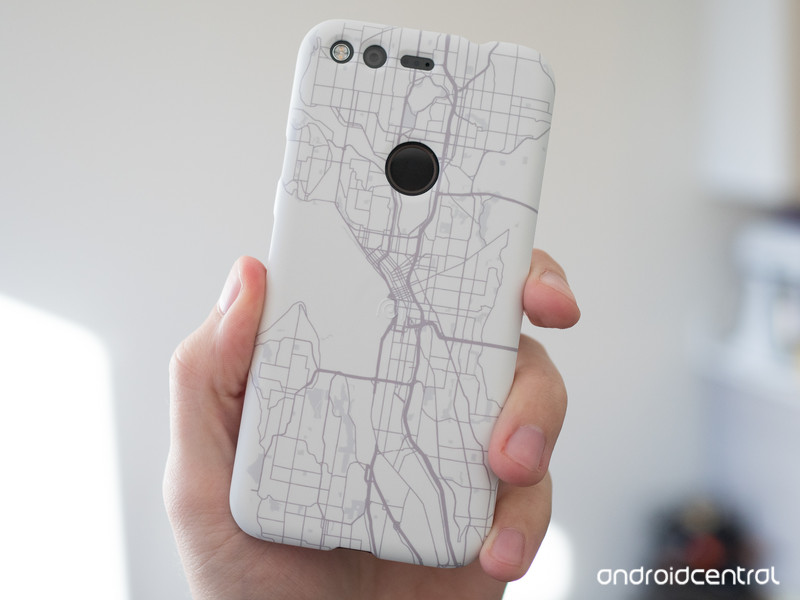
If you want to take advantage of this deal, doing so is dead simple. Just add the Pixel 2 and Live Case to your cart, and when you go to checkout, you’ll get an automatic discount that makes the Live Case free.
This deal applies to all three Live Cases on the Google Store, including the Google Earth Live Case, Artworks Live Case, and the original Live Case. My fiancé ended up ordering one of the original ones to go with her Pixel 2 shortly after we got engaged, and it really is something special to have a protective case that can be customized with a memorable photo.
In order to get this deal, you’ll need to act fast. It’s available now until February 14 at 11:59 PM PT, so be sure to tap/click the button below ASAP.
See at Google Store
Google Pixel 2 and Pixel 2 XL
- Pixel 2 FAQ: Everything you need to know!
- Google Pixel 2 and 2 XL review: The new standard
- Google Pixel 2 specs
- Google Pixel 2 vs. Pixel 2 XL: What’s the difference?
- Join our Pixel 2 forums
Best Buy
Verizon
Google Store
Project Fi
TNT’s NBA VR livestreams begin February 16th
Last November, Intel and TNT announced a partnership to bring 360-degree, 3D broadcasts of NBA games to GearVR and Daydream VR headsets. Now Turner Sports and Intel have officially launched the app that brings an immersive basketball experience via TNT’s VR app and powered by Intel’s True VR technology. While the current VR app is mainly a Turner Broadcasting initiative, it can only help the NBA expand its audience via the technology.
The app puts inside TNT’s Studio J, recreated for VR, which will serve as your portal to the NBA programming. You can watch game highlights and recaps along with live NBA games on TNT, provided you’ve logged in with your cable subscription. You’ll get at least four camera angles to explore, as well, letting you choose a court side or bird’s eye view of all the action. The NBA All-Star 2018 festivities start on February 16th in Los Angeles, with the actual game streaming live to the NBA on TNT VR app on the 18th. One NBA game per week will be available live in the app after that, beginning with the LA Clippers at Golden State on February 22nd and finishing up April 10th with Boston at Washington. The VR app will also have select NBA on TNT playoff games through the 2018 Western Conference Finals.
Rugged e-skin can heal its cuts and scrapes
Scientists dream of prosthetics and robots with electronic skin that can convey heat and pressure just like the real thing, but there’s a big problem getting in the way: the outside world. Bumps and scrapes can damage these sensors, and it’s not really practical to toss these skins in the trash when they’re no longer useful. UC Boulder researchers hope to fix that. They’ve developed an e-skin that can communicate temperature and pressure, but is both self-healing and fully recyclable. You could take a cut on a synthetic arm without panicking, and reuse any damaged ’tissue’ to make replacements.
The trick is the use of a unique polymer (polyimine) laced with silver nanoparticles. It can still conduct electricity and withstand stress, but its covalent atomic bonds make it both self-healing and recyclable at room temperatures. It just has to use widely available ethanol compounds to patch itself up, and you can degrade the polymers using a recycling solution that separates the silver from the skin in question.
Any practical uses are a long way off, but they’re definitely on the horizon. You can easily use a modest amount of heat and pressure to make the skin wrap around curved surfaces, so it’s ideal for smart prosthetics or advanced robots that may need both ruggedness and a delicate grip. All told, e-skin is becoming more of a practical reality outside of the lab.
Via: Newsweek
Source: UC Boulder, Science Advances
What we’re using: Google Maps while lost in Japan
This month, Associate Editor Mariella Moon humblebrags about her vacation to Japan. But that’s not what she’s going to discuss. Hailing from a country where Google Maps is lacking in detail (and metro details), she didn’t expect much. However, even after installing several rival map and guidance apps, it turned out that Google knew best when it came to directions in Tokyo’s spaghetti subway — and even offered a price estimate. The mapping service is moving fast, but it also brings into focus all the work Google still has left to do elsewhere.

Mariella Moon
Associate Editor
I’ve wanted to go to Japan for ages, but the prospect of navigating such an extensive and complex train system was daunting — especially since I’m the type who gets lost even going to places I’ve been to a million times before. After I spent hours upon hours familiarizing myself with frequently recommended Japan navigation apps and websites like Hyperdia, I felt more than ready to take on some of the busiest train stations on the planet. When I got there, though, I didn’t touch any of them — all I used was Google Maps.
I’ve been conditioned to ignore Google Maps, since it’s not always helpful (or accurate) where I live, in the Philippines. Admittedly, it has become a lot more detailed in my country over the years. I now see establishments in places that used to show only unmarked land. Granted, some of them don’t actually exist, but that’s what you get when anyone can add a business listing. It now shows shops inside malls, and a few years ago it finally got Street View.
I now also see public transit options when searching for directions around Manila. However, it’s still not always reliable, due to the types of public utility vehicles we have available. It can’t track every bus when they don’t follow regular schedules, and it definitely can’t tell you when the next jeepney or tricycle will pass by. For instance, it suggests I walk a few kilometers to get to my local market instead of riding a jeepney. It also wants me to travel to the next city to ride a bus for a faraway province when I live near a terminal with direct buses going there. The transit options it presents do include trains, but since they break down quite often, don’t expect those departure times to be correct.

Mariella Moon
In Japan, though, Google Maps became my staunchest ally. It offered clear, easy-to-follow routes that helped me make sense of the chaos, even during Tokyo’s infamous rush hours. The country has quite a few railway companies, so knowing which line to look for is kinda important if you don’t want to wander around labyrinthine stations for hours. Google Maps also shows shops inside train stations (for each floor!), marks every crosswalk and even has a timestamp for when a bus you can take will arrive if there’s a stop close by.
While Google Maps might never be as detailed or as accurate here because of the way our transportation system works, I’m crossing my fingers and hoping that it continues to improve. It was also pretty useless in Japan a decade or so ago, after all. And I hope Google polishes Waze while it’s at it — the navigation app has taken me down cul-de-sacs far too many times.
 AIVAnet