


Android P will prevent apps from quietly hijacking your camera
The threat of someone hijacking your phone’s camera to spy on you unawares is sometimes overstated, but it’s definitely a possibility. Enough so, in fact, that Google is determined to do something about it. Recently discovered code submissions show that Android P should prevent idle apps from using both the camera and microphone. If an inactive program tries to use the camera, Android should shut it off and give you an error message. With the microphone, it’s somewhat different: it’ll allow recording but report empty data until the app is active. Malware wouldn’t get away with recording in the background, but legitimate apps like a voice chat client (which stays active) shouldn’t have an issue.
Google hasn’t even announced Android P, so it could be a while before you hear about these measures in any formal capacity (provided they make the cut). However, its engineers aren’t shy about the goal: this is designed to “protect user privacy.” Creeps and spies couldn’t just trick you into installing an app that records you without permission — they’d have to either find a way to fool Android or change its system-level behavior. We’d be loathe to presume this will make stealthy snooping impossible, but it’ll definitely require more work.
Via: XDA Developers, 9to5Google, Mobile Syrup
Source: AOSP (1), (2)
Bluesmart Cabin 22 Hands-on Review
Research Center:
Bluesmart Cabin 22
The last thing we all need is another product to charge, so is adding smart luggage to the list worthwhile? Bluesmart, pioneers in the world of smart cases for techie travelers, launched the second generation of its connected suitcases, with a refreshed design and updated tech. This is the 22-inch Cabin model and as we’re testing it for a full review, we have some initial impressions.
Made from tough, waterproof polycarbonate, the design is very attractive with a molded, ribbed section on the upper-third that makes it look way more interesting than the typical suitcase.
The case can be tracked using using GPS, Bluetooth, and a built-in 3G SIM card.
There are plenty of handles, too. The telescopic handle is made from aluminum and has three height settings for convenience. Grippy, sturdy plastic grab handles are mounted on the top and the side of the case. On the bottom are four 360-degree spinning wheels for ease of movement. Bluesmart says they’re silent — we certainly can’t hear them rolling around on normal floor surfaces.
But it’s the smart features that are the reasons for buying this bag and Bluesmart has made some improvements. So, let’s dive deeper into them.
Bigger battery, global tracking
The hard shell Bluesmart Cabin 22 weighs 9.4 pounds, so it’s fairly heavy on its own even before you’ve filled it. The weight is due to the amount of tech that’s inside, including what may be its heaviest component: A 10,000mAh battery pack which powers the suitcase for 30 days, according to the company’s official specs. However, because the battery also charges your phone or laptop (there are two USB ports on the exterior), it drains its reserves much quicker than usual, so use it wisely. Despite its size, the battery takes 2.5 hours to fully charge using Bluesmart’s fast charging system.
The case can be tracked using the Bluesmart app, and its location is found using GPS, Bluetooth, and a built-in 3G SIM card — all powered by the same aforementioned battery. Don’t worry, this isn’t a case that requires a contract or monthly payment, as it’s all built into the cost of the case. The location updates only when the case is in motion, refreshing every 30 minutes. This means if the case goes missing, it can quickly be found (in theory, at least). The built-in lock (approved by the Transportation Security Administration, or TSA, in the United States) can be set to automatically activate when there’s ample distance between the app and the case, and the zippers can also be locked and unlocked using the app — or by simply pressing a button on the top of the case.
Andy Boxall/Digital Trends
Andy Boxall/Digital Trends
Andy Boxall/Digital Trends
Andy Boxall/Digital Trends
The 3G SIM ensures the case doesn’t need to be connected to Wi-Fi or Bluetooth to check in with the app either, and enables it to also send notifications with updates. The previous generation Bluesmart relied on Bluetooth only, which meant it was only effective within 30 feet; 3G allows for an almost anywhere connection. For us, it wasn’t entirely successful. We were alerted by the app telling us, “You’re leaving your suitcase behind,” when actually, it was safely in the trunk of our car. It also continued to do this when we arrived at home and moved the case inside. Notifications can be disabled in the app, thankfully.
We set up the app in a few minutes and because it’s registered to you using a unique digital personal identification number (PIN), no one else can use their app with your case, or vice versa. The location of the case shows up on a map and ours showed exactly the right address and location, down to an accuracy of roughly 100 feet. It happened quickly too, requiring only a few seconds to grab onto the signal. The app is simple, but the sign-up process wasn’t properly optimized for the iPhone X’s screen and therefore a pain for this particular user. However, the rest of the app worked perfectly.
It’s well made but do you need the smarts?
The Cabin 22 has a 38-liter capacity, complete with a small central pocket and two separators that can be used to compress everything inside to maximize space. There’s easily enough room for a long weekend; if you pack lightly or wisely, probably longer. This, plus the convenience of its carry-on size, means you can zip through the airport much quicker than you would with checked baggage.
As techies, we like the idea, but as practical travelers, it gives us pause.
As for the tech, we continue to wonder how useful it actually is. Because it’s mostly going to accompany you inside the aircraft’s main cabin, the chance of it being lost is minimal (unless you’re the absent-minded type). This makes us question how many will need the tracking feature — the main reason you’d buy smart luggage. Tracking makes more sense with Bluesmart’s 29-inch Check model, which you would have to check.
The case also has a built-in scale which allows the app to tell you how much it weighs after you’ve filled it. Again, this might be handy for the Check 29 but unnecessary if you’re bringing it onboard. And unless you’re packing bricks or a multi-volume encyclopedia, we doubt it would exceed an airline’s baggage check requirements.
Another issue we’re concerned with is the battery. Airlines recently put in place a policy that bans smart luggage with non-removable batteries. This was an issue with the original Bluesmart bag but thankfully, it’s removable in the new models. However, if it’s removed and there’s no power for the tracking system, wouldn’t that render the bag’s signature feature useless?
As with the first generation model, the Cabin 22 is expensive. It costs $450, which is a lot to spend for features you may not use. But, it’s incredibly successful Indiegogo campaign suggests there are plenty of people who think otherwise. We can see it being attractive to frequent travelers, especially those who make connections and need to ensure his bag is easily located, should he be required to check a bag. We should note that the 3G and GPS tracking system is an improvement over the previous Bluetooth system and since you aren’t paying additional fees for it, it justifies the price tag (similar tracking systems cost $100 or more, plus a monthly fee).
For those who maybe fly once or twice a year, owning any type of smart luggage would be overkill. However, there is value to having a trackable case outside of the airport and we like the idea of knowing if your case actually made it to your hotel room or cruise ship cabin.
Bluesmart Cabin 22 is strong, very well made, and very good-looking. It worked relatively well in our initial tests but we will report more and make a final verdict after we spend additional time with it. As techies, we like the idea but as practical travelers, it gives us pause. We liked the original Bluesmart enough to give it our Editors’ Choice but it was novel at the time — before there was competition and an airline ban. Let’s see if the concept continues to hold up.
How to change the time on a Fitbit
Has your Fitbit device started showing the wrong time? While that’s certainly annoying, don’t fret. You just need to give your fitness tracker a simple push in the right direction to get back on track.
Unfortunately, you can’t change the time manually on Fitbit devices because the watches sync their times based on what time zone the device thinks it’s in — emphasis on “thinks.” Sometimes this process gets messed up due mainly to the Fitbit battery dying or a similar issue getting in the way. If your Fitbit is starting to show the wrong time, there are several ways to correct it. Below we’ve listed the best methods for how to change the time on a Fitbit.
Updating Your Fitbit
Bill Roberson/Digital Trends
First things first: Make sure your Fitbit device and your Fitbit app have been updated to the latest edition. If you need an update, plug your Fitbit into its charger and open the app. If the app needs to be updated, it will let you know upon launching.
To update the device itself, select the Account icon (it looks like a square with text lines in it), and choose the proper Fitbit device if necessary. After choosing the right device, look for a pink Update (sometimes Update Tracker) bar. If there’s no button, your device is already updated.
If there is a choice to update, select it. Updates sometimes fix time errors after resetting the Fitbit, so it’s a great way to fix two things at once — the update does take around an hour to complete, too.
Changing the time zone
If updating your app and device didn’t fix the incorrect time, then you’ll need to make sure its time zone setting is correct. Here’s how to do it.
Step 1: Open your Fitbit app from the appropriate device. It’s generally best for your Fitbit to be close by during this procedure.
Step 2: Choose the Account icon from the Fitbit app home screen. This is located in the top menu section and looks like a square bubble with lines resembling a paragraph of text.
Step 3: Make sure you have the right device selected, if necessary. Now, look for the tab that reads Advanced Settings (sometimes it’s just Settings) and select it.
Step 4: If you’re using the app on an Android or iOS device, you need to take a moment and turn off the automatic time zone feature — this may be the root of your problem. For iOS, look for a section called Time Zone where you can switch off the Set Automatically feature. On Android, you’ll see an Automatic time zone option which needs to be turned off. If you’re in Windows 10 or Fitbit’s online dashboard, you likely won’t need to do this step.
Step 5: Stay in Advanced Settings and look for an option that says either Time Zone or Select time zone then choose that option. This allows you to select your correct time zone from a list.
Step 6: Finally, navigate back to your Account window. Look for the option that says Sync Now and select it. Your Fitbit device should now sync and display the time for the time zone you selected. Check to make sure it’s working correctly.
Bonus tip: Changing between 12 and 24-hour clock formats
Step 1: Fitbit prefers you do this from the Fitbit online dashboard. Log in and select the gear-shaped icon to start.
Step 2: Now, choose Settings and select the tab that says Personal Info.
Step 3: Head toward Advanced Settings and look for Clock Display Time. Under this heading, you’ll see a choice to show time in either 12- or 24-hour units. Select what you prefer and choose Submit.
Editors’ Recommendations
- You can finally do more with the Fitbit Ionic thanks to an OS update
- Stay fit and save cash with our top 10 affordable Fitbit alternatives
- Wake up on time with the best alarm clock apps for Android and iOS
- Start your fitness journey with the best Fitbit deals for Valentine’s Day
- The Sandman Doppler is much more than an alarm clock — it’s a smart home hub
The best custom rooms in Rec Room
Rec Rooms newest update, Custom Rooms is amazing. You should try it!
Since Rec Room was first released for the PlayStation VR I have loved it. Based on the Recreation centers you used to go to as a kid, mainly to keep you from being underfoot, or from hanging around on street corners, Rec Room has a huge amount of pre-made content for you to play around with.
From games like Dodgeball and Paintball to full quests like the Rise of Jumbotron and even Laser Tag, Rec Rooms stock game is enough to keep you busy for hours. Then, because the guys at Against Gravity are crazy, they gave us Custom Rooms.

Custom Rooms Give users the ability to create and save huge rooms or parks for other people to play in. Using the maker pen, a 3D design tool that’s far more powerful than I gave it credit for, and the sandbox tools available, you can make almost anything you want to interact with. There are some limitations, the things you make with the maker pen can’t move or interact with you for example, but there is still plenty to do to make awesome fun happen!
Each week Against gravity posts a list of Featured Rooms, rooms they feel show off the best of the Custom Rooms and then allow you easy access to them in-game. All you need to do is, from your dorm look out over to your pinboard and you will see the featured rooms you can select or you can select custom rooms from your watch and you will see the featured rooms there. Ok enough talk lets dive in!
More: How tall should your PlayStation Camera be for VR?
PokePark

This first room shows off how skilled some people are with the Maker Pen. PokePark is what it says it is, a park full of Pokemon. Some Pokemon are hidden, some are in plain sight, but all have them have been created in loving detail as best they can using just one device. Although you can’t really interact with anything here, it’s not like you can catch them or anything, it is fun to wonder all around this open park finding different Pokemon in different habitats, you can even look out for Team Rocket lurking somewhere near!
While PokePark is a passive Custom Room it is one that will make any Poke Fan smile in delight, and the park keeps getting new Pokemon all the time so it’s well worth a revisit.
TheTunnelRCPark

This was the first Custom Room I played that actually had an interactive element to it other than just walking around, admiring the scenery. In TheTunnelRCpark you actually get to race little RC cars around an awesome race track with loops and jumps and all-terrain obstacles, it’s so much fun, at least once you get the hang of it.
The driving is a little janky in the RC park and it takes a little getting used too. You hold a virtual controller in your virtual hand while you look at a virtual screen in your virtual world, it’s so meta it’s almost mind-blowing. To control the car you pull the trigger to make it go forward and press and hold the Move button to steer. You also have to physically turn the controller while holding both the trigger and the move to actually make your RC car go round corners, so like I say, complicated, but very satisfying when you do get it right.
FunGamesatPark

Although not a featured room this Custom Room came up in my feed as I was wandering about. Fun Games at Park has lots of fun games you might find at a pier or fairground, games like skeeball, tin can alley, and basketball hoops, are all available to play. Now some of the games don’t work very well. They can be a little temperamental but overall it’s a fun little room to kill some time.
That’s it for this one, there isn’t a lot to say, just that I enjoyed it the same way I enjoy these games at the pier when I go.
TheGiantRoom
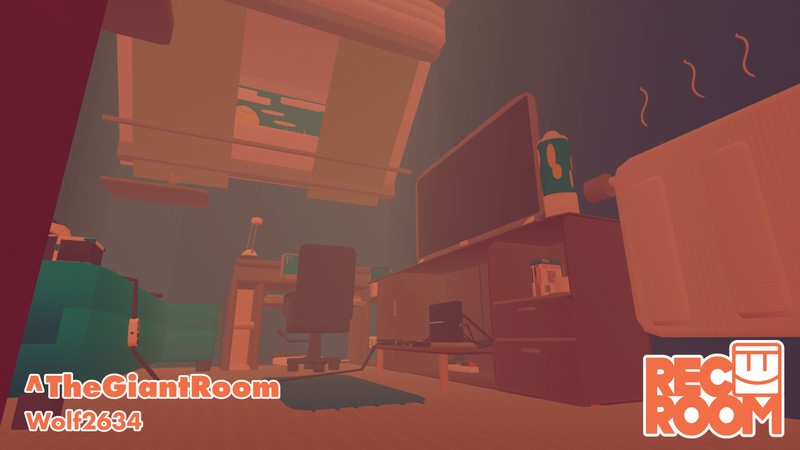
Like the PokePark, The Giant Room isn’t really interactive, it’s more a place of delight and wonder. Being a little person in a huge area is really great fun especially with all the people pretending to be Ant-Man and climbing all over the furniture.
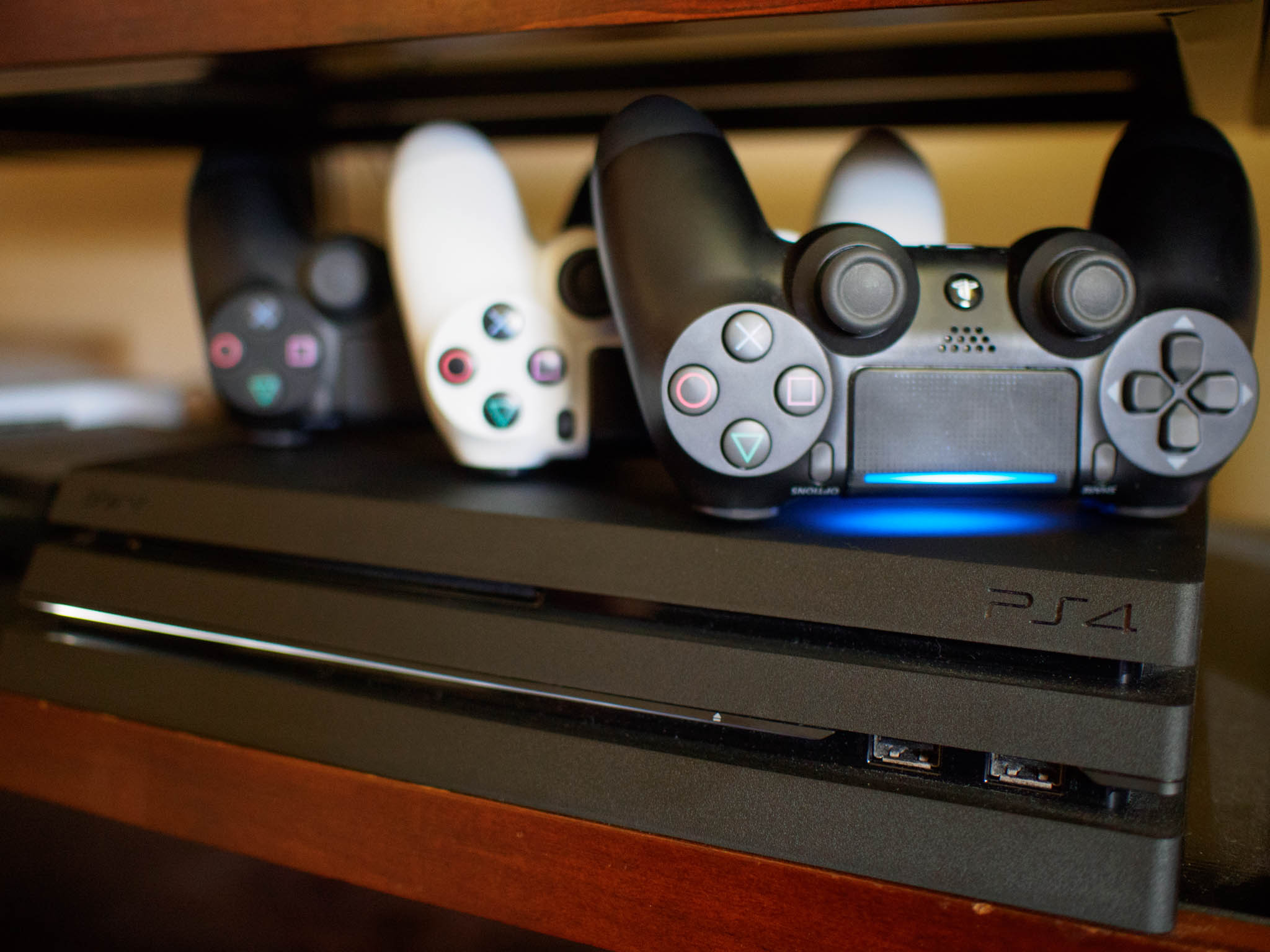
The time and effort put into this must have been huge as making even the simplest of shapes with the Maker pen makes me want to scream! So well done to the guy who managed to not only make a giant PS4 but also an entire PlayStation VR system to go with it. Very Cool.
New Features
So there we have it, 4 fun rooms to check out from the new update to Rec Room. I have spoken to the head of the FeaturedRoom section and she is going to be showing me a lot more in the coming weeks so watch out for more interesting Rooms. With the latest update of adding circuits to the mix the custom rooms are going to take a turn for the awesome and I can’t wait.
We are also creating our Custom Room called MoNaClub! It isn’t quite ready but you can go visit it anytime you like, you might even see some of us there so say hi and be nice!

PlayStation 4
- PS4 vs. PS4 Slim vs. PS4 Pro: Which should you buy?
- PlayStation VR Review
- Playing PS4 games through your phone is awesome
Amazon
Qualcomm increases NXP offer to $44 billion amidst Broadcom drama
Qualcomm’s increasing its original bid by 16%.
Earlier this month, Qualcomm remained resilient against Broadcom by declining the company’s second buyout offer of $121 million. Shortly after this, Qualcomm has increased its offer to NXP by 16% in an attempt to get Broadcom off of its back.

NXP is a Dutch semiconductor business that’s primarily involved with the creation of infotainment systems in automobiles, and this bid increase would see Qualcomm pay $127.50 per each share of NXP — resulting in a total purchase of $44 billion.
With this move, Qualcomm is hoping that the larger offer to NXP will make it easier for shareholders to see the value of Qualcomm as an independent company and reduce their eagerness to sell to Broadcom.
Speaking to Reuters about the revised offer to NXP, Qualcomm’s Board Director Tom Horton said:
It makes Qualcomm stronger and more profitable and diversified if there is no deal with Broadcom, and if we do decide to pursue a sale the same is true, more value would accrue to the Qualcomm shareholders.
Broadcom is reportedly evaluating its next moves following Qualcomm’s revised deal with NXP, so we’ll be sure to keep an eye on things and see what happens from here.
Qualcomm remains open to Broadcom buyout if offered more cash
Samsung Pay’s rewards program just got a lot less awesome
Now it takes twice as long to get the goodies you want.
Along with supporting older MST terminals, another area where Samsung Pay has an advantage over Android Pay (well, now Google Pay) is with its rewards program. Samsung Pay gives its users points they can redeem for gift cards, raffles, and more as they continually use the app, but in an unexpected move, Samsung’s making this rewards system not nearly as fun.

According to multiple users, Samsung Pay is taking the points you earn with its multiple tiers and cutting them in half. Because of this, the rewards system now looks like the following:
- Member users earn 5 points per purchase instead of 10
- Silver users earn 10 points per purchase instead of 20
- Gold users earn 15 points per purchase instead of 30
- Platinum users earn 20 points per purchase instead of 40
This move wouldn’t be so crummy if Samsung adjusted the cost for prizes to go along with the reduction in points that are earned, but this doesn’t seem to be the case. In other words, you’ll now have to make twice as many purchases as you used to in order to accumulate enough points for the things you love. Yay 🙃.
Samsung Pay updated with a cleaner and more traditional UI
Jessica Jones confronts her anger in new season two trailer
The long-awaited second season of Jessica Jones will finally debut next month and today Netflix gave us another look at what we can expect from it. In the first trailer, released earlier this month, we saw Jones grappling with her past and trying to get some answers to the many questions she has about her powers and the car crash that killed her entire family. In the second trailer we see how her anger affects, and often complicates, the life she has now.
The trailer opens with Jones in an anger management session, throwing a ball at a wall with increasing force as she runs down all of the reasons she has to be angry — the death of her family, being experimented on, and the abduction, rape and mind control perpetrated against her by Kilgrave. Throughout the trailer we see Jones trying to resist a life she didn’t ask for while also acknowledging a growing threat that could affect the people she cares about. And ultimately we see her doing what she does best — harnessing that anger and taking down the bad guys.
The new season hits Netflix on March 8th and you can check out the trailer below.
Source: Netflix
Facebook makes it easier to share detailed 3D objects
Facebook has had the option to post 3D objects for a while, and now you’ll have some better reasons to use it. The social site has introduced support for a standard 3D file format (gITF 2.0) that not only allows for richer objects with more realistic rendering like textures and lighting, but easier ways to share those objects. New developer hooks in Graph let any app share 3D content, including things you’ve created on your phone. Xperia XZ1 owners can capture an item in 3D Creator and send it directly to their Facebook feed, for instance. You can also share objects directly from libraries like Oculus Medium or (eventually) Google Poly.
The company has also hinted at “higher quality” 3D models, animations and more augmented reality.
Facebook isn’t shy about why it’s pushing these improvements. It has a vested interest in fostering as much VR-friendly material as it can, and that means encouraging people to share in 3D on a regular basis. The more you see in your News Feed, the more likely it is that you pick up an Oculus Rift to get a more immersive experience.
Source: Facebook for Developers
ASUS’ Windows Mixed Reality headset is now on sale for $429
We liked what we saw of the ASUS’ foray into Windows Mixed Reality hardware at IFA 2017, but we always figured it would likely be pricey. That’s been proven true now as the HC102 headset and two controllers are finally on sale in the US for $429.
While this might be the best mixed reality headset so far, it’s a little late to the party, too. Both Samsung and Acer released their take on the tech last year. They’re also both less expensive, with the former coming in near $300 and the latter for $400 with two controllers. HP has its own model, as well, which retails for $450.
Via: The Verge
Source: B&H Photo
‘Santa Clarita Diet’ returns to Netflix on March 23rd
Netflix’s show about managing suburban life with a zombie wife, Santa Clarita Diet, proved popular enough to secure a second season last spring. A year from that renewal, fans will finally get to watch when it arrives on March 23rd.
We’re fine! pic.twitter.com/MKKvaATZIC
— Santa Clarita Diet (@SCDiet) February 20, 2018
The second season sees husband Joel (Timothy Olyphant) and wife Sheila (Drew Barrymore) Hammond trying to keep things seeming normal while she slakes her zombie hunger on hapless neighbors. They’re joined by rival couple Chris (Joel McHale, Community) and Christa (Maggie Lawson, Psych), along with retired army colonel Ed (Gerald McRaney, This Is Us) and an amateur zombie sleuth (Zachary Knighton, Happy Endings).
Via: Entertainment Weekly
Source: Santa Clarita Diet (Twitter)
 AIVAnet