


These are three of the cities where AT&T’s 5G network will launch in 2018
Everything’s faster in Texas.
In early January, AT&T announced plans for launching a legit 5G network in twelve different markets by the end of 2018. The carrier remained tight-lipped at the time about which markets would be graced with this early access, but now we have the names of three of those twelve.

According to a post on AT&T’s newsroom, “parts of” Dallas, Atlanta, and Waco, Texas will be among the first cities to be serviced with true 5G speeds. Other supported cities will be announced over the next few months, and following these early tests, AT&T will expand its lineup of 5G-capable smartphones in 2019.
Commenting on this announcement, AT&T’s Senior Vice President of Wireless Network Architecture and Design, Igal Elbaz, said:
After significantly contributing to the first phase of 5G standards, conducting multi-city trials, and literally transforming our network for the future, we’re planning to be the first carrier to deliver standards-based mobile 5G – and do it much sooner than most people thought possible.
AT&T will initially offer 5G using the 3GPP standards and mmWave spectrum, but as it’s expanded, 5G will be integrated into other spectrum types as well. AT&T expects its 5G network to offer multiple gigabits per second of speed with low latency, and to help ensure everything stays on track, the carrier is opening a 5G lab in Austin where it’ll be able to run stress tests of the network and really put it through its paces.
AT&T will release true 5G service by late 2018
Carriers

- Which unlimited plan should you buy?
- Verizon’s Unlimited plans: Everything you need to know
- Everything you need to know about the T-Mobile ONE unlimited plan
- Everything you need to know about the AT&T Unlimited plan
- Everything you need to know about Sprint’s Unlimited Freedom plan
- Join the Discussion

Best Cases for the Huawei Mate 10 Pro

Need a case for your new Mate 10 Pro? These should be on your shortlist.
The Mate 10 Pro is a powerful flagship and a battery champ, and it’s finally launching in the U.S. in just a few days! If you’re planning on picking one up, you’ll probably also want to get a case to keep it safe.
While there aren’t too many cases for the phone just yet, we’ve compiled a short list of some of our favorites you might want to check out.
- Ringke Fusion
- Incipio NGP Pure
- Vinve Slim
- Spigen Rugged Armor
- UAG Plasma Series
- Nillkin Super Frosted Shield
Ringke Fusion

If you like the thin clear case that comes with the Mate 10 Pro but want a bit more protection, the Ringke Fusion could be the answer. It’s a two-part case, with a hard polycarbonate panel protecting the back and TPU around the sides for an easy grip.
Despite a relatively slim profile, the Fusion is MIL-STD 810G certified, meaning your Mate 10 Pro should be safe and sound. It even has a removable cover for the USB port to protect it from the elements.
The Ringke Fusion is one of the cheaper cases on our list at around $12, and you can choose from a few color options for the TPU bumper.
See at Amazon
Incipio NGP Pure

Inicio has always been a popular brand when it comes to phone cases, and for good reason. The NGP Pure is a simple case meant to add a bit of drop protection without all the bulk.
It’s made out of Incipio’s Flex2O polymer material, which is designed to hold up against stretching and tearing, meaning this case is built to last along with your phone.
You can pick up the NGP Pure from Incipio’s site for fairly cheap at just $20.
See at Incipio
Vinve Slim

If you really like the camera strip on the back of the Mate 10 Pro, you’ll likely appreciate the Slim case from Vinve. Like the Ringke Fusion, this case features a dual-layer design with TPU and polycarbonate, and mimics the camera strip with an extension of the bumper.
Because of its dual layer construction, the Vinve Slim is as protective as it is stylish, and the grippy TPU bumper should keep you from dropping it in the first place.
Should you decide to pick up the Vinve Slim, it’s available for about $9 on Amazon.
See at Amazon
Spigen Rugged Armor
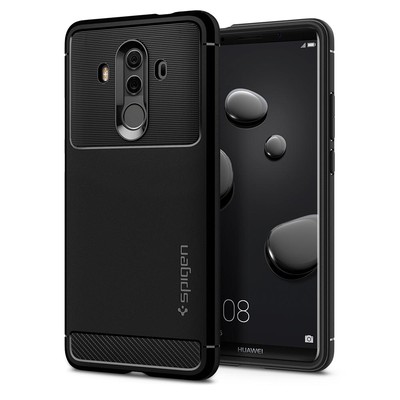
Thin, clear cases are great for showing off your phone, but sometimes you need something a bit more protective. That’s where Spigen’s Rugged Armor case comes in.
The Rugged Armor adds a small bit of thickness to the Mate 10 Pro (but don’t worry — it’s no Otterbox), but in exchange you get shock absorption through Spigen’s Air Cushion technology. The volume and power buttons and easy to press, and you trade the phone’s aesthetic strip around the cameras for carbon fiber styling.
Spigen sells the Rugged Armor for $19.99, but you can get it for only $13 or so from Amazon.
See at Amazon
UAG Plasma Series
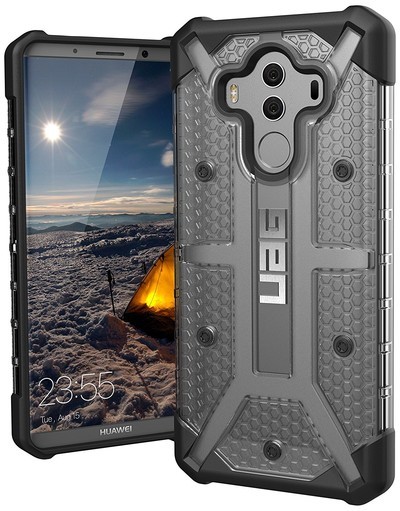
Another great option for the particularly clumsy is the Plasma Series case from Urban Armor Gear. This case takes special care to protect the Mate 10 Pro from fall damage with special lining inside and added thickness on the corners.
The rubberized grip keeps the phone from slipping out of your hand, and the cutouts still allow for easy access to the fingerprint sensor around back.
The Plasma Series is a bit pricy at about $40, but it could be well worth it to protect your $800 phone.
See at Amazon
Nillkin Super Frosted Shield

Some people just want a shell-style case that protects the back of the phone from scratches without adding bulk. For them, Nillkin’s Super Frosted Shield case is worth a look.
It’s made of a hard polycarbonate with a grippy texture, and the top and bottom are left open, meaning you won’t have to worry about your USB cables fitting into a tight port cutout.
The best thing about the Super Frosted Shield? It’s only about $9 on Amazon — and it even includes a screen protector in the box!
See at Amazon
Which one are you going to buy?
Are you planning on buying one of the cases we mentioned, or are you waiting on something different to come out? Let us know in the comments!
Huawei Mate 10
- Huawei Mate 10 Pro review
- Huawei Mate 10 series specs
- Huawei Mate 10 Pro U.S. review: Close to greatness
- Join the discussion in the forums
- More on 2016’s Mate 9
Get a free Amazon Fire TV 4K when you prepay for a month of DirecTV Now
Don’t pass this up.
DirecTV Now is offering a free Amazon Fire TV 4K when you sign up for its service and prepay for just one month of service, even if you pick the $35 a month plan. The company previously required you to prepay for two months of service to get the free Fire TV (which Amazon charges $70 for), but now has slashed that down to just one. For $35 you now get access to a full month of the streaming service and some new hardware to watch it on.

You will need to be a new customer to take advantage of this offer and the Fire TV 4K will be shipped to you via FedEx within 2 to 3 weeks from the time you sign up. The offer is a little hidden, as usual, so to take advantage of it you’ll need to begin the account creation process. Once you input your email and create a password you’ll select a channel package and any add-ons that you may want, and then it will offer you the free Fire TV 4K promotion.
DirecTV Now does automatically bill each month, so if you only want to do one month for this promotion be sure to cancel the renewal once you complete the checkout process. If you’d prefer an Apple TV 4K, you can get one for free when you prepay for three months of service.
See at DirecTV Now
Google’s Reply app is here and works surprisingly well
Earlier this month, Google’s Area 120 experimental division announced its latest creation – an Android app called “Reply.” Reply essentially brings Allo’s Smart Reply feature to all of your communication apps, and it’s now available for anyone to download.

Reply is still in beta, and if you want to download it, you’ll need to sideload the APK file as it isn’t available on the Play Store. Assuming you’re comfortable doing this and have a phone running Android 7.0 or later, getting Reply is just a few taps away.
Once you open the app, sign in with your Google account, and enable notification access, you’ll get a quick rundown of all the features Reply has to offer. In addition to automated responses based on the context of a conversation you’re having, Reply can also generate responses using your location data, send a heap of automatic replies based on your work calendar and certain keywords, and more.


I tested out Reply for a few minutes on my Pixel 2, and whether I was using Android Messages, Hangouts, or Facebook Messenger, it worked just as it’s advertised. The suggested replies are certainly what users will interact with the most, but if you take some time to set up all the automation features Reply has to offer, you could turn it into a really powerful tool.


There are still some bugs here and there (I personally wasn’t able to set my home or work address), but even so, it’s remarkable how well Reply works in such an early form. If you want to give it a try, you can download it here.
Reply wants to add Smart Replies to all your messaging apps
Spotify’s ‘Add to Queue’ is a lie

When you see Add to Queue in Spotify, think Play Next instead.
Sometimes you don’t want to hassle with playlists or radio stations; you just want to throw a few songs together in the queue and get the tunes flowing. Unfortunately for Spotify users, the queue behaves differently — and awkwardly — in ways that can make simple tasks difficult, if not impossible. Chief among the awkward and different ways Spotify’s queue works is “Add to Queue,” which should really be called something else.
When you add a song to your queue using Add to Queue, rather than adding it to the main queue, it’s added to a special sub-queue called “Next in Queue.” Next in Queue behaves drastically different than the regular queue:
- Next in Queue remains next in queue, even if you move to another location in the queue. So if you skip to the end of an album, use Add to Queue on an album, and then skip back to the beginning of the album you were listening to, it won’t play the album in the queue and then the second album. It will play the first track of the first album, then the entirety of the second album, then the rest of the first album.
- Once a track in Next in Queue is played, it vanishes from the playback order. If a song in Next in Queue ends and you hit previous track, it won’t be the song that just played, but the last song from the regular queue that played. Tracks can’t be replayed unless you restart them before the end of the song.
- Tracks in Next in Queue do not shuffle when a queue is on Shuffle play. Tracks are played in the order they were added to Next in Queue, and then shuffle will resume in the regular queue.


These deviations may seem minor, but they can add up to a major impact when attempting basic tasks. Want to listen to three albums in a row on Spotify? Well, you need to start with a pre-existing queue, use Add to Queue to put all three albums in Next in Queue in order, then skip the current track in the pre-existing queue to start the three-album mini-queue. Want to shuffle three albums while you listen to them? Well, you’ll have to add the albums to a playlist and shuffle them there.
Trying to build a playlist by adding songs to the queue and seeing how they sound in the mix? You’ll have to evaluate them before the song ends or drag each one from Play in Next to the regular queue in order to have them not vanish the second the song’s over.
Queue management in Spotify is a little bit like playlist management for Spotify: confusingly limited for what seem like simple operations. You can’t save a currently playing queue as a playlist either the way many music players do, but given that building a playlist in the queue is next to impossible anyway with Play in Next’s behavior, it’s a small loss.

Have you experienced an of these frustrations in Spotify while trying to play a particular mix of albums or songs? Do you just start a new queue or playlist every time you want to heard something? Tell us how you manage it in the comments below, and tell us: should Add to Queue get a different name?
Arizona Sunshine tips and tricks for PlayStation VR

We can help you git gud at one of the best zombie shooters on PSVR.
Arizona Sunshine, available for PlayStation VR (PSVR) as well as HTC Vive, Oculus Rift, and Windows Mixed Reality, sends you out into the bleak, dry desert to complete a campaign mode before enjoying it all over again online with a friend or up against hordes of enemies that don’t stop coming until you run out of ammo. To help you get the most out of this zombie shooter, I’ve put together a list of tips and tricks.
See at PlayStation Store
Sort out your controllers

The aged PS Move controllers that go along with the PSVR are undoubtedly its weakest point, and the poor tracking and controls are only magnified once you’re forced into a tense situation where precise movement is required to survive.
You get the highest level of immersion when using the two Move controllers — you feel like you’re actually using the virtual hands — but unfortunately, you also get the clunkiest control scheme and poorest aim.

Coupled with a big update that brought a bunch of two-handed weapons to Arizona Sunshine, the PSVR Aim controller (about $60) will likely be your best bet when it comes to shooting and combat movement. It simulates an actual two-handed gun stock, and it has a couple of joysticks that let you move around freely and without hassle. The biggest issue is that opening doors and interacting with some other objects feels weird.
See at Amazon
If dropping that extra cash on the Aim controller isn’t an option right now, you can always try out the regular DualShock 4 controller that came with your PlayStation 4 (PS4). It might take a little bit of getting used to, but the general consensus seems to be that it’s still better than using the Move controllers.
Improve PSVR tracking

PSVR relies on bright lights mounted on the headset and controllers to track movement, and you might be having some issues with unstable wobbling or tearing if you’re playing in a room bathed in sunlight. I’ve had best tracking with the blinds closed and lights out, but at least removing any direct glare should help a lot.
When aiming down the sight with Move or Aim controller, try holding it further away from your face. This way, the camera has a better chance of distinguishing headset and controller lights, resulting in better tracking.
You can also get creative with your camera’s physical placement in the room. Some claim that setting it at a 45-degree angle across the room helps since the camera again has an easier time telling the difference between controller and headset lights when you have a weapon raised.
Others still have tried mounting the camera straight down on the ceiling. This keeps the controller and headset lights apart, even with a gun held out straight in front of your face. It won’t hurt to try different orientations, and when you find one you like, stick with it.
Arizona Sunshine PSVR gameplay tips and tricks

Once you’ve chosen a controller and have tracking nailed down, it’s time to get into the meat of Arizona Sunshine.
Choose locomotion you’re comfortable with
While smooth movement — the kind that simulates natural walking and turning — is more immersive, you might find that it makes your legs shake and head spin. Though teleporting and snap turning might make you feel more like a superhero than a ragged survivor, you’ll be able to enjoy the game without worrying about falling flat on your face.
Treat gunplay as realistic
Some great PSVR games are more on the arcade-y side of things, letting you run and gun with a souped-up shotgun while demons erupt in blood (looking at you, DOOM VFR). However, Arizona Sunshine is more realistic and should be treated so. It might seem natural to stay far away from zombies, but if you want to pull off headshots with amazing accuracy, chances are you’ll have to get close.
On a related note, it’s not a bad idea to take that extra second to line up a shot properly (if you aren’t using a shotgun and aren’t surrounding in walkers). Ammo gets real scarce in the later levels, so every shot really does count.

Collect ammo faster
See a box of ammo sitting on the seat of a car? Unless you’re working on a stealthy run, just shoot out the window and reach into the car instead of opening the door. This is much faster and you’ll be reloading at the same time you’d otherwise still be fiddling the with handle.
Conserve ammo
When you reload a gun that has an unfinished magazine, those extra bullets fall to the ground with the expended clip. To save wasting those precious bullets, grab the ejected magazine from off of the ground and replace it in your belt. The ammo will be re-added to your total.
Reload comfortably
VR games often make reloading a gun a challenge, and while Arizona Sunshine definitely isn’t the worst offender, you’ll want to get used to the mechanic before getting into any tense situation. Since you can pick up your magazines and not lose bullets, go through the motions a bunch of times when you aren’t already under attack.

Plan your defense
One of the scariest parts of Arizona Sunshine is when you’ve attracted a horde of shambling, rotting corpses. Once you know you’re about to be sieged, find a good place from which you can defend. Don’t get caught out in the open, and don’t leave your back unprotected!
Don’t be afraid to retreat
Once you’ve put in some time, you should be able to get a sense for when the zombies are about to overwhelm you. Sure, your skills will keep improving and you’ll be able to dispatch them easier, but there will still be times when high-tailing it out of a situation is a better strategy than sticking around to become dinner.
See at PlayStation Store
More resources
- How to locate and fix tracking issues for your PlayStation VR
- Best place to buy your PlayStation Aim controller
- How high should your PS camera be for VR?
Best External Monitors for your Chromebook
Because sometimes you just want to go big; plug into one of these monitors for that desktop feeling.

Chromebooks are perfect on-the-go computers for a lot of people, but sometimes you just want to sit down, relax, and do your thing with a big display. That’s why almost every laptop, regardless of what software is running on it, has some sort of port to send video out to an external display.
And connecting it all together really couldn’t be easier. You really only need three things: your Chromebook, your monitor, and a cable that can plug into each. Chrome makes using desktop peripherals dead simple, and we’ve had a close look at exactly what you need to do and how you can get started.
Using your Chromebook with an external monitor, mouse and keyboard
That’s the easy part. Sometimes making sure you buy the right thing is the hard part. Nobody wants to spend money they didn’t need to spend or find out there was a better option or even the “perfect” option out there and they didn’t see it. We can help! Here’s a rundown of the best monitors for your Chromebook no matter what or how you need it.
- Best 4K monitor: BenQ PD3200U
- Best 1080p monitor: ASUS VE278H
- Best smaller monitor: Acer G226HQL
- Best budget monitor: ASUS VS247H-P
Best 4K monitor: BenQ PD3200U

You’ll find monitors from BenQ on any best of list even if you’re not completely familiar with the name, and the PD3200U is one of the best displays the company has ever built.
Designed for digital content creation, the PD3200U has a 20 million:1 dynamic contrast ratio, to give you the blackest blacks and the whitest whites and specialized display modes with tools like Darkroom mode or Low-Blue light mode to make sure the screen looks exactly how you want it. The monitor can even act as a KVM switch if you need to connect more than one computer of any kind.
The BenQ PD3200U comes in around $800, which isn’t a bad price for a 32-inch 4K display with all these features.
See at Amazon
Best 1080p monitor: ASUS VE278H

Manufacturers can do amazing things with the tried and true 1080p panel and the ASUS VE278H is a testament to that. An amazing 50,000,000:1 contrast ratio starts the list of great features, as well as Video Intelligence Technology, an ASUS feature that lets you connect just about any multimedia device as an input rounds it up.
The best feature of a 1080p monitor is the price and you’ll love what you get for just $180 with the ASUS VE278H.
See at Amazon
Best smaller monitor: Acer G226HQL

Don’t have a lot of space on your desk but still want something bigger than the 12-inch display on your Chromebook? Acer’s G226HQL can help.
Its 21-inch footprint means it won’t take up a lot of space and the 1080p panel looks incredibly sharp at this smaller size. The Acer G226HQL doesn’t have the most features of any monitor out there, but the size is right if you’re short on room and the price is perfect at $90.
See at Amazon
Best budget monitor: ASUS VS247H-P

You don’t have to spend a lot to get a great monitor and ASUS proves it with the VS247H.
This 24-inch 1080p monitor has the same features as its 32-inch cousin that was our best overall 1080p choice, but when they are packed into the 24-inch size, you will save a lot of money.
The ASUS VS247H-P comes in right around $140, and it’s a heck of a lot of monitor at the price.
See at Amazon
Your favorite?
Do you use an external monitor with your Chromebook? Which one? Let us know in the comments below!
Chromebooks
- The best Chromebooks
- Should you buy a Chromebook?
- Google Play is coming to Chromebooks
- Acer Chromebook 14 review
- Join our Chromebook forums
‘Alto’s Odyssey’ arrives on the App Store a day early
The buzz around Alto’s Adventure sequel Alto’s Odyssey has been brewing for over a year and now it’s finally arrived — a day early. Originally slated for release on February 22, keen-eyed fans have spotted it in the iTunes store today, meaning players have the opportunity to lose a whole extra day to the addictive infinite runner. As with the game’s predecessor, though, Android users will have to wait before they can contend with the fresh challenges presented by Alto’s desert landscape. In an email to Android Authority, Ryan Cash from Snowman, the team behind the series, said, “We aren’t committing to a release date at the moment, but we’re hoping to get an Android version out in the months ahead.”
Source: iTunes
Renault’s ‘smart island’ runs on wind power and recycled batteries
Renault has launched a “smart island” in Portugal that uses its Zoe electric vehicle, home batteries, smart charging and vehicle-to-grid (V2E) energy storage to run without fossil fuels. The idea is to make the Madeira island of Porto Santo energy independent and stimulate renewable energy production. “[We want] to build a model that can be carried over to other islands and cities,” Renault Electric Vehicle Director Eric Feunteun told Engadget.
Unlike Tesla’s massive Powerpack installation, the Renault project is more of a community endeavor on the small (16 square mile) and sparsely populated (5,483 inhabitants), tourism-oriented island. It will unroll in three phases: In the first, 20 fortunate Porto Santo volunteers will get 14 Zoes and six Kango Z.E. utility vans to use every day. They’ll benefit from 40 new connected public and private charging stations set up by Renault and local utility Empresa de Electricitade da Madeira (EEM).
“Let’s say you come home from work at 7 PM with a decent charge left, and only need two to three hours of charging,” said Feunteun. “The smart charging system we’re testing will decide when the best time to do that is, based on usage, energy availability and other factors. Then, it can charge up to eight times a day in chunks as small as 15 minutes.”

During phase 2, the EV will become part of the grid by feeding electricity back into it during peak hours. That way, the EV owners will not just benefit from the smart charging network but also pay it back by supplying what are essentially mobile home storage batteries. “Electric vehicles have moved from being a constraint, as seen by the energy companies, to an opportunity in the last few months and years,” Feunteun said. “In particular, they provide a way to store electricity, which is one of the key problems on their table with renewable energy.”
In the final phase, Renault will introduce “second-life” stationary “Powervault” and other batteries that have been recycled from its Zoe and other EVs. Those could come from cars that have been in accidents, or from Renault’s recent program that allowed owners to swap the old 22 kWh hour batteries for the new 41 kWh ones. The idea is that even though an old battery isn’t up to the heavy demands of an EV, it’s still plenty useful for supplying homes and power grids.
Those will attach to local solar and wind systems, storing the unpredictable levels of electricity they produce. The energy can then be recovered by the grid as needed, much as Tesla’s Australian Powerpacks can supply energy during peak usage.
Renault teased the idea of combining electric vehicles and homes to form a grid when it launched the Symbioz concept car, complete with its own home. You could pull the vehicle right into your living room (or garage, in the real world), plug it in, and either charge it or give energy back to your home.

Renault
Using EVs in a smart charging network makes a lot of sense, as they can absorb energy when supply exceeds demand (at night, or when the sun is shining) and give it back when everyone needs power. “So if there is really a peak at 7 PM, when everyone is cooking, then the battery continues to empty on the grid,” explained Feunteun. “Then, it will recharge at midnight when it is windy and no one is consuming energy.”
Renault is one of the first companies to test smart charging in a solar and wind energy-powered region, using EVs and home batteries to smooth peak power. The data it gathers will be invaluable when it expands the program to larger eco-districts or cities.
It will even recycle the batteries used on the Porto Santo Zoe and Kangoo vehicles to smooth the power grid, creating a true circular upgrade. “The Madeiro project is one of the most complete electric vehicle green initiatives ever,” said Feunteul. “It brings together all the different ecosystems to create a zero emissions, carbon-free island.”
MLS eSports league’s first tournament streams on Twitch this April
Last month, Major League Soccer became the latest US sports association to create its own eSports league, eMLS, which will exclusively run EA Sports’ game FIFA 18. We knew its first-ever event would be a tournament (the eMLS Cup) at the upcoming PAX East where 19 players, each representing an MLS team, will compete to qualify for the league’s global playoffs. But today, the nascent eMLS has laid out how the tournament will go down — and where folks at home can stream it.
The 19 players will be split into two conferences — ten clubs in the Eastern Conference and nine in the Western. Each competitor will create their own squad of 11 starting players, with seven more on the bench and five in reserve. The catch? Three MLS players have to be on the field at all times, including two from the club that the competitor is representing. Naturally.
The eMLS Cup will start on Thursday, April 5th for preliminary rounds, with the top eight players from each conference progressing to seeded knockout rounds on Saturday before the Cup Final on Sunday. The weekend matches will be held on the PAX Arena Main Stage, but those staying at home can watch it on the PaxArena Twitch channel. The final, however, will also be broadcast on MLS channels, including its website.
The eMLS Cup finalists will earn spots on the EA Sports FIFA 18 Global Series Playoffs, and the top 32 teams there will progress to the FIFA eWorld Cup in August. That, of course, is where the FIFA 18 World Champion will be crowned.
 AIVAnet