


Five years on, Microsoft’s Surface has made your PC better
Microsoft
“Microsoft’s Surface Pro fails to solve any problem for any user.”
That was my conclusion when I reviewed the original Surface Pro five years ago. Microsoft pitched it as an innovative, do-it-all solution, a combination of iPad, laptop, and workstation. I wasn’t buying it. It was too thick, too slow, and the battery lasted just a few hours in normal use. Most of my fellow reviewers were more charitable, but only just. The Verge, for instance, ran its review under the strictly factual headline, “The first real computer to come out of Redmond.”
Yep. It sure was. It was also far from the last. Microsoft continued from its rocky start, gradually refining each new model. The Surface Pro 2 was much faster and lasted longer on a charge. The Surface Pro 3 even more so. My mind had changed completely by the time the Surface Pro 4 rolled out in 2015. I called it our favorite 2-in-1 PC, and the 2017 Surface Pro has retained that title ever since.
It’s incredible that Microsoft has managed such a turnaround in just five years. The PC arena isn’t kind to newcomers. Most major players in hardware have been doing it for decades, but operate the business on razor-thin profits. Even chipmakers like AMD and Intel must fight constantly to keep themselves at the bleeding edge.
The fact that it was Microsoft – and not some plucky start-up — that pulled off a bold entry into PC hardware is even more unexpected. Very few people thought the company would not only continue in the space, but actually expand to add new models, like the Surface Book and Surface Laptop. Much credit is due to innovators like Steven Bathiche, as well as to CEO Satya Nadella, who was patient enough to stay his ax during the division’s formative years. And Panos Panay, of course, head of the devices group behind the Surface line. Despite some of the issues we took with the first-gen model, it helped bring Microsoft where it is today.
“In hindsight, it’s clear that Surface Pro created the foundation for who we are today – our team culture, our dedication to our customers, our obsession with perfecting every detail, and our inexorable desire to innovate,” he wrote in a blog post celebrating the 5-year anniversary. “I’m incredibly grateful for everything these five years have brought, and I’m looking forward to continuing this journey.”
That’s not to ignore the bumps along the way. Microsoft still has some kinks to work out both with the hardware, and with how the hardware works alongside Windows 10. The high pricing of most Surface devices only underscores the problems that do exist. If you drop $3,200 on a high-end Surface Book 2, you expect it to be perfect, but that’s not necessarily what you’ll get.
Still, Surface has earned a loyal, even rabid following — and for good reason. The Surface devices are fast, functional, and interesting. They’ve pioneered new product categories and forced the more traditional PC builders, like Dell and HP, to up their game. I have no doubt that, without Surface, we wouldn’t see the modern portable PC embracing the 2-in-1 idea so aggressively that, in some cases, it’s harder to buy an old-fashioned laptop than not.
That, at the very least, is worth celebration.
Editors’ Recommendations
- I tried using the Surface Book 2 as my only PC, and it let me down
- The best 2-in-1 laptops you can buy
- Dell XPS 15 2-in-1 vs. Microsoft Surface Book 2
- After a quiet year, is Microsoft ready to wake up, or settle down?
- Microsoft takes on Apple’s prestige: Surface Book 2 15-inch vs. MacBook Pro 15
Samsung, we need to talk about your laptops
Matt Smith/Digital Trends
Samsung has never been that serious about its laptops.
That fact was never made more clear to me than when I got a tour of the company’s massive booth at CES this year. The booth was expansive, impressive, and covered everything from the Bixby AI service to modular televisions. In a tiny corner of the booth were a couple of new laptops and a new 2-in-1, all displayed with an uncharacteristic lack of fanfare. Unsurprisingly, the representative I was with didn’t have much of anything to say about them. Televisions and smartphones are flashier, and they’re where Samsung has focused its attention over the years.
The Samsung Notebook 9 Pen has a lot of potential. It’s extremely light, thin, has great battery life, and comes with the S Pen bundled in. Samsung even engineered a little hole for the stylus to fit into it. But that’s why it’s disappointing that Samsung didn’t put a little more care into ensuring that this was a great product that I could recommend.
The Notebook 9 Pen had the potential to surpass 2-in-1s in the same category like the HP Spectre x360 and Lenovo Yoga 920 — especially with how light and loaded it is. But instead, Samsung didn’t pay enough attention to things like the design, which is so nondescript that it’s almost as if it wasn’t designed at all. I wish Samsung had paid attention to the keyboard and touchpad, which are both mediocre at best. Even the S Pen, which is definitely the most interesting thing about the Notebook 9 Pen, feels more tacked on than truly translated into the PC world.
More than any of that, I wish that Samsung had paid a little more attention to the price of the Notebook 9 Pen, which starts at a hefty $1,400. It would have been far more interesting to get the price under $1,200, even if it meant bringing the processor down to a Core i5.
It’s not that laptops like the XPS 13, MacBook Pro and Surface Book 2 are perfect devices — they’re not. I might not agree with every choice made on those, but with those, it’s always clear that someone made an intentional choice. Call it first world problems, but the most delightful experience as a user of any product is to feel that the designers and engineers cared, that they paid attention to the smaller details of how the device is used.
I can’t really blame Samsung. Smartphones are where the money’s at, and with how well Samsung is doing in that space, it’s worth the attention. But using the Notebook 9 Pen made me wish Samsung took just a little more effort to move its laptops from just decent — to great.
Editors’ Recommendations
- The best laptops of CES 2018
- The ThinkPad T480s isn’t the best laptop of CES, but it has a place in my heart
- Microsoft Surface Book 2 13-inch Review
- Acer Swift 3 review
- Dell XPS 13 Review
Intel opens bug hunt to all security researchers, offers possible $250K payout
Want to make a quick $250,000? Who doesn’t, right? If you have the know-how to hunt down vulnerabilities in hardware and software, then that high-dollar reward could be within your grasp. Intel is now offering an updated bug bounty program until December 31, 2018, setting that nice little chunk of change as the maximum payout for hunting down “side-channel vulnerabilities.” These vulnerabilities are hidden flaws in typical software and hardware operations that could potentially lead hackers to sensitive data, like the recent Meltdown and Spectre exploits.
“In support of our recent security-first pledge, we’ve made several updates to our program,” the company says. “We believe these changes will enable us to more broadly engage the security research community and provide better incentives for coordinated response and disclosure that help protect our customers and their data.”
Intel originally launched its Bug Bounty Program in March 2017 as an invitation-only plan for select security researchers. Now the program is open to all in hopes of minimizing another Meltdown-type discovery by using a wider pool of researchers. The company is also raising the reward amounts for all other bounties, some of which offer up to $100,000.
Intel’s list of requirements for reporting side-channel vulnerabilities is somewhat short, including the 18-year-old age requirement, a six-month gap between working with Intel and reporting an issue, among other requirements. All reports must be encrypted with the Intel PSIRT public PGP key, they must identify an original undisclosed problem, include CVSS v3 calculation results, and so on.
Intel wants security researchers to hunt down bugs in its processors, chipsets, solid state drives, stand-alone products like NUCs, networking and communication chipsets, and field-programmable gate array integrated circuits. Intel also lists five types of firmware, and three types of software that fall under its bug bounty umbrella: drivers, applications, and tools.
“Intel will award a Bounty for the first report of a vulnerability with sufficient details to enable reproduction by Intel,” the company states. “Intel will award a Bounty from $500 to $250,000 USD depending on the nature of the vulnerability and quality & content of the report. The first external report received on an internally known vulnerability will receive a maximum of $1,500 USD Award.”
In January, researchers went public with a vulnerability found in processors dating back to 2011 that allows hackers to access the system memory and grab sensitive data. The attack vector takes advantage of a method processors use to predict the outcome of a process string. Using this predictive technique, processors store sensitive data in the system memory in an unsecured state.
One method of gaining access to this data is called Meltdown, which requires special software to capture the data. With Spectre, hackers could trick legitimate apps and programs into coughing up the sensitive data. Both methods are theoretical, and currently not actively exploited in the wild, yet Intel seemed somewhat embarrassed over the potential issues.
“We will continue to evolve the program as needed to make it as effective as possible and to help us fulfill our security-first pledge,” Intel promises.
Editors’ Recommendations
- Qualcomm is working on patches to address Meltdown and Spectre flaws
- Apple protects MacOS Sierra, El Capitan from Meltdown, lists Google bugs
- Intel starts rolling out new Spectre firmware fixes, Skylake goes first
- Intel requests hardware partners to halt Meltdown patches due to reboot issue
- Three generations of Intel processors are vulnerable to management engine bug
Samsung Notebook 9 Pen vs. Dell XPS 13 2-in-1
Dan Baker/Digital Trends
The Windows 10 2-in-1 market continues to roll, with a host of new systems of various configurations — 360-degree convertibles and detachable tablets, mostly — hitting the streets at all price points. Over the last year, premium convertible 2-in-1s have become genuine competition for traditional clamshell notebooks, with the obvious added advantage of enabling multiple form factors and effective pen support.
Dell and Samsung have both been players in this market, with the former’s primary offering, the XPS 13 2-in-1, becoming a bit dated at this point while the latter has just rolled out its newest editions. We therefore thought it good to to run a a Samsung Notebook 9 Pen vs Dell XPS 13 2-in-1 shootout to see if and older machine can hold its own.
Dell XPS 13 2-in-1
Samsung Notebook 9 Pen
Dimensions
11.98 x 7.8 x 0.54-0.32 inches
12.2 x 8.1 x 0.57-0.64 in
Weight
2.7 pounds
2.19 pounds
Processor
7th Generation Intel Core i5 or i7 Y-Series dual-core
Up to eighth-generation Intel Core i7
RAM
Up to 16GB
Up to 16GB
Display
13.3-inch IPS touchscreen
13.3-inch IPS touchscreen
Resolution
Full HD (1,920 x 1,080) or QHD+ (3,200 x 1,800)
Full HD (1,920 x 1,080)
Storage
Up to 1TB PCIe SSD
Up to 512GB PCIe SSD
Networking
802.11ac 2×2, Bluetooth 4.2
802.11ac 2×2, Bluetooth 4.2
Ports
1 x USB-C 3.1, 1 x USB Type-C with Thunderbolt 3, microSD reader, 3.5mm combo jack
1 x USB-A 3.0, 1 x USB-C, HDMI, microSD card reader, 3.5mm combo jack
Windows Hello
Infrared facial recognition
Fingerprint reader
Infrared facial recognition
Fingerprint reader
Operating System
Windows 10
Windows 10
Battery
46 watt-hours
39 watt-hours
Price
$1,000+
$1,400+
Availability
Available now
Coming soon
Review
4 out of 5 stars
Coming soon
Design
The Dell XPS 13 2-in-1 was clearly designed with one of the best 13-inch traditional notebooks on the market in mind. It bears a very strong resemblance to the the XPS 13, with the same ultrathin bezels, a similar aluminum lid and base, and a keyboard deck constructed of comfortable — and rigid — carbon fiber. If you look at the XPS 13 2-in-1 and the XPS 13 side by side, only the highly functional 360-degree hinge and a slightly thinner chassis gives away the 2-in-1 version.
It’s an attractive, conservative design that doesn’t break any new ground (unlike the very latest version of the XPS 13), and it doesn’t really need to. Dell’s philosophy with the XPS 13 2-in-1 was clearly, “if it’s not broke, don’t fix it,” and we can’t say it’s a terrible idea.
Interestingly, Samsung took a similar approach with its Notebook 9 Pen. It, too, isn’t greatly changed from its previous versions, with a similar durable and light silver magnesium chassis and conservative look. The bezels are small, as is typical with modern notebooks, but not so minuscule as the Dell’s, and we can’t really complain about the aesthetics — it’s just that it really doesn’t stand out in a crowded market.
At the same time, although we can’t really fault the Notebook 9 Pen’s build quality, it does suffer from some flex that we don’t see in the XPS 13. Its magnesium frame is strong enough, but it also makes the notebook so light that it feels a bit plasticy. Couple that with a bit more thickness and the Samsung just doesn’t seem as robust.
We think the Dell is the better looking machine and it’s more solid in the hand. It gets the win in this category.
Winner: Dell XPS 13 2-in-1
Dan Baker/Digital Trends
Performance
Introduced in January 2017, the Dell XPS 13 2-in-1 still uses seventh-generation Core “Y-Series” processors. Previously known as Core M, the Y-Series CPUs are low-powered dual-core processors that offer reduced performance over the “full” Core line in exchange for better efficiency and lower heat output. Options include Core i5-7Y54 and Core i7-7Y75 CPUs, and the XPS 2-in-1 can be configured with up to 16GB of RAM and up a 1TB solid-state drive (SSD). Dell has improved on the usual Y-Series with a special Dynamic Power Mode that boosts performance for short periods of time. We found that the extra burst of power helped, but it didn’t quite close the gap with full-power Core processors.
The Samsung Notebook 9 Pen ups the performance considerably, with eighth-generation quad-core Intel Core processors, up to the Core i7-8550U, that are significantly faster than the Y-Series and competitively efficient when running the usual productivity tasks. Buyers can also equip the Notebook 9 Pen with up to 16GB, although storage maxes out at 512GB. We did notice in our testing that Samsung didn’t quite get the thermal design down pat with their 2-in-1, and so it runs a bit hotter and louder than we expected.
Simply put, the Notebook 9 Pen is heads and shoulders above the Dell XPS 13 in terms of sheer performance. This will matter most if you need any kind of serious power for more demanding tasks like video editing, and we’d feel remiss if we failed to assign this win to Samsung.
Winner: Samsung Notebook 9 Pen
Keyboard, Mouse, and Pen
The Dell XPS 13 2-in-1 has a comfortable keyboard that offers excellent key travel and a precise typing feel. Given the 2-in-1’s diminutive size, the keyboard does compromise the key layout a bit, including a smaller-than-usual backspace key. Keyboards on such thin and light machines sometimes sacrifice the typing experience, but that’s not the case with the Dell. The touchpad, however, was responsive and supports the Microsoft Precision protocol — although it’s a bit on the small side. Finally, the XPS 13 2-in-1 supports the Dell active pen, which offers 2,048 levels of pressure sensitivity and Windows Ink support.
The Samsung Notebook 9 Pen’s keyboard, on the other hand, was underwhelming. It offers sufficient key travel, but the bottoming action is soft and feels imprecise. We went so far as to call it “squishy” in our review. The Microsoft Precision touchpad is also a bit small, and so also a disappointment. Samsung did equip the 2-in-1 with its S Pen utilities and a very small pen (with 4,096 levels of pressure) that’s pulled from the Note 8. We liked the software but didn’t like the pen’s physical design quite as much.
Finally, both machines support Windows 10 Hello login via both fingerprint scanner and infrared facial recognition. All in all, we think the Dell’s superior keyboard gives it a slight advantage.
Winner: Dell XPS 13 2-in-1
Matt Smith/Digital Trends
Connectivity
The XPS 13 2-in-1 gives up the past almost completely, offering just two USB-C 3.1 connections, one of which supports Thunderbolt 3 with four lanes of PCIe Gen 3 available. That’s promising for anyone who wants to connect an external GPU for gaming. The only nods to legacy support include a microSD card slot and a 3.5mm headset jack.
The Notebook 9 Pen is much more backwards-looking, offering a USB-A 3.0 port, a USB-C 3.1 Gen1 port, and an HDMI port to go with a microSD card reader and a 3.5mm headset jack. There’s no Thunderbolt 3 support, unfortunately, limiting the notebooks future connectivity options.
We don’t like the Dell’s need to use dongles to connect old-school peripherals, but we like the Samsung’s lack of Thunderbolt 3 even less. We’ll give the win to the XPS 13 2-in-1 here, but grudgingly.
Winner: Dell XPS 13 2-in-1
Display
The Dell XPS 13 2-in-1 has two 13.3-inch displays available, Full HD version and a higher-resolution QHD+ (3,200 x 1,800) display, that are likely the same as the ones found in the XPS 13. The Full HD model had excellent contrast and solid color gamut coverage in our testing, but color accuracy was just average and brightness was a bit worse than average.
The Samsung’s Full HD 13.3-inch display was even better in terms of color gamut support, and its accuracy was also higher. Contrast was significantly lower, however, although brightness was considerably better. The Notebook 9 Pen’s display was pleasant to use, but nothing particularly spectacular.
Neither display was anything special, and we’re hard-pressed to assign a winner in this category.
Winner: Tie
Portability
The Dell XPS 13 2-in-1 is a thin and light machine, weighing 2.7 pounds and tapering from 0.54 inches to 0.32 inches thick. The battery is significantly smaller than its XPS 13 notebook sibling, at 46 watt-hours versus 60 watt-hours, but it enjoys the efficiency benefits afforded by the low-power Y-Series CPUs.
The Samsung Notebook 9 Pen is a significantly thinner at 2.19 pounds but a bit thicker at 0.64 inches. It packs in a smaller battery at 39 watt-hours and uses higher-power quad-core CPUs. You’d think the Dell would be a clear battery leader.
As it turns out, the Samsung lasted almost four hours longer when looping video, something that doesn’t surprise us given the eighth-generation Intel Core processors’ battery-sipping nature in low-demand tasks. At the same time, the XPS 13 2-in-1 lasted more than three hours longer when browsing the web. So it would appear that the more power-intensive the process, the more the Dell benefits from its low-power processors.
The Dell is thinner but considerably heavier, and its battery lasts longer for more intensive tasks but the Samsung wins out when the computing tasks aren’t so demanding. We’ll give a slight win to the Notebook 9 Pen for just out light it is for use in tablet mode.
Winner: Samsung Notebook 9 Pen
Pricing and availability
Dell’s pricing on the XPS 13 2-in-1 has a relatively low entry price, at $1,000, but that’s for a fairly entry-level configuration with a Core i5-7Y54, only 4GB of RAM, and a measly 128GB SSD. With a Core i7-7Y75 CPU, 8GB of RAM, and a 256GB SSD, the XPS 13 2-in-1 comes in at $1,300.
The Samsung Notebook 9 Pen starts out with a higher-end configuration with a Core i7-8550U, 8GB of RAM, and 256GB SSD is priced at $1,400. That means that there isn’t a lower-priced option, and the Samsung is a bit of a premium over the Dell even when similarly configured.
Neither 2-in-1 is exactly a budget convertible 2-in-1, but the Dell starts out lower and is $100 less than the Samsung when similarly configured.
Winner: Dell XPS 2-in-1
A slight nod to the Samsung Notebook 9 Pen
The Dell XPS 13 2-in-1 was a nice machine when it was introduced at the beginning of 2017, but it hasn’t aged quite so well. It’s better looking than the Samsung Notebook 9 Pen, but it’s also considerably slower with any real battery life advantages. And, the Samsung offers the nifty S Pen utilities that, although mated with a lesser physical pen, are still nice to have.
It’s not the most convincing of wins, but we think the newer Notebook 9 Pen benefits from having some better components that tip the scales ever so slightly in its favor. We’ll give it the win, but not by much — and if Dell updates the XPS 13 2-in-1 with a newer CPU, then this battle would turn out differently.
Editors’ Recommendations
- Dell XPS 13 vs. Asus ZenBook 13: Two thin and light 13-inch notebooks face off
- Samsung Notebook 9 Pen review
- The best 2-in-1 laptops you can buy
- Asus shows off Zenbook 13 with up to 15 hours of battery life and Intel 8th-gen
- HP supercharges Spectre x360 15-inch with Intel 8th-Gen Core and AMD Vega graphics
Microsoft celebrates five years of the Surface Pro by shaving $200 off the price
It’s hard to believe, but Microsoft’s Surface Pro was launched five years ago, on February 15, 2013. As Surface leader Panos Panay puts it in the video above, the first Surface Pro version was thick, heavy, and had a small display. And yet, it kicked off a 2-in-1 market that has grown by leaps and bounds ever since. Microsoft is celebrating the Surface Pro’s fifth anniversary by shaving up to $200 off the price of the latest model.
The 2017 Surface Pro, with its numberless naming system that’s come full circle back to the original, is a very nice detachable tablet indeed. We loved it in our review, touting its excellent performance, solid battery life, and a build quality in a form factor that’s essentially been perfect in the last half-decade. A number of other manufacturers now offer alternatives that are basically Surface Pro copies, and you can save some money by picking one of them up. But the original Surface Pro still has a combination of looks, active pen support, and balanced engineering that continues to make it a solid choice in spite of a somewhat premium price.
According to Microsoft’s blog post, the $200 discount is supposed to be available this President’s Day weekend, or starting on February 17. A quick trip to the Microsoft Store shows that the discount is already available on some models. For example, you can pick up a configuration with a seventh-generation Core i5, 4GB of RAM, and a 128GB solid state drive (SSD) for $800. That’s a $200 drop from the usual $1,000 purchase price.
If you read Microsoft’s blog post further, you’ll find all sorts of fun facts about the product’s development over the years, including accounts of its impact from some specific users. The company also touts the importance of the “premium 2-in-1” segment, which has seen some serious growth — four times, in fact — since it was kicked off in 2013. Today, that segment has grown to include some of our favorite notebooks, such as the 360-degree convertible HP Spectre x360 13.
You’ll be able to grab the discount at the Microsoft Store or certain other retailers such as Best Buy. As usual, you’ll want to consider some important accessories, such as the $160 Signature Type Cover and the $100 Surface Pen.
Buy it now from:
Microsoft
Editors’ Recommendations
- After a quiet year, is Microsoft ready to wake up, or settle down?
- Microsoft lowers Surface Book 2 and Laptop price of entry
- How to speed up Windows in a few easy steps
- Microsoft Surface Book 2 13-inch Review
- Amazon is blowing out prices on the original Surface Book, starts at $790
Samsung Notebook 9 Pen vs. HP Spectre x360
Dan Baker/Digital Trends
If you’ve been thinking about buying a Windows 10 convertible 2-in-1, then you’ve picked a great time. There’s never been a better selection of extremely high-quality machines that can serve as excellent notebooks while providing the ability to swivel around into reasonably thin multimedia, tent, and tablet modes. Thanks to Intel’s eighth-generation quad-core CPUs, the latest crop of 2-in-1s perform extremely well when asked and sip power when appropriate.
Samsung has ramped up its own involvement in this lucrative market with its newest generation of convertible 2-in-1s, joinging HP, Dell, Lenovo, and others. In our Samsung Notebook 9 Pen vs. HP Spectre x360 shootout, we pit two 13.3-inch models against each other to see which comes out in front.
HP Spectre x360 13
Samsung Notebook 9 Pen
Dimensions
12.04 x 8.56 x 0.53 in
12.2 x 8.1 x 0.57-0.64 in
Weight
2.78 pounds
2.19 pounds
Keyboard
Full-size backlit keyboard
Full-size backlit keyboard
Processor
Up to eighth-generation Intel Core i7
Up to eighth-generation Intel Core i7
RAM
Up to 16GB
Up to 16GB
Graphics
Intel UHD 620
Intel UHD 620
Display
13.3-inch IPS display
13.3-inch IPS display
Resolution
Full HD (1,920 x 1,080 or 166 PPI)
Full HD (1,920 x 1,080 or 158 PPI)
Storage
Up to 1TB PCIe SSD
Up to 512GB PCIe SSD
Networking
802.11ac, Bluetooth 4.1
802.11ac, Bluetooth 4.1
Connectivity
USB-A 3.0, USB-C with Thunderbolt 3, SD card reader, 3.5mm combo jack
USB-A 3.0, USB-C, HDMI, microSD card reader, 3.5mm combo jack
Windows Hello
Infrared facial recognition
Fingerprint scanner
Infrared facial recognition
Fingerprint scanner
Operating System
Windows 10
Windows 10
Battery
63 watt-hour
39 watt-hour
Price
$1,150+
$1,400+
Availability
Now
Coming soon
Review
4.5 stars out of 5
Review coming soon
Design
HP’s Spectre x360 13 has been an extremely well-built, good-looking convertible 2-in-1 for a few generations now, and its most recent refresh only enhanced its aesthetic and quality feel. The machine received a new Dark Ash Silver and Copper accent color scheme in early 2017 that brought it in line with the rest of the Spectre line. At the end of 2017, HP widened the color pallette, adding in a Pale Rose Gold option, while adding some chiseled edges to provide for an even more modern look.
HP also shaved off some thickness, reduced the display bezels even more, and put the machine on a diet. It’s likely that the company couldn’t make the Spectre x360 13 any thinner, lighter, or good looking without sacrificing its solid build quality. In fact, the machine now has the slightest amount of give when squeezing the lid a bit too hard — it’s not really a concern at this point, but seriously, HP, here’s a good place to stop.
The Samsung Notebook 9 Pen, on he other hand, is mostly just like its predecessors. There was a switch to a black, glossy display, and the power button was repositioned to the side, but that’s about it in terms of design changes. Even given its similarity to past designs, though, the Notebook 9 Pen isn’t unattractive — its silver color scheme is good looking enough, with small bezels and a simple, dare we say conservative look.
It’s also sturdy with its magnesium alloy chassis that’s durable but very light. We noted some flex in the palm rests and keyboard, but like the Spectre x360 we didn’t consider it significant. As stated, the Notebook 9 Pen is very light, more than half a pound lighter than the the Spectre x360, in fact. Even so, it’s a bit thicker as well.
We think the Spectre x360 is simply a more stunning notebook that manages to be elegant and luxurious without being ostentatious. It also feels a bit more solid, in spite of being slightly thinner. HP gets a strong win in this round.
Winner: HP Spectre x360
Performance
The Spectre x360 is equipped with Intel’s most up-to-date mobile CPUs, the eighth-generation Intel Core series, with i5 and i7 options. We reviewed a unit with the Intel Core i7-8550U, close to the series high-end. The i7 has four cores versus two in previous generation, and its clock speed can be optimized for either top performance when tasks demand it or greater efficiency when battery life is most important. HP makes good use of the newest chip, with excellent performance for any notebook, let alone such a thin and light machine.
Samsung chose the same CPU for the Notebook 9 Pen, promising similar performance. And in fact, that was mostly the case, with both machines scoring similarly in our synthetic benchmark tests. Furthermore, the Notebook 9 Pen seemed just as quick in real-life usage. One difference, however, is that Samsung’s 2-in-1 suffered from some thermal issues, with the chassis getting unusually hot and the fans unusually loud — even during basic productivity work.
That’s not something we noticed with the Spectre x360, meaning that HP did a better job of managing heat in its thin and light chassis than Samsung. For that reason, we’re giving the slight win to HP in this category.
Winner: HP Spectre x360
Mark Coppock/Digital Trends
Keyboard, Mouse, and Pen
The HP Spectre x360 13’s keyboard is snappy and precise, letting us get up to speed immediately and offering a comfortable feel for long typing sessions. That’s a distinctly different experience than the Samsung Notebook 9 Pen’s keyboard, which had similar 1.5mm travel but a soft bottoming action that we found imprecise and squishy. Both keyboards are backlit, but HP’s was more even across all of the keys.
The HP’s touchpad uses Synaptic drivers rather than the more responsive Microsoft Precision Touchpad protocol, but we also found the Samsung’s Microsoft Precision touchpad to be a bit broken. The Notebook 9 Pen’s touchpad is also smaller than we like, and the buttons were too stiff. In spite of rejecting Microsoft’s Precision Touchpad drivers, HP did a better job here as well.
Finally, we like Samsung’s S Pen software, which adds some real value to the inking experience with a pen that’s more precise than HP’s Active Pen, with the more modern 4,096 levels of pressure sensitivity versus the Spectre x360 13’s 1,024. HP does supports tilt, though, and it has a rechargeable battery and a built-in gyroscope that lets it function as a sort of “laser pointer” for giving presentations. Unfortunately, the S Pen is also much smaller and flimsier, and we found it designed more for quicker notes and sketches.
We liked Samsung’s S Pen functionality, but given the HP’s superior keyboard and touchpad, we’re compelled to once again award HP the win.
Winner: HP Spectre x360
Connectivity
The Spectre x360 13 boasts a single USB-A 3.0 port, two USB-C ports with Thunderbolt 3 support, and a 3.5mm combo audio jack. The Notebook 9 Pen is a little more old-school and limited, with two USB-A 3.0 ports, a USB-C 3.1 Gen1 port, and an HDMI port. That make the HP more future-proof, with the expansive display options, high-end peripheral, and external GPU support provided by Thunderbolt 3 compliance while a little less backward-looking.
Both machines offer SD card readers (with Samsung’s being of the micro variety), to go along with 2×2 MU-MIMO Wi-Fi and Bluetooth. Both also offer both infrared facial recognition and fingerprint readers for Windows 10 Hello support.
While we appreciate Samsung’s legacy support, you just can’t beat Thunderbolt 3 ports for their far more advanced connectivity. And the Spectre x360 has two of them!
Winner: HP Spectre x360
Display
The Spectre x360 13’s 13.3-inch Full HD (1,920 x 1,080 or 166 PPI) display is average at best. Its contrast, brightness, and color support were all smack dab in the middle of the pack, according to our colorimeter, while subjectively we enjoyed the display but thought it was just the slightest bit too light for watching video.
The Notebook 9 Pen’s 13.3-inch Full HD display was better, with similar contrast and brightness but a wider color gamut. It was also closer to true life in terms of its gamma, meaning videos will theoretically look better, and its colors are also more accurate.
HP does offer an advantage in terms of the displays that are available for its 2-in-1. Specifically, it offers a 4K UHD option (3,840 x 2,160, or 331 PPI), and the Spectre x360 13 also inherits the HP Sure View privacy screen from the business-class Elitebook x360 G2. If you work with sensitive data that you want to keep safe from prying eyes, then the HP is the better choice. Overall, the slight improvement in colors isn’t enough to take away HP’s high-res advantage.
Winner: HP Spectre x360
Portability and Battery Life
As we noted earlier, Intel has built both high performance and great efficiency into its eighth-generation CPUs. If you’re performing demanding tasks like video editing, then the processors will tax your battery, but scale back to Office, web browsing, or watching a movie and they’ll last a good long while.
Battery life in this comparison was a bit of a surprise. The Spectre x360 13 packs in 63 watt-hours of battery life to the Notebook 9 Pen’s 39 watt-hours. And yet, the Samsung managed to remain competitive. It lasted a few more minutes in our video looping test, and actually held out longer in our most aggressive Basemark web benchmark test. The Spectre x360’s extra battery capacity did prove itself in our web browsing test, lasting twice as long.
In the end, the HP’s slightly lower performance when pushing the CPU hard and its smaller screen resulted in much better battery life in our aggressive Basemark browser benchmark test and just slightly better battery life when browsing the web and looping a local video.
When two machines can play video for roughly 14 hours, that’s impressive. But the Samsung’s lighter frame makes it easier to throw in a backpack and carry around, and that’s not nothing.
Winner: Samsung Notebook 9 Pen
Availability and Price
The Spectre x360 13 and the Notebook 9 Pen are both premium notebooks, but Samsung is asking a bit more of a premium for its 2-in-1. When equipped with the Core i7-8550U, 8GB of RAM, a 256GB SSD, and a Full HD display, the Spectre x360 13 retails for $1,250 while the Notebook 9 Pen lists for $1,400. Given the HP’s wins in so many categories, it’s hard not to argue that it’s the better bargain.
Winner: HP Spectre x360 13
The HP Spectre x360 13 wins this one hands-down
Mark Coppock/Digital Trends
The HP Spectre x360 is our favorite convertible 2-in-1, and for good reason. It’s well-built, extremely good looking, has great performance, and lasts a full working day on a charge. The Samsung Notebook 9 Pen has some nice software to make notetaking and sketching a bit easier, but it’s not as if the HP’s support for Windows 10 Ink is anything to scoff at.
The bottom line is that the Spectre x360 just feels like the better machine in pretty much every category. You’ll spend less money, but feel like you got considerably more machine.
Editors’ Recommendations
- HP Spectre x360 13 vs. Lenovo Yoga 920: Fighting for convertible 2-in-1 primacy
- HP Spectre x360 13 (Late 2017) Review
- Samsung Notebook 9 Pen review
- HP Spectre x360 15 vs Dell XPS 15 2-in-1: Both are awesome, but one is the future
- HP Spectre 13 (2017) review
Microsoft focuses on stability in latest preview as Spring Creators Update nears
Participants in the Windows Insider program now have new builds for their testing pleasure: Build 17101 of the Redstone 4 flavor distributed in the Fast ring and Build 17604 giving participants a taste of Redstone 5 in the Skip Ahead program. According to Microsoft, the company is now focusing on stabilization with Redstone 4, meaning we’re getting close to its release and the update is mostly locked and loaded from a feature standpoint.
If you’re not familiar with all the terminology, Microsoft code-names its major updates. Windows 10 was originally code-named as Threshold at release followed by Threshold 2 serving as the very first major update in November 2015. After those two releases, Microsoft moved to its Redstone code names: Redstone 1 launching as Anniversary Update, Redstone 2 as Creators Update, and Redstone 3 as Fall Creators Update.
Now we’re deep into Redstone 4 territory, but we have no clue what Microsoft plans to officially name this release although the rumor mill refers to Spring Creators Update. As the name indicates, Redstone 4 should hit Windows 10 this spring, hence why we’re now only seeing stabilization tweaks in the preview builds rather than new and upcoming Windows 10 features.
In July 2017, Microsoft began offering Insiders an optional “skip ahead” program for early testing of the next major update. In today’s case, the current Redstone 4 update slated to arrive this spring is now dubbed as RS4_RELEASE while testers can skip ahead and start testing the RS_PRERELEASE branch. These latter testers will also receive inbox app updates from the Microsoft Store.
“We are only allowing a small subset of Insiders in the Fast ring to opt in to Skip Ahead as we still need Insiders to hammer on RS4,” says Dona Sarkar. “Because many Insiders who opted in last time remained in Skip Ahead, the limit for Skip Ahead has already been met. If we open Skip Ahead up for more Insiders, we’ll let you know.”
But fear not: Microsoft does have a few new updates up its sleeves. Both builds now show design updates to seven emoji, and an expanded keyword-based emoji search for over 150 locals. The company also tweaked UWP File System Access, giving you better control over how Microsoft Store-based apps access your PC’s full file system. Thus, if an app tries to access the file system, you’ll get a consent popup allowing or denying access.
A new power scheme is coming to Windows 10 Pro for Workstations too. It’s called Ultimate Performance and builds on the current High Performance power policy by eliminating “micro-latencies associated with fine grained power management techniques.” The drawback is that this mode will consume more power given you’re pulling every ounce of performance out of the hardware. For this reason, Ultimate Performance won’t be available on battery-reliant PCs.
Finally, Microsoft now serves up a Windows App Preview Program as an alternative to the Skip Ahead program. You can test 10 apps under this umbrella such as Paint 3D and Microsoft Photos by going into these apps and selecting the “Join Preview” button in their Settings or About panels.
Editors’ Recommendations
- Latest Windows 10 Insider build makes it easier to control your GPUs
- Insider build doesn’t want you to freak out about Windows Timeline privacy
- Adobe focuses on speed — but just how fast is the new Lightroom 7.2?
- Microsoft hints at a modular Windows 10, new mobile device category
- Arduino vs. Raspberry Pi: Mortal enemies, or best friends?
Feast your ears on the nightmarish melodies of this Furby-powered synth organ
We’ve covered some pretty oddball musical instruments in our time at Digital Trends, but perhaps none weirder than this Furby Organ, which repurposes the “must-have” robot toy of the late 1990s to form a nightmarish choir.
“The Furby Organ is a musical machine made from Furby souls,” its creator, U.K.-based synth scientist and YouTuber Sam “Look Mum No Computer” Battle, told Digital Trends. “The Furbies gave me their consent to build them into a purpose-built organ machine, with each Furby assigned a musical note on the keyboard. Think of it as a Furby retirement home, but where the Furbies have to work for their supper.”
Okay, so that’s a fairly offbeat way of describing the instrument (although perhaps no more strange than one would expect from a man who has built a music machine made of furry bird-like creatures), but it does explain a bit about how it functions.
Seizing upon the synthesized chatter aspect of the Furby, Battle’s ingenious concept involves linking the creatures up to a MIDI keyboard that lets him control their chatter and movement. There’s the ability to loop sound, 45 tone controls for each Furby note output, knobs for changing the individual vowel sounds, and more. It’s all kinds of bizarre, but all kinds of brilliant, too.
“I came up with the idea a good six or seven years ago,” Battle said. “I was modifying Furbies for a few years. I bought a ton of Furbies, but I didn’t have the technical know-how, so the plans laid dormant for a few years. I found myself mentioning to people about this Furby Organ, but whenever I mentioned it, I felt like a dreamer with an empty idea, which got on my nerves. So this New Year’s Eve, I made a resolution to finish this idea. After four weeks of soldering and swearing at inanimate toys, the world has a Furby Organ!”
Sadly, it may well remain the world’s only Furby Organ. That’s because Battle is hanging up his gloves as a Furby instrument maker. “The Furby Organ is done, case closed,” he said. “The joke is on whoever is going to have to sort through all my crap after I conk it. Who the hell is going to want this creepy monstrosity of an end-of-days machine in their living room, staring them in their face?”
We’re guessing the answer may prove to be a few more folks than he might expect.
Editors’ Recommendations
- For the Bloody Beetroots, sometimes building bridges means tearing down songs
- The 50 best albums of 2017
- Awesome tech you can’t buy yet: Heated scarves, Edison LEDs, smart showers
- Why human-robot relationships are totally a good thing
- Barenaked Ladies cut loose and show it all with ‘Fake Nudes’
Red Honor 7X giveaway! Enter to win at Android Central!
Win our pick for the best budget phone of 2018 so far, in RED!
If you’re after a stylish budget phone that doesn’t skimp on performance or features, the Honor 7x is absolutely worth a look.

This phone delivers an enjoyable, high-performance Android experience in a chassis that’s just as desirable as phones costing twice as much. Be sure you check out our in-depth review of the 7X, and then come back here to enter to win one for you or that special someone in your life!
THE PRIZE: One Android Central reader will receive an Honor 7X in red!
THE GIVEAWAY: Use the widget at the bottom of this page. There are multiple ways to enter, each with varying point values. Complete all of the tasks for maximum entries and your best shot at winning! Keep in mind that all winning entries are verified and if the task was not completed or cannot be verified, a new winner will be chosen. Phone service is not included with the prize and we make no guarantees that the phone will work with your service provider, so be sure to check that before you enter. International winners will be responsible for any customs fees incurred during shipping.
The giveaway is open through February 28, 2018, and the winner will be announced right here shortly after the closing date. Good luck!
Enter this giveaway and you could win a red Honor 7X!
How to pair Bluetooth accessories with your Chromebook
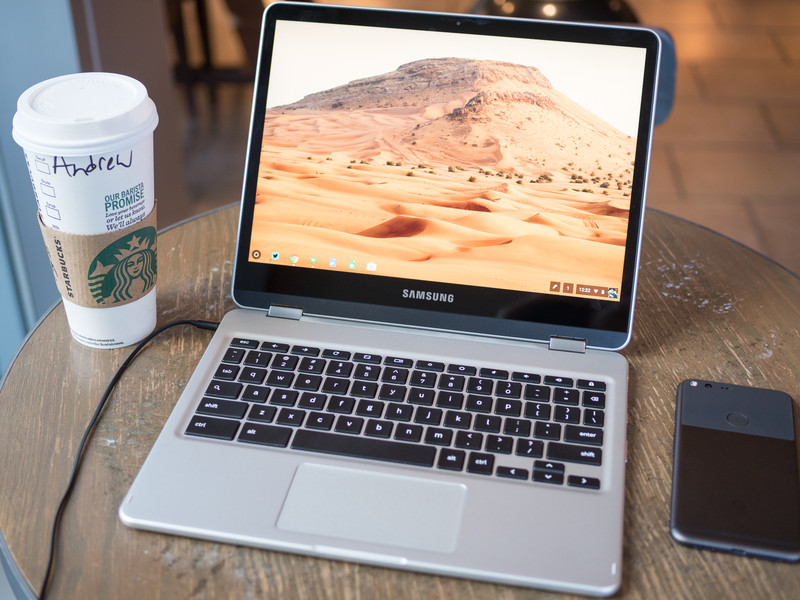
Here’s how to pair your accessories with your Chromebook!
Chromebooks have great trackpads and keyboards. Having said that, a full-sized keyboard and mouse are a lot better if used in the right situation. While a wired accessory will just work, less wires means a less cluttered workspace. This is how to pair your Bluetooth accessories with your Chromebook!
- How to pair your Bluetooth accessories with your Chromebook
- How to remove a Bluetooth device from your Chromebook
How to pair your Bluetooth accessories with your Chromebook
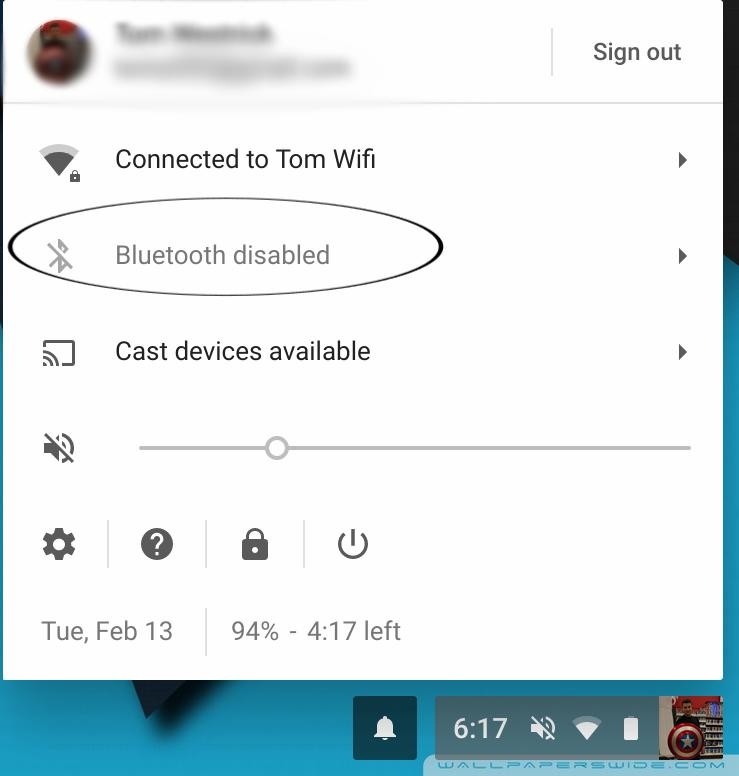
Click on your profile picture in the lower right corner.
Click on the Bluetooth icon.
- If Bluetooth is currently disabled, click the toggle to enable it.
Turn on your accessory and enable pairing mode from the accessory.
- The way to do this will vary by device, so read the included manual to find out how to do this.
Back on your Chromebook, scroll down on the list of Unpaired devices until you find the device you’re trying to pair.
Click on the device name and wait for connection.
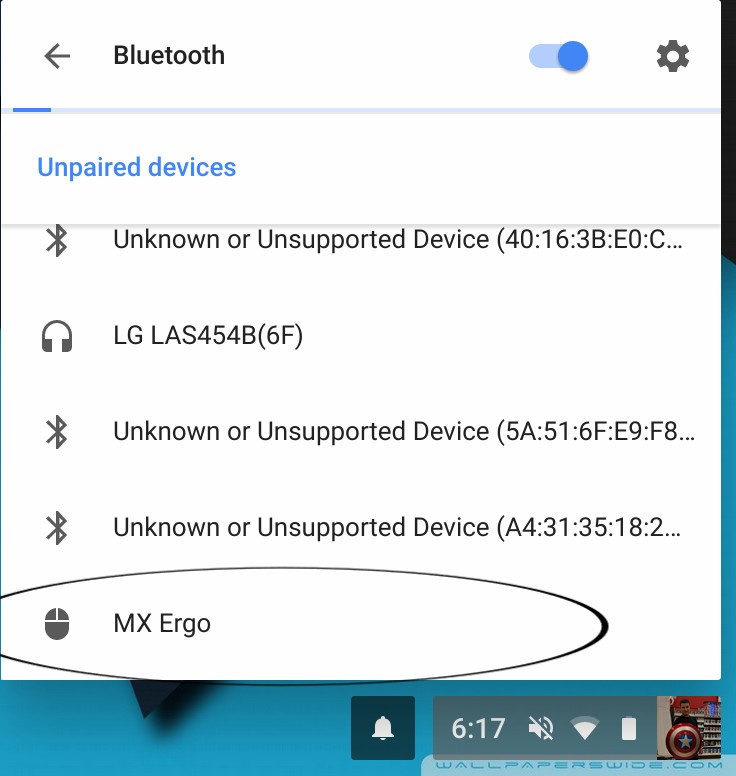
Once the device has been paired, you’ll see a notification saying the device is now available to use.
Keep in mind, the Bluetooth device will be available to all users. As an example: if you share your Chromebook with your kids, their audio may come through a paired speaker.

How to remove a Bluetooth device from your Chromebook
You may want to or need to remove a device. Fortunately, that’s just as easy.
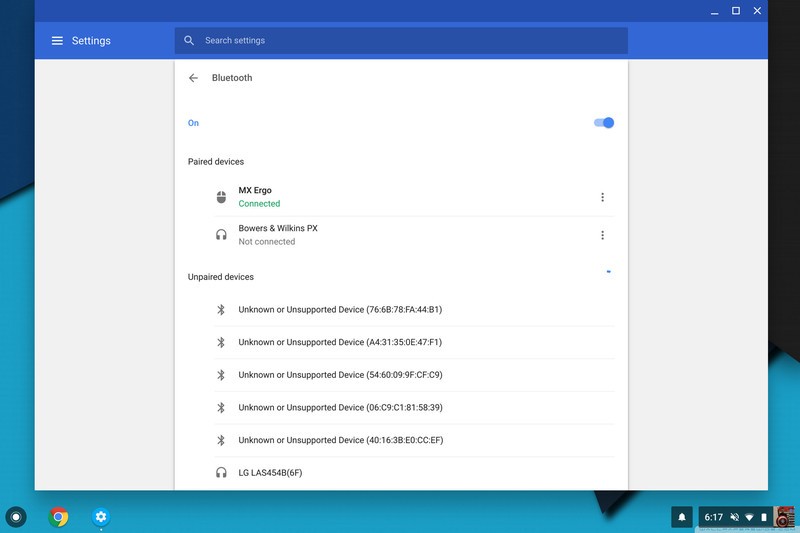
Open the settings menu, and click Bluetooth.
Click the three dots next to the device you’d like to remove.
Click remove device.
How many devices do you pair with your Chromebook? Let us know down below!
Chromebooks
- The best Chromebooks
- Should you buy a Chromebook?
- Google Play is coming to Chromebooks
- Acer Chromebook 14 review
- Join our Chromebook forums
 AIVAnet