


This $260 Google Wifi 3-pack can cover up to 4,500 sq. ft with ease
Wi-Fi everywhere.
Mesh Wi-Fi systems are all the rage these days, and Google Wifi is one of the leaders in the pack. You can buy single units or a 3-pack, and if you are looking to cover a large space the 3-pack is the way to go. Today’s deal saves you $40 on the system and puts it down near its lowest price to date.

Setting them up is super simple regardless of whether you are on an iPhone or Android device, and once you get them working there’s very little to worry about. The app will provide details about what’s connected to the network, allow you to prioritize internet on certain devices and pause it on others, and much more. This 3-pack should blanket up to 4,500 sq. ft with a solid Wi-Fi connection.
See at Amazon
Samsung Experience 9.0 makes emojis on Galaxy devices less awful
Seriously, what was going on with that grimacing face?
Depending on what phone you have, chances are the emoji on your handset look slightly different when compared to the ones on your friends and family members’ phones. A lot of companies have their own unique art style when it comes to emojis, and Samsung is one of them that tended to abuse this trend.

The Samsung Experience 9.0 / Android Oreo update is now rolling out to the Galaxy S8 and S8+, and along with all of the new features and performance optimizations, you’ll also find that the emojis for the phones have received a visual overhaul.
Samsung’s emojis have always featured a very distinct look, and while beauty is always in the eye of the beholder, stark differences between Samsung’s design and the look used by most other companies could often lead to mixed signals when sending messages. For example, Samsung’s eye-rolling emoji:

While all of the emojis from Apple, Google, Microsft, etc. have the same general design, the one from Samsung Experience 8.5 looks completely different. In Samsung Experience 9.0, it’s much more in line with the norm.
There are changes to a lot of other emojis as well, including kissing, smiling, grimacing ones, and more.


Lastly, in addition to updates to existing emoji, Samsung Experience 9.0 also adds a heap of new ones. You can check out the full list here, but some of the highlights include barfing, head-exploding, and start-struck emojis.
The new emoji style will be available on the Galaxy S8/S8+ as part of the Android Oreo and Samsung Experience 9.0 update, and we’ll likely see them make an appearance on the Galaxy S9 out-of-the-box following its debut at MWC 2018 later this month.
This year’s 157 new emoji include kangaroos, toilet paper, feet, and more
How to prep your PlayStation 4 for sale

Selling your PlayStation 4? Here’s what you need to do to get ready.
The time has come for you to let slip the firm grasp you have had on your PlayStation 4 for the last few years. Perhaps you are upgrading to a PlayStation Pro or maybe it’s just time for you to move on. No matter the reason you are planning to sell your PS4 and you need to know what to do in order to get it ready to hand off to its new owner.
You’re probably going to want to make sure that your console is clean and you have all the parts together. Making sure that everything is in proper working order is probably important as well. However, the most crucial thing you must do is to ensure that your console is a blank slate upon which its new owner can build their gaming world.
Here’s how to wipe your PlayStation 4 so it’s a fresh as the day you took it out of the box.

Deactivate as primary PS4
The first thing you need to do is make sure that your PlayStation account is no longer linked to the system that you intend to sell.

From the home page of your PS4, go to the Settings menu. 
Scroll down and select Account Management.
Select Activate as Your Primary PS4.
From the Activate menu, choose Deactivate.
Initializing your PS4
From the home page of your PS4, go to the Settings menu.
Scroll down and select Initialization at the very bottom.
Select Initialize PS4
Select Full initialization 
This is going to take a few hours but it’s going to ensure that all your data is wiped clean like you were never there.
This is a great point in the lifecycle of the PS4 to sell. It has an incredibly robust library of games which makes it desirable for those who have been aching to check out the titles they have been missing. And with the Slim and Pro versions of the PlayStation out it is also a great time to upgrade.
Happy reselling!
Why are we talking about PlayStation 4 on Android Central? Let us explain.
PlayStation 4

- PS4 vs. PS4 Slim vs. PS4 Pro: Which should you buy?
- PlayStation VR Review
- Playing PS4 games through your phone is awesome
Amazon
Best Live Quiz / Trivia Games for Android
Play trivia throughout the day and maybe win some real cash!
Have you always thought you’d do great on a trivia game show? Well, in 2018, you can test your trivia skills multiple times in a day playing live trivia for real cash right on your phone.
This trend was started by HQ Trivia, which seemingly blew up overnight and has regularly drawn in a million players ever since launching for Android users in the Google Play Store. Keep answering the questions right to move one, or spend an extra life to stay in the game after a wrong answer. Make it through 12 questions and you win cash! It’s easy to play and addictive as hell.

But with any trendy app there are imitators and competitors, which means that every weekday you have a handful of opportunities to win cash with your trivia knowledge (and a little bit of luck).
Does it sort of feel like we’re living out the first act of an episode of Black Mirror? Absolutely, but why not enjoy the spoils before it starts to spiral out into a nightmarish dystopian future world.
- HQ Trivia
- Live.me Quiz Biz
- The Q
HQ Trivia

The app that started the craze. HQ Trivia is a daily trivia game show where you simply need to answer 12 questions to win a split of the pot. The daily weekday cash pot has risen to $2500 with weekend pots going as $20,000 for special events like the Super Bowl.
It has turned regular host Scott Rogoswky into an internet celebrity as he provides an entertaining performance as the quiz master extraordinaire. The app itself has improved significantly since launching on iOS in October 2017 — stream quality (and most importantly, stability) is improving and the servers seem to be handling the larger influx of users better now since launching for Android. You can play it alone, but it’s much more fun to play in a big group.
Recent updates have removed the payout minimum of $20 and you now have better control over how you spend your extra lives (gained by a new user using your referral code). The chat during the trivia itself is a mess and doesn’t seem to serve much use for anything meaningful.
HQ Trivia Schedule:
Weekdays: 3pm ET and 9pm ET
Weekends: 9pm ET on Saturdays and Sundays
Download: HQ Trivia (Free)
Live.me Quiz Biz

Okay, so Quiz Biz is a bit interesting. I’ll fully admit having never heard of Live.me before it launched it’s own trivia game, but it’s a natural fit.
Live.me is a live broadcasting video chat app that’s looking to build a community of influencers across a wide spectrum of topics and personalities. It’s available in 85 countries and has millions of downloads from the Google Play Store.
The platform itself is not for me — I haven’t spent any time checking out anything on Live.me beyond the daily Quiz Biz trivia show but the experience here is arguably better in so many ways. The cash prizes are always as big or bigger than HQ — on Super Bowl Sunday they hosted three separate games with $50,000 jackpots. Since it’s built upon a seemingly well-populated user base from the existing Live.me community the games feel lively and popular while still remaining small enough to ensure bigger cashouts, and the stream quality overall is way smoother than HQ on its best days. And yet…
It’s all bit overwhelming. Live.me includes a bunch of in-app currency and items that you can buy and gift. During the pre-game of one show, some dude donated 100 “magic wands” which was I suppose a display of status amongst the Live.me community… but as an outsider looking in it all felt a bit cult-like. I’m just here for the trivia.
Live.Me Quiz Biz Trivia Schedule
Weekdays: 3:30PM EST, 8PM EST, and 10PM EST
Weekends: 8PM EST on Saturdays
Download Live.me Quiz Biz
The Q

I mean this with no disrespect, but The Q is the trivia app equivalent to The Little Tank Engine Who Could. This app popped up shortly after HQ Trivia began making waves in beta for both iOS and Android, and I’ve been tracking its growth through to 2018.
I appreciate the lack of an annoying and pointless chat system, and the player pool is significantly smaller than HQ or Live.me, but The Q is the one app I’ve seen taking trying new things. They now regularly holding Survivor games where the questions keep coming until one player remains. They’ve also advertised some fun theme nights, including a Star Wars trivia show around the premiere of The Last Jedi.
The player numbers are growing, but still in the low thousands and payouts are significantly smaller than its competitors with weekday games in the $100-$200 range. Still, The Q is a fun trivia app alternative that might fit into your schedule better than the other options.
The Q Trivia Schedule
Weekdays: 1pm EST and 5:30PM EST
Weekends: 8:30pm EST
Download: The Q (Free)
Your favorite?
Are you an HQutie or just a tourist? Let us know in the comments below!
Android Gaming

- Best Android games
- Best free Android games
- Best games with no in-app purchases
- Best action games for Android
- Best RPGs for Android
- All the Android gaming news!
Android P will feature a ‘dramatic redesign’ and support notch displays
The new software is currently being referred to as Android Pistachio Ice Cream.
In less than three months, Google will take the stage at its Mountain View campus in California for its annual I/O developer conference. One of the things we’re expecting Google to announce at this year’s I/O is Android P / 9.0, and a new report from Bloomberg sheds some light on what we could expect from the latest update.

To not much surprise, Android P will reportedly feature even deeper Google Assistant integration. Developers will have the ability to integrate the Assistant right within their apps, and the home screen search bar may prompt a search with Assistant rather than the more traditional Google Search. Neither of these two things have been finalized for P’s official release, but they seem like very plausible changes.
A “dramatic redesign” is in the works for Android P.
Along with this, it’s also said that Google will use its next Android update to natively support a wider variety of device form factors – including phones with multiple screens, foldable designs, and displays with notches near the top. (a la Essential Phone and iPhone X). This has me a bit concerned about the Pixel 3 as someone who’s not a fan of notch-style screens, but Google apparently sees some sort of value in them if it wants to devote the time and resources to support phones like this.
On a similar note, it’s reported that Google will use Android P to introduce a “dramatic redesign” for the OS. It’s unclear what exactly this will entail, but it suggests that Android will see its first major aesthetic change since the introduction of Material Design with Android 5.0 Lollipop in 2014.
As for the iconic name, one of the current contenders is Android Pistachio Ice Cream. I’d personally prefer Pumpkin Pie or Panna Cotta, but that could just be my pistachio allergy talking.
Based on what we know so far, what are you most excited for with Android P?
When is Google going to release Android P?
How to watch 3D movies on your Gear VR
How do I watch 3D movies in my Gear VR?

There are a lot of great ways to watch video on your Gear VR. Major streaming apps like Netflix and Hulu are a fingertip away, the Oculus Store has its own movie purchase service for a lot of new films, and several great 360-degree video apps are available to download. The thing almost all of these video apps have in common is the way the video is presented. It’s nearly all 2D video, even the 360-degree stuff.
That doesn’t mean there’s no 3D video out there for you to enjoy on your Gear VR. In fact, you have several great tools at your disposal for enjoying 3D video in both standard theater formats and 360-degree viewing. Here’s how you get started!
Streaming 3D video from YouTube

There are tons of 3D and 360-degree 3D movies on YouTube, and you can access all of them from your Gear VR! All you need is the Samsung Internet app from the Oculus Store and a good set of headphones. All you need to know is what kind of 3D video you’re looking at. The Samsung Internet app distinguishes these videos in five different ways.
- Standard 3D
- 180-degree SBS 3D
- 180-degree TB 3D
- 360-degree SBS 3D
- 360-degree TB 3D
If you’ve never seen some of these descriptions before, you’re probably a little confused. SBS stands for “Side by Side” and as the name suggests it’s what happens when the 3D effect is created by showing you depth from two images that are on the left and right of each other. TB stands for “Top-Bottom” which is what happens when you see an image with another image on top of it.
Here’s how you play a 3D video in YouTube on the Gear VR:
Select YouTube from the Suggested Links list
Search for 3D Videos
Tap results to select a video
Tap the video icon beneath the YouTube playbar
Select 360
Tap the video icon again
Select the correct 3D from the list
Once you select the correct image type, everything will come into focus and the 3D effect will immediately be available. YouTube doesn’t remember this setting, so you’ll need to set it every time you open the app to play a video, but once you’ve got it set up correctly the experience is incredible.
Playing locally stored 3D video

There are very few video apps that allow you to download 3D movies and play them on whatever device you want. That means most of the videos you’ll be watching in Rift either came from a less-than-legal source, or from a 3D home video. It’s also possible that you bought the 3D Blu-Ray, ripped and converted the video yourself, and are looking for a good video player for the Gear VR. Either way, you’re probably going to want the Oculus Videos app to get started.
Editor’s note – While VR Heads does not support video piracy in any form, your 3D rips won’t have any audio in the Gear VR unless encoded to .mp3 or .aac
Your first step is outside of the Gear VR. You need to create a folder for your 3D movies, and that folder needs to live at /oculus/movies/3d or /oculus/movies/360videos depending on what you’re trying to play in the app. Once you have that folder, move your videos over to your phone. You’ll be able to see the individual files from within Oculus Videos.
To recap:
Create the /oculus/movies/3d folder on your phone
Move your 3D movies from your PC to /oculus/movies/3d
Open Oculus Videos
Select your movie
Samsung Gear VR

- Gear VR review
- The Best games for Samsung Gear VR
- Inside Samsung’s Gear VR web browser
- Gear VR vs. Google Cardboard
Amazon
The Best Alexa-Compatible Smart Devices
Having Alexa is just the start. Now you need smart things to connect to it.
More and more devices work with Amazon Alexa these days. In fact, if it’s got a microphone and a speaker, it’s surprising to not find support for Amazon’s voice assistant. The Amazon Echo Dot is the most popular Alexa controller out there, of course. But there are countless others as well.
That’s just the start of the fun, though. Once you’ve got an Alexa device, you’ll want something to control.
Here are the more mainstream categories that I’d check out, from thermostats to cameras to other speakers.
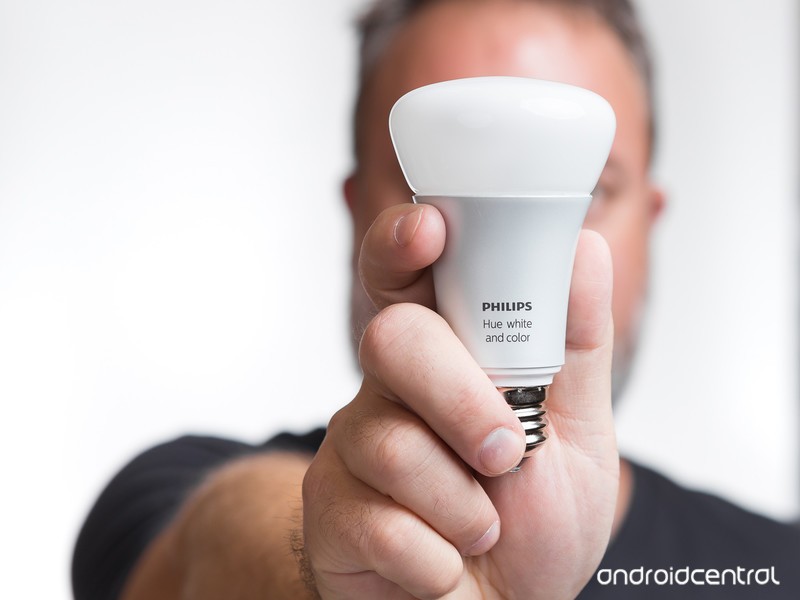 Philips Hue Starter Kit ($88 at Amazon.)
Smart lights
Whether you’re looking at something from Philips Hue, or Eufy, or TP-Link or others, smart lights probably should be your first stop when you’re looking for an Alexa-compatible toy to go along with your main Alexa device.
The idea is that you’ll have lights you can control from anywhere, as well as a hands-free way to set the scene for any occasion.
And because it’s all tied into Alexa, you’ll be able to do all kinds of fun stuff with the smart lights.
See at Amazon
 Ecobee 4 ($244 at Amazon.)
Smart thermostats
Being able to control your HVAC with your voice is one of those things that’ll you not appreciate until you can do it, and you’ll wonder how you ever lived without it once you can.
And there are some great options out there. Nest is the big daddy of the group, of course. Honeywell is another great option. And the latest iteration of the Ecobee actually has Alexa built in, so you don’t even need a separate device to control it.
It makes it ridiculously easy to control the comfort of your home, and it helps cut down on your electric bill, too.
See at Amazon
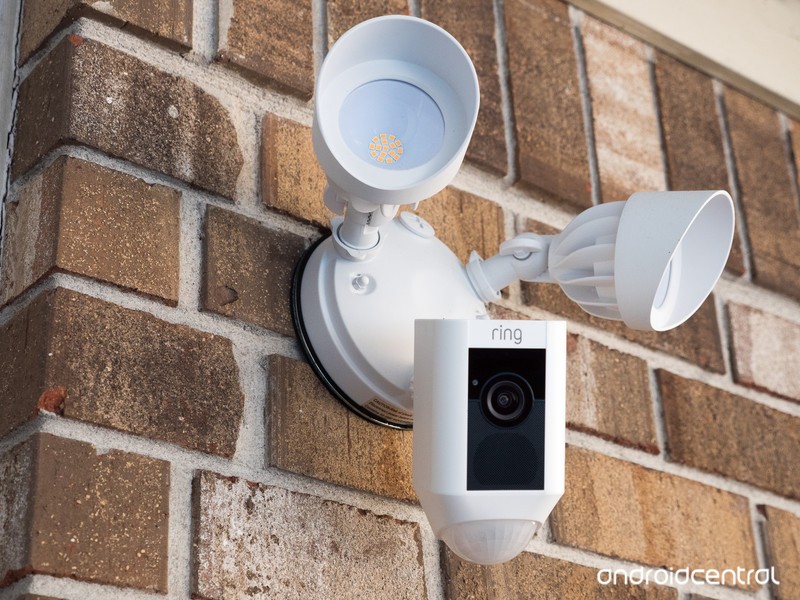 Ring Floodlight Camera ($199 at Amazon.)
Smart cameras
If you’ve got an Amazon Echo Show or Spot, or an Amazon Fire TV, you can keep tabs on all your stuff with any number of smart cameras. Just tell Alexa to show it, and you’ll get a live feed on your display.
So, yeah. You can watch your front yard from your living room. Or your backyard from your bedroom. The sky’s the limit as for how much (or how little) you want to keep tabs on things this way. It’s super convenient, though, and it’ll help keep things safe.
See at Amazon
 Wemo Mini ($28 at Amazon.)
Smart plugs
Smart lights are great. But sometimes you just want to control something that’s plugged in. (Say, a set of string lights, or Christmas decorations.) A smart plug is great for that.
It’s a plug for your plug, which then hooks into your Wifi and ties into an Alexa Skill.
After that, it’s just a matter of setting a timer, or using your voice to have Alexa manually turn things off and on. Easy.
See at Amazon
 Amazon Echo Plus ($149 at Amazon.)
Other smart speakers
Here’s the thing about the Amazon Echo — it can connect with other Amazon Echoes for multi-room music. That means the same thing will be playing on all your speakers. And all you have to do is use Alexa to tell Alexa to have Alexa play a thing.
Yeah, it’s a bit of Alexa inception. But it’s also way cool.
See at Amazon
‘Alto’s Odyssey’ reaches your phone on February 22nd
Built by Snowman’s Alto’s Odyssey has been public knowledge for more than a year (and was subject to a last-minute delay in late summer), but it’s finally here… almost. The Alto’s Adventure sequel is now slated to launch on iOS and Apple TV devices February 22nd with a not-too-unreasonable $5 price tag. As before, Odyssey takes the endless boarding concept to a desert landscape that throws fresh challenges into the mix. You’ll have to contend with natural hazards (including lemurs) and take advantage of hot air balloons, shifting grind rails and wall rides in order to keep moving.
On top of the usual competitive mode, you’ll get staples like the no-pressure Zen Mode and a Photo Mode to record the journey.
There’s no mention of an Android release date yet, although that’s not completely surprising when it took roughly a year for Alto’s Adventure to reach Google-powered devices. This is very much an evolution of the formula that made Adventure a mainstay of mobile gaming. However, that’s not necessarily a bad thing — the first game combined solid endless runner gameplay with an intriguing sense of style, and this promises to be more ambitious with a more varied landscape and more complex (though still easy-to-grasp) mechanics.
Via: Federico Viticci (Twitter)
Source: App Store, Built by Snowman
The best desktop photo-editing apps
Last month we covered the best mobile photo-editing apps, but if you’re serious about photography you’ll need more than the tools a phone or tablet can provide. Professionals rely on software from Adobe and others because of the power these programs afford them. Combined with shooting in the uncompressed RAW format, dedicated image editing suites allow you to adjust white balance, exposure, sharpness and color at a granular level.
That might be a little intimidating for folks used to point-and-shoot cameras or a smartphone, but for professionals and hobbyists, this means they can reproduce the image they saw in their minds when they hit the shutters on their DSLR or mirrorless cameras. Beyond editing tools, some of these software suites also offer ways to organize and share your photos without leaving the app.
A word on built-in image editing programs
Windows and macOS both have built-in photo editing apps, each aptly named Photos. And while they’re fine for quick edits, doing anything remotely complex — adjusting perspective or smoothing out skin, for example — isn’t possible. If all you want to do is make minor changes to your last batch of vacation photos before tossing them on Facebook though, they should suit you just fine.
For beginners and intermediate users: Adobe Lightroom
Adobe rebranded Lightroom last fall, splitting the app into Classic and CC. If you’re intimidated by Photoshop, Lightroom’s menus and workflow are easy to master. Classic (below) is desktop oriented, focusing on local storage and mouse-and-keyboard interface, while CC is better suited for mobile editing. As you might expect, Classic is more powerful given its heritage as a desktop program.
Once you’ve reached the limits of what its built-in editing tools offer, the internet is full of photographers who’ve made downloadable presets (free and otherwise) that you can easily add to the program for photos that have a look that you can truly call your own. If you favor stylized edits over minor adjustments — or tend to automate a bulk of your workflow — Classic is for you.

Adobe Lightroom Classic
Timothy J. Seppala/Engadget
If your editing style is less intensive, however, it’s hard to pass up Lightroom CC. The UI is similar to the Lightroom mobile app and, even better, any photos you import into the app on your phone sync with the Creative Cloud. Meaning, you can take a photo on your phone, start edits on your iPad Pro and then finish them on your home computer. One subscription grants access to both flavors of Lightroom.
For advanced users: Adobe Photoshop
While Lightroom is a great tool for making minor tweaks, sometimes you need to get your hands dirty with an edit. That’s where Photoshop comes in. When you need to go beyond what’s possible in Lightroom — like removing a tree from an otherwise flat horizon or moving two people closer together — or add some extra drama to studio portraiture, Adobe’s other toolset is indispensable.
The biggest advantage Photoshop has over Lightroom is its roots as a graphics creation program, as opposed to just a digital darkroom. If you’re willing to invest the time, you can use your photos as the base for truly mind-blowing digital images. Want to stack 50 photos from your night in the woods taking pictures of the Milky Way and merge the star trails together into one surreal photo? This is how you do it.

Adobe Photoshop CC
Timothy J. Seppala/Engadget
If you hate subscriptions: Affinity Photo
It’s easy to forget that there are image editing suites not made by Adobe. While a Creative Cloud photography subscription will only set you back $10 a month, it’s a fee that never goes away. If you’d rather pay once, check out Affinity Photo from Serif. The software itself only costs $50 and updates are free. Even better, if you’re used to Photoshop’s UI, it shouldn’t take long to get up to speed. The layer tools, RAW editing, digital painting and batch processing tools you’re used to are available as well. You can even edit 360-degree photos.
There are number of different easy-to-apply filter effects available too if you’d rather treat the app a little more like Lightroom. The Photoshop-like interface can be jarring if you’re coming over from Lightroom, but with some patience and YouTube tutorials, you can get up to speed pretty quickly.

Affinity Photo
Timothy J. Seppala/Engadget
The rest
We picked the three best photo-editing apps, but there are plenty of others options as well. The problem is, they don’t quite stack up to what Adobe and Affinity offer. For better and worse, Adobe is the standard when it comes to creative work.
If you’d rather not spend money at all, there’s GIMP, the open-source photo editor, but its interface is a bit cluttered and you’ll have to download a RAW converter before you can start editing photos in that format. There’s also Paint.net, but it’s extremely limited and can’t fully replace Photoshop. Pixelmator Pro ($60), on the other hand, offers a mobile app and Photoshop-like experience, but it lacks soft proofing and is Mac-only for now.
Assuming you’re just getting started, though, it’s hard not to recommend Adobe’s photography subscription plan. It includes Lightroom, Photoshop and their mobile counterparts, and might prove more economical than spending a lump sum on software up front. Sure, Affinity is only $50, but there’s the chance that what you’re looking to do could be handled by Photos on macOS or Windows.
Uber is forcing six-hour rest breaks on busy US drivers
With its latest app update, Uber is forcing US drivers to take a six hour break after working 12 straight hours. The company implemented a similar feature in the UK earlier this year, but lets American drivers work two hours longer. The app will issue three warnings, starting after 10 hours of straight driving, before going offline and forcing drivers to stop. The aim is to put a halt to drowsy driving that causes 4,000 accidents a year, the company said in a statement.
The feature will count most driving time, including being stopped at a light, with the exception of a few things like when you’re waiting in an airport parking lot. Uber said it drew on driver experience and road safety groups to calculate the totals. “There’s definitely a lot of third-party expertise that has gone into our thinking,” Uber safety head Sachin Kansal told TechCrunch. “But it’s also that we know how our drivers drive, we know road conditions, so we have baked all that into it as well.”
The change won’t affect most drivers, as over 60 percent don’t use Uber more than 10 hours a day. It’s quite likely that the app won’t even stop those who work more than 12 hours. Sherpashare, a driver assistant app, estimated that nearly three-quarters of drivers use more than one service. That would enable them to, say, use Uber for the first part of a day, then flip to another and keep working as long as they want.
Nevertheless, Uber put a lot of thought into the feature before implementing it in the US. Based on data it gathered in the UK, Australia and elsewhere, it introduced the extra notifications so that the limit doesn’t surprise drivers when they hit it. Rival Lyft offers a similar feature, but lets drivers operate 14 hours before shutting them off and doesn’t offer as many notifications.
Source: Washington Post, TechCrunch
 AIVAnet