


KGI Expects Intel to Be Exclusive Supplier of Modems in 2018 iPhones
Intel could be the exclusive supplier of LTE modems for all new iPhones launched in 2018, according to KGI Securities analyst Ming-Chi Kuo.
The key takeaway of the research note, obtained by MacRumors:
We expect Intel to be the exclusive supplier of baseband chip for 2H18 new iPhone models, while Qualcomm may not have a share of the orders at all.
Kuo previously expected Intel to supply 70 percent of the modems, with Qualcomm providing the remaining 30 percent of orders, but he now believes Intel will be the sole supplier given several competitive advantages.
First and foremost, Intel’s latest XMM 7560 modem [PDF] supports both GSM and CDMA, meaning that Apple could release a single iPhone model that works across AT&T, Verizon, T-Mobile, and Sprint. Intel modems previously lacked CDMA, meaning Apple could never fully ditch Qualcomm for all iPhone models.
Apple is also embroiled in a major lawsuit with Qualcomm over anticompetitive licensing practices, and Kuo believes the iPhone maker switching to Intel as its exclusive modem supplier will place added pressure on Qualcomm.
Kuo added that it’s too early to tell if Intel will be able to maintain its position of exclusivity in the future, as Apple typically prefers to diversify its supply chain. He adds that Apple may give orders to Qualcomm again in exchange for concessions in the ongoing lawsuit between the two companies.
In order to make up for the lost iPhone business, Kuo expects Qualcomm will be more aggressive in securing orders from Chinese smartphone makers. However, he believes these Chinese companies don’t want a monopolized market, so Qualcomm’s ability to gain market share in the country may be limited.
Kuo also reiterated that LTE transmission speeds will increase significantly in new iPhone models released in the second half of 2018.
In a previous research note from November, Kuo highlighted that Intel’s XMM 7560 modem supports 4×4 MIMO technology, compared to only 2×2 MIMO in the iPhone 8, iPhone 8 Plus, and iPhone X. The faster LTE speeds will also be made possible by an upgraded antenna design in the next iPhones.
Related Roundup: 2018 iPhonesTags: Intel, KGI Securities, Ming-Chi Kuo, Qualcomm
Discuss this article in our forums
Apple Music Now Has 36 Million Subscribers, Could Eclipse Spotify in United States This Year
Apple Music now has 36 million paying subscribers around the world, an increase from well over 30 million reported last September.
Apple confirmed the updated total to The Wall Street Journal, which today reported that Apple Music is growing at a faster pace than Spotify in the United States, and could soon eclipse the service in popularity in the country.
Apple’s subscriber-account base in the U.S. has been growing about 5% monthly, versus Spotify’s 2% clip, according to the people familiar with the numbers. Assuming those growth rates continue, Apple will overtake Spotify in accounts this summer.
On a worldwide scale, Spotify maintains a sizeable lead over Apple Music. The streaming music service revealed that it has 70 million paying subscribers a month ago, making it nearly twice as large as Apple Music. Spotify also has a free, ad-supported tier, giving it over 140 million listeners overall around the world.
Spotify expanded to the United States in 2011, while Apple Music simultaneously launched in over 100 countries in 2015. In terms of paid subscriptions, both services offer individual plans for $9.99 per month, student plans for $4.99 per month, and family plans sharable with up to six people for $14.99 per month.
Tags: Spotify, Apple Music
Discuss this article in our forums
How to sideload an APK or install an Android app from outside the Play Store
You may have heard about sideloading and APK files before. All it really means is installing an app from outside the Google Play Store, or, in the case of an Amazon device like a Fire tablet, installing an app from outside of the Amazon Appstore.
Sideloading is bypassing the usual app store and APK stands for Android Package Kit, which is the file format used by the Android operating system for distribution and installation of mobile apps.
There are various reasons you might want to sideload an APK. Perhaps there is an app or version of an app that you can’t get from the Google Play Store, maybe you want to try out an alternative Android app store, or perhaps you’re seeking access to Google’s goodies on an Amazon device. Luckily, it’s relatively easy to do, but before we explain how, here is a quick word on security.
Stay secure
Whether you believe Android is insecure or not, it’s still wise to take precautions and be careful. The Google Play Store has several security measures in place and apps are scanned to try and prevent malware from spreading. That may not be the case with an alternative app store or with a website or forum hosting an APK file.
Consider installing one of the best Android security apps to reduce your risk of malware and be wary of the source of your APK.
How to allow installation from “Unknown sources”
By default, your Android device won’t allow the installation of apps from outside of the legitimate App Store, whether that’s the Google Play Store or the Amazon Appstore. The steps for removing this protection are slightly different on different devices, but here are a few examples:
On most Android phones, you should pull down the notification shade and tap the gear icon to enter Settings, then find Security and scroll down to Unknown sources. Tap to toggle on Allow installation of apps from sources other than Google Play Store and tap OK in the box that pops up.
On a Samsung Galaxy go to Settings > Lock screen and security > Unknown sources to Allow installation of apps from sources other than Google Play Store and tap OK in the box that pops up.
On an Amazon Fire tablet go to Settings > Security and toggle on Apps from Unknown Sources to Allow installation of applications that are not from Appstore and tap OK in the pop-up box.
On an LG phone go to Settings > General > Fingerprints & security and toggle on Unknown sources to Allow installation of apps from sources other than Google Play Store and tap Allow in the box that pops up.
How to get APK file onto your phone
The easiest way to get the APK onto your phone is to navigate to the trusted source on your phone and download it directly. Most Android phones have a built-in files organizer now, and by default, the APK file will go into the Downloads folder.
On a Samsung Galaxy, you will see an app called My Files in the app drawer. On an LG phone, there should be an app called File Manager. On a Lenovo Moto phone, you should see an icon for Downloads in the app drawer.
If you can’t find a files or downloads option on your device, then install a free file manager app — we recommend ES File Explorer File Manager.
How to install an APK
Once you have found the APK file all you need do is tap on it to trigger the install screen. Review the permissions and tap Install if you want to go ahead with it.
Tidying up
When the app is installed, we recommend going back to the settings on your phone and toggling Unknown sources back off again. You may also want to navigate back to the APK file and delete it to keep things nice and tidy.
Editors’ Recommendations
- How to root Android phones or tablets (and unroot them) in 2018
- Stop those unwanted phone calls and learn how to block a number in Android
- Everything you need to know about Android 8.0 Oreo
- Learn how to play YouTube in the background on iOS and Android
- The 100 best Android apps turn your phone into a jack-of-all-trades
From the Editor’s Desk: Galaxy S9 Minus

If the latest rumors are to be believed, buyers of the smaller Galaxy S9 are in for a boring upgrade cycle.
Ever since the introduction of the Galaxy S6 edge, we’ve been slowly drifting towards the larger of the two Samsung Galaxy S phones being the real flagship in any given year — with bigger batteries, flashier designs and, naturally, even higher price tags. If you wanted the best of Samsung in a smartphone, you’d go for the “edge” or “Plus” model. In part, this is a result of the growing preference towards larger screens in phones. And engineering limitations also play a role — there’s just less room to fit stuff into a small phone compared to a “phablet” style device.
At the very least, though, the base model Galaxy S gave you the full experience — including key specs and hardware features. Until now.
The latest Galaxy S9 rumors and leaks point to a couple of high-profile compromises in the smaller model: One camera, not two. A third less RAM compared to the Plus. In the single main camera of the S9, the biggest change from the S8 appears to be the aperture — a change most likely focused on portrait mode. All of which could add up to owners of the regular S9 being offered a rather tepid upgrade package, even coming from the two-year-old Galaxy S7.
The regular Galaxy S9 looks weaker still compared to the S9 Plus, with its twin cameras and 6GB of RAM. Some of that, surely, will come down to the challenges of fitting all this stuff into a 5.8-inch, 18.5:9 smartphone body. More space for cameras equals less space for battery, and Samsung is already toeing the line with the smaller S9 by keeping the same capacity cell as last year’s S8. But it’s hard to read the reduction in RAM as anything other than a cost-cutting measure, with the effect of making the smaller model appear less premium by comparison.
Samsung isn’t the only smartphone manufacturer struggling with the challenges of fitting all the technology consumers expect into a smaller form factor — case in point: iPhone 8 versus 8 Plus, and Pixel 2 versus Pixel 2 XL. Nevertheless, for consumers, it might seem their choice this year is between a Galaxy S9 Plus and a Galaxy S9 Minus.
Some other notables this weekend:
- I agree with Jerry here that many of us are a little too willing to jump to conclusions about OnePlus, in the wake of recent security and privacy missteps. On the one hand, OnePlus desperately needs to avoid any future screwups if it’s to establish itself as a reliable, grown-up, trustworthy smartphone manufacturer. On the other hand, folks need to stop assuming the worst every unexpected app that shows up in an over-the-air update.
- Trust will be key to the messaging around a possible OnePlus 6 later this year. Show me why should I trust you with my money and my personal data after the past year of blunders? (With that in mind, an additional problem for OnePlus is the sheer number of very public f*ck-ups they’ve managed over the past four years. We’ve heard “trust us, we’ll get it right this time” many times before.)
- I already have thoughts on the Galaxy Note 9. If you haven’t already, check out this video on how Samsung might be able to differentiate the Note line when it also has to indirectly compete with a plus-model Galaxy S phone.
- And it’ll be interesting to see if Project Treble helps with the next round of Samsung updates. We’re looking at late February, at best, for the S8 and S8+ getting Oreo — a version Samsung had access to well ahead of the public code drop in August. This is not easy work, not least when you have Gear VR and DeX support to figure out. But when your update schedule is being outpaced by Huawei, Honor, OnePlus, LG, HTC, Sony and many others, perhaps it’s time for a rethink.
- We now know that the Huawei P20 will land a full month after the Galaxy S9, at a standalone event in Paris on March 27. (We’ll be there, of course.) With rumors of a bezelless, notched display in at least one model, as well as triple cameras building on the already solid foundations of the Mate 10, it already sounds like a fascinating addition to Huawei’s lineup.
- Unfortunately for the Chinese firm, this news around Verizon and the Mate 10 Pro essentially sinks any chance of Huawei getting a major American carrier deal (Verizon and AT&T are out, and T-Mobile was embroiled in legal disputes with Huawei recently, so that leaves only Sprint.) Unless they can pull off a miracle through direct sales at Best Buy and other retailers, there’s basically zero chance of the brand making it big in the U.S. for the foreseeable future.
That’s it for now. I’ll be back with more thoughts right around MWC time.
-Alex
It’s 2018, and Spotify still doesn’t let you edit playlists on Android or the web
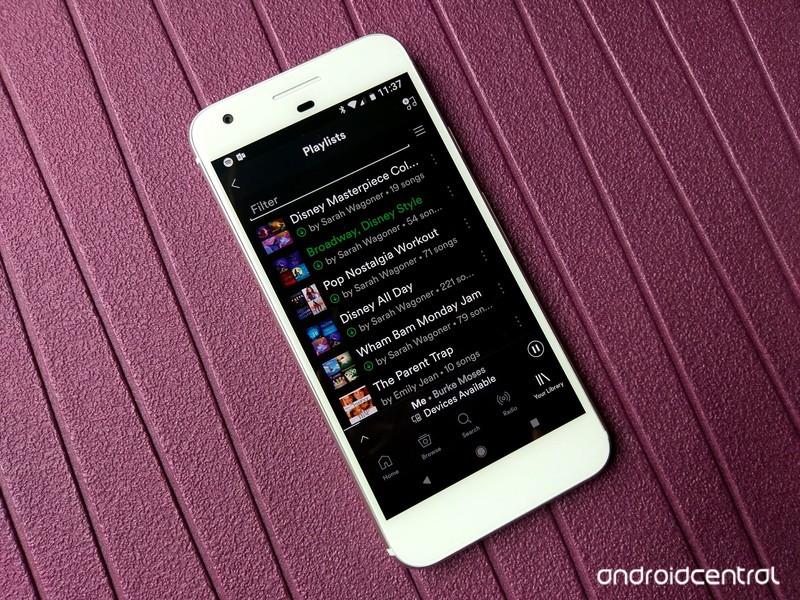
Playlists are where a music-lover can let their passion shine.
Whether you think your playlist-curation skills can beat Spotify’s mathematical magic, or you just want your songs in the perfect order for your party or workout, being able to make your playlists just the way you want them is important to any music service. Spotify’s spotlight on playlists makes them doubly important, so why are playlists still hobbled on Android and web?
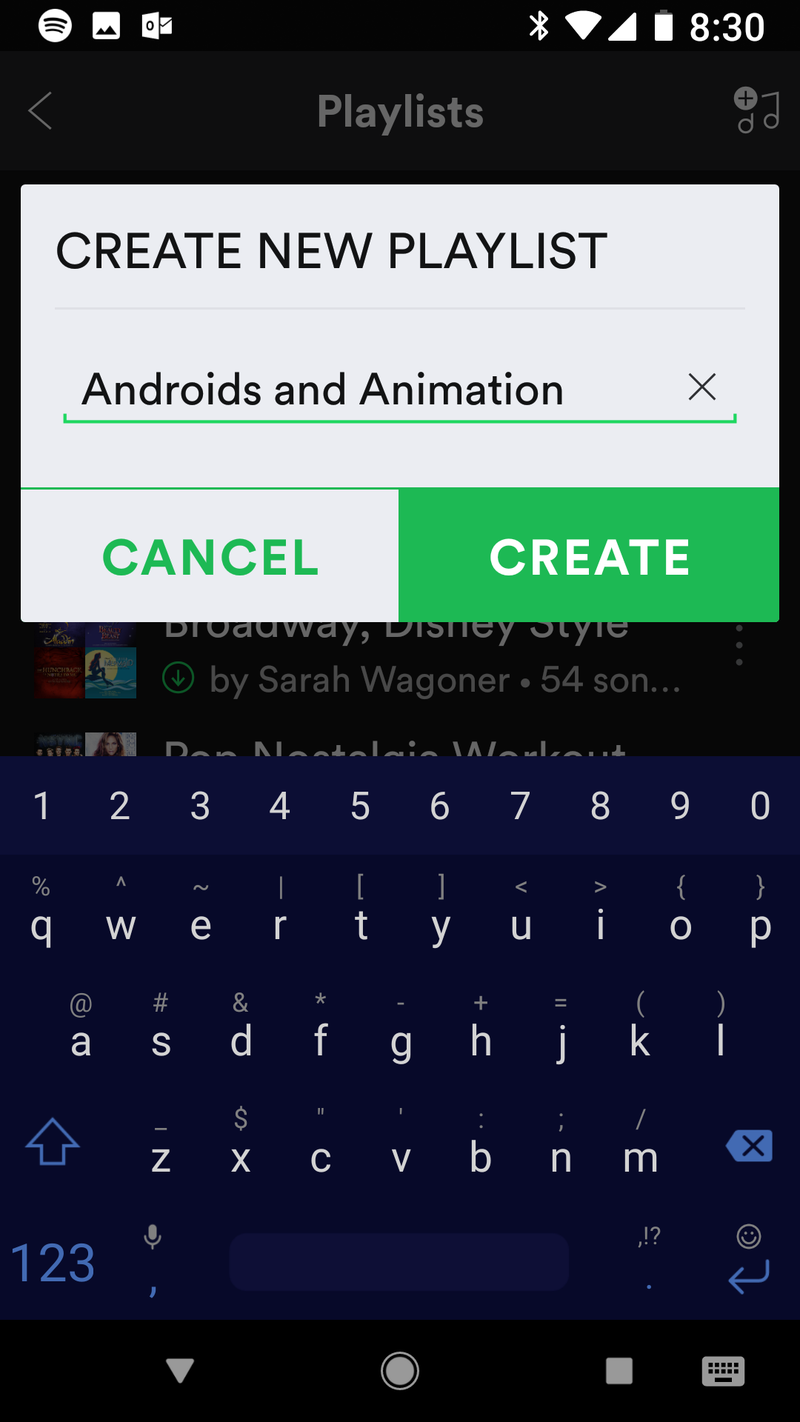
If you want to create a new playlist on Android, it’s fairly straightforward. You can either make a new playlist from the Playlists section of Your Library or you can create one when you try to add the first song. You can name your playlist and you can add or remove songs, but if you want to move songs up or down the list, you’ll have to remove every song between when the song was added to the playlist and where you want it to go. On the web, you have the added limitation of not being able to even rename a playlist.
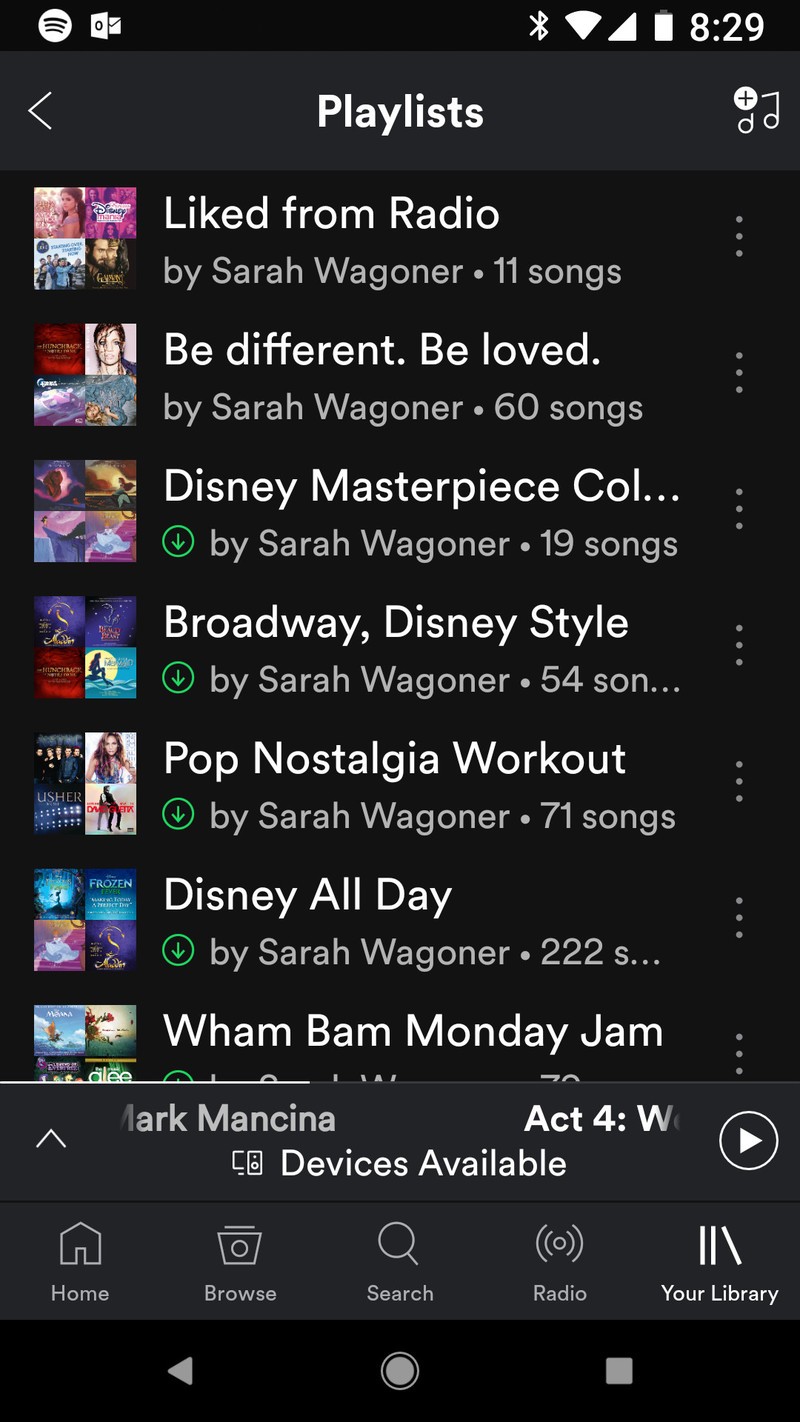
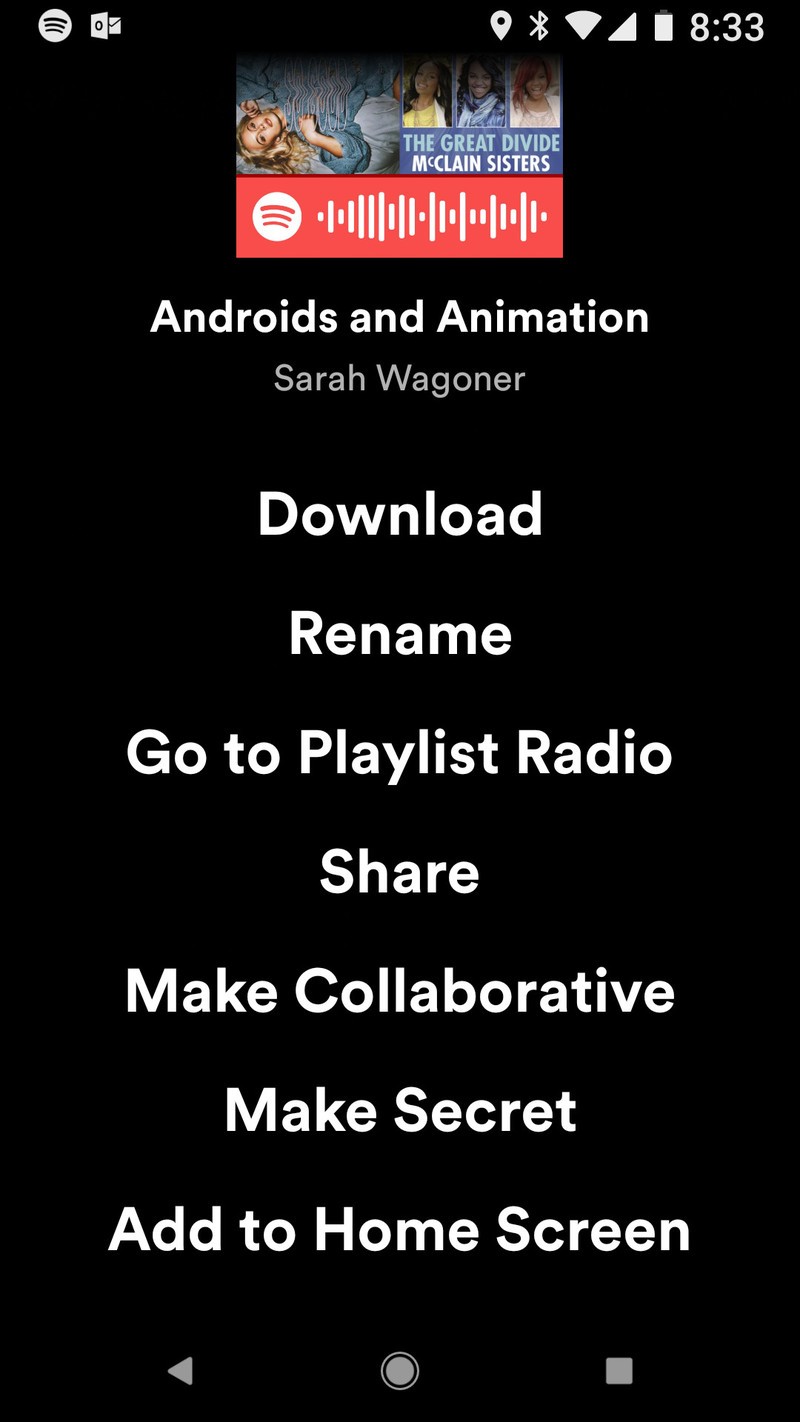
If you want to edit the position of songs within your playlists, you have to switch to Spotify on iOS or the desktop Spotify app for Windows and macOS. In 2018, if you want to re-order the top tracks of a playlist on a major music service, you can completely re-create it from scratch, or you can go back to a desktop app. In 2018.
Let that sink in a moment.
Considering the default play mode suggested on every album, station, and playlist is Shuffle Play, this may not mean too much to the casual user, but it is indicative of Spotify’s attitude towards its Android app — and its Android users. The Spotify iOS app has always had it, Android users have been begging for it for four years and Spotify has said it’s still not coming anytime soon. Forget about getting the latest and greatest features, Spotify won’t even give Android users basic, legacy utilities.
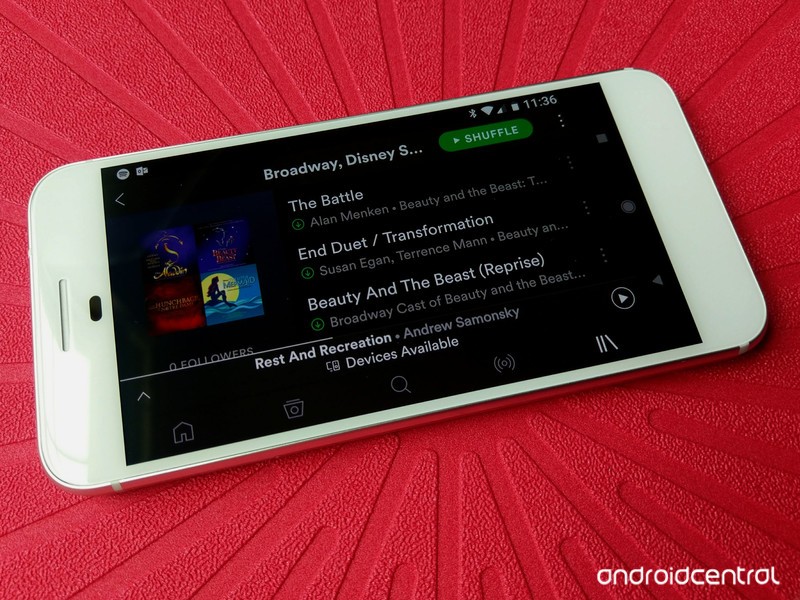
If you’re committed to Spotify with a robust library and years of listening history to base your listening suggestions on, then this probably seems like much ado about nothing. Shuffle Play is good enough for most users, after all. But if you’re picky about your playlists, consider that re-ordering playlists on Google Play Music, Apple Music and just about every other music service on the market today is as easy as dragging and dropping.
And even after four years, Spotify still can’t figure it out? Really?
Ben Heck’s Alexa-powered workbench, part 2
Bob and Ben are back to automate their workbench, with the help of Raspberry Pi and Amazon’s Alexa. The idea, ultimately, is to help you to work hands free using only your voice, whether that means taking readings from a multimeter or controlling and taking screenshots from an Oscilloscope. Using the Python programming language, Ben and Bob can also control the Raspberry Pi GPIO to turn bits on and and off, and even experiment with controlling power outlets. What else would you think about automating? Let us know over on the element14 Community.
Hyundai’s self-driving fuel cell cars complete a record highway trip
Future self-driving cars don’t have to be pure electric vehicles, and Hyundai is determined to prove it. The automaker just had a five-strong fleet of Level 4 autonomous hydrogen fuel cars drive themselves 118 miles from Seoul to the Winter Olympics’ home venue of Pyeongchang. That’s the longest any self-driving vehicle has traveled at highway speeds (around 62-68MPH), the company claimed. Previously, they had to putt around at slower speeds, and frequently on limited road sections.
Three of the cars were shiny new Nexo SUVs (such as the one above), while the other two were more familiar Genesis G80 sedans. They were also showcases for cellular tech, with 5G inside for backseat smart home control, chat bots, streaming media and video calls with health consultants.
Is this a publicity stunt? You bet — Hyundai doesn’t expect to commercialize Level 4 cars until 2021, with fully autonomous models arriving by 2030. Most of those will likely be pure EVs, too. And when 5G networks are just getting started, we wouldn’t expect in-car gigabit data for a long while. Still, this helps demonstrate that driverless cars aren’t limited to short city jaunts.
Source: PR Newswire
Mercedes and Bosch will test self-driving taxis in a few months
Mercedes (or rather, its parent Daimler) and Bosch aren’t far off from making their self-driving taxis a practical reality… in a manner of speaking. Bosch chief Volkmar Denner has informed Automobilwoche that the two companies will put test vehicles on the road within a few months. He didn’t supply other details, but the mention provided a more definitive timetable for their ambitions. Until now, the two had only promised to have fully autonomous vehicles ready by the start of the next decade.
The news suggests the two are acting on their promises to make up for lost time. In a sense, they don’t have much choice. When BMW plans to sell self-driving cars in 2021 and Waymo is already ordering thousands of Chrysler vans, Daimler doesn’t have the luxury of taking things slowly — it either steps up its game or risks missing out.
Daimler is mainly betting on the purpose-built nature of its taxis as an advantage. The taxis won’t just amount to a “technology-kit mounted on a serial vehicle,” according to Daimler VP Wilko Stark — they’ve been design as autonomous rides “from the beginning.” That could give them an edge if their ergonomics and performance are better than retrofitted conventional cars. The question is whether or not it’ll matter. If other companies establish enough of a footprint for self-driving taxis before the Mercedes offerings are ready, superior tech might not be enough.
Via: Reuters
Source: Automobilwoche (sub. required)
How to use Windows Timeline
In the last two major Windows 10 revisions, Creators Update and Fall Creators Update, Microsoft focused on the needs of creative professionals. In its next major, as-yet-unnamed, update, Microsoft appears to be aimed at meeting the more general productivity needs of its users. One new productivity feature, available in the latest Windows 10 Insider builds, is Timeline, a way to pick up on previous tasks days or even weeks later.
Timeline resides where the Task View was once located, which in the shipping version of Windows 10 is where you’ll find currently running tasks along with access to multiple desktops. With Timeline, you still manage your current tasks and desktops as before, but now you can also access previous tasks up to 30 days later — including those on other PCs that have received the Timeline feature. Eventually, you’ll also be able to access tasks from your connected smartphones as well.
In this guide, we show you how to use Windows 10 Timeline as it exists in the latest Windows Insider build (currently build 17083). Once you’ve installed the latest build, then Timeline will be available and after a short delay it will start populating with activities.
Step 1: Install the latest version of Windows 10 Insider
You can skip ahead to Step 2 if you already have it, but If you’re not already a Windows 10 Insider you’ll want to head over to Settings > Update & Security > Windows Insider Program and hit the “Get started” button. Follow the instructions to add your PC to the Fast ring, and then reboot. After a delay that can last up to 24 hours, hitting the “Check for updates” button in the Windows Update page in the Settings app will kick off the installation of the latest Insider build.
Mark Coppock/Digital Trends
If you’re already a Windows Insider on the Fast Ring, then you simply need to head to Windows Update and you should see the latest build. As a reminder, only the PCs that are running the latest Insider builds will see the Timeline feature, which will remain true until the next Windows 10 update is released, likely in March 2018.
You can find out more about the Windows Insider program here. There are some caveats to joining the program, of course, including the potential for some pretty serious bugs that can render a PC unbootable and the ever-present risk of data loss that comes with any beta testing software versions. Note that the Insider program has a few different levels that you can access, including the Slow and Fast rings, which provide later or earlier access to builds, respectively. If you’re particularly anxious to see the latest features, you can even “Skip Ahead” to versions that include features that won’t show up until after the next major public release of Windows 10.
Step 2: Make sure Timeline is turned on
There’s very little that you need to do in order to use Timeline, and in fact it’s turned on by default. You do need to tell Windows 10 to include a machine’s activities on Timeline, however, and that’s easy enough. Just open the Settings app and navigate to Privacy > Activity history.
Digital Trends/Mark Coppock
Once there, you can toggle on and off the “Show activities from these accounts” option for each of your Microsoft accounts that are configured on that PC, and check or uncheck whether to include tasks on the local timeline and to sync them with other PCs via the cloud.
Note that you can click on the “Manage my activity info for all accounts in the cloud” link to open Microsoft privacy web page. There, you can manage all kinds of privacy information, including which tasks should be store in the cloud.
Step 3: Use Timeline
Using Timeline is a simple matter of clicking on the new Timeline icon next to the bar. There, you’ll see your current activities in large snapshots across the top rows and then your previous activities in smaller snapshots below.
You can scroll up and down to move through your Timeline or drag the selector on the right hand side, and you can click on “See all” to open up the view and see all of a day’s activities by the hour. You can click on “See only top activities” to condense the view.
Digital Trends/Mark Coppock
If you have another PC that’s sending its activity to the Timeline cloud, then you’ll see its activities listed as well. You can tell it’s a difference system by the name that’s displayed on each activity snapshot.
Digital Trends/Mark Coppock
For now, only specific apps — primarily Microsoft first-party apps — support the timeline. Eventually, developers will be able to build in support for their apps simply by building in “high quality activity cards,” and the feature will become increasingly useful as time goes on. One example is that Google can build in support and you’ll be able to see your Chrome browsing history, whereas now it’s limited to Microsoft’s Edge browser.
To access an activity, just click on its snapshot. You can also access additional commands for current activities, such as snap and move to another desktop, by right-clicking on the activity snapshot and selecting from the pop-up menu.
Digital Trends/Mark Coppock
You can also manage earlier activities and those from other PCs by right-clicking and selecting from the pop-up menu. Options include opening the activity, removing it, and clearing all activities from that timeline.
Digital Trends/Mark Coppock
Microsoft will be adding more features into Timeline. For example, eventually the Timeline will support the new Sets feature that groups activities that you’re working on simultaneously, and that that has rolled out to a select group of Windows Insiders. And, as mentioned early, Android and iOS smartphones will also be brought along via Cortana, and you’ll be able to access your PC timeline on your smartphones as well.
For now, though, Timeline provides you with an easy way to access a month’s worth of activities, as well as to pick up where you left off on other Windows Insider PCs. You’ll need to be signed up for the latest Insider builds in order to access Timeline, but that’s a small price to pay for being ahead of the productivity game.
Editors’ Recommendations
- How to factory reset Windows and make your PC new again
- Where was I? Timeline puts your Windows desktop right back the way you left it
- The latest Windows Insider update lets you travel through time — sort of
- How to resize an image in seconds
- How to speed up Windows in a few easy steps
Apple’s iOS 11.3 may use iCloud as a single sign-on for websites
You might not to log in to your favorite websites one at a time in the near future. The 9to5Mac team has found code in the iOS 11.3 beta hinting at a single sign-on option for the web based on your iCloud account. It’s not certain just how it would work, but you would be giving sites permission to access “personal iCloud data” (possibly your name and email address) in return for the convenience. It wouldn’t be a password manager, then — you’d be handing your Apple ID to the sites in question and avoiding much of the login process.
There’s also an element in the beta which uses the camera app to scan for a QR code and ask for your Apple ID, although there’s even less known about how that would work.
It’s not certain when this feature will be ready, assuming it survives. While it could show up in the finished version of iOS 11.3, Apple has been known to push back or cut features. AirPlay 2 was originally expected to show up in an iOS 11.2 release, but Apple pulled it and eventually moved it to 11.3. Mind you, it’s easy to see this showing up soon. The company already has a single sign-on option for Apple TV users with a similar goal: take the headaches out of logging in to all the services you use.
Source: 9to5Mac
 AIVAnet