


How to factory reset a Galaxy S6 or S6 Edge smartphone
If your Samsung Galaxy S6 or S6 Edge is running slow or an error seems to be plaguing performance, don’t fret — a quick factory reset might be all you need. Similarly, if you want to sell your Samsung smartphone, then you’ll need to completely wipe it. This guide will explain precisely how to factory reset a Galaxy S6 or S6 Edge.
Now, before we begin, we must make sure it’s clear what we mean by a “factory reset.” The process will return your device to its original state, the one before you bought it. That means all settings will return to their defaults, and all data will be deleted. And by all, we mean everything — photos, videos, contacts, music, saved files, etc. — so be sure to back up anything and everything you wish to save, if you’re able to.
Another thing to keep in mind is that if you’re selling your smartphone, and this is the reason why you’re erasing all data, you must disable Factory Reset Protection or “FRP.” If you don’t do this before erasing your data, you will be asked to “Sign in with a Google Account previously synced” on the device after the reset is completed.
Disabling FRP
- Go to Settings, select Lock screen and security, and remove all passwords, pins, and patterns.
- Go to Settings, select Accounts, and remove all Google accounts.
Now that the obligatory data wipe and FRP warnings are out of the way, let’s get on to business.
Factory Reset
The first option is to perform a Factory Reset, which is the easiest way to perform a reset for those who can access their smartphone’s settings. If you’ve already backed up your files, you can easily return your phone to its factory defaults via the Settings menu.
Step 1: Open Settings and scroll down to the Backup and reset option. Toward the bottom of the screen, tap Factory Data Reset.
Step 2: The on-screen prompts will warn you that all data will be lost and your phone will return to its default settings. Confirm that you wish to perform the reset, and then press Reset Device.
Step 3: There will be one final warning. Tap Delete All to proceed. Your phone will now be restored to its factory settings.
Recovery Mode Factory Reset
There is a second option — aka the Factory Reset via Recovery Mode — for those who have lost their password and are unable to access the settings panel. Follow the instructions below for a closer look at how to perform the reset.
Step 1: Turn off your device.
Step 2: Hold the volume up, home, and power buttons down simultaneously. Continue to hold this combination while your phone boots, or until the screen shows the iconic Android logo.
Step 3: After a few moments, you’ll have access to your phone’s boot menu. Using the volume buttons to navigate and the power button to make your selection, find and select Wipe Data/Factory Reset.
Step 4: Scroll down to Yes, delete all user data, and press the power button once again. You will then notice script scrolling across the bottom of the screen, which will end with Data Wipe Complete.
Step 5: Once the operation is complete, press the power button to reset your device.
The phone has now been returned to factory settings, and you can pass it on, sell it, or start using it again.
Update: We added some related links and updated one of the steps for clarity.
Editors’ Recommendations
- Selling your phone or tablet? Here’s how to wipe your Android phone
- How to factory reset an iPhone 7 (and every other iPhone)
- Is your smartphone frozen? Here’s how to reset your iPhone
- Annoying Samsung Galaxy Note 8 problems and what to do about them
- Looking to wipe your laptop? Here’s how to restore a Mac to its factory settings
Misfit Command hybrid watch looks like a classic, but acts like a smartwatch
The Misfit Vapor may be stealing headlines when it comes to Misfit’s smartwatch lineup, but that’s not the only new product the company has under its belt. Misfit has announced the new Misfit Command, a hybrid smartwatch aimed at delivering a classic design with a few of the smarts you would expect from a smartwatch under the hood.
So what are those smarts? Well, you’ll be able to track things like steps, calories burned, distance, and even sleep, information that you can see within the connected app. On top of that, you won’t have to worry too much about taking the watch off for water-based activities — it comes with water resistance of up to 50 meters, and it has a battery life of one year. At the end of that year, you’ll need to get the battery replaced.
Don’t think you won’t be able to use this device to get notifications — you can create customized alerts for all the standard things, including calls, texts, emails, and so on, thanks to the small subeye with different graphic indications for the type of notification that you’ve received. And, there’s a programmable “smart button” on the device that allows you to do things like control music playback or connect to other devices.
Perhaps the best thing about the Misfit Command is its design — it offers a classic, stylish look and comes in a few different color choices, including Black Steel, Black Copper, Navy Blue, and Steel. As you might expect, you can also change out the straps of the device thanks to the standard 20mm design.
The device in general seems like a great option for those that want to bring some smarts to their wrist but don’t really want to dive into a full-fledged display-based smartwatch like the Misfit Vapor. That may make sense for some — though the Vapor in general got some pretty good initial reviews when it was shown off at the beginning of the year. Since then, the device has moved from Misfit’s propriety software to Android Wear 2.0, Google’s latest and greatest version of its wearable operating system.
You can get the new Misfit Command for yourself from the Misfit website. The device comes at $150, which isn’t a bad price for such a good-looking watch.
Editors’ Recommendations
- The Misfit Vapor smartwatch will finally be available on October 31
- How to use Twitter like a social media boss
- SNES Classic library likely to be expanded thanks to compatible NES Classic hack
- Augmented reality is becoming real for home goods brands like Williams-Sonoma
- Is the Nissan Leaf Nismo an electric hot hatch, or does it just look like one?
Google to add Android-like in-line notification replies to Chrome OS
An upcoming update for Google’s Chrome OS platform could make responding to social messages that bit easier, as you’ll be able to reply right within the notification itself. It’s a key feature that’s currently missing from Android applications running on Chrome OS, but it seems Google is keen to correct that in a coming update.
The ability to respond to social messages within notifications makes multitasking much easier, as you don’t need to continuously open the relevant messaging application to reply. When the notification pops up, you can simply type your response — or select an emoji — right there. As it stands, that feature is broken within Chrome OS, but Chrome Story has discovered that Google is going to change that for the better.
Spotted in a recent code change request for Chromium’s source code, the notes state that Google will soon “add notification in-line reply support to Chrome OS.” Specifically, it will add new UI side support for notification in-line replies. It will also overhaul the animation and add a new “submit” icon to the notifications panel, making it clear that you can reply there.
The code change request even highlights that this is a feature that’s been available on Android and Windows for a while now and “it’s time to start implementing it for Chrome OS” too. Considering the state of Android apps on Chromebooks, fixing general functionality for at least the social ones would be a good step to take.
Although no time frame has been put in place for when this feature will be added, considering the developers seem to think that there won’t be much involved in enabling it, it shouldn’t be too long. It will no doubt be introduced to developer channels first, before hitting the main Chrome OS release.
When it is implemented, it probably won’t be enough for us to universally recommend Google’s Pixelbook laptop, but it’s still a decent Chromebook by most measures.
For a look at what we consider to be the best Chromebooks available today, check out our guide. We have representations from various budgetary ranges and manufacturers, so there should be something there for anyone considering trying out the popular alternative to the dominant Windows OS.
Editors’ Recommendations
- 27 iOS 11 tips and tricks you should know to navigate Apple’s latest update with ease
- Dear Google: Integrate Android and Chrome OS, or stop making $1,000 Chromebooks
- Uber now lets you make multiple stops, whether or not you’re dressed as a horse
- Ecobee4 Smart Thermostat hands-on review
- Facebook researchers are developing animated selfies based on emoji reactions
Best iOS app deals of the day! 6 paid iPhone apps for free for a limited time
Everyone likes Apple apps, but sometimes the best ones are a bit expensive. Now and then, developers put paid apps on sale for free for a limited time, but you have to snatch them up while you have the chance. Here are the latest and greatest iOS app deals available from the iOS App Store.
These apps normally cost money and this sale lasts for a limited time only. If you go to the App Store and it says the app costs money, that means the deal has expired and you will be charged.
Smart Translator
Smart Translator is an amazing app that lets you translate your text or speech into more than 40 languages. Input your text by typing or speaking and hear your translation being read aloud to you.
Available on:
iOS
Cool Weather
An uplifting quote or inspirational story can completely brighten up your day. Cool Weather delivers your weather fast and with a smile.
Available on:
iOS
Speech Recognizer
With this revolutionary app, you won’t need to type anything any more. You just speak and your speech is instantly converted into text.
Available on:
iOS
iScan Pro
iScan Pro turns your iPhone into a multipage scanner for documents, receipts, notes, invoices, whiteboards, and other paper text. With Fast Scanner, you can quickly scan your documents, then print or email them as multipage PDF or JPEG files.
Available on:
iOS
Full Screen Private Browser
View all your websites privately and in full screen with this secure iPhone browser. Protect your iPhone from prying eyes on the street, train, or anywhere else.
Available on:
iOS
Best Greeting Cards Maker
Create unlimited eCards for any occasion with just one single app. Whether you need to send one for the holidays, a birthday, or just because, this app can help.
Available on:
iOS
Editors’ Recommendations
- Best iOS app deals of the day! 6 paid iPhone apps for free for a limited time
- Best iOS app deals of the day! 6 paid iPhone apps for free for a limited time
- Best iOS app deals of the day! 6 paid iPhone apps for free for a limited time
- Best iOS app deals of the day! 6 paid iPhone apps for free for a limited time
- Best iOS app deals of the day! 6 paid iPhone apps for free for a limited time
Asus Strix doubles down on AMD as first eight-core Ryzen laptop
The new Asus Strix GL702ZC is the world’s first Ryzen laptop to leverage a full eight-core desktop CPU from that lineup. Paired with an AMD RX 580 graphics chip, the laptop is run by a Ryzen 7 1700, with 16GB of DDR4 memory, and more than a terabyte of storage space — all for $1,500.
AMD’s Ryzen range of processors took 2017 by storm and even stole a couple of spots in our Best CPUs guide. As powerful and efficient as those chips are though, the top-end offerings have only now become available to laptop consumers. In the Strix GL702ZC, both the CPU and graphics are handled by AMD, making for the most red-team laptop we’ve seen in some time.
This is no mobile Ryzen chip or one of its APUs though. The Ryzen 7 1700 inside this notebook is a full-desktop CPU, which means it’s just as powerful as when we reviewed it. It comes with eight-cores and 16 threads, running at 3.7GHz when boosted to give impressive multithreaded performance in a portable package. The RX 580 it’s paired up with isn’t quite as impressive, as it only sports 4GB of DDR5 memory, but it’s still a powerful enough graphics processor (GPU) to handle high-end games and virtual reality headsets.
If you aren’t covering your eyes with a set of VR goggles though, the 17.3 inch, 1080P IPS display with Freesync technology should do a good job of displaying your favorite titles. You can also expand your visuals to something larger or multiple screens if you wish, using the HDMI and DisplayPort outputs.
Other ports include a single USB 3.1 Type-C port, three USB 3.0 connectors, a 2-in-1 card reader, and a 3.5mm headphone and microphone combination jack. Storage-wise it comes with a 256GB solid state drive, and a 1TB hard drive.
As part of the Republic of Gamers (ROG) range, Asus also makes sure that its new Strix laptop includes a few features for the gamers out there. That includes a backlit keyboard, a built-in HD camera, and a Sonic StudioArray microphone which, while no replacement for a dedicated microphone, should give amateur streamers something to work with.
There’s no word on how long the battery lasts, but we’re told its capacity is 76 watt-hours. The whole laptop weighs in at seven pounds and is just over 1.3 inches at its widest point.
If you’re interested in the Asus Strix GL702ZC, we’re told that it should be immediately available. However, at the time of writing it’s listed as out of stock on Amazon, and as “coming soon” on the Asus store at a price of $1,500.
Editors’ Recommendations
- Dell at PAX West: Inspiron 7000 Gaming serves quad-core and GTX 1060 for $1,000
- AMD CEO shows off first laptop packing a Ryzen-branded chip at Best Buy
- Time to upgrade your gaming PC? These are the best processors to choose from
- Asus G11DF gaming desktop review
- The 7 budget PCs that prove PC gaming is for everyone
Best photo editor for your Chromebook

Polarr Photo Editor is the best way to edit pictures on your Chromebook.
One of the most often asked questions about Chromebooks we get is how to edit photos. You see the same questions in the comments of Chromebook posts and in forums and everywhere else. It’s a valid question.
November 2017: We like to keep tabs on posts like this one, so people searching for the best way to edit a photo on their Chromebook find it and get the right answer. After spending a weekend trying out a lot of good photo editing apps in the Chrome Store, Polarr is still the best you can get. It handles simple edits without needing a difficult workflow and has the tools to really dig into a RAW photo from your camera and produce a stunning professional finished photograph.
One of the biggest holes in the Chromebook toolbox has always been content creation apps and utilities. If you need to edit video or audio or do more than some quick touch up work on photos, you likely looked towards a Windows or Mac laptop instead of a Chromebook because the tools were few and far between and many of the available ones were little more than a link to an online utility.
That’s starting to change. The old adage of “if you build it they will come” rings a little true. Chromebooks are selling well even with a down market for traditional computers, and more and more schools are giving students a Chromebook to help them with their schoolwork and get them ready for the “outside world.” This puts more eyeballs on great apps, and developers like to have eyeballs on their stuff. Add in Android app support through Google Play and you have a ton of choices to sift through to find the best. We did it for you.
If you’re looking for the best photo editor for your Chromebook you should install Polarr Photo Editor.
Polarr is a stand-alone program developed for Android, iOS, Windows, Mac, Linux, and Chrome. There is even an online version you can use through your web browser. It’s a full-featured program, and not what many people imagine when they think of a Chrome app.
Simply put, it’s the real deal. In fact, it’s one of the best Chrome apps you’ll find and an example of just how good things can be.
Polarr is one of the first Chromebook apps that’s as good as anything on Windows or the Mac.
The feature set is the perfect mix for casual to advanced work, which is exactly where a Chromebook shines. If you just want to add a filter so your photo stands out a little on Instagram, they are there and can be applied with one click. If you just want to let the app do some automatic magic fixes, Polarr can do that, too, and it does a great job smoothing out the noise and sharpening your photo while not destroying the color balance. When you want or need to do more, Polarr has you covered there, too.
You can adjust the color, lighting, detail, vignetting, HSL (hue, saturation, and luminance), RGB channel curves, toning, and distortion. You can even apply photo effects like fringing or film grain. And you can do this on a RAW file up to 40MP in size.
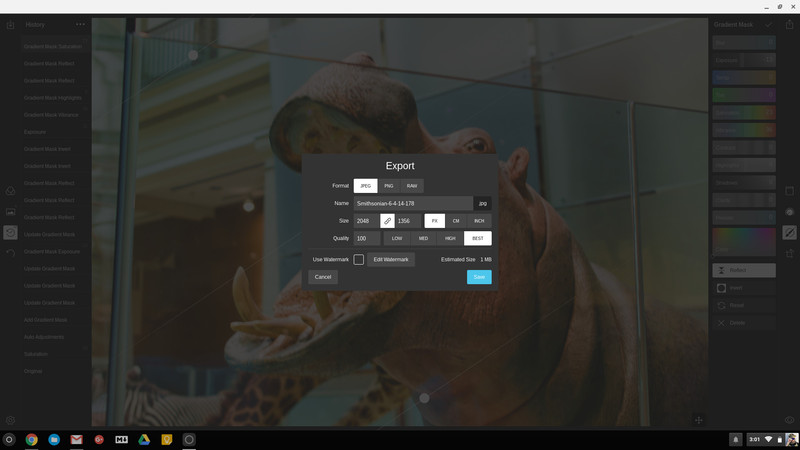
The controls are simple and perfect for anyone who doesn’t have to use Photoshop five days a week to earn a paycheck. All adjustments are in real time so you can see what effect each has and you have a full history panel to undo any or all the changes. You can even drag and drop the controls so the toolboxes work the way you want them to.
Polarr on my Chromebook makes my workflow easy again.
Here at AC taking photos is part of the job, and a big part of that is trying to make sure the stray piece of dust or eyelash doesn’t ruin a photo and the bright screen on Android phones isn’t washed out. That means most of the time our pictures of phones need run through an editing program. I’ve been using Polarr on my Chromebook to do it without any problems. In a lot of ways, I prefer Polarr to Lightroom — I like the tools interface better and the file handling is much better if you only have a few pictures to work on. Most importantly, Polarr does a good job balancing the exposure and cleaning up the noise that gets left behind when your adjusting it.
If you have a Chromebook or Chromebox — especially if you’re all-in and it’s your only computer — you need to try it. You can install Polarr for free from the Chrome Web Store and get most of the experience. All the tool features are available but some of the advanced adjustments are locked. What you get for free is very usable and works great. If you like what you see and want the rest the program is $20. That’s about $100 cheaper than Lightroom and the things most people who don’t need Lightroom would want to do are easy with Polarr. I feel like I got my money’s worth.
Download Polarr Photo Editor for Chrome (Free / full version $19.99)
Updated November 2017: Polarr is still the best photo editor for your Chromebook, no matter what your skill level might be.
Chromebooks
- The best Chromebooks
- Should you buy a Chromebook?
- Google Play is coming to Chromebooks
- Acer Chromebook 14 review
- Join our Chromebook forums
How are you liking Tizen 3.0 on the Gear S3?
Time to get familiar with all of your new goodies.
Samsung recently started to roll out Tizen 3.0 for last year’s Gear S3 smartwatch, and there are a lot of new features and goodies included with it as part of Samsung’s “Value Pack Update.” Whether you’re a fitness nut, use your smartwatch to help you be more productive throughout the day, or simply want access to some new UI tricks, Tizen 3.0 has something for just about everyone.

Some of our forum users have already started using the new software on their Gear S3, and this is what they had to say.
vader4633
11-20-2017 03:09 PM“
Little cool thing, hold down on the watchface to see your other watchfaces. Turn the bezel all the way left and it will show 4 of the faces at a time to scroll through with the bezel.
Reply
Cowboy8467
11-20-2017 03:31 PM“
Finally have the ability to see an entire text message thread even if you don’t have default samsung messaging. Using Textra and I am able to see the whole thing.
Reply
11-20-2017 10:42 PM“
My favorite feature so far… The quick settings can be edited and one of them is AOD! I use AOD at work but screen off after work. Now it’s one step away rather than drilling into settings.
Reply
RustyFJ
11-20-2017 10:48 AM“
Make sure you sync your steps and other health measurements with your phone before you update. Annoyingly I’ve lost all steps and number of floors climbed today since the update.
Reply
If you’ve already downloaded the update, we’d like to hear from you – How are you liking Tizen 3.0 on your Gear S3?
Join the conversation in the forums!
Best Medium-Sized Android Phone
- Best overall
- Best for simplicity
- Best for camera buffs
- Best for less
Best overall
Samsung Galaxy S8

See at Verizon
See at AT&T
See at T-Mobile
See at Sprint
See at Best Buy
The Galaxy S8 is an easy pick for best medium-sized phone, and it’s one that is most likely going to feel substantial while remaining easy to use in one hand. That’s owed to the beautiful, extra-tall 18.5:9 screen that delivers some of the best visuals we’ve ever seen on a phone.
Add to that a whip-fast Snapdragon 835 chip and plenty of specs to keep early adopters happy and you have some of nicest hardware on the market today. More surprising (in a good way) is Samsung’s software, which continues to improve year over year, even if it does stuff a million and one features in the settings.
Bottom line: The Galaxy S8 does most things right so even its negatives are easily to overlook.
One more thing: If you’ve got the extra room in your pocket or hands, the Galaxy S8+ or Galaxy Note 8 are nice size boosts over the S8.
Why the Galaxy S8 is the best
You get more for your money with the GS8.
Everyone has their preference, but I think most people would agree that the Galaxy S8 is still one of the better-looking phones on the market today. The way the curved glass meets the aluminum sides — 👌. But here’s the thing: if it were just aesthetic, the Galaxy S8 wouldn’t be on this list. For all of its quirks — the displacement of the fingerprint sensor to the back, and the unreliable face unlock that replaces it — the phone is rock solid in almost every other respect.
Great touch response; amazing color accuracy; incredible camera; awesome battery life. And the Galaxy S8 manages to pack in 64GB of internal storage as standard, along with wireless charging and water resistance. There aren’t a lot of things this phone can’t do. It also manages to stay pretty easy to use in one hand, thanks to its taller-yet-narrower 18.5:9 aspect ratio.
Best for simplicity
Huawei P10

See at Amazon
If the Galaxy S8 is too ritzy for your taste, the Huawei P10 may be a bit more your style. It fits a 5.1″ 1080p display and excellent dual-camera optics into a svelte aluminum body, and manages impressive endurance out of its 3200mAh battery as well.
There’s no elongated display or glass back to enable wireless charging, but the P10 manages to nail the core functions of a smartphone and offers fast performance at a relatively low cost.
Bottom line: If you want a phone that’s simply reliable without some of 2017’s trending features, the P10 and the larger P10 Plus are great devices.
One more thing: While the IPS LCD display is nice, there’s no oleophobic coating, so it can quickly become dirty without a screen protector.
Best for camera buffs
LG G6

See at Verizon
See at AT&T
See at T-Mobile
See at Sprint
See at B&H
This list wouldn’t be complete without the Comeback King of 2017, the LG G6. This phone makes up in almost every way for the misfire of the G5, and once again positions LG as the main competition with its South Korean rival, Samsung. The G6 may not have the fastest chip on the market — it ships with the Snapdragon 821 — but everything else, from the software to the camera setup, is completely modern.
Indeed, the camera setup may be a good reason to pick this over the Galaxy S8; its dual cameras offer both a “normal” field of view as well as an ultra-wide lens that makes for incredible landscape photos. A beefy manual mode and excellent sound capture round out the G6’s excellent optical pedigree, though the phone is fundamentally sound in other ways, too. Its 18:9 aspect ratio screen is nearly as good as the S8’s, as its fingerprint sensor is much easier to reach.
Bottom line: The G6 keeps up with the Galaxy S8 in almost every way, and surpasses it in the camera department.
One more thing: The North American G6 comes with wireless charging, which is a bonus, but all models are waterproof.
Best on a budget
OnePlus 5T

See at OnePlus
The OnePlus 5T offers flagship-class performance without the sky-high price tag. Starting at $499 for a Snapdragon 835, 6GB of RAM, and 64GB of storage, it’s a bargain that brings an all-aluminum chassis, dual cameras, and a 2:1 display.
OxygenOS, the software running on the OnePlus 5T, is one of my favorite versions of Android around; it’s almost identical to stock Android, with a touch of added customizability. Because it’s so lightweight, the OnePlus 5 runs exceptionally fast given its price. There’s also an incredibly convenient audio profile switcher above the volume rocker for quickly adjusting levels, and outrageously fast face unlock security.
Bottom-line: With a big, bright screen, a great dual-camera layout, excellent build quality, and loads of nice software touches, the OnePlus 5T is one of the best smartphone deals you can find today.
One more thing: The 5T won’t receive Android Oreo until Q1 2018, but OnePlus will be running an open beta program by the end of November.
Conclusion
The Galaxy S8 may not seem like a medium-sized phone, but that’s because its tall screen is deceptive. In fact, this phone is easy to use in one hand (and has a great one-handed mode to make it even easier) along with a spec sheet for days. While the Huawei P10 is still our favorite for simplicity, the G6 takes some amazing photos, and the OnePlus 5T is a perfect budget option, the S8 does more than all, and most things better.
Best overall
Samsung Galaxy S8
See at Verizon
See at AT&T
See at T-Mobile
See at Sprint
See at Best Buy
The Galaxy S8 is an easy pick for best medium-sized phone, and it’s one that is most likely going to feel substantial while remaining easy to use in one hand. That’s owed to the beautiful, extra-tall 18.5:9 screen that delivers some of the best visuals we’ve ever seen on a phone.
Add to that a whip-fast Snapdragon 835 chip and plenty of specs to keep early adopters happy and you have some of nicest hardware on the market today. More surprising (in a good way) is Samsung’s software, which continues to improve year over year, even if it does stuff a million and one features in the settings.
Bottom line: The Galaxy S8 does most things right so even its negatives are easily to overlook.
One more thing: If you’ve got the extra room in your pocket or hands, the Galaxy S8+ or Galaxy Note 8 are nice size boosts over the S8.
Update, November 2017: We’ve added more current information and chosen the OnePlus 5T as our top budget pick.
Samsung Pay is now available in Mexico
Samsung Pay’s expansion throughout other countries heads south of the border.
Android Pay has grown into an incredibly solid mobile payment service over the years, but for a lot of folks, Samsung Pay still reigns supreme. The ability to make payments at both NFC and MST terminals has put Samsung Pay in a league of its own since 2015, and it continues to do so to this very day.

A Samsung Pay page on Samsung’s Mexico website was recently spotted, and although specifics on the service in the country are still pretty scarce, it does appear that you can start using it today – November 21, 2017.
Supported devices include the Galaxy S8/S8+, S7/S7 edge, S6 edge+, Note 8, Note 5, J7 Pro, J6 Pro, A7, A5, and A3. There’s still no word on which banks or cards are compatible with Samsung Pay, but we’d expect this information to be made available soon.
This is a big step for Samsung Pay, and it’s not even the first expansion we’ve seen this month. Samsung recently added support for debit cards a ton more banks in Canada, making it clear that this is a service the company is dead serious about.
If you live in Mexico and have had a chance to try out Samsung Pay, let us know in the comments below how you’re liking it.
Samsung Pay in Canada gains new partners, option to use debit cards
Please don’t buy a crappy cheap tablet on Black Friday

You owe it to yourself to avoid buying something terrible.
We’ve all been there, scrolling down the list of sales online or flipping through the heap of ads that arrive in the newspapers that week. A tablet that was “regularly priced at $199” is going to be available for $50, but only to the first 20 people in line who ask for them. That tablet never cost $199. The store probably didn’t spend $299 to get those 20 units into the store to trick you into buying in the first place. If you go stand in line for that tablet, you will come home to find little more than sadness in the box.
Let’s get this out of the way right here and now — there is no such thing as a good cheap tablet on Black Friday. They don’t exist, and any company trying to sell you one knows you’re going to get more use out of the box that tablet comes in than you will the hardware contained within.
If you are dead set on purchasing any kind of technology on Black Friday, here’s what you need to know.
Haven’t started scoping out Black Friday deals yet? Check out the ultimate guide to Black Friday at Thrifter!
If it seems like too good a deal, it probably is

If there’s one thing we can say for sure about this past year, it’s that manufacturers have gotten very good at pricing Android phones at tablets low enough that they’re appealing every day of the year and not just on special sales. The inherent downside to this is the decrease in likelihood the established brands will have extreme sales on proven hardware that was released this year, because these devices were already sold close to cost.
The only time you’ll see any significant discount on Android hardware right now is when a manufacturer is trying to get rid of stock. This isn’t always a bad thing, but requires some research to make sure you aren’t buying garbage. The Galaxy Tab A is a perfect example, especially with some of the deep discount sales we’ve seen on this tablet over the last couple of months. While not explicitly Android related, the Anova Sous Vide cooker is another good example of something nice that will likely also be cheap. These things weren’t necessarily worth it for one reason or another when they were released, but at discounted rates the tech becomes significantly more compelling.
Pay attention to bundle deals
Since the cost of hardware has come down, retailers are likely to rely heavily on bundle deals for those first in line this year. This usually means a tablet will be priced nearly identically to what you’ll see in stores, but it comes with several accessories to create the value. With a tablet, this could be anything from cases to docs to screen protectors, which you’d basically be getting for free with the cost of your tablet.
Bundle deals like these are usually assembled by the individual stores based on the stock they have available, and will often only be available when the doors open or for hour windows during the store’s normal hours of operation. It’s also the kind of thing you won’t see advertised until you’re in the store, depending on what is available. You best bet here is to stop into a store the day before and ask about these bundles so you can see which are the best bet for you.
What to look for when shopping

So you now know what not to buy. Here’s a short checklist for a tablet worth your money. Follow this, and you’ll be gifting something anyone would be happy with for quite a while.
-
Know what you want: If you know you’re looking for a tablet, make sure you’ve answered a few basic questions before you head into the store. What is this tablet being used for? What accessories are needed with this tablet? How long will this tablet be used? The answers to these questions will narrow down your list a bit, and make choosing in the store much easier.
-
Pay attention to brand names: Tablets aren’t like those bags of cereal that taste just as good as the big brands. These little computers are usually sold just about as cheaply as they can be from the beginning, which means companies who are able to get a brand new tablet way down in price are either selling ta a huge loss or cutting corners with the internal hardware. With a major brand, you know it’s usually the former. With a brand you’ve never heard of, you can be sure it’s the latter.
-
Look for Google apps: Unless you’re buying an Amazon Kindle Fire tablet, you want to keep an eye out for Google’s apps on any tablet you want to buy. Not only does this guarantee this tablet will have access to the latest apps, but it means this tablet has passed a rigorous series of tests Google requires in order to install those apps. If you see the Google Play Store or the Gmail app on the homescreen, you know this is something running software Google trusts.
-
Don’t buy something old: You’ll see this a lot with Samsung tablets this time of year, but there are several manufacturers with this issue. Old tablets taking up space will be sold for next to nothing, and unfortunately that probably means the hardware is already showing signs of age and isn’t as likely to get software updates for more than a couple of months. Do a quick search to see when the tablet was released, and that will help you determine whether you’re actually getting a deal.
-
Read some reviews: If a tablet is reputable and sitting on a store shelf, there will be reviews online for it. Read a couple so you get a good idea for what the tablet is capable of. While we’d obviously love for you to start here at Android Central, you really should read more than one if you’re trying to decide which tablet will give you best experience.
If you don’t see what you want on Black Friday, there are still plenty of deals to be found
Retailers have figured out there’s plenty of other shopping days in the year, so if you don’t find the tablet you’re looking for on Black Friday it’s not the end of the world. You don’t have to settle on something less because it’s available right then and there. You can keep an eye on all of the retail websites, and you’ll find there will be plenty of great sales between Black Friday and Christmas Day. Do that, and you’ll be sure to get the tablet you actually want at a reasonable price this year.
Check out Thrifter’s guide to Black Friday for all the best sales!
Buying anything during the holiday season can be a little on the stressful side, but tablets are one of those things that are almost always available and on sale in some fashion. You’re bound to find what you want if you know where to look, and with this guide as your holiday helper this purchase will hopefully be much easier on everyone.
 AIVAnet