


These kickass telepresence robots are the next best thing to teleportation
Ever needed to be in two places at once? Well, thanks to miracles of modern engineering, you finally can be … sort of. Using an internet-connected telepresence robot, it’s now possible to see, hear, and navigate spaces that you do not physically inhabit. For obvious, reasons, this ability is extremely useful in a variety of different settings — whether it be a corporate office, a hospital, or even just a distant relative’s house.
As such, the number of manufacturers who make and sell these telepresence robots has ballooned in the past few years, and now there are dozens of different makes and models to choose from. But who makes the best telepresence robots? Keep reading to find out!
PadBot P1 $1,297
The first on our list is the PadBot P1 — which also happens to be the cheapest. With a built-in screen, 720p camera, and speakers; the P1 has all the features you need in a telepresence machine. The robot can be controlled over WiFi via a smartphone or tablet, but can also be equipped with a 4G card for hassle free roaming through locations where WiFi might be unavailable or slow.
Thanks to extra features like a downward facing camera for better control, Auto-Answer (remote activation), and automatic docking, using the PadBot P1 is a breeze. And don’t worry about constant trips back to the charging dock, either. With this bot’s 10-hour battery life, you should have all the time you need to check up on the office or your family at home.
VGo $3,995 -4,995
VGo offers two main models: the E-1000 and V-1000. Marketed heavily to medical facilities, the both machines feature a camera with tilt and zoom abilities, as well as bright LEDs for lighting up otherwise hard-to-see areas. The E-1000 and V-1000 also boast the ability to link up with modern medical hardware to pipe back a patient’s metrics to the doctor behind the screen.
Featuring Auto-Answer, and automatic docking on the V-1000, as well as an impressive 12-hour battery life, VGo telepresence bots can be activated on the fly for even those tediously long checkups. They also come with built-in WiFi and 4G compatibility as well, you’re sure to stay connected as you roll around the office or hospital — even in the dark of night.
Ohmni $1,899
Affordable and easy to use, the Ohmni is ready to roll almost immediately after it comes out of the box. With it’s 10.8″ screen and booming speaker, the bot definitely won’t have a problem bringing your presence to the room. Plus, with a stylish design, custom covers, and customize-able LED’s, the Ohmni may be the best looking telepresence robot on the market.
It’s also quite easy to control. the Ohmni can be piloted from any computer or Android device capable of running with Google’s Chrome browser, and is controlled with simple arrow key inputs. With dual cameras (one forward, and one down), the device also provides plenty of spacial awareness, so you’ll have no problem getting around. It also features built-in WiFi, 4G, and surprisingly, Bluetooth connectivity.
Beam+ $1,995-3,995
The Beam+ has been a mainstay in the Telepresence market for a bit now, and for good reason. With multiple models and options to choose from, the Beam+ can satisfy all of your out-of-office communication needs. Featuring a four-microphone array for maximum office banter pickup, and a 2.2 inch speaker to banter back with; you will hear and be heard across the office. The 2x enhanced digital zoom will give you the peeping power you need to know exactly who said your new tie looked dumb last week, and the 10-inch edge lit LCD screen will help convey show everyone how nice this week’s tie is comparatively.
Operable on almost any platform you can think of (sorry Linux, not you), you can control the Beam+ from any PC, Mac, Android, or iOS phone. The Beam+ is also one of the more rugged of the bunch, and is able to clear “bumps” up to 0.75 inches high. However, due to the bot’s monthly service fee, this might not be the best choice for the home user — but the high-performance tech specs make it ideal for businesses with employees that need to collaborate from afar.
It’s never been cheaper to add a layer of security to your house with Ring’s Spotlight Cam
Home security is important, and it doesn’t have to cost you a fortune.
Right now you can grab Ring’s new Spotlight Cam (wired) for just $149 at Amazon, which is a $50 savings. These cameras were just released back at the end of September, and since then they have only ever dropped down to around the $183 mark, so this is a new low for them by far. It comes in two different versions, and this is the wired one, which obviously requires you to be able to plug it in to power it up.

If you’re thinking about picking up multiple cameras, there is actually a better offer for you. Home Depot also has a sale which offers them for $134 a piece if you order 2 or more. That’s a minimum of $268, but if you were planning to use these to cover multiple areas, you’d save a lot of money buying in bulk from Home Depot. This deal is good in White or Black.
The camera comes with a power cord that is around 9 feet long, giving you a little flexibility of where you can install it at your house. If you’d prefer something brighter, the Ring Floodlight Camera is down to $224 at Amazon, which is a savings of $25 from its regular price. If you happen to have a Costco membership, you can score it for $199.99 with a Chime Pro and year of cloud recording, which is the best current offer for it.
See at Amazon
Five state attorneys general are investigating Uber breach
Uber’s latest security breach, which exposed 57 million customers’ and drivers’ personal information, has come under more and more scrutiny since it was revealed earlier this week. The Federal Trade Commission has already confirmed that it’s looking into the breach as well as how Uber handled it. A number of agencies abroad are investigating the incident as well. But it doesn’t stop there. Uber is also now under investigation by at least five state Attorney General offices and has been named in multiple lawsuits.
As the Washington Post reports, the attorneys general of Massachusetts, Illinois, Connecticut, New York and Missouri have all launched investigations into this latest egregious lack of data security as well as some Uber executives’ decision to not report the breach and instead pay off hackers to keep them silent. The details of these investigations haven’t been revealed but it’s likely Uber broke a number of states’ laws when it failed to notify its customers of the data breach in a timely manner.
We’ve launched an investigation into the Uber breach and have been in touch with the company to get more information.
We have serious concerns about the reported conduct.https://t.co/iH8X2nDWvz
— Maura Healey (@MassAGO) November 22, 2017
The Washington Post also reports that at least three lawsuits are in the works. Those suits have been filed in California and Oregon and all three are seeking class-action suits against the company. In response to the breach and its mishandling, Uber’s new CEO, Dara Khosrowshahi, has said, “None of this should have happened, and I will not make excuses for it. While I can’t erase the past, I can commit on behalf of every Uber employee that we will learn from our mistakes.”
Via: Washington Post
Tamagotchi is heading to your smartphone in 2018
Tamagotchi is celebrating its 20th birthday this year with the release of a special anniversary edition, which was good enough to land on our holiday gift guide. But, the festivities don’t end there, as the virtual pet is (at long last) making the leap to smartphones in 2018. My Tamagotchi Forever for iOS and Android gives the pixellated blob with a face a much-needed makeover. The game is set in colorful “Tamatown,” home to other cutesy inhabitants that you can make friends with — much like Nintendo’s latest mobile offering, Animal Crossing: Pocket Camp.
As usual, your job will be to ensure that the Tamagotchi gets fed, bathed, cleaned, and put to bed on time. And, you can expect to get pinged on your mobile every time the doe-eyed critter wants attention, making neglecting it that much harder. Stop catering to its every need and you could wind up with a sulky ogre. Meanwhile, mini games will earn you coins that unlock items, such as food, costumes, and decorations. Or, you could skip the hard work and fork out real cash for goodies.
The game is already available in Canada, according to Touch Arcade, while the rest of us will have to wait for a global release.
Source: Bandai Namco (YouTube), My Tamagotchi Forever
These OnePlus 5T tips and tricks will help you master your new phone
The OnePlus 5T is a beautiful and capable phone. Building on the success of the OnePlus 5, the 5T brings an improved camera, facial recognition, and a number of other features that make it a great upgrade. While the OnePlus 5T shares a lot in common with its older siblings, it still has some new tricks up its sleeve. These OnePlus 5T tips and tricks will help you get the most out of your new phone and take advantage of its many unique features.
How to turn on Reading Mode
One unique feature of the OnePlus 5T is its Reading Mode. This mode converts your display to grayscale, mimicking an e-reader screen. While it is not as good as the Kindle Oasis, reading mode helps prevent fatigue when reading ebooks or longer documents on your phone.
You can manually turn on the feature by going to Settings > Display > Reading Mode and toggling on the Turn on Reading Mode slider.
There is also an option to activate Reading Mode for certain apps like Kindle. To turn on Reading Mode for specific apps, go to Settings > Display > Reading Mode. Select the “plus” icon next to Add apps for Reading Mode. Select the boxes for the apps you wish to use.
How to use and customize gestures
Most Androids have baked-in gestures to complete common tasks. The OnePlus 5T is no exception. However, the gestures available on the 5T give you a lot of control over the phone.
Setting up gestures is simple. Go to Settings > Gestures. You will see a list of common gestures that can be enabled by toggling on the respective slider. Some, like Flip to mute and Three-finger screenshot are enabled by default.
One interesting set of gestures on the OnePlus 5T are used to control music playback. Drawing a straight line with two fingers will play or pause music. You can also move forward and backward in your playlist by drawing the > or < characters.
The OnePlus 5T also allows you to create five custom gestures. You can set these gestures up to perform common tasks like open the camera, or you can set them up to open any app. To set up custom gestures, go to Settings > Gestures. Scroll down to the Draw options and click on your selected gesture to set up. Check the box next to the app or function you wish to program.
How to use Parallel Apps
Parallel Apps allows you to clone certain apps on your phone. While the Huawei Mate 10 Pro allows you to clone any app, OnePlus limits you primarily to social media apps. This feature is excellent for people who have multiple social media accounts who want to easily switch between them.
To enable Parallel Apps on your phone, go to Settings > Apps > Parallel Apps. A list of compatible apps will appear. Toggle the slider on for an app you wish to clone. Next time you open the app drawer, you’ll see two icons for the apps you selected.
How to customize the alert slider
Andy Boxall/Digital Trends
The OnePlus 5T has an alert slider on the left side of the phone. While it’s similar to the ring/silent switch on the iPhone 8, the alert slider has three different settings that allow you to control notifications. While the default is set to “Ring,” “Do Not Disturb,” and “Silent,” you can customize the alert slider in the settings.
To customize the alert slider, go to Settings > Alert slider. You can then click on each of the settings to make adjustments. In Silent, you can toggle on the media button if you want to simply block notifications while watching videos.
The Do Not Disturb option allows you the most flexibility. You can allow certain contacts to call and send messages by pressing Calls or Messages and selecting your preferred contacts. You can also toggle on Event reminders if you want to continue to receive notifications from your calendar. Toggling on Allow pulse notification light offers a subtle alert that you have notifications waiting.
How to organize your Shelf
Shelf is an excellent productivity tool that sits in the far left window of your home screen. Shelf allows you to add the usual widgets available on Android phones as well as many custom widgets only available on OnePlus phones. If you didn’t enable Shelf when you set up your OnePlus 5T, you just need to find a blank spot on your home screen and long press. Select the Settings icon and toggle on the slider next to Shelf.
Adding widgets to Shelf is incredibly simple. Press the teal plus icon on the bottom of the screen and select the widget you want to add. To move your new widget, simply long press on it and drag to your desired location.
Have a widget taking up too much space? Some widgets can be resized. Long-press and wait for the draggable handle to appear at the bottom of the widget. Change to the size of your choice and tap anywhere on the screen to lock the new size. If you’ve grown tired of a widget, you can simply long press on it and press the X icon to delete it.
How to use the Portrait and Pro modes
The OnePlus 5T doesn’t have a camera that competes with the iPhone X or Google Pixel 2, but it is a big improvement over the OnePlus 5. The telephoto lens has been replaced with a dual-camera setup on the OnePlus 5T.
The new dual cameras, in addition to software improvements, make for much better portraits on the OnePlus 5T. The slight blurriness around the edges of your subject that happened on older OnePlus phones is largely gone.
To take a portrait on the OnePlus 5T, open the camera app. Swipe left until you see the depth effect icon appear on the screen. Select the portrait icon on the bottom right-hand side of the viewfinder screen. To get the best shot, you will want to shoot in bright light and make sure your subject is at least a foot away from the camera.
For more experienced photographers that want complete control over their photos, the OnePlus 5T offers a Pro Mode. With Pro Mode, you can adjust white balance, shutter-speed, ISO, and aperture. To use Pro mode, open the camera. Swipe up from the bottom of the screen and select the Pro Mode icon. Select the setting you wish to change from the menu bar and adjust the scroll wheel to the appropriate setting. If you want to save your images in RAW format, just click the RAW icon at the top of the screen and select the appropriate icon.
How to customize your OnePlus 5T with OxygenOS
OxygenOS on the OnePlus 5T is not just beautiful, it allows you numerous options to customize the interface. You can customize the notification bar, change the home screen, and even customize app icons.
Long-press on the home screen to customize its layout. Press Settings followed by Home screen layout. In this screen, you can adjust both the number of columns on the home screen and the size of your icons.
To change the way your icons look, just long-press on the home screen. Select Settings > Icon pack. From here, you can select the default OnePlus icons, round icons or square ones. If you want something completely different, you can select the More icon and browse the different icons packs available in the Google Play Store.
The OnePlus 5T also allows you to customize button functions. You can set functions for long-presses and double-taps on the Home, Recent, and Back buttons. You can customize your buttons to activate Google Assistant, open your Shelf, and even turn on split screen mode.
To customize your buttons, go to Settings > Buttons. Select the button you want to customize by tapping on it and a series of options will appear. Select the radio button next to the function you want to enable.
How to take an expanded screenshot
Sometimes you need to screenshot a little more than what can fit on your screen. The OnePlus 5T has a feature that will allow you to take multi-page screencaps easily.
Taking an expanded screenshot on the OnePlus 5T is simple. First, you need to make sure the image you want to capture is on screen. You can then take a screenshot in one of two ways: You can either press the Volume Down and Power buttons simultaneously or swipe across the screen with three fingers (if you set up the gesture). When you see the screenshot, press the rectangular icon at the bottom of the screen. You will see the screen begin to scroll. When you reached the bottom of your selection, just tap the screen to stop the expanded screenshot.
How to get full-screen video
The OnePlus 5T has a beautiful AMOLED screen. The 18:9 aspect ratio, however, can cause the dreaded black box effect on some videos. While some providers will automatically crop the video to create a full- screen effect, other apps require you to do the legwork.
Going full screen on the OnePlus 5T depends on the app you’re using. To enable full screen in YouTube, for example, you simply need to pinch out on the screen. Some apps require a double-tap. In short, if you’re boxed in when watching a video, try a few different gestures and one should work.
Plotagraph’s still photo animator can now create sweet morph effects
The software that turns a single still photo into an animated GIF is morphing into an even more advanced tool — On Friday, November 24, Plotagraph launched two new features and a website launch for Plotagraph Pro. The new tools allow photographers to create a morphing effect as well as adding more special effects tools.
PlotaMorph is a new tool inside the pro desktop version of the software. After layering up to 10 different images in the program, Plotagraph will morph the changes together. The tool allows photographers to create an effect that makes people or object appear to morph into a different person or object.
The PlotaMorph tool includes options to put that morph on an endless loop or to reverse the change at the end. Plotagraph says that users can also control the effect using custom line and spiral movements between those images.
While Plotagraph’s big perk is creating GIFs from stills rather than video clips, the PlotaMorph requires multiple photographs. The unusual effect, however, could be a good tool for grabbing viewer’s attention inside an oversaturated social media feed, or creating an artistic statement on change.
Along with the new morph tool, the software also now includes PlotaFX, a special effects suite for editing still photos. The tool allows users to add a variety of different effects to their photos for quick improvements. The instant effects can also be added using layers and then custom animated by bringing that shot into Plotagraph’s animation tools.
The company also launched the Plotaverse website. Along with access to pro account features, it allows creatives to apply to be featured as the artist of the day or to the ambassador program. Selected photographers as part of the Influencer Experience will be flown out to Maui to shoot with fashion photographer and Plotagraph creator Troy Christopher Plota.
For Black Friday, the company is offering a three-month subscription to Plotagraph Pro for half off — the deal is available until November 28. Plotagraph also has a scaled-down mobile version of the desktop software, Plotagraph+. Now through the end of the year, Apple is offering a free app code for downloading Plotagraph+ for users who download the app using the Apple Store app (not to be confused with the App Store).
Sony Xperia XZ and XZs now being updated to Android 8.0 Oreo
Oreo should also soon be available for the Xperia X Performance.
Sony’s Xperia XZ1 and XZ1 Compact are two of the company’s best phones in quite some time, and when they were announced, they were the first two phones on the market to ship with Android 8.0 Oreo out of the box. Sony’s commitment to snappy updates has really been shining through lately, and this continues with the Oreo love being shared to two of the company’s older handsets.

Both the Xperia XZ and XZs are now receiving an official update from Sony to Android 8.0.
With this update, the XZ and XZs gain Oreo’s app shortcuts, notification dots, smart text selection, the Autofill API, and picture-in-picture. In addition to all of Oreo’s regular goodies, Sony is also including Xperia Actions and Reminders. Xperia Actions are suggested settings that your phone will show you based on your usage, and Reminders are described as “useful prompts for unfished tasks, including emails in draft and messages.”
Along with all of this, Oreo also brings the latest November 2017 security patch to Xperia XZ and XZs.
The update weighs in at 1232Mb, and according to Xperia Blog, the Xperia X Performance should receive the update soon as well.
Android Oreo
- Android Oreo review!
- Everything new in Android Oreo
- How to get Android Oreo on your Pixel or Nexus
- Oreo will make you love notifications again
- Will my phone get Android Oreo?
- Join the Discussion
Pokémon Go developer Niantic raises $200 million in funding
A $170 million increase compared to Niantic’s Series A funding.
Niantic, the developer behind Pokémon Go and the upcoming Harry Potter: Wizards United AR games, has reportedly completed a Series B funding campaign in which it successfully raised $200 million. This latest round of funding for the company was supported by Founders Fund, Meritech, You & Mr. Jones, NetEase, Inc., and Javelin Venture Capital.
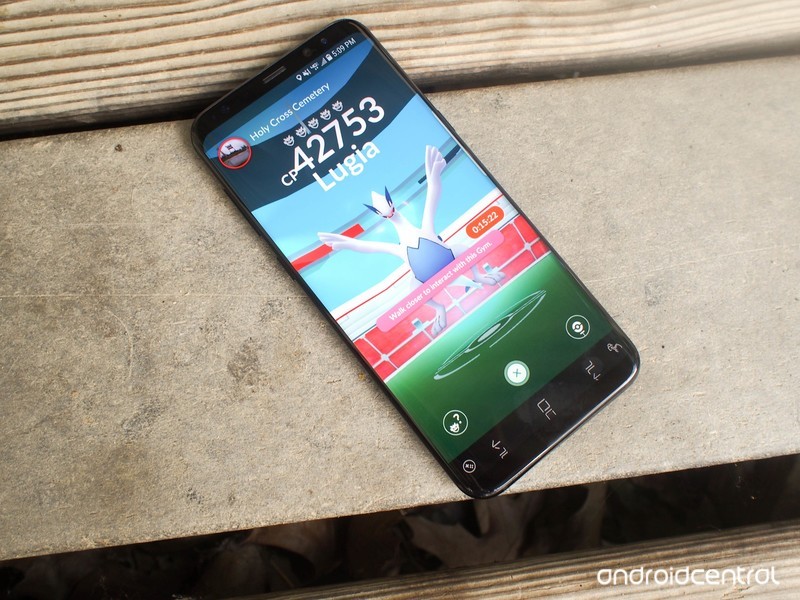
Compared to Niantic’s Series A round of funding in 2015 that raised $30 million for the developer, this is a big win. That money was raised shortly after Niantic first announced Pokémon Go, and this latest announcement for its Series B earnings comes less than a month after its latest project was unveiled – Harry Potter: Wizards Unite.
Harry Potter: Wizards Unite will be another augmented reality game similar to Pokémon Go, but as you’d expect, takes place in J.K. Rowling’s Wizarding World with monsters, spells, witches, and more.
Niantic is partnering with Warner Brothers Interactive Entertainment and WB Games for its Harry Potter title, and while exact details on the game are still fairly murky, we wouldn’t be surprised if it has a similar impact on the world as Pokémon Go did in 2016.
Pokémon Go developer announces Harry Potter: Wizards Unite
Razer Phone said to receive new camera features and improved performance
Updates include improved speed, zoom button, portrait mode, 4x slow-mo video, and more.
The Razer Phone is a really good attempt from Razer for its first ever smartphone, but as Alex noted in his full review of the device, there are a couple issues that make it tough to recommend – one of those being its camera package.

Camera performance on the Razer Phone just isn’t good in its current form, but according to Razer’s CEO and Co-Founder, Min-Liang Tan, the company is aware of the complaints and is working on making the camera as good as possible.
In a post published to Facebook on November 21, Tan said that “while the camera hardware and sensors are phenomenal” there are still software improvements that need to be made. Razer is reportedly working on increasing shutter speed, enhancing low light performance, and “other optimizations” that will steadily be rolled out to the Razer Phone over the coming weeks.
The Razer Phone’s camera might not be terrible for too much longer.
Tan says an update to the camera app that was released on November 17 improved stability performance and its interface and that these updates will continue to trickle out on a regular basis. Additionally, at some point during the next few months, Razer will be adding a button for instantly zooming in on a subject with the Razer Phone’s telephoto lens and 4x slow-motion video recording.
Lastly, when Oreo for the Razer Phone is released in Q1 of 2018, 60 FPS video, portrait mode, and further performance enhancements will be added as well.
The Essential Phone launched with a terribad camera, too, but after more than a few software updates, it’s now actually enjoyable to use. It remains to be seen if Razer can pull off a similar feat, but we wouldn’t count the possibility out just yet.
Razer Phone review: Don’t go outside
Amazon’s warehouse workers strike in Germany and Italy
As exciting as it may be go on an online shopping spree for Black Friday, there is a human price to be paid: thousands of warehouse workers often have to commit many exhausting hours to making sure your orders arrive on time. And some Amazon warehouse workers have had enough. Staffers at Amazon distribution centers across Germany and Italy have gone on strike over pay issues and conditions they believe “endanger the health” of employees. Complaints about a lack of bonus pay are central to the walkout, but there are also extensive concerns about what Amazon expects from its floor staff.
The German union Verdi claims that Amazon “permanently endangers” workers by pressuring them to do more and more in a shorter time span, with constant performance monitoring, a “poor leadership culture” and short recovery times between working stints. In short: even if pay wasn’t an issue, the risk of burnout would be.
In a statement to TechCrunch, Amazon didn’t say if it was negotiating with unions but did downplay the significance of the strikes. The “vast majority” of German and Italian employees came to work, Amazon said. It also pointed to its “record of job creation” and was “confident” it would fulfill customer demand during the holidays. When speaking to Reuters, Amazon added that its salaries were some of the highest in the logistics field and included perks like private medical insurance and money for training programs.
The strikes underscore the tensions that increasingly dominate online shopping. When companies like Amazon revolve around offering the lowest prices and shipping your goods as quickly as possible, cutting costs is important. It can be tempting to wring as much as possible out of warehouse employees, especially when robots could streamline (and theoretically replace) their jobs.
Via: TechCrunch, CNET, Reuters
Source: CISL, Verdi
 AIVAnet