


Be the master of your own Insta-verse: How to manage multiple Instagram accounts
Instagram users with multiple accounts can toggle between their accounts from directly within the Instagram app. This feature, which Instagram rolled out earlier this year, has been long overdue, as users have been asking for a solution.
Before this update, users had to log out of one account and log back into another, or were at the behest of third-party apps — many of which actually made it difficult to jump from one account to the next. In the age of instant gratification, this was grossly inefficient. Now, Instagrammers have the ability to add up to five accounts, meaning you, your cat, your baby, and/or several inanimate objects in your life can each have a platform to express themselves, whether posting or reposting photos, GIFs, or videos. Although you may never accumulate as many followers as the official Queen of Instagram, Selena Gomez, you can still relish the moment when one of your photos receives that crucial 11th “like” and your general existence is momentarily validated.
That said, you’re well on your way to celebrity status if you utilize the steps outlined below on how to manage multiple Instagram accounts. Remember, slow and steady wins the race, young tortoise. Rome wasn’t built in a day, although Taylor Swift’s KanTay 2020 photo did garner the equivalent population of Rome in likes in a day.
How to add an additional Instagram account(s)
Instagram has made the process simple enough. Once you launch the app, go to your profile (the icon at the farthest-right along the bottom) and select the gear — or the three dots — in the upper-right corner of the screen. Then, scroll all the way down, select “Add account,” and enter the desired username and password for the account you would like to add. If you’ve created several Instagram accounts, you will now receive push notifications from all accounts that have notifications activated. To see the notifications for each individual account, go to your profile page and select the username from the list.
How to switch between accounts:
At this point, you, your curmudgeonly cat, and your ill-fated terrarium each have their own Instagram account. Now you need to know how to toggle between the various accounts. Once you’ve launched the app, go to your profile page and tap your username at the top of the screen. You’ll then have the option to select from a list of accounts associated with your specific app. Select the account you’re attempting to manage before moving onto much more challenging questions — i.e. Nashville or 1977?
How to remove an account you’ve added:
OK, so the novelty has wore off and that newly added account isn’t really panning out as planned. It happens to the best of us. Thankfully, it’s relatively easy to erase that old account and move on with other prospects. Once you’ve loaded your Instagram profile, select the gear icon — or the three dots — in the upper-right of the screen. Now, simply scroll down and select the “Log out of [username]” option. Logging out of an account will delete the account.
If you’re over the Instagram game entirely and want to remove all of your accounts, you can also select “Log out of All Accounts” to do so. But don’t be too hasty, a quantum reality could easily be at stake. After all, if a tree falls in the woods and no one is around to document it on Instagram, does it make a sound? It’s a good question. If you want to permanently delete your Instagram account, we have a guide for you as well so you can say goodbye and good riddance once and for all.
Editors’ Recommendations
- Tweeting isn’t for the faint of heart, so here’s how to delete your Twitter account
- Here’s how to delete your Uber account and cut ties with the company
- Break free of the social network: Here’s how to delete your Facebook account
- How to record the screen of your iPhone or iPad with iOS 11
- Here’s how to delete your YouTube account in just a few easy steps
Waze launches motorcycle mode, voice commands and carpool lane support
All of the new features are available starting today.

Waze is one of the most popular navigation apps around, and today it’s receiving a pretty beefy update that adds three new features for helping you get to where you need to go as fast and safe as ever.

Motorcycle Mode
For all of you motorcyclists out there, Waze is adding a few new features to make using the app more enjoyable when traveling on two wheels instead of four. Estimated arrival times have been tweaked so that they’re more in-line with what you’ll actually experience when driving a motorcycle, recommended routes are now sourced from cyclists rather than those driving regular automobiles, and information about more narrow roads that typically can’t be accessed when in a car can also be seen.
“Ok Waze” voice commands
Perhaps the biggest feature that’s part of this latest update is voice commands. When you’re in the Waze app, you can now say “Ok Waze” and then something along the lines of “take me to work”, “find the nearest gas station”, and “what’s my next turn?” to control your drive without having to touch your phone. Furthermore, you’ll also be able to use the “Ok Waze” command to report any accidents, backups, or other conditions you notice while driving.

Voice commands in Waze
Support for carpool lanes
Lastly, Waze’s new update adds carpool lanes to its routing system. Waze claims that it’s the first navigation app to do this, and it’ll be launching this service with HOV routes throughout 22 states in the U.S., as well as Toronto, Vancouver, and Montreal in Canada. Supported states currently include the likes of Atlanta, Boston, California, New York, Texas, and others, and Waze says that more locations throughout the U.S. and Canada will be added soon.
These new features are now available for Android and iOS with the latest Waze update starting today.
Waze on Android Auto: Invaluable feedback and alerts with sub-par maps and routing
Best Accessories for the OnePlus 5T

What are the best accessories for the OnePlus 5T?
OnePlus is never satisfied releasing just one flagship each year, so it capped off 2017 with the release of the OnePlus 5T. It’s another well-built phone with a solid list of specs — basically everything we’ve come to expect from a OnePlus phone at a much more reasonable entry price than its competition from Samsung or LG.
Folks who bought their OnePlus 5T on day one are just starting to receive their shipments this week, so it’s time to take a look at some of the best accessories for the OnePlus 5T so far.
OnePlus 5T Flip Cover

There are a limited number of cases for the OnePlus 5T on third-party sites like Amazon, so we’re only recommending cases made by OnePlus for the time being. First up, this classic flip cover case that offers the best all-around protection for your new phone.
If you’re a fan of folio wallet cases, you know what to expect here — the front cover keeps your screen protected while in your pocket or purse, and will automatically wake your phone when you flip it open. On the inside, there’s a card slot that’s perfect for storing a credit card, photo ID, or some emergency cash. Available for just $19.95, it’s a classy case option for your OnePlus 5T.
See at OnePlus
OnePlus 5T Protective Case

Looking for a more classic slim case for your OnePlus 5T? OnePlus has you covered with this minimalist case to keep your phone protected.
Available in a grippy sandstone finish, stylish carbon fiber, or premium wood grains, this is always a classic pick for OnePlus fans. The Sandstone and Ebony Wood options are currently available for $24.95, but the Karbon and Rosewood cases are currently listed out of stock. If you must have one of the latter options, you can sign up to be notified as soon as they are back available for purchase.
See at OnePlus
OnePlus 5T Big Bold Boss Bundle

If you’re really looking to accessorize the heck out of your OnePlus 5T, you should check out some of the [accessory bundles] that OnePlus offers. The best value is likely the Big Bold Boss Bundle, which includes all the best essential accessories OnePlus has to offer.
The bundle includes a Karbon Protective Case, a tempered glass screen protector, a pair of OnePlus Bullets earbuds, a Dash Power Adapter and a Dash Type-C cable — all for just under $90. It’s a great deal that must be popular with OnePlus fans because it’s currently listed as out of stock. This is definitely one to keep your eye on.
See at OnePlus
dbrand Skins

Want to keep your phone looking stylish and protected but don’t like the bulkiness of a case? You should check out dbrand’s line of skins for the OnePlus 5T.
Dbrand lets you completely customize the perfect skin for your phone — choose the finish, color, and coverage to create the perfect look and feel for your new phone. Your final price will depend on the options you choose, but you can really spend a lot of time designing a unique skin that perfectly reflects your style and personality. Admittedly, the OnePlus 5T’s design doesn’t exactly stand out from the crowd — but it will with a custom dbrand skin.
See at dbrand
OnePlus Dash Car Charger

If you didn’t know, OnePlus has proprietary charging technology, Dash Charge, which lets you top your phone up at ridiculous charging speeds. Of course, to take advantage of those speeds you’ll need to use the OnePlus wall charger that came with the phone — but wouldn’t it be nice to get those fast charging speeds in your car?
You can with the OnePlus Dash Car Charger. This accessory plugs right into your car’s 12V outlet and is specifically designed for OnePlus phones. It ships with an extra Dash USB-C cable (always nice!) and will let you go from 0% to 60% in 30 minutes. available for $30, it’s a must-own accessory for any OnePlus fan.
See at OnePlus
Anker PowerCore+ 20100 mAh USB-C portable charger

OnePlus has always prided itself on offering ridiculously fast charging speeds — as long as you’ve got Dash charging accessories on-hand and are near an outlet. But what if you’re out on the town and don’t want to be tethered to a wall outlet, even for just 30 minutes?
You need a reliable portable battery pack, and there’s no better pack to buy than an Anker PowerCore+. Featuring a massive battery pack and a USB-C charging port, you’ll be able to top up your OnePlus 5T on the go multiple times before the PowerCore+ itself needs to be recharged. Available on Amazon for $66, it’s an investment you’ll be glad you made when that low battery warning pops up at an inopportune moment. Also makes a great gift for any tech lover on your holiday shopping list!
See at Amazon
Which accessories are you excited for?
These are our picks, but we want to know how you’ll be accessorizing your OnePlus 5T. Let us know in the comments!
OnePlus 5T and OnePlus 5
- OnePlus 5T review: Come for the value, not the excitement
- OnePlus 5T specs
- Should you upgrade from the OnePlus 3T?
- OnePlus 5T vs. Galaxy S8: Beast mode
- All of the latest OnePlus 5T news
- Join the discussion in the forums
OnePlus
Amazon
Amazon launches Silk Browser on Fire TV
The Silk Browser is now available for most of Amazon’s Fire TV devices.
Since its debut in 2014, Amazon’s Fire TV has steadily grown and matured into one of the best living room streaming platforms around – especially if you’re heavily invested in Amazon’s ecosystem.
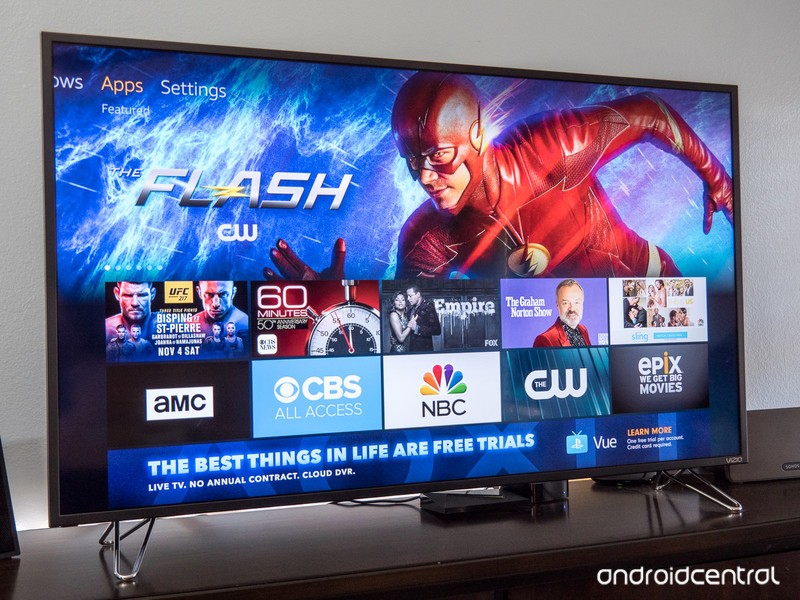
Spotted by AFTVnews, Amazon’s latest release for Fire TV is its own Silk Browser for perusing the web on the big screen.
Upon launching Silk Browser on Fire TV, you’ll be met with Bing.com as the first screen that you see. Pressing the menu button on your remote is used for entering URLs and accessing your search engine, and you have the option to change this to Google or Yahoo if Bing isn’t your cup of tea. Also, while Bing is the first page you seen when initially launching the Silk Browser, this is not your homepage. Instead, opening up Silk will take you to the last page you visited during your previous browsing session.
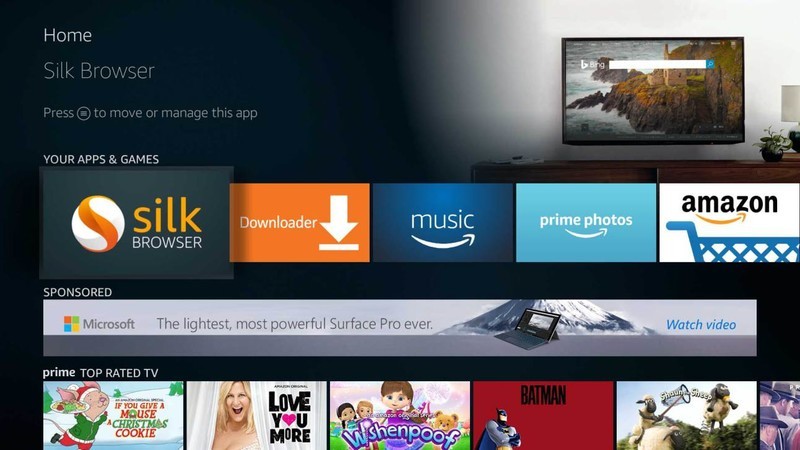
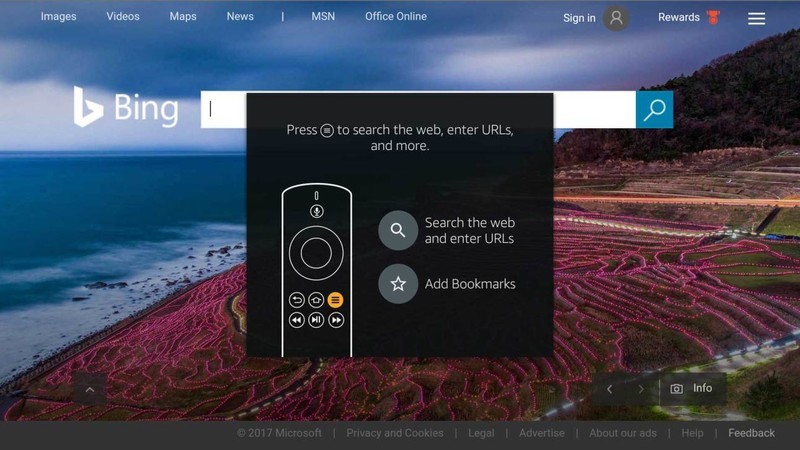
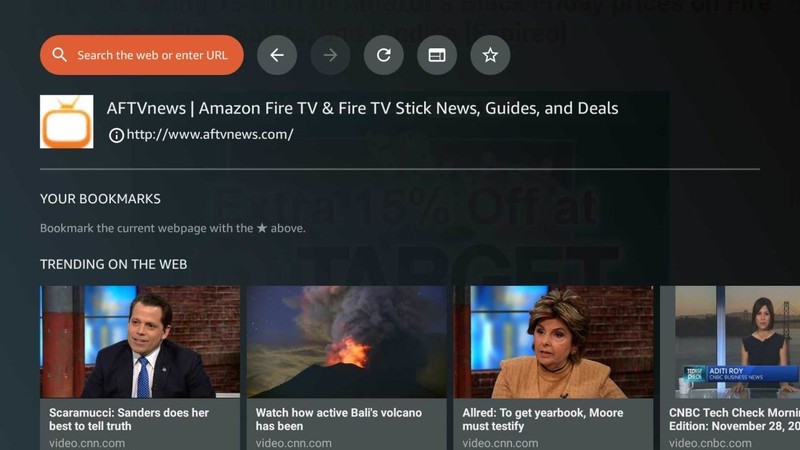
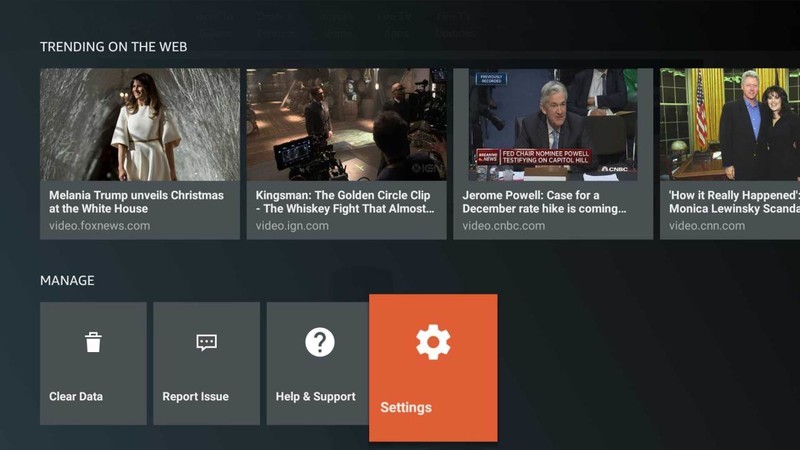
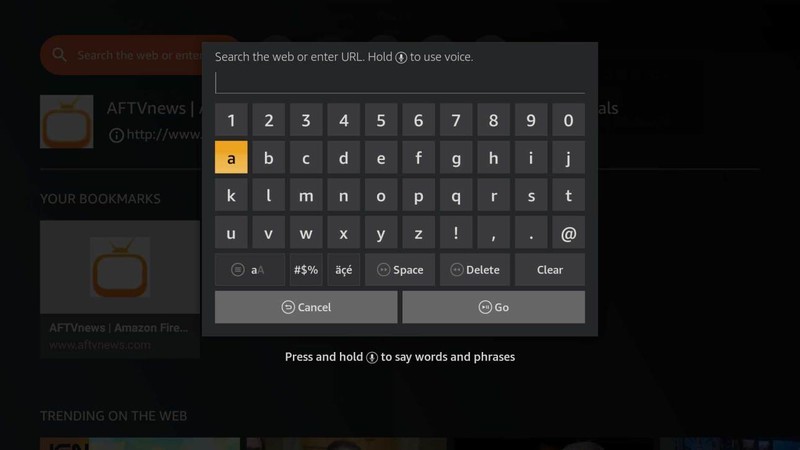
Going back to the menu button on your remote, anytime you press this you’ll be taken to a sort of landing page for Silk. Along with being able to perform the actions mentioned above, this is also where you’ll see the name of the site you’re currently on, go back a page, refresh the site, access bookmarks, and see what stories are currently trending.
The Silk Browser is currently available on the 1st and 2nd generation Fire TV, 2nd generation Fire TV Stick, and all of Amazon’s Fire TV televisions made by Element and Westinghouse. The biggest exception from this list is the latest 3rd generation Fire TV, but Amazon says Silk will be available for it at some point in December.
Amazon Fire TV
- What’s new on Amazon Prime Video
- Read our full review!
- Get the latest news
- Join the discussion
Buy at Amazon
Action Launcher’s best hidden treasures: Covers, Shutters, and Quicks

When it comes to home screens, what you don’t see can be just as important as what you do.
There are a lot of ways to hide things on a home screen. Folders are the most obvious example, but gestures hide shortcuts and functions in plain sight. But what about hiding widgets? What about hiding ugly folder icons?
Well, Action Launcher hides home screen elements better than a secret agent, and here’s how to hide your things in it.
Covers

Covers are one of Action Launcher’s claims to fame, and for good reason: they’re ridiculously simple and ridiculously simple to get addicted to. Covers change folders into a gesture shortcut, essentially: they change the folder icon to the first app in the folder, with a tap opening that app and a swipe opening the folder.
Covers exist on other launchers, but on Action Launcher they’re as easy as a toggle to activate and change the icon, whereas enabling them on most other launchers is a multi-step process. They definitely take a little getting used to, but once you’re hooked, you’ll never go back.
You have been warned.
Shutters

Shutters are kind of like Covers, but instead of hiding a folder inside an app shortcut, they hide a widget. Once you add a Shutter to an app shortcut, when you swipe vertically on it — up or down, in case your app is at the top of the screen or a folder — a window will open with your widget within it. If an app offers several widgets, you can select which widget you’d prefer. You can’t resize Shutters, but if it’s a resizeable widget, Covers will default to almost a full-screen sized widget, which is great for widgets like Google Keep.
Covers and Shutters can be used together, meaning you can hide Shutters within apps in a Covers folder like matryoshka. Shutters aren’t quite as widely used as Covers, but widgets as a whole aren’t as widely used on Android as folders are.
The Quicks


There are two panels on the left and right sides of Action Launcher: Quickdrawer and Quickpage. Quickdrawer is a vertically scrolling app drawer that you summon by swiping in from the left edge of the screen. Complete with letter shortcuts, Quickdrawer allows you to quickly and easily navigate to your desired app whether you have 40 apps on your phone or 240. Whenever I stray from Action Launcher, this is one of the features I miss most. Quickdrawer may not be everyone’s cup of tea, but that’s fine, because Action Launcher now offers a plugin app that replaces Quickdrawer with a Google Now page.
Quickpage, accessible with a swipe from on the opposite side of the screen, is like a hidden launcher page, allowing you to hide widgets and app shortcuts you perhaps shouldn’t show on your desktop (ahem) where they’re still accessible with one simple swipe. If you prefer the minimal look for your home screen but still want some widgets at your fingertips for things like home automation or stock monitoring, Quickpage is for you.
 Look, ma, no shortcuts!
There is also one awesome way to hide app shortcuts invisibly on Action Launcher’s desktop, and it’s been a part of every feature mentioned so far: Shortcuts. Gesture shortcuts can be assigned to the launcher as a whole, not just as a part of Covers, Shutters and Quickpage. For instance, you could swipe up with two fingers to turn on the lights with Tasker and swipe down with two fingers to turn it off. You can double or triple tap to open two different apps, and you can even configure Action Launcher’s tap time if you’re a slow tapper — or a twitchy tapper like me.
Your turn
Which Action Launcher tools do you hide your apps and widgets in plain sight? Are you a Covers addict, or do you hide your plunder in Quickpage? Tell us in the comments!
Sprint outage? Here’s what you need to do!

Is your Sprint service more like a crawl? Here’s what to do when there’s an outage!
Whether it’s a natural disaster, power failure, or network issues, Sprint outages happen. They’re inevitable and totally suck when they happen, but there are things you can do to alleviate some of the frustration. Here’s what to do!
Troubleshoot your devices

First thing’s first: Is the issue on just one of your devices, like your phone or computer? If that’s the case, then it could be the device acting up, so power it off, wait a few seconds, and power it back on again. Also be sure to check all network connections and make sure everything’s configured properly.
If you’re noticing the issue on several devices (every family member’s phone is having problems with texting), then you’re likely facing an outage.
Visit an outage website
There are quite a few websites that document carrier outages in the U.S., allowing you to see if other people are having the same woes you are before having to sit on hold with Sprint to find out if anything is wrong.

downdetector.com is one of the more popular options, offering a graph of Sprint issues over the last 24 hours, as well as a map showing you which areas the outage may be affecting most. Outage.Report is another good option, featuring a live coverage map as well.
Either way, check online before contacting Sprint, because if there is an outage, you may be waiting a long time to talk to someone.
Check out the My Sprint app
If you’re an Android user, you should already have the My Sprint app installed on your phone; if not, grab it on Google Play. If you’re an iPhone user, you can download it right from the App Store.
Sprint claims it can help you diagnose network problems and service and coverage issues. You can even report issues like dropped calls, texting issues, slow data speeds, or no service at all.
Contact Sprint
If all else fails or if you want to know just how long an outage might last, contact Sprint directly via phone or online chat. Check out Sprint’s support center page for specific issues, and click the yellow chat button when it appears after a few seconds. Chat is open 24/7.
You can also call customer service at 1-844-382-3312. You can also tweet directly to Sprint @sprintcare or message customer service on Facebook.
You can also report a network issue by signing into My Sprint.
Contact Sprint
Carriers

- Which unlimited plan should you buy?
- Verizon’s Unlimited plans: Everything you need to know
- Everything you need to know about the T-Mobile ONE unlimited plan
- Everything you need to know about the AT&T Unlimited plan
- Everything you need to know about Sprint’s Unlimited Freedom plan
- Join the Discussion

Rocket Lab schedules second Electron test launch for December 8th
On Friday, December 8th at 2:30 PM New Zealand time (8:30 PM ET), a 10-day window will open for a launch of Rocket Lab’s Electron rocket. The window will be open for four hours each day. This second test is called “Still Testing”; the rocket will launch from the company’s facility on New Zealand’s Mahia Peninsula. It will be the first launch that Rocket Lab has live streamed to the public.
Despite the fact that this is a test launch, the Electron rocket will carry a client payload to space: an Earth-imaging Dove satellite for the company Planet and two weather and boat-tracking Lemur-2 satellites for Spire. “This is the first test carrying customer payloads and we’ll be monitoring everything closely as we attempt to reach orbit,” said Rocket Lab CEO Peter Beck. The company expects to scrub the launch multiple times to ensure optimal conditions and that the rocket is performing as expected.
The first test launch of the Electron rocket occurred on May 25th of this year. It was mostly successful, but the rocket didn’t actually reach orbit as planned. In a post-flight analysis, though, it was revealed that the rocket had actually been performing as ordered. There was a communications drop out due to misconfigured equipment, and when the rocket detected it no longer had contact with the ground, it aborted as it was programmed to do. That issue has been fixed, so Rocket Lab expects this second launch to go smoothly. There is currently a third test launch planned for the Electron rocket, but if all goes as planned during this test, Rocket Lab may skip it altogether.
Apple Support App Updated With Redesigned Interface and New Discover Section
Apple today updated its official Apple Support app to introduce an overhauled interface and a new “Discover” tab for learning about new features in the products you own.
The new Apple Support interface features a cleaner look with more white space and a universal search bar at the top of the “Get Support” section for locating articles more quickly.
When selecting a product to get help, the app is better organized into different topics, with support articles separated into “Popular Topics” and “More Topics.” More recommended articles are also offered up during the support process, making it simpler to find help.
A new navigation bar at the bottom of the app is separated into “Discover,” “Get Support,” and “Account.” Aside from Discover, these features were previously available, but were organized differently.
The new Discover tab is the biggest addition to the Support app. It’s designed to surface tutorial articles that are specific to the device you own. On an iPhone 7 Plus, for example, the Discover section offers up articles like using the Files app, capturing Live Photos, and using Messages.
There’s also a “Collections” feature that has sections like Welcome to iOS 11, Get to know your iPhone, Get the most from your iPad Pro, Apple Watch Workout, and more.
The new Support app is available starting today, with the update available in the iOS App Store for free. [Direct Link]
Tags: App Store, Apple Support
Discuss this article in our forums
Tesla’s latest Semi electric truck customer is DHL
Tesla has scored an order of ten Semi electric trucks from DHL, which plans to use it for short runs and same-day deliveries in US cities, according to the Wall Street Journal. The transport service also plans to trial it for longer trips and evaluate safety, comfort and other concerns. DHL won’t be buying the Semi sight-unseen, as it has reportedly test-driven the rig and worked with Tesla over the past few months.
The long-range version of the Semi can go about 500 miles on a charge, about half of what diesel trucks can do. Some critics have questioned whether Tesla can meet its price and performance commitments, given the unprecedented size of the Semi’s 1 MWh battery.
The 300-mile-range vehicle will reportedly run $150,000 while the 500-mile vehicle will cost $180,000. Those prices are still more than regular semi-trucks, but most observers believe that Tesla needs new battery tech to meet those goals.

DHL’s transportation president Jim Monkmeyer told the WSJ that the Tesla trucks will ferry automotive and consumer product freight between factories and distribution centers. The runs, while local, could be still be hundreds of miles long.
Most buyers, including Walmart, Canadian grocery chain Loblaws and trucking firm J.B. Hunt have purchased the Semi in relatively limited quantities, with the aim to evaluate the economics, safety, reliability and other factors before making larger purchases.
At this point, though, they’re more excited about the potential of the Semi than concerned about Tesla hitting its promised 2019 delivery date. “I don’t know if we can count on specific dates,” said Monkmeyer. “We understand the challenges that they are facing. This is the future and we want to be in on the ground floor.”
Source: Reuters
Jim Beam’s smart decanter will pour you a shot when you ask
What do you want in a smart speaker assistant? It might be to manage calendars and appointments. For others, it could be the ability to ask the speaker to play your favorite music. But for some, the real value in a smart speaker is its ability to dispense bourbon with a simple voice command. At least, that’s what the people over at Jim Beam think. They’ve unveiled JIM, the first smart decanter, and it will pour shots for you. It’s priced at $35 and scheduled to arrive by December 15th, though it appears to be sold out at the moment.
You can see JIM in action in the video above. The voice of JIM is Fred Noe, who is Jim Beam’s seventh-generation master distiller. While he will answer some of your voiced questions (mostly bourbon-related), the decanter’s primary function is to pour you a shot, which it can do with a simple voice command. It’s important to note that the “smart” functions will only last for about six months — at that point, the 3G will expire, and it will work only as a regular decanter.
This is a pretty silly device, but if you’re a fan of Jim Beam, it seems like a fun thing to have. You can’t beat that price point, and the aesthetics of the decanter aren’t bad at all. Plus, it’s certainly a conversation piece — not only will people comment on it, but you can actually talk to it about life’s most difficult questions.
 AIVAnet