


Facebook is testing a ‘breaking news’ tag for developing stories
Facebook will set a cookie to keep you logged in, but it won’t set one to remember whether you want to stick with a chronological News Feed. That sort of thing makes it hard to tell at a glance how old a story from a media outlet in your Feed might be. To counter that, the social network is giving certain publications access to a “breaking” tag for their posts. The bright red tag sits below a post’s image and highlights how long ago it was published. Recode writes that publishers will be able to flag a story for between 15 minutes and six hours, and that it can be used once every 24 hours.
For now, the list of publishers who can use it is small and includes ABC News and Vox Media, and Facebook is keeping the full list of media organizations involved close to the chest. The breaking tag won’t weight a post’s ranking within Facebook’s algorithms. At least not yet. A spokesperson told Recode that part of the test was to decide whether or not a breaking news story should have preference over other posts in the News Feed.
Facebook has been working with news organizations on different ways to post, host and promote their stories for awhile. Instant Articles, for example, were fast-loading versions of news stories hosted by Facebook, made their debut a few years ago. Then there’s the split News Feed that keeps posts from Pages and friends siloed off from each other, and the Explore Feed. We’ve reached out to Facebook for more information and will update this post should it arrive.

Source: Recode
Apple Releases macOS High Sierra Security Update to Fix Root Password Vulnerability
Apple today released Security Update 2017-001 to fix a serious vulnerability that enables access to the root superuser with a blank password on any Mac running macOS High Sierra version 10.13.1.
The critical bug, which gained attention after it was tweeted by developer Lemi Ergin yesterday, lets anyone gain administrator privileges by simply entering the username “root” and a blank password in System Preferences > Users & Groups.
The security update is rolling out on the Mac App Store now, and it should be installed by all users running macOS High Sierra as soon as possible. Regardless, starting later today, Apple said the security update will be automatically installed on all Macs running macOS High Sierra 10.13.1.
Apple has since apologized for the vulnerability in a statement obtained by MacRumors:
Security is a top priority for every Apple product, and regrettably we stumbled with this release of macOS.
When our security engineers became aware of the issue Tuesday afternoon, we immediately began working on an update that closes the security hole. This morning, as of 8 a.m., the update is available for download, and starting later today it will be automatically installed on all systems running the latest version (10.13.1) of macOS High Sierra.
We greatly regret this error and we apologize to all Mac users, both for releasing with this vulnerability and for the concern it has caused. Our customers deserve better. We are auditing our development processes to help prevent this from happening again.
The vulnerability does not affect macOS Sierra or any other previous version of the operating system.
Discuss this article in our forums
New Sports Section Goes Live in Apple’s TV App in iOS 11.2 and tvOS 11.2
Apple this morning launched a new Sports section in its TV app, which appears to be available on devices running iOS 11.2 and tvOS 11.2. Sports can be accessed through the new dedicated Sports tab at the bottom of the app, located next to the “Watch Now” button.
First announced in September, the TV app’s Sports section is designed to allow users to watch live sports games through integration with ESPN. Right now, ESPN appears to be the only app offering content through the TV app’s Sports category, but additional Sports-oriented apps could offer support in the future.
Right now, since it’s basketball season and there are several basketball games this afternoon, the TV app focuses heavily on basketball content. There are links to NBA games, men’s college basketball, and women’s college basketball, along with re-aired content and separate browsing sections for football and rugby.
Apple plans to change the focus of the app regularly to highlight relevant sports games that are upcoming, so when there are football games on, football will be more heavily prominent.
In a “Favorites” section of the app, there’s an option to pick all of your favorite MLB, NFL, NBA, NHL, MLS, and other teams, which will tailor the content displayed in the app to your interests. The TV app will also send out notifications when important games you’re interested in are airing, and those notification options can be customized in the Notifications section of the Settings app. You can also choose whether or not to display live sports scores in the TV section of the Settings app.

Beta testers who are running iOS 11.2 or tvOS 11.2 should be able to access the new Sports portion of the TV app starting today.
Related Roundups: Apple TV, iOS 11Buyer’s Guide: Apple TV (Buy Now)
Discuss this article in our forums
Google Pixel Buds review: in one ear, out the other
Google’s first foray into the audio category screams Google, in both design and functionality. But for their price – which is the same as an equivalent Apple competitor – does it actually add more to the oversaturated world of Bluetooth wireless audio?
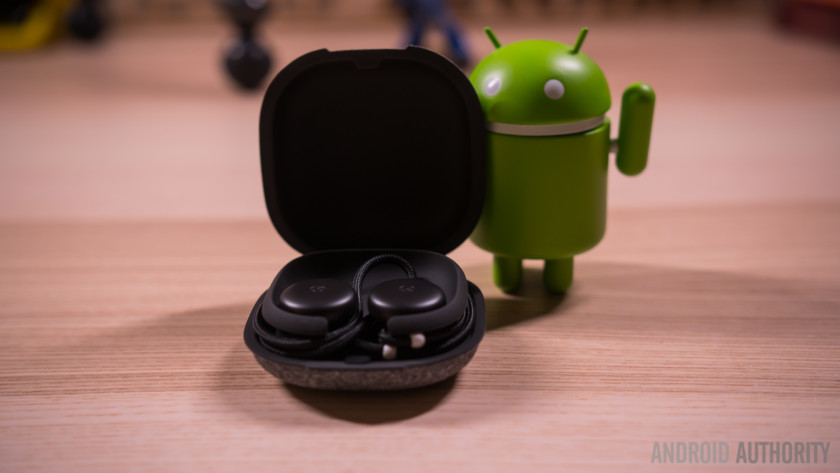
Right from the get-go, the Pixel Buds case evokes the design language Google has been adopting in their recent hardware. The simple G logo is centered on a canvas of fabric over a plastic clamshell. The fabric is nice to the touch and the size of the case is actually quite impressive – managing to be a smaller holder than ones used for many truly wireless earbuds.
>> Best truly wireless earbuds
Open up the case and you’ll find the Pixel Buds’ cord wrapped around the edges with the earpieces snuggly fit into their magnetized placeholders. Above the right earbud socket is a single button that can be tapped to show the battery level of the Buds or of the case itself when the buds aren’t in place.
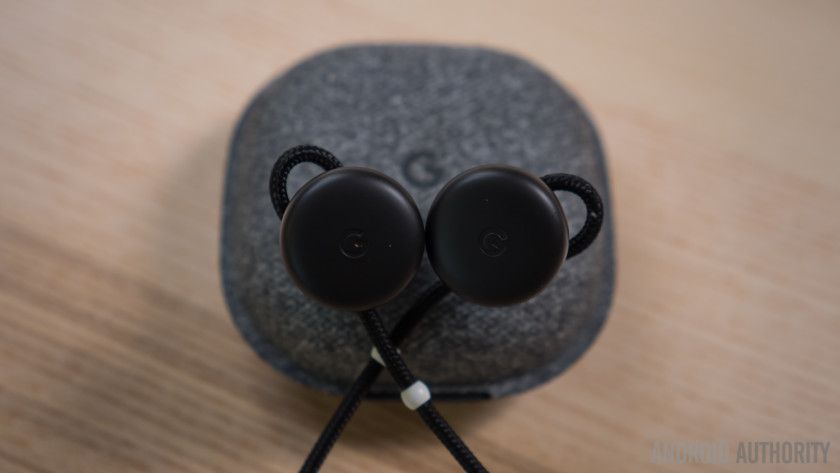
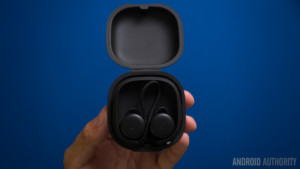
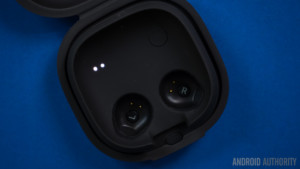
The case can be a bit fidgety – wrapping the cords around the edge takes a bit of time to get used to, and even then the buds might sometimes not be seated perfectly to start charging. My tip: don’t just assume the buds are charging – fiddle a little if you have to and make sure the charging light is pulsating before closing the case.
The case provides 620 mAh of charge on top of the 120 mAh unit in the device itself
The case provides 620 mAh of charge on top of the 120 mAh unit in the device itself. On a single charge, the claim of five hours of playback was basically right, and the case does get you through the rest of the day, even though charging the Buds back up obviously means I’m not wearing them.
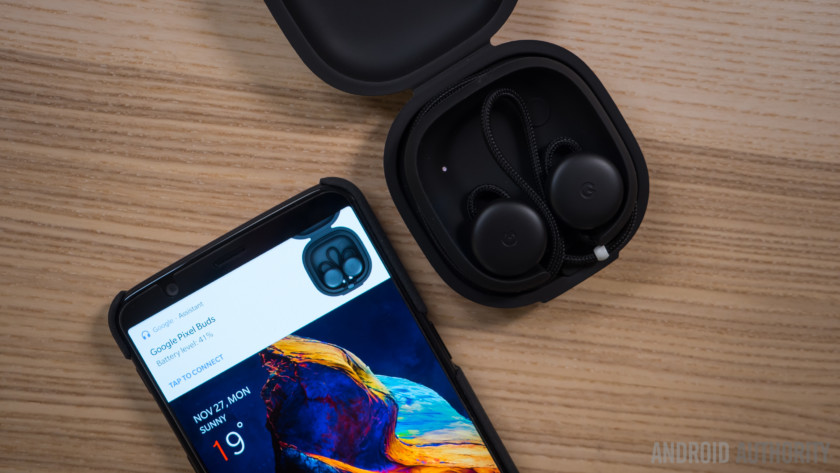
The headphones actually have to be paired to a phone while they are sitting in the case. This is an odd step that is different from about 99% of other Bluetooth headsets, but at least the process only has to be done once. While charging, holding down the single button makes the pairing process begin, and the Google Assistant will let you know on the phone that it recognizes some Buds are nearby.
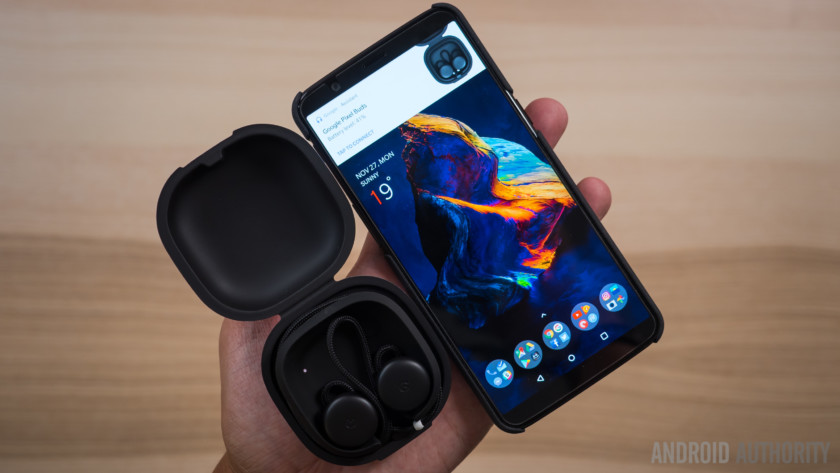
Quick note – even though Google claims that the Pixel Buds work best with the Pixel 2, I was actually able to get all functions and features to work on the OnePlus 5T. It seems that the latest version of Google Assistant is all that is truly required for the Buds to work.
Editor’s Pick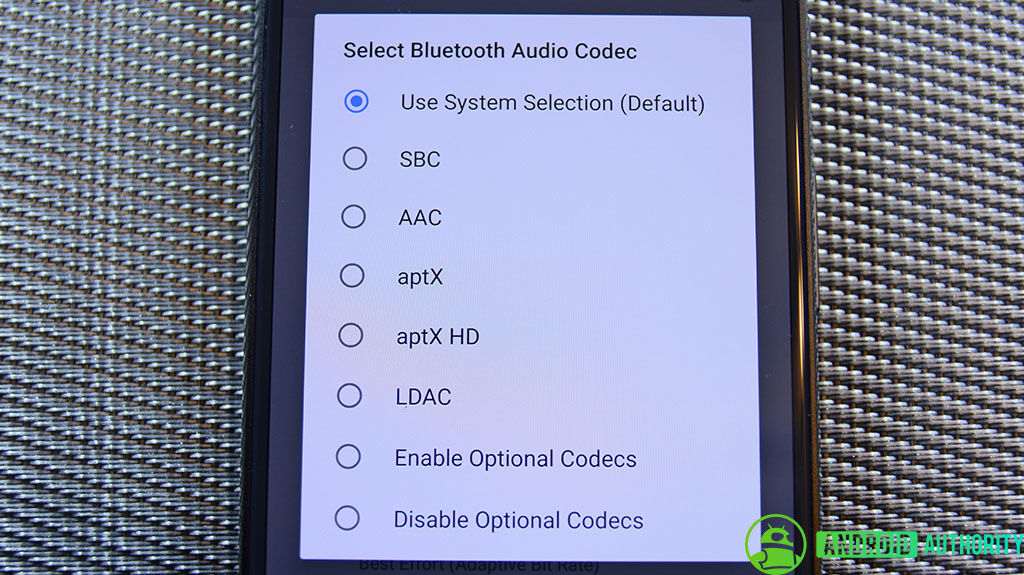
How Oreo is better than Nougat: Audio
Android 8.0 Oreo brings with it a host of new features, improvements, and overhauls to the core Android feature set. Personally, I thought that the introduction of more Bluetooth audio options was one of the more interesting …
One thing I did notice is that the OnePlus 5T prompted for a pairing confirmation during the initial setup, which is something the Pixel 2 did not do as it paired seamlessly and quickly. Once paired, you can then take the headphones out and they will always automatically reconnect with the paired device immediately, with no delay.
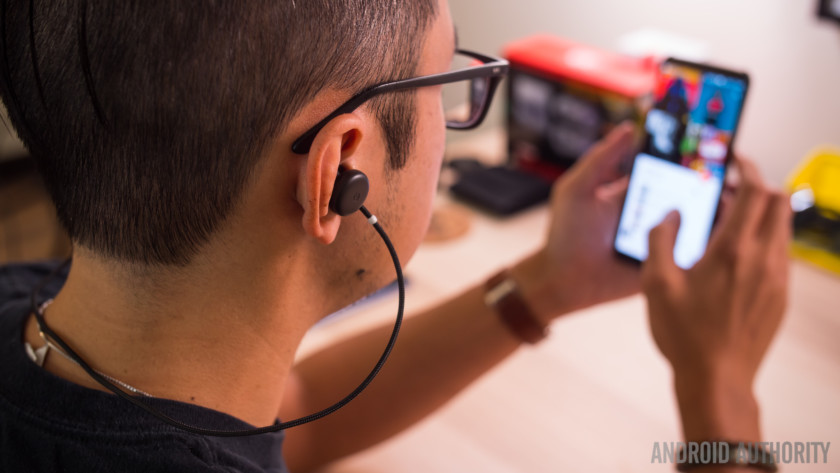
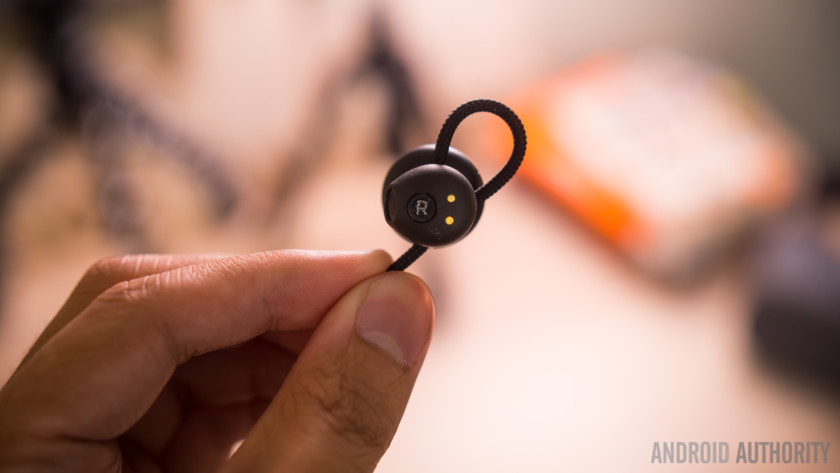
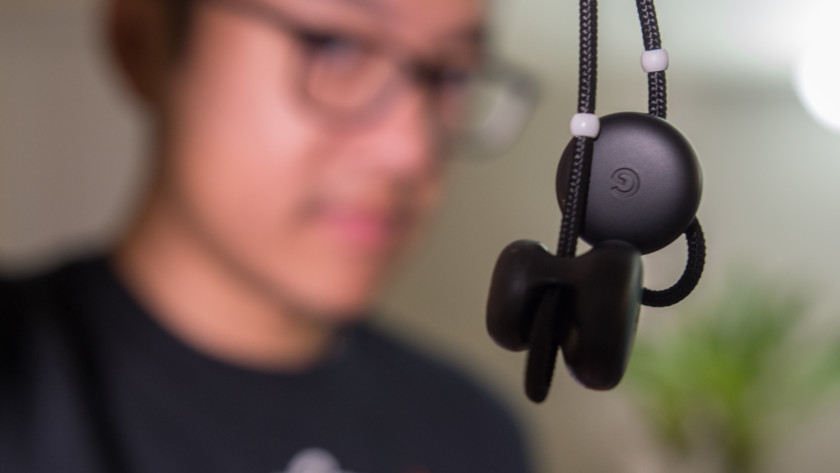
Google’s design language permeates throughout the headphones themselves – the cord is made of a fabric material as well, and it even extends and loops beyond the actual earpieces themselves. This extra portion of the cord serves a specific function – after putting the Buds in, they can be made more secure by extending the loop so that it nestles in the upper nook of the ear. This fitting process is cool, if only because it is so different and lines up nicely with the quirky design of the Buds themselves.
A note on comfort – I’ve heard a myriad of different opinions on how comfortable the Buds are, ranging from positive to downright upset. Personally, the Buds fit just right in my ears, which I believe are pretty average size. The material of the earpieces are a bit rigid, so if they are constantly pressing up against the skin, I can see how they would get annoying. The only time that I felt discomfort from wearing the Buds for a long period of time was on a seven-hour flight.
The only time that I felt discomfort from wearing the Buds was on a seven-hour flight
One annoyance I had with the Buds is that the cord is simply not long enough. While Google made the claim that truly wireless earphones can easily get lost, my issue was that the Pixel Buds kept falling off from around my neck. The cord does not have enough slack to allow the earpieces to simply hang, and after enough movement it just slides right off my neck. I’ve had to pick up the headphones off the ground more times than I would have liked.
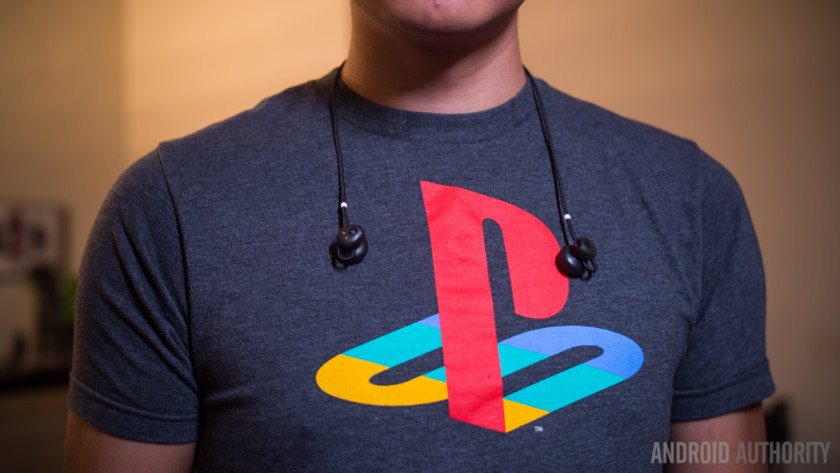
The earpieces have an open speaker configuration – so there’s no noise seal
The earpieces have an open speaker configuration – that is, there is no rubber piece that goes right into the ear canal for a noise seal. This is similar to the AirPods and changes the sound profile to something most people might not be used to.
The left earbud is simply for sound as the touch sensitive control is found only on the right bud where you can tap, hold, or swipe for various functions.
Gestures on the Pixel Buds are one of the main highlights. Interactions feel incredibly natural – hit the right earbud to play and pause or simply respond to the Google Assistant, hold it to talk to Assistant, or swipe forward and backward for volume control. There isn’t a control for changing tracks, but that function is pretty easily replaced by holding the bud to activate Assistant, saying ‘next track’ or ‘previous track’, and letting go. It happens that fast.
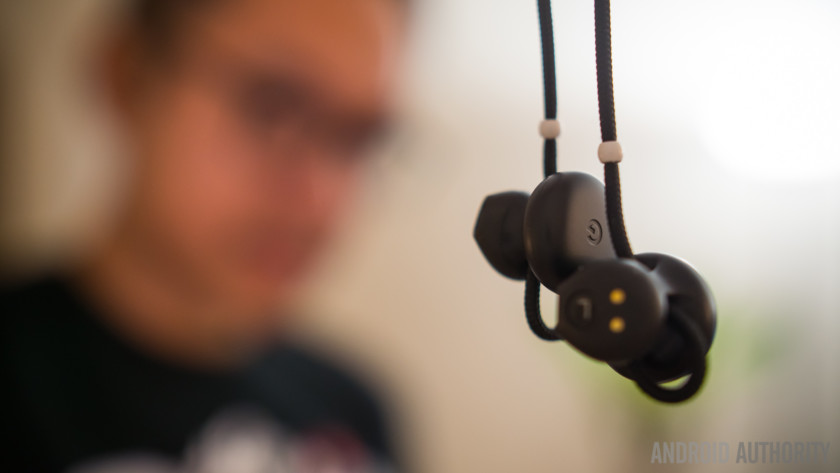
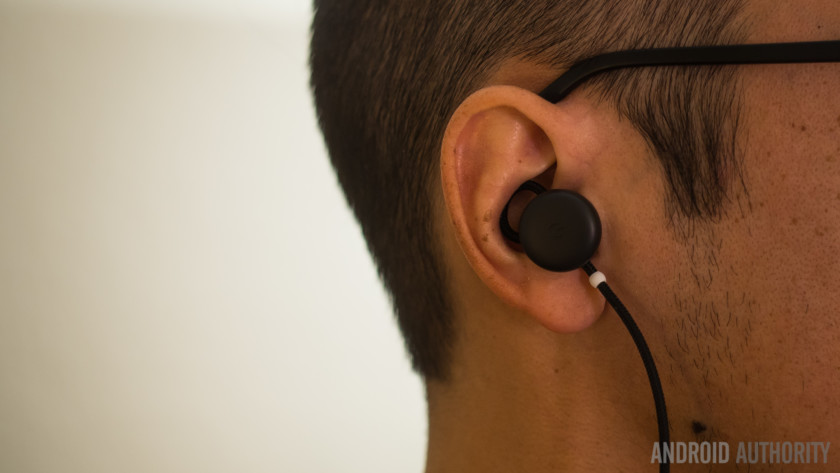
Speaking of audio tracks, these earbuds simply sound good, but not great. For starters, they do not support the apt-X codec and stick with SBC, first of all. Ultimately, the listening experience is not amazing, and while it’s not bad, it’s also definitely not what most people are probably used to. Audiophiles might be more used to the IEM (in ear monitor) construction, where the driver actually goes into the ear to seal out noise and provide a more immersive sound experience.
Gestures on the Pixel Buds are one of the main highlights and interactions feel incredibly natural, even if the sound of the Pixel Buds isn’t great
In opting for a more open configuration, the Pixel Buds mainly end up having less bass, but there was still a good enough sound profile for me to enjoy. The seal is another point of contention, as even when listening to music or media at full blast, I was still able to hear stuff going on in my surroundings. I’ve heard plenty of people say that this upset them – but I actually think that is missing the point.
As a new way of having Google Assistant on all the time, it’s a bit obvious that Google wants at least the right earbud to be in your ear as much as possible. And if you are using the Buds as a daily headphone, you could actually keep them in at all times and still have a level of awareness that IEMs easily seal off. It might not sound particularly appealing, but consider that Google Assistant on the Buds is the best iteration of it outside of the smartphone.
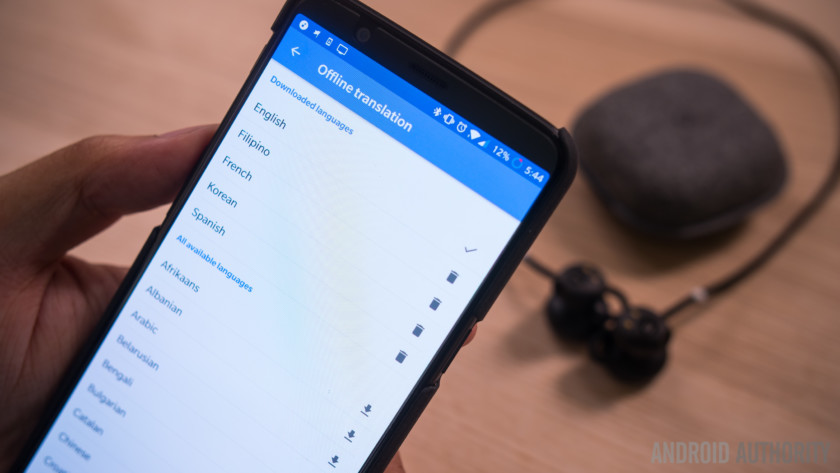
Before I dive deeper into Google Assistant, let’s talk about the main feature Google touted during the announcement – translation. Yes, translation will work on a phone other than the Pixel 2 as long as Google Translate is installed. Holding on the right earbud and asking to speak a different language launches the app on the phone and it begins listening, displaying everything that you might be hearing in the Buds. The app can autodetect languages that it is hearing and translate accordingly, at which point you will hear your words in a foreign tongue or another person’s words in your own.
Editor’s Pick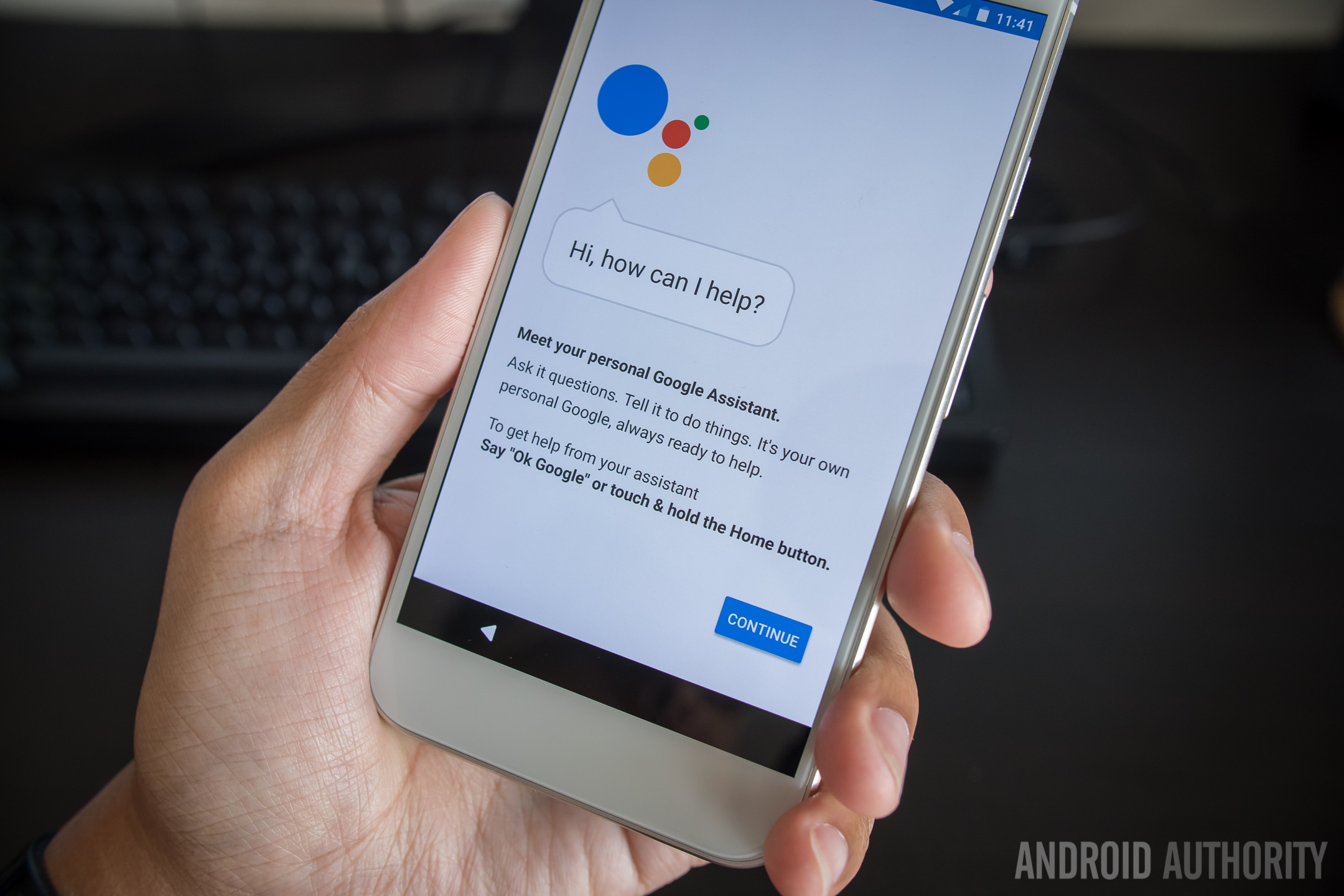
Google Assistant vs Siri vs Bixby vs Amazon Alexa vs Cortana – Best virtual assistant showdown!
AI assistants have become a large part of the smartphone and PC experience over the last couple of years, and the ever increasing competition in this space has led to a lot of improvements across …
It’s a great function that is only as good as Google Translate itself. One thing to note is that most of the time, Translate opts for more informal forms of phrases so be wary of that when traveling to one of the many countries whose languages the Buds support: Japanese, Korean, French, Spanish, to name a few.
Lastly, if you have your smartphone on you and Google Translate is installed, much of this functionality is available to you anyway, so having the Buds is just an added layer of convenience rather than an essential foreign travel tool.
The main reason why I kept the translation section short here is because on the daily, the use of Google Assistant is far more common and the main point of the Buds. I mentioned the ease of using gestures earlier, and that is part of the fun. After all, pressing down on the earbud, saying what you want to Assistant, and then letting go is far more intuitive than in other situations where Assistant is trying to figure out when you stopped speaking and fails at it.
On the daily, the use of Google Assistant is far more common than translation and is, in my opinion, the main point of the Buds
The Pixel Buds bring the full version of Assistant along, allowing it to do just about anything you might already be used to – open up media apps and play songs, answer basic questions, or even control smart home devices you have configured. But it’s when there’s an actual dialogue with Assistant that the Pixel Buds find their ‘aha’ moment.
Here’s an example –
I double tap the right earbud to get Google Assistant to do its usual tasks,
First, it tells me the time.
Second, tells me if I have any calendar events coming up.
Third, it begins reading off any notifications on my phone it hasn’t already covered.
This is a pretty literal part of the experience. The notification you would read on your phone will be read verbatim and somewhat robotically by Google Assistant. If you have no music or other audio playing when a notification comes in, Assistant will automatically read it off to you.
A function like this is part of the reason why I believe always having at least the right bud in is worthwhile – and this is also where the open sound construction ends up being useful so that you maintain better auditory awareness.
Another thing I like is that Google Assistant will read out an incoming message and then give me time to respond. Five seconds – or five chimes – in which time I can hold the right earbud to voice dictate a response. Google Assistant repeats my message back to me, and then I can tap the bud to send it or hold the bud to record it again.
Editor’s Pick
3.5mm audio vs USB Type-C: the good, bad and the future
There’s a growing trend among smartphone manufacturers to do away with the 3.5mm audio jack that has long been the standard connector for a huge range of audio equipment over the past century. Motorola’s new Moto …
I am convinced this is the point of the Pixel Buds – not only has it been nice to have Assistant readily available, but interacting with it through an earpiece has proved to be way more natural than the alternatives. Let’s face it – responses via smartwatches are kind of cool, but ultimately not practical or even foolproof. The Pixel Buds simply do it better.
Obviously, the audience that will enjoy the Buds the most is the one that uses Google Assistant regularly. For everyone else, these headphones will fall short – they are not the best sounding, the best designed, nor are they the best priced. At $159, the question is whether or not the smart functions are worth it.
So, I’ll put it this way – if you are an avid Assistant user, I highly recommend the Buds. They will make the Assistant experience better while managing to be decent media headphones. They also work well for calls, since the microphone has to be good enough for voice dictation anyway.
The audience that will enjoy the Buds the most is the one that uses Google Assistant regularly
But everyone else should still pay attention to the Buds because they are a lot like the original Google Pixel. Assistant then was a cautious move forward in Google’s first in-house smartphone, but soon it found its way to a lot of other phones. I wouldn’t be surprised if this was the same story with the Buds, in which the great gesture controls and maturing Google Assistant find their way to more headphones, wireless or otherwise.
Then it will only be a matter of time before a headset arrives that is the opposite of the Buds – instead of great smart functions on headphones that sound decent, they would have incredible sound first and just so happen to be enjoyably smart.
And that would be music to our ears.
BUY PIXEL BUDS FROM GOOGLE
Battle of the 15-inch 2-in-1s: HP Spectre x360 vs. Microsoft Surface Book 2
If you’re looking for a powerful 15-inch laptop that is also ultra-portable, you’ve come to the right place. In this breakdown, we’re pitting the HP Spectre x360 vs. Microsoft Surface Book 2, to see which is best. Both of these versions come with 15-inch displays and strong internal hardware, but there is quite a leap in price between the two. Will that make this a weighted bout, or are there factors at play that will make you choose one over the other?
That’s what this head to head is going to find out, as we compare these two powerhouses in every category to weigh up which offers you the best bang for buck.
To see how the Surface Book 2 fares when pitted against the MacBook Pro 15, check out our head to head breakdown.
Specifications
HP Spectre x360 15
Microsoft Surface Book 2 15-inch
Dimensions
14 x 9.88 x 0.7 (in)
13.5 x 9.87 x 0.56-0.90 (in)
Weight
4.42 pounds
4.2 pounds
Keyboard
Full-size island-style backlit keyboard
Full size backlit keyboard
Processor
Eight-generation Intel Core i7-8550U
Up to eighth-generation Intel Core i7-8650U
RAM
Up to 16GB
16GB
Graphics
Nvidia GeForce MX150 w/2GB of VRAM
Nvidia GeForce GTX 1060 w/ 6GB of RAM
Display
15.6-inch WLED-backlit touchscreen
15-inch LED-backlit display with IPS technology
Resolution
3,840 x 2,160
3,240 x 2,160
Storage
Up to 1TB PCIe M.2 SSD
Up to 1TB PCIe SSD
Networking
802.11ac, Bluetooth 4.2
802.11ac, Bluetooth 4.2
Ports
1 USB 3.1 Type-C, 1 Thunderbolt 3 USB Type-C, 1 USB 3.1 Type-A, 1 HDMI, 3.5mm headphone/mic jack, SD card reader
2x USB Type-A ports, 1 Thunderbolt 3 USB Type-C port, 3.5mm headphone jack, 2x Surface Connect ports, SD Card reader
Webcam
HP Wide Vision full HD infrared Camera
5.0MP 1080p front-facing camera, 8.0MP 1080p rear-facing autofocus camera
Operating System
Windows 10
Windows 10
Battery
79.2 watt-hour
90 watt-hour
Price
Starts at $1,400
Starts at $2,500
Availability
Now (HP Store)
Now (Microsoft Store)
Review
Full review: 8/10
Full review: 8/10
Design
Both the Surface Book 2 and Spectre 360 are premium laptops, and they exude that ethos in their look and feel. They each have a strong and sturdy frame, with a clean look. The Spectre is darker in hue than its Microsoft counterpart, which makes it a little more understated, but in the same breath very different from your average MacBook. The Surface Book 2, on the other hand, much like its predecessor, looks rather generic — except for the hinge, which we’ll talk about in a moment.
These are 2-in-1s, so they feature the ability to switch from laptop to tablet mode, and a few configurations in between. The way they do so is a little different though. The Spectre features an increasingly common 360-degree hinge. That means the screen folds all the way back until its flush with the bottom of the laptop, making it a tablet. However, since the base does not detach, you’ll be carrying around the full 4.42 pounds of device, which is unwieldy.
The Surface Book 2 utilizes a “dynamic fulcrum hinge,” which users of the original Surface Book will be familiar with. It allows for complete detachment of the base, leaving you with a much more portable tablet that weighs in at just 1.7 pounds. However, the unusual hinge does mean there is a small gap when the laptop is closed. It looks a bit odd, and makes the system thicker than it otherwise would be.
HP’s design basically gets the job done, and is useful in short bursts, but it leave the Spectre too heavy to be used as a tablet for long. The Surface Book 2 is featherweight by comparison.
Winner: Surface Book 2
Performance
As the more expensive of the two laptops, it’s perhaps no surprise that the Surface Book 2 has the stronger internal hardware. The 15-inch version comes with an eighth-generation Intel Core i7-8650U processor, which has four-cores and supports eight threads thanks to hyperthreading. It operates at up to 4.2GHz when boosted and is paired with a mandatory 16GB of memory.
That’s not too dissimilar to the HP Spectre x360, though. It comes with an eighth-generation Intel Core i7-8550U and either 8GB, 12GB, or 16GB of memory. The only difference between the two chips is that the Spectre’s has a slightly lower base frequency, and a boost frequency of 4.0GHz.
While the general processing capabilities of the two laptops are comparable, the big difference can be found in the graphics hardware. While the Spectre x360 has an Nvidia GeForce MX150 with 2GB of RAM (effectively a mobile version of the desktop GT 1030), the Surface Book 2 packs a GTX 1060 with 6GB of VRAM. That’s comparable to mid-tier gaming laptops, and in our testing, the Surface Book 2 was perfectly capable of high-detail 1080p gaming.
The Spectre’s MX150 has a fraction of the power. It can load and play most games, but often at low or medium detail settings. You may even have to drop the resolution below 1080p, which won’t look hot on the Spectre’s 4K screen.
In storage, both laptops offer between 256GB and 1TB of solid state storage, which makes both systems snappy and responsive. The Surface Book 2’s storage solutions are noticeably faster in read and write than the HP laptop’s, but it’s hard to ignore the effect it has on pricing. While upping the HP Spectre x360 to 1TB of storage increases its price by $300, the Surface Book 2 leaps a full $800 with the upgrade.
You have to pay for the performance, but the Surface Book 2 is clearly the faster machine overall.
Winner: Surface Book 2
Display
Both the Surface Book 2 and Spectre x360 are well beyond 1080p resolution at this point, though there are some differences in what they offer consumers. For the 15-inch model, the Surface Book 2 comes with a 15-inch PixelSense display with a resolution of 3,240 x 2,160. Although it’s not quite 4K resolution, the high pixel-per-inch count (260) means it looks fantastically crisp. It’s also incredibly bright, and features the best contrast of any laptop without an OLED display that we’ve ever tested.
It’s not perfect, though. The Surface Book 2 falls down when it comes to color accuracy, with an average color error double that of the Spectre. It may be a style-choice on Microsoft’s behalf, but it comes through a little over-saturated, a little too vibrant. It’s not unattractive, but it isn’t something that will appeal to photographers and video editors.
The HP Spectre x360 ups the ante on resolution with a true 4K display (3,840 x 2,160), with much more accurate colors than the Surface Book 2. However, it’s panel is not as bright, and its contrast isn’t anywhere near the Microsoft alternative (720:1 vs 1,410:1).
Although those looking for color clarity will probably prefer the Spectre’s higher-resolution display, to our eye, the Surface Book 2 offers the more attractive option.
Winner: Surface Book 2
Portability
In terms of size and weight when in laptop mode, the difference between the two isn’t particularly significant. The difference in hinge design means that the Surface Book 2 is a little thicker, and an argument could be made that the gap between the base and the screen when folded shut does present a potential scratch threat. The Spectre doesn’t have that at all, and is a little thinner due to its 360-hinge design.
The place where weight makes the biggest difference is in tablet mode. With its detachable keyboard base, the Surface Book 2 is able to slim down to just 1.7 pounds, whereas the Spectre x360 is still its full 4.4 pounds when folded flat.
Easily the Surface Book 2’s best and most defining feature, its battery life blew us away in testing. While the difference in watt-hours isn’t particularly extreme between the two, the Microsoft 2-in-1 lasts a very long time in practice. In our tests it managed 15.5 hours in our web browsing benchmark, 20 hours on our video loop test, and almost seven hours when running the Basemark test.
We don’t have battery life tests for the latest version of the Spectre as of yet, but previous iterations delivered a more typical 10 hours in our video test. However, it is important to note that the new version has a battery that’s around 20 percent larger and the eighth-generation Intel chips are notable for their improved battery life when running 4K content. We expect it’ll do well in our tests.
Still, there’s a difference between great battery life, and record-breaking battery life. The Surface Book 2 has the best battery life of any laptop at this size and power we’ve ever seen, it seems fair to say it takes this category. We’ll update it more when we have more concrete battery tests for the latest version of the Spectre notebook.
Winner: Surface Book 2
Pricing and availability
While the Surface Book 2 has taken a number of categories in this head to head, that all needs to be taken into consideration in the context of pricing. While the Surface Book 2 is available in a 13-inch form-factor which does start at a much more favorable price ($1,500), the 15-inch Surface Book 2 base model is $2,500. Our top of the line review model, with 1TB of storage, was even more costly at $3,300.
In comparison, the HP Spectre x360 starts at $1,400, and at the time of writing is available at a sizeable discount ($1,130). That version does only sport 8GB of RAM, but bumping it up to 16GB raises the price to $1,550 outside of the sale. With a terabyte of storage, it would set you back $1,850 at pre-sale prices.
That makes it harder to justify the Surface Book 2, even with its stronger hardware and impressive battery life.
There is also the question of availability to consider. All configurations of the Spectre are available at the time of writing. In comparison, the 15-inch Surface Book 2 is available in the U.S., but not in some countries as of yet. That’s also only in the 256GB storage configuration. The 512GB storage version will ship out on November 30, while the 1TB model will not begin shipping until December 15.
Winner: HP Spectre x360
Bottom Line
Although both the Surface Book 2 and HP Spectre x360 are premium laptops, with strong feature sets, powerful internal hardware and beautiful aesthetics, they are a world apart in a few key areas. The most obvious is price, and that’s likely to be the big deciding factor when it comes to picking which you want to go for, though there are some additional details to consider.
While $2,500 might seem like a lot — and that $3,300 price tag of the 1TB version makes us gulp — for that money you receive a much more powerful graphics processor and ridiculously good battery life. The Spectre might have a slightly higher-resolution display, and it’s available in all its guises right now at an attractive price point, but it would be a lie to say it’s the better machine of the two.
If you want a good 2-in-1 with a good display, good performance, and good battery life, then the HP Spectre x360 is a fantastic choice. If you want something uniquely powerful, and you’re willing to pay for it, the Microsoft Surface Book 2 is the clear winner.
Overall winner: Surface Book 2
Maybe the HP Spectre x360 will fare better when going head to head with the 15-inch MacBook Pro?
Editors’ Recommendations
- The best 2-in-1 laptops you can buy
- HP Spectre x360 13 vs. Lenovo Yoga 920: Fighting for convertible 2-in-1 primacy
- Microsoft Surface Book 2 15-inch Review
- Is the Surface Book 2 a worthy sequel to the original? Here’s how it compares
- Microsoft takes on Apple’s prestige: Surface Book 2 15-inch vs. MacBook Pro 15
What’s the Wi-Fi password? Share it easily in iOS 11 with Wi-Fi Sharing
Did you know you can easily share your Wi-Fi connection with other people if you’re using iOS 11? No? According to our latest Twitter poll, you’re not alone.
Trying to settle an argument in the office: How many of you know about the Wi-Fi sharing feature on iOS 11?
— Digital Trends (@DigitalTrends) November 21, 2017
The results of our recent Twitter poll show nearly half of the respondents have no idea Apple introduced Wi-Fi sharing in iOS 11.
While some routers now include guest access, they’re still few and far between. Most people still rent routers from their Internet Service Providers (ISP) for Wi-Fi access. These routers usually have long, random passwords. Even though you can usually change these passwords to something easier, it’s probably better to resist the urge and use something that’s actually a challenge for hackers. But what if a friend comes over and asks for the Wi-Fi password? You won’t have to do much with iOS 11’s Wi-Fi sharing feature.
It’s pretty easy. First, both you and the person you’re sharing the Wi-Fi connection with need to have iOS 11 installed on your iPhones. This person will also need to be saved in your contacts. If you’re sharing with someone using a Mac, the situation is the same, except you’ll see a notification appear on the upper right hand side of your screen.
Once your friend is listed in your contacts, the rest is easy. When your friend tries to connect to your Wi-Fi, you’ll see a request pop up on your iPhone screen asking if you want to share your password with your friend’s iPhone. Just select the “Share Password” button and they’ll be connected to your Wi-Fi.
Want to stop sharing your connection? Well, that’s not quite as easy. Right now your only option is to change your router password.
Editors’ Recommendations
- How to turn off Bluetooth and Wi-Fi in iOS 11
- Extend your Wi-Fi range with one of the best Wi-Fi extenders
- Delta Wi-Fi Leak Detector review
- Faster Wi-Fi is in the cards for passengers on Cathay and Emirates airlines
Best iOS app deals of the day! 6 paid iPhone apps for free for a limited time
Everyone likes Apple apps, but sometimes the best ones are a bit expensive. Now and then, developers put paid apps on sale for free for a limited time, but you have to snatch them up while you have the chance. Here are the latest and greatest iOS app deals available from the iOS App Store.
These apps normally cost money and this sale lasts for a limited time only. If you go to the App Store and it says the app costs money, that means the deal has expired and you will be charged.
SmartScan Express
SmartScan Express is a simple, fast solution to scan, crop, edit, save, and e-mail your paperwork – invoices, bills, checks, receipts, travel expense reports, and more. You can work with your photos, cropping and improving the contrast and brightness.
Available on:
iOS
Palabras
Learn Spanish through daily reminders with hundreds and hundreds of words. They say practice makes perfect, and with this app, you’ll be able to practice all you want.
Available on:
iOS
Colorup
Kids have long known what adults are just now discovering: coloring is the perfect way to wind down and let your imagination run wild. And, what better way than with the countless choices available with a digital book and burst of bright hues?
Available on:
iOS
Healthy CrockPot Recipes
Our busy lifestyles make homemade and healthy meals something of a luxury, but that doesn’t have to be the case with CrockPot Recipes. With minimum preparation and time you should be able to prepare dinner for days on end.
Available on:
iOS
AccuView
A useful tool for artists, this app allows you to analyze an image before you take to your canvas. You can select from a variety of grids to help with your painting process.
Available on:
iOS
eDI Pro
Easy Downloader is an all-in-one download manager app with fast download capabilities and file management features. It includes audio player with playlists, video player, ad blockers, and much more.
Available on:
iOS
Editors’ Recommendations
- Best iOS app deals of the day! 6 paid iPhone apps for free for a limited time
- Best iOS app deals of the day! 6 paid iPhone apps for free for a limited time
- Best iOS app deals of the day! 6 paid iPhone apps for free for a limited time
- Best iOS app deals of the day! 6 paid iPhone apps for free for a limited time
- Best iOS app deals of the day! 6 paid iPhone apps for free for a limited time
Andy Rubin accused of having an “inappropriate relationship” at Google, taking leave of absence from Essential
Rubin announced his leave of absence shortly after the accusation was published.
Over the past few weeks, there’s been no shortage of sexual harassment/misconduct allegations. After the news regarding Harvey Weinstein broke out, reports against Kevin Spacey, Louis C.K., Al Franken, and many others were soon to follow.
Now, according to a report from The Information, Andy Rubin was involved in an “inappropriate relationship” during his time at Google.

The Information claims that the relationship took place with a woman that reported directly to Rubin in Google’s Android division. Relationships within Google are permitted, but in the case of Rubin and the anonymous woman, it needed to be disclosed to the company so that one of them could be transferred to a different department or division. In this particular case, that never happened.
We don’t know the exact details of the relationship in question, but it’s reported that the woman filed a complaint with Google’s HR department at one point during it. Shortly after this, Rubin left Google in 2014.
Following The Information’s article, Andy Rubin’s official spokesperson, Mike Sitrick, said –
Any relationship that Mr. Rubin had while at Google was consensual. Mr. Rubin was never told by Google that he engaged in any misconduct while at Google and he did not, either while at Google or since.
Here’s where things get interesting.
After this news broke, Andy Rubin announced that he would be taking a leave of absence from Essential – his latest startup that just launched its first product, the Essential Phone, earlier this year. It’s unclear how long Rubin will be absent from Essential or why he chose to leave in the first place if these allegations are supposedly false, but that’s where we’re at for the time being.
Essential’s already had a rocky first few months, and with Andy Rubin now gone for an undisclosed amount of time, its future remains uncertain.
Essential Phone
- Essential Phone review
- Essential Phone specs
- The latest Essential Phone news
- Join our Essential Phone forums!
Amazon
Best Buy
Sprint
Telus
These are the games that support Razer Phone’s 120Hz display so far

Razer Phone is great for gamers and there are already a bunch of titles that support its unique display.
The display is the one of the focal points of the Razer Phone, thanks to its 120Hz refresh rate and its first-party UltraMotion sync. Like G-Sync and FreeSync on a PC, UltraMotion matches the refresh rate of the display to the FPS output from the GPU in the phone to eliminate tearing and produce silky smooth, super fast gameplay.
All this goodness isn’t just automatically available to every game, though. Sync technology like this hasn’t been attempted on an Android phone yet, and as such developers are having to make adjustments to support it. If there’s a company with enough clout to make game developers listen, it’s Razer, and for the launch of its first phone, there are already some great games to play on it.
Note: This post is current as of November 29, 2017. More games will be coming soon, so come back often.
- Warhammer 40,000: Freeblade
- Vainglory
- Titanfall: Assault
- Vendetta Online
- Real Racing 3
- The Simpsons: Tapped Out
- World of Tanks: Blitz
- Gear.Club
- Arena of Valor (Tencent currently holding back the update)
- Final Fantasy XV (forthcoming release)
Unofficial but known to support high frame rates:
- Minecraft
- Pokemon Go
- Middle Earth: Shadow of War
In some games, like Titanfall: Assault or Vendetta Online, you’ll need to manually enable the high frame rate mode in the settings. Likewise with Arena of Valor, which already has that feature built in but only goes up to 60 FPS right now.
For Razer, getting a developer to support UltraMotion is the priority. But thanks to having a 120Hz display, the side effect is that they can also leave the frame rate unlocked. When both are implemented, Razer Phone will give its best experience.
There are likely more games out there that support high frame rates, and since you can enable the built-in FPS counter and see your yourselves, spotting them isn’t too difficult. If you have a Razer Phone and come across any not mentioned be sure to drop them into the comments below.
Razer Phone review
Some users can’t access their BLU Life One X2 after latest software update
This is one of the few times we recommend not updating your phone to the latest software.
There’s a large abundance of budget, unlocked smartphones to choose from these days, and one company that’s leading this charge is BLU. BLU releases heaps of phones each year on Amazon ranging in price from as little as $50 up to around $250, and one of its handsets, the Life One X2, is currently causing a lot of headaches for many of its users.

BLU recently pushed out a software update for the Life One X2, but after users download and install it, they’re presented with an unfamiliar screen in which they’re asked for a password that they don’t have.
Reports of this issue can be found on Amazon, Reddit, and iFixit, and based on what we’re seeing, it appears to be quite widespread.
Some users report that factory resetting the phone resolves the issue, whereas others indicate that removing a microSD card from the phone randomly bypasses the password screen for whatever reason. You can try punching in random passwords if you’d like, but as one user notes, doing this too many times will result in the phone being completely wiped.
BLU has yet to address what exactly is going on, and seeing as how the company has already developed a somewhat shady reputation, we certainly hope this gets resolved ASAP.
After a short suspension, BLU phones are back at Amazon
 AIVAnet