


How to unlock your Chromebook with a PIN code
Passwords are great but inconvenient. If you want to keep your Chromebook secure but easy for you to get into, follow these steps.
A long, complicated password — coupled with two-factor authentication — is an essential part of modern life. While a long password is the most secure option, it can be inconvenient if you just want to quickly open your Chromebook. This isn’t to say you shouldn’t keep your devices locked, but there is a better method available.

Chromebooks have had the ability to be unlocked via PIN for a while now, but it’s not a feature many people know about. Fortunately, we’re here to tell you about this feature and show you how to turn it on.
How to set your Chromebook to unlock with a PIN
Unlock your Chromebook with your standard password.
In the lower right corner, click on your account picture.
Click on the gear icon to open the settings app


Under the “People” section, click Screen lock. Enter your login password.
Under “Screen lock options,” click PIN or password.
Click SET UP PIN.
The PIN must be at least six numbers, and you’ll need to enter it a second time for confirmation.
- If you ever want to change the PIN, simply click CHANGE PIN.


And that’s it! You can now use your PIN to unlock your Chromebook! For security reasons, your Chromebook will ask you to log in with your full Google password whenever the computer has been fully rebooted, or when switching accounts.
Chromebooks
- The best Chromebooks
- Should you buy a Chromebook?
- Google Play is coming to Chromebooks
- Acer Chromebook 14 review
- Join our Chromebook forums
Black Friday VR Deal: Snag BaDoinkVR for 70% off! [NSFW]

If you’ve been considering taking a peek into the world of VR porn, you won’t find a better time.
There’s only so much you can find online for free, and you usually end up taking a quality hit when you do. That’s not idea when using a standard flat monitor, but when it comes to watching video in VR you really need the highest possible quality to hit your headset. It’s one of the biggest reasons folks who enjoy VR porn tend to rely on subscription services above free streams from unverified sources.
If you’re looking for the most affordable way to explore VR porn, the folks at BaDoinkVR have a ridiculously good Black Friday deal for you to take advantage of.
Read more at VRHeads
Which game controllers are worth buying?
If you’re picking up a game console like the Xbox One X or PlayStation 4 Pro this holiday season, congratulations: You already have a great controller for your new system. Traditionally, third-party gamepads have always been a bit subpar, the kind of thing you buy cheap and pawn off on an unsuspecting younger sibling at playtime. But what if you want to game on your mobile device (or an Apple TV)? Or what if you’re looking for an edge in your favorite console title? We’ve taken a look at the available controllers out there to find the best one for your needs, no matter which system you prefer.
Best controller for the PlayStation 4

Sony DualShock 4
The shape of the PlayStation controller hasn’t changed much since the original system came out over two decades ago, and for good reason. The button configuration is easy to learn, and the overall shape feels good in hand. The DualShock 4 added a few features, like a touchscreen and a speaker, but the real reason to keep this as your primary PS4 pad is that small refinements have made it better to hold, including comfortable concave thumbsticks and well-spaced shoulder buttons that give your fingers plenty of places to rest. It also works with the PS3 so gamers still living with their older system can toss their DualShock 3. In our PlayStation 4 review, we called the DualShock 4 “the best game controller that the company’s ever created,” but even PC players will find an ideal gamepad for their favorite games, thanks to its native Steam support.
Best controllers for Windows and the Xbox One

Microsoft Xbox One Wireless Controller
Even if it isn’t as much of a leap over the previous generation as the DualShock 4 was, the Xbox One controller still improves on a winning formula. The sticks are designed to keep your thumbs in place, the triggers are quieter and the rear controls vibrate. We found that the only real step backwards at the controller’s launch were its stiff shoulder pads. Luckily, the revision that debuted with 2016’s Xbox One S refined it further, with rounded seams and clickier shoulder buttons. And PC gamers also get to enjoy the redesign, thanks to the addition of Bluetooth compatibility.

Microsoft Xbox Elite Wireless Controller

If the standard Xbox One controller just isn’t enough, gamers with a little extra cash have the option of stepping up to the Elite gamepad, designed with hardcore and professional players in mind. The shoulder buttons are clicky, and the entire pad is heavier, thanks to its metal thumbsticks, which we described in our review as “incredibly springy and precise.” The biggest change is the customization options, which allow you to swap out the buttons and joysticks or even add a set of metal levers as additional inputs on the back. The levers can make the pad feel a little cluttered, but they’re great for driving games when you don’t have a racing wheel. The only real drawback is the Elite’s price, which is more than half of what it costs to buy an Xbox One S.

Razer Wolverine Ultimate for Xbox One
Razer’s peripherals have always been designed with gamers’ unique needs in mind, and the Wolverine is no exception, offering up a comfortable textured grip and clicky buttons. The Wolverine Ultimate ups the ante over the customizable Xbox Elite by offering an even greater degree of tweaks: not only a slew of extra programmable buttons but also the ability to swap the positions of the thumbsticks and D-pads entirely. If you’d rather have three joysticks or prefer the D-pad on the right, you can, and there’s even Chroma lighting thrown in for extra pizazz. Unfortunately, the freedom of design is countered by the fact that you’ll be physically tethered to your console by the Wolverine’s thick, braided cable.
Best controllers for the Nintendo Switch

Nintendo Switch Pro Controller
The Joy-Cons that come with your Switch are pretty awesome for their motion control capabilities and the way they snap onto your system to make it portable. But playing a game like Mario Kart 8 or Breath of the Wild on them can get a bit… cramped. The Joy-Con Grip included with the system is decent, but when you’re feeling a bit more hardcore, there’s the Switch Pro Controller, which takes all the controls from the standard Joy-Con and puts them into a form factor that will feel familiar to PlayStation and Xbox players. The best part: It’s the only official Switch controller with a D-pad. Unfortunately, you’re also paying a bit of a premium for that privilege.
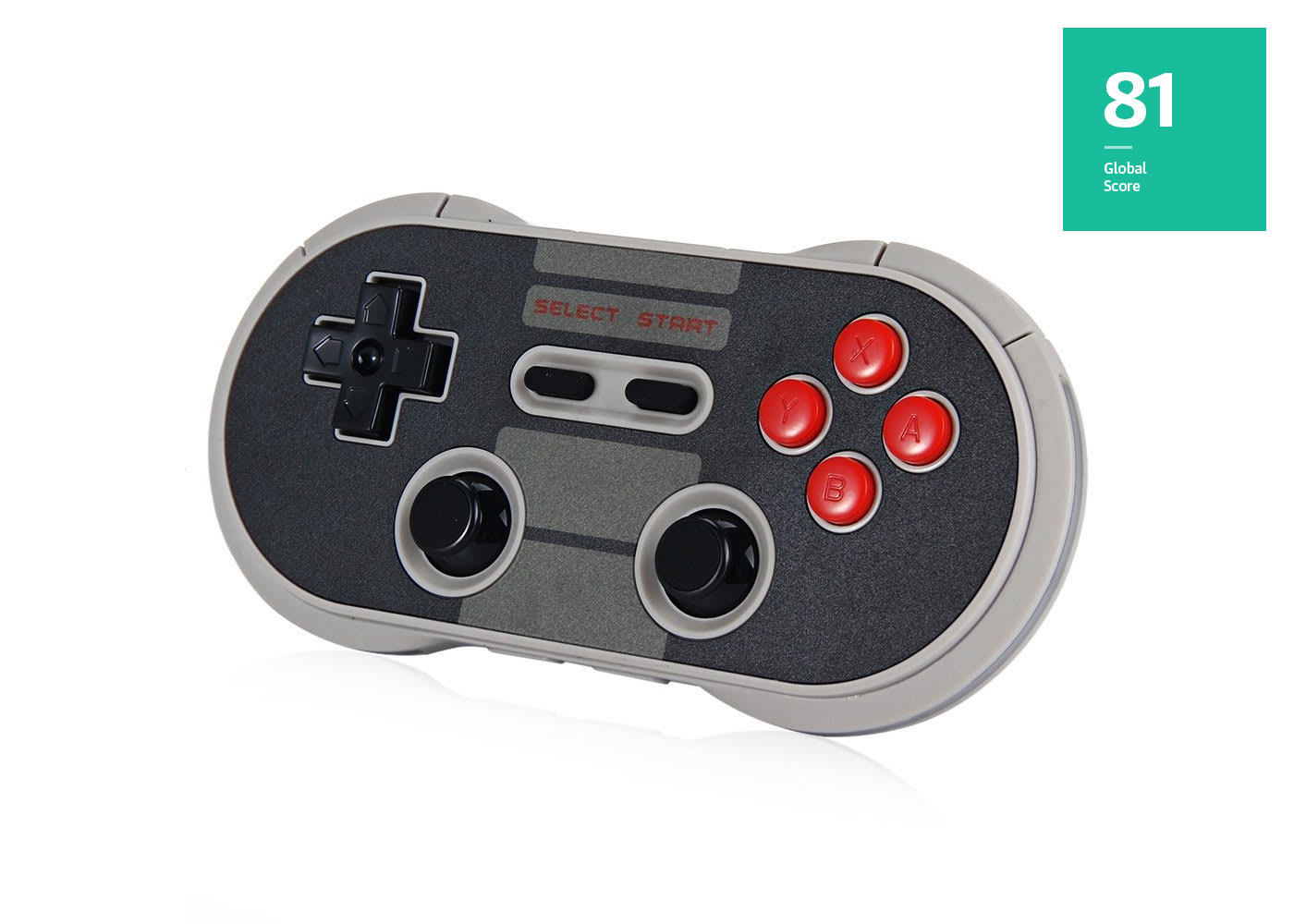
8bitdo N30 Pro / F30 Pro
 SN30
SN30
The best controller for a game is usually the one that came with its original console, but that’s not always possible when it comes to classic releases on current systems. Instead of making do with your modern gamepad, it’s worth taking a look at 8Bitdo’s retro-styled controllers. They capture the original style and feel of old Nintendo controllers while being compatible with iOS, Android, Windows, Mac and even the Switch. If you’re looking for near-exact copies of the original pads, there’s the N30 and SN30, with the 2.4G version of the latter working wirelessly with your SNES Classic. But gamers who don’t want to give up modern innovations like thumbsticks will find the Pro versions of these controllers more to their liking. The N30 Pro’s biggest flaw is a series of shoulder buttons that The Verge found “cramped and uncomfortable,” but the upcoming SN30 Pro looks to give your adult-size fingers just a bit more room to relax.
*The F30 and F30 Pro are the Famicom-styled versions of the N30 and N30 Pro.
Best controllers for Android and iOS

SteelSeries Stratus XL for Android and Windows
Console-quality game controllers for Android devices are hard to find and, outside of the Xbox controllers, your options for Windows gamepads aren’t particularly great either. The SteelSeries Stratus XL hits a sweet spot for both systems by offering a solid build and top-notch ergonomics at a reasonable price. The buttons are deep and the thumbsticks are a bit stiff, meaning some users might find the XL a bit of a struggle in shooters. But Destructoid says the D-pad is “miles ahead of an Xbox pad,” with fantastic diagonals ideal for fighting games.

SteelSeries Nimbus
With exclusives like Thatgamecompany’s Sky coming to Apple TV, games on the Apple TV are going to get way more serious, and you’re definitely going to want something better than the Siri remote to play them with. The Nimbus borrows from the time-tested designs of the Xbox and PlayStation controllers but doesn’t skimp on vital details: The D-pad is decent, and the thumbsticks are grippy and durable, with MakeUseOf noting that they ask for “the perfect amount of pressure to manipulate.” Even if you haven’t invested in an Apple TV, you can still enjoy the Nimbus with your iPhone or iPad, though, if using the latter, you might want to invest in a Nyko Smart Clip to hold on to your handset.
A lost ‘Doctor Who’ episode featuring Tom Baker is finally here
Doctor Who fans have waited nearly four decades for today. Shada — an episode that began filming in 1979 with Tom Baker as the legendary Time Lord — is finally finished and available to download (a DVD will be released in the UK on December 4th, and in the US on January 9th). An animated segment and a new scene were produced to fill in the footage gaps, both of which feature Baker reprising his role as the Doctor. To add to the prestige, the episode was also written by Hitchhiker’s Guide to the Galaxy author Douglas Adams.
As you can expect, Shada was an almost mythical entry in the series for fans. But it wasn’t the only “lost” episode. Last year, the BBC also released an animated version of The Power of the Daleks using audio from the original episode, after losing the source video. That recreation was produced by Charles Norton, who also spearheaded the animated segment in “Shada.”
Via: Variety
Source: iTunes
Black Friday 2017: Some of the Best Apps, Games, and iTunes Movies on Sale
Today is Black Friday, meaning many people are out shopping at physical stores to take advantage of the best deals, but there are also discounts hitting apps and movies that you can buy at home on your iPhone, iPad, Mac, and Apple TV. Because of this, we’ve taken a look at the best games, productivity apps, and movies you can buy at a discount today. Of course, this is just a glimpse into the extensive sales you can find by checking out the App Store and iTunes Movies Store.
We’ve listed some of the best deals on the most popular apps below, but to find tons more apps and games that are on sale, make sure to visit our sister sister site AppShopper.
Games
– Strike Team Hydra – $0.99, down from $7.99
– Mini Metro – $1.99, down from $4.99
– Sonic the Hedgehog 2 Classic – Free, down from $2.99
– Demon’s Rise 2 – $0.99, down from $7.99
– Arkanoid vs Space Invaders – $0.99, down from $4.99
– Lara Croft GO – $0.99, down from $4.99
– Thomas Was Alone – $0.99, down from $4.99
– Bastion – $1.99, down from $4.99
– Alto’s Adventure – $0.99, down from $4.99
– Forbidden Desert – $1.99, down from $6.99
– Another Lost Phone – $1.99, down from $2.99
Apps
– Fantastical 2 for iPhone – $2.99 (40% off)
– Fantastical 2 for iPad – $4.99 (50% off)
– Calendars 5 – $2.99, down from $6.99
– PDF Expert – $4.99, down from $9.99
– Printer Pro – $2.99, down from $6.99
– Scythe – Free, down from $3.99
– Be Focused Pro – $0.99, down from $1.99
Mac Apps
– iStat Menus 6 for Mac – $9.99, down from $18
– iStat Menus 6 Family Pack – $14.99, down from $25
– Git Tower for Mac – $39.50, $50 off regular $79 price
– Audible – Hundreds of audiobook titles discounted to $4.95
– SmartMockups – $32, 35% off regular $49 price
– CleanMyMac 3 – 30% off
– MacPaw App Bundles – 30% off
– Fantastical 2 for Mac – $39.99 (20% off)
– Cardhop for Mac – $14.99 (25% off)
– Chatology for Mac – $14.99 (25% off)
– RapidWeaver 7 – $44.50
– Squash 2 – $7.50
– Little Snitch – 50% off
– Unclutter – $4.99, down from $9.99
– Civilization V – $9.99, down from $29.99
– Civilization VI – $29.99, down from $59.99
– Sim City Complete Edition – $9.99, down from $29.99
– Sim City 4 Deluxe – $4.99, down from $19.99
– Sims 2 Super Collection – $14.99, down from $29.99
– Rollercoaster Tycoon 3 Platinum – $4.99, down from $19.99
– Call of Duty Black Ops – $19.99, down from $39.99
If you want to build up your iTunes Movies library, this week is the time to do it because Apple is discounting a long list of films on iTunes for Black Friday. Prices have dropped on everything from holiday favorites to new releases, all encompassing multiple genres. We’ve rounded up some notable deals below, with additional sales available through iTunes on Mac and iOS devices, as well as the Apple TV.
Under $10 Holiday Movies
– Elf
– Jingle All The Way
– Home Alone
– Die Hard
– A Christmas Story
– The Holiday
– The Family Stone
Under $12.99 4K iTunes movies to buy
– Labyrinth
– How to Be Single
– The Maze Runner
– Assassin’s Creed
– Alien: Covenant
– Mad Max: Fury Road
– War for the Planet of the Apes
– Transformers: The Last Knight
– Baby Driver
– Wonder Woman
$4.99 HD iTunes movies to buy
– Fruitvale Station
– Big Eyes
– The Evil Dead
– Southpaw
– Little Miss Sunshine
– Ender’s Game
– The Perks of Being a Wallflower
– 27 Dresses
$9.99 HD iTunes movies to buy
– Kidnap
– A Ghost Story
– King Arthur: Legend of the Sword
– Snatched
– The Big Sick
Catch up with all of the latest deals in our Black Friday Roundup.
Related Roundup: Apple Black Friday
Discuss this article in our forums
Black Friday 2017: Save $800 on Base Model 2016 15-Inch MacBook Pro with Touch Bar
Apple authorized reseller B&H Photo Video is offering an impressive $800 discount on the 2016 15-inch MacBook Pro with Touch Bar.
The flash Black Friday sale drops the price of last year’s base model MacBook Pro in silver to $1,599, down from Apple’s original price of $2,399 last year. That is by far the lowest price we’ve ever seen for this particular model.
The base model 2016 15-inch MacBook Pro is equipped with a 2.6GHz quad-core Intel Core i7 processor, 16GB of RAM, 256GB of SSD storage, and both dedicated AMD Radeon Pro 450 and integrated Intel HD Graphics 530 graphics.
While newer 2017 MacBook Pro models with Kaby Lake processors were released in May, the performance improvements driven by the small bump in base and turbo frequencies are relatively minor and shouldn’t be a big deal for most customers.
B&H Photo Video and Adorama have a few other notable discounts on select 2016 MacBook Pro configurations:
– 2016 13-inch MacBook Pro with function keys: 2.0GHz Core i5, 8GB RAM, 256GB SSD, Intel Iris Graphics 540 – now $1,149, originally $1,499 ($350 off)
– 2016 15-inch MacBook Pro with Touch Bar: 2.9GHz Core i7, 16GB RAM, 256GB SSD, AMD Radeon Pro 460 – now $1,899, originally $2,899 ($1,000 off)
– 2016 15-inch MacBook Pro with Touch Bar: 2.7GHz Core i7, 16GB RAM, 512GB SSD, AMD Radeon Pro 455 – now $2,099, originally $2,799 ($700 off)
The headline $800 off deal is available through November 25 while supplies last. The other discounts end as early as 1:30 p.m. Pacific Time today.
For additional deals on Apple products and accessories, including other Macs, be sure to check out our Best of Black Friday article and Black Friday roundup, which both continue to be updated throughout the day.
Disclaimer: MacRumors is an affiliate partner with B&H Photo Video and Adorama and may receive a small commission if you click one of the above links and make a purchase.
Related Roundup: Apple Black Friday
Discuss this article in our forums
How to spot good Black Friday video game deals
Gaming is an expensive hobby, so if you’re reading this, chances are you will be looking for discounts on consoles, games, or accessories on Black Friday. By now, you may have seen ads from Best Buy, GameStop, Target, Walmart, Toys “R” Us, and others touting gaming discounts on the biggest shopping day of the year. Just because a retailer presents these Black Friday advertisements as enticing bargains, though, doesn’t mean you should fork your cash over right away. Not every discounted (or seemingly) discounted item is worth the time in line, or your money. Before you dive into the Black Friday and Cyber Monday deal storm, we have some tips for how to spot good Black Friday video game deals, and which ones to avoid.
Console discounts are almost always solid
Black Friday is the best day of the year to buy premium video game consoles for low prices. You almost can’t go wrong when picking up a new gaming system at a discount, mostly because hardware, unlike games, keeps its regular retail price longer and sees few discounts. Video game consoles can drop by as much as $100 on Black Friday, which is a far better offer than you will see during the few fleeting sales offered throughout the calendar year.
This year is no different. Both the PlayStation 4 and Xbox One S are available widely for incredible prices.
If you’re in the market for a PS4, you can find a 1TB model for $200. Kohls is also throwing in a $60 Kohls Cash to sweeten the deal even more. While you may find PS4s bundled with games for a seemingly good price, bundles aren’t always the best option. Unless the bundle includes the specific games you’re looking for, you’re better off purchasing the console by itself and picking up the games you actually want separately.
Adding convenience, a number of retailers, including GameStop and Best Buy, are already selling the PS4 for $200. That’s right, you can take advantage of the great price before the Black Friday madness officially begins.
As for the Xbox One, a 500GB Xbox One S will be widely discounted to $190 at most major retailers. Any Xbox One purchased at that price is a good buy, but Target and Kohls will include gift cards as well. Getting a little something extra at that price is an absolute steal.
There don’t seem to be widespread sales on the PS4 Pro and Xbox One X. Likewise Nintendo of America CEO Reggie Fils-Aime said the ever-so-popular Nintendo Switch will not be widely discounted this year. If you do see one on sale, even just a little bit, grab it.
Look for half-price games, even brand new ones
A mountain of PS4 and Xbox One games will be on sale at retailers across the country. Many will be marked at great prices, some of them will not be. Discounts vary widely by game and even store-to-store, so how do you know which ones are actually worth waiting in line for?
We recommend looking for games priced at 50 percent off, or close to it. That sounds somewhat unreasonable, we know. But even recently released games can drop below 50 percent off on Black Friday. For instance, Wolfenstein II: The New Colossus, which launched less than a month ago, goes for $25 at GameStop on Black Friday.
That said, a AAA game that launched within the past few months can still be a good deal at $40. We just advise that you can compare prices when you stumble upon a $40 title. A bit of research shows that the recent Marvel vs. Capcom: Infinite is a solid purchase at $40, but that’s not always the case. WWE 2K18 sounds like a good deal for $40 at GameStop. After all, it just launched in October, but Best Buy has it for $30.
If a game costs more than $40, you don’t don’t need to run out and grab it.
Keep in mind that the standard price for new games is typically $60, but games drop in price over time. It helps to know the regular retail price of the game so you know the extent of the discount. Our 50 percent off guideline applies to games that originally go for $20, $30, $40, and $50, too. For example, a great 2016 game like Uncharted 4: A Thief’s End shouldn’t be purchased for more than $20, as its retail price has dropped to $40. Try and maximize your savings, and if the asking price isn’t hovering around that half-off number, it doesn’t hurt to do a quick search on your phone before heading to the register.
One note: Like the Switch console, you will have a hard time finding discounts on Switch games. If you happen upon some sales, even $5 off a Switch game is probably a good deal.
Use BOGO only if you maximize your value
Everyone loves a good “buy one, get one” sale — BOGO for short — but the sale doesn’t work to your advantage unless you pair the right items.
BOGO sales usually require customers to buy one item at full retail price, and the second item will be free, or half-off in some cases. On Black Friday, you can ignore any BOGO half-off sales altogether, but buy one, get one free opportunities can be worthwhile if you maximize your value.
If you get two games originally priced at $60 using a BOGO sale, you effectively followed our 50 percent off guideline. There’s even a chance that you can save a bit more if the games you pick aren’t at least 50 percent off at other stores. BOGO is particularly great for recently released titles that are hard to find at sub-50 percent off prices.
Don’t fall in love with BOGO, though. You always have to pay for the most expensive item in these sorts of sales, so the free item should be as close to (preferably equal to) the price of the game you are paying for. Paying full price for a $60 game and getting a lesser priced game for free might actually cost you more than it would if you bought both titles individually.
BOGO with a pair of $60 games? Great deal. BOGO with differently priced games? Be leery. There is a good chance both of those games are on sale elsewhere and for a better value.
Don’t buy a controller and headset unless you really need one
Accessories such as PlayStation 4 and Xbox One controllers and gaming headsets are marked down in droves on Black Friday.
This year, first-party PS4 and Xbox One controllers look to be priced at $40 and up. A $40 controller is a pretty good deal, but it’s offered sporadically throughout the year as well. If you are buying a new console, spending an extra $40 on a controller seems smart, but if you have no immediate need for an extra controller, just know that you will be able to find PS4 and Xbox One controllers for that price down the road. We also recommend avoiding deals on any third-party accessories, unless it is a product you know is great. There are plenty of low-quality peripherals out there.
Don’t be fooled by a deal that is “too good to pass up”
Even if you know exactly what you’re looking for, chances are you’ll find something else, something additional, a game that is marked down that you weren’t planning on buying. This may seem like common sense, but falling into the trap of buying needless products on Black Friday happens to the best of us. Just because you are paying less money for a game, it doesn’t mean you are saving money. If you or your loved one never ends up playing the random, impulse buy, then it wasn’t a good deal to begin with — no matter how little you paid for it.
Keep an eye out for products that enhance your gaming experience
Consoles, games, controllers, headsets — what else could you possibly need? As gaming has become an entertainment focal point, the number of non-game specific products that can enhance your overall gaming experience has grown significantly. Black Friday has great deals across all tech and entertainment devices, and many of those have gaming applications.
For instance, if you buy an Xbox One or PS4, you may want to consider an external hard drive as well. 500GB to 1TB may sound like infinite storage space, but nowadays games take up huge chunks of space since they have to fully install on console hard drives.
And while you likely won’t get a discount on a Nintendo Switch or its games, you can save money on microSD cards and portable battery packs on Black Friday. The Switch has limited storage space, making the need for a microSD card nearly mandatory down the line. A discounted portable charger will come in handy when you’re on the go, as the console only has enough juice to run for about three hours between charges.
On the more expensive side of things to consider, in the age of hyper-realistic visuals, the TV you play games on does, in fact, make a difference. It’s never too early to consider future-proofing your gaming setup by looking into 4K televisions. And if you splurge and pick up an Xbox One X or PS4 Pro, it’s pretty much a must to see the enhancements in action.
Max your mobile: How to use the Game Booster app on the Razer Phone
If you have a Razer Phone in your hand, then it is likely there because you enjoy mobile games, and you chose to have one of the best-performing smartphones available today. Razer has installed an app called Game Booster, which promises to supercharge your favorite mobile games, and tweak them to take full advantage of the Razer Phone’s special features. Plus, when you need more battery life but don’t want to stop the games, the app can even make that happen.
How do you use Game Booster? We put together a guide on exactly what it does and how to get the most from it. If you already mastered Game Booster, go here for other Razer Phone tips and tricks. Or if you are wondering if it’s the right device to buy, read our Razer Phone review. Let’s get started, so grab your Razer Phone, prepare your favorite game, and fire up Game Booster now!
What is Game Booster?
Game Booster is one of the pre-installed apps on the Razer Phone. It helps mobile gamers get the most from their favorite games by allowing individual aspects of the device and game to be altered, including processor speed and screen frame rate. The Game Booster app is a spin-off of the Razer Cortex performance booster for PCs. Razer Cortex is designed to concentrate your computer’s resources on the game, ensuring a higher frame rate, smoother performance, and a more enjoyable gaming experience. It’s also reminiscent of other Android mobile apps that promise to boost device performance by shifting resources around to optimize the operating system, such as Cheetah Mobile’s Clean Master.
How do you use Game Booster?
The Game Booster app is easy to find. It has a bright green icon, just like Razer’s other pre-installed apps, and the icon design looks like a car rev-counter. Tap it to open. The main screen shows how your phone is currently set up, based on battery percentage remaining, and how you’re using the device itself. It provides an estimated use time based on this data.
- Under this are three distinct modes: Custom, Power Save, and Performance. Select “Power Save” or “Performance” to apply changes to all your games using parameters tailored to prolong standby time or increase game performance, respectively. However, we recommend delving into “Custom settings” to really tailor the device and apps to your preferences. After all, simple games don’t really need to use all of the Snapdragon 835 processor’s ability to play well.
- Tap “Custom” and a list of games installed on the phone will appear below. If your favorite game or a recently installed app doesn’t show up you can manually add it by pressing the “Add/Remove Games” option at the top of the list. Use the slider alongside each relevant app title to add it to the Game Booster list. It’s not just games that can be added either, you can tweak any app with Game Booster, although it is designed primarily for games. When you’re done, press the back key to return to the main screen.
- Find your favorite game and tap to open the options available. At first, the thought of playing around with the game’s internal workings may put you off; but don’t worry it’s very easy to do and completely reversible. The easiest way to change the way the app works, and get the best from both it and the phone, is to use the horizontal sliding scale in the center of the page. It starts at “More Battery” and goes through three more stages before reaching “Higher Performance.” Razer will suggest which setting is the best balance between power saving and performance.
- Simply tap the point on the scale you want — let’s try “Higher Performance,” for example — and you will see Razer allows the game to use the Snapdragon 835 processor’s full ability, the screen’s full resolution, and crucially, a 120 frames-per-second (FPS) frame rate to maximize use of the Razer’s 120Hz screen refresh rate. If you’d rather change one of these settings individually, just tap on the setting in the list and alter it there. For example, to change the frame rate to 60fps from 120fps, tap “Frame Rate“ and choose between 40fps, 50fps, 60fps, 90fps, and 120fps.
When you’re satisfied with the settings, make sure to tap the green tick icon in the bottom right to save. Every time you play a game tweaked with Game Booster, it applies these settings.
What other settings are there?
Outside of the game setting changes, there are two other functions you need to know. The first two are for returning the Games Booster settings to standard, helpful if you’re running into problems and aren’t sure if a maxed out app is causing them.
- If you want to reset all the changes made to the games and return them to standard, there is a single button that looks like a refresh icon in the top right corner. Tap this to return games to standard.
- Alternatively, you can follow the same method described above, only this time instead of selecting “Higher Performance” on the sliding scale, tap either Razer’s “Optimal” setting or a notch below.
Andy Boxall/Digital Trends
- There are two slider switches. The first is a setting is to block notifications from interrupting gameplay. It’s a slider switch in the center of the layout.
- The second slider switch is found when you adjust a game’s settings individually. It’s to switch on anti-aliasing, which will smooth out any jagged lines and edges visible during gameplay. Razer doesn’t go into detail about how its anti-aliasing works, or the degree with which any changes will affect game performance, if at all. Our recommendation: Turn it on, try the game out, and see how it performs. If you don’t like the result and it negatively impacts speed, turn it off in Game Booster. That is the great thing here, you’re free to play about with the tweaks to find what works best for each game.
Can all games be modified?
All the games we tried could be given an overhaul using Game Booster; but you may find some titles won’t work, due to restrictions placed by the developer. However, whether you notice any difference in the way they play will depend on the game itself — higher frame rates may only be noticeable in action or other fast-paced games, for example — and the device on which you played them before. Regardless, you can feel safe in the knowledge that by using Game Booster, you’re getting the absolute most from the game and Razer Phone.
Will it damage the phone?
Razer says it won’t. The alterations made push the game and device to its limits, which may lead to fears of the phone overheating. We haven’t experienced any problems like this in our tests, and Razer says it has built the phone using, “best-in-class thermal design” to make sure it doesn’t happen, and to allow the Game Booster app to work its magic.
The only other thing to consider is that some games may play best on Razer’s optimal settings. Don’t just slam everything up to maximum and assume it will do the best job. That may end up wasting battery life for no reason. Experiment and find out what works best for all your favorite games.
Should you use Game Booster?
Yes! The Razer Phone is a fantastic mobile gaming smartphone, and the Game Booster app means you are exploiting all of its ability in your favorite game. Not using it is like buying a Ferrari and never flooring the throttle. Go ahead, max out your game of choice, and enjoy the awesome Razer Phone at its best.
Push your PC to the max with the best graphics cards for gaming
If you want to build an awesome desktop for gaming, the first step is to hunt down the best processors you can currently buy on the market (along with their compatible motherboards). For now, these include Intel’s eighth-generation Core processors and its massive X-Series chips. On the AMD side, the company now offers its Ryzen 7/5/3 and Ryzen Threadripper CPUs.
Once you have a processor and motherboard in place, the next step is to choose the best graphics card for gaming you can buy. Nvidia and AMD are the sole players in this market, and rely on third parties such as Asus, EVGA, MSI, Sapphire, and Zotac to produce add-in graphics cards. These manufacturers tend to saturate the market and make the choice a bit overwhelming.
Thus, the best attack vector is to focus on the foundation. On the Nvidia front, the company provides its GeForce GTX 10 Series cards, and actually manufactures “Founders Edition” models so you’re not investing in additional fluff third-party makers like to layer onto Nvidia’s design. AMD doesn’t do this, but instead solely creates a reference design for its partners to use and modify at will.
Everything listed in our guide below is based on Nvidia’s Founders Edition models, and AMD’s reference designs. The strategy here is to decide what best fits your needs and budget, and then investigate the third-party products based on those decision. These companies typically speed up the graphics chip, improve on the cooling design, and even rip out the fans for water-based solutions. That means you’ll see additional power requirements for third-party cards.
The Titan versus the Vega
If you want to see a heavyweight boxing match between Nvidia and AMD, this is the fight of the year. Nvidia got a head start when it released the Titan Xp earlier this year, but AMD’s Radeon RX Vega 64 came out swinging in August to regain control of the graphics card market. AMD clearly comes out on top in the performance-per-dollar battle, but at the cost of a higher power requirement. The Vega 64 also falls behind in memory bandwidth, texture fill rates, and pixel fill rates.
But note that the RX Vega 64 offers improved performance when system builders use a liquid-based cooling setup versus air-based cooling. This card also relies on “stacked” skyscraper-style on-board memory versus the city block-style GDDR5X-based memory used in Nvidia’s design. Yet despite HBM2 memory saving physical space, AMD’s card is still bigger than the Titan Xp — and that’s just based on the reference designs.
Nvidia
Titan Xp
AMD
Radeon RX
Vega 64
Architecture
Pascal
GCN 5
GPU:
GP102-450
Vega 10 XT
Cores:
3,840
4,096
Base speed:
1,480MHz
1,247MHz
Boost speed:
1,582MHz
1,546MHz
Memory:
12GB GDDR5X
8GB HBM2
Memory speed:
11GBps
1.9Gbps
Memory interface:
384-bit
2,048-bit
Memory bandwidth:
547GB/sec
484GB/sec
Ports:
3x DisplayPort 1.4
1x HDMI 2.0b
3x DisplayPort 1.4
1x HDMI 2.0b
Dimensions:
4.376 x 10.5 inches
2-slot height
5.11 x 11.02 inches
2-slot height
Power connectors:
1x 8-pin
1x 6-pin
2x 8-pin
Power usage:
250 watts
295 watts
Interface:
PCI Express 3.0 x16
PCI Express 3.0 x16
Performance (FP32):
12.1 TFLOPS
12.6 TFLOPS
Starting price:
$1,199
$499
$500 to $700: Ultra 4K gaming and beyond
Right now, Nvidia fills this price bracket with its two GTX 1080 cards. The GTX 1080 – along with the GTX 1070 – was the first card to hit the market based on Nvidia’s “Pascal” graphics chip design. Both arrived in May 2016, and were followed by the beefier GTX 1080 Ti graphics card in February 2017.
That said, the two GTX 1080-branded models are the best Nvidia-designed cards currently on the market falling under the Titan Xp’s $1,199 price point. Both can be purchased straight from Nvidia as Founders Edition models, but if you want increased speeds, different cooling options, and more, there are plenty of third-party solutions on the market.
For example, EVGA alone produces 18 cards based on the GTX 1080 TI, and 13 based on the vanilla GTX 1080 design. Zotac only sells seven GTX 1080 Ti cards, and seven GTX 1080 cards.
Nvidia
GTX 1080 Ti
Nvidia
GTX 1080
Architecture:
Pascal
Pascal
GPU:
GP102-350
GP104-400
Cores:
3,584
2,560
Base speed:
1,480MHz
1,607MHz
Boost speed:
1,583MHz
1,733MHz
Memory:
11GB GDDR5X
8GB GDDR5X
Memory speed:
11Gbps
10Gbps
Memory interface:
352-bit
256-bit
Memory bandwidth:
484GB/sec
320GB/sec
Ports:
3x DisplayPort 1.4
1x HDMI 2.0b
3x DisplayPort 1.4
1x HDMI 2.0b
1x DL-DVI
Dimensions:
4.376 x 10.5 inches
2-slot height
4.376 x 10.5 inches
2-slot height
Power connectors:
1x 8-pin
1x 6-pin
1x 8-pin
Power usage:
250 watts
180 watts
Interface:
PCI Express 3.0 x16
PCI Express 3.0 x16
Performance (FP32):
11.3 TFLOPS
8.9 TFLOPS
Starting price:
$699
$549
$400 to $500: QHD to Ultra 4K gaming
To be honest, you can purchase the latest gaming console for the cost of one of the graphics cards listed in this price bracket (well, almost). In this batch, we have Nvidia’s two GTX 1070 cards, one of which just launched at the beginning of November (the 1070 Ti). Their biggest opponent is AMD’s recently-released Radeon RX Vega 56 graphics card, which targets the GTX 1070 Ti more than it does the vanilla GTX 1070.
For this group, AMD’s card provides a wider memory bandwidth, but requires more power. And despite the Vega 64 having 3,584 cores, they’re only speeding along at a maximum 1,471MHz versus the lower core count with higher speeds in the two GTX 1070 cards. All three should do fairly well pumping out high framerates at an Ultra HD resolution although the vanilla GTX 1070 may feel less stressed when rendering your games at a QHD setting.
Nvidia
GTX 1070 Ti
Nvidia
GTX 1070
AMD
Radeon RX
Vega 56
Architecture
Pascal
Pascal
GCN 5
GPU:
GP104-300
GP104-200
Vega 10 XL
Cores:
2,432
1,920
3,584
Base speed:
1,607MHz
1,506MHz
1,156MHz
Boost speed:
1,683MHz
1,683MHz
1,471MHz
Memory:
8GB GDDR5
8GB GDDR5
8GB HBM2
Memory speed:
8Gbps
8Gbps
1.6Gbps
Memory interface:
256-bit
256-bit
2,048-bit
Memory bandwidth:
256GB/sec
256GB/sec
409GB/sec
Ports:
3x DisplayPort 1.4
1x HDMI 2.0b
1x DL-DVI
3x DisplayPort 1.4
1x HDMI 2.0b
1x DL-DVI
3x DisplayPort 1.4
1x HDMI 2.0b
Dimensions:
4.376 x 10.5 inches
2-slot height
4.376 x 10.5 inches
2-slot height
5.11 x 11.02 inches
2-slot height
Power connectors:
1x 8-pin
1x 8-pin
1x 8-pin
1x 6-pin
Power usage:
180 watts
150 watts
210 watts
Interface:
PCI Express 3.0 x16
PCI Express 3.0 x16
PCI Express 3.0 x16
Performance:
7.8 TFLOPS
6.5 TFLOPS
10.5 TFLOPS
Starting price:
$449
$399
$399
$150 to $400: FHD to QHD gaming
This bracket is a bit more crowded due to Nvidia’s two GTX 1060 designs. One provides 6GB of on-board memory and 1,280 cores whereas the other only has 3GB of memory and a lower core count. Meanwhile, the upper end of AMD’s Radeon RX 500 series introduced earlier this year targets both GTX 1060 models and includes two variants of the company’s RX 580 design (8GB and 4GB).
In the case of AMD, the RX 500 Series is based on the company’s older GCN 4 “Polaris” design first introduced in 2016. AMD originally released its Radeon RX 400 series last year using this design, but then tweaked Polaris and issued the 500 Series earlier this year. The target: affordable graphics for the mainstream desktop market supporting high-resolution games, and high-quality virtual reality.
Nvidia
GTX 1060 6GB
Nvidia
GTX 1060 3GB
AMD
Radeon RX 580
AMD
Radeon RX 570
Architecture:
Pascal
Pascal
GCN 4
GCN 4
GPU:
GP106-400
GP104-140
Polaris 20 XT
Polaris 20 XL
Cores:
1,280
1,152
2,304
2,048
Base speed:
1,506MHz
1,506MHz
1,256MHz
1,168MHz
Boost speed:
1,708MHz
1,708MHz
1,340MHz
1,244MHz
Memory:
6GB GDDR5
3GB GDDR5
4GB / 8GB GDDR5
4GB GDDR5
Memory speed:
8Gbps
8Gbps
8Gbps
7Gbps
Memory interface:
192-bit
192-bit
256-bit
256-bit
Memory bandwidth:
192GB/sec
192GB/sec
256GB/s
224GB/sec
Ports:
3x DisplayPort 1.4
1x HDMI 2.0b
1x DL-DVI
3x DisplayPort 1.4
1x HDMI 2.0b
1x DL-DVI
3x DisplayPort 1.4
1x HDMI 2.0b
3x DisplayPort 1.4
1x HDMI 2.0b
Dimensions:
4.378 x 9.823 inches
2-slot height
4.378 x 9.823 inches
2-slot height
2-slot height
2-slot height
Power connectors:
1x 6-pin
1x 6-pin
1x 8-pin
1x 8-pin
Power usage:
120 watts
120 watts
185 watts
150 watts
Interface:
PCI Express 3.0 x16
PCI Express 3.0 x16
PCI Express 3.0 x16
PCI Express 3.0 x16
Performance:
4.4 TFLOPS
4.0 TFLOPS
6.2 TFLOPS
5.1 TFLOPS
Starting price:
$299
$249
$199 / $229
$169
$80 to $150: eSports gaming
Finally, we enter budget territory. As the specifications reveal in the chart below, the processor core counts are low, thus these cards mostly don’t require an additional connection to your desktop’s power supply. But note that you still may see solutions from third-party makers requiring an additional 6-pin or 8-pin connection to handle overclocked speeds, and/or additional cooling features.
Both Nvidia and AMD are targeting the mainstream market wanting decent graphics in their PC games. More specifically, these cards are ideal for eSports players who require high frame rates, but don’t want to sacrifice graphical quality. These cards are a huge bump up from integrated graphics, but don’t expect the level of quality produced by solutions listed in the higher price brackets.
Nvidia
GTX 1050 Ti
Nvidia
GTX 1050
AMD
Radeon RX 560
AMD
Radeon RX 550
Architecture:
Pascal
Pascal
GCN 4
GCN 4
GPU:
GP107-400
GP107-300
Polaris 21 XT
Lexa Pro
Cores:
768
640
1,024
512
Base speed:
1,290MHz
1,354MHz
1,175MHz
1,100MHz
Boost speed:
1,392MHz
1,455MHz
1,275MHz
1,183MHz
Memory:
4GB GDDR5
2GB GDDR5
2GB GDDR5
2GB GDDR5
Memory speed:
7Gbps
7Gbps
7Gbps
7Gbps
Memory interface:
128-bit
128-bit
128-bit
128-bit
Memory bandwidth:
112GB/sec
112GB/sec
112GB/sec
112GB/sec
Ports:
1x DisplayPort 1.4
1x HDMI 2.0b
1x DL-DVI
1x DisplayPort 1.4
1x HDMI 2.0b
1x DL-DVI
1x DisplayPort 1.4
1x HDMI 2.0b
1x DL-DVI
1x DisplayPort 1.4
1x HDMI 2.0b
1x DL-DVI
Dimensions:
4.38 x 5.7 inches
2-slot height
4.38 x 5.7 inches
2-slot height
2-slot height
2-slot height
Power connectors:
N/A
N/A
1x 6-pin
1x 6-pin
Power usage:
75 watts
75 watts
80 watts
50 watts
Interface:
PCI Express 3.0 x16
PCI Express 3.0 x16
PCI Express 3.0 x8
PCI Express 3.0 x8
Performance:
2.1 TFLOPS
1.8 TFLOPS
2.6 TFLOPS
1.2 TFLOPS
Starting price:
$139
$109
$99
$79
How to change the color profile on the Pixel 2 and Pixel 2 XL

Switching the color profile on your Pixel 2 only takes a few taps!
Google’s Pixel 2 and Pixel 2 XL both have OLED displays, but they show colors very differently. If you want to adjust the way colors look on your screen, you have a few options from within the Settings. We’ve got the details on how to do it here!
How to switch your color profile with Google’s Pixel 2 or Pixel 2 XL
When the Pixel 2 and Pixel 2 XL launched, there were two options in the Settings for display colors: Balanced, and Vibrant. Both kept the colors pretty muted, and they looked fine on the Pixel 2 but due to the Pixel 2 XL’s colder display, neither made the colors pop. With the November update, both phones got new color options: Boosted, Natural, or Saturated colors. Here’s how to change them.
Open the Settings on your phone.
Scroll down and tap Display.

Tap Advanced to open more options for Display.
Tap the toggle to switch between color profiles.

The Saturated option is arguably more important for the Pixel 2 XL, but if you’re used to the vibrant colors of a Galaxy phone, it’s a great change for both the larger and smaller Pixels.
Questions?
Do you have any questions about changing the color profile on your Pixel 2, or Pixel 2 XL? Have you switched from the default color profile? Let us know about it in the comments below!
Google Pixel 2 and Pixel 2 XL
- Pixel 2 FAQ: Everything you need to know!
- Google Pixel 2 and 2 XL review: The new standard
- Google Pixel 2 specs
- Google Pixel 2 vs. Pixel 2 XL: What’s the difference?
- Join our Pixel 2 forums
Google Store
Project Fi
Verizon
Best Buy
 AIVAnet