


What to expect for Black Friday 2017
This post was done in partnership with Wirecutter, reviews for the real world. When readers choose to buy Wirecutter’s independently chosen editorial picks, they may earn affiliate commissions that support their work. Read their continuously updated list of deals here.
Black Friday’s coming up fast and we’re already seeing a lot of deals going live, so here’s what we expect:
- Get that shopping list ready soon. Your favorite deal, the one that says it’ll go live on Friday? There’s a decent chance it’ll be available earlier. We’ve already seen some of the most interesting deals going live early, a fair few from Best Buy jumping the gun a week ago to beat other retailers.
- That TV/instant pot/whatever you wanted sold out already? Don’t buy your backup option just yet. Not only have we seen some great deals go live already, but we’ve seen sold out products pop back in stock. It’s not uncommon for retailers to put up great deals on Black Friday and once they sell out for the day, put up additional stock on Cyber Monday.
- Update your billing and shipping info. This is the most boring part of shopping, but you’ll be really aggravated with yourself if you do grab that one thing you wanted and it sells out because you had to update all of your info.
Here are some Black Friday deals we’re seeing pop up already:

Logitech Harmony Companion
Street price: $130; deal price: $100
This particular model has been bouncing between $130 and $140 a lot, so this recent drop to $100 is a welcome discount.
The Logitech Harmony Companion is our upgrade pick in our universal remote control guide. We wrote, “More elaborate and a little harder to set up, the Harmony Companion doesn’t require line-of-sight to your gear, is able to control Wi-Fi and Bluetooth devices, and can even run your smart home.”

KEF Q100 Bookshelf Loudspeakers
Street price: $550; deal price: $249.98
A huge drop on our previous upgrade pair of bookshelf speakers.
The KEF Q100 Bookshelf Loudspeakers is our previous upgrade pick in our best bookshelf speaker guide. They’re not our current pick, but they’re still a fantastic deal.

Fire HD 10
Street price: $150; deal price: $100
A huge drop and the first discount we’ve seen on the new and improved HD 10. The 10 is quite similar to the 8, and with this price, makes it much more interesting as a media consumption tablet.
The Fire HD 10 is the larger version of the 8, which is our budget pick in our tablet guide. We wrote, “The 2017 Fire HD 8 is slower, has a lower-resolution screen, and is more limited than the ZenPad, but it’s a great cheap tablet for media consumption, especially for Amazon content.”

Samsung Qi Certified Fast Charge Wireless Charger
Street price: $35; deal price: $24
A welcome discount on on a newly released Qi charger, this deal is only on this particular color.
The Fast Charge is a faster version of our pick in our best Qi wireless charger guide. We wrote, “In our testing, it fully charged our iPhone 8 and Galaxy S8 about 15 minutes faster than our top pick.”

Razer DeathAdder Elite
Street price: $60; deal price: $50
Matching the best price we’ve seen on our gaming mouse pick.
The Razer DeathAdder Elite is our pick in our best gaming mouse guide. We wrote, “It’s comfortable for a wide range of hand sizes and grips, has seven easy-to-reach buttons and an accurate sensor, and has a simple, effective design.”
Because great deals happen more than once a week, sign up for our daily deals email and we’ll send you the best deals we find every weekday.
Note from Wirecutter: When readers choose to buy our independently chosen editorial picks, we may earn affiliate commissions that support our work.
Uber is working on tools to fight motion sickness in self-driving cars
Motion sickness is a real problem in self-driving cars. As you’re not in control of where the car is going, you might feel queasy when the vehicle moves in ways you weren’t anticipating. Uber clearly needs to minimize that urge to hurl if it’s going to create an autonomous fleet — and accordingly, it’s exploring technology that could make you feel at ease. It’s applying for a patent on a raft of technologies that would counter motion sickness by stimulating your senses as the car moves, distracting your brain.
Light bars and screens could signal the car’s intentions, giving your mind a chance to prepare for that upcoming turn. Alternately, your seat could twist in response to turns, or vibrate during braking. It could even blast you with air at varying directions and speeds to provide continuous stimulation that takes your attention away from the car’s pitching and bobbing.
This is just a patent application, and there’s no guarantee that any of it will be implemented in future robotic cars. The Guardian notes that some techniques work more effectively than others: air may be a viable option, while a vibrating seat might not do much at all. With that said, Uber has a strong incentive to implement some kind of anti-sickness measure. Even if only a fraction of customers toss their cookies, that could represent a lot of lost business — whatever Uber pays to keep your stomach settled could easily pay for itself through more rides.
Via: The Guardian
Source: USPTO
Apple Watch Wearers Can Earn Thanksgiving Day Badge on Thursday
Apple today announced that Apple Watch users can earn a special Thanksgiving Day badge and accompanying iMessage sticker by completing a walk, run, or wheelchair workout with a distance of at least 5K (3.1 miles) on November 23.
As with the Veterans Day badge, this achievement is only available on devices that have United States set as the region. The distance can be recorded with the Workout app or any third-party app that adds workouts to the Health app.
Apple Watch users can view a history of achievements via the Achievements tab in the Activity app on a paired iPhone.
Related Roundups: Apple Watch, watchOS 4Tag: Activity ChallengeBuyer’s Guide: Apple Watch (Buy Now)
Discuss this article in our forums
FCC Expected to Repeal Net Neutrality Rules in Vote Next Month
FCC chairman Ajit Pai today announced that his controversial Restoring Internet Freedom order is headed to vote on December 14.
The order, proposed in May, would roll back the Barack Obama administration’s classification of internet service providers as “common carriers” under Title II of the Communications Act of 1934.
As common carriers, internet providers are required to act as neutral gateways to the internet. In other words, companies like Comcast are not allowed to speed up or slow down content passing through their networks.
If the order passes, ISPs will be reclassified as “information service” providers, as they were between February 1996 and February 2015.
For almost twenty years, the Internet thrived under the light-touch regulatory approach established by President Clinton and a Republican Congress. This bipartisan framework led the private sector to invest $1.5 trillion building communications networks throughout the United States. And it gave us an Internet economy that became the envy of the world.
Apple and dozens of other large technology companies urged the FCC to reconsider its proposal. The FCC also received a record-breaking 22 million comments from the public during a feedback period that ended in August.
Those against the order believe that the FCC rolling back the internet’s classification as a public utility will hurt net neutrality, as it could eventually divide internet users into so-called “fast lanes” and “slow lanes.”
In a letter submitted to the FCC in August, Apple warned that paid fast lanes could result in an “internet with distorted competition.”
Broadband providers should not create paid fast lanes on the internet. Lifting the current ban on paid prioritization arrangements could allow broadband providers to favor the transmission of one provider’s content or services (or the broadband provider’s own online content or services) over other online content, fundamentally altering the internet as we know it today—to the detriment of consumers, competition, and innovation.
Pai, who was designated as FCC chairman by Donald Trump, insists the Obama-era internet regulations are a “mistake.” Under the new rules, he said the FCC will “stop micromanaging the internet” to foster innovation.
Today, I have shared with my colleagues a draft order that would abandon this failed approach and return to the longstanding consensus that served consumers well for decades. Under my proposal, the federal government will stop micromanaging the Internet. Instead, the FCC would simply require Internet service providers to be transparent about their practices so that consumers can buy the service plan that’s best for them and entrepreneurs and other small businesses can have the technical information they need to innovate.
Despite the significant backlash from tech companies and the public, it is widely expected that the FCC will vote in favor of the order next month.
Note: Due to the political nature of the discussion regarding this topic, the discussion thread is located in our Politics, Religion, Social Issues forum. All forum members and site visitors are welcome to read and follow the thread, but posting is limited to forum members with at least 100 posts.
Tags: net neutrality, FCC
Discuss this article in our forums
How to factory reset a Galaxy S6 or S6 Edge smartphone
If your Samsung Galaxy S6 or S6 Edge is running slow or an error seems to be plaguing performance, don’t fret — a quick factory reset might be all you need. Similarly, if you want to sell your Samsung smartphone, then you’ll need to completely wipe it. This guide will explain precisely how to factory reset a Galaxy S6 or S6 Edge.
Now, before we begin, we must make sure it’s clear what we mean by a “factory reset.” The process will return your device to its original state, the one before you bought it. That means all settings will return to their defaults, and all data will be deleted. And by all, we mean everything — photos, videos, contacts, music, saved files, etc. — so be sure to back up anything and everything you wish to save, if you’re able to.
Another thing to keep in mind is that if you’re selling your smartphone, and this is the reason why you’re erasing all data, you must disable Factory Reset Protection or “FRP.” If you don’t do this before erasing your data, you will be asked to “Sign in with a Google Account previously synced” on the device after the reset is completed.
Disabling FRP
- Go to Settings, select Lock screen and security, and remove all passwords, pins, and patterns.
- Go to Settings, select Accounts, and remove all Google accounts.
Now that the obligatory data wipe and FRP warnings are out of the way, let’s get on to business.
Factory Reset
The first option is to perform a Factory Reset, which is the easiest way to perform a reset for those who can access their smartphone’s settings. If you’ve already backed up your files, you can easily return your phone to its factory defaults via the Settings menu.
Step 1: Open Settings and scroll down to the Backup and reset option. Toward the bottom of the screen, tap Factory Data Reset.
Step 2: The on-screen prompts will warn you that all data will be lost and your phone will return to its default settings. Confirm that you wish to perform the reset, and then press Reset Device.
Step 3: There will be one final warning. Tap Delete All to proceed. Your phone will now be restored to its factory settings.
Recovery Mode Factory Reset
There is a second option — aka the Factory Reset via Recovery Mode — for those who have lost their password and are unable to access the settings panel. Follow the instructions below for a closer look at how to perform the reset.
Step 1: Turn off your device.
Step 2: Hold the volume up, home, and power buttons down simultaneously. Continue to hold this combination while your phone boots, or until the screen shows the iconic Android logo.
Step 3: After a few moments, you’ll have access to your phone’s boot menu. Using the volume buttons to navigate and the power button to make your selection, find and select Wipe Data/Factory Reset.
Step 4: Scroll down to Yes, delete all user data, and press the power button once again. You will then notice script scrolling across the bottom of the screen, which will end with Data Wipe Complete.
Step 5: Once the operation is complete, press the power button to reset your device.
The phone has now been returned to factory settings, and you can pass it on, sell it, or start using it again.
Update: We added some related links and updated one of the steps for clarity.
Editors’ Recommendations
- Selling your phone or tablet? Here’s how to wipe your Android phone
- How to factory reset an iPhone 7 (and every other iPhone)
- Is your smartphone frozen? Here’s how to reset your iPhone
- Annoying Samsung Galaxy Note 8 problems and what to do about them
- Looking to wipe your laptop? Here’s how to restore a Mac to its factory settings
Misfit Command hybrid watch looks like a classic, but acts like a smartwatch
The Misfit Vapor may be stealing headlines when it comes to Misfit’s smartwatch lineup, but that’s not the only new product the company has under its belt. Misfit has announced the new Misfit Command, a hybrid smartwatch aimed at delivering a classic design with a few of the smarts you would expect from a smartwatch under the hood.
So what are those smarts? Well, you’ll be able to track things like steps, calories burned, distance, and even sleep, information that you can see within the connected app. On top of that, you won’t have to worry too much about taking the watch off for water-based activities — it comes with water resistance of up to 50 meters, and it has a battery life of one year. At the end of that year, you’ll need to get the battery replaced.
Don’t think you won’t be able to use this device to get notifications — you can create customized alerts for all the standard things, including calls, texts, emails, and so on, thanks to the small subeye with different graphic indications for the type of notification that you’ve received. And, there’s a programmable “smart button” on the device that allows you to do things like control music playback or connect to other devices.
Perhaps the best thing about the Misfit Command is its design — it offers a classic, stylish look and comes in a few different color choices, including Black Steel, Black Copper, Navy Blue, and Steel. As you might expect, you can also change out the straps of the device thanks to the standard 20mm design.
The device in general seems like a great option for those that want to bring some smarts to their wrist but don’t really want to dive into a full-fledged display-based smartwatch like the Misfit Vapor. That may make sense for some — though the Vapor in general got some pretty good initial reviews when it was shown off at the beginning of the year. Since then, the device has moved from Misfit’s propriety software to Android Wear 2.0, Google’s latest and greatest version of its wearable operating system.
You can get the new Misfit Command for yourself from the Misfit website. The device comes at $150, which isn’t a bad price for such a good-looking watch.
Editors’ Recommendations
- The Misfit Vapor smartwatch will finally be available on October 31
- How to use Twitter like a social media boss
- SNES Classic library likely to be expanded thanks to compatible NES Classic hack
- Augmented reality is becoming real for home goods brands like Williams-Sonoma
- Is the Nissan Leaf Nismo an electric hot hatch, or does it just look like one?
Google to add Android-like in-line notification replies to Chrome OS
An upcoming update for Google’s Chrome OS platform could make responding to social messages that bit easier, as you’ll be able to reply right within the notification itself. It’s a key feature that’s currently missing from Android applications running on Chrome OS, but it seems Google is keen to correct that in a coming update.
The ability to respond to social messages within notifications makes multitasking much easier, as you don’t need to continuously open the relevant messaging application to reply. When the notification pops up, you can simply type your response — or select an emoji — right there. As it stands, that feature is broken within Chrome OS, but Chrome Story has discovered that Google is going to change that for the better.
Spotted in a recent code change request for Chromium’s source code, the notes state that Google will soon “add notification in-line reply support to Chrome OS.” Specifically, it will add new UI side support for notification in-line replies. It will also overhaul the animation and add a new “submit” icon to the notifications panel, making it clear that you can reply there.
The code change request even highlights that this is a feature that’s been available on Android and Windows for a while now and “it’s time to start implementing it for Chrome OS” too. Considering the state of Android apps on Chromebooks, fixing general functionality for at least the social ones would be a good step to take.
Although no time frame has been put in place for when this feature will be added, considering the developers seem to think that there won’t be much involved in enabling it, it shouldn’t be too long. It will no doubt be introduced to developer channels first, before hitting the main Chrome OS release.
When it is implemented, it probably won’t be enough for us to universally recommend Google’s Pixelbook laptop, but it’s still a decent Chromebook by most measures.
For a look at what we consider to be the best Chromebooks available today, check out our guide. We have representations from various budgetary ranges and manufacturers, so there should be something there for anyone considering trying out the popular alternative to the dominant Windows OS.
Editors’ Recommendations
- 27 iOS 11 tips and tricks you should know to navigate Apple’s latest update with ease
- Dear Google: Integrate Android and Chrome OS, or stop making $1,000 Chromebooks
- Uber now lets you make multiple stops, whether or not you’re dressed as a horse
- Ecobee4 Smart Thermostat hands-on review
- Facebook researchers are developing animated selfies based on emoji reactions
Best iOS app deals of the day! 6 paid iPhone apps for free for a limited time
Everyone likes Apple apps, but sometimes the best ones are a bit expensive. Now and then, developers put paid apps on sale for free for a limited time, but you have to snatch them up while you have the chance. Here are the latest and greatest iOS app deals available from the iOS App Store.
These apps normally cost money and this sale lasts for a limited time only. If you go to the App Store and it says the app costs money, that means the deal has expired and you will be charged.
Smart Translator
Smart Translator is an amazing app that lets you translate your text or speech into more than 40 languages. Input your text by typing or speaking and hear your translation being read aloud to you.
Available on:
iOS
Cool Weather
An uplifting quote or inspirational story can completely brighten up your day. Cool Weather delivers your weather fast and with a smile.
Available on:
iOS
Speech Recognizer
With this revolutionary app, you won’t need to type anything any more. You just speak and your speech is instantly converted into text.
Available on:
iOS
iScan Pro
iScan Pro turns your iPhone into a multipage scanner for documents, receipts, notes, invoices, whiteboards, and other paper text. With Fast Scanner, you can quickly scan your documents, then print or email them as multipage PDF or JPEG files.
Available on:
iOS
Full Screen Private Browser
View all your websites privately and in full screen with this secure iPhone browser. Protect your iPhone from prying eyes on the street, train, or anywhere else.
Available on:
iOS
Best Greeting Cards Maker
Create unlimited eCards for any occasion with just one single app. Whether you need to send one for the holidays, a birthday, or just because, this app can help.
Available on:
iOS
Editors’ Recommendations
- Best iOS app deals of the day! 6 paid iPhone apps for free for a limited time
- Best iOS app deals of the day! 6 paid iPhone apps for free for a limited time
- Best iOS app deals of the day! 6 paid iPhone apps for free for a limited time
- Best iOS app deals of the day! 6 paid iPhone apps for free for a limited time
- Best iOS app deals of the day! 6 paid iPhone apps for free for a limited time
Asus Strix doubles down on AMD as first eight-core Ryzen laptop
The new Asus Strix GL702ZC is the world’s first Ryzen laptop to leverage a full eight-core desktop CPU from that lineup. Paired with an AMD RX 580 graphics chip, the laptop is run by a Ryzen 7 1700, with 16GB of DDR4 memory, and more than a terabyte of storage space — all for $1,500.
AMD’s Ryzen range of processors took 2017 by storm and even stole a couple of spots in our Best CPUs guide. As powerful and efficient as those chips are though, the top-end offerings have only now become available to laptop consumers. In the Strix GL702ZC, both the CPU and graphics are handled by AMD, making for the most red-team laptop we’ve seen in some time.
This is no mobile Ryzen chip or one of its APUs though. The Ryzen 7 1700 inside this notebook is a full-desktop CPU, which means it’s just as powerful as when we reviewed it. It comes with eight-cores and 16 threads, running at 3.7GHz when boosted to give impressive multithreaded performance in a portable package. The RX 580 it’s paired up with isn’t quite as impressive, as it only sports 4GB of DDR5 memory, but it’s still a powerful enough graphics processor (GPU) to handle high-end games and virtual reality headsets.
If you aren’t covering your eyes with a set of VR goggles though, the 17.3 inch, 1080P IPS display with Freesync technology should do a good job of displaying your favorite titles. You can also expand your visuals to something larger or multiple screens if you wish, using the HDMI and DisplayPort outputs.
Other ports include a single USB 3.1 Type-C port, three USB 3.0 connectors, a 2-in-1 card reader, and a 3.5mm headphone and microphone combination jack. Storage-wise it comes with a 256GB solid state drive, and a 1TB hard drive.
As part of the Republic of Gamers (ROG) range, Asus also makes sure that its new Strix laptop includes a few features for the gamers out there. That includes a backlit keyboard, a built-in HD camera, and a Sonic StudioArray microphone which, while no replacement for a dedicated microphone, should give amateur streamers something to work with.
There’s no word on how long the battery lasts, but we’re told its capacity is 76 watt-hours. The whole laptop weighs in at seven pounds and is just over 1.3 inches at its widest point.
If you’re interested in the Asus Strix GL702ZC, we’re told that it should be immediately available. However, at the time of writing it’s listed as out of stock on Amazon, and as “coming soon” on the Asus store at a price of $1,500.
Editors’ Recommendations
- Dell at PAX West: Inspiron 7000 Gaming serves quad-core and GTX 1060 for $1,000
- AMD CEO shows off first laptop packing a Ryzen-branded chip at Best Buy
- Time to upgrade your gaming PC? These are the best processors to choose from
- Asus G11DF gaming desktop review
- The 7 budget PCs that prove PC gaming is for everyone
Best photo editor for your Chromebook

Polarr Photo Editor is the best way to edit pictures on your Chromebook.
One of the most often asked questions about Chromebooks we get is how to edit photos. You see the same questions in the comments of Chromebook posts and in forums and everywhere else. It’s a valid question.
November 2017: We like to keep tabs on posts like this one, so people searching for the best way to edit a photo on their Chromebook find it and get the right answer. After spending a weekend trying out a lot of good photo editing apps in the Chrome Store, Polarr is still the best you can get. It handles simple edits without needing a difficult workflow and has the tools to really dig into a RAW photo from your camera and produce a stunning professional finished photograph.
One of the biggest holes in the Chromebook toolbox has always been content creation apps and utilities. If you need to edit video or audio or do more than some quick touch up work on photos, you likely looked towards a Windows or Mac laptop instead of a Chromebook because the tools were few and far between and many of the available ones were little more than a link to an online utility.
That’s starting to change. The old adage of “if you build it they will come” rings a little true. Chromebooks are selling well even with a down market for traditional computers, and more and more schools are giving students a Chromebook to help them with their schoolwork and get them ready for the “outside world.” This puts more eyeballs on great apps, and developers like to have eyeballs on their stuff. Add in Android app support through Google Play and you have a ton of choices to sift through to find the best. We did it for you.
If you’re looking for the best photo editor for your Chromebook you should install Polarr Photo Editor.
Polarr is a stand-alone program developed for Android, iOS, Windows, Mac, Linux, and Chrome. There is even an online version you can use through your web browser. It’s a full-featured program, and not what many people imagine when they think of a Chrome app.
Simply put, it’s the real deal. In fact, it’s one of the best Chrome apps you’ll find and an example of just how good things can be.
Polarr is one of the first Chromebook apps that’s as good as anything on Windows or the Mac.
The feature set is the perfect mix for casual to advanced work, which is exactly where a Chromebook shines. If you just want to add a filter so your photo stands out a little on Instagram, they are there and can be applied with one click. If you just want to let the app do some automatic magic fixes, Polarr can do that, too, and it does a great job smoothing out the noise and sharpening your photo while not destroying the color balance. When you want or need to do more, Polarr has you covered there, too.
You can adjust the color, lighting, detail, vignetting, HSL (hue, saturation, and luminance), RGB channel curves, toning, and distortion. You can even apply photo effects like fringing or film grain. And you can do this on a RAW file up to 40MP in size.
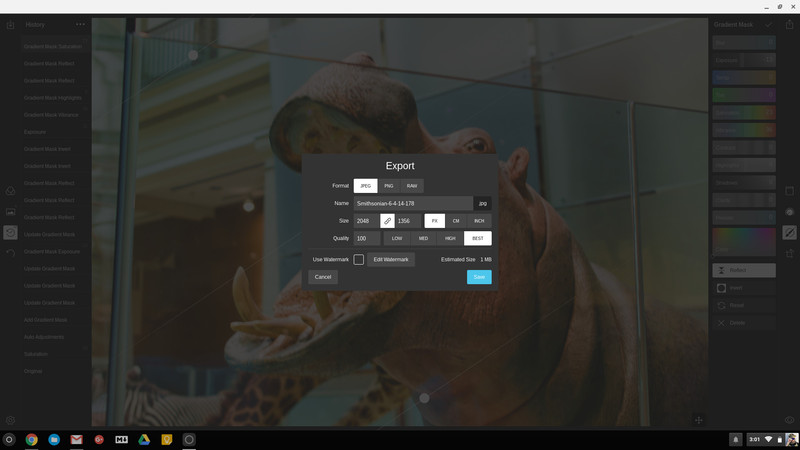
The controls are simple and perfect for anyone who doesn’t have to use Photoshop five days a week to earn a paycheck. All adjustments are in real time so you can see what effect each has and you have a full history panel to undo any or all the changes. You can even drag and drop the controls so the toolboxes work the way you want them to.
Polarr on my Chromebook makes my workflow easy again.
Here at AC taking photos is part of the job, and a big part of that is trying to make sure the stray piece of dust or eyelash doesn’t ruin a photo and the bright screen on Android phones isn’t washed out. That means most of the time our pictures of phones need run through an editing program. I’ve been using Polarr on my Chromebook to do it without any problems. In a lot of ways, I prefer Polarr to Lightroom — I like the tools interface better and the file handling is much better if you only have a few pictures to work on. Most importantly, Polarr does a good job balancing the exposure and cleaning up the noise that gets left behind when your adjusting it.
If you have a Chromebook or Chromebox — especially if you’re all-in and it’s your only computer — you need to try it. You can install Polarr for free from the Chrome Web Store and get most of the experience. All the tool features are available but some of the advanced adjustments are locked. What you get for free is very usable and works great. If you like what you see and want the rest the program is $20. That’s about $100 cheaper than Lightroom and the things most people who don’t need Lightroom would want to do are easy with Polarr. I feel like I got my money’s worth.
Download Polarr Photo Editor for Chrome (Free / full version $19.99)
Updated November 2017: Polarr is still the best photo editor for your Chromebook, no matter what your skill level might be.
Chromebooks
- The best Chromebooks
- Should you buy a Chromebook?
- Google Play is coming to Chromebooks
- Acer Chromebook 14 review
- Join our Chromebook forums
 AIVAnet