


UK orders shutdown of online casino games aimed at kids
Have you ever seen a gambling machine or website that was all too conspicuously aimed at children? British regulators certainly have. The country’s Gambling Commission and advertising overseers have ordered over 450 gambling sites to “immediately” remove casino games they say are targeting the under-18 crowd. The cartoonish graphics, cute characters and even game names (such as Piggy Payout) serve as gambling advertising that’s “likely” to appeal to kids, according to an official letter. And these aren’t just free titles — bets range as high as £600 (about $792), so this could be particularly damaging if a child got access.
The crackdown follows an investigation from the Times that showed gambling sites taking advantage of a “loophole” they believed let them make child-oriented games without violating Gambling Commission rules. They used age verification checks for anyone who wanted to play for money, but you could play for free without any kind of checks. And that’s where the problem was — the free-to-play experience was effectively a sales pitch, even if it was just to sell young visitors on the concept of gambling.
Some in the industry have denied intentionally marketing to kids, but they don’t all object. William Hill, one of the sites asked to take down some casino games, is welcoming the order. It’s not hard to see why it might help in the long run. Although this will remove more than a few games, it could force gambling companies (including those beyond the UK) to mend their image by focusing their attention on adults. Whatever short-term losses they face might be more than offset by the reduced amounts of legal scrutiny and bad press.
Via: The Times
Source: Gambling Commission
The best DSLR for beginners
By Mike Perlman
This post was done in partnership with Wirecutter, reviews for the real world. When readers choose to buy Wirecutter’s independently chosen editorial picks, it may earn affiliate commissions that support its work. Read the full article here.
The Nikon D3400 is the best entry-level DSLR for those looking to improve their photography and learn the ins and outs of tweaking camera settings. The D3400 has some of the best image quality we’ve ever seen at this price, along with excellent battery life, Bluetooth connectivity, 1080/60p video, silent autofocus for video, and easy-to-use controls—and it’s widely available for less than $500.
How we picked and tested
An entry-level DSLR has to be able to do a lot these days. It has to provide excellent image quality, including low noise and a wide dynamic range. It has to be easy enough to use that someone who has never tried a complex camera before can learn how to handle it, but it still has to offer manual controls that photographers can graduate into as they improve their skills. And it has to be affordable.
We spent hours researching DSLRs by reading editorial reviews from photography sites and customer reviews from a handful of top retailers. We also drew on our own experience with trends in photography to assemble a list of candidates. Then, we hands-on tested each model on our list for six hours, assessing each camera’s image quality, focusing speed, menu layout, features, handling, and battery life.
Our pick: The best beginner DSLR for most people

Photo: Mike Perlman
The Nikon D3400 is designed to be easy enough for a total newbie to use, but it has all the manual controls they could need as they get more comfortable. It can shoot video in 1080p at up to 60 frames per second, and has a still-image burst mode that can capture action at five frames per second. It includes Bluetooth connectivity for automatically transferring captured images to your smartphone via the SmartBridge app. The D3400 also packs some of the longest battery life around, significantly surpassing that of its competition.
Nikon uses better sensors in its low-end cameras than other camera companies, which means the D3400 is able to capture a wider range of lights and darks in your images. It also has one of the better kit lenses among beginner DSLRs. Nikon’s new collapsible AF-P 18–55mm Nikkor lens is a pretty fantastic and sharp lens, and it uses a stepping motor to achieve speedy, ultraquiet focusing. This is particularly useful in video mode, providing much quieter focusing than the lens on our runner-up, the D3300.
Unfortunately, Nikon chose to reduce the power of the D3400’s built-in flash, cut the panorama mode, and removed the automatic sensor-cleaning feature. If you need these features, check out our runner-up, the Nikon D3300.
Runner-up: A cheaper alternative without Bluetooth

Photo: Mike Perlman
Our previous pick, the Nikon D3300, came close to remaining our top pick. It’s got image quality that is second only to the D3400 according to DxOMark, a more powerful flash, built-in sensor cleaning, a mic jack, and panorama mode. What the D3300 lacks over the D3400 is Bluetooth, though you can buy an adapter to not only transfer images but to control the camera as well. The D3400 also has the benefit of the silent autofocus lens, which is one of its main selling points.
The videography pick: Canon EOS T5i

The Canon EOS T5i. Photo: Mike Perlman
If you think you’re going to be shooting more video than still photography, or you’re a budding filmmaker on a student budget, a good way to go would be the Canon EOS T5i. With a lens well-suited to videography, a tilting touchscreen, and compatibility with third-party firmware, there’s a lot there for a video fans to like. That said, in terms of ease of use, battery life, and image quality, it still lags behind the D3400.
The T5i’s primary strength is its swivel LCD touchscreen, a crucial feature to filmmaking. It lets you capture high- or low-angle shots while still being able to see the Live View feed on the LCD screen. The screen is also capable of touch focus—just tap on what you want to focus on. The T5i’s STM lenses offer smooth, seamless autofocus during video recording. However, it lacks 1080/60p video recording, which the Nikon D3400 proudly flaunts. If you want to shoot 1080p natively on the T5i, you’ll be stuck at 30 frames per second.
For the advanced still photographer: Pentax K-S2

The Pentax K-S1 has the same video and image quality as the K-S2 but a slightly different exterior and a couple of minor changes. Photo: Mike Perlman
For a photographer who already has some idea of what they’re doing, the Pentax K-S2 outclasses the D3400 in many ways. It has a built-in stabilization system that will work with lenses dating back decades, as well as built-in Wi-Fi/NFC connectivity. The K-S2 has focus peaking and an anti-aliasing filter than can be disabled or enabled, features usually found only in more-expensive models. It has a renovated, completely weather-sealed external design with a front dial to improve handling and a tiltable, swivel LCD. Most important, the K-S2 produces beautiful still images.
Unfortunately, the K-S2’s video quality is poor compared with that of the Nikon D3400 and Canon EOS T5i. With stabilization enabled, the video suffers from the dreaded jello effect, more professionally referred to as rolling shutter. With stabilization disabled, the shake can be dramatic. The Pentax K-S2 is also saddled with a more confusing menu system than the Nikon or Canon cameras we tested. And though the focus system is quick and accurate at times, it’s super loud and occasionally gets stuck hunting.
This guide may have been updated by Wirecutter. To see the current recommendation, please go here.
Note from Wirecutter: When readers choose to buy our independently chosen editorial picks, we may earn affiliate commissions that support our work.
These scientists beat the bookies — until the online casino shut them down
Why it matters to you
There’s no sure thing in gambling, online or otherwise, and if you find a way to game the system, you’ll eventually get caught.
It’s nearly impossible to win money betting on sports, and that’s by design. Whether it’s online or at a casino, the bookmakers who set the betting odds for sports gambling have an array of statistical tools at their disposal to ensure the numbers are always in their favor. But they also have to account for the human factor, and this is where a team of scientists came up with a way to use the bookies’ own calculations against them.
Researcher Lisandro Kaunitz of the University of Tokyo and a few of his friends from around the world devised a mathematical system that let them consistently make money betting on soccer games online. The MIT Technology Review has all the details on the system they used, but to understand it, you have to know how sports betting actually works.
When bookmakers set the odds on a particular match, they use historical data and sophisticated analysis to predict the most likely outcome, and then set the odds of a win, loss, or draw accordingly. Certain teams are more popular than others, of course, and tend to draw more betting action, especially on big events like the Super Bowl. As a result, the oddsmakers may adjust the betting line by a few points one way or the other to compensate for this bias.
Kaunitz and colleagues devised a system that consistently identified betting opportunities that favored them rather than the house. They tracked odds offered by online betting companies on soccer matches and calculated the average odds to discover any outliers. Then they analyzed whether a bet on the outlier matches would favor them or not.
To test their system, they analyzed the results of 479,440 soccer games played between 2005 and 2015. This simulation delivered a return of 3.5 percent. “For an imaginary stake of $50 per bet, this corresponds to an equivalent profit of $98,865 across 56,435 bets,” they said. A random simulation yielded a return of negative 3.2 percent, or a loss of $93,000.
“At this point we decided to place bets with real money,” Kaunitz said. Over a five-month period, their 256 different $50 bets paid off 47.2 percent of the time, and they made a profit of $957.50, an impressive return of 8.5 percent.
But then down came the banhammer.
The online casinos would no longer accept their wagers, or would limit them to amounts as small as $1.25. “The sports betting industry has the freedom to publicize and offer odds to their clients, but those clients are expected to lose,” Kaunitz said. “If they are successful, they can be restricted from betting.”
One of the bookmakers used by the team told the New Scientist it’s the casino’s prerogative to restrict certain bets. “This can be for a number of reasons, including bonus abuse and taking proportionately more than their fair share of special offers and enhanced prices, which are designed for the many rather than a few,” said the spokesman.
What did they do with their winnings? Kaunitz and his wife splurged on a nice dinner in Tokyo. “We were excited, but it’s worth mentioning – you need to spend a lot of time to do it,” he said.
Editor’s Recommendations
- Sensor-packed smart belt could help Parkinson’s patients stay on their feet
- Japan’s RoboCup 2017 sees soccer robots compete to beat humans in 2050
- The results are in, and Tesla’s solar roof is cheaper than a normal roof
- From crime stories to experimental films, here are the best drama movies on Netflix
- Looking to buy Motorola? Here’s our ultimate guide to all 2017 Moto smartphones
Best new songs to stream: Big K.R.I.T., MGMT, Curls, and more
Every week, there are thousands of new songs hitting the airwaves — and it’s just too much for your two ears to handle. With all those options, you can’t be wasting your time on tracks that deserve a thumbs-down click — you want the best new songs to stream right now.
But don’t worry, we’re going to save you the hassle. We listen to some of the most-hyped and interesting songs each week, and tell you which are worthy of your precious listening time.
Here are our five best new songs to stream this week. And don’t forget to subscribe to our Spotify page for a playlist of our weekly picks, which can also be found at the bottom of this post. Not sure which streaming service is best for you? Check out our post about the best music streaming services, or go in depth and learn the differences between Apple Music and Spotify to better weigh your options.
Big K.R.I.T. — Keep The Devil Off
Mississippi rapper Big K.R.I.T. channels his inner Chance The Rapper on this brand-new track, which features layers of horns, a church choir, and an organ combining to create a positive and uplifting hip-hop tune with a subtle trap influence. If this is any indication of the quality of his upcoming album 4Eva Is A Mighty Long Time — a massive 22-track release due in November — listeners have a lot to look forward to.
MGMT — Little Dark Age
On Little Dark Age, vintage synthesizers and drum machines join with the voice of MGMT frontman Andrew VanWyngarden to create a beat-driven tune that feels ripped straight from mid-’80s radio. The video for the latest single from the indie-rock heroes is as odd as it is compelling, a mansion-set visual accompaniment with scenes of oddly dressed band members, wood chopping, and fireplaces that’s perfectly timed for the Halloween season.
Curls — Gentle and Kind
This powerful ballad from ex-Girls frontman Christopher Owens’ new band Curls sounds like something straight from the late-’60s Beatles songbook. The song starts right on the first verse, powered by a gentle Let It Be-esque piano line and a beautiful vocal melody that’s eventually joined by organ and elegant background vocals. John Lennon would be proud.
Hundred Waters — Firelight
Beautiful layers of vocal harmony immediately grab your attention at the beginning of Hundred Waters‘ latest track Firelight. From there, an elegant melody and cool whirling synthesizers pair with piano and digital drums, creating a musically stunning soundscape that invokes comparisons to the intricate works of songwriters like Justin Vernon (Bon Iver).
Kan Wakan — Tuesday
Los Angeles-based songwriter Gueorgui Linev has been hard at work on his band’s upcoming triple album called Phantasmagoria, and recently shared this beautiful string-filled single featuring vocal help from Rachel Fannan. A gentle and introverted song, we expect this one to accompany us on many rainy fall excursions into the woods.
That’s it for now, but tune in next week for more songs to stream, and check out the playlist loaded with our recent selections below:
Editor’s Recommendations
- The best new songs this weekend from Beck, Twin Peaks, Bermuda Triangle, and more
- Best new songs to stream: LCD Soundsystem, Washed Out, and more
- Best new songs to stream: Queens of the Stone Age, Moses Sumney, and more
- Best new songs to stream: Arcade Fire, Mac Demarco, and more
- Best new songs to stream: Haim, Spoon, Sharon Van Etten, and more
Best Heavy Duty Cases for Amazon Fire Tablets

What’s the best Amazon Fire case for kids? The one that keeps it in one piece!
With Amazon recently announcing a new refresh for its Fire tablet line, it’s time to consider upgrading to the latest and greatest. But what to do with your old tablet?
Slap on a kid-proof case and let your kids have fun with a tablet of their very own!
- Fintie Casebot Honey Comb Series
- Topsky heavy duty case
- Avawo convertible handle stand
- Tinkle One EVA case
- EpicGadget hybrid case
- Amazon FreeTime
- Moko case
- Bear Motion
Fintie Casebot Honey Comb Series

Bouncy, durable, flexible silicone is totally the way to go if you have kids who can’t wait to get their sticky mitts all over your Amazon Fire.
The honeycomb design helps to disperse the force of impact, so that your Fire stays in one piece when dropped from a short height. It wraps around the front of your tablet to protect the bezel and create a bumper between your screen and whatever your kid happens to lay it down on.
Comes in 10 colors and only fits the 2015 7-inch Fire. Grab a couple — they’re only $9 apiece.
See at Amazon
Topsky heavy duty case

These Topsky cases are made of polycarbonate and flexible silicone, so that they’re easy for your child to hold and durable enough to withstand playtime, even if playtime means playing with your Fire tablet instead of on it.
The kickstand is perfect to help you set up your tablet for the little ones when they want to watch cartoons or play games. And if you’re taking your Fire tablet on a roadtrip any time soon, the Topsky case will more than see it through life on the road.
Comes in seven colors and fits the 7-inch Fire tablet (2015). $16 on Amazon.
See at Amazon
Avawo convertible handle stand

Tablets can be awkward for the kidlets to hold onto without dropping, so having a case with a handle made for little hands is perfect.
The handle folds into a convenient stand, and the case is thick and made with heavy duty EVA foam, which protects your Fire tablet from drops and the odd toss.
Comes in purple, green, red, or black for $15 and fits the 2015 (5th generation) Fire tablet only.
See at Amazon
Tinkle One EVA case

EVA foam is where it’s at for shock-proof cases that help kid-proof your Amazon Fire tablet. It’s wipeable with a damp cloth and durable enough to survive short drops.
That being said, drops shouldn’t be common, since the case is designed with little hands in mind, and it comes in six fun colors (well, five and black) to appease even the most discerning of toddlers.
Fits the 7-inch Amazon Fire tablet (2015). $14.
See at Amazon
EpicGadget hybrid case

EpicGadget’s hybrid case is shock-proof and provides great drop protection, thanks to its flexible silicone and hard polycarbonate makeup.
The vertical kickstand lets you stand your Amazon Fire tablet upright or horizontally, so you can watch cartoons or play games hands-free.
The color combinations are fun and bright, and you can count on the silicone to be grippy and easy to clean.
Fits the 7-inch Amazon Fire tablet. Comes in five colors and starts around $13 on Amazon.
See at Amazon
Amazon FreeTime

Amazon’s own FreeTime case is totally designed with kids in mind, with a shape meant for little hands, reinforced corners for extra drop protection, fun colors, and made from a material that’s kid-safe and easy to clean.
All the buttons and ports are easily accessible for adults and children alike, and raised bumps on the inside help to further disperse impact.
Fits the 7-inch Amazon Fire tablet (2015). $15.
See at Amazon
Moko case

This rugged case from Moko is made of impact-resistant EVA material to protect from drop damage with a convenient handle so your kids can easily carry it around and hopefully prevent it from being dropped in the first place. There’s an ample bezel around the screen to keep that protected while keeping the buttons and camera accessible.
The handle also folds over to create a kickstand which is convenient indeed. This case only works with the 2015 edition of the Amazon Fire 7 tablet and is available in seven funky colors starting at $20.
See at Amazon
Bear Motion

Bear Motion’s silicone case is similar to Fintie’s in its sort of honey comb design, but its shape makes for a better grip and a neat way to protect your new 7th-gen Fire tablet. This case offers a thick bezel on the front to protect your screen, and the flexible silicone absorbs impact.
You can grab this on on Amazon for only $10 and in seven colors.
See at Amazon
What’s on your Fire?
Do you have an awesome go-to case to make sure your kids don’t destroy your Amazon Fire tablet? Let us know in the comments below!
Updated October 2017: Added pricing.
Does the Google Pixel 2 XL have a screen burn-in problem?

This isn’t a great sign.
Consternation surrounding the display in the Google Pixel 2 XL is well known at this point, and to be honest most of it has been pretty overblown. But we have something new to talk about now: screen burn-in. It’s something people with OLED screens worry about (to varying degrees) and something people who prefer LCDs like to poke fun about. But one of our Pixel 2 XL review units, in use for about a week, is already seeing some pretty crazy levels of burn-in.
That’s some pretty wild OLED burn-in on the Pixel 2 XL after maybe 7 days of full-time use pic.twitter.com/EPJTs6D0Kg
— Alex Dobie (@alexdobie) October 22, 2017
Viewing a grey image on the screen, you get a clear look at where the navigation bar has started to settle in on the display. You also interestingly see the portions of pixels where the back, home, and recents buttons go — those don’t seem to be burned in themselves (displaying white instead of black), but the outlines clearly show where they are compared to the black portion that’s burned in. Or that may be some optical trickery and the buttons are burned in. We’re just not sure what we’re seeing here.
So as a quick refresher, what is burn-in?
Screen burn-in happens when a portion of the display has the same imagery long enough to cause a ghost image of it to hang around after you change the screen to display something else. It’s usually most noticeable in the notification shade or status bar (the clock is notorious for “burning in”) but it can also happen with navigation buttons or even home screen icons. It’s usually an issue with OLED panels and usually takes a good few months before it starts to show up.
When you change what’s on your screen, leftover images can stay behind. But they shouldn’t.
There’s also a phenomenon called image retention. Image retention, or ghosting, is a part of the screen staying barely visible even after you’ve moved away and have something new on the display. Like burn-in, this usually happens with buttons or icons, but anything on your display can leave a ghost image if it’s static and on long enough. Image retention is usually associated with LCD panels, and plenty of people with an LG G6 or LG V20 have noticed it happens even more often with Quantum Dot technology. Thankfully, image retention is temporary and will go away on its own after a short time.
At first glance, what we see looks more like screen burn-in than image retention. While burn-in is more often associated with OLED and image retention is associated with LCD, there is crossover and you could see either issue on any type of display. As more reports come in and more people have examples to share the problem can hopefully be pinpointed.
How to check your screen
It can be difficult to see screen burn because we usually have so much information on our screens. Here’s a quick test you can do to check your phone.
- Open this article in a web browser on your phone.
- Click and open each of these thumbnails and view the images full screen


- Check the bottom of your screen where the navigation buttons normally appear and check the notifications areas (especially around the clock) for a faint “ghost” image of any screen elements that were left behind.
Screen burn, of either type, can be barely noticeable or it can be distinct and in your face. Using a black or red background is the best way to see it, but you still may need to look very closely.
What should you do?
This particular Pixel 2 XL, as we said, has only been in use for about a week — each day seeing about 3 hours of time with the screen on. We don’t want to jump to the conclusion that this is indicative of how all Pixel 2 XL’s will age, and we sure hope it that isn’t the case. After tweeting out the image earlier today we started to get a few replies indicating that others were seeing the same type of burn-in after similar periods, though.
If you’re seeing screen burn-in on a Pixel 2 XL (or any phone) after a week, or even just a month, of a regular use, you’re going to be entitled to a warranty replacement from the manufacturer. As we saw with the 2016 Pixels, of which some experienced burn-in and screen issues early on, people were being granted posthaste warranty replacements.
What you shouldn’t do is try any workarounds or apps from Google Play that promise to “fix” screen burn. Right now nobody even knows exactly what we’re seeing, only that it’s there. Hang tight and wait for more information before you make anything worse.
We’ve reached out to Google for a comment on the issue and will be updating this story as soon as we have any word back from the company.
Google Pixel 2 and Pixel 2 XL
- Pixel 2 FAQ: Everything you need to know!
- Google Pixel 2 and 2 XL review: The new standard
- Google Pixel 2 specs
- Google Pixel 2 vs. Pixel 2 XL: What’s the difference?
- Join our Pixel 2 forums
Google Store
Project Fi
Verizon
Best Buy
After Math: The fix is in
It was a difficult week for the truth — and not just how the president coerced a four-star general to lie about the sentiments he made to a grieving war widow. More than half of tech experts now doubt we can fix the “fake news” problem, Congress rolled out a new bill to make online political ads more transparent, Google served “fake ads” to fact-checking news sites, and the NFL teamed up with TicketMaster to take down scalpers. Numbers, because how else will you measure what little integrity you have left?
Fitbit Ionic review: Good fitness tracker, passable smartwatch
Fitbit’s first real smartwatch was the worst kept secret in tech. After months of rumors, leaks and the acquisition of smartwatch pioneer Pebble that all but revealed the company’s intentions, Fitbit presented the Ionic to the world. It was a promising debut, featuring a shiny new operating system built with Pebble’s expertise. The company also unveiled its own contactless payment system meant to make running or working out without a phone feel more feasible.
This is Fitbit’s most ambitious launch in years, which is timely given that 2017 marks the company’s tenth anniversary. But it’s also overdue. The Fitbit Ionic arrives at a time when the definition of a smartwatch is coalescing. The Ionic feels more like a fitness tracker with just enough smartwatch features to justify calling itself one, but doesn’t have the full functionality we’ve come to expect from the category. Still, the Ionic does make some sense, as long as you aren’t expecting a complete suite of smartwatch features.
Hardware
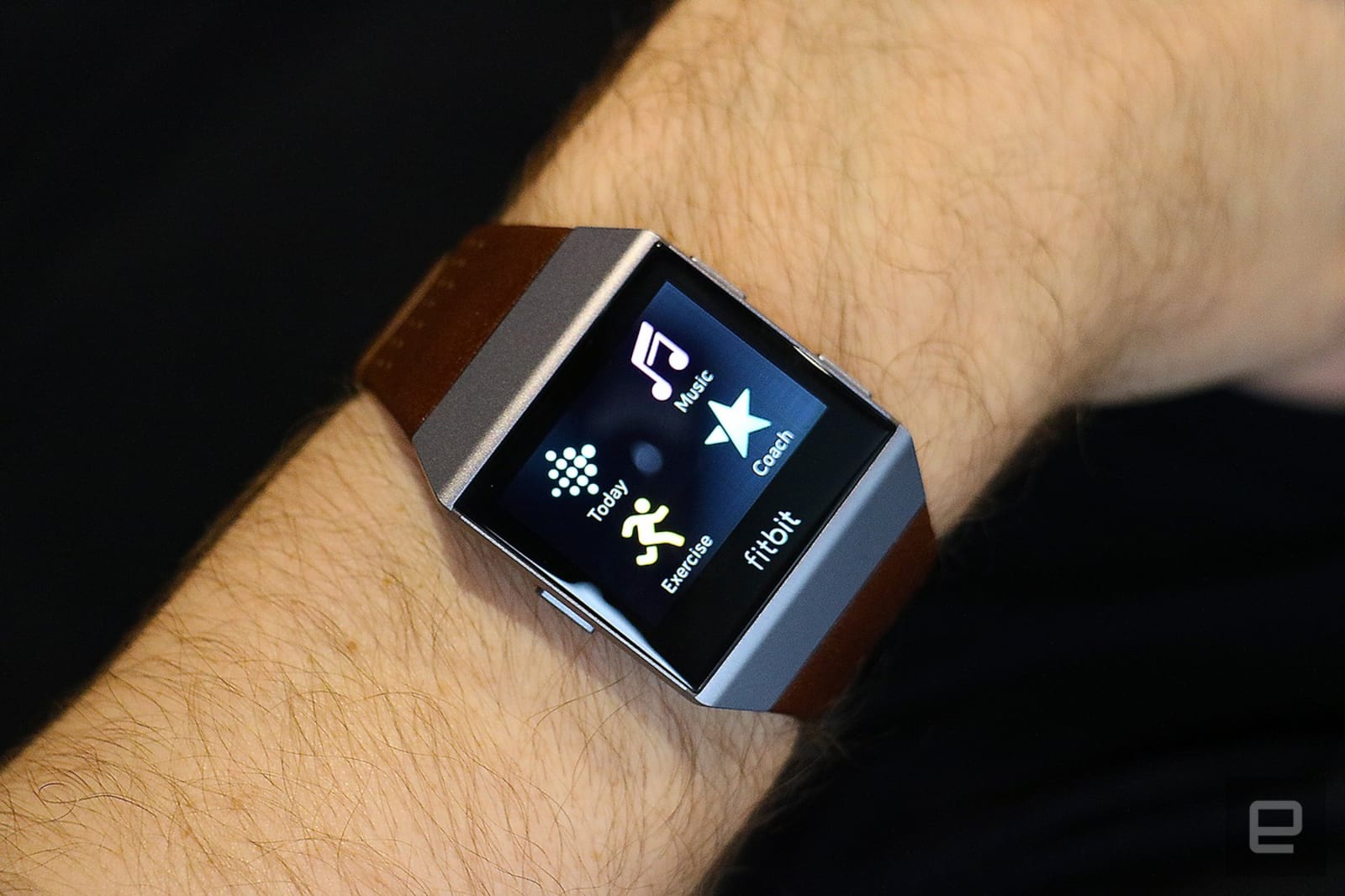
I’ve said it before, and I’ll say it again: The Fitbit Ionic looks a lot better in person than it does in pictures. That doesn’t mean it’s pretty, though. The Ionic’s geometric design and squarish face make it hard to dress up, even when I swapped out the default gray strap for Fitbit’s brown leather band. In fact, I find the leather band with “Cognac” finish uglier than the original — its coppery brown tone and perforated texture lack the class of a plain leather band and doesn’t match the gray face. At least it’s easy to switch the straps out for something more attractive.

That said, Fitbit designed the Ionic to fit aesthetically with the rest of its products, and there’s no mistaking this smartwatch for one from any other brand. Like the company’s previous Blaze and Surge watches, the Ionic is a fitness tracker masquerading as a smartwatch, and I’m not just talking about looks. But more on that later.
First, I have to give Fitbit props for improving the Ionic’s overall fit. While the Charge 2, Alta and Flex 2 have cylindrical modules with straight surfaces, the Ionic’s body and screen are subtly curved. Because of this, the watch hugs my wrist better than the company’s other trackers, which helps keep the heart rate sensor in place during workouts and during sleep.
My favorite thing about the Ionic’s hardware, though, is its brilliant display. Like I said before, the 1.42-inch, 348 x 250 screen is sharp, colorful and bright enough to read in direct sunlight, which makes up for my disappointment in the fact that it’s not round. The display is also responsive and doesn’t lag when I swipe through menus and lists of notifications. Overall, the latest Fitbit feels at once familiar and refreshing, thanks to its beautiful screen and premium build quality.
In use
There’s really not much more to go over that I haven’t already covered in my hands-on and 24-hour “first look” pieces. The biggest news is that since my last article was published, Fitbit Pay has gone live. It’s one of a few features Fitbit recently added to the Ionic to ease anxiety about leaving your phone at home while you’re working out.

Now that Pay is live, you can add your debit or credit card via the Fitbit app on your phone. (Visa, Mastercard, Amex and a growing number of major banks are supported.) Fitbit Pay is accepted anywhere that takes NFC transactions. For security, you’ll be asked to set a four-digit PIN that you’ll later use to verify each payment and unlock your watch if you’ve removed it from your wrist.
I loaded a debit card on the watch (you can save up to six and set one as the primary option) and used it to buy sheet protectors at the Staples across the street. It was as easy as using Apple Pay on my phone, except I had to enter the PIN before authorizing the transaction rather than authenticate with Touch ID. Still, that’s a minor inconvenience for the benefit of knowing I can leave my phone behind and not be stranded if I need to buy something.
Another useful addition is the ability to play music from the watch’s 4GB of onboard storage. There are two ways to do this: via the Pandora app (if you have a paid Premium account) or transferring files from your PC. Both methods have their drawbacks and aren’t easy to set up. The Pandora app on the watch takes forever to sync playlists that I select from the phone, causing me to wonder if it was successful. After it syncs, though, Pandora generally works well.
As I described in my preview, Fitbit’s system took an excruciatingly long time for my laptop and Ionic to find each other. You also had to manage your music by using Windows Media or iTunes playlists, which isn’t very intuitive. Since then, the company has updated its Windows app so users can manage individual tracks directly in the app. You can drag and drop music files into the Fitbit window or browse your computer’s storage to add songs. This was a welcome improvement that made it easier to transfer files. Kudos for making this change, Fitbit.
Like any smartwatch worth its salt, the Ionic delivers notifications to your wrist. But unlike many of its rivals, the Ionic doesn’t allow you to reply to them. That’s strange, considering Pebble watches managed to let you reply to messages (even with your voice in some cases) if you’re paired to an Android or an iPhone.
The preview of each alert that comes to your wrist is usually sufficiently long — I always saw all the contents of the tweets or texts I received. For emails, though, the alert is often truncated right after the subject line, which is useless at times.

Then there are the apps (or lack thereof). Fitbit pre-installs about a dozen to start you off, including alarms, weather, music, timers and Today (which shows you a snapshot of your progress toward daily step and calorie goals). Third-party apps available at launch include Pandora, Strava and Starbucks. These are useful, but the relatively sparse offerings makes me feel like I’m in a library where the shelves are mostly empty and all the books I want are missing. I’m still waiting on offerings from Yelp, Uber and Foursquare, which had apps for the Pebble watches back in the day, and were some of the earliest to get on board. Such apps would go a long way in making the Ionic feel more like a real smartwatch.
Smartwatch ambitions aside, the Fitbit Ionic is a capable fitness tracker. I used it to track 20-minute sessions on a stationary bike, during which I compared its readout with the heart rate data on the watch. The Ionic was usually within 2 bpm of the bike, unless I sped up and my pulse jumped drastically. Then, the Ionic would lag the bike in noting the increase. This delay is problematic for people who pay attention to the cardio zone they’re in while working out, since it affects the amount of time you record in each zone, but the Ionic does eventually catch up and the difference often evens out.

I still like the new Coach feature, which guides you through workouts on your wrist. During this round of testing, however, I was frequently interrupted by incoming message alerts. After each set, the Ionic buzzes to let you know that you can stop and move on to the next exercise. But notifications from my chatty friends caused similar buzzes, which led me to think that my set was over when I still had more reps to complete. Although you can turn notifications off manually, it’d be better if Fitbit disabled incoming alerts by default when a workout session was in progress.
The Ionic’s sleep tracking is more reliable than previous Fitbits, thanks to its snugger fit. The data gleaned and presented in the app remains as useful as it was before, which is — not very. What I’ve learned from my days of wearing the Ionic to bed is that I tend to spend more time in the REM stage than other women my age. It took me about an hour of Googling to realize that researchers still don’t necessarily know how much sleep in each stage is ideal. I found out through my own digging that REM sleep is thought to be when the brain heals and forms memories, so I decided (very unscientifically) that my higher-than-normal time in that stage meant I must remember more than others.

The point being, I really shouldn’t need to spend all that time on Google to find out what I did. Fitbit could have easily told me, inside the app, what REM sleep is thought to improve while cautioning that sleep-stage studies have been inconclusive. Instead, it shows me how I performed relative to my previous nights and others my age. That’s still more than the information you can get from competing trackers, though, which at the moment still don’t use the heart rate monitor to understand what stage of sleep you’re in.
Here’s my biggest problem with the Ionic. Trying to get any of the new features to work often involved a frustrating update process. It took hours to complete the firmware update with Fitbit Pay. When I tried to set it up, I was told my WiFi connection (to the watch) was broken so I had to use Bluetooth instead. After agreeing to that, I was warned the update could take up to 10 minutes.
Ten minutes later, I was running late for a meeting and according to the progress bar on the watch, the Ionic was only a third done. I decided to run out mid-update, hoping that the Bluetooth connection wouldn’t be interrupted as I made my commute. No such luck; the update stalled. Two hours later, I had to reset the connection between my phone and the watch to re-initiate the update. Fifteen minutes after that, the Ionic update as finally complete.
Delays like this are less of an issue if the updates are infrequent, but since some of the Ionic’s key features have yet to be released, users are likely to endure this time-consuming process again sometime soon. For example, the watch’s SpO2 blood oxygen monitor isn’t being used at the moment as Fitbit figures out how to implement it, but once that feature is activated, Ionic owners will presumably have to update their firmware.

Then in 2018, the company is launching the Guided Health programs, which will create customized workout and health programs for each user, as well as push audio exercise instructions through the watch to paired earbuds. These sound like compelling features that I’d like to make use of, but I’m already bracing myself for the potentially long wait time to get them working. Fitbit needs to figure out a way to make its device updates less painful if it’s going to keep launching products before all the features are ready.
Ultimately, what’s available now works well, and while Fitbit struggles to get the Ionic’s smartwatch functions right, the company continues to excel at fitness-tracking features. The Ionic’s long-lasting battery, which generally got through five or six days before needing a charge, is perhaps its best feature,and beats basically every other product in the category.
The competition
This is the year every major player in the fitness wearables industry decided to make a $300 smartwatch. Apple, Samsung and Garmin each launched fitness-minded smartwatches this year, and almost all of which support third-party apps, contactless payments and offline music playback.

Unlike the Ionic, the Samsung Gear Sport and Garmin Vivoactive 3 have round faces, while the Apple Watch 3 has a rounded-square shape. If you want something that looks more like a traditional timepiece, Samsung and Garmin’s offerings are better options. iPhone owners will understandably be tempted by the Apple Watch 3, even though it’s slightly more expensive at $329 (and that’s without LTE). The Apple wearable lets iOS users reply to messages, interact with Siri and offers an abundance of useful apps — all things that the Ionic lacks. But if you’re already heavily invested in the Fitbit ecosystem, perhaps from having used an older device, you might prefer the Ionic.
The Gear Sport, on the other hand, is a good option for those who own Samsung’s TVs, phones or a Smartthings hub, as the watch offers additional features when paired with those devices. The Sport is not only waterproof up to 50 meters, but will also withstand immersion in saltwater. It runs the company’s Tizen OS, which now boasts thousands of apps including Spotify, WhatsApp, Facebook and Instagram.
Like the Ionic, the Gear Sport can also track your swims, but it goes one step further and measures your heart rate even when it’s underwater. Better yet, the Gear Sport works with Samsung’s assistant, Bixby, to answer your questions or help you compose messages, and you can reply to notifications from your wrist. From a brief hands-on in August, the Gear Sport’s screen appears just as bright and crisp as the Ionic’s, but we can’t totally vouch for the Gear Sport since we haven’t fully tested it.

Runners might prefer the Garmin Vivoactive 3, which uses the company’s own basic smartwatch OS, and it supports more apps than the Ionic does at the moment. Garmin’s device can track more types of exercises and has an established reputation as a leader in GPS technology, so it’s likely to be best at mapping your runs. Plus, its estimated runtime of seven days makes the Garmin watch the only device on this list to outlast the Fitbit. But the Vivoactive 3’s transflective “memory-in-pixel” screen looks more like a color e-Ink display and is less impressive than the Ionic’s LCD panel. To be fair, we haven’t tested the the Vivoactive 3 and can’t vouch for its performance and battery life.
Each of the above options has its own strengths, but if you’re looking for something long-lasting with well-rounded fitness-tracking features, the Ionic is a good option.
Wrap-up
Ultimately, the Ionic is a respectable debut for Fitbit’s first serious attempt at a true smartwatch, and the company continues to excel at fitness-tracking features. But while its new operating system is intuitive and well-designed, overall the device still feels like a placeholder. Fitbit wanted to secure the Ionic’s spot on your wrist this holiday season before it was completely ready.
As it stands, the Ionic is a capable fitness tracker with some passable smartwatch features. It’s clear that Fitbit will continue to improve its software, but the magic it needs for the Ionic to seriously contend real smartwatches is faith. Faith from the app makers who were so enthusiastic about Pebble OS and developed hundreds of offerings that made the pioneer smartwatch not only useful, but a lot of fun. Until that happens, the Ionic is simply functional.
The best tablets you can buy
Tablets may be fading in popularity, but there are still some great devices out there. If you’re in the market for a new tablet, then we’re here to help you cut down that short list and snag the right one for you.
Apple’s iPad range still dominates the scene, but there are some innovative alternatives running Android and Windows. We also have top picks for the budget-conscious and for kids. These are the best tablets you can buy right now.
Our pick
Julian Chokkattu/Digital Trends
Why should you buy this: The iPad boasts a vibrant display, silky smooth performance, and long battery life, all at an affordable price.
Our Score
The best tablet
Apple iPad 9.7
A great all-rounder that will meet the needs of most people.
$329.00 from Apple
Who’s it for: Everybody who wants a tablet.
How much will it cost: $330
Why we picked the Apple iPad (2017):
The iPad has deservedly dominated the tablet scene for years now, and the fifth-generation iPad (2017) is the culmination of all of Apple’s experience. There are no bells and whistles here. If you want innovation, keep looking. This is a solid, accessible all-rounder that delivers a really good tablet experience at a reasonable price.
The bright, 9.7-inch display is perfect for watching videos. Although it’s slightly thicker than the iPad Air 2, it feels slim and light to handle, with Apple’s usual high standards shining through in build quality. Inside there’s Apple’s A9 processor with an embedded M9 co-processor and 2GB of RAM, but all you really need to know is that it runs smoothly. Whether you’re skipping in and out of apps, browsing the web, watching a movie, or playing the latest games, the iPad delivers lag-free performance.
If you must take photos with your tablet, there’s an excellent 8-megapixel rear camera with an f/2.4 aperture, that’s fast and capable of capturing plenty of detail. The 1.2-megapixel selfie camera has an f/2.2 aperture, which is adequate for Facetime at 720p, but little else.
The battery life is fantastic. The thicker body allowed Apple to pack in a larger 8,610mAh battery and it just goes and goes. You can expect more than 10 hours of HD video playback from a single charge, and with normal use on Wi-Fi you might reasonably expect to go a week between charges.
If you’re looking for weak spots, then we direct you toward the single, bottom-firing speaker. Beyond that there are no glaring flaws here and we think it’s the best tablet you can buy without having to spend a lot more money.
Our full Apple iPad (2017) review
The best Android tablet
Julian Chokkattu/Digital Trends
Why should you buy this: The Samsung Galaxy Tab S3 is the closest an Android tablet comes to replicating the iPad Pro, and boasts an absolutely gorgeous display.
Our Score
The best Android tablet
Samsung Galaxy Tab S3
Slim and sleek with a great display and solid battery life.
$599.99 from Samsung
$599.99 from B&H Photo
Who’s it for: Anyone looking for an Android-based iPad alternative.
How much will it cost: $600
Why we picked the Samsung Galaxy Tab S3:
Despite some odd design flaws, the Galaxy Tab S3 is a quality gizmo, with an absolutely gorgeous display. There’s no tablet in the world with a screen capable of rivaling the S3’s 9.7-inch Super AMOLED, and it supports HDR content (which companies like Netflix and YouTube are making increasingly available these days). Even viewing non-HDR content on the S3’s 2,048 × 1,536-pixel display is an absolute joy.
The Qualcomm Snapdragon 820 processor (the same chip you’ll find in popular flagship smartphones like LG’s G5 and Samsung’s own Galaxy S7 Edge) works fine, despite its relative age, and 4GB of RAM is more than enough to keep the tablet humming happily. The included 32GB of onboard storage is a bit disappointing, but it can be expanded via MicroSD card if you’re looking to download lots of stuff.
The Tab’s speakers are respectably loud, and it’s got cameras on both the front and back — though the rear-facing 13-megapixel camera is capable of recording 4K video at 30 frames per second, while the front camera is good enough for selfies and video chat, but little else.
This time around, Samsung has paired its custom TouchWiz interface with Android 7 Nougat, and it works like a charm. Split-screen functionality is better than ever, with lots of neat tricks to learn over time. Despite a bit of bloatware that the tablet won’t let you delete, the software here is generally very good.
The battery lasts an exceptional 10+ hours, and the included stylus pen interacts smoothly with the tablet’s screen. The downside is the physical design of the Tab S3. Most people use tablets in landscape orientation (read: sideways), but the S3 seems to be designed more for use in portrait. Also, the fingerprint sensor is frustratingly unreliable, and often requires multiple attempts (regardless of how you’re holding the device).
If you’re devoted to Android devices, the Tab S3 is a good choice. Unfortunately, it’s not quite the natural progression we had hoped for from the S2, and there are some annoying issues most people won’t be able to get past. Worth a look, but the price tag is pretty unbecoming.
Our full Samsung Galaxy Tab S3 review
The best small tablet
Why should you buy this: The iPad Mini is that perfect meshing of power and portability. You can take it anywhere and read or watch shows on it with ease.
Our Score
The best small tablet
Apple iPad Mini 4
You won’t find a better small tablet available today.
$399.00 from Apple
Who’s it for: Anyone who wants a smaller tablet.
How much will it cost: $400+
Why we picked the iPad Mini 4:
It doesn’t quite hit the high notes of Apple’s bigger iPads, but the iPad Mini 4 still benefits from an attractive metal design, a fast processor, and a great app and game library.
You’ll find the 7.9-inch display is a pleasure to read on and it’s a great size and weight to hold comfortably. It’s good for watching movies or gaming, too, though you’ll probably want headphones to go with it. Battery life is solid, offering a good 10 hours between charges.
Portability is the reason to pick the iPad Mini 4. If you want an iPad and need something smaller in size or price, then this is it.
Unfortunately, it’s not just the size that has been scaled down here — the iPad Mini 4 is not as lightning fast as its bigger siblings. It’s also expensive. However, you can’t beat the iPad Mini if it’s a small tablet you want.
Our full iPad Mini 4 review
The best premium tablet
Why should you buy this: The iPad Pro 10.5, the middle child of Apple’s iPad Pro product family, is a productivity powerhouse.
Our Score
The best
Apple 10.5‑inch iPad Pro
It’s the perfect blend of power and portability.
$649.00 from Apple
$649.00 from Target
Who’s it for: Creatives, tablet enthusiasts, and die-hard stylus users.
How much will it cost: $650
Why we picked the iPad Pro 10.5:
Apple added a wrinkle to prospective iPad buyers’ plans when it launched the iPad Pro 10.5, a midsized bridge between the iPad Pro 12.9 and the iPad Pro 9.7. But the Cupertino, California-based company’s decision turned out to be one of the best it made all year.
The iPad Pro 10.5 is significantly more portable than its 12.9-inch counterpart. Narrower screen edges, lightweight aluminum, and an ultra-thin design contribute to a body that’s about the size of the iPad Pro 9.7.
Speaking of the screen, it is one that’s hard to beat. It’s 2,224 x 1,668 pixels in resolution and benefits from Apple’s ProMotion technology, which boosts the refresh rate to a buttery-smooth 120Hz.
Sluggish performance is a rarity on the iPad Pro 10.5, thanks to its powerful A10X Fusion processor. And the iPad’s 64GB of internal storage (up to 512GB, depending on the model) supplies more than enough room for movies, music, photos, and apps.
Despite all the improvements, the iPad Pro 10.5 doesn’t compromise on battery. It lasts up to 10 hours on charge, and even longer if you turn down the screen brightness.
If there’s a downside, it’s that the iPad Pro 10.5’s accessories aren’t cheap. The Apple Pencil stylus, an arguable selling point, costs $100. The Smart Keyboard, a keyboard case for the iPad Pro 10.5, is $160.
But even still, the iPad Pro 10.5’s aesthetics, raw power, and long-lasting battery life earn it a place in the pantheon of high-performance tablets. For the price, there’s nothing better.
Our full iPad Pro 10.5 review
The best cheap tablet
Dan Baker/Digital Trends
Why should you buy this: The Fire HD 10 may be too Amazon-centric for some, but Prime subscribers and Alexa users will appreciate its ease of use.
Our Score
The best cheap tablet
Amazon Fire HD 10 (2017)
These rock bottom prices cannot be beat.
$149.99 from Amazon.com
Who’s it for: Amazon enthusiasts on a budget.
How much will it cost: $150
Why we picked the Fire HD 10:
Amazon’s Fire HD 10 (2017), a refresh of last year’s HD 10, doesn’t bring much new to the table. The improvements that are here, however, are enough to warrant a wholehearted recommendation.
The Fire HD’s all-plastic body belies its impressive speakers. They’re arranged in right-left stereo configuration and optimized with Dolby Atmos to deliver loud, crisp sound in movies, TV shows, and Amazon’s Prime Music streaming service.
But the real star of the show is Alexa. The Fire HD 10 is the first Amazon tablet with hands-free support for the retailer’s voice assistant, and it works spectacularly well. Asking questions about popular movies, nearby restaurants, and the weather pulls up visual results on the Fire HD 10’s screen (even when it’s locked). That’s just the tip of the iceberg: Alexa on the Fire HD can also control smart home devices, order pizza, call an Uber, and perform many of the same tasks as Amazon’s Echo speakers.
Just as impressive as the Fire HD 10’s Alexa integration is its battery life. It lasts about 10 hours of mixed-use involving reading, gaming, and streaming. Switch power-saving features like Smart Suspend on and you can extend it even further. The Fire HD 10’s Fire OS software, a customized version of Android, isn’t for everyone. But folks immersed in the Amazon ecosystem will appreciate For You, a recommendation engine that puts videos, apps, games, and movies from the retailer’s library on your home screen.
Perfect tablets are a rare find at the sub-$200 price point, and the Fire HD 10 isn’t one of them — its screen isn’t as sharp or vibrant as we’d like, and the hardware struggles under heavy load. But you won’t find a better tablet at this price point.
Our full Fire HD 10 review
The best kids tablet
Amazon
Why should you buy this:
The best kids tablet
Fire Kids Edition Tablet
It’s an affordable kid-friendly tablet that makes things easy for parents.
$99.99 from Amazon
Who’s it for: Young kids who need supervision.
How much will it cost: $130
Why we picked the Fire HD 8 Kids Edition:
Amazon’s refreshed Fire 8 HD Kids Edition (2017) makes its long-running line of kid-friendly tablets even better.
An 8-inch, high-resolution screen (1,280 x 800 pixels) delivers bright and vibrant colors, and a thick rubber case around the tablet’s frame cushions against accidental drops. The tablet’s 32GB of internal storage (expandable via MicroSD) offers more than enough storage for books, games, and other media, and the beefy internal battery guarantees 12 hours of charge.
When it comes to parental controls, the Fire HD 8 Kids Edition is second to none. Its Fire OS software, a customized version of Android, lets parents manage usage limits, set educational goals, and restrict access to age-inappropriate content. And the recently launched Parent Dashboard supplies parents with discussion questions related to the books their kids are reading.
The improvements don’t stop there. The Fire HD 8 includes fee-free access to Amazon’s FreeTime Unlimited, a library of more than more than 15,000 kid-appropriate games, apps, educational content, books, and videos from PBS Kids, Nickelodeon, Disney, and others. And every purchase is backed with Amazon’s two-year, no-questions-asked replacement policy: If the Fire HD 8 breaks, Amazon will replace it.
Simply put, there’s no better tablet for young kids who still need parental supervision.
The best Windows tablet
Why should you buy this: We don’t love Windows 10 as a pure tablet, but the Surface is a very good laptop replacement that puts touch first.
Our Score
The best Windows tablet
Microsoft Surface Pro 4
This is the best 2-in-1 PC we’ve ever used.
$1,017.00 from Amazon
$1,019.99 from Walmart
Who’s it for: Anyone seeking a Windows tablet that can serve as a laptop.
How much will it cost: $900+
Why we picked the Surface Pro 4:
The original Surface Pro was flawed, but it had a major impact on the market. Microsoft has refined the design since then, and the Surface Pro 4 is as close as you can get to a hybrid device that serves equally well as a tablet and as a laptop.
You’ve got a gorgeous 12.3-inch screen, a thoughtful design, and a choice of internal specs that range from basic to lightning fast. It is by far the most configurable device on our list. The pixel-packed display and loud speakers make it a pleasure to watch movies on. There’s also an 8-megapixel main camera and a 5-megapixel front-facing camera.
The Type Cover and Surface Pen are excellent accessories and, combined with the full version of Windows 10, make this a great choice for creative professionals, students, and everyone in between. This is real portable productivity.
On the downside, battery life is bit disappointing and the Surface Pro 4 can be eye-wateringly expensive if you opt for top end specs. Still, it’s our favorite 2-in-1 PC.
Our full Surface Pro 4 review
How we test
The tablets we test serve as our daily drivers, so we use them extensively to put them through their paces. That means watching movies, gaming, testing out lots of apps, reading, working on them, and even taking photos and shooting video with them (which is impossible to do without looking stupid). We love new, innovative features, but we can also appreciate classic design done well. Ultimately, we look for tablets that will fulfill the needs of most people, so their ability to serve up entertainment is paramount.
Which OS is best for you?
If your top consideration is entertainment, and you’re likely to use a lot of apps and games, then we recommend Apple’s iOS as the best platform. There are a lot of polished apps made specifically for the iPad and you have access to all the top subscription services and an extensive content store. It’s also slick and accessible, so anyone can get to grips with it quickly.
Android has a larger selection of free apps and games, though they’re generally less polished, but that might be a tradeoff you’ll accept. Things are a little complicated by manufacturer UIs, or in the case of Amazon, forked versions of the platform. They can delay Android updates and make the user experience quite different. Amazon’s tablets, for example, runs a version of Android called Fire OS and out of the box they only have access to the limited subset of apps and games that are available in the Amazon Appstore, not the full list that you’ll find in Google’s Play Store.
If you like the idea of accessing the same apps you have on your Windows PC, and you want a business device that ties seamlessly into your Microsoft services, then a tablet running Windows 10 is going to be tempting. It’s powerful, but it’s also relatively expensive to get decent hardware for a good user experience. If you’re not a business user, or you don’t need to run specific Windows-only apps, it may be overkill.
Editor’s Recommendations
- Make your iPad friends envious with one of these 5 best Android tablets
- The best washing machines that make laundry day a little less of a chore
- The best fitness trackers you can buy
- Best mobile plans and cell phones for seniors who just want to stay in touch
- The best smartphone you can buy
The best tablets you can buy
Tablets may be fading in popularity, but there are still some great devices out there. If you’re in the market for a new tablet, then we’re here to help you cut down that short list and snag the right one for you.
Apple’s iPad range still dominates the scene, but there are some innovative alternatives running Android and Windows. We also have top picks for the budget-conscious and for kids. These are the best tablets you can buy right now.
Our pick
Julian Chokkattu/Digital Trends
Why should you buy this: The iPad boasts a vibrant display, silky smooth performance, and long battery life, all at an affordable price.
Our Score
The best tablet
Apple iPad 9.7
A great all-rounder that will meet the needs of most people.
$329.00 from Apple
Who’s it for: Everybody who wants a tablet.
How much will it cost: $330
Why we picked the Apple iPad (2017):
The iPad has deservedly dominated the tablet scene for years now, and the fifth-generation iPad (2017) is the culmination of all of Apple’s experience. There are no bells and whistles here. If you want innovation, keep looking. This is a solid, accessible all-rounder that delivers a really good tablet experience at a reasonable price.
The bright, 9.7-inch display is perfect for watching videos. Although it’s slightly thicker than the iPad Air 2, it feels slim and light to handle, with Apple’s usual high standards shining through in build quality. Inside there’s Apple’s A9 processor with an embedded M9 co-processor and 2GB of RAM, but all you really need to know is that it runs smoothly. Whether you’re skipping in and out of apps, browsing the web, watching a movie, or playing the latest games, the iPad delivers lag-free performance.
If you must take photos with your tablet, there’s an excellent 8-megapixel rear camera with an f/2.4 aperture, that’s fast and capable of capturing plenty of detail. The 1.2-megapixel selfie camera has an f/2.2 aperture, which is adequate for Facetime at 720p, but little else.
The battery life is fantastic. The thicker body allowed Apple to pack in a larger 8,610mAh battery and it just goes and goes. You can expect more than 10 hours of HD video playback from a single charge, and with normal use on Wi-Fi you might reasonably expect to go a week between charges.
If you’re looking for weak spots, then we direct you toward the single, bottom-firing speaker. Beyond that there are no glaring flaws here and we think it’s the best tablet you can buy without having to spend a lot more money.
Our full Apple iPad (2017) review
The best Android tablet
Julian Chokkattu/Digital Trends
Why should you buy this: The Samsung Galaxy Tab S3 is the closest an Android tablet comes to replicating the iPad Pro, and boasts an absolutely gorgeous display.
Our Score
The best Android tablet
Samsung Galaxy Tab S3
Slim and sleek with a great display and solid battery life.
$599.99 from Samsung
$599.99 from B&H Photo
Who’s it for: Anyone looking for an Android-based iPad alternative.
How much will it cost: $600
Why we picked the Samsung Galaxy Tab S3:
Despite some odd design flaws, the Galaxy Tab S3 is a quality gizmo, with an absolutely gorgeous display. There’s no tablet in the world with a screen capable of rivaling the S3’s 9.7-inch Super AMOLED, and it supports HDR content (which companies like Netflix and YouTube are making increasingly available these days). Even viewing non-HDR content on the S3’s 2,048 × 1,536-pixel display is an absolute joy.
The Qualcomm Snapdragon 820 processor (the same chip you’ll find in popular flagship smartphones like LG’s G5 and Samsung’s own Galaxy S7 Edge) works fine, despite its relative age, and 4GB of RAM is more than enough to keep the tablet humming happily. The included 32GB of onboard storage is a bit disappointing, but it can be expanded via MicroSD card if you’re looking to download lots of stuff.
The Tab’s speakers are respectably loud, and it’s got cameras on both the front and back — though the rear-facing 13-megapixel camera is capable of recording 4K video at 30 frames per second, while the front camera is good enough for selfies and video chat, but little else.
This time around, Samsung has paired its custom TouchWiz interface with Android 7 Nougat, and it works like a charm. Split-screen functionality is better than ever, with lots of neat tricks to learn over time. Despite a bit of bloatware that the tablet won’t let you delete, the software here is generally very good.
The battery lasts an exceptional 10+ hours, and the included stylus pen interacts smoothly with the tablet’s screen. The downside is the physical design of the Tab S3. Most people use tablets in landscape orientation (read: sideways), but the S3 seems to be designed more for use in portrait. Also, the fingerprint sensor is frustratingly unreliable, and often requires multiple attempts (regardless of how you’re holding the device).
If you’re devoted to Android devices, the Tab S3 is a good choice. Unfortunately, it’s not quite the natural progression we had hoped for from the S2, and there are some annoying issues most people won’t be able to get past. Worth a look, but the price tag is pretty unbecoming.
Our full Samsung Galaxy Tab S3 review
The best small tablet
Why should you buy this: The iPad Mini is that perfect meshing of power and portability. You can take it anywhere and read or watch shows on it with ease.
Our Score
The best small tablet
Apple iPad Mini 4
You won’t find a better small tablet available today.
$399.00 from Apple
Who’s it for: Anyone who wants a smaller tablet.
How much will it cost: $400+
Why we picked the iPad Mini 4:
It doesn’t quite hit the high notes of Apple’s bigger iPads, but the iPad Mini 4 still benefits from an attractive metal design, a fast processor, and a great app and game library.
You’ll find the 7.9-inch display is a pleasure to read on and it’s a great size and weight to hold comfortably. It’s good for watching movies or gaming, too, though you’ll probably want headphones to go with it. Battery life is solid, offering a good 10 hours between charges.
Portability is the reason to pick the iPad Mini 4. If you want an iPad and need something smaller in size or price, then this is it.
Unfortunately, it’s not just the size that has been scaled down here — the iPad Mini 4 is not as lightning fast as its bigger siblings. It’s also expensive. However, you can’t beat the iPad Mini if it’s a small tablet you want.
Our full iPad Mini 4 review
The best premium tablet
Why should you buy this: The iPad Pro 10.5, the middle child of Apple’s iPad Pro product family, is a productivity powerhouse.
Our Score
The best
Apple 10.5‑inch iPad Pro
It’s the perfect blend of power and portability.
$649.00 from Apple
$649.00 from Target
Who’s it for: Creatives, tablet enthusiasts, and die-hard stylus users.
How much will it cost: $650
Why we picked the iPad Pro 10.5:
Apple added a wrinkle to prospective iPad buyers’ plans when it launched the iPad Pro 10.5, a midsized bridge between the iPad Pro 12.9 and the iPad Pro 9.7. But the Cupertino, California-based company’s decision turned out to be one of the best it made all year.
The iPad Pro 10.5 is significantly more portable than its 12.9-inch counterpart. Narrower screen edges, lightweight aluminum, and an ultra-thin design contribute to a body that’s about the size of the iPad Pro 9.7.
Speaking of the screen, it is one that’s hard to beat. It’s 2,224 x 1,668 pixels in resolution and benefits from Apple’s ProMotion technology, which boosts the refresh rate to a buttery-smooth 120Hz.
Sluggish performance is a rarity on the iPad Pro 10.5, thanks to its powerful A10X Fusion processor. And the iPad’s 64GB of internal storage (up to 512GB, depending on the model) supplies more than enough room for movies, music, photos, and apps.
Despite all the improvements, the iPad Pro 10.5 doesn’t compromise on battery. It lasts up to 10 hours on charge, and even longer if you turn down the screen brightness.
If there’s a downside, it’s that the iPad Pro 10.5’s accessories aren’t cheap. The Apple Pencil stylus, an arguable selling point, costs $100. The Smart Keyboard, a keyboard case for the iPad Pro 10.5, is $160.
But even still, the iPad Pro 10.5’s aesthetics, raw power, and long-lasting battery life earn it a place in the pantheon of high-performance tablets. For the price, there’s nothing better.
Our full iPad Pro 10.5 review
The best cheap tablet
Dan Baker/Digital Trends
Why should you buy this: The Fire HD 10 may be too Amazon-centric for some, but Prime subscribers and Alexa users will appreciate its ease of use.
Our Score
The best cheap tablet
Amazon Fire HD 10 (2017)
These rock bottom prices cannot be beat.
$149.99 from Amazon.com
Who’s it for: Amazon enthusiasts on a budget.
How much will it cost: $150
Why we picked the Fire HD 10:
Amazon’s Fire HD 10 (2017), a refresh of last year’s HD 10, doesn’t bring much new to the table. The improvements that are here, however, are enough to warrant a wholehearted recommendation.
The Fire HD’s all-plastic body belies its impressive speakers. They’re arranged in right-left stereo configuration and optimized with Dolby Atmos to deliver loud, crisp sound in movies, TV shows, and Amazon’s Prime Music streaming service.
But the real star of the show is Alexa. The Fire HD 10 is the first Amazon tablet with hands-free support for the retailer’s voice assistant, and it works spectacularly well. Asking questions about popular movies, nearby restaurants, and the weather pulls up visual results on the Fire HD 10’s screen (even when it’s locked). That’s just the tip of the iceberg: Alexa on the Fire HD can also control smart home devices, order pizza, call an Uber, and perform many of the same tasks as Amazon’s Echo speakers.
Just as impressive as the Fire HD 10’s Alexa integration is its battery life. It lasts about 10 hours of mixed-use involving reading, gaming, and streaming. Switch power-saving features like Smart Suspend on and you can extend it even further. The Fire HD 10’s Fire OS software, a customized version of Android, isn’t for everyone. But folks immersed in the Amazon ecosystem will appreciate For You, a recommendation engine that puts videos, apps, games, and movies from the retailer’s library on your home screen.
Perfect tablets are a rare find at the sub-$200 price point, and the Fire HD 10 isn’t one of them — its screen isn’t as sharp or vibrant as we’d like, and the hardware struggles under heavy load. But you won’t find a better tablet at this price point.
Our full Fire HD 10 review
The best kids tablet
Amazon
Why should you buy this:
The best kids tablet
Fire Kids Edition Tablet
It’s an affordable kid-friendly tablet that makes things easy for parents.
$99.99 from Amazon
Who’s it for: Young kids who need supervision.
How much will it cost: $130
Why we picked the Fire HD 8 Kids Edition:
Amazon’s refreshed Fire 8 HD Kids Edition (2017) makes its long-running line of kid-friendly tablets even better.
An 8-inch, high-resolution screen (1,280 x 800 pixels) delivers bright and vibrant colors, and a thick rubber case around the tablet’s frame cushions against accidental drops. The tablet’s 32GB of internal storage (expandable via MicroSD) offers more than enough storage for books, games, and other media, and the beefy internal battery guarantees 12 hours of charge.
When it comes to parental controls, the Fire HD 8 Kids Edition is second to none. Its Fire OS software, a customized version of Android, lets parents manage usage limits, set educational goals, and restrict access to age-inappropriate content. And the recently launched Parent Dashboard supplies parents with discussion questions related to the books their kids are reading.
The improvements don’t stop there. The Fire HD 8 includes fee-free access to Amazon’s FreeTime Unlimited, a library of more than more than 15,000 kid-appropriate games, apps, educational content, books, and videos from PBS Kids, Nickelodeon, Disney, and others. And every purchase is backed with Amazon’s two-year, no-questions-asked replacement policy: If the Fire HD 8 breaks, Amazon will replace it.
Simply put, there’s no better tablet for young kids who still need parental supervision.
The best Windows tablet
Why should you buy this: We don’t love Windows 10 as a pure tablet, but the Surface is a very good laptop replacement that puts touch first.
Our Score
The best Windows tablet
Microsoft Surface Pro 4
This is the best 2-in-1 PC we’ve ever used.
$1,017.00 from Amazon
$1,019.99 from Walmart
Who’s it for: Anyone seeking a Windows tablet that can serve as a laptop.
How much will it cost: $900+
Why we picked the Surface Pro 4:
The original Surface Pro was flawed, but it had a major impact on the market. Microsoft has refined the design since then, and the Surface Pro 4 is as close as you can get to a hybrid device that serves equally well as a tablet and as a laptop.
You’ve got a gorgeous 12.3-inch screen, a thoughtful design, and a choice of internal specs that range from basic to lightning fast. It is by far the most configurable device on our list. The pixel-packed display and loud speakers make it a pleasure to watch movies on. There’s also an 8-megapixel main camera and a 5-megapixel front-facing camera.
The Type Cover and Surface Pen are excellent accessories and, combined with the full version of Windows 10, make this a great choice for creative professionals, students, and everyone in between. This is real portable productivity.
On the downside, battery life is bit disappointing and the Surface Pro 4 can be eye-wateringly expensive if you opt for top end specs. Still, it’s our favorite 2-in-1 PC.
Our full Surface Pro 4 review
How we test
The tablets we test serve as our daily drivers, so we use them extensively to put them through their paces. That means watching movies, gaming, testing out lots of apps, reading, working on them, and even taking photos and shooting video with them (which is impossible to do without looking stupid). We love new, innovative features, but we can also appreciate classic design done well. Ultimately, we look for tablets that will fulfill the needs of most people, so their ability to serve up entertainment is paramount.
Which OS is best for you?
If your top consideration is entertainment, and you’re likely to use a lot of apps and games, then we recommend Apple’s iOS as the best platform. There are a lot of polished apps made specifically for the iPad and you have access to all the top subscription services and an extensive content store. It’s also slick and accessible, so anyone can get to grips with it quickly.
Android has a larger selection of free apps and games, though they’re generally less polished, but that might be a tradeoff you’ll accept. Things are a little complicated by manufacturer UIs, or in the case of Amazon, forked versions of the platform. They can delay Android updates and make the user experience quite different. Amazon’s tablets, for example, runs a version of Android called Fire OS and out of the box they only have access to the limited subset of apps and games that are available in the Amazon Appstore, not the full list that you’ll find in Google’s Play Store.
If you like the idea of accessing the same apps you have on your Windows PC, and you want a business device that ties seamlessly into your Microsoft services, then a tablet running Windows 10 is going to be tempting. It’s powerful, but it’s also relatively expensive to get decent hardware for a good user experience. If you’re not a business user, or you don’t need to run specific Windows-only apps, it may be overkill.
Editor’s Recommendations
- Make your iPad friends envious with one of these 5 best Android tablets
- The best washing machines that make laundry day a little less of a chore
- The best fitness trackers you can buy
- Best mobile plans and cell phones for seniors who just want to stay in touch
- The best smartphone you can buy
 AIVAnet