


Australian police posed as child abusers for a dark web sting
Where do you draw the line when trying to catch child abusers? That’s what authorities have to decide when they run sting operations on the dark web. When Norwegian newspaper VG investigated one of the biggest child exploitation sites on the dark web, Child’s Play, they found that it had been run by Australian police for three months. The special unit out of Brisbane, dubbed Argos, had undercover detectives posting and sharing abuse materials on the site. The newspaper held off on reporting until now, a year later, to allow the police to finish its investigation.
According to a report in The Guardian, the abuse site was created in April of 2016 and had more than 1 million user registrations when police finally took it down last month; more than 3,000 of those users were active. The Guardian reports that the Argos investigation led to rescues of children around the globe and the arrest of criminal sex offenders. The website was founded by a Canadian and an American; the former is serving a life sentence for the sexual assault of a four-year-old in Virginia last year. The Australian police took over his identity to keep the site running. Members of the site expected a monthly post from its founder, which had to include images of child exploitation. There are no laws in Australia, says The Guardian, to prevent this.
While allowing such a site to continue operating may seem scandalous, the authorities and their supporters feel as if it was a necessary evil. “I think it’s a tough question for everyone involved, and I know it’s a tough question for police,” Hetty Johnston — founder of Australian advocacy group Bravehearts — told The Guardian. “But I support this 100 percent because the images that police would use would not be images that they create, they would be existing images. And the idea is to get to people who are currently sexually offending against children. This is a war, and we have to engage in the war. We have to engage in it.”
Via: The Guardian
Source: VG
Facebook’s ‘StarCraft’ AI was defeated by hobbyists
Last weekend, Facebook sent its own artificial intelligence to rumble in a StarCraft tournament that only allows AI participants. This was the social network’s first entry in the annual competition held at the AIIDE conference that explores the intersection of AI and entertainment. As Wired reported, Facebook is following in the footsteps of other companies that have used Blizzard’s strategy game to showcase their AIs.
Facebook’s artificial intelligence bot, CherryPi, placed a respectable 6th out of 28 combatants, but it’s definitely late to the AI-playing-strategy-games game. Hobbyists have been pitting their programmed players against each other on the aging StarCraft since the late 2000s. Even Google jumped onboard last year, deploying its DeepMind AI to play the game’s newer sequel, StarCraft II.
The winning AI, ZZKbot, was built by a single programmer, but Wired noted that the contest’s organizers expect that solo-coded entrants probably won’t win contests in the future now that tech corporations are joining the fray with team-built bots (CherryPi was built by an eight-person squad).
Current winning bots learn from their opponents, but Google and Facebook are planning to apply machine learning to their AI players, ingesting hundreds of recorded games and refining strategies from those. (CherryPi didn’t use machine learning, but Google’s AlphaGo does — which it used to again defeat the world’s best human Go player earlier this year.)
Just because tech’s biggest corporations are investing in AI competitive gaming doesn’t mean solo coders should give up on tinkering: Google and Blizzard released DeepMind’s StarCraft-specific AI toolset for anyone to train their own competitive or research bot.
Source: Wired
Microsoft canceled an ‘all-screen’ Windows phone in 2014
All-screen phones may be all the rage in 2017, but Microsoft apparently had chance to beat everyone to the punch 3 years ago… and whiffed it. Windows Central has obtained the prototype of an unnamed Windows phone (believed to be the precursor to the Lumia 435) that had extremely thin display bezels save for the bottom, where a chin held the front-facing camera. The performance would have been modest by 2014 standards with a 5-inch 720p screen, a Snapdragon 200 chip, 4GB of expandable storage and a 5-megapixel rear camera, but you’d have had an eye-catching design for under $200. To put it another way, you wouldn’t have had to buy a Sharp Aquos Crystal to impress your smartphone-toting friends while sticking to a budget.
It’s not certain why Microsoft axed this design. If it was meant to become the Lumia 435, Microsoft may have decided that the eye-catching screen was too expensive for the intended price point. If not, though, it’s trickier. Microsoft might have determined that it couldn’t mass-manufacture the phone, that it didn’t fit well into the overall product lineup, or that there wasn’t much of a market for low-cost Windows phones that didn’t quite sit at the lowest end of the spectrum.
Either way, it’s hard not to see the handset as a lost opportunity — Microsoft could have had a visually exciting yet affordable device, but passed on it in favor of far more pedestrian hardware. And in some ways, it helps explain why Microsoft’s late-stage mobile strategy kept flailing to the point where the company effectively quit development. Simply put, few exciting phones reached the market — whether it was due to technical issues or an excess of caution, Microsoft kept canceling bleeding-edge projects (like the fabled McLaren) that could have lured people away from Android and iOS. The all-screen phone wouldn’t have turned around Microsoft’s fortunes by itself, but it could have been part of a larger effort to reel you in with phone designs that had few if any equals.
Source: Windows Central
YouTube bans gun modding tutorials after Las Vegas shooting
Following the deadly massacre in Las Vegas last week, YouTube has begun banning videos that depict tutorials on gun modification. According to a YouTube spokesperson, this was an expansion of an existing policy in the wake of the Vegas shooting to prohibit videos that demonstrate “how to convert firearms to make them fire more quickly.” The spokesperson said the company has “long had a policy against harmful and dangerous content.” That includes videos that are trying to sell or promote firearms, as well as conversion devices and a device called a bump stock.
Bump stocks were attached to 12 of the rifles found in the Las Vegas gunman’s hotel room. The modification enables semi-automatic weapons to fire faster. The National Rifle Association said recently that it would support a restriction on bump stocks, but that it opposed an outright ban.
After the shooting, YouTube said it took a closer look at the videos in question (that teach how to adapt semi-automatics) and expanded its policy to cover such content. But it hasn’t been as quick to take the offending clips down. A search for “bump stock” on the site returns hundreds of thousands of results with titles such as “home made bump fire stock … for less than $20” and “Upgraded Rifle Efficiency How-to Part 1.”

It’s important to note that most of the recent videos on the subject are from news channels discussing the role of bump stocks in recent shootings and whether they should be banned. Still, there are plenty of explainer and tutorial listings that haven’t been taken down, and that sheer number could be what’s causing the delay. YouTube reacts when clips are flagged as violating its community guidelines, and its global review team evaluates and removes offending content. To make a dent in the pile of videos it has to remove, YouTube will probably need to rely on its users to proactively flag such media, and that will take time.
Via: The Telegraph, Gizmodo
EA extends ‘Star Wars Battlefront II’ public beta until Wednesday
If you didn’t get enough rebel-on-galactic action during EA’s Star Wars Battlefront II beta this past weekend, you’re in luck. EA announced on Monday that it is extending the public event until Wednesday, October 11th. While players won’t have access to the new cinematic campaign during the beta, they will be able to experience the large-scale combat in Galactic Assault mode, fight against the AI in Arcade, pilot starships in Starfighter Assault and lead an 8-member fireteam in Strikes. BF2 is available on both the Xbox One and Playstation 4 consoles and is slated for release on November 17th.
The #StarWarsBattlefrontII Beta has been extended two more days! Play until Wednesday, October 11. pic.twitter.com/nxClw1if9N
— EAStarWars (@EAStarWars) October 9, 2017
Review: Fitbit Ionic is a Decent Fitness Smartwatch Spoiled By Lingering Bugs
The Ionic is Fitbit’s first real effort at a “true” smartwatch, and there’s plenty riding on the $300 device. Not only is the activity tracker company late to the smartwatch game, its market share in wearables has shrunk because of increasingly sophisticated rival devices from the likes Apple and Xiaomi.
To have a hope of reviving its fortunes, Fitbit sought out a new creative direction and subsequently bought Pebble late last year. The wearable technology that Fitbit inherited as part of the acquisition now powers the new Ionic operating system, called Fitbit OS.
Last month, app makers were supplied with an SDK to see what third-party apps they can come up with for the Ionic. In the meantime, I was interested to look at what Fitbit’s smartwatch has to offer out of the box, and in particular, how it compares to its closest kin, the Fitbit Blaze.
Design
As a previous owner of the Fitbit Charge and Blaze, I was never quite sure which strap size to go for at the initial ordering stage, but the Ionic comes supplied with a large rubber band as well as a second smaller strap for those with thinner wrists, so thankfully that’s no longer a concern. I found the bands’ elastomer material relatively comfy for all-day wear, but they’re nowhere near as gentle on the skin as an Apple Watch Sport Loop.
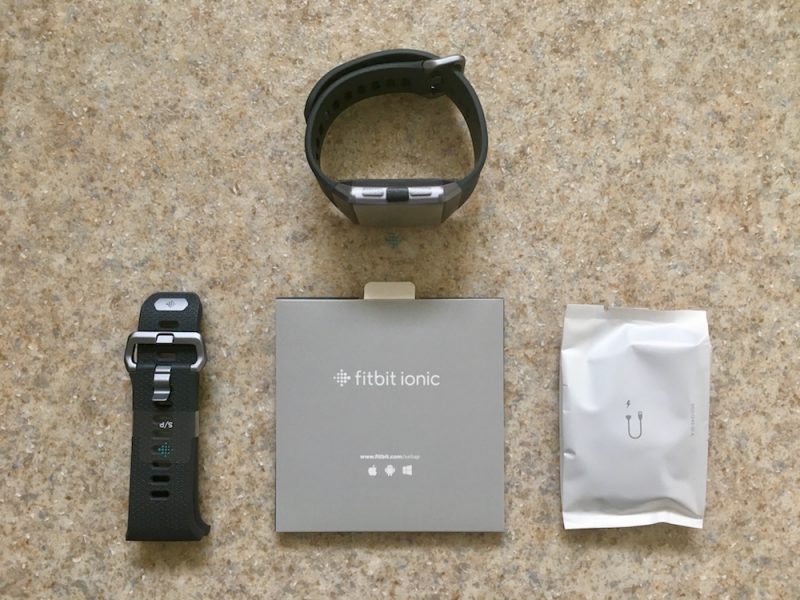
Fortunately, it’s easy to detach and re-attach using the clips on the back of the watch module. That bodes well for anyone wishing to swap out the standard strap for any of the accessory bands that Fitbit sells separately, such as the perforated leather option or any of the third-party bands already available.
At a glance, the face of the watch looks quite angular and unforgiving on the wrist. Obviously the aesthetics are subjective here, but while it definitely lacks the rounded finesse of an Apple Watch, I didn’t find it ugly by any means. In fact to me it looks reassuring, like it could stand up to a knock or a fall during a workout.
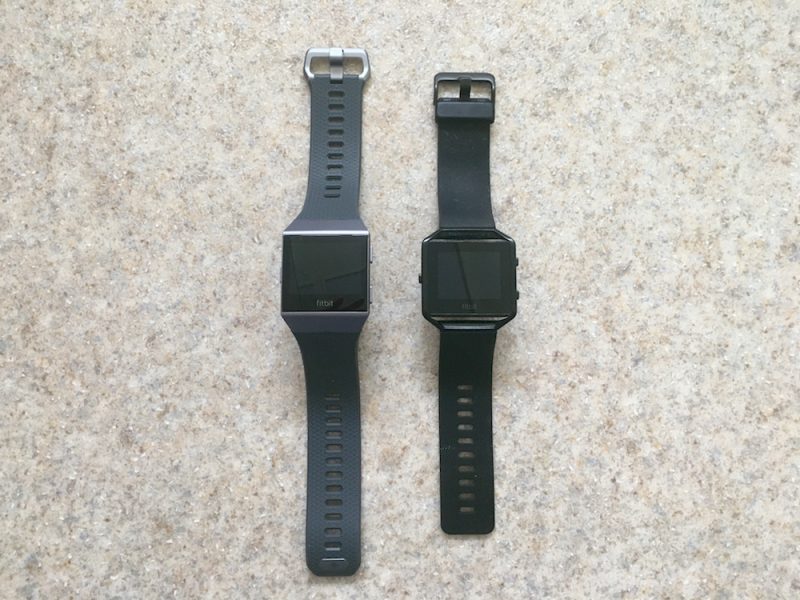 Fitbit Ionic on the left, Blaze on the right
The tracker’s smooth Gorilla Glass display, including the black bezels, is the same size as the Blaze module when out of its removable metal frame, but the gray “aerograde” aluminum where the strap connects hints at the new “nanomolding” process that Fitbit has used on the Ionic’s unibody module to fuse the metal and plastic elements together.
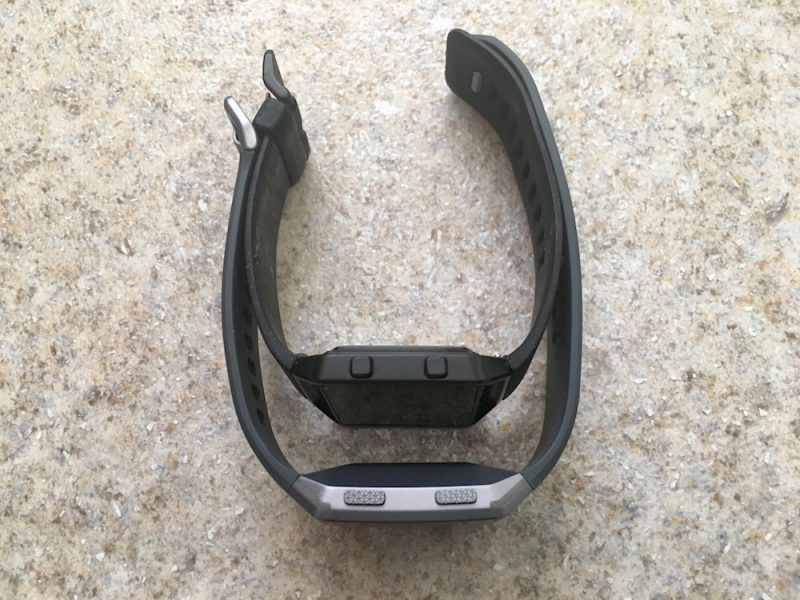 Fitbit Ionic (bottom) compared to Fitbit Blaze (top)
Nanomolding is a technique often used in smartphones and is said to improve GPS accuracy, but it’s something you rarely see in wearables. The result is a smoother, more space-age look and feel than previous Fitbit trackers.
Weighing in at 30 grams and 12.2mm thickness, the unibody design is slightly chunkier than the Blaze, but I didn’t really notice it during wear. That seems to be down to its slightly concave shape, which offers a better ergonomic fit and ensures the sensors achieve closer overall contact with your skin, ideally for more accurate readings.
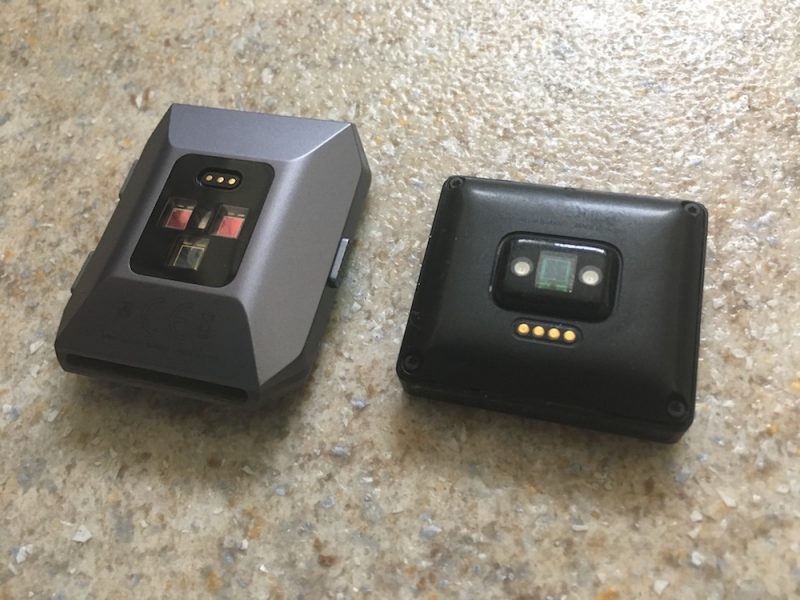 Fitbit Ionic on the left, Blaze on the right
Elsewhere, the buttons have a tactile texture and are plenty responsive. The device also has a waterproofing oleophobic coating, so you can wear it in the shower and use it to track swimming, something that wasn’t possible with the Blaze.
Touchscreen Interface and Smartwatch Features
The 1.42-inch LCD touchscreen display automatically adapts to ambient light, and is generally brighter and more colorful than previous Fitbits. The screen pumps out 1,000 nits, which is the same as the Apple Watch, and offers a higher resolution than the Blaze and better viewing in sunny conditions. The Ionic also comes with 17 bold clock faces with more surely on the way, now that the development kit has been released.

When viewing the clock face, the upper-right button provides a quick shortcut to your daily activity stats, which can be rearranged with a long press, while the lower right button takes you straight to the various training options. Both buttons adopt contextual functions in several other watch screen modes. Like the Blaze, a sideways swipe left on the clock face takes you to additional menu screens, and pressing the left button returns you to the last-viewed screen.
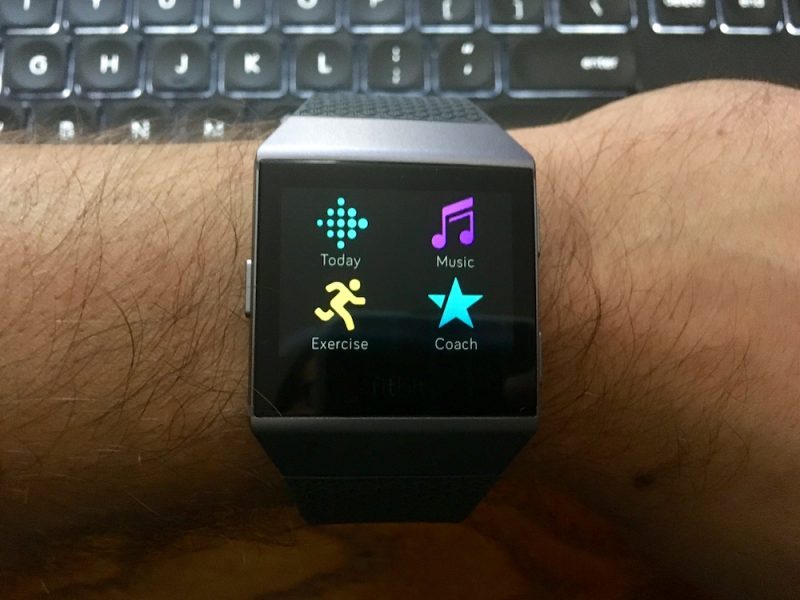
Beyond that, the Ionic’s touch interface builds on the Blaze’s simple horizontal swipe menu by packing in four icons per screen instead of just one. It’s also possible to hold these individual icons – or apps, as Fitbit now calls them – and rearrange them however you like, so you can place your most-used apps fewer swipes away from the main clock face for quicker access.
Elsewhere, swiping down on the clock brings up music controls, while a swipe up reveals any smart notifications pushed from your phone over Bluetooth. Lastly, a new swipe-right menu from the clock allows you to turn off auto-screen wake and notifications.
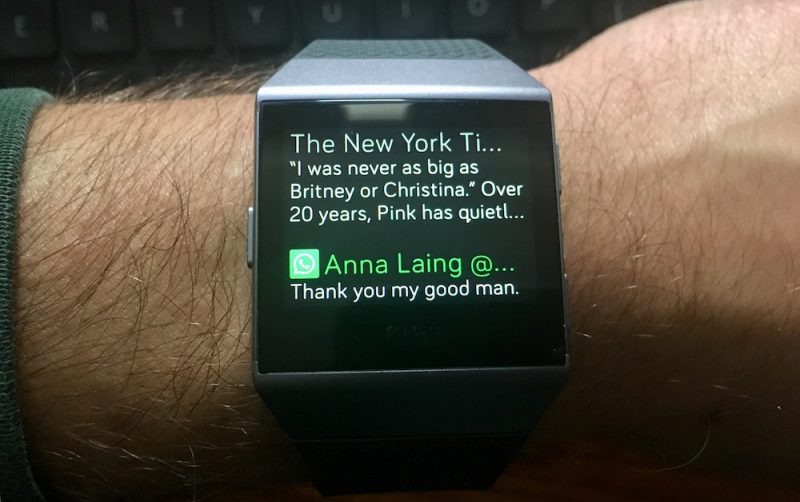
A word on those notifications. The Ionic can buzz you when someone texts or calls, but you can’t reply to messages like you can on an Apple Watch, and you can’t take calls from your wrist, since the Ionic has no microphone or speaker (although you can accept a call from the watch screen if you’ve paired Bluetooth headphones that have a built-in mic). It can push app alerts from your phone, and notify you of calendar events or when it’s time for bed, but that’s as good as it gets.
As far as other “smartwatch” functions go, aside from the stock tracking, breathing, and alarm/timer functions we’ve come to expect from most Fitbit wearables, the Ionic also ships with a small selection of additional apps. The Coaching app for example replaces the Fitstar features of previous models, and includes three guided bodyweight workouts with onscreen examples. They’re pretty basic. More workouts are on the way, according to Fitbit, but those will be paid-for additions.
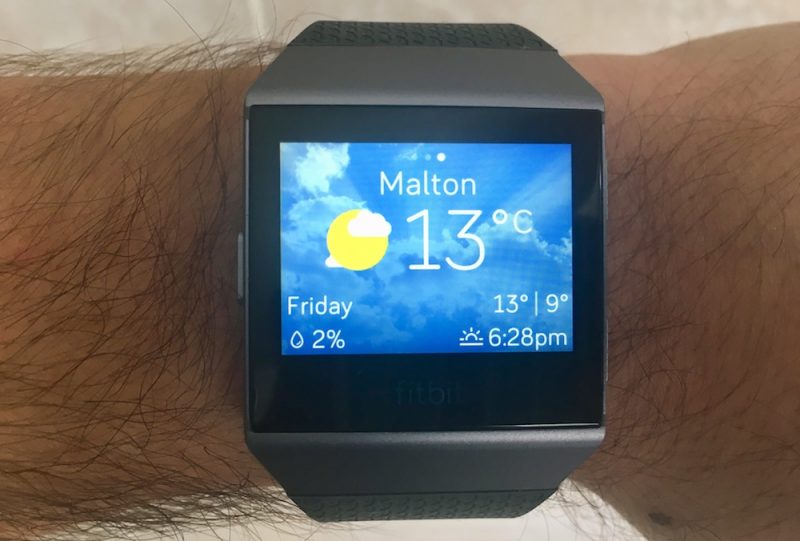
There’s also a Strava app that requires you to link a Strava account via your phone for logging runs and cycle sessions, a Pandora music app for U.S. subscribers, a Starbucks app (U.S. and Canada only) and a weather app for checking the current forecast in up to three locations.
Then there’s the Wallet app, which is supposed to store up to six credit or debit cards for use on Fitbit’s new NFC digital payment platform, Fitbit Pay. After a card is added, the Ionic requires a four-digit pin to be unlocked once it’s removed from your wrist.
Being in the U.K, I wasn’t able to test out the contactless payments system, as it’s currently only available in the U.S., Canada, and Australia, where it’s supposed to work with “the world’s most common banks and credit unions”, according to the press release. Fitbit told me Fitbit Pay is coming to Europe sometime next year, but wasn’t able to provide a specific date.
Fitness and Tracking
The Exercise categories in the Ionic interface include Run, Interval Timer, Weights, Bike, Swim, Treadmill, and Workout. Additional sports can be synced using the Fitbit phone app. The Ionic also continuously records steps, distance, calories burned, floors climbed, active minutes, and nightly sleep patterns and stages. These workouts and stats automatically sync to your personal Fitbit web profile and the Fitbit iOS/Android app, which is still one of the best-designed dashboards for gaining more insight into your health and activity data points.
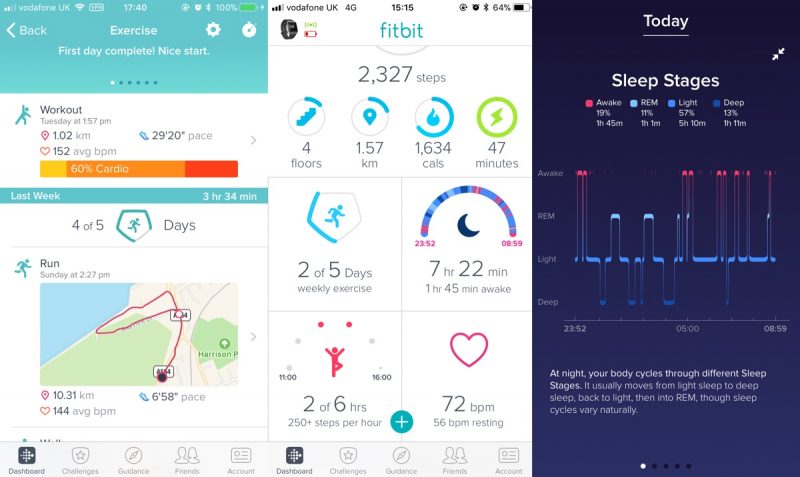
Like the Blaze, the Ionic also measures continuous HR (except when you’re swimming) as well as resting HR, which is seen as a better indicator of overall health. In addition, there’s a new SPO2 sensor built into the smartwatch for measuring blood-oxygen saturation, which Fitbit hopes will ultimately help identify sufferers of sleep apnea, but it’s yet to be implemented.
Fitbit claims the Ionic features its most advanced HR sensor to date, and I found that to be generally true in my experience. During interval running and weight training exercises, it managed to keep up with my Moov HR Burn chest strap better than the Blaze could, tracking my heart rate at one second intervals with a good degree of accuracy.
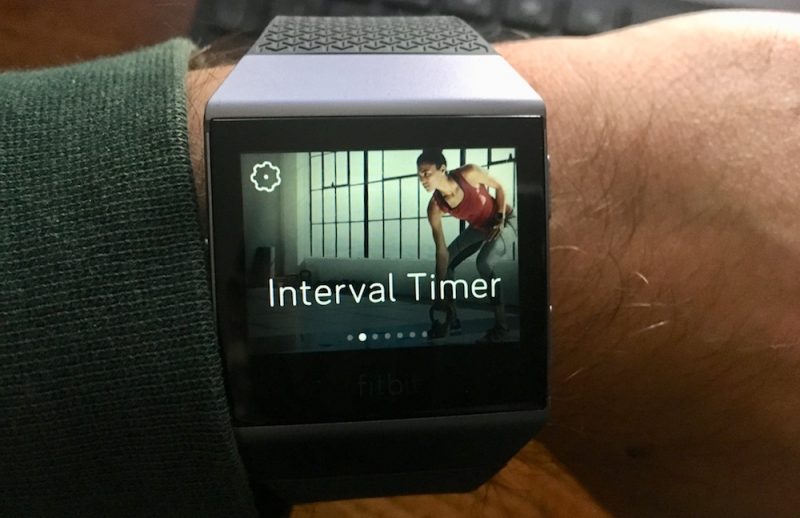
Still, the Ionic’s HR measurements were often wildly inaccurate when performing high-intensity circuit training workouts, just like its predecessor. That remains a general failing of wrist-based HR tracking technology, which is more suited to activity involving consistency of movement, so it’s unfair to single out Fitbit on this point. The Apple Watch suffers the same issue, as do the Polar and Garmin range of smartwatches.
The Ionic’s real-time onscreen stats are clear and well-designed, and can be set either to remain visible throughout your workout or to only show when you raise your arm. Tapping the screen reveals further available stats, while a new option lets you customize the three ranges to display (eg. splits, pace, time, swim lengths, HR, calories, and so on). The top and bottom ranges are static, but tapping on the screen cycles through multiple stats on the middle range.

Apart from when you’re swimming, the selection of ranges available to you doesn’t really change across sports (there’s no rep counting for weights, for example) but they’re still useful for most exercises. You also get a nice workout summary at the end of your exercise, while syncing to the mobile app gets you plenty of detailed stats to pour over later.
In my opinion, the current lack of audio cues is perhaps the Ionic’s biggest failing in this department. I prefer spoken progress updates during a workout, rather than having to raise my wrist every time my watch buzzes with a visual cue. Your mileage may very.
Otherwise, the Ionic’s built-in GPS (with GLONASS support) was a godsend, allowing me to leave my phone at home during outdoor runs and rides without sacrificing real-time pace information and post-workout route mapping. Getting a GPS connection was generally quick and easy. Also, the Ionic’s SmartTrack feature automatically tracked my runs and activated GPS without my input, which was a neat touch.
Music storage and playback
The Ionic comes with 2.5 gigabytes of internal storage for music tracks, which is enough for approximately 300 songs. Unlike the Apple Watch, it’s currently impossible to upload music to the Ionic from your phone’s music library over a Bluetooth connection. You have to use the Mac/Windows Fitbit Connect app, which limits you to syncing iTunes playlists to the watch, as long as the computer and the Ionic are on the same WiFi network.
 macOS Fitbit Connect app
Trying to sync music from my Mac was an excruciating experience. The client app regularly crapped out and failed to upload all of the tracks in the list. A friend using Windows couldn’t even get their Surface Pro to find the watch on the same network.
Several Ionic owners can be found in the support forums and on Twitter complaining of similar issues. Given the vagaries of home wireless networks, I can see this being a persistent problem for a good proportion of Ionic owners until Fitbit offers music upload directly from your smartphone. As it is, Fitbit seems to be inviting problems by forcing the Ionic to connect over WiFi to sync tracks from your computer.
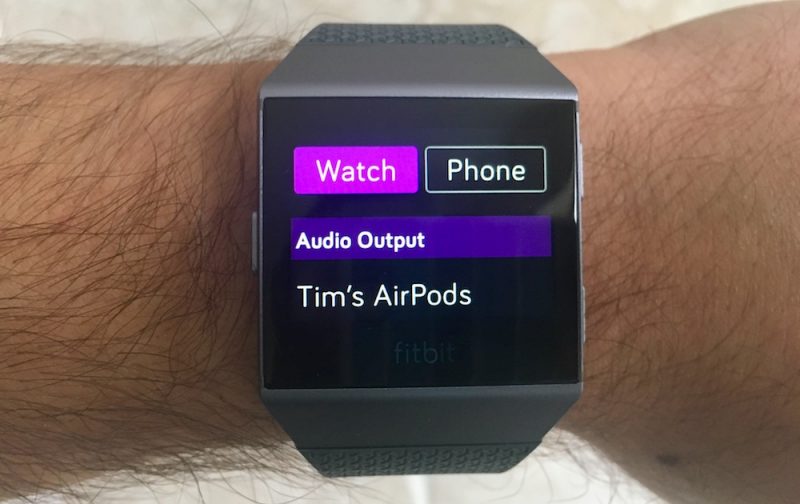
Eventually I managed to get a whole playlist to upload to the Ionic, but my problems didn’t end there. Using the standard Bluetooth pairing button on my AirPods case, I was able to connect Apple’s wireless earbuds to the watch pretty quickly, but the onscreen volume controls wouldn’t respond to my touches. What’s more, resuming playback after pausing essentially cut off the audio, and I had to re-pair the AirPods to get the sound back.
I couldn’t replicate these issues using other earbuds. The Ionic also occasionally dropped the connection to my AirPods while I was running, and that’s never happened when they’ve been paired with my iPhone. Fitbit’s advertising says “Ionic seamlessly connects to wireless Bluetooth headphones like Fitbit Flyer so you can hear music and audio coaching on the go”. But if the Ionic isn’t compatible with Apple’s market-leading earbuds, that assurance rings hollow.
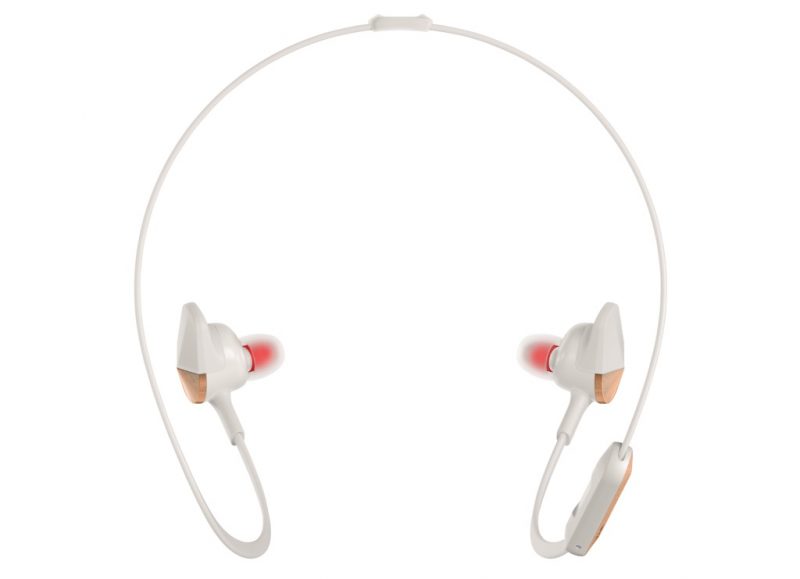 Fitbit’s $130 Flyer wireless earphones, designed with the Ionic in mind
As for battery life, this is one of Fitbit’s strengths. The Ionic easily lived up to its stated claim of 4 days or more. I managed to get around four days on a single charge, and that included two half-hour GPS runs, not to mention plenty of notification buzzes and onscreen interactions. The supplied USB charger, which attaches magnetically to the back of the watch, brought the Ionic from totally empty to a full charge in two and a half hours.
Bottom Line
There’s no doubting the Ionic is Fitbit’s most advanced wearable to date, marrying the best bits of the Blaze’s software and the Surge’s hardware while improving on both in the process. It’s also solidly built and offers comprehensive fitness tracking features to rival the Apple Watch as well as mid-range Garmin devices, and battery life is of course excellent. But given the current lack of apps and the inability to respond to calls or notifications, I’m hesitant to call the Ionic a “true” smartwatch. There’s certainly plenty of smartwatch potential if development continues, but aside from GPS, in its current state the Ionic doesn’t seem all that much of an upgrade over the Blaze.

There are also issues to be fixed before Fitbit can possibly justify that $300 price tag. The initial setup and sync process is glacially slow, while the whole music interfacing system leaves a lot to be desired – especially if you’re an Apple AirPods user. Add to that tentpole features like Fitbit Pay still awaiting proper rollout, and it all starts to feel as though the Ionic was rushed to market.
If the company can sort out these problems and get third-party developers to populate its app store with apps worth the download, then the Ionic might well turn out to be the shot in the arm that Fitbit is looking for, but as it stands, my advice is to hold off on that purchase, and wait and see how this product pans out.
Pros
- Robust, swim-proof design
- Intuitive iOS app and watch menus
- 4+ day battery life
- Integrated GPS
Cons
- Buggy sync process
- Lack of apps
- No workout audio cues
- Music interfacing is flaky
How to Buy
The Fitbit Ionic costs $300 and can be ordered on the Fitbit website and from Amazon in three variations: Blue Gray/Silver Gray, Slate Blue/Burnt Orange, and Charcoal/Smoke Gray. Accessory bands available in various colors include the Perforated Leather Band ($60), Sport Band ($30), and Classic Band ($30). There’s also an Adidas edition of the Ionic coming in early 2018. Cobalt and Lime Sport Band
Note: Fitbit supplied the Ionic to MacRumors for the purposes of this review. No other compensation was received.
Related Roundups: Apple Watch, watchOS 4Tag: Fitbit IonicBuyer’s Guide: Apple Watch (Buy Now)
Discuss this article in our forums
How does the original Google Daydream View compare to the 2017 version?
Unlike the main PC virtual reality headset makers, Google is opting for an annual refresh schedule for its Daydream headsets and that means that it’s important to consider whether the upgrade is worth it. To figure out what makes the 2017 Google Daydream View 2 that much better than its 2016 counterpart, we’ll compare the two, head to head.
The Daydream View range is Google’s effort to offer an entry-level virtual reality headset that goes beyond something ultra-low-budget like Google Cardboard, without costing the world. It achieved that through leveraging the user’s smartphone for the expensive, display and processing technology of a VR headset, while providing an attractive and comfortable head mounting system.
With the Daydream View 2, it’s looking to make the experience that bit better.
Specifications
Daydream View 2 (2017)
Daydream View (2016)
Dimensions
6.6 × 4.6 × 3.9 inches
6.6 × 4.2 × 3.8 inches
Weight
260 grams
220 grams
Optical Lens
New custom fresnel design
Custom fresnel lenses
Display
Device dependent
Device dependent
Field of view
100-degrees
90-degrees
Smartphone support
Google Pixel 2, Pixel 2 XL, Samsung Galaxy S8, S8+, Note 8, Asus Xenfone AR, LG V30, Motorola Moto Z, Moto Z Force, Moto Z2 Force, ZTE Axon 7, Huawei Mate 9 Pro, Porsche Design Mate 9
Google Pixel 2, Pixel 2 XL, Samsung Galaxy S8, S8+, Note 8, Asus Xenfone AR, LG V30, Motorola Moto Z, Moto Z Force, Moto Z2 Force, ZTE Axon 7, Huawei Mate 9 Pro, Porsche Design Mate 9
Sensors
Accelerator, gyrometer, proximity
Accelerator, gyrometer, proximity
Controller
Wireless remote controller
Wireless remote controller
Color options
Charcoal, fog and coral
Slate, snow, and crimson
Price
$100
$80
Availability
Launching October 19
On sale
Looking at the specifications, you’d be forgiven for thinking that not much has changed between the two versions of the Daydream View. The only real changes by the numbers are a slight increase in the dimensions and weight of the 2017 model, a mildly expanded field of view, and a price bump of $20. The controllers are the same, the sensor suite is the same and the color options aren’t even that different.
However, the few number differences that exist between the two headset generations don’t tell the whole story.
The VR view
With the announcement of the Daydream 2, Google also expanded the number of compatible smartphones with the platform. Although those phones should also be compatible with the original Daydream View headset, bringing handsets like the Google Pixel 2 to the table means the potential for an improved visual experience when in Daydream VR.
On top of that, Google has taken steps to improve the look of the virtual world no matter what handset you’re using. The new lenses in the Daydream View 2 are a custom fresnel design which Google claims it manufactured after running masses of simulations to figure out the ideal lens design (as per RoadtoVR).
Those lenses enable an additional 10 degrees field of view, which may not seem like a lot, but should make a big difference to the immersive feeling of Daydream VR. It represents an 11 percent increase in the field of view, and is said to be a noticeable difference when in use. Just as important though, is that this makes the Daydream field of view comparable to that of the Samsung Gear VR.
Another addition that won’t make the specifications list, is a new heatsink built into the Daydream View 2. When in use, it helps cool the smartphone, and allows for longer sessions of high-performance virtual reality before having to stop to let the smartphone cool off. While the effect of such a heatsink will depend on how susceptible your particular device is to overheating, that should have a tangible effect on your VR experience by helping stave off a forced exit due to hardware problems.
Comfort
Arguably the biggest changes made to the second-generation Daydream headset are in the realm of comfort. Although we found the original Daydream View to be a comfortable portable VR headset, not everyone was so fortunate. Some found that it pressed too heavily on their cheekbones, and face shape seemed to play a particular role in how comfortable a user found it.
With the new Daydream View 2, Google has overhauled its foam padding, making it larger and softer. It has also reportedly tested it on a larger number and wider variety of users. That means whether you’re male or female, and whatever your facial structure, the new Daydream View 2 should be more comfortable to wear for longer periods.
To further improve comfort and weight distribution, the new Daydream View comes with an over-the-top headstrap. That’s probably a good idea, as there is a slight increase in weight of the Daydream 2 over its predecessor. In case you don’t like the new strap, though, Google has made it easy to remove.
Whether you use it or not though, that strap now has a little pocket in the back for the remote controller too, storing it there rather than in the front of the headset.
Smartphone Support
Although the new Daydream View 2 supports Google’s new Pixel 2 and Pixel 2 XL smartphones, those have simply become part of the “Daydream Ready” smartphone list. Google doesn’t differentiate between headsets in that respect, so whichever version of the View you have, the compatible smartphones should be the same.
There are now 15 mobile handsets that are compatible with Daydream View headsets, with Google listing them all on its compatibility page. That’s more than it ever expected to support by this time. They include: Google Pixel, Pixel XL, Pixel 2, Pixel 2 XL, Samsung Galaxy S8, S8+, Note 8, Asus Xenfone AR, LG V30, Motorola Moto Z, Moto Z Force, Moto Z2 Force, ZTE Axon 7, Huawei Mate 9 Pro, and Porsche Design Mate 9.
Software
Much like the smartphone compatibility, there is no difference between the Daydream View 2 and the original version when it comes to available applications. They include the likes of Netflix VR, Jaunt VR, Youtube VR, Hulu, HBO Go VR, Sky VR, and sporting apps like the NBA VR, and NFL VR experiences.
There are also standalone games and experiences like DominoVR, Tiny War, Toy Clash, Chicken Slayer, and Danger Goat, among others, with newly compatible apps becoming available all the time.
Because the underlying hardware of the Daydream platform is dependent on the smartphone that’s running it, it seems unlikely that there will be any sort of generational split with the software.
Price and availability
The original Daydream View has an advantage when it comes to pricing. At $80, it costs $20 less than its younger sibling. It’s also available right now, whereas the Daydream View 2 isn’t set for release until October 19. If you haven’t picked up a View already, and like the look of the new version, the wait isn’t exactly a long one.
Conclusion
The Daydream View 2 should be a superior Daydream virtual reality headset, though it’s very much an evolution of the original, rather than a revolution. This is to be expected considering it’s been less than a year since the release of the first generation DayDream View.
This means that the original View remains a viable entry-point for mobile virtual reality, especially if you’re planning to buy, or already own, one of the expanded list of compatible smartphones. However, the View 2 is undoubtedly the superior headset, so unless you really need to save that $20, it’s going to be the better option.
Whether it’s worth the upgrade is another matter entirely. There aren’t significant enough changes to truly recommend spending another $100 just for improvements in comfort, especially when the original View benefits from the same growing software library and smartphone compatibility as its successor.
Hackers breach public school databases, send out threatening texts
Why it matters to you
It’s important that your childrens’ schools protect their data adequately. You never know who might try to steal it.
Parents of children in an Iowa school district were left severely concerned after they received SMS messages from an unknown person or persons threatening to kill students at their childrens’ schools. The messages were doubly worrying because they contained personal details about the children, all because hackers had stolen the information from a school network.
Following the receipt of a number of such messages by parents, local law enforcement and school authorities closed all schools in the district the following day. The authorities claimed that it was a difficult decision to make, but citing the safety of children as their number one priority, they felt it was necessary.
It was later discovered that there wasn’t much credibility to the threats, following the revelation of a particular hacker group’s involvement. The self-proclaimed “thedarkoverlord” group laid claim to the hack on Twitter, stating that it had led to more than 7,000 students staying home due to the threats.
The group later followed this message up with proof by releasing a local student directory, including the names, addresses, and telephone numbers of individuals.
Although the hack does raise concerns about the security of school networks, the purpose of it seems to have been more anarchic in nature than anything else. In a tweet that followed the release of the school directory, those claiming responsibility suggested that the directory could be used by sexual predators (via GrahamCluley).
While such an aim seems abhorrent, the motive for such a statement could be much more straightforward than it might otherwise seem. According to DataBreaches, other schools have also seen threats of violence against students, possibly in an attempt to get the FBI to ease off its investigation of the group. This is the same collective that previously blackmailed organizations like Larson Studios and Netflix.
This hack comes just weeks after the monumental Equifax hack which affected tens of millions of Americans and exposed the personal details of many. Although the school hack was on a much smaller scale, both continue to show that an increased interest in security at all levels of IT infrastructure is incredibly important.
1Password comes to Microsoft Edge as an extension, but you still need software
Why it matters to you
Developer AgileBits is now providing better password management for web surfers using Microsoft Edge with its new 1Password extension.
If you’re looking for a good way to manage your multiple passwords, the popular 1Password extension is now available for Microsoft Edge. It joins 70 other extensions offered through the Windows Store, including competing password management solutions such as LastPass, Advance Password Manager, and OneLogin. Support for extensions in the Microsoft Edge browser arrived with Anniversary Update in 2016.
To install 1Password, click on the three dots located in the top-right corner of the browser to activate the Settings panel. Click on “Extensions,” and then “Get extensions from the Store” to pull up all extensions officially sanctioned by Microsoft. Locate 1Password, click the “Get” button, and it’s installed. After that, you should be good to go: the button now parks next to the three-dot Settings button.
Unfortunately, the extension isn’t a stand-alone product. For it to work, you need version 6.7 or newer of the desktop client for Windows installed. You also need a subscription to the service, which costs $36 per year for a single user, or $60 per year for five users (family plan). Both plans cover all devices ranging from Windows 10 to iOS to Android. There’s a 30-day free trial too so you can give the service a test run.
The goal of 1Password is just that: To remember one password. You’re assigned a unique master key, but you can choose the associated “master” password that’s assigned to that key. Once you’re up and running, you can then use 1Password to generate passwords for all new accounts you create online. You could even use the password generator tool to create new passwords for your current accounts.
But 1Password isn’t just about passwords. With the subscription service, you can store all kinds of sensitive information including credit card numbers, bank account numbers, social security numbers, your physical address, your telephone, and more. The subscription even provides 1GB of online storage to play host to your sensitive files.
Of course, the burning question is this: Doesn’t having one password to protect your information defeat the purpose? The idea behind 1Password is to not use the same easily determined password for every online and offline account you use. You’re required to create a single, “strong” password with 10 characters specifically for this service. After that, 1Password will do everything it can to keep that master password out of the hands of hackers.
According to developer AgileBits, 1Password uses end-to-end encryption so that all sensitive data remains locked, even when sitting on your device. The service also relies on 256-bit AES encryption, a method of scrambling your password called PBKDF2, and a system that uses random numbers to generate encryption keys. Plus, your master password remains on your device, and is never transferred over the internet.
If you have a fingerprint scanner on your device, 1Password supports that too. That means you can store your master password on the device and touch the fingerprint scanner when prompted. But that also means you’re not forced to remember the master password, which could be bad news in the long run.
1Password comes to Microsoft Edge as an extension, but you still need software
Why it matters to you
Developer AgileBits is now providing better password management for web surfers using Microsoft Edge with its new 1Password extension.
If you’re looking for a good way to manage your multiple passwords, the popular 1Password extension is now available for Microsoft Edge. It joins 70 other extensions offered through the Windows Store, including competing password management solutions such as LastPass, Advance Password Manager, and OneLogin. Support for extensions in the Microsoft Edge browser arrived with Anniversary Update in 2016.
To install 1Password, click on the three dots located in the top-right corner of the browser to activate the Settings panel. Click on “Extensions,” and then “Get extensions from the Store” to pull up all extensions officially sanctioned by Microsoft. Locate 1Password, click the “Get” button, and it’s installed. After that, you should be good to go: the button now parks next to the three-dot Settings button.
Unfortunately, the extension isn’t a stand-alone product. For it to work, you need version 6.7 or newer of the desktop client for Windows installed. You also need a subscription to the service, which costs $36 per year for a single user, or $60 per year for five users (family plan). Both plans cover all devices ranging from Windows 10 to iOS to Android. There’s a 30-day free trial too so you can give the service a test run.
The goal of 1Password is just that: To remember one password. You’re assigned a unique master key, but you can choose the associated “master” password that’s assigned to that key. Once you’re up and running, you can then use 1Password to generate passwords for all new accounts you create online. You could even use the password generator tool to create new passwords for your current accounts.
But 1Password isn’t just about passwords. With the subscription service, you can store all kinds of sensitive information including credit card numbers, bank account numbers, social security numbers, your physical address, your telephone, and more. The subscription even provides 1GB of online storage to play host to your sensitive files.
Of course, the burning question is this: Doesn’t having one password to protect your information defeat the purpose? The idea behind 1Password is to not use the same easily determined password for every online and offline account you use. You’re required to create a single, “strong” password with 10 characters specifically for this service. After that, 1Password will do everything it can to keep that master password out of the hands of hackers.
According to developer AgileBits, 1Password uses end-to-end encryption so that all sensitive data remains locked, even when sitting on your device. The service also relies on 256-bit AES encryption, a method of scrambling your password called PBKDF2, and a system that uses random numbers to generate encryption keys. Plus, your master password remains on your device, and is never transferred over the internet.
If you have a fingerprint scanner on your device, 1Password supports that too. That means you can store your master password on the device and touch the fingerprint scanner when prompted. But that also means you’re not forced to remember the master password, which could be bad news in the long run.
 AIVAnet