


The best wireless routers you can buy right now
Your router might just be the most under-appreciated but essential part of your home or office. Without it, you couldn’t stream Netflix, HBO Now, or Skype conference calls to your smartphone, tablet or laptop without cumbersome Ethernet cords or weird workarounds. When it’s doing its job well, you never give it much thought. But when it isn’t, well, you notice.
Thankfully, routers have come a long way since the early days of broadband, and the market is now saturated with different models serving different needs. Whether you’re a PC gamer looking for the best, customizable wireless connection possible, or simply want easy, whole home/office coverage, chances are we know a router that will get the job done. Welcome to our list of the best wireless routers you can buy.
Our pick
Why you should buy it: This system combines two technologies: the complexity of a single router, and the coverage of a multi-unit system.
Who it’s for: It’s for anyone looking for full coverage in the home or office, and want a solution from a long-time brand they know and trust.
How much will it cost: $300
Why we picked the Netgear Orbi RBK40 system:
There are actually three flavors of the Netgear Orbi system, but we chose the middle tier version due to its performance versus price ratio. It’s an awesome setup, and the real-world connection speeds – not the ones advertised by Netgear – are impressive as you move throughout the house.
What makes the Orbi system unique is that it’s not a standalone device that connects to your service provider’s modem. It consists of at least two units — one that physically connects to the modem and serves as the main hub/router, and one that you can place anywhere else in the home or office to serve as an access point.
The beauty of this setup is that the two Orbi devices communicate with each other through a dedicated, high-speed connection. That means the data passed between the two units isn’t mixed in with all the data passing between your wireless devices and the overall Orbi system. This produces a faster, cleaner flow of data to and from the service provider’s modem.
Having a two-piece networking product is essential because you won’t see major performance drops as you move about the home or office. With the typical stand-alone router, the further you move away, the slower data moves between you and the router, similar to the way your favorite radio station fades as you drive away from the city. With a two-piece kit like the Orbi, your device automatically hops from one unit to the other as you move about for consistent performance, similar to how smartphones move from tower to tower nationwide.
But the Netgear Orbi kit isn’t like most whole-home solutions. You don’t use Bluetooth or a mobile app to set it up. The main unit’s backend is everything you’d expect from a standard router, providing plenty of settings for tweaking the network to suit your needs. You can also purchase additional satellite units to expand coverage horizontally or vertically. We love this kit, and highly suggest any of the three versions offered by Netgear.
The best high-performance router
Why you should buy it: This router packs insane hardware for insane performance, and its even suited up with support for the new Wireless AD connectivity.
Who it’s for: This wireless router was obviously designed for PC gamers and enthusiasts, but it’s also ideal for customers who want to be set networking-wise for another five years.
How much will it cost: $450
Why we picked the Netgear Nighthawk X10:
Yes, the Netgear Nighthawk X10 is expensive. We get it. But look at what’s under the hood powering all that connectivity: a four-core processor clocked at 1.7GHz that’s fit for a desktop PC, an architecture supporting more than 20 connected devices, and high-end antennas to pierce through walls and provide steady performance no matter where you are in the home or office.
For starters, routers communicate to wireless devices in streams. The more each can support, the wider you open the data faucet, hence faster speeds. This router provides the maximum four streams, so if your wireless device includes four incoming/outgoing antennas (aka 4×4), then it will see 800Mbps on the 2.4GHz band (4x 200Mbps), and 1,733Mbps on the 5GHz band (4x 433Mbps). Check the wireless aspect of your device to see its internal antenna setup (it’s typically 2 x 2), and then you can calculate the speed it will support.
And because this router supports the new Wireless AD standard, which is a huge step up from Wireless AC, you’ll see a third 60GHz connection on compatible devices. This provides speeds of up to 4,600Mbps, which translates into 1,150Mbps per stream. That’s insane, but devices supporting Wireless AD are just emerging on the mainstream market. Thus, if you purchase this router now, you will be set when smartphones arrive in the near future supporting this standard. Unfortunately, Wireless AD adapters for laptops and desktops are hard to find.
Adding to all this tech talk is the use of MU-MIMO technology, or Multi-User Multiple Input Multiple Output. In the past, routers could only converse with connected devices one at a time, like Santa Claus whittling down a line of eager children. Yet with MU-MIMO, routers can now talk to devices simultaneously.
Outside the connectivity, there’s plenty to love with the Nighthawk X10. It provides new channels, so you’re not sharing the same invisible space with your neighbors, two USB 3.1 Gen1 Type-A ports, and six gigabit Ethernet ports, two of which are linked together (1x in, 1x out) to speed up your wired connection. The router even includes a 10 gigabit fiber Ethernet port for lightning-fast connections to media servers and storage devices.
The best easy-to-use router
Why you should buy it: It has a built-in touch screen for easy network management, and it doesn’t break the bank. How cool is that?
Who it’s for: This router targets customers in the home or office who want an affordable solution that’s easy to setup and manage.
How much will it cost: $133
Why we picked the TP-Link Touch P5:
If simplicity and easy management is what you’re looking for, the TP-Link’s Touch P5 is the router for you. Originally sold for $200, this router packs a built-in 4.3-inch touch screen with a colorful resolution of 480 x 272, to provide easy on-device controls without the need for a connected PC or wireless device for management. With this screen, you can configure app-style settings with just a touch such as parental controls, wireless settings, device access management, and loads more.
On the connectivity front, the Touch P5 provides three incoming and three outgoing streams. That translates to up to 600Mbps on the 2.4GHz band (3x 200Mbps), and up to 1,300Mbps on the 5GHz band (3x 433Mbps). That said, if your smartphone only has a 2×2 wireless component, then the maximum you’ll see is 400Mbps on the 2.4GHz connection, and 867Mbps on the 5GHz connection.
Under the hood, the router relies on a two-core processor clocked at 1GHz to handle all the connection requests. The architecture is also designed to function in three different modes — router, Repeater, and Access Point. It’s supported by four gigabit Ethernet ports on the back, which play a part in the Access Point Mode.
As for other Touch P5 bells and whistles, the router includes a USB 3.1 Gen1 Type-A port, and a USB 2.0 Type-A port for sharing storage and printers. TP-Link promises coverage of up to 10,000 square feet, although expect that number to be lower given the design of your home or office, and if neighboring networks are invading your space. You’ll likely see that 10,000 square feet of coverage claim on the moon.
The best cheap router
Why you should buy it: You get a lot of bang for your buck, and it’s even manageable through a mobile app.
Who it’s for: The Archer C7 is designed for the home or office that needs lots of performance for very little money.
How much will it cost: $80
Why we picked the TP-Link Archer C7:
If you don’t want to spend more than $100 on a router for the home or office, then the Archer C7 is your ticket to connectivity heaven. There aren’t any gimmicks like a built-in touchscreen or linked ethernet ports. Instead, the Archer C7 focuses on packing performance per dollar, so you can simply connect it to the modem, endure the easy setup process, and be on your way.
TP-Link’s router provides three incoming and three outgoing streams. In connection numbers, that means you’ll see speeds of up to 450Mbps on the 2.4GHz connection (3x 150Mbps), and up to 1,300Mbps on the 5GHz connection (3x 433Mbps). As with the other routers we listed above, you’ll need to check the wireless hardware specifications for your connected device to see if its supports a 3×3 connection. Modern smartphones typically only handle 2×2 connections.
Of course, in the real world, you’ll never see those numbers on a wireless connection. Your download and upload speeds are also capped by the limits imposed by your internet subscription. But there’s plenty here in the Archer C7 for streaming Netflix to your devices, backed by three external antennas that promise great range throughout the home or office.
Baked into the Archer C7 are four gigabit Ethernet ports, and two USB 2.0 Type-A ports, for sharing content and printers across the network. The device can be managed through the web-based backend, or through TP-Link’s Tether app for Android and iOS-based devices. With this app, you can schedule the next firmware update, establish guest access, manage the connected devices, and more.
The best whole home router kit
Why you should buy it: This networking kit sheds the single-unit design to blanket your home or office in a web of connectivity through three units.
Who it’s for: Eero is designed for customers who want full, reliable coverage and don’t mind shelling out the extra bucks.
How much will it cost: $361
Why we picked the Eero Home Wi-Fi System:
Hands down, the Eero kit is an extremely reliable networking solution that provides fast, full coverage throughout your home or office. It’s based on the budding “mesh” networking technology that creates a web of connectivity between access points, generating an invisible blanket throughout the home or office. In contrast, the typical stand-alone router broadcasts from a central point, which degrades the further you move away from the device.
The original first-generation Eero kit consists of three identical, hockey-puck like devices. One serves as the main hub that connects to your modem, while the others can be placed anywhere. These units connect wirelessly to the hub unit, and to each other. All the while, your device will only see one connection, so when you move throughout the home or office, your device will automatically move from one Eero unit to the other without any manual input. Eero also chooses the best connection, too.
The latest Eero kit includes one hockey puck-style unit serving as the hub, and two PC mice-like “beacons” that are slimmer than the hub, and plug directly into an electrical outlet. These beacons even sport a built-in night light to fend off the monsters lurking in the dark.
Setting up the kit is a brainless project, and doesn’t involve digging through detailed settings in a browser-based interface. All maintenance is performed on a friendly mobile app. With the app, you can test your internet connection, manage a guest network, block unwanted devices, and more.
The Eero kit includes a dedicated 5GHz connection between all units. That leaves a second 5GHz connection providing speeds of up to 867Mbps for your devices, and a 2.4GHz connection providing speeds of up to 400Mbps. The hub includes two gigabit ethernet ports (one for devices, one for the modem), but the beacon units do not. If you want a kit like the first-generation Eero setup where all units have Ethernet ports, then you’ll need to go “Pro” for a heftier $500. Ouch.
Deciphering router numbers
When you’re shopping for a new router, you’re going to see a lot of different numbers thrown around. The one that you’ll see the most follows the letters “AC,” such as AC1750 or AC1900. Router manufacturers love to combine speeds into one big number, which is misleading given that you’ll never, ever see that specific promoted speed.
As of late, most network routers provide two connections on two different frequencies — 2.4GHz and 5GHz. Unlike computer CPUs and monitors, these numbers don’t define a specific rate or speed. Instead, they represent a specific radio frequency – the spectrum of the radio band on which your router is transmitting information.
Most wireless devices on the market typically rely on the 2.4GHz band, which means that frequency is crowded like Times Square on New Years Eve. If your router can only broadcast on 2.4GHz, you might experience low performance due to congestion in the local area. If your neighbors have a wireless network, their traffic is mixed in as well, slowing data movement even more.
That’s where 5GHz comes in. Modern “dual-band” routers are capable of broadcasting on both the 2.4GHz and 5GHz bands. The 5GHz spectrum is a lot less congested, as it’s not used by as many devices, so your connected device will see faster upload and download speeds than the 2.4GHz connection.
The drawback is that the 5GHz spectrum has difficulty penetrating obstructions, whereas 2.4GHz has no problem shooting through walls and furniture. In other words, you get better range at slower speeds on the 2.4GHz band, and a lower range pumping faster speeds on 5GHz.
With that out of the way, we circle back to the big “AC” number. Manufacturers will take the maximum speed of both connections (2.4GHz and 5GHz), and add them together to get an impressive “holy cow that’s fast” speed. You simply won’t hit that number, but you can use it to figure out the maximum speeds of each band.
For instance, an AC1750 router provides speeds of up to 450Mbps on the 2.4GHz band, and speeds of up to 1,300Mbps on the 5GHz band. Devices supporting those speeds must include three incoming and three outgoing antennas on the inside, as routers send and receive data using up to four individual streams, depending on the manufacturer. In this case, the router is broadcasting three streams on the 2.4GHz band at 150Mbps each, and three streams on the 5GHz band at 433Mbps each.
But as we’ve shown in our list, routers compatible with the Wireless AD standard are now hitting the mainstream market. They include a third 60GHz connection, promising even faster speeds than what we see with Wireless AC. But the technology is inching into the mainstream market at a snail’s pace, and likely won’t replace Wireless AC as the new wireless default for another year or so.
Bellroy wallet-inspired bags are designed to carry tech without the bulk
Why it matters to you
When every inch matters, the new slim bags from Bellroy carry tech without the bulk.
Bellroy might be known for its slim wallet designs, but the company is now expanding into bags. On September 27, Bellroy launched its first set of bags, carrying over the idea of less bulk into bags designed for work and play. The new Bellroy bags includes six bags with versatile carry options and dedicated pockets for tech like laptops and smartphones.
“With wallets, every millimeter matters,” said Bellroy co-founder Andy Fallshaw. “If cards don’t fit perfectly or there’s any dead space, you notice. Being fanatical about how contents sit and stack and play together means that, as we scale that up to bags, we can design pieces with less bulk and better freedom.”
The new series starts by adding two everyday backpacks to a growing number of tech-focused backpacks. The classic backpack uses the familiar front zip design but adds new tech pockets as well as lumbar support. The bag accommodates a 15-inch laptop as well as sporting a iPad sleeve and an external quick access pocket for valuables like a smartphone or wallet.
The slim backpack is designed with a top-open style with a magnetic clasp, and is designed as a minimalist, streamlined bag. Fitting a 15-inch laptop in a padded sleeve, the bag is able to keep its contents dry in the rain.
The new line also includes two slim work bags, one a vertically oriented slim work tote and the other a slim but traditionally sized work bag. Both fit a 15-inch laptop and have a smaller soft-lined pocket for smaller devices.
The lineup finishes out with two dual carry bags. The duo totepack can be worn as a backpack or carried as a tote while the duo work bag can be carried tote-style or over the shoulder. Both bags use weather-resistant fabric and zippers and can accommodate laptops up to 15 inches in size.
“Bellroy has always loved bags,” said James Jeffrey, a Bellroy designer. “The core design team has been built on bag designers and soft goods enthusiasts, so we’ve been keen to move into designing bags. A lot of the considerations of storage and access that are developed in the bag world have informed our wallet designs. Now it is time for our years of design focus in wallets to impact our take on bags.”
The new collection is now selling on bellroy.com, with list prices starting at $150.
These 30 essential iPhone 6 tricks and tips will help you master it
Life is hard enough without having to factor in modern technology. The iPhone 6 and 6 Plus were two of the most lauded and intuitive smartphones to ever hit the consumer market. The phones are packed with an impressive set of hardware and integrated with Apple’s robust ecosystem of apps.
Nonetheless, the aptly titled Tips app directly built into iOS doesn’t cover all the bases, especially considering just how vast and varied the innate features baked into Apple‘s latest mobile can be. Most of us need a little extra help to get the most out of this powerful smartphone, whether you’re simply trying to traverse the device’s expanded real estate or capture slow-motion video of your dog drooling on the sofa. Below are 30 of our favorite iPhone 6 tricks.
Are you looking for tips on the latest devices and software from Apple? Don’t forget to read our iPhone 8 and 8 Plus tips, iPhone 7 and 7 Plus tips, and iOS 11 tips and tricks.
10 great iPhone 6 tips
How to capture multiple photos simultaneously
You no longer need to repeatedly press the shutter icon in the Camera app in order to take multiple photos. By holding down the icon or one of the volume keys, you’ll enable the iPhone’s Burst Mode and take a series of photos. A picture is taken every half second or so, and this will continue until the shutter icon or volume key is released.
How to duplicate images and videos
Before you decide to edit an image or video, you should save a copy of the original. To do so, head to the Photos app and select the image or video you wish to duplicate. Tap the share icon in the bottom-left corner and select Duplicate from the resulting list of options.
How to add custom vibrations
While you could use the vibration options that come with your iPhone, it’s far easier to tell who’s calling or texting if you create your own personal vibrations. Head to Settings, then Sounds, and select Ringtone, Text Tone, or whatever notification you want to outfit with a custom vibration. Then, tap Vibration at the top of the screen, which will take you to a menu that has Create New Vibration near the bottom. Tap that, and begin tapping out your own vibration patterns.
How to activate and schedule Night Shift
First introduced with iOS 9.3, Night Shift will help you get a better night’s sleep by changing your display colors. It uses your iPhone’s clock and geolocation to determine when it’s sunset in your area and will change the colors to the warmer end of the spectrum come sundown. To enable the feature, go to Settings and Display & Brightness. Next, select Night Shift and schedule an activation time for the feature, as well your desired color temperature.
How to add password protection to Notes
Another feature introduced with iOS 9.3 was the ability to add passwords to important or private notes. You can create a password for these by going to the Notes section housed under Settings, selecting Password, and typing in a password of your own choosing. Keep in mind that you must enable the password lock in the Notes app and that it only works with notes stored on the iPhone 6. Once done, select the note and press the share icon in the upper-right corner to lock the note.
You can also lock an individual note. To do so, open the note that you want to lock, tap the share icon on the top right-hand corner, and select Lock Note.
How to reach the top of the screen using one hand
Apple has always wanted consumers to use the iPhone with a single hand — hence, the Reachability feature. Simply double-touch the Home button to shift the screen down closer to your thumb, and once you make your selection, it will conveniently slide back up to its natural position. No second hand required.
If the feature isn’t working for you, it might be turned off. Head over to Settings > General > Accessibility > Reachability and make sure it is turned on.
How to opt out of group iMessages
Certainly a long-sought-after feature, iPhone 6 users can now opt out of iMessage threads. To do so, launch the Messages app as you would normally, and choose the group thread you’d like to opt out of. Afterward, tap Details in the upper-right corner, and select the Leave this conversation option at the bottom of the menu. It’s a really nice feature, but sadly, it only allows you to leave conversations when everyone included on the thread uses iMessage. If you’ve got a friend who texts via SMS — ahem, Android users — the feature won’t do you any good.
How to create a medical ID
When Apple issued iOS 8, the company added the highly rumored Health app to its arsenal. The somewhat complicated app provides a quick means for charting various metrics regarding your health and physical activity, along with a way for others to access a wealth of information vital to your health in case of an emergency. You can create a Medical ID that’s accessible via the Emergency function located on your device’s lock screen.
To create a Medical ID, launch the Health app as you would normally, and select the Medical ID tab in the lower-right corner. Afterward, enter any information you want accessible through the lock screen — i.e. allergies, medications, blood type, emergency contact numbers — and click Done in the upper-right corner before enabling the function at the top of the app window.
How to capture smoother video
The iPhone 6 has stellar video recording capabilities, especially when you enable 60 FPS. The feature essentially doubles the amount of frames per second when recording, taking iPhone 6 videos from 30 to 60 frames per second. To enable this feature, tap the Photos and Camera option within the main Settings, and toggle Record video at 60 FPS to on.
How to capture slow-motion video
Unlike previous iPhone models, the iPhone 6 is capable of capturing slow-motion videos, which are great for recording action videos. To enable the feature, launch the Camera app as you would normally, and select SLO-MO from the sliding wheel at the bottom of the screen.
The camera app will record 1080p video at 120 fps by default. If you want to record slower you can change this by going to Settings > Camera > Record Slo-mo and pick 720p HD at 240 fps.
The Amazon Echo Show just lost one of the few reasons to buy it

With Google pulling support for YouTube video, the Echo Show just lost an arm. Or maybe an arm and a leg. And this isn’t just a flesh wound.
Google and Amazon have apparently found themselves in a little bit of a spat, as reported by The Verge, with the former pulling its fledgling video service (YouTube) off the latter’s latest connected device (Echo Show).
Or to put it another way: The Echo Show just lost one of the only good things going for it.
Amazon Echo Paperweight. pic.twitter.com/jrAcIzgznP
— Phil Nickinson (@mdrndad) September 27, 2017
Let’s rewind for a second and recall this line from my Echo Show Review:
It is an imperfect device that simultaneously excites and occasionally infuriates. It’s yet another example of Amazon beating everyone else to market, but with a product that in a number of ways still feels incomplete.
So in the Echo Show we have a device with tons of potential. The ability to serve as an always-on home hub. Only it doesn’t actually do that yet. And the ability to serve as an always-available, cross-platform communications device with far-field microphones and video. Only nobody’s really using that yet.
And there’s the potential to show any virtually any video at any time — because when it comes to on-demand viewing, YouTube is the only service that really matters — thanks to the 7-inch display. Only now, not so much.
Losing access to YouTube video is a still-smoking wound to a product that was struggling for purpose in the first place.
The reasons behind Google not allowing YouTube on the Echo Show don’t really matter to me. (Though I do find it interesting that there apparently was enough warning for Amazon to update the Echo Show response to “Currently, Google is not supporting YouTube on Echo Show.”) Perhaps it’s something technical. Perhaps it’s in retaliation for Amazon not selling Chromecast (which very much competes with Amazon’s own Fire TV Stick).
But the result is a still-smoking chest wound in an Echo Show that remains, at best, promising. And that absolutely matters. Maybe not to Google — at least not yet. And not really to you or me, unless you’re one of the few who actually owns an Echo Show and relied on it for your YouTube fix.
But if you’re Amazon, you just lost one of the key ways to market the Echo Show to new customers. If you’re one of those potential customers, you just lost a key reason to buy an Echo Show.
And if you’re a proponent of the Internet, you know, actually working, you just got another reason to question Google’s real intentions.
Amazon Echo
- Tap, Echo or Dot: The ultimate Alexa question
- All about Alexa Skills
- Amazon Echo review
- Echo Dot review
- Top Echo Tips & Tricks
- Amazon Echo vs. Google Home
- Get the latest Alexa news
See at Amazon
Sony’s next-gen phone will finally feature an ‘all-new design language’
Sony’s next-generation flagship will sport a bezel-less design.
Sony hasn’t strayed from its OmniBalance design language for some time now, but it looks like that’s finally about to change. On the sidelines of the launch of the Xperia XZ1, Sony India’s managing director Kenichiro Hibi said that the company will introduce an “all-new design language” to better compete with 18:9 devices like the Galaxy Note 8 and the LG V30. To that effect, Sony’s next-generation flagship will feature a bezel-less design.
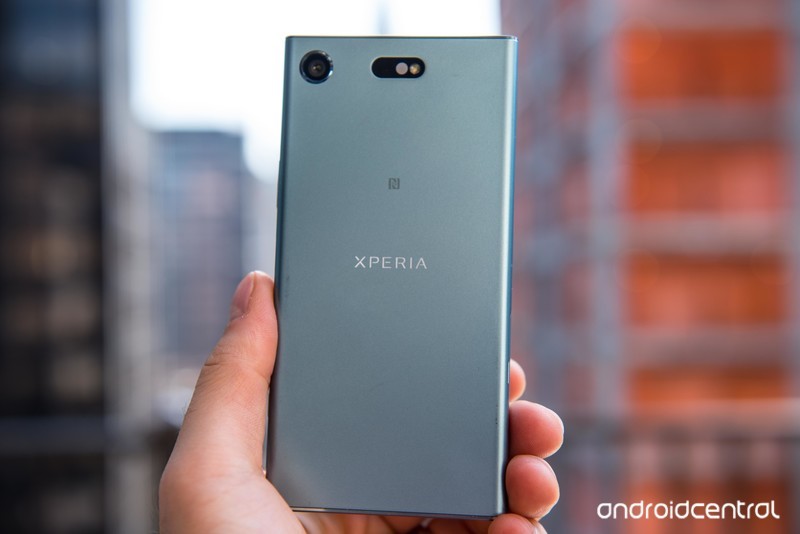
In an interview with Indian Express, Hibi said:
We have deployed an omnibalance design as long as the X series continues to be available in the market. Also, we are planning to launch new generation of products and you can expect a complete new design from the devices.
With Sony unveiling the Xperia XZ1 at IFA last month, we’ll likely have to wait until Mobile World Congress next year to see the company’s first flagship with the new design aesthetic.
What would you like to see from Sony’s upcoming phone? Share your thoughts in the comments below.
Sonos event: What we want, and what we expect to see

Sonos has an event for new hardware coming up on Oct. 4. Here’s what we hope to see from the company in New York City.
When it comes to wireless music at home, nobody does it better than Sonos. (Don’t even try to convince me otherwise. You’re wrong. And I love Chromecast, too.) The darn things indeed are addicting. I started with a Play:1 and quickly bought a Play:5. I sneaked a Play:3 into the bedroom before anyone could tell me not to.
And now, we’ve got new Sonos products on the horizon. OK, at least one, if the leak to a German blogger is to be believed. (And it certainly looks pretty legit. Probably. Or it did before it was taken down.) Maybe more, if we’re lucky.
The point is, I don’t know exactly what to expect from the Oct. 4 event in New York City. But I and others here at Mobile Nations have a few ideas of what we’d like to see. And here they are, in order of facial hair:
Phil Nickinson

Two things I definitely know I want to see: First is microphones and the inclusion of any and all smart assistant things. Alexa. Google Assistant. Siri. Those are table stakes for any sort of smart speaker these days, and Sonos has very much fallen behind on that front. We’ve long been rumored to get these things from the upcoming event. And it certainly looks like it’s going to happen, thanks to that leak, as well as an FCC filing as spotted by Zatz Not Funny. But now I’ve made it official — it has to happen.
Another longstanding request (he said in a demanding sort of internal monologue sort of way) is a speaker that can officially live outside. I’m not talking about a waterproof, leave hidden in the garden sort of speaker, but just something that I can leave on a covered porch or deck and not have to take inside every time the party’s over.
Now I know plenty of folks who say they’ve left a Sonos speaker outside without any issues. But these things are expensive — $200 at minimum — and I want something more official from Sonos before I start leaving my precious music maker in the out-of-doors.
Jared DiPane
 An image from Sonos listed with the FCC, as spotted by Zatz Not Funny.
The main thing that I would love to see from Sonos would be a smaller, much more affordable speaker option. I want to put Sonos speakers in every room of my house, but don’t want to spend a minimum of $200 a pop on them. A small, sub-$100 speaker would make an awesome addition to my bathroom, son’s room, and more.
I’d also love to be able to talk to my speakers instead of having to launch the app. As a whole, the app experience has got better, but still has a lot of room for improvement. Being able to quickly launch a playlist using my voice would make things easier as I move around the house listening to music.
Adam Zeis

While I love having everyone in my house talk to (scream at) Alexa, I don’t necessarily need that functionality on a daily basis. Is it fun to have? Of course. Is it super helpful when you’re cooking or just don’t feel like opening the app? Absolutely. But for me, personally, I can live without it.
What I really would love to see from Sonos — and have been wanting for years — is an outdoor speaker. And I know I’m not alone in this (hi, Phil!). Not just the ability to add an existing made-for-the-outdoors speaker to the Amp — but rather a speaker, like the Play:1 — that can go outside and stay there come rain, snow, wind, or fire. The one thing I dearly miss on my deck in the summer is my Sonos. I used to move a Play:1 from my kitchen as I needed it, but that got to be annoying after a while. So please, Sonos, give me something that can deal with a bit of weather, will ya?
Daniel Bader

I love my Sonos Play:1 and Play:5, and have a couple of each peppered throughout my house. But since I acquired a couple Google Home units, I’ve been using my Sonos speakers significantly less often — perhaps only once or twice a week. Sonos is definitely going to release a speaker with built-in voice assistant support, but it needs to maintain a focus on design and sound quality to win me over. Every time I use the Play:1, I am reminded just how well Sonos combines form and function, and there’s no reason to think that this upcoming speaker, or speakers, won’t maintain that tradition — with some smarts.
Of course, I’d prefer Sonos to hook up with Google’s Assistant over Amazon’s Alexa, largely because the former does more that’s relevant to my life, but either one will be fine. If it goes its own way, though, and develops a first-party voice assistant — well, that would be a terrible plan.
Either way, come Oct. 4, I have no doubt that Sonos will shut up and take my money.
T-Mobile deal brings new features and more LTE to Iowa Wireless customers
Expected to be completed in Q4 2017 or early 2018, T-Mobile’s acquisition of Iowa Wireless means additional features for customers and further expansion for the Un-Carrier.
Rumors regarding a deal between Sprint and T-Mobile have been circulating for what seems like years at this point, and while we wait around to see if anything ever comes of this, T-Mobile has just announced that it will be acquiring all remaining interest in Iowa Wireless.

Also known as iWireless, Iowa Wireless is one of the leading provides for cell service in the central part of the country. iWireless currently services Iowa, western Illinois, and eastern Nebraska, and in the 20 years that the company has been in operation, it’s established 103 physical storefronts and around 75,000 customers.
Iowa Wireless was already acting as an affiliate of T-Mobile’s network, but with this new deal, Iowa Wireless customers will gain access to all of T-Mobile’s Un-Carrier features — including unlimited 4G LTE data, free Netflix subscriptions, free in-flight texting/data, and more.

Advertisement
The deal is expected to be finalized between Q4 of 2017 and early 2018, and T-Mobile says that it will work on expanding LTE coverage for Iowa throughout the rest of 2017 and work on the state’s 600 MHz infrastructure “in the future.”
Per T-Mobile’s CEO and President, John Legere:
We’re taking T-Mobile to every corner of the country and this deal shows our commitment to expanding in the heart of America. We’ve been disrupting the wireless industry for the benefit of consumers for the last five years now and customers in Iowa will be able to experience the benefits firsthand.
Along with providing Iowa Wireless customers with more features and increased coverage, this acquisition also helps T-Mobile get closer and closer to its goal of opening 17,000 combined retail locations before 2017 is up.
Alternative carriers (MVNOS)
- What is an alternative mobile carrier?
- What are the advantages of going with an alternative carrier?
- How to make sure your phone works on a prepaid alternative carrier
- 8 Important Considerations When Switching To An MVNO
- These are the cheapest data plans you can buy in the U.S.
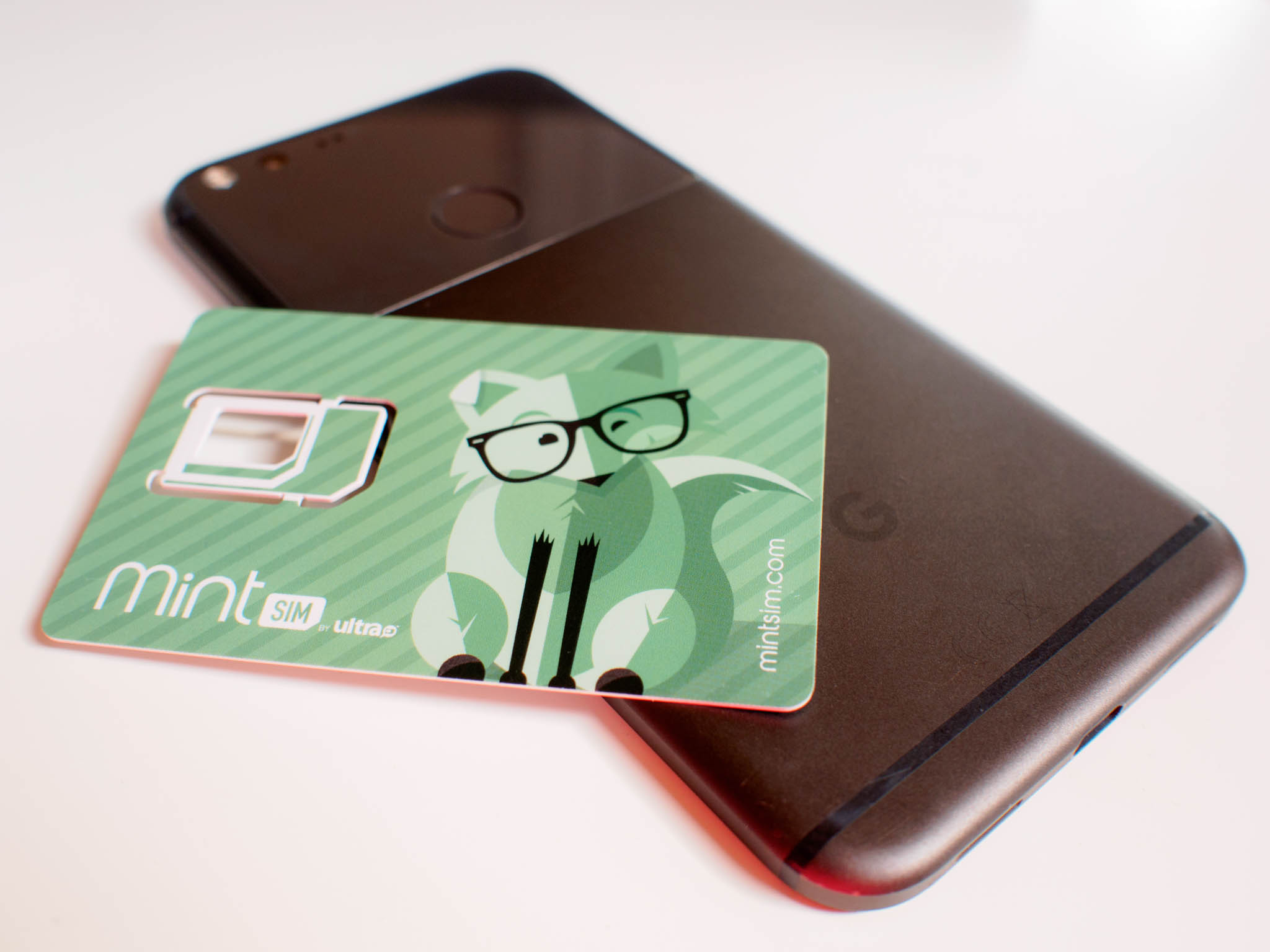
- Mint SIM vs. Cricket Wireless: Which is better for you?

Woot drops the price of a refurbished Google Pixel to as low as $355
The Google Pixel 2 is likely right around the corner, which means now may not appear to be the best time to buy the original Google Pixel, right? Well, it is still a good time to buy, but probably not a brand new one. Whether you are unimpressed by the leaked images and specs of the upcoming Pixel, or just want to have an extra original one for a backup, you won’t want to miss this one-day deal.
Woot currently has refurbished unlocked versions of the Verizon variant for as little as $349.99 (plus a mandatory $5 shipping fee). You can pick between black and silver in both 32GB and 128GB, though we expect that will change as the day progresses. The Pixel is either $349.99 or $399.99, depending on whether you want 32GB or 128GB. The Pixel XL starts at $399.99 for 32GB and goes up to $449.99 for the 128GB.

There is a limit of 3 per customer, and this deal is only available today (if it even lasts that long!). If there is a Pixel configuration that you’ve been eyeing, you’ll want to snatch it up as quickly as you can, or else someone may do it before you.
See at Woot
More from Thrifter
- Use Sugru for cost-effective and easy DIY fixes around the house
- Tips for leveraging Uber as a side-gig
For more great deals be sure to check out our friends at Thrifter now!
The Best Games to Showcase the PSVR

How do you get people hooked on PSVR? With these games, that’s how.
Whenever someone new comes to the home of a VR user there are always the standard questions. What’s it like? Does it hurt? Are aliens secretly collecting the data from your brain through this strange face wrap? Those kinds of things. Once you have settled them all them the inevitable must happen, they want to try it and you want them to try it. Like any enthusiast we want our friends and family to love what we love so we have to try and put our best foot forward.
That is what this article is about; what games do the team here at VRHeads use to make people fall in love with the PSVR? We will take you through what game we chose and why we like it.
Read more at VRHeads
Google matching Apple by lowering prices for some UHD movies to $19.99
Certain UHD titles on Google Play Movies & TV are being lowered from $29.99 down to HD prices of $19.99.
Alongside the announcement of the Apple TV 4K, Apple revealed that it would be upgrading its customers’ HD digital movie purchases from iTunes to UHD quality at no additional cost. This is something that’s been missing from Google Play Movies & TV for quite some time, but it looks like that’s starting to change.
You’ve been able to be purchase UHD movies on Google Play for a while now, but they’ve always featured a considerably higher cost of $29.99 compared to the $19.99 price for most HD titles. However, if you take a quick look through Google Play Movies & TV’s current catalog of feature films, you’ll see that some changes are being made.

Spider-Man: Homecoming is one of the first titles to pop up when opening the Google Play Movies app, and when tapping on it to view the available purchase options, you’ll see that you only have two available — The SD version for $14.99 and the UHD variant for $19.99. In another example, the amazing Baby Driver can be purchased in HD for $14.99 and UHD for $19.99.
This is undoubtedly a big step in the right direction, but these changes aren’t appearing all across the board. Titles like Wonder Woman and Transformers: The Last Knight still cost $29.99 for their UHD versions, and from what we can tell, there doesn’t seem to be any rhyme or reason for the changes that have been made so far — though it could come down to a per-studio deal.
Cheaper UHD titles are something you won’t ever hear me complaining about, but this is only half of the battle for Google. For folks that have already built up extensive digital libraries, having that content upgraded to the highest available quality possible is still essential — especially if people can now purchase those same titles at the same price but in a higher resolution.
The state of 4K content across Google
 AIVAnet