


Playboy’s 1985 Interview With Steve Jobs is Well Worth a Read
Following yesterday’s news of the death of Playboy founder Hugh Hefner, Cult of Mac chose to highlight the magazine’s 1985 Steve Jobs interview, which still remains one of the most insightful reads about the early life and influences of the late Apple co-founder.
The year he was forced out of Apple and started NeXT Computer, Jobs sat down with the magazine to share his enthusiasm for computers, his hopes for the future, and the early days of the internet. The interview was conducted by David Sheff. Some choice quotes appear below, but you can read the full interview here.
Quite apart from its centerfolds, Playboy magazine built an enviable literary legacy and earned a reputation for serious journalism in its 60-plus years, carrying interviews with such notable figures as Martin Luther King Jr, Stanley Kubrick, Bette Davis, and Miles Davis.
Steve Jobs on losing $250,000,000 in one year on the stock market:
I’m not going to let it ruin my life. Isn’t it kind of funny? You know, my main reaction to this money thing is that it’s humorous, all the attention to it, because it’s hardly the most insightful or valuable thing that’s happened to me in the past ten years. But it makes me feel old, sometimes, when I speak at a campus and I find that what students are most in awe of is the fact that I’m a millionaire.
When I went to school, it was right after the Sixties and before this general wave of practical purposefulness had set in. Now students aren’t even thinking in idealistic terms, or at least nowhere near as much. They certainly are not letting any of the philosophical issues of the day take up too much of their time as they study their business majors. The idealistic wind of the Sixties was still at our backs, though, and most of the people I know who are my age have that engrained in them forever.
On his relationship with Steve Wozniak in 70s California:
I think Woz was in a world that nobody understood. No one shared his interests, and he was a little ahead of his time. It was very lonely for him. He’s driven from inner sights rather than external expectations of him, so he survived OK. Woz and I are different in most ways, but there are some ways in which we’re the same, and we’re very close in those ways. We’re sort of like two planets in their own orbits that every so often intersect. It wasn’t just computers, either. Woz and I very much liked Bob Dylan’s poetry, and we spent a lot of time thinking about a lot of that stuff. This was California. You could get LSD fresh made from Stanford. You could sleep on the beach at night with your girlfriend. California has a sense of experimentation and a sense of openness—openness to new possibilities.
On the problem of new technologies overtaking the old:
That’s inevitably what happens. That’s why I think death is the most wonderful invention of life. It purges the system of these old models that are obsolete. I think that’s one of Apple’s challenges, really. When two young people walk in with the next thing, are we going to embrace it and say this is fantastic? Are we going to be willing to drop our models, or are we going to explain it away? I think we’ll do better, because we’re completely aware of it and we make it a priority.
On why people will buy computers in the future:
The most compelling reason for most people to buy a computer for the home will be to link it into a nationwide communications network. We’re just in the beginning stages of what will be a truly remarkable breakthrough for most people — as remarkable as the telephone.
Tag: Steve Jobs
Discuss this article in our forums
NASA pushes James Webb Space Telescope launch to Spring 2019
If you’re counting down the days until NASA’s Hubble replacement takes off, you’ll have to count a bit longer. The James Webb Space Telescope was due to launch around a year from now. But, there seems to be (another) holdup. The aeronautics agency is blaming the delay on the remaining integration of spacecraft parts taking “longer than expected.” As a result, the launch date is now being pushed to Spring 2019, specifically between March and June of that year. NASA assures that the rescheduled lift off is not due to any “hardware or technical performance concerns.”
You see, the Webb’s spacecraft is larger and more complex than other vehicles of its ilk. And, specific installations (like the addition of 100 sunshield membrane release devices), and the resulting tests each part requires, is a time-consuming process. NASA says it’s coordinated the new launch window with its partner the European Space Agency, which is providing the Ariane 5 rocket that will blast the device into space. If everything goes according to plan, it will take off from French Guiana in 2019.
The James Webb Space Telescope is touted as the most powerful telescope of its kind, and the next great multi-purpose observatory. The infrared-optimized device — which measures 21 foot (6.5-meters) in diameter — will study both exoplanets (like the Trappist-1 system) and objects within our solar system.
NASA has been conducting tests on the $8.7 billion telescope at the Goddard Space Flight Center in Greenbelt, Maryland, and the Johnson Space Center in Houston, Texas. As we’ve noted in the past, these checkups are critical to ensure that nothing goes wrong post-launch, when the telescope will be positioned almost a million miles from Earth. With so much riding on the success of the device, NASA is naturally erring on the side of caution before letting it leap into the unknown.
Source: NASA
Google opens up ‘Family Link’ parental controls for Android
Earlier this year Google rolled out Family Link controls for parents to manage children’s usage of Android devices but it required an invitation for access. Now the Family Link app is available throughout the US without an invitation, with three basic groups of controls ready for use.
Manage the apps your kid can use: Approve or block the apps your kid wants to download from the Google Play Store.
Keep an eye on screen time: See how much time your kid spends on their favorite apps with weekly or monthly activity reports, and set daily screen time limits for their device.
Set device bedtime: Remotely lock your kid’s device when it’s time to play, study, or sleep.
Controlling things with the Family Link app is fairly easy, and possible from any modern Android device running 4.4 or higher, or on iOS as long as you have version 9 or higher. The list of hardware for kids that can be controlled is a bit more limited, however, it will work on anything running Android 7.0 (Nougat) or higher, as well as a short list of hardware on 6.0 (Marshmallow). When you set up a kid’s device and indicate that they are under the age of 13 (there is a 30 cent charge which Google says is there to prove an adult has given their consent), Family Link will automatically be installed and walk you through the setup process.
Source: Family Link, Google Blog
How to Mount Your Flat Screen TV
 Now that flat screen televisions are becoming more and more popular, there are many new TV owners looking to learn how to mount it on the wall. As flat screens have been getting slimmer and gaining in popularity, big entertainment centres that take up so much room in your living room are declining in popularity. By mounting your TV to the wall, you save space and can give your living room a sleeker, more open look. If you mount your flat screen to the wall in your bedroom, it also leaves more room and less clutter. Here at Selby Acoustics, we are here to help guide you when you want to mount your flat screen television on the wall.
Tips for Wall Mounting your TV
Mounting your flat screen TV on the wall is something that you can take on as a DIY project. However, it is important to follow these 5 tips for wall mounting your flat screen TV. Please remember that your screen is expensive (likely heavy) and requires a strong, solid support. If you unsure about mounting it at any time during the process, we recommend that you hire a pro to hang it for you. They do this every day, so will be quick and accurate, saving you lots of time and stress.
- Read the Instructions: The instructions that come with your wall mount are there for a reason. You might ignore the instructions for some, smaller tasks like a child’s toy, but when it comes to supporting one of the most expensive pieces of technology in your home, do your due diligence, and read the instructions; twice if possible. If you don’t read the instructions, you may not get the most out of your mount; but even worse, you might miss an important step or aspect of the mount and it could fall during or after the process.
- Do Not Try to Mount the TV By Yourself: Even if your flat screen TV is not heavy, you will still need a second set of hands to help you mount it. You will need someone to help you position the mount, drill the brackets in, and hold up the television level while you mount it and position it correctly.
- Always Know What Is In Your Wall: What’s behind your wall? This is important to find out before you decide where you are placing the television mount. Is there plasterboard is timber, bricks or steel framework? This will not only affect your choice of wall fastener but also the placement of the screen. If it is timber or steel frame you will need a stud finder to work out where it is going to hang. You will also need to sort out if there are any hidden power cables in the area you are planning to mount so you can be sure to miss them as well. The results could be disastrous if you drill into live cables.
- Always Use a Spirit Level: This is where things can go very wrong for this DIY project. You must use a level because it is almost impossible to get the television screen level without one. Although it sounds very obvious, it happens a lot more than you would think. If you skip this step, you will regret it every time you watch your beautiful, crooked flat screen TV.
- Do Not Hang the TV too High: A common mistake is to centre the television on the big empty wall you are putting it on. This is a common mistake because the TV screen should be positioned lower on the wall so that when you are sitting down to watch, the eyes of the characters are level with yours. Luckily most directors go with a rule of thirds, so this can make it easier for you to figure out. If you were to divide your screen horizontally into three, the top line of the two should be at your eye height when sitting in your viewing position. A few centimetres each way won’t make a big difference, but don’t be tempted to raise it when you are mounting it. It may feel low when you are standing up looking at it, but once you have settled back in your comfy chair it will be perfect.
Choosing the Type of Mount You Want
Once you have gone through our 5 tips and checked everything off of the list, then you should choose the type of TV brackets you will need. There are four different types to choose from:
- Fixed or Slim

This is a low-profile, fixed bracket which essentially mounts your TV like a photo frame. There is usually no movement, but some models do allow for a small 5-degree forwards tilt.
- Tilting

These brackets allow a forwards tilt of up to 15 degrees, which is ideal if you need to adjust the face of the screen to compensate for glare from a window or light source. The ability to tilt your television can also be helpful when watching TV in bed or sitting on the couch, or if you choose to mount your screen higher on the wall. Many tilting brackets also tilt upwards, which can make it a lot easier to plug in cables.
- Full Motion

These brackets have an arm or arms, allowing you to extend the bracket away from the wall and swivel it left/right. This is handy for pointing the screen towards your viewing position. Most full motion brackets also include the option of forwards tilt.
- Corner Brackets

The perfect option if you want to mount your TV in a corner, which is a popular choice for people who don’t have wall space available due to a doorway, window, fireplace or other obstacle. These brackets typically come with a longer single arm, which is designed to be positioned in the corner of the room. A corner bracket should not be pulled in and out frequently, but rather the arm is used to get the perfect viewing position for your screen and then left in that position.
Anker’s Nebula Capsule is a $349 portable projector that runs Android
Anker’s latest gadget, the Nebula Capsule, is a portable projector that runs Android, supports Chromecast, can stream 4K video, and costs $349.
For most of us, we know Android as the operating system that powers our smartphones, tablets, and possibly watches and TVs. It’s not uncommon for the OS to be injected into other types of gadgets and gizmos to create for some truly neat tech, and the latest product to do just this is the Nebula Capsule.
The Capsule comes from Anker’s Nebula subbrand, and it’s being advertised as “the world’s most advanced pocket cinema.” The little gadget gets the pocket part right by having nearly the same size as a 12-ounce can of soda, but while its dimensions may be small, there’s a lot of tech packed into this guy.

First and foremost, the front of the Capsule is where you’ll find its projector camera. Nebula is using Digital Light Processing (DLP) technology and a special IntelliBright algorithm that should help for producing the highest quality picture that’s viewable even with the lights on. By default, you’ll get a picture of 654 x 480, but you’ll be able to get resolutions up to Full HD and 4K (with a screen size up to 100-inches wide).
Nebula also says that the Capsule is the “world’s first projector” that kicks out 360-degree surround sound. Over 9,000 holes throughout the Capsule’s aluminum grill should allow for a solid audio experience, and when you don’t have time to watch a movie, you can connect your phone or other device to the Capsule via Bluetooth 4.0 and cast your tunes to it.
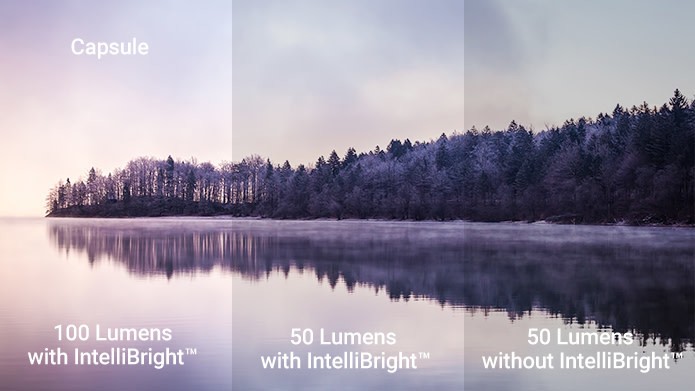
Nebula’s Capsule runs Android 7.0 Nougat out of the box with a custom software interface that makes finding your content as easy as possible. A quad-core A7 processor should offer more than enough power for all of your media consumption, and if you blow through the estimated 2.5-hours of battery life for continued video playback, it’ll come as good news that the Capsule supports Qualcomm QuickCharge 2.0 for a 100% recharge in just 2.5-hours as well. Add this together with Google Chromecast support, dual-band Wi-Fi, and 8GB of built-in storage, and you’re looking at a fully-featured product.
You can back the Nebula Capsule on Indiegogo right now for as low as $249 for an early bird price, but when the device officially launches in December, it’ll go up to $349.
See at Indiegogo
SpaceX aims to land two ‘BFR’ cargo missions on Mars by 2022
SpaceX hopes to land at least two cargo missions to Mars a mere five years from now. The aerospace company’s chief, Elon Musk, has discussed its plans at the International Astronautical Congress (IAC) in Australia. He talked about how SpaceX intends to use the BFR, the massive rocket it’s developing, to fly Martian settlers to their new home and to take people anywhere on Earth in under an hour. In addition to landing two cargo missions on the red planet by 2022, it hopes to be able to confirm sources of water and potential hazards by that time. SpaceX also plans to start building mining, power and life support infrastructure that year to prepare for the first settlers that could arrive as soon as 2024.
Musk said SpaceX aims to take the first settlers aboard two crewed flights to the red planet by 2024. Their supplies will be loaded onto two separate cargo flights also slated to land within that year. The first wave of settlers will have to set up the base to prepare for future waves who will work on expanding it further and terraforming their new home. These are, however, very ambitious goals — we could probably expect delays as SpaceX develops the technologies needed to make them happen.
Supporting the creation of a permanent, self-sustaining human presence on Mars. https://t.co/kCtBLPbSg8 pic.twitter.com/ra6hKsrOcG
— SpaceX (@SpaceX) September 29, 2017
First opportunity to land BFR with cargo on Mars is 2022, followed by BFR crew and cargo missions to Mars in 2024. https://t.co/kCtBLPbSg8
— SpaceX (@SpaceX) September 29, 2017
Source: SpaceX
FDA OKs a blood sugar monitor that doesn’t need fingerpricks
A fingerprick isn’t just a fingerprick when you have to do it all the time to test your blood sugar levels. Thankfully, the Food and Drug Administration has approved the first continuous glucose monitoring system for adults that doesn’t require you to draw blood several times a day. Abbott’s FreeStyle Libre Flash Glucose Monitoring System works by inserting a tiny sensor wire below the surface of your skin. The wire needs 12 hours to start up, but once it’s ready, you can simply pass a mobile reader over it to read your glucose levels. It even works for 10 days before you have to replace it.
FDA’s Donald St. Pierre explained that the agency has always been welcome to new technologies that can help people manage chronic conditions. “This system,” he said, “allows people with diabetes to avoid the additional step of fingerstick calibration, which can sometimes be painful, but still provides necessary information for treating their diabetes — with a wave of the mobile reader.”

Abbott already has a similar system available called the FreeStyle Libre Pro, but you need a doctor’s help to use it and to activate the sensor wire under your skin. You don’t need a doctor’s help to determine if your sugar levels are too low, too high or just right with the Flash, but you have to be 18 and older to be able to get it.
Source: FDA, Abbott Freestyle Libre
Elon Musk proposes using SpaceX’s ‘BFR’ to travel around Earth
A rocket built for traveling throughout our solar system could revolutionize travel on Earth, according to Elon Musk. Using a “BFR” flying at a max speed of 18,000 mph, he says we could fly anywhere on Earth in under an hour. Musk revealed the plan during tonight’s speech at the 68th International Astronautical Congress 2017 in Adelaide, Australia, where he also showed SpaceX’s plans for lunar and Mars missions.
Developing…

Source: SpaceX (YouTube)
Asus ZenBook Flip S review
Research Center:
Asus ZenBook Flip S UX370UA-XB74T-BL
The Windows 10 2-in-1 arena has exploded over the last few years, with a host of different form factors that can morph from a traditional notebook into touch- and pen-based tablets. The 360-degree convertible is a popular a category that’s expanded to include everything from 17-inch behemoths to incredibly thin and light machines with 13-inch displays, and smaller. In our Asus ZenBook Flip S review, we look at one of the newest, and most extreme, examples of the latter design.
According to Asus, the ZenBook Flip S is “the world’s slimmest convertible laptop,” and the machine is certainly slim at 0.43 inches thin. It’s also equipped with a powerful seventh generation Intel Core i7-7500U, meaning that — in theory at least — you’re not compromising function for form.
You’re also not being asked to pay too much. The ZenBook Flip S is a reasonable $1,400 with 16GB of RAM and a 512GB solid-state drive (SSD). That price includes an active pen, a USB Type-C hub, and a slip case. We reviewed the Microsoft Signature Edition version available only at the Microsoft Store, so it didn’t include all Asus software utilities. If you can live with the matte gray color scheme and don’t need the active pen, then you can get the same basic configuration for $1,200 at Best Buy, with all of the Asus utilities pre-installed.
Mark Coppock/Digital Trends
Mark Coppock/Digital Trends
Mark Coppock/Digital Trends
Mark Coppock/Digital Trends
All this looks promising, but it raises one fundamental question — what are you compromising to smash all that power into a thin device?
Luxurious, rock solid, and hot
The ZenBook Spin S is a stunning machine, just like the smaller ZenBook 3 and the larger ZenBook 3 Deluxe. Our review unit was adorned with a royal blue and gold color scheme, and we liked it — a lot. It’s easy to fabricate shiny parts and bold colors and end up creating something garish, but that’s a faux-pas that Asus masterfully avoided.
The ZenBook Flip S has great performance — but keep it away from bare skin when it’s working hard.
The laptop’s colors blend together at just the right angles, curves, and diamond-cut edges to create a machine that’s subtle yet striking. Asus’ trademark concentric ring effect on the lid firmly places the machine in the ZenBook family. It’s a premium and attractive look, and according to Asus, is also expensive to create.
Build quality is also a highlight. The ZenBook Spin S is light, but still manages to feel balanced whether the lid is open or closed.
At 2.43 pounds and 0.43 inches thin, it’s around half a pound heavier than the ZenBook 3, but it’s also a bit thinner – even though it’s a 360-degree convertible that can fold into four configurations including notebook, tablet, tent, and multimedia modes. The machine’s size is reduced by slim display bezels, yet Asus managed to put the webcam in the preferred location above the display.
Asus built the 2-in-1 with aircraft-grade aluminum alloy that’s 50 percent stronger than what the company typically uses, and it shows. The ZenBook Flip S feels like one solid chunk of metal.
The hinge — which Asus calls the world’s smallest — stays right where you want it, as well, and it spins around into tablet mode with confidence. Attention to detail is apparent throughout, with a nice cutout that makes it easy to grab the hinge and lift. When it’s opened beyond 135 degrees, the edge of the lid props up the keyboard at a slight angle, for more comfortable typing.
Asus ZenBook Flip S UX370UA-XB74T-BL Compared To
Asus Zenbook 3 Deluxe…
Huawei Matebook X WT-W09
Toshiba Portege Z30-C1310
Razer Blade Stealth
Toshiba Portege Z20t
LG Ultra PC 14Z950
HP Spectre 13t
Samsung ATIV Book 7
Acer Aspire M5 Touch
HP Envy 4
Acer Aspire Timeline Ultra M5
Acer Aspire S5
Lenovo IdeaPad U310
HP Folio 13
Asus Zenbook UX31
However, while Asus engineers are good, they’re not magicians. Physics matters, and if you pack a full-power Core i7 processor into such a tight space, you’re going to pay a price in thermal management, and even a modern cooling system can only go so far. The chassis gets hot on the bottom left side where the CPU is located, and when the machine is working hard, you won’t want to hold it on your lap.
Limited but futuristic connectivity
When a notebook is this thin, there’s not a lot of room for ports. Some smaller machines, like Apple’s MacBook and Asus’s own ZenBook 3, include a single USB 3.1 Type-C port. That means that not only do you need a dongle for legacy devices, but you need one just to connect a second peripheral. Asus includes two USB 3.1 Type-C ports to go with a 3.5mm headset jack in the ZenBook Flip S, which is an improvement, but still represents limited connectivity.
Mark Coppock/Digital Trends
Note that either port can be used for charging the machine with the included USB Type-C charger — and in our testing, by some third-party chargers, as well.
Asus mitigates the pain a bit by including a USB Type-C mini dock with a third USB 3.1 Type-C port, an HDMI connection, and a USB 3.0 Type-A port. It’s color coordinated as well, and so it looks good when plugged into the ZenBook Flip S, and the included slip cover includes a handy pocket for when you need to carry the dock around with you. Built-in ports are always better, but kudos to Asus for including a couple of nice accessories.
The usual 2-in-1 input options with a few tiny flaws
It’s inevitable that a thin 2-in-1’s keyboard will be at least somewhat compromised compared to thicker notebooks with significantly more room. Surprisingly, though, the keys aren’t as shallow as, say, those on the MacBook’s keyboard, which feels like you’re typing on a piece of wood. Asus has engineered a crisp, precise, and satisfying action into a keyboard without a lot of space.
The ZenBook Flip S has one of the best keyboards we’ve seen on a thin and light machine.
The ZenBook Flip S keyboard benefits from a backlight with three useful brightness levels, and a pleasant gold color that consistently illuminates without being blindingly bright. Overall, it’s not the best keyboard we’ve ever used, but it’s nevertheless one of the best we’ve used in such a thin machine.
The touchpad is good — mostly. It’s large, smooth, and provides full support for Microsoft Precision multitouch gestures. The one weakness is that the integrated buttons register clicks in too small an area. We found ourselves consistently needing to look at the buttons to make sure we were pressing in just the right place. If you only use taps for left and right clicks, then you’ll be perfectly happy with the ZenBook Flip S’s touchpad.
Next, there’s a 10-point touch display that’s precise and responsive. However, the display feels like it has a coating that makes it a little sticky, and slows down swiping the tiniest bit. At the same time, the display feels great when using the included active pen with 1,024 levels of pressure sensitivity.
Windows 10 Hello password-less login support is provided by a fingerprint reader located on the right side toward the front. We found it accurate and reliable.
The 1080p display is merely average
Asus currently offers only a Full HD (1,920 x 1,080) display for the ZenBook Flip S in North America, which is just fine given its 13.3-inch dimensions. The company lists a 4K UHD option on its web site, but that hasn’t made its way to stores yet.
Our testing found the display was just average in most tests. Its color gamut was 70 percent of AdobeRGB and 94 percent of sRGB, which is less than its Dell XPS 13 2-in-1, but slightly better than the similarly thin and light Acer Spin 7. Color accuracy, on the other hand, was a bit worse than we like to see at 2.82 (1.0 or less is considered excellent), though right in line with our comparison machines.
Brightness was on the low side at 285 nits – over 300 nits is usually preferred to overcome bright lighting on glossy displays like the one on the ZenBook Flip S.
The machine’s 2-in-1 competition had similar results, however, such as the Dell XPS 13 2-in-1 at 251 nits, and the Lenovo Yoga 720 13 at 291 nits. The contrast ratio was on the low side as well at 720:1, while the QHD+ display on the XPS 13 2-in-1 was excellent at 1120:1.
Although these objective results are underwhelming, the display was nevertheless a pleasure to use. Its contrast might be a bit low according to our colorimeter, but it’s nonetheless sufficient for comfortably working with black text on a white background.
In general, the ZenBook Flip S provided a vibrant productivity and video-watching experience (although gamma was a little dark at 2.4, meaning darker scenes in videos were a little harder to see). Like many “average” displays today, this one may not be the best for professionals who need super accurate colors, but it’s very good for everyone else.
Just good enough audio quality
Asus partners with Harman Kardon on the ZenBook Flip S’s audio system, and touts larger speakers with a more dynamic design. There’s also the IcePower AudioWizard app, to adjust sound for the use case (music, video recording, game, and speech) and push volume to the max. In our testing, we found audio to be good enough for watching the occasional video and for casual music listening, but volume was limited and distorted at 100 percent. Bass was nowhere to be found.
The powerful processor makes its presence known
Asus took an aggressive approach to performance with the ZenBook Flip S. Rather than opting for a more conservative chip, Asus has packed in a powerful seven generation Intel Core processor, the Core i7-7500U. It outran many other 2-in-1 devices, but not all of them.
While the ZenBook Flip S performs better than the low-power CPUs in machines like the Dell XPS 13 2-in-1 — another incredibly thin machine, just like the ZenBook – there’s some apparent throttling going on compared to other slightly thicker machines with the same Core i7-7500U. And, as we noted earlier, the chassis can become hot at full load.
The Geekbench 4 results demonstrate that, at least in short-run performance tests, the ZenBook Flip S benefits greatly from its full-power CPU. It scored 4,142 in the single-core test and 8,158 in the multi-core test. That’s very competitive with other machines using the same CPU, and significantly faster than most competitors, including the thicker HP Spectre x360. The Dell XPS 13 2-in-1, with its low-powered CPU, scored a much lower 3,837 in the single-core test, and 6,401 in the multi-core test.
Asus managed to squeeze better performance out, but at the cost of using the notebook on a lap.
Our more intensive Handbrake test, which encodes a 420GB video to H.265, tends to push the CPU harder for a longer period, meaning that heat and throttling are more likely to be factors. And in fact, the ZenBook Flip S took 1,477 seconds to complete the test. That’s slow compared to the HP Spectre x360, which finished in 1,095 seconds, yet had the same processor. The Dell XPS 13 2-in-1 and Acer Spin 7, however, both took longer at 2,027 and 1,751 seconds, respectively.
One way to interpret these results is that Asus managed to squeeze better performance out of the ZenBook Flip S’s very thin chassis than if it had opted for low-power CPUs, but at the cost of being unable to use the notebook on a lap. We didn’t find heat to be an issue during regular use, such as web browsing, email, and general productivity tasks. In the end, we think the decision to use a fast, full-fat Core i7 was the right call.
Supply snafus limit storage to SATA SSDs
Asus hoped to equip the ZenBook Flip S with PCIe solid-state drives (SSDs). However, Asus informed us that last-minute supply issues limited it to using slower SATA SSDs. For now, all North American units will be so equipped, although at some point faster SSDs might make their way into the pipeline.
As usual, the use of SATA instead of PCIe resulted in good but not great storage performance. The ZenBook Flip’s Sandisk X400 512GB SATA SSD scored 459 megabits per second (Mb/s) in the CrystalDiskMark read test, and 411 Mb/s in the write test. That compares to the much faster scores achieved by the modern Samsung PM961 PCIe SSD in the Lenovo Yoga 720, for example, at 2,060 Mb/s read and 1,209 MB/s write.
Given that the ZenBook Flip S is likely to be used for mainstream productivity tasks, web surfing, email, and the like, this kind of storage performance isn’t likely to matter. If you want to work with large files, then you might slightly miss a faster SSD, but overall performance should still be more than acceptable. In our subjective use, the ZenBook Flip S booted quickly, opened apps and files without delay, and we didn’t notice any storage-related slowdowns.
Gaming? Are you kidding?
Thin and light 2-in-1s like the ZenBook Flip S don’t even pretend to be gaming machines. Fitting a real GPU into such a tiny chassis would likely result in a meltdown, so you’re guaranteed to find nothing better than integrated Intel HD graphics.
It’s no surprise that the ZenBook Flip S didn’t blow us away in our gaming benchmarks. In the Fire Strike test, the Asus scored 997, which is competitive with other 2-in-1s, but still a score that means you’re best off running older games at lower settings.
For kicks, we also ran a couple of quick Civilization VI benchmarks, and the results were entirely predictable. At 1080p and medium detail, the ZenBook Flip S only managed 12 frames per second (FPS). Cranking things up to ultra detail dropped performance all the way down to 6 FPS. That’s unplayable at either detail setting.
Go ahead and waste a few minutes with Candy Crush if you want, but don’t expect to play anything that’s graphically demanding.
Easy to carry, but the battery could last longer
Asus couldn’t jam a ton of battery capacity into the ZenBook Flip S given its dimensions, so there’s only 39 watt-hours worth of juice to keep you working away from a plug. Given the relatively high-end components, that doesn’t bode well for battery life. As it turns out, though, Asus does manage to achieve respectable life relative to its small battery capacity.
Our most aggressive Basemark test, which runs a machine through a series of intensive CPU and GPU web operations, was hard on the ZenBook Flip S. It scored right around two and a half hours, which isn’t impressive, but it’s similar to competitors like the Lenovo ThinkPad X1 Tablet. Given that the Asus uses a full-power CPU, that’s not a bad result.
The video loop test was more forgiving, helping the Asus last around nine and a half hours, which is right in line with its primary 2-in-1 competition. The XPS 13 2-in-1 managed about an hour longer, but otherwise, the ZenBook Flip S was quite competitive.
We saw the same results in a test that runs a machine through a loop of popular web sites, where the Asus lasted for just over six hours. That’s a solid score right in line with most 2-in-1s, although the XPS 13 2-in-1 again performed better at over seven and a half hours.
Mark Coppock/Digital Trends
Mark Coppock/Digital Trends
Mark Coppock/Digital Trends
Overall, we found battery life to be good enough for long sessions of productivity, but depending on your workload, you might not be able to work through a full day without hitting the charger. Fortunately, Asus incorporated its fast charge technology into the ZenBook Flip S, which means it charges from zero to 60 percent in 49 minutes. It doesn’t take long to get a bit of a charge to keep you working in a pinch.
In terms of sheer portability, consider this — the ZenBook Spin S is within spitting distance of the 12.9-inch iPad Pro’s dimensions, at least in terms of width and height. It’s thicker, naturally, but still incredibly thin for a full-on Windows 10 2-in-1 at 0.43 inches. That means that it’s easy to toss into a bag and carry around. In fact, you might forget you’re carrying it, because its 2.43 pounds won’t weight you down.
Software
The Microsoft Signature Edition version of the ZenBook Flip S has no extraneous software installed. If you pick up the Best Buy version, you’ll see Asus’s utilities such as IcePower AudioWizard for adjusting audio, and Splendid Technology for adjusting the display. Otherwise, it’s relatively free of bloatware.
Warranty info
Asus includes the usual one-year warrant on parts and labor, but adds in a year of accidental damage protection. That’s some real extra value and helps ensure your investment is secure.
Our Take
The Asus ZenBook Flip S is an incredibly well-built and attractive 360-degree convertible 2-in-1 that’s a real pleasure to use. It’s easy to carry around, it provides solid performance, and it exudes quality and elegance. Given its tiny dimensions and weight, it’s one of those rare convertibles that are truly comfortable using in tablet mode with a pen for drawing and taking notes. It’s one main flaw is that it gets hot when you push the CPU, and that limits when you can comfortably use it in your lap.
Is there a better alternative?
There are a slew of similarly useful 2-in-1s in the Windows PC ecosystem, and a few that are equally as thin and light as the ZenBook Flip S. Most of those use low-power CPUs and aren’t as quick, while stepping up to slightly thicker machines can increase performance and battery life.
The clearest competitor is the Dell XPS 13 2-in-1, which is slightly thicker at up to 0.54 inches, and weighs just a little bit more at 2.7 pounds. At $1,600 with the same 16GB of RAM and 512GB SSD, and when equipped with the optional active pen, the Dell is more expensive. The Dell lasts a little longer on a charge, but the ZenBook Flip S is the better performer, and packs in some extra value with its included slip cover and USB Type-C mini dock.
The Acer Spin 7 is another thin and light 2-in-1 that offers a slightly larger display at 14 inches. That’s a dubious choice with a Full HD display, because it’s not so much larger that its in another class in terms of display size but it’s slightly less sharp. There’s no directly comparable model currently available, but you’ll spend $1,250 for 8GB of RAM and a 256GB SSD. The ZenBook Flip S is clearly a superior option given its superior specifications, performance, battery life, and build quality – not to mention its lower Best Buy price of $1,200.
Meanwhile, if you’re not fully invested in the idea of a severely thin-and-light 2-in-1, then you could always step up to a machine that’s a little bit thicker. That would help avoid thermal management issues and allow for a much larger battery and so more time away from a charge. The HP Spectre x360 is a great alternative in this regard, and it’s similarly priced at $1,350 for 16GB of RAM and a 512GB PCIe SSD.
How long will it last?
The ZenBook Flip S is equipped with two USB Type-C ports and includes a handy USB Type-C mini dock, meaning that you’re covered with connectivity if you’re willing to carry around an extra part. It uses relatively recent components and has a modern look and feel. It’s a machine that should last you more than a few years of useful productivity performance.
Should you buy it?
Yes. In fact, you should give it a look even if you’ve never been interested in a thin and light 360-degree convertible 2-in-1. You won’t find many that are better built and manage to squeeze so much into so tiny a frame. Just don’t use it your lap if you’re going to push the CPU.
Drone flights banned at major U.S. landmarks from October
Why it matters to you
The FAA’s new rules are a reminder for drone pilots to always check ahead to ensure the airspace is clear and unrestricted.
Nailing awesome drone shots of your favorite U.S. landmarks is set to become more difficult as new flight bans come into effect soon at several locations across the country.
On Thursday, September 28, The Federal Aviation Administration (FAA) announced new regulations banning drone flights within 400 feet of a number of famous tourist sites, among them the Statue of Liberty, Mount Rushmore, and the Hoover Dam.
The FAA said it was introducing the new restrictions “at the request of U.S. national security and law enforcement agencies.” The regulations will come into force on October 5, 2017.
Here’s the full list of sites:
• Statue of Liberty National Monument; New York
• Boston National Historical Park (U.S.S. Constitution); Boston
• Independence National Historical Park; Philadelphia
• Folsom Dam; Folsom, California
• Glen Canyon Dam; Lake Powell, Arizona
• Grand Coulee Dam; Grand Coulee, Washington
• Hoover Dam; Boulder City, Nevada
• Jefferson National Expansion Memorial; St. Louis, Missouri
• Mount Rushmore National Memorial; Keystone, South Dakota
• Shasta Dam; Shasta Lake, California
“Operators who violate the airspace restrictions may be subject to enforcement action, including potential civil penalties and criminal charges,” the FAA said in a statement on its website.
The agency added that information on the new measures will be included in its free B4UFly app (iOS and Android), which offers drone pilots tips on safe flying, as well as information on restrictions and requirements relating to drone flights in the specific area they want to operate.
The FAA noted that the new regulations mark the first time that it has taken such measures over Department of the Interior landmarks, though it’s true to say that some of these locations are already included in a ban on drone flights in national parks that was introduced by the National Park Service in 2014.
Other out-of-bounds sites for drone pilots include airports, government buildings, prisons, and sports stadiums.
Best not to fly your drone near army bases, too. In August, the Pentagon greenlit a policy that allows the U.S. military to blow your bird out of the sky if it spots it flying close to one of 133 military installations across the country. You could also be hit with jail time for your efforts.
And be sure to keep your flying machine well away from wildfires, as it could make flying conditions hazardous for manned aircraft tackling the blaze.
For more information on drone flight restrictions in the U.S., take a moment to check out the FAA’s webpage on the subject or explore the aforementioned B4UFly app.
 AIVAnet