


Myst-Like Puzzle Game ‘The Witness’ Now Available From the App Store
Popular PC and console game The Witness finally made its way to the iPhone and iPad tonight with the official release of the iOS version of the game. If you’re not familiar with The Witness, it’s a 3D Myst-like puzzle adventure game designed by Jonathan Blow, the developer behind popular game Braid.
In The Witness, players take on the role of a mystery person who wakes up alone on an island full of puzzles that need to be solved. The idea is to explore the island (which is open world), finish puzzles, and discover your identity.
There are more than 500 puzzles to solve and dozens of locations to explore on the island. The game, which took seven years to complete, has been well-received on other platforms both for the gameplay balance and art style.

Our sister site TouchArcade has been eagerly awaiting the launch of The Witness since 2011, when we heard the first hints that the game might eventually be released on iOS devices. TouchArcade has followed its progress since then, and shared the news of its launch tonight.
The Witness is priced at $9.99 in the App Store, which is cheaper than the price from Steam or on consoles. In the Mac App Store, for example, it costs $39.99. The Witness is available now on iPad, iPhone, and iPod touch. [Direct Link]
Tag: App Store
Discuss this article in our forums
Do it yourself: How to buy and install a garbage disposal in your home
Many American homes utilize a garbage disposal, as they rely on the machine to grind up food scraps. This helps avoid clogged pipes and damaged plumbing. A garbage disposal works by using centrifugal force to make food particles enter a grinder. Insinkerator explains how contrary to popular belief, a typical garbage disposal doesn’t use any blades, but rather a grinding ring that virtually liquifies foods. The liquefied food then flows through your waste pipe to a water treatment plant, or to your septic system.
When you are accustomed to using a disposal, living without one can be tough. Sometimes garbage disposals die of old age, sometimes people put the wrong items down the sink and that kills the machine, and some units die for other reasons. Whatever the reason is that your garbage disposal needs replacing, we can help.
Our guide to how to install a garbage disposal includes instructions on how to replace a broken disposal, garbage disposal tips, as well as our picks for some of the best garbage disposals you can buy in 2017.
Things you will need
- New garbage disposal
- Plumber’s putty
- Hammer
- Screwdriver
- Exacto knife
- Bucket
- Rags
How to install a garbage disposal
Step 1a: Exam your old unit and choose a new disposal. Look under your sink and take note of the size and voltage of your current disposal, its horsepower, how it is connected, and how much space you have for a new unit. As you look at your old machine, it’s wise to also think about its performance (when it was functional), and ask yourself: Was this unit powerful enough, or do I need more power? If you think you need a more powerful machine, you may want to consider a unit with more horsepower. Plumbing Pro recommends a one-half horsepower (HP) unit for light use, three-fourths HP for normal home use, and one HP for heavy home use or light commercial use. If you have limited space or other limitations, make sure to consider those factors when shopping for a new garbage disposal.
Google isn’t buying HTC, but is hiring its best smartphone talent
Google has made a strategic investment in HTC, and is hiring its best phone engineers.
After intense speculation and lots of pontificating by tech pundits, Google has made it official: it’s going into business with HTC.
But instead of buying HTC’s phone business outright, Google has “signed an agreement with HTC, a leader in consumer electronics, [to hire] a team of HTC talent [to] join Google as part of the hardware organization. These future fellow Googlers are amazing folks we’ve already been working with closely on the Pixel smartphone line, and we’re excited to see what we can do together as one team. The deal also includes a non-exclusive license for HTC intellectual property.”

The announcement, made by Rick Osterloh, who heads Google’s nascent hardware division, notes that his company has been working closely with HTC since the early days of Android. Notable devices from those early days include the T-Mobile G1, the Nexus One, the Nexus 9, and the Pixel. HTC is expected to be manufacturing the Pixel 2 for Google this year, too.
It’s still early days for Google’s hardware business. We’re focused on building our core capabilities, while creating a portfolio of products that offers people a unique yet delightful experience only made possible by bringing together the best of Google software—like the Google Assistant—with thoughtfully designed hardware. HTC has been a longtime partner and has created some of the most beautiful, high-end devices on the market. We can’t wait to welcome members of the HTC team to join us on this journey.
The financial details are a bit more sedate — $1.1 billion in cash — than the $12.5 billion Google paid for Motorola back in 2012. It appears that HTC will continue to operate as an independent entity, both as a maker of VR hardware under its Vive division, and as a smartphone maker, too, though in what capacity remains to be seen. HTC CEO Cher Wang said in a press release that her company is preparing for its next flagship already, and that this positions the company well for the future.
The move gives Google “non-exclusive” access to many of HTC’s most valuable intellectual property, allowing it to iterate on future smartphones, likely in the Pixel line, for years to come. It also paves the way for developing future Pixel phones within the company itself, ensuring even more control over the hardware and the Android software. It’s also believed that Google is working on its own silicon for the Pixel line, with the aim of eventually pushing Qualcomm out as the SoC provider in its flagship phones.
This agreement also supports HTC’s continued branded smartphone strategy, enabling a more streamlined product portfolio, greater operational efficiency and financial flexibility. HTC will continue to have best-in-class engineering talent, which is currently working on the next flagship phone.
For HTC, the $1.1 billion amounts to a bailout of sorts after its revenue continued to dive in its most recent quarter. As good as its HTC U11 flagship has been received by the media, it hasn’t sold well, and HTC has been looking for months to divest itself of some of its excess in exchange for a much-needed cash injection. Google, which relies on HTC’s design and manufacturing facilities to build its Pixel phone, was likely the best suitor, since few companies want to take on the maintenance-intensive manufacturing facilities that HTC has on its books.
What do you think of this announcement? Should Google have bought HTC outright, or does this deal work in its favor? Let us know in the comments below!
Google Hardware
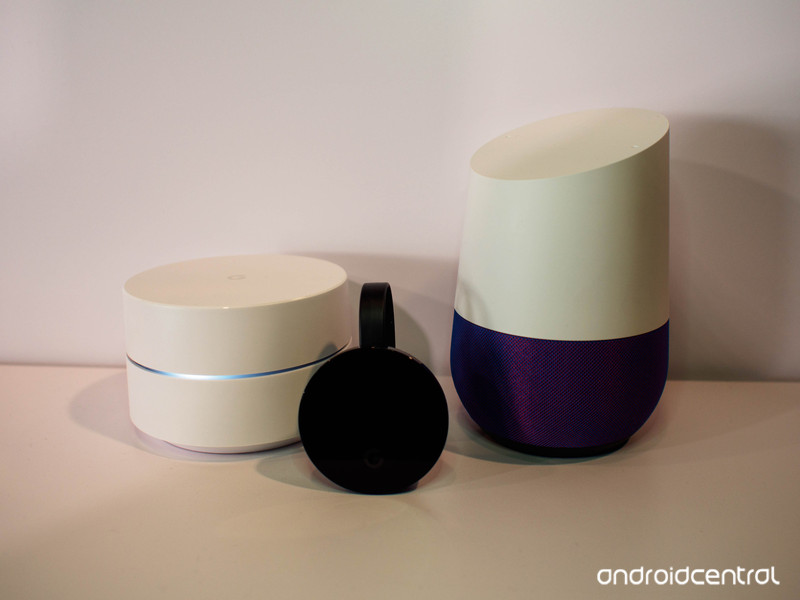
- Google Wifi review
- Google Home review
- Everything you need to know about the Chromecast Ultra
- Chromecast vs Chromecast Ultra: Which should you buy?
Google Wifi:
Google
Amazon
Google Home:
Google
Best Buy
Chromecast Ultra:
Google
Best Buy
Flipkart is selling the Galaxy S7 for just ₹29,990 in India
Grab the Galaxy S7 for just ₹29,990 at Flipkart.
The Galaxy S7 is a year and a half old at this point, but the phone has aged very well. It has one of the best cameras available, and comes with IP68 dust and water resistance along with wireless charging. The phone routinely sells for around ₹40,000 ($620), but Flipkart is now offering the device for just ₹29,990 ($465) as part of its Big Billion Days sale.

That’s a fantastic deal on the phone, and if you’re in the market for a new device, you should absolutely take a look. As a refresher, the Galaxy S7 features a 5.1-inch Quad HD Super AMOLED display, Exynos 8890 SoC, 4GB of RAM, 32GB internal storage, microSD slot, 12MP f/1.7 camera with 4K video, 5MP front shooter, and a 3000mAh battery.
The deal isn’t going to last long, so if you’re interested, head to Flipkart to get your hands on the Galaxy S7.
See at Flipkart
Samsung Galaxy S7 and S7 edge
- Galaxy S7 review
- Galaxy S7 edge review
- U.S. unlocked Galaxy S7
- Should you upgrade to the Galaxy S7?
- Best SD cards for Galaxy S7
- Join our Galaxy S7 forums
Unlocked
AT&T
Sprint
T-Mobile
Verizon
Google is buying HTC’s Pixel team for $1.1 billion
After weeks (months, and years) of speculation, HTC has announced that its “Powered by HTC” R&D division — the team behind Google’s Pixel and Pixel XL smartphones — will be purchased by Google for $1.1 billion in cash. According to HTC’s CFO Peter Shen, this will mean about half — yes, half — of the 4,000 people in his company’s R&D team will be joining Google, but he emphasized that HTC will continue developing its own range of smartphones, including its next flagship product. The agreement also grants Google a non-exclusive license for HTC’s intellectual property. The deal is expected to be approved and closed by early 2018.
Curious about what all of this means? You could do worse than to check out our guide to the subject from last week.
“This agreement is a brilliant next step in our longstanding partnership, enabling Google to supercharge their hardware business while ensuring continued innovation within our HTC smartphone and Vive virtual reality businesses,” HTC co-founder and CEO Cher Wang said in a statement.

The rumor mill went into overdrive yesterday after HTC announced that trading of its shares on the Taiwan Stock Exchange would be halted today pending a “major announcement.” The company swiftly added that, to debunk sale rumors, that it did not “comment on market rumor or speculation.”
By then, however, most of everyone had assumed that the long-standing flirtation between the two companies would finally finish. Unsubstantiated reports on Twitter claimed that the deal would see HTC’s manufacturing division become a part of the search engine, and this turned out to be true.
In return, Google “will continue to have access to HTC’s IP to support the Pixel smartphone family,” according to HTC’s statement. Or in Google SVP of Hardware Rick Osterloh’s own words, it’s “continuing our big bet on hardware,” which is fitting given his involvement with Google’s short-lived ownership of Motorola’s smartphone business.
Much like the deal that cleaved Nokia’s hardware business from its parent company, the HTC name and brand will live on but in both the smartphone and VR worlds.
Daniel Cooper contributed to this article.
@HTC is here to stay. AMAZING first 20 years, much brighter next 20 years & beyond #TeamHTC #HTCU11 #VIVE #VR @HTCvive
— HTC (@htc) September 21, 2017
Source: Google, HTC
Google Purchases HTC’s Pixel Division for $1.1 Billion
Google today announced that it will acquire part of HTC’s mobile division in a deal that’s worth $1.1 billion.
Under terms of the agreement “a team of HTC talent” will join Google’s hardware organization. The HTC employees moving to Google worked as part of the “Powered by HTC” unit that developed the Google Pixel and Pixel XL smartphones. Google also gained a non-exclusive license for HTC intellectual property.
“These future fellow Googlers are amazing folks we’ve already been working with closely on the Pixel smartphone line, and we’re excited to see what we can do together as one team,” said Google SVP of hardware Rick Osterloh.
While part of HTC’s mobile unit is moving to Google, HTC will continue to develop and sell HTC-branded smartphones. HTC says the sale will allow for a “more streamlined product portfolio,” and that its next-generation flagship phone is already in development.
Google’s HTC purchase marks its second major smartphone-related acquisition. Google purchased Motorola Mobility in August of 2011 for $12.5 billion, mainly to get Motorola’s patents, and in 2014 sold the company to Lenovo for $2.91 billion.
With the acquisition of the HTC hardware team, Google will be able to more closely mimic Apple’s strategy of close integration between software and hardware.
Google’s next-generation Pixel 2 and Pixel 2 XL smartphones are set to debut at an October 4 launch event.
Tags: Google, HTC
Discuss this article in our forums
Autonomous delivery drone network set to take flight in Switzerland
Matternet has long used Switzerland as a testing ground for its delivery drone technology, and now it’s ramping things up a notch. The company has revealed plans to launch the first permanent autonomous drone delivery network in Switzerland, where its flying robot couriers will shuttle blood and pathology samples between hospital facilities. The trick is the Matternet Station you see above: when a drone lands, the Station locks it into place and swaps out both the battery and the cargo (loaded into boxes by humans, who scan QR codes for access). Stations even have their own mechanisms to manage drone traffic if the skies are busy.
And the automation isn’t just for the sake of cleverness — it might be crucial to saving lives. Company chief Andreas Raptopoulos expects the drone network to transfer medical supplies within 30 minutes, and the reliability of a largely automated system means that hospitals don’t have to worry about unpredictable delivery times (particularly on the ground).
Don’t expect drones to blanket the skies. Matternet explains that there will only be one or two drones per network, and expansions to Germany and the UK will only happen once it’s comfortable with Switzerland. The company got permission to fly over densely populated urban areas in March, if you want a sense of the time scales involved. Still, this is an honest-to-goodness example of a practical drone delivery network, and one performing crucial tasks at that — this isn’t just a nice-to-have luxury. If this network succeeds, it might persuade other countries to at least consider allowing drone networks..
Via: The Verge
Source: Matternet
Google Assistant and IFTTT can close your garage door
We haven’t gotten to the point of voice-activated vacuum cleaners yet, but closing your garage door with an “Ok Google” has arrived. Garage-door company Chamberlain has announced that its MyQ app will now work with Google Assistant in addition to your Nest camera. Handy! More than issuing a closing command, you can ask if the door is open or if it’s closed, too.
Want even more customization? MyQ works with IFTTT now as well. The system can automatically close the garage door when you leave a geofenced area, turn down the thermostat once you leave. Hell, you can even set it up to turn the lights on and thermostat up once you open the garage door upon returning home.
Both of these will cost you, though. If you go month by month, access to Assistant and IFTTT will run $1 a month, or you can get a discount by going yearly for $10.
How to Make an Apple Music Profile to Connect With Friends in iOS 11
Although Apple has fumbled with social network features within its music apps in the past, the company is trying again with an all-new social sharing ability in iOS 11. There’s no exact name for the feature, but Apple describes it as a way for you to discover music that your friends are listening to through sharing playlists, artists, and albums on your own personal Apple Music profile.
If you already have an Apple Music account with a paid subscription, or if you’re taking advantage of the service’s free three-month trial period, follow these steps to enable the social sharing features within Apple’s streaming music service. Note that this guide is specifically tailored for iOS devices, but the process is similar on macOS.
Creating a Profile on Apple Music
Open Apple Music. (Note: opening Apple Music for the first time after installing iOS 11 should also give you a direct link to “Get Started” with friend sharing, so jump to Step 5 if you tap this button.)
Tap the “For You” tab.
Tap your profile picture in the top right corner.
Choose “Start Sharing with Friends” and then “Get Started.”
Upload a profile photo, type in your name, and pick a username so other Apple Music users can find you. Tap “Next” when done.
Choose “Everyone” or “People You Choose” to determine who can see your listening history.
Choose the playlists to share on your profile, or “Hide all” to show none.
Pick contacts to share music with.
Toggle on/off “Friends” and “Artists and Shows” to choose what kind of push notifications you want. Tap “Done.”
If you can’t find the friend you’re looking for in the recommended contacts section, navigate to Apple Music’s “Search” tab. With iOS 11, this area now functions as a profile and user playlist search tool as well. Start typing in their name and you might see an “in people” recommendation, or simply tap the “Search” button and you’ll see results for Songs, Albums, Playlists, Music Videos, Connect, Artists, and now People and Shared Playlists at the bottom.
With your own Apple Music profile set up, you can begin listening to music as normal, and the more you do the more your favorite albums, artists, and songs will show up in the “Friends Are Listening To” section of your followers’ “For You” tabs. On your own “For You” tab, you can tap “See All” and browse a list of recent albums and playlists listened to by your friends, and then tap to add them to your own library.
If your friends allow it, this will even include their own personally created playlists. To discover and save the playlists of a specific person, follow these steps. Note that this guide assumes the friend in question has their activity shared to “Everyone,” or that they have chosen you to share with.
Finding Friends’ Shared Playlists on Apple Music

Navigate to your Apple Music profile.
Scroll down to “Following,” then tap the friend you’re looking for, or tap “See All” for a vertical list.
Scroll through their “Playlists” and “Listening To” to find a collection you want to save.
Tap the collection you want, then “+Add” to place it in your library.
From then on, you’ll find friends’ playlists taking precedence atop the playlists section of your library, alongside any Apple curated collections. The name of the playlist will be there, along with the name of your friend. Once added, it’ll function in much the same way as Apple’s own playlists, updating in your library when changes are made by your friend.
You can revisit your profile any time by tapping your profile picture in the top right of “For You,” and here you’ll see your shared playlists, content you’ve listened to recently, followers, and following. Tap the “Edit” button to customize items like your profile picture, name, username, follower permissions, and reorganize shared playlists.
If you ever change your mind about sharing a playlist (which also makes it searchable to anyone using Apple Music), tap on the playlist in your library, tap “Edit” in the top right corner, then toggle off “Show on My Profile and in Search.” You can follow these same steps for adding a new playlist onto your profile whenever you create a new collection of songs.
Tag: Apple Music
Discuss this article in our forums
How to Use Emergency SOS on iPhone in iOS 11
In iOS 11, Apple added a new emergency feature to the iPhone, which is designed to allow you to quickly and discreetly place a call to emergency services. In the United States, SOS dials 911, and in other countries, it works with local emergency responders.
When you press the sleep/wake button on the iPhone five times on a device running iOS 11, it brings up a slider menu that allows you to quickly slide a finger against the screen to place the emergency call. The extra step makes sure you don’t accidentally place a 911 call, but if you want to disable it, there’s an “Auto Call” feature you can toggle on to bypass the swipe.
On the iPhone X, launching in November, Emergency SOS will be activated by pressing the side button and the volume up button simultaneously, rather than pressing the side button five times.
When you use Emergency SOS on an iPhone, the feature also disables Touch ID, preventing a would-be thief or other person with malicious intent from accessing your device without entering your passcode. It also automatically alerts any emergency contacts you’ve set in the Health app, sending them an iMessage with your location.
Enabling Auto Call
SOS is automatically included on every iPhone running iOS 11 and there is no disabling it. Activate it by pressing on the sleep/wake button five times in rapid succession to bring up the swipe interface. If you want the feature to call emergency services automatically without the need for an extra gesture, here’s how to toggle it on:
Open the Settings app.
Scroll down to “Emergency SOS.”
Toggle on “Auto Call.”
To turn it off, simply toggle off Auto Call.
With Auto Call enabled, your phone will dial “911” (or your country’s emergency line) after a three second countdown that gives you enough time to cancel the call if it’s placed accidentally.
SOS on the Apple Watch
There’s also an SOS feature on the Apple Watch, which was first introduced in watchOS 3. On the Apple Watch, an emergency call can be placed when you press and hold down on the side button for several seconds in a row. When you set up your Apple Watch, Apple prompts you to turn it on, but if you didn’t, you can still choose to do so later.
On the Apple Watch, it’s a lot easier to accidentally make an emergency call if something presses against the side button, so many people may not want this feature on. Here’s how to turn it on:
Open the Apple Watch app on the iPhone.
Scroll down to General and tap it.
Look for Emergency SOS. It’s the sixth option.
Tap to the Emergency SOS interface. 
Toggle on “Hold to Auto Call.”
To turn it off again, toggle off Hold to Auto Call.
Setting Emergency Contacts
As mentioned above, whenever you use the SOS feature, Apple will automatically notify your emergency contacts if you have them set. Emergency contacts can be set up in the Health app:
Open the Health app.
Choose Medical ID.
Select “Edit” in the top right corner.
Scroll down to the Emergency Contacts section.
Tap the “+” button to add an emergency contact.
You can add multiple emergency contacts, each of which will receive a text message with your location if you ever use the Emergency SOS feature.
Discuss this article in our forums
 AIVAnet