


How to customize Always On Display on the Samsung Galaxy Note 8
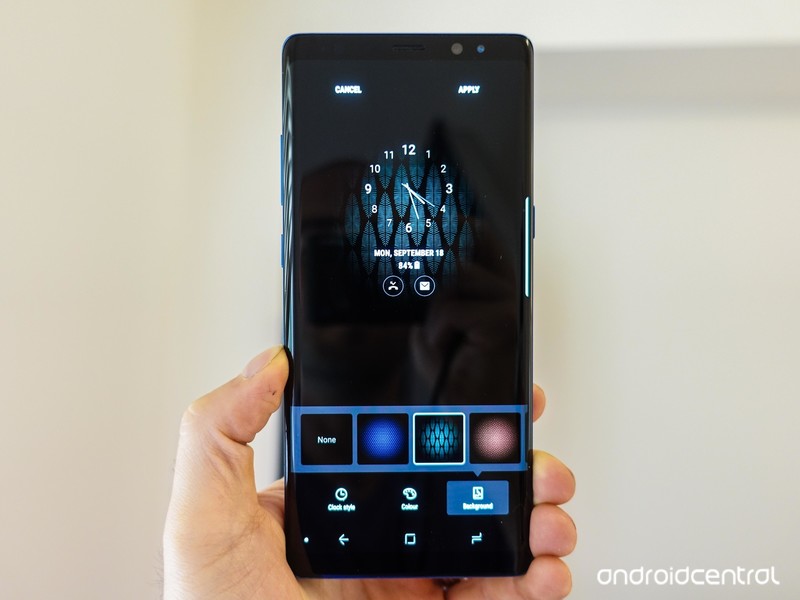
Samsung has slowly improved its Always On Display — here’s how to get started with it.
Even when your Galaxy Note S8’s display is “off,” it isn’t really off. Always On Display triggers right away, and continues to show you useful information that’s available at a glance so you don’t always have to turn on the whole display just to check the time or see if you have notifications. It’s a neat tool that works well right out of the box, but is even better once you get into the settings and customize things a bit.
How to customize Always On Display
To get started with customizing the Always On Display, head to Settings, Lock screen and security then Always On Display. Now let’s see what’s in there and what you can do with it. By default, you have six different main clock styles to choose from: digital clock, analog clock, world clock, calendar, image and edge clock. They’re all pretty self-explanatory and have small previews of what they look like generally. You can download more Always On Display styles from Samsung Themes if these choices aren’t to your liking.
Tap the Always On Display style you want to use, and you’ll launch into a customization screen where you can tweak different aspects of the screen.
- The customization options differ based on which of the styles you’re working from, but basically come down to the clock style, color and background.
- With a few of the styles you’ll also be able to tap on blank spots on the screen to add more information like a second clock or an image.
To change different aspects of the screen, tap the buttons at the bottom of the editor to see the different options — swipe to the left to see extra options, if available.
Once you’re all tuned up just how you like it, tap Apply at the top of the screen.

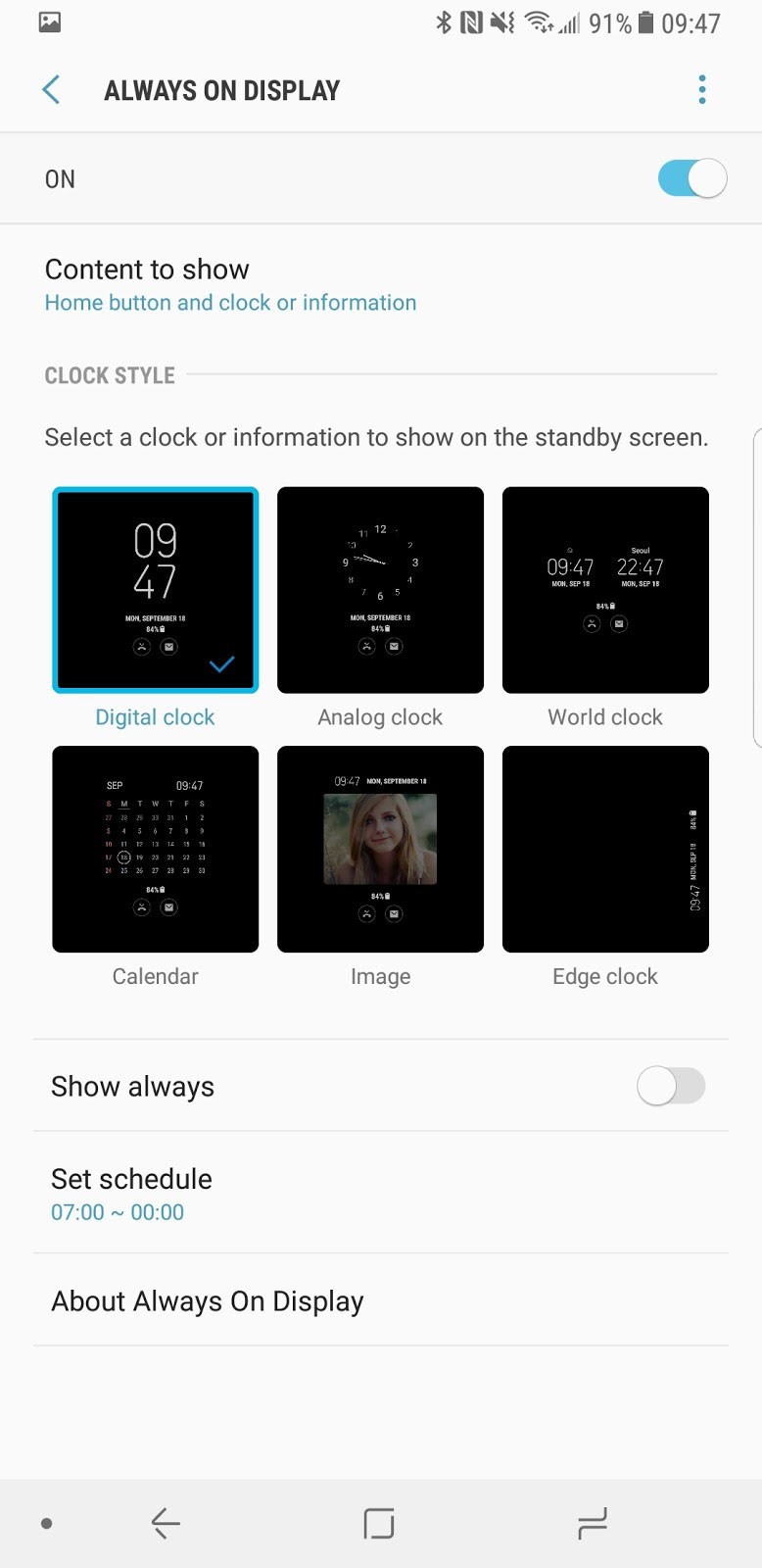

Now stay put in the Always On Display settings, because there are a few more changes you can make aside from the design.
- By default, the phone is set to always show the Always On Display (I mean, it’s right in the name!) but you don’t have to keep it that way — you can set a schedule for when it is turned on.
Tap the Show always toggle to turn it off, then tap Set schedule to choose when Always On Display is enabled.
- For example you can only have it on during the working day, and off at night, to save battery.
Scroll to the correct start time, then tap End and scroll to the correct end time and tap OK to set the schedule.


After a little back-and-forth tweaking things, you’ll find a combination of styles and settings that work for you. It’s a great way to customize the look and functionality of your Galaxy S8.
Samsung Galaxy Note 8
- Galaxy Note 8 review
- Complete Galaxy Note 8 specs
- Galaxy Note 8 vs. Galaxy Note 5
- Which Note 8 color is best?
- Join our Galaxy Note 8 forums
Verizon
AT&T
T-Mobile
Sprint
Best Buy
Get your cable chaos under control with this $7 magnetic cable organizer
If you’re sick and tired of having to reach down to grab your charging cables hiding under your desk or couch, then this is probably going to be the best thing you see all day.
I still forget to charge my phone, even though it’s sitting on the desk right next to my laptop and I know there’s a charger within arm’s reach. The problem is the Lightning cable is on the ground underneath my chair, and I’m either too pre-occupied to notice it’s not plugged in or too lazy to reach down and grab it. The TedGem magnetic cable organizer exists to solve that very problem, and right now it’s down to $6.99 on Amazon. This handy desktop cord management system normally sells for $10 with occasional drops as low as $8, but it has never sold as low as $7 with a direct price drop before. You can get this deal in Light or Dark Grey.

The device is a multipurpose magnetic cable clip that comes with three cable buckles and two bases. Features include:
- Newest magnetic creative design and stylish cable clips management solution for flexible flat and mini micro cable. No more messy cables on your desk and just to live a simple life with our practical magnetic cable clips.
- It can be used at home (on the bedside table) in the office (at the edge of the desk) inside the car (on top of the center console).
- Come with 2 different shape pedestals and 3 buttons in an elegant package. Magnetic buckle with 3 sizes of holes fits almost every iPhone or other smartphone’s charging cables’ diameter.
- A superior way for cable management, strong magnet force keep the cables tidy and in place:; also easy to remove when use. Far more effective and convenient than using traditional cable clips. Bring convenience to your daily life.
- Just peel and stick to fix on desks, tables, other furniture or in your car, and put the magnetic button on the pedestal. Bring more convenience to your daily life.
This pack of 100 Velcro ties could help you with all those cables, too, and it’s only $9.70
See at Amazon
More from Thrifter:
- 8 weird things you probably have in your house that sell on eBay
- How to save money when driving
For more great deals be sure to check out our friends at Thrifter now!
HTC Vive ditches the PC thanks to China’s cloud VR service
One of the main obstacles to popularizing high-end VR amongst consumers is the total cost of ownership. HTC and Oculus have both done their part recently by slashing the prices of their VR kits to $599 and $499, respectively, but you’ll still need to fork out at least another $800 if you don’t already have a nice PC. That said, the lucky folks in China may soon no longer have to worry about the latter part.
Over the weekend, HTC announced its partnership with Dalian Television and Beijing Cyber Cloud to launch the world’s first cloud VR service for a commercial trial in Dalian, a city not far from North Korea. So rather than tethering a Vive system to a PC, it’ll instead be hooked up to a set-top box with a 60 Mbps broadband connection plus access to VR content from HTC’s very own Viveport.
In addition to the obvious cost-cutting benefit, having your VR content rendered in the cloud means users won’t ever have to deal with drivers nor downloads, thus saving time as well as reducing hassle. According to HTC Vive China President Alvin Wang Graylin, by paying a deposit of just 3,000 yuan (about $455) plus a monthly fee of about 500 yuan (about $76; actual price yet to be determined), users can already bring an HTC Vive plus the set-top box home and get unlimited access to VR content. Better yet, they can terminate at any time. Alternatively, consumers can pay a lump sum of 6,688 yuan (about $1,015) and get full ownership of the Vive kit plus a one-year subscription.
As you’d expect, there are bound to be downsides to this cloud VR solution. In response to a Twitter user, Graylin admitted that there will be “some minimal added latency, but OK for most non-Twitch apps.” There’s also the risk of suffering from connectivity issues and thus rendering the VR system totally unusable, whereas a conventional VR setup with a PC wouldn’t face such issues with offline VR content.
Leaving these concerns aside, it’ll be interesting to see how well this commercial trial fares. If successful, this will be an effective way in vastly lowering the barrier for high-end VR systems. And who knows, with such cloud VR technology paired up with the upcoming 5G connectivity, our world’s probably not far off from the wacky Ready Player One reality.
Via: Engadget Chinese
TestFlight App Updated With Overhauled Interface for iOS 11
Apple’s TestFlight app designed to allow testers to install and beta test apps ahead of their release was today updated to version 2.0.0, introducing an overhauled user interface that’s been updated for iOS 11.
TestFlight now features an iOS 11-style design with bold headlines, more white space, clear sections for apps in testing and apps previously tested, and app pages that more closely resemble App Store app pages.
Apple has added a new welcome screen that appears when opening the TestFlight app for the first time after updating, and there’s a new 3D Touch option for redeeming a code or updating all TestFlight apps from the Home screen, a handy new addition.
On the iPad, Apple has added support for Split View multitasking when using TestFlight alongside another app. Along with the new app design, there’s also a brand new app icon with a simpler design that does away with the box surrounding the TestFlight propeller.
TestFlight can be downloaded from the App Store for free. [Direct Link]
Tag: TestFlight
Discuss this article in our forums
 AIVAnet