


How to Use the New iPad Dock in iOS 11
iOS 11 is an update that brings a much improved user experience to the iPad, and front and center is a new dock. The new dock not only houses far more apps, much like the dock on the Mac, but it also much improves multitasking by allowing iPad users to quickly open apps and switch between them.
Subscribe to the MacRumors YouTube channel for more videos.
The dock is persistent and can be pulled up within any app at any time with an upwards swipe, a gesture that used to be reserved for the Control Center. A swipe up now opens up the dock, but you can still get to the Control Center and the App Switcher (now one and the same) by continuing to pull in an upwards direction. Swipe downwards to hide the dock.

Adding and Removing Apps on the Dock
There’s only one step required to add an app to the dock. Simply hold a finger over any app on your display for a second and then drag it down to the dock. This will add the app’s icon to the dock.

The dock can hold anywhere from 11 (iPad mini) to 15 (12.9-inch iPad Pro) apps in total on this side of the dock, more than double the number that fit in the dock in earlier versions of iOS.
Removing an app is done in the same way. Press and hold on the icon of the app you want to remove and then drag it up and off of the dock.
Hiding or Displaying Recently Used Apps
Along with the 11–15 apps you can add to the dock, there are three app slots reserved for your recently used apps, apps that pop up because of Handoff functionality, and apps that are suggested based on your app usage habits. Recently used apps and suggested apps can be turned off. Here’s how:
Open the Settings app.
Select “General.”
Choose “Multitasking & Dock.” 
Toggle off “Show Suggested and Recent Apps.”
Launching Apps and Multitasking with the Dock
Launching an app is as simple as tapping it, and because the dock can be brought up within any app, it’s also useful for switching between apps.
Switching between apps using the dock is done through bringing the dock up with a swipe within any app and then tapping another app.

Beyond simply switching between apps, the dock can be used with Split View and Slide Over multitasking. When an app is open, drag another app up from the dock to open a second app that is overlaid on the first. This isn’t technically a Slide Over window — it’s just a pop up over the first app, but it can be used simultaneously with the app it overlays.

Convert the second app into a Slide Over multitasking window by swiping upwards at the top of the app on the gray line. From there, the Slide Over view can be pulled into a Split View by pulling the gray bar dividing the two apps to the left. You can switch between Slide Over and Split View by dragging the bar to the left or the right.

When using a multitasking view, you can switch between the two apps that are open by swiping to bring up the dock and then pulling a new app into one of the windows.

You can close one of the apps that’s open by pulling the bar all the way to the left or the right of the screen, depending on which app you want to close.
Bringing Up App Files from the Dock
The iPad doesn’t support 3D Touch, but a similar gesture can be used with the Files app on the dock. To access this feature, long press on the Files app to bring up a 3D Touch-style window.

After you press the Files app and the window is open, it’ll stay open even after you move your finger. It lists all of your most recent files, which you can drag from the app without having to open it.
Accessing the Dock from a Keyboard
To bring up the dock when you have a physical keyboard like the Smart Keyboard connected, just press Command + Option + D.
Compatibility
While all iPads capable of running iOS 11 have access to the new dock, the split-screen drag and drop functionality is limited to iPads that have support for split screen functionality.
Slide Over, which allows you to interact with an app without quitting the one you have open, is available on the iPad mini 2 and later, the iPad Air and later, the fifth-generation iPad, and all iPad Pro models.
Split View, which is true multitasking and allows you to use two apps side by side, is available on the iPad mini 4, the iPad Air 2, the fifth-generation iPad, and all iPad Pro models.
Related Roundup: iOS 11
Discuss this article in our forums
Data cap set to rise from 32GB to 50GB for T-Mobile One customers
Why it matters to you
T-Mobile will stop throttling users who exceed 32GB in a single billing cycle. Subscribers now won’t see limits until they reach 50GB.
On Tuesday, T-Mobile said that it will increase its “fair usage threshold” — the data cap it imposes on some One plan customers — from 32GB to 50GB. Starting Wednesday, September 20, it will no longer penalize subscribers for exceeding the current cap in a monthly billing cycle.
The change in policy, which Android Central uncovered in an internal T-Mobile memo and later confirmed with a carrier spokesperson, follows the carrier’s decision earlier this year to boost its fair usage threshold from around 20GB to 32GB. T-Mobile says it adjusts the limits every three months to account for “changes in customers’ data habits.”
T-Mobile’s fair usage threshold — also known as a “deprioritization” threshold — punishes the network’s heaviest data users by reducing their speeds in favor of others. It’s not intended to be unilateral — T-Mobile says it affects the top 3 percent of data users on the network. Instead, the limits kick in only when targeted users are connected to a cell tower “in high demand” and have already surpassed the threshold, T-Mobile says, and lifts at the start of the next billing cycle.
T-Mobile isn’t the only carrier that imposes caps on unlimited customers. Verizon (22GB), AT&T (22GB), and Sprint (23GB) have their own usage thresholds, which they, like T-Mobile, say are necessary to “manage network usage” and “ensure a quality experience for all customers.” There might be something to those claims: An OpenSignal report found that carriers experienced a decline in 4G speeds after reintroducing unlimited data plans.
“The most likely explanation for this sudden drop in average speeds compared to peak speeds is that [networks are] experiencing more congestion due to its new unlimited plans,” OpenSignal wrote in August. “By opening up the data spigot, customers start consuming more data more often, forcing them to vie against one another for more capacity on each cell site, [and the] more data demand there is on a network, the more average speeds will drop, regardless of the network’s technological capabilities.”
The United States Federal Communications Commission (FCC) has generally given carriers broad leeway in implementing network management strategies like deprioritization, but only to a point. In 2015, the agency accused AT&T of misleading customers about “unlimited” data and proposed a $100 million fine, prompting the carrier to boost its threshold cap from 5GB to 22GB. And in 2016, the T-Mobile agreed to pay the FCC $48 million for slowing down all subscribers’ connection speeds when they exceeded an arbitrary monthly threshold.
New Amazon Fire HD 10 tablet hands users Alexa hands-free
Why it matters to you
Amazon’s next-gen Fire tablet comes with updated features such as better battery life and a faster processor, along with Alexa hands-free.
On Tuesday, September 19, Amazon introduced its updated version of the Fire HD 10. With a full HD display, better battery life, and — for the first time on a Fire tablet — Alexa hands-free, the next-generation tablet will be shipping out with a list of improvements.
The Fire HD 10 comes packed with a 10.1-inch, 1080p widescreen display along with front and rear-facing cameras. With a quad-core processor of up to 1.8GHz and 2GB of RAM, the tablet is up to 30-percent faster than its predecessor and is accompanied by up to 10 hours of mixed-use battery life. Its dual stereo speakers have Dolby Audio support.
As far as storage goes, two options are available — 32GB and 64 GB — with up to 256GB of expandable storage with a MicroSD card. You’ll also receive free unlimited cloud storage for Amazon content and photos taken with the Fire tablet. When it comes to durability, the device is also supposedly more durable than the iPad Pro 10.5-inch model — and cheaper, too.
Amazon also included Alexa on the Fire HD 10 but this time around, it’s hands-free. With previous Fire tablets, you had to press a button in order to activate the virtual assistant. With the hands-free feature all you have to do is make sure you’re connected to Wi-Fi and say “Alexa,” followed by a command like video playback, launching an app, setting alarms, and more. It’s compatible with smart home devices as well.
Users will see that a new page on the Fire HD 10 titled For You, lives on the home screen and provides you with a personalized experience. The page allows you to quickly pick up where you left off regardless of whether that involves a book, movie, or song. It will also curate recommendations based on your past interests across a number of entertainment categories.
Other features on the For You page include local weather along with access to family photos from Prime Photos. The new page is available for those who have previous generation Fire tablets as well.
The Fire HD 10 is now available for pre-order starting at $150 and will start shipping on October 11. It comes in in three different color options — Black, Punch Red, and Marine Blue — along with protective covers that will run you $40.
Gmail and Inbox app update converts addresses into hyperlinks
Why it matters to you
Thanks to a major update, copying and pasting addresses and phone numbers from the Gmail app is a thing of the past.
We’ve all been there. You get an email from a colleague with the address of an afternoon meeting place, but it isn’t “clickable” — you have to go through the trouble of copying it to a clipboard, pasting it into your preferred navigation app, and starting the whole turn-by-turn navigation process yourself. Luckily for Gmail users, though, that pain is now a thing of the past.
In a blog post published on Monday, September 18, Google announced that the Gmail and Inbox apps for Android and iOS will begin converting text to interactive hyperlinks whenever they detect phone numbers, addresses, or email addresses. It works as you’d expect: When you click on text that Gmail and/or Inbox automatically recognize in this manner, you’ll be launched into the relevant app. Clicking on an email address will compose a new message in your default mail app, for example, and clicking on a phone number will start a call using the default phone app.
Google said the update will take time to propagate across its servers, but that most users can expect to see the changes in the next three days.
Clickable links aren’t the only useful new feature Google’s mobile mail clients have recently received. In May, the Mountain View, California-based search giant brought Smart Reply, a feature that scans the content of incoming messages and uses machine learning to suggest basic responses, from Android Wear and Allo to Gmail. And in early September, Google rolled out to the Inbox app its Highlights feature, which brings attention to priority emails.
Why the big focus on Gmail? It’s one of Google’s most popular products. During the company’s quarterly earnings report in February 2016, the firm announced that Gmail had surpassed 1 billion monthly active users — up from 900 million during its I/O developer conference the previous year and from 425 million in 2012. And as many as 75 percent of Gmail users access their inboxes on mobile devices, Google says.
Best Wireless Chargers for Samsung Galaxy Note 8
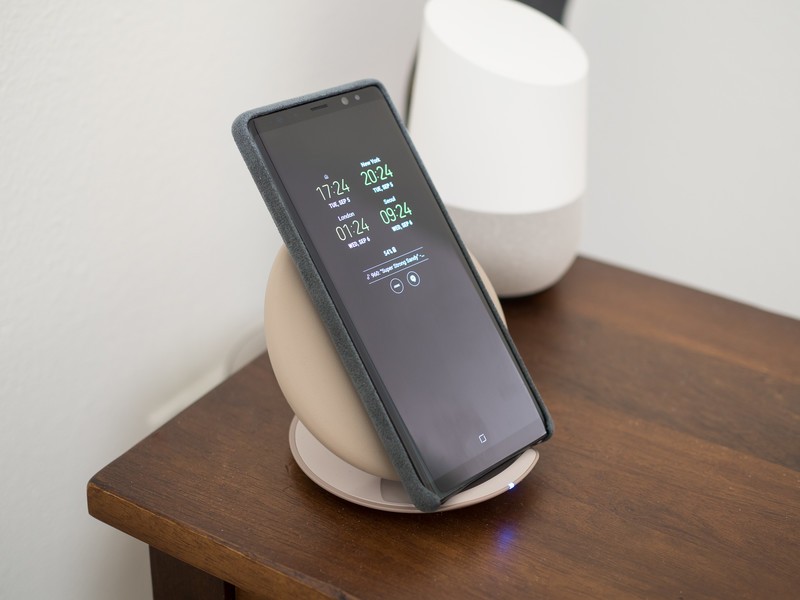
What are the best wireless chargers for Galaxy Note 8?
If you ask Apple, wireless charging is the latest and greatest feature for smartphones — and one that Samsung has been perfecting on its line of Galaxy phones since 2014.
Samsung’s latest flagship, the Galaxy Note 8 carries on that tradition with the same Wireless Fast Charge abilities as the Galaxy S8, and many of the best wireless chargers available are compatible with old and new Samsung phones alike.
So let’s dive in and take a look at your best options!
- Samsung Fast Charge Convertible Wireless Charging Pad
- Samsung Wireless Charging Pad w/ 2A wall adapter
- Spigen Qi Wireless Charging Stand
- Tronsmart Chocolate Qi Wireless Charging Pad
- Aukey Wireless Charging Pad
- iOttie iON Wireless Qi Wireless Charging Pad
Samsung Fast Charge Convertible Wireless Charging Pad
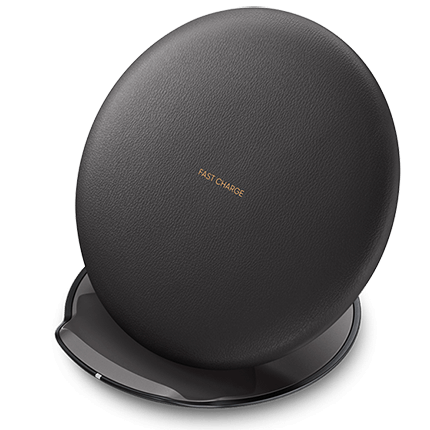
It’s always best to lead with the accessories made by the phone manufacturer, and Samsung redesigned wireless charging pad/stand sure stands out from the crowd. Launched alongside the Galaxy S8, it features a premium leather-like appearance and ingenious design which allows you to easily convert this pad into an angled charging stand.
The charger also comes with a spare Samsung Fast Charge wall charger which is another accessory that ensures your phone charges safely, and allows you to fast charge your Galaxy Note 8 wirelessly at your home or office. At over $60, this is the most expensive option on the list, but if value premium quality and functionality this is the one you want.
See at Amazon
Samsung Wireless Charging Pad w/ 2A wall adapter
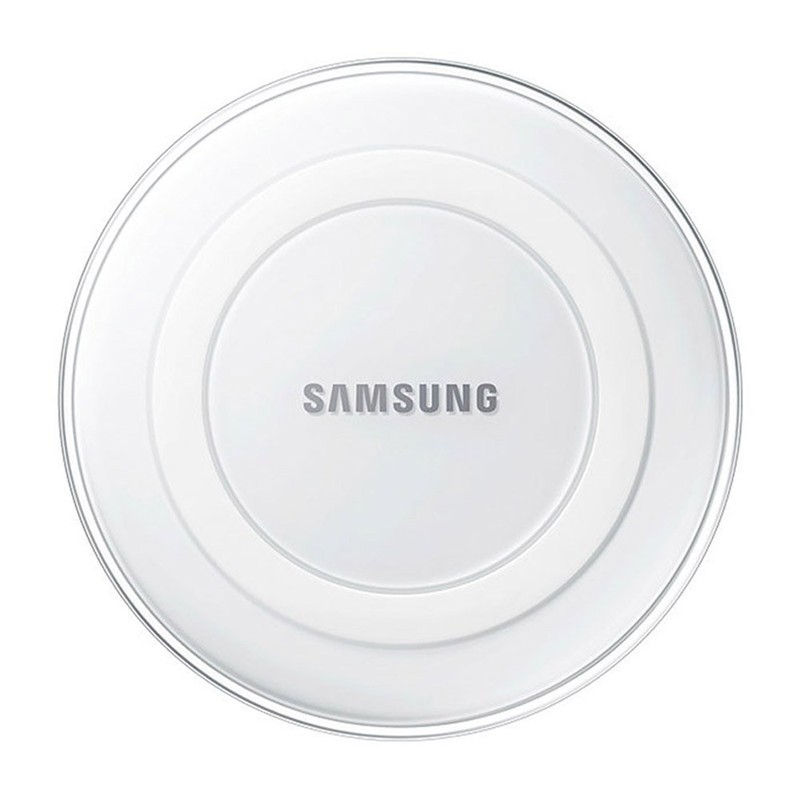
If functionality and cost are your two biggest buying factors, you’ll want to consider Samsung’s old style of wireless charging pad, which has been deeply discounted on Amazon to around $20.
These charging pads look like mini-UFOs and are Fast Charge-compatible for devices that support it such as the Galaxy Note 8. It also comes with a Samsung 2A wall charger — always great — and comes with a standard one-year warranty.
This is a great option if you’re looking to set up wireless charging at your home and at work because they’re so damn cheap right now. You can also get the older style as a charging stand if you prefer that look instead.
See at Amazon
Tronsmart Chocolate Qi Wireless Charging Pad
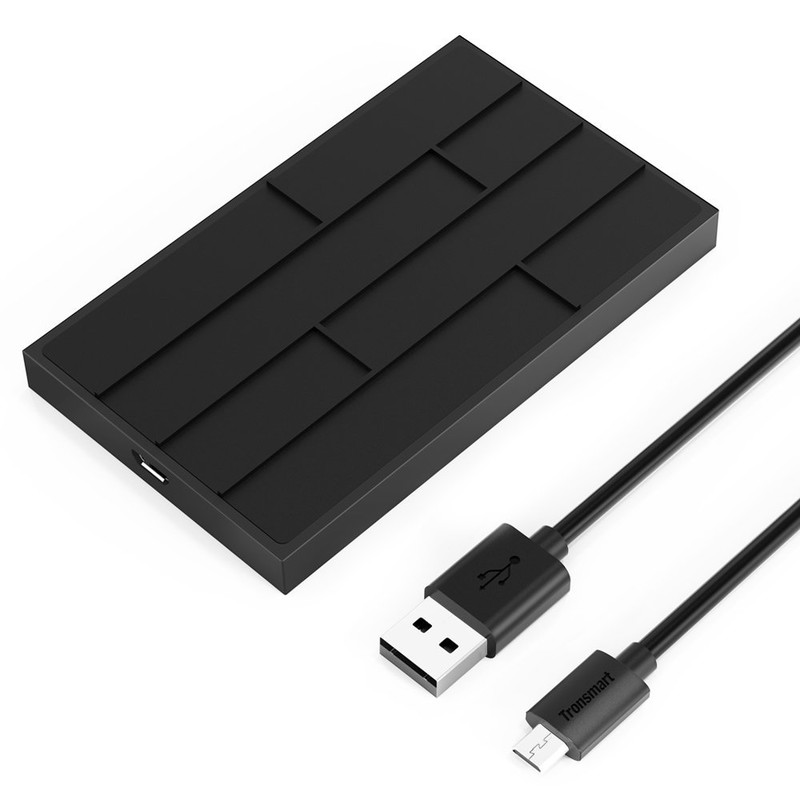
Tronsmart is a trusted brand for charging accessories, and produces a unique looking charging pad that’s designed to look like a bar of chocolate — and who doesn’t love chocolate?
The top of this charging pad is made of a silica gel that’s designed to ensure your phone stays in place while also preventing the charger itself from slipping around on your desk. It’s compatible with all of Samsung’s other fast-charge capable phones, so the Note 8 should be no exception.
You’ll need to supply your own Adaptive Fast Charger wall adapter to get the most out of this charging pad, Other than that, this is a fairly minimalist charging pad that can be yours for just $13.
See at Amazon
Spigen Qi Wireless Charging Stand
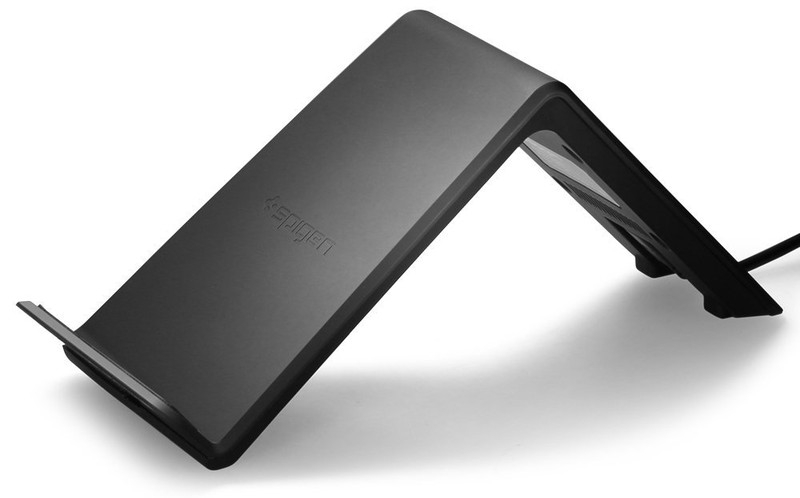
Spigen is one of the best accessory makers, and its Qi Charging Stand is a fine example to back that claim.
This charging stand is angled so you are still able to see your display easily while your phone is charging. If you need a way to quickly top off your phone on your desk or a new place to keep it safe on your nightstand, this may be the choice for you. Pick yours up for under $30 at Amazon.
See at Amazon
Aukey Wireless Charging Pad
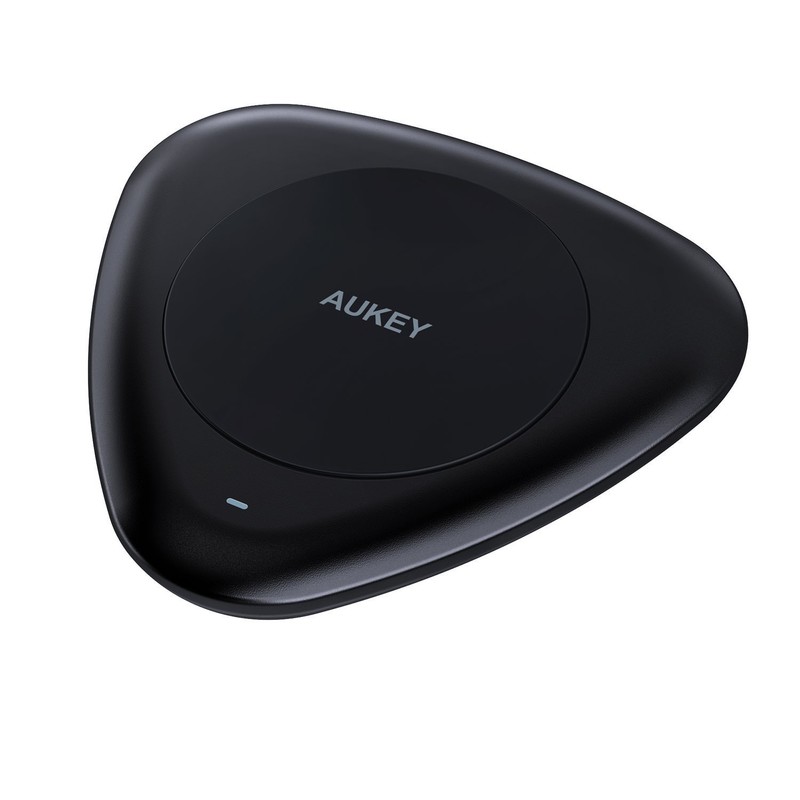
Aukey’s wireless charging pad for Qi-enabled devices is sleek and minimalist, which might jive well with your personal tastes. It’s an updated version of Aukey’s coaster-sized charger, and has a pretty stylish and minimalist look to it and won’t take up much space on your desk or nightstand. And unlike other options on this list, it actually uses a USB-C cable to supply power which should make for more an efficient energy transfer.
You can get one for your home or office for just $25.
See at Amazon
iOttie iON Wireless Qi Charging Pad
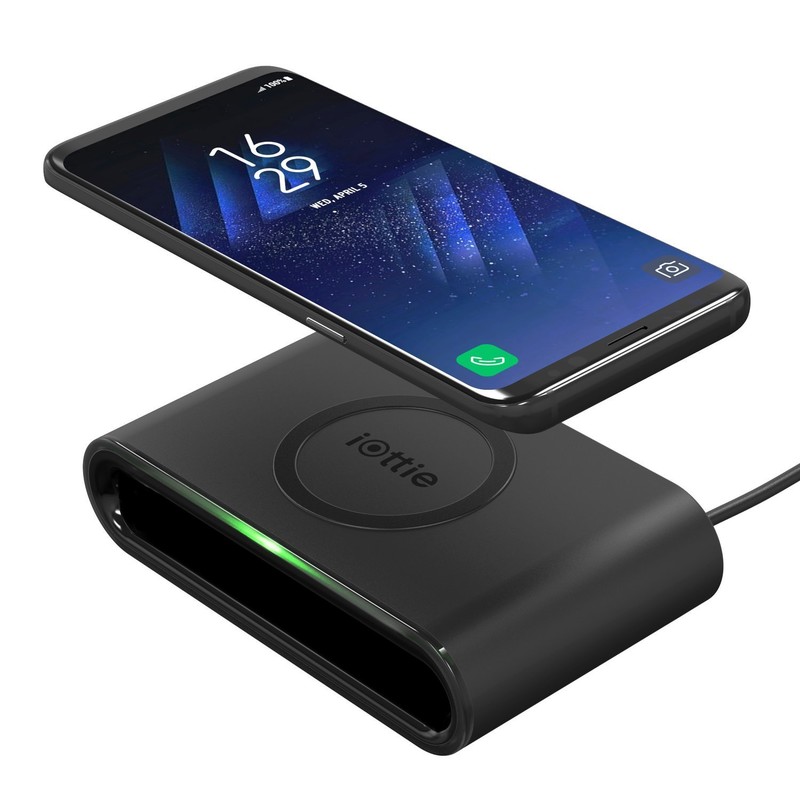
This wireless charger from iOttie might seem like the bulkier option based on pictures, but it’s actually very intelligently designed. It’s Qi-compatible with a triple-coil charging zone that’s capable of 5V/1A output with a non-slip ring to hold your phone in place on top while it charges. And that hollow opening in the middle isn’t just for the stylish look — it’s also a docking bay for the iOttie PowerPack 3400mAh External Portable Charger which is super convenient and cool.
You can even get a bundle pack that includes the iOttie PowerPack 3400mAh External Battery for just $50, so you can have a fully charged battery pack to take along with you if you think you’ll need it. Otherwise, you can get the wireless charging pad for just $29.95.
See at Amazon
Samsung Galaxy Note 8
- Galaxy Note 8 review
- Complete Galaxy Note 8 specs
- Galaxy Note 8 vs. Galaxy Note 5
- Which Note 8 color is best?
- Join our Galaxy Note 8 forums
Verizon
AT&T
T-Mobile
Sprint
Best Buy
BlackBerry KEYone now available to order online in QWERTY, QWERTZ or AZERTY keyboard layouts!

It’s now easier to get a KEYone with custom keyboard layouts!
As the BlackBerry KEYone continues to be released into new markets, the folks at BlackBerry Mobile have now officially opened up its online shop in Europe. Customers looking to get their hands on a BlackBerry KEYone can now order the device online directly in their choice of QWERTY, QWERTZ or AZERTY keyboard layouts and charger variants.
In addition to device options, some great BlackBerry KEYone accessories such as screen protectors and cases are also available from the shop, which ships to 28 countries throughout Europe. To help with the ordering process, BlackBerry Mobile has also set up a FAQ page on the store site where you can find out additional information before placing your order.
See the BlackBerry KEYone at the BlackBerry Mobile Shop
BlackBerry KEYone
- BlackBerry KEYone review
- KEYone vs. Priv: Battle of the BlackBerry keyboards
- BlackBerry KEYone specs
- The latest KEYone news
- Join the discussion in the forums
Amazon
Best Buy
BlackBerry Mobile
Huawei’s Mate 10 shows its face in public for the first time
This is the Huawei Mate 10, and it looks familiar.
We’re nearing the end of the year — not in terms of months, but in terms of phone releases. Most companies want to get their devices into the hands of consumers by the holiday season, which only gives them until about mid- to late-October to do so. After the Pixels launch on October 4, the final flagship to look forward to (at least that we know of) is Huawei’s Mate 10.
The company poked a bit of fun at Apple’s iPhone X Face ID in a recent Facebook post, claiming that the Mate 10, which will be unveiled on October 16, is “The Real AI Phone.”
Here’s Mate 10 in the wild, via tip. pic.twitter.com/yFzIVoxokH
— Evan Blass (@evleaks) September 19, 2017
Now we’re seeing the Mate 10’s visage for the first time thanks to Evan Blass. While unremarkable, the phone certainly shrinks the bezels from even the minor top and bottom protrusions of the Mate 9, and certainly brings Huawei into the same league as Samsung and LG. The phone promises to be extremely powerful thanks to a new Kirin 970 chip, which has an onboard neural processing unit to take care of machine learning and AI.
Huawei Mate 9: Big, bold, and beautiful nine months later
The iHome iAVS1 is a boring Echo Dot alarm clock

It’s a clock with an Amazon Echo Dot shoved inside. And I’m having no problem containing my excitement.
On one hand, it’s good thing that so many accessories manufacturers are jumping onto the Echo Dot bandwagon. Amazon’s budget Echo is a prime candidate for cheap accessories that make it do more than was originally intended. But that may be the undoing of the iHome iAVS1 clock.
iHome, of course, is a longtime maker of all sorts of smart-ish accessories. If you’ve been in a hotel room in the past decade there’s a decent chance you’ve seen one of their alarm clock/speaker mash-ups. (And there’s also a decent chance you’ve seen one with an old-school 30-pin iPhone connector, as your Micro USB-powered Android phone watched from the sidelines. But that’s another story for another time.) The iAVS1 goes a slightly different direction and uses an Amazon Echo Dot (either first- or second-generation) to make an otherwise dumb clock a good bit smarter.

Setup of this sort of thing is as simple as it is obvious. You plop the Echo Dot into the hole in the top of the clock, and then plug in the USB and 3.5mm audio connections in the back. Then the whole thing plugs into a wall outlet. In return you get a dimmable clock and decent (but not great) speaker.
It’s important to note that there’s really not anything smart about the iAVS1 itself. It’s a dumb clock in that you set it manually — it doesn’t poll the time from the Echo Dot or anything. And the speaker uses the included audio cable to get sound from the Echo Dot. (That’s better and easier than Bluetooth anyway.)
Everything else relies on the Echo Dot. Want to set an Alarm? You’re doing it through the Echo Dot. Want to play some music? Ask Alexas to do it. So in that sense the iAVS1 is like any of those other accessory speakers we’ve looked at (be sure to check out the VAUX review) in that it takes a cheap Echo Dot and for double the price gets you something that sounds better but still isn’t as good as a more expensive Echo.
And in the case of the iAVS1, it’s doing so in an accessory that’s a magnet for dust and fingerprints, and takes up a lot more room on my nightstand than I’d like. It’s not that it doesn’t do its job well — it does — or that it’s prohibitively expensive (it lists at $70, but you can find it on Amazon for less at times).
There’s just something sort of … generic about this thing. It works fine. It looks decent. It sounds OK. And for $50 or so I guess that’s good enough.
See at Amazon
PaintVR Brings 3D Painting to Life
Disclaimer: I cannot draw. At all. Like, even a little.

Paint VR by Coskami Games is an attempt to bring the 3d painting experience to Daydream. As you may know Google have a powerful 3D painting program called TiltBrush which can be enjoyed on the more powerful headsets such as the Vive but this is the first app for a less powerful system.
Read more at VRHeads!
LG V30 gets torn down, shows impressive camera hardware
JerryRigEverything has torn down the LG V30, showing all the internal components.
While it hasn’t been released yet, the LG V30 has already been making waves with reviewers. Alex said in his review of the device that it was a no-BS flagship: everything a user may want without any compromises or gimmicks. As we get closer to the release of the phone, more and more journalists are getting their hands on the device.

JerryRigEverything has done his customary tear down of the V30, and there are more great things about the phone to report. The video is sponsored by LG, so make of that what you will. The video begins with some impressive shots of New York City, recorded on the V30. While the phone is waterproof, it was fairly easy to get into with the proper equipment. There isn’t too much in the way of adhesive, and all the components are held in place with clips.
The video notes the primary camera contains a 10-bit image sensor, meaning it can be used to record HDR video. The LG V30 is one of the few phones that supports HDR content, so it only makes sense to record HDR video. JerryRigEverything notes that the cameras may be the most advanced mobile sensor, but given the sponsored nature of the video, take that with a grain of salt. The USB-C port is held in place with screws, meaning it can be replaced down the road if need be.
One interesting feature is the fact that the earpiece speaker can be used as a microphone if recording audio above 100 decibels, meaning live recordings should sound fantastic. The battery is replaceable, though it is held in place with adhesive. This is still more hassle than the removable battery previous LG phones had, but it’s better than nothing. All the components were able to be plugged back in at the end and the phone turned on just fine. While it’d be tedious and would require the correct tools, users should technically be able to repair the device.
Are you looking forward to the LG V30? Let us know down below!
LG V30
- LG V30 review: The no-BS flagship
- Top LG V30 camera features
- Full LG V30 specs
- LG V30 vs. G6 vs. GS8
- The V30 is the first phone to support 600MHz spectrum
- Join our LG V30 forums
 AIVAnet